Pairing Bluetooth headphones to a single device is easy. But what about switching between your phone, laptop, and tablet? For years, you'd have to unpair one device, pair the next, and repeat every time you want to listen. In 2025, most modern Bluetooth headphones support multipoint connections, making it possible to stay paired to two devices at once and switch playback with a tap.
In this guide, you'll learn what Bluetooth multipoint is, how to check if your headphones support it, and how to pair your headphones with multiple devices step by step. We'll also share tips for switching between devices, common mistakes to avoid, and troubleshooting advice. By the end, you'll be able to move from a phone call to a YouTube video to a Spotify playlist without fumbling with settings.
▸What You'll Need
- •Bluetooth headphones (multipoint support is required for simultaneous connections)
- •At least two Bluetooth devices (e.g., smartphone, laptop, tablet)
- •Access to the Bluetooth settings menu on each device
- •Optional: Companion app for your headphone brand (e.g., Sony, Bose, Jabra, Anker)
- •Optional: Bluetooth PIN (usually 0000 or 1234)
- •User manual or spec sheet for your specific headphones (to confirm multipoint support)
Estimated Time: 10–15 minutes for initial setup; 5 minutes each time you add a new device.
Difficulty: beginner
▸Step-by-Step Instructions
Step 1: Check if your headphones support multipoint
First, check if your headphones support Bluetooth multipoint. This feature lets your headphones stay connected to two devices at the same time, so you can answer a call on your phone while a podcast is paused on your laptop.
Look for the word 'multipoint' in the product description, user manual, or on the manufacturer's website. You can also check your headphone's companion app—many brands list 'Multipoint connection' or 'Dual device connection' in the settings menu.
Even if your headphones don't support true multipoint, most modern models remember the last 8-10 paired devices. That means you can still connect to more than one device, but you'll need to manually switch. Knowing which type you have will guide the steps below.
💡 Tips:
- •Search for 'multipoint' in your manual or spec sheet.
- •If your headphones have a companion app, install it now—it will help with setup.
⚠️ Warnings:
- •Don't rely on a listing that says 'multi-device'—it might only mean saved connections, not simultaneous audio.
Step 2: Put your headphones in pairing mode
To pair any Bluetooth headphones, you first need to put them in discovery or pairing mode. This is usually done by turning the headphones off, then pressing and holding the power button for 5-10 seconds until the LED flashes red and blue, or you hear 'pairing' or 'connect'.
For true wireless earbuds, take them out of the charging case. Most earbuds automatically enter pairing mode when they are first used. If they don't, place both earbuds in the case with the lid open, then press and hold the button on the case until the LED flashes.
Keep your headphones close to the device you're pairing—ideally less than 3 feet away. Your headphones should appear in your device's Bluetooth list within 10 seconds.
💡 Tips:
- •Turn off the last connected device to make sure your headphones don't auto-connect to it instead of entering pairing mode.
- •Clear away other Bluetooth gadgets if your device isn't finding the headphones.
⚠️ Warnings:
- •If the LED is solid (not blinking), your headphones are already connected to something. Disconnect before entering pairing mode.
Step 3: Pair with your first device (phone or tablet)
With your headphones in pairing mode, open the Bluetooth settings on your first device. On iPhone, go to Settings > Bluetooth. On Android, go to Settings > Connected devices > Bluetooth, or use the quick settings panel. Make sure Bluetooth is toggled on.
Under 'Available Devices' (or 'Other Devices'), tap the name of your headphones—it might be something like 'Sony WH-1000XM5' or 'Soundcore Space One.' The device will show 'Pairing' or 'Connecting' and then change to 'Connected.' You may hear a chime.
Once connected, play sound on that device to confirm the audio comes through the headphones. This is your 'base' device—the one that will keep a saved connection even when you add more.
💡 Tips:
- •If the headphones don't show up, try turning Bluetooth off and on again on the phone.
- •If a PIN request appears, try '0000' or '1234'.
⚠️ Warnings:
- •Don't tap 'Forget This Device' later by accident—it removes that device from your headphone's memory.
Step 4: Pair with your second device (laptop or computer)
For multipoint headphones: On your second device (like a laptop or tablet), open its Bluetooth settings. On Windows 11, go to Settings > Bluetooth & devices and click 'Add device.' On macOS, go to System Settings > Bluetooth. Select your headphones and connect. Because your headphones support multipoint, they will remain connected to your first device at the same time.
For headphones without multipoint: You need to disconnect from the first device before pairing to the second. Turn off Bluetooth on your first device, or open its Bluetooth settings and tap 'Disconnect' on your headphones. Then put your headphones back into pairing mode and pair with the second device.
Success: With multipoint, you'll see your headphones listed as 'Connected' on both devices. Without multipoint, your second device should show 'Connected' while the first device is asleep or disconnected.
💡 Tips:
- •On Windows, use the 'Bluetooth & devices' page to manage connections; on a Mac, the menu bar Bluetooth icon is a shortcut.
- •If your laptop asks for a PIN, try '0000'.
⚠️ Warnings:
- •If your headphones only support one active connection, connecting to the second device may knock out the first. That's normal—you'll need to manually switch in the future.
Step 5: Switch between your devices
Once you've paired multiple devices, switching is easy. On multipoint headphones, just pause audio on one device and press play on the other. Many models automatically pause the first stream when they sense audio from the second device. Some headphones also have a dedicated button that cycles through your paired devices.
For non-multipoint headphones, manual switching is still simple: disconnect from the current device in its Bluetooth settings, then reconnect to the other device. If you don't want to dive into settings, turn off Bluetooth on the device you're leaving—the headphones will often auto-connect to the other device.
The key is knowing that the 'last played' device usually gets priority. If a phone notification is constantly stealing your music stream, you can turn off the phone's Bluetooth or adjust the app settings.
💡 Tips:
- •Set both devices to the same volume level so one doesn't blast you when you switch.
- •Some multipoint headphones let you prioritize one device (like a phone) in the companion app.
⚠️ Warnings:
- •Mic and media are two separate connections in some headphones. If a call is active, the music on the other device will pause.
Step 6: Manage your saved device list
Bluetooth headphones store a limited number of paired devices—usually between 8 and 10. If you add too many, the oldest device is silently removed, and you might wonder why it won't connect.
To avoid this, periodically review your saved devices. On your phone, go to Bluetooth settings, tap the 'i' or gear icon next to the headphones, and choose 'Forget This Device.' Do the same on any old laptops or tablets you no longer use.
If you run into persistent pairing problems, you can reset the headphone's own device list. The exact reset method varies, but a common combination is holding the power + volume up buttons for 10 seconds. After resetting, you'll need to pair your active devices again from scratch.
💡 Tips:
- •Keep your two or three most-used devices saved; forget the rest.
- •If headphones fail to pair, a reset often fixes the hidden memory issue.
⚠️ Warnings:
- •A factory reset also reverts EQ and ANC settings, so write down your preferences first.
Step 7: Use the companion app for advanced controls
Most major headphone brands—Sony, Bose, Jabra, Anker, Sennheiser—offer a companion app that gives you extra control over Bluetooth connections. The app shows your currently connected devices, lets you reorder priorities, and sometimes even pauses/resumes connections.
Download the app from the App Store or Google Play, pair your headphones with it, then look for a 'Multipoint' toggle in the settings. On some models, you can enable 'Dual Connection' and choose which two devices are allowed to be connected at the same time.
These apps also roll out firmware updates that improve connection stability. If you're having odd switching behavior, updating the firmware is one of the most effective fixes.
💡 Tips:
- •Use the app to turn off multipoint if it's causing unexpected switching or battery drain.
- •App settings only apply to that brand's headphones—they are not universal.
⚠️ Warnings:
- •Some headphones require the app to be installed for initial setup, but they work without it afterward.
Step 8: Confirm everything works and enjoy
Now that everything is paired, test it out. Put on your headphones and play audio from the first device. Pause it, then play audio from the second device. Does it switch quickly? If not, check the companion app and see if multipoint is actually enabled.
If your headphones don't support multipoint, you'll have to deal with manual switching. Once you get used to the pattern, it only takes about 10 seconds. For the best experience, leave the two devices you use most within Bluetooth range (about 30 feet), and keep your headphones charged.
Enjoy your multi-device setup! You'll no longer need to dig through settings every time you want to move from your phone to your laptop.
💡 Tips:
- •Create a shortcut to the Bluetooth settings on each device for even faster switching.
- •If you often forget to disconnect, set a reminder to turn off Bluetooth on your phone when you're at your desk.
⚠️ Warnings:
- •Bluetooth range can shrink if your devices are behind thick walls or metal objects.
▸Pro Tips
- •Check multipoint support before buying new headphones—look for 'Bluetooth Multipoint' or 'Dual Connect' on the spec sheet.
- •Use the same headphones with your phone and laptop for the smoothest workflow; keeping both devices within Bluetooth range prevents dropouts.
- •If your headphones have an auto-connect feature, disable it when you need strict manual control.
- •Name your devices with custom names in their OS so you can easily spot the right connection.
- •For calls, lower your laptop volume before switching—some laptops blast alerts through the headphone.
- •Take advantage of one-touch pairing: many Android phones and Windows laptops can 'quick pair' via Google Fast Pair or Swift Pair.
- •Keep a USB-C to 3.5mm cable (or USB-C to headphone jack) as a wired backup for when Bluetooth misbehaves.
▸Common Mistakes to Avoid
- •Assuming every Bluetooth headphone supports multipoint. Many budget models only support one active connection but remember many. Always check specs.
- •Forgetting to put headphones into pairing mode. Headphones auto-connect to the last device, so they won't appear in the new device's list. Hold the power button to force pairing.
- •Leaving Bluetooth enabled on both devices can cause the audio to jump to the wrong device. A notification on your phone can steal the connection from your laptop.
- •Not updating firmware. Connection bugs are often fixed with firmware updates in the companion app, and old software can seem like a hardware fault.
- •Overloading the pairing list. If you've paired 12+ devices, the oldest connections get overwritten, and you may spend an hour wondering why they won't reconnect. Forget unused devices regularly.
▸Troubleshooting
Problem: My headphones won't appear on my laptop.
Solution: Put the headphones in pairing mode (force it using the power button), keep them close to the laptop, and check if they were already paired but hidden in the device list. Remove them from the list and try again.
Problem: Sound only comes out of the phone even when I'm on my laptop.
Solution: On Windows, right-click the volume icon and change the audio output device to your headphones. On macOS, click the Bluetooth icon and select your headphones.
Problem: Multipoint was working, but now only one device connects.
Solution: Reset the multipoint link by disconnecting both devices, then reconnecting them. If that fails, forget the headphones on both devices and pair again.
Problem: The headphones keep disconnecting during a call.
Solution: Some headphones prioritize calls and limit media to one device. Check the companion app to disable 'call priority' or turn off multipoint temporarily. Also recharge the headphones, as low battery can cause instability.
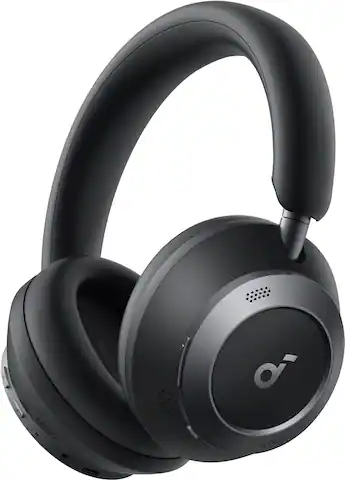
Anker Soundcore Space One
One of the most affordable over-ear headphones with true multipoint support. It lets you stay connected to your phone and laptop at the same time, and its long battery life makes it a great everyday option.
Best for: Best for beginners who want a reliable, budget-friendly multipoint headphone.
Price Range: Around $99
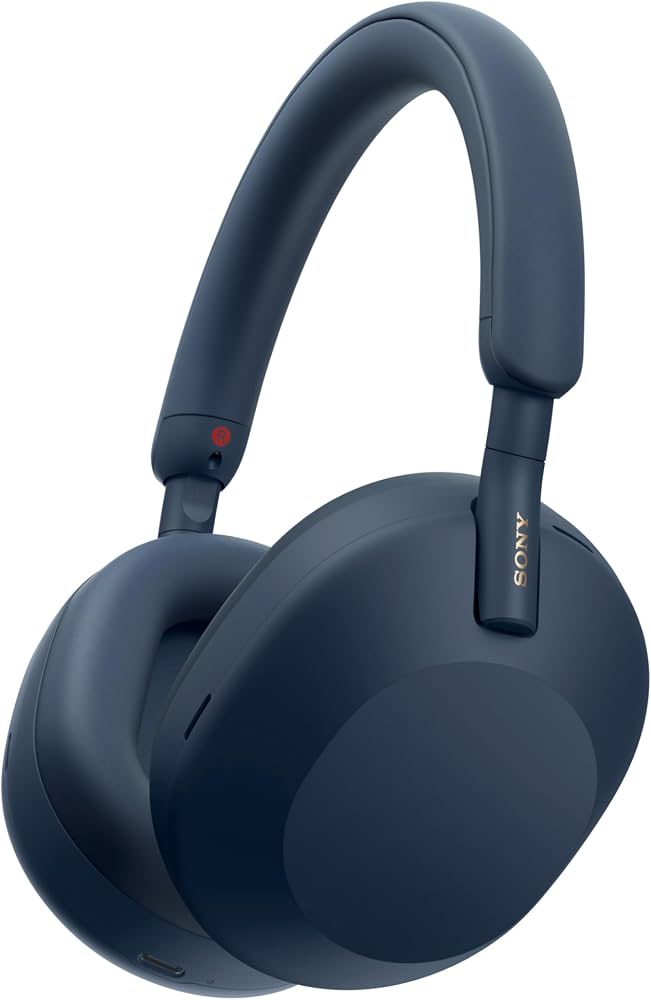
Sony WH-1000XM5
Industry-leading noise cancellation, excellent sound quality, and solid dual-device multipoint. The Sony headphones app lets you manage connections and choose which devices to keep active.
Best for: Best for professionals who need premium audio quality and reliable switching between a phone and computer for calls and meetings.
Price Range: Around $399
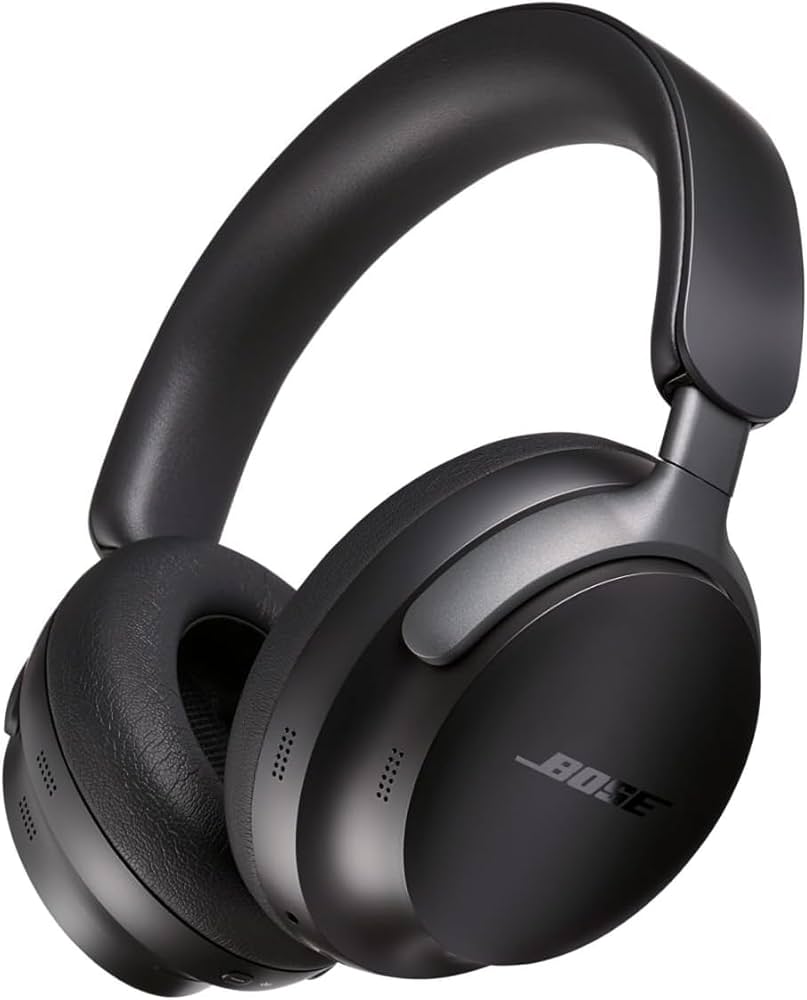
Bose QuietComfort Ultra Headphones
Premium comfort, immersive audio, and dependable multipoint connection. They're a favorite for travelers and remote workers who want clear calls and smooth device switching.
Best for: Best for frequent flyers and people who want a comfortable all-day headphone with top-tier ANC and multipoint.
Price Range: Around $379
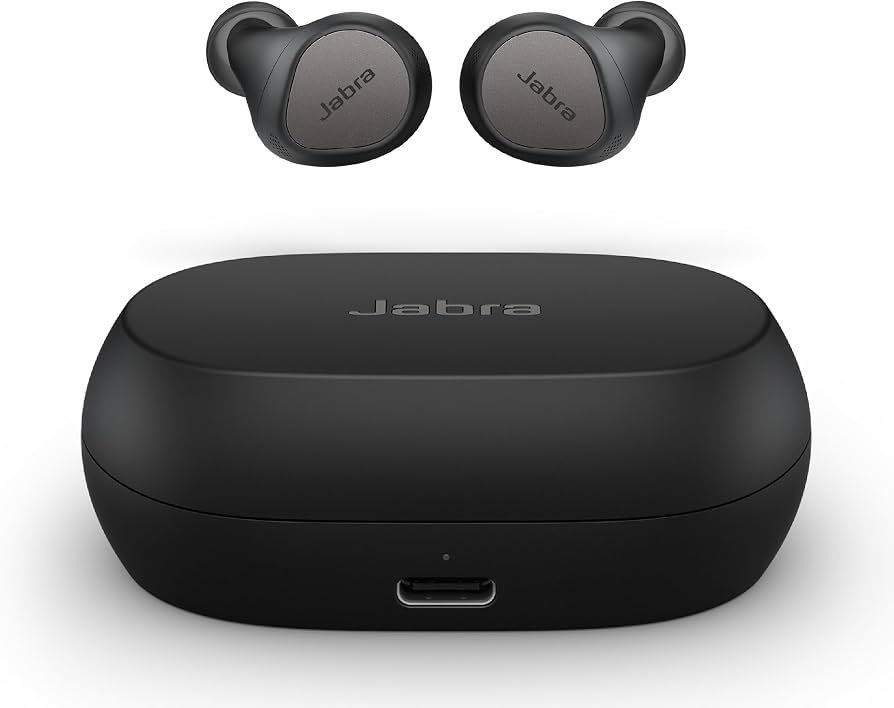
Jabra Elite 7 Pro
Compact true wireless earbuds with multipoint support and excellent microphone quality. The Jabra Sound+ app gives you control over which devices are connected and lets you set call/music priorities.
Best for: Best for those who prefer earbuds and want to switch easily between a phone and tablet while on the go.
Price Range: Around $149