

Fitbit Charge 6 Fitness Tracker
Daily activity, heart rate, and sleep tracking for beginners.
$159.95
Fitbit Charge 6 Fitness Tracker Exceptional battery life and seamless Fitbit app pairing with GPS and ECG features.
Get the App
Better experience on mobile
Easily sync your fitness tracker to your smartphone app in minutes for seamless step, heart rate, and sleep tracking.
Struggling to get your new activity tracker connected to your phone? You're not alone—many beginners face Bluetooth pairing hiccups that leave data stuck on the device. This guide fixes that, helping you unlock full features like real-time notifications, detailed analytics, and personalized insights.
You'll learn a universal step-by-step process that works for popular trackers like Fitbit, Garmin, and Xiaomi. Expect a quick 10-15 minute setup that's beginner-friendly—no tech expertise required. By the end, your tracker will sync effortlessly, showing live data in the app.
We'll cover charging, app setup, pairing, and troubleshooting, with tips for smooth success every time.
Estimated Time: 10-15 minutes Difficulty: beginner
Plug your tracker into its charger using a USB cable and wall adapter. Most trackers need 20-30% battery for pairing—low power can cause failures.
Wait for the LED light to indicate full charge (usually 1-2 hours, but 30 minutes suffices). Why? Stable power ensures uninterrupted Bluetooth signaling during sync.
Success looks like: Tracker vibrates or shows a battery icon at 50%+ on its screen.
💡 Tips:
⚠️ Warnings:
Open Google Play Store (Android) or App Store (iOS). Search for your tracker's app: 'Fitbit' for Fitbit, 'Garmin Connect' for Garmin, 'Zepp' or 'Mi Fitness' for Amazfit/Xiaomi.
Install the latest version—updates fix common bugs. Why it matters: The app handles all pairing logic and data visualization.
Success: App icon appears on your home screen; open it to see welcome screen.
💡 Tips:
Go to phone Settings > Bluetooth: Turn ON. Also enable Location Services (required for Bluetooth scanning on Android).
In app permissions (prompted or Settings > Apps > [App Name]), allow Bluetooth, Location, Notifications, and Background Activity. Why? Trackers use Bluetooth Low Energy (BLE); permissions prevent blocks.
Success: Bluetooth icon shows in status bar; no permission pop-ups later.
⚠️ Warnings:
Open the app and sign up with email/Google/Apple ID, or log in if existing. Verify email if needed.
Set basic profile: age, height, weight, goals. This personalizes data insights post-pairing.
Success: Dashboard loads with 'Add Device' or 'Set Up Tracker' button.
💡 Tips:
Press and hold the tracker's button (check manual: Fitbit—quick taps; Garmin—hold side button; Xiaomi—swipe/settings). Look for flashing light or pairing icon.
Keep tracker 1-2 feet from phone. Why? This activates discoverable mode for Bluetooth scanning.
Success: Tracker screen blinks or vibrates; app detects it nearby.
⚠️ Warnings:
Tap 'Add Device' or 'Pair Tracker' in app. Select your model from list or scan automatically. Confirm pairing code if shown (match on tracker/phone).
App connects via Bluetooth—progress bar fills. Why matters: Establishes secure link for data transfer.
Success: 'Paired Successfully' message; tracker syncs initial data.
💡 Tips:
Pull down to refresh in app—check steps, heart rate appear. Set notifications, goals, widgets.
Wear tracker for 5 mins; data updates live. Why? Confirms end-to-end functionality.
Success: Real-time stats populate dashboard; no errors.
Problem: Tracker not detected in scan
Solution: Restart Bluetooth/phone/tracker; forget other devices in Bluetooth settings; ensure pairing mode.
Problem: Pairing fails with error code
Solution: Update app/OS; check compatibility on manufacturer's site; reset tracker (hold button 10-20s).
Problem: Data not syncing after pairing
Solution: Force app refresh; check internet; toggle Bluetooth off/on.
Problem: iOS/Android specific issues
Solution: iOS: Reset network settings; Android: Clear app cache (Settings > Apps > [App] > Storage).
Exceptional battery life and seamless Fitbit app pairing with GPS and ECG features.
Best for: Daily activity, heart rate, and sleep tracking for beginners.
Price Range: $159.95
Reliable Garmin Connect app sync with advanced sleep and stress tracking.
Best for: Fitness enthusiasts needing detailed analytics and Body Battery metric.
Price Range: $149.99
Budget-friendly with quick Zepp app pairing, Alexa integration, and 18-day battery.
Best for: Affordable entry-level tracking for steps, SpO2, and workouts.
Price Range: $43.99
Ultra-cheap with Mi Fitness app that pairs instantly and tracks 150+ modes.
Best for: Casual users wanting value-packed basics under $50.
Price Range: $44.99
Daily activity, heart rate, and sleep tracking for beginners.
Fitbit Charge 6 Fitness Tracker Exceptional battery life and seamless Fitbit app pairing with GPS and ECG features.

Fitness enthusiasts needing detailed analytics and Body Battery metric.
Garmin Vivosmart 5 Activity Tracker Reliable Garmin Connect app sync with advanced sleep and stress tracking.
Affordable entry-level tracking for steps, SpO2, and workouts.
Amazfit Band 7 Fitness Tracker Budget-friendly with quick Zepp app pairing, Alexa integration, and 18-day battery.
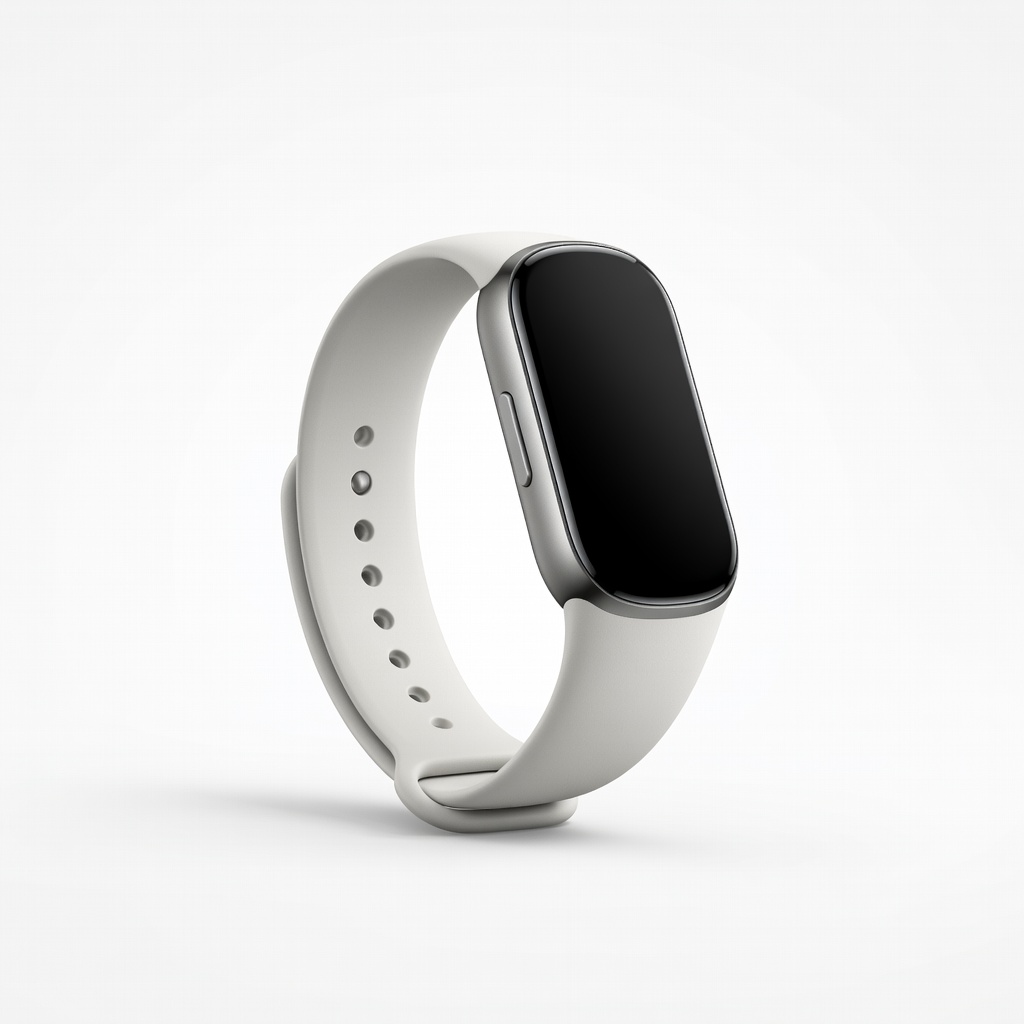
Casual users wanting value-packed basics under $50.
Xiaomi Smart Band 8 Ultra-cheap with Mi Fitness app that pairs instantly and tracks 150+ modes.