
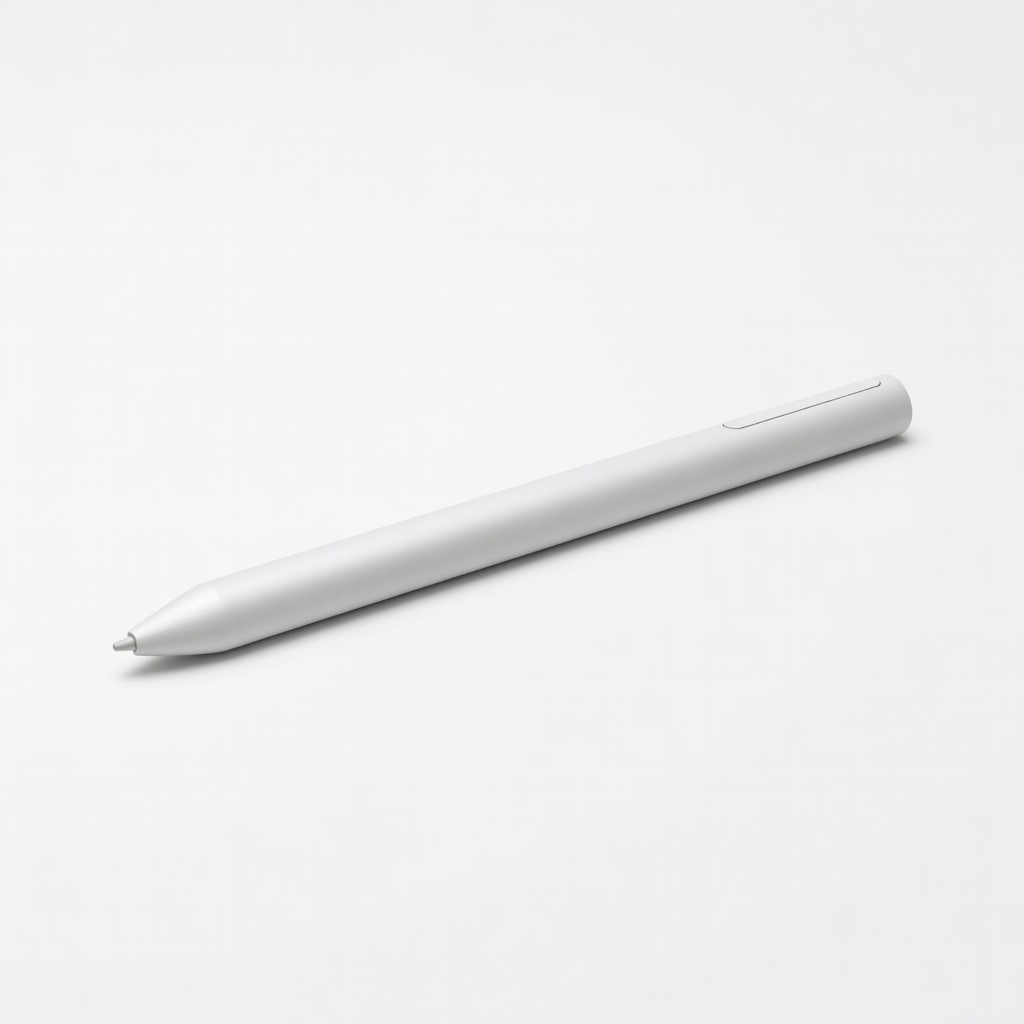
Microsoft Surface Slim Pen 2
Precise note-taking on Surface Pro or Laptop; rechargeable.
$129.99
Microsoft Surface Slim Pen 2 Best low-latency stylus for Surface 2-in-1s with haptic feedback and zero-force inking.
Get the App
Better experience on mobile
Connect your stylus to a 2-in-1 laptop in minutes for smooth note-taking and drawing.
Struggling to get your new stylus working with your 2-in-1 laptop? Many beginners face pairing issues that turn exciting note-taking sessions into frustration. This guide fixes that, teaching you to pair any compatible stylus effortlessly.
You'll learn step-by-step how to check compatibility, enable Bluetooth, pair the device, and test it for note-taking. Whether you have a Microsoft Surface, Lenovo Yoga, or HP Spectre, this works for most models. Expect 10-15 minutes total, no tech expertise needed.
By the end, you'll have a responsive stylus ready for apps like OneNote or GoodNotes, boosting productivity in class or meetings.
Estimated Time: 10-15 minutes Difficulty: beginner
Before pairing, confirm your stylus works with your 2-in-1 laptop. Check your laptop model on the manufacturer's site (e.g., Surface supports MPP pens; Lenovo Yoga often uses USI).
Why it matters: Incompatible devices won't pair, wasting time. Look for 'stylus support' or 'pen protocol' in specs. Success: A clear 'yes' from docs or support page.
Tip: Download your laptop's manual PDF for exact stylus models.
💡 Tips:
⚠️ Warnings:
Plug in your laptop and charge the stylus fully. Most styluses have LED indicators; Surface Pen uses a button press to check battery.
This prevents disconnections mid-pairing. Expect 5-10 minutes charging if low. Success: Green LED or full battery icon.
Why charge first? Low power causes failed pairings.
💡 Tips:
On Windows: Settings > Devices > Bluetooth & other devices > Turn on Bluetooth. Ensure Airplane mode is off.
Styluses pair via Bluetooth Low Energy (BLE). Success: Bluetooth toggle blue and 'Ready to pair' status.
Pro tip: Restart laptop if Bluetooth is glitchy.
⚠️ Warnings:
Press and hold the stylus tail button (or top eraser button on Surface Pen) for 5-7 seconds until LED flashes white/blue.
This puts it in discoverable mode. Why? Tells laptop to search for it. Success: Flashing light and vibration (if equipped). Hold steady—release too soon fails pairing.
Varies by model; check manual.
💡 Tips:
Back in Bluetooth settings, click 'Add Bluetooth or other device' > Bluetooth > Select your stylus (e.g., 'Surface Pen').
Confirm PIN if prompted (usually 0000 or auto). Success: 'Connected' status and stylus name listed.
Takes 10-30 seconds; stay close (within 3 feet).
⚠️ Warnings:
Open Paint, OneNote, or Whiteboard app. Draw or write—check pressure sensitivity and palm rejection.
Success: Smooth ink flow, no lag, eraser works. Install OneNote if needed (Microsoft Store, free).
Why test? Confirms full functionality for note-taking.
💡 Tips:
In Pen settings (Settings > Devices > Pen), adjust button mappings, tilt sensitivity.
Install apps like OneNote. Success: Buttons launch apps, writing feels natural.
Enhances productivity for lectures or brainstorming.
Problem: Stylus not appearing in Bluetooth list
Solution: Repeat pairing mode (hold button longer), restart Bluetooth, or forget device and retry.
Problem: Laggy or no response after pairing
Solution: Update drivers (Device Manager > Human Interface Devices), restart laptop.
Problem: Disconnects frequently
Solution: Check battery, reduce interference, re-pair. If persists, replace battery (AAA in some pens).
Problem: No pressure sensitivity
Solution: Ensure app supports it (e.g., OneNote), check Pen Protocol compatibility.
Best low-latency stylus for Surface 2-in-1s with haptic feedback and zero-force inking.
Best for: Precise note-taking on Surface Pro or Laptop; rechargeable.
Price Range: $129.99
Universal USI pen compatible with most Yoga and IdeaPad 2-in-1s; affordable with 4096 pressure levels.
Best for: Budget note-taking on Lenovo devices; rechargeable via USB-C.
Price Range: $49.99-$59.99
Optimized for HP Spectre/Envy x360; tilt support and long battery life.
Best for: Creative sketching and notes on HP 2-in-1s.
Price Range: $69.99
Top 2-in-1 laptop with Snapdragon X Elite for seamless stylus integration.
Best for: All-in-one device for pairing any Surface Pen; ideal beginner setup.
Price Range: $999-$1499
Universal for non-proprietary 2-in-1s; magnetic attach and palm rejection.
Best for: Cross-brand compatibility for mixed setups.
Price Range: $59.99
Precise note-taking on Surface Pro or Laptop; rechargeable.
Microsoft Surface Slim Pen 2 Best low-latency stylus for Surface 2-in-1s with haptic feedback and zero-force inking.
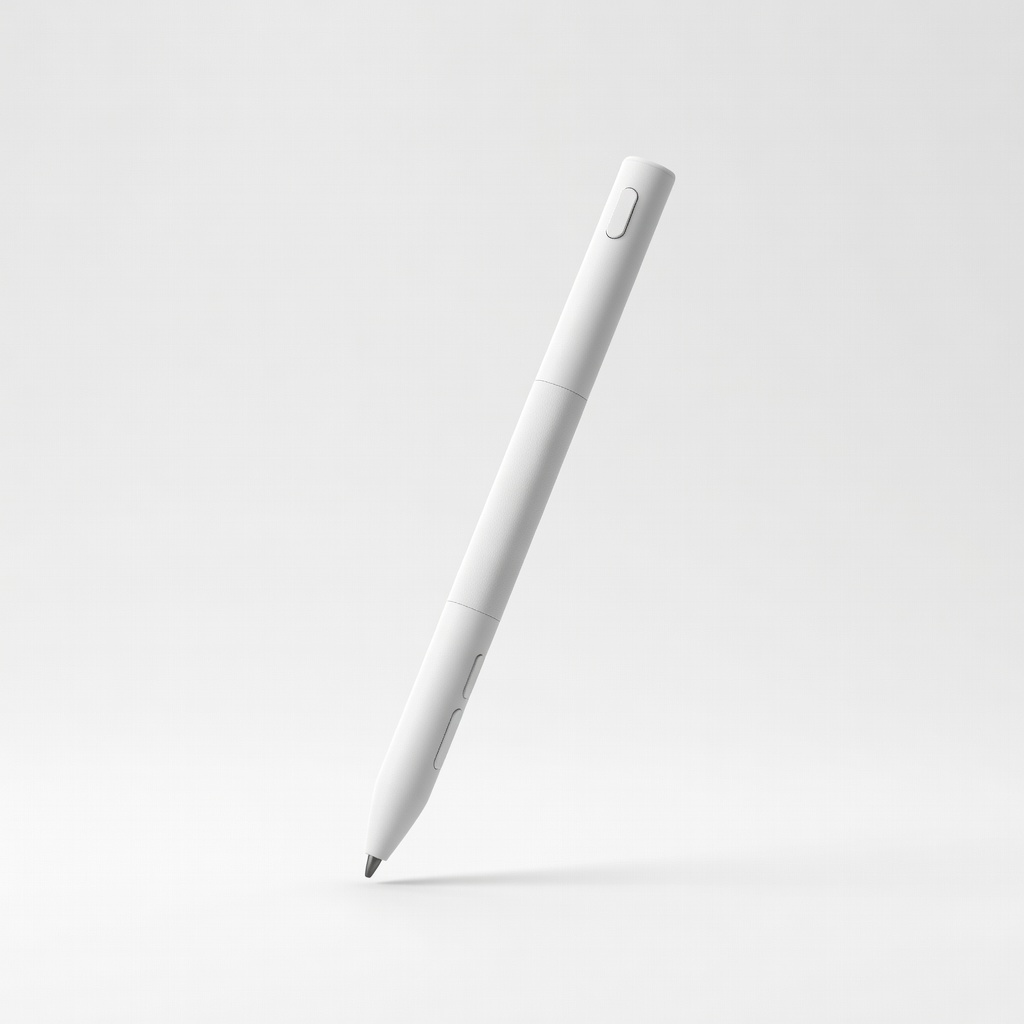
Budget note-taking on Lenovo devices; rechargeable via USB-C.
Lenovo Active Pen 3 Universal USI pen compatible with most Yoga and IdeaPad 2-in-1s; affordable with 4096 pressure levels.
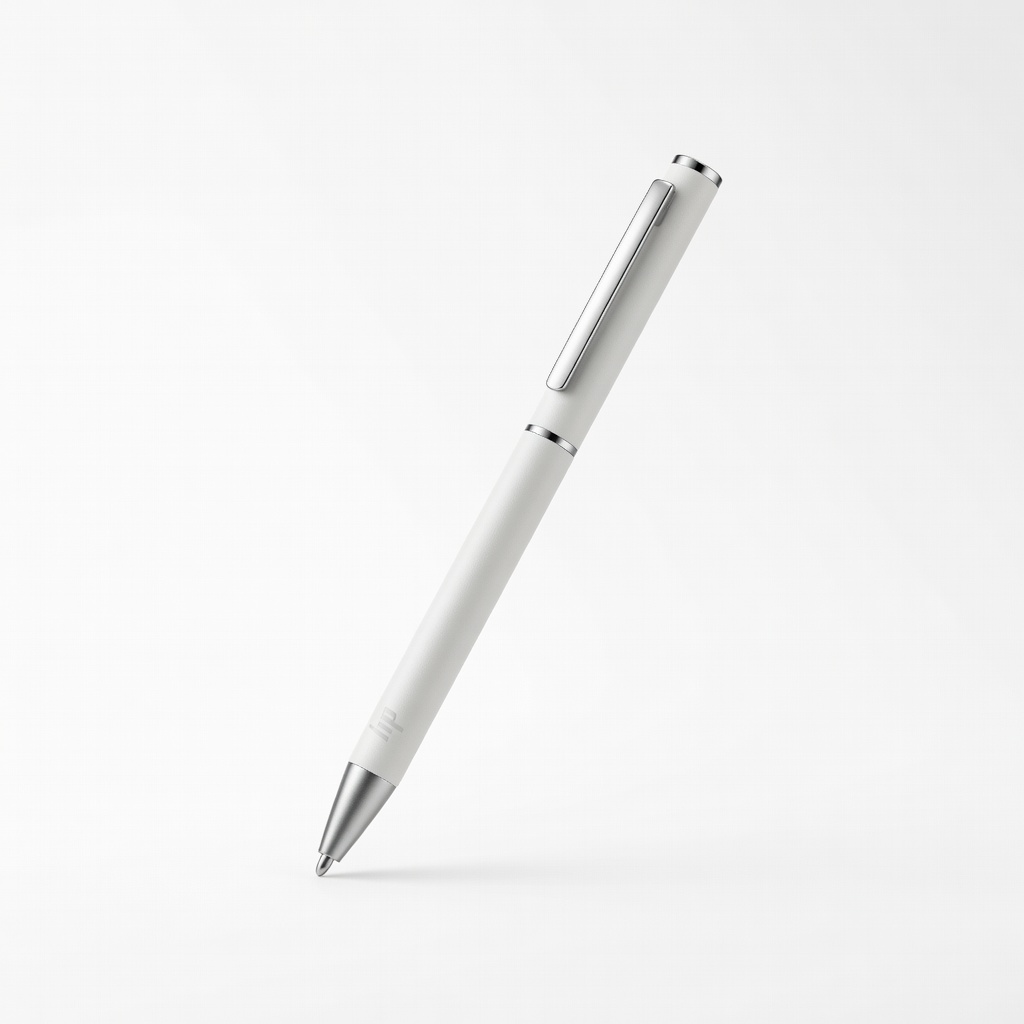
Creative sketching and notes on HP 2-in-1s.
HP Rechargeable Tilt Pen Optimized for HP Spectre/Envy x360; tilt support and long battery life.
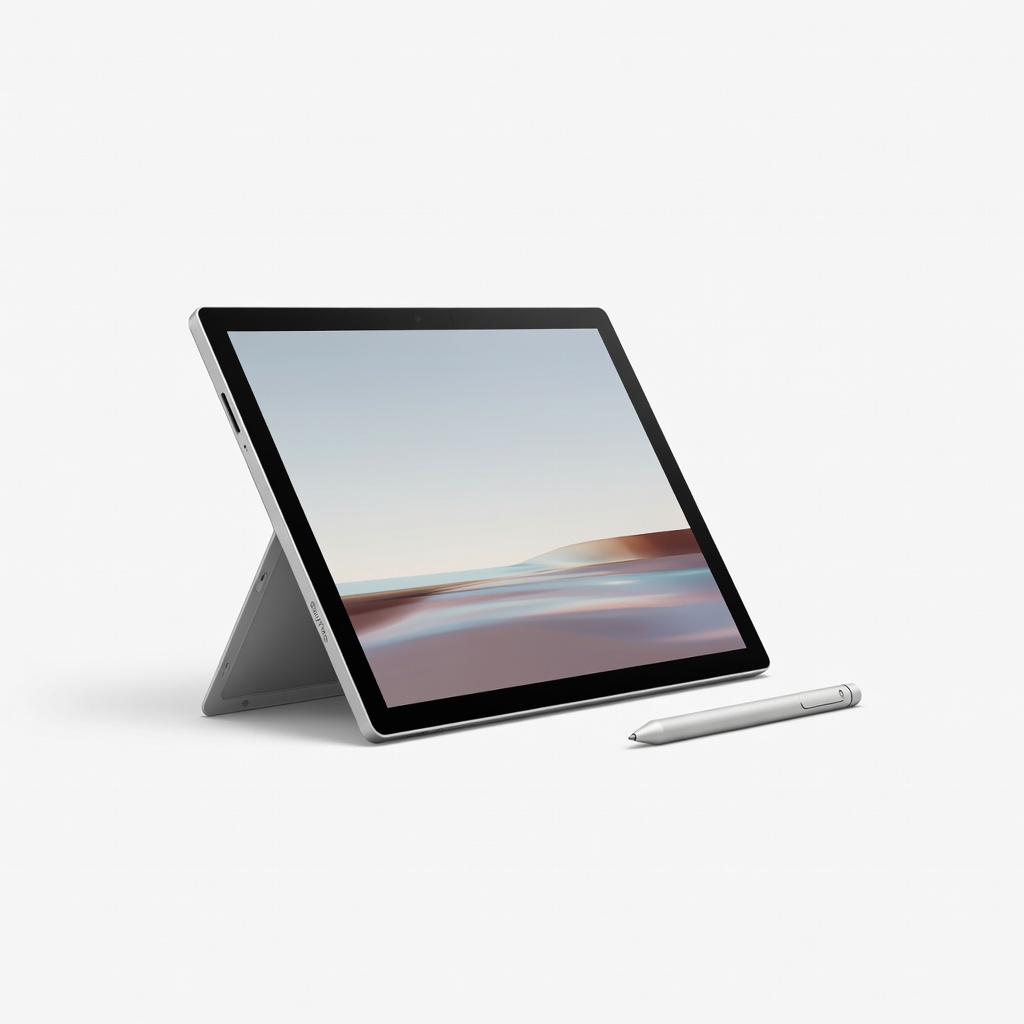
All-in-one device for pairing any Surface Pen; ideal beginner setup.
Microsoft Surface Pro 11 Top 2-in-1 laptop with Snapdragon X Elite for seamless stylus integration.
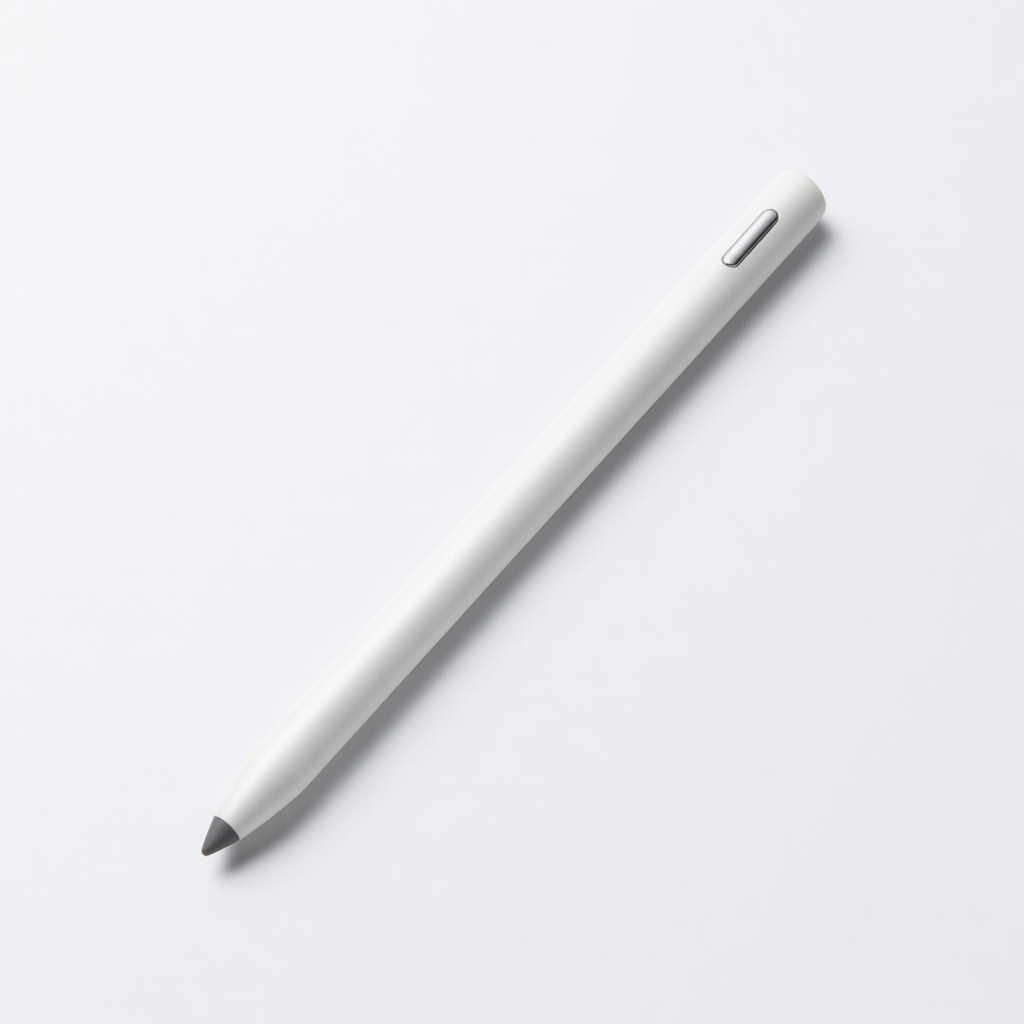
Cross-brand compatibility for mixed setups.
Adonit Note+ 2 USI Stylus Universal for non-proprietary 2-in-1s; magnetic attach and palm rejection.