
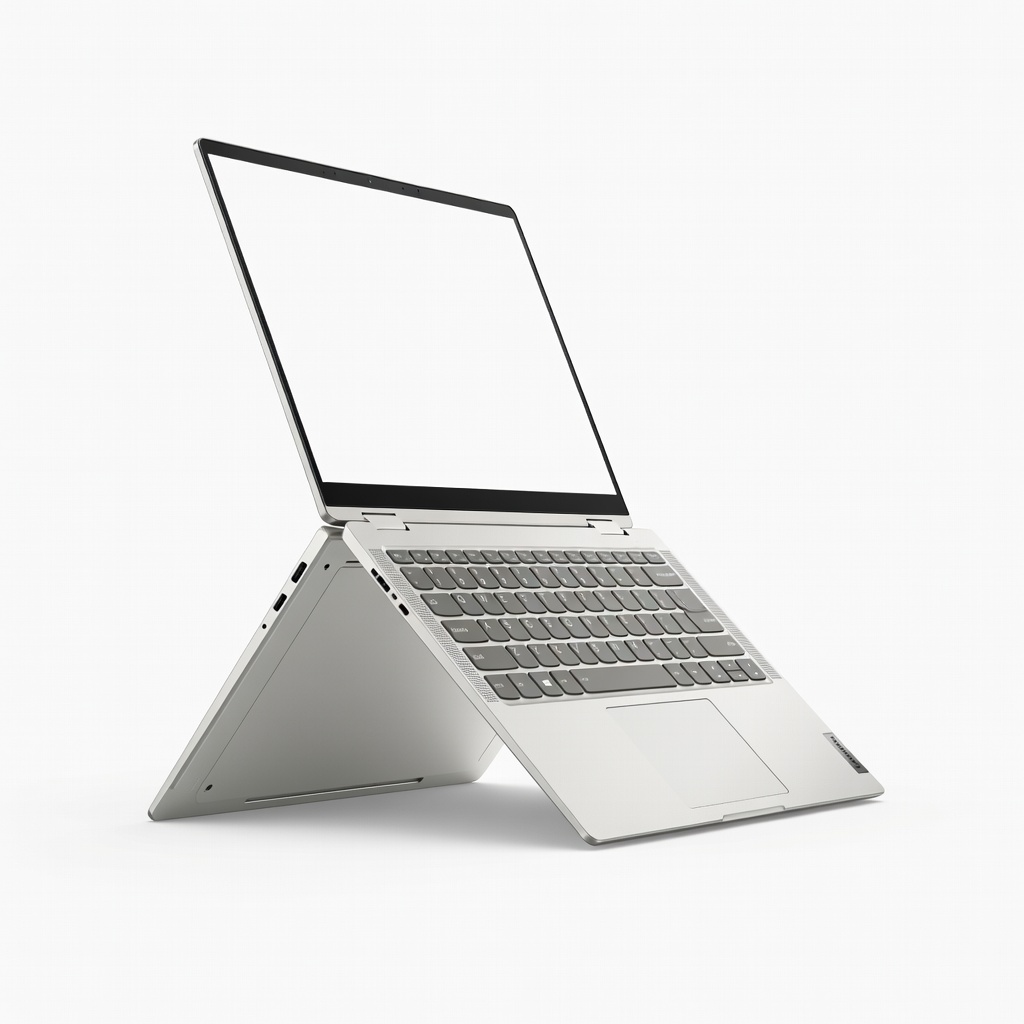
Lenovo Yoga 9i 2-in-1 (2024)
Daily work/travel; lightweight under 3lbs.
$1,400-$1,600
Lenovo Yoga 9i 2-in-1 (2024) Ultra-portable 14-inch OLED with 16hr battery, stylus support—perfect nomad flip machine.
Get the App
Better experience on mobile
Streamline your 2-in-1 laptop setup for seamless productivity, file access, and travel efficiency in under 2 hours.
Digital nomads juggle constant travel, unreliable Wi-Fi, and the need for instant productivity on 2-in-1 laptops that flip between laptop and tablet modes. A cluttered desktop, scattered files, or poor battery optimization can derail your workflow, leading to missed deadlines or frustration mid-flight. This guide fixes that by teaching you to organize your device for mobility.
You'll learn a step-by-step system to declutter, sync files across devices, optimize performance, and secure your setup. Expect a lightweight, always-ready machine tailored for nomad life. The process takes 1-2 hours for intermediates familiar with basic Windows/macOS navigation—no coding required.
Estimated Time: 1-2 hours Difficulty: intermediate
Start by ensuring your 2-in-1 is running the latest software for security, performance, and compatibility. On Windows (common for 2-in-1s like Surface), go to Settings > Update & Security > Windows Update > Check for updates. For macOS (e.g., MacBook hybrids), use System Settings > General > Software Update.
This prevents crashes during travel and optimizes touch/pen features unique to 2-in-1s. Expect 10-30 minutes of downloads; restart when prompted. Success: No pending updates in the list.
💡 Tips:
⚠️ Warnings:
Wipe your desktop: Right-click unnecessary icons > Delete (they go to Recycle Bin). Install essentials via Microsoft Store or web: OneNote for notes, Todoist for tasks, Notion for all-in-one workspace.
Why? Nomads need quick access without hunting. Pin apps to taskbar/dock. Expect a clean home screen post-install. Success: Desktop has only 3-5 key shortcuts.
💡 Tips:
Sign into Google Drive, OneDrive, or Dropbox apps. Enable auto-sync for Documents, Desktop, and Pictures folders (right-click folder > Properties > Location tab > Move to cloud).
This ensures files follow you across devices/hotels. Test by editing a file on phone—check laptop syncs. Success: Files appear in cloud with green checkmarks.
⚠️ Warnings:
In your synced Documents, make folders: Work > Clients/Projects, Personal > Travel/Photos, Archives > Old. Use consistent naming: YYYY-MM-DD_ProjectName.
Subfolders for 2-in-1 perks: Tablet/Handwriting for OneNote exports. Why? Fast search on the go. Success: All files searchable via Cortana/Spotlight in seconds.
💡 Tips:
Enable Snap Layouts (Win+Z) for split-screen. In Tablet mode (rotate screen), tweak taskbar for touch. Set virtual desktops: Task View > New Desktop for Work/Personal.
Ideal for nomads brainstorming in cafe tablet mode. Success: Fluid switch between 4 apps side-by-side.
Battery settings > Best power efficiency. Close background apps via Task Manager. Use 'Ultimate Performance' power plan for work bursts.
Extends life for 10+ hour days. Test: Run for 30 mins, check usage. Success: Idle drain under 1%/hour.
💡 Tips:
⚠️ Warnings:
Enable File History or Time Machine to external drive/cloud. Set BitLocker (Windows) or FileVault (Mac) encryption. Add VPN like ExpressVPN.
Protects against theft/loss. Success: Locked login requires PIN/biometrics.
Simulate travel: Disconnect Wi-Fi, work offline, check offline access in apps. Adjust for airplane mode.
Final polish. Success: Fully functional without internet for 4+ hours.
💡 Tips:
Problem: Sync fails on spotty Wi-Fi
Solution: Pause sync, use selective sync, retry on stable connection.
Problem: Battery drains fast
Solution: Reset power plan, update drivers, check for malware with Windows Security.
Problem: Hinge or touch issues
Solution: Calibrate pen in Settings > Devices; clean ports.
Problem: Files not searchable
Solution: Reindex in Indexing Options; ensure cloud folders are local.
Ultra-portable 14-inch OLED with 16hr battery, stylus support—perfect nomad flip machine.
Best for: Daily work/travel; lightweight under 3lbs.
Price Range: $1,400-$1,600
Modular design with detachable keyboard; Snapdragon X Elite for all-day unplugged use.
Best for: Tablet-first nomads needing max portability.
Price Range: $1,000-$1,500
Shockproof for bumpy travel; fits 13-14in 2-in-1s with accessory pockets.
Best for: Safeguard during flights/backpacks.
Price Range: $25-$35
Powers 2-in-1 for 1.5 charges; compact for nomad bags.
Best for: Long layovers without outlets.
Price Range: $100-$130
Rugged, fast backups; IP65 water/dust proof for outdoors.
Best for: Portable file archiving on the road.
Price Range: $100-$120
Daily work/travel; lightweight under 3lbs.
Lenovo Yoga 9i 2-in-1 (2024) Ultra-portable 14-inch OLED with 16hr battery, stylus support—perfect nomad flip machine.
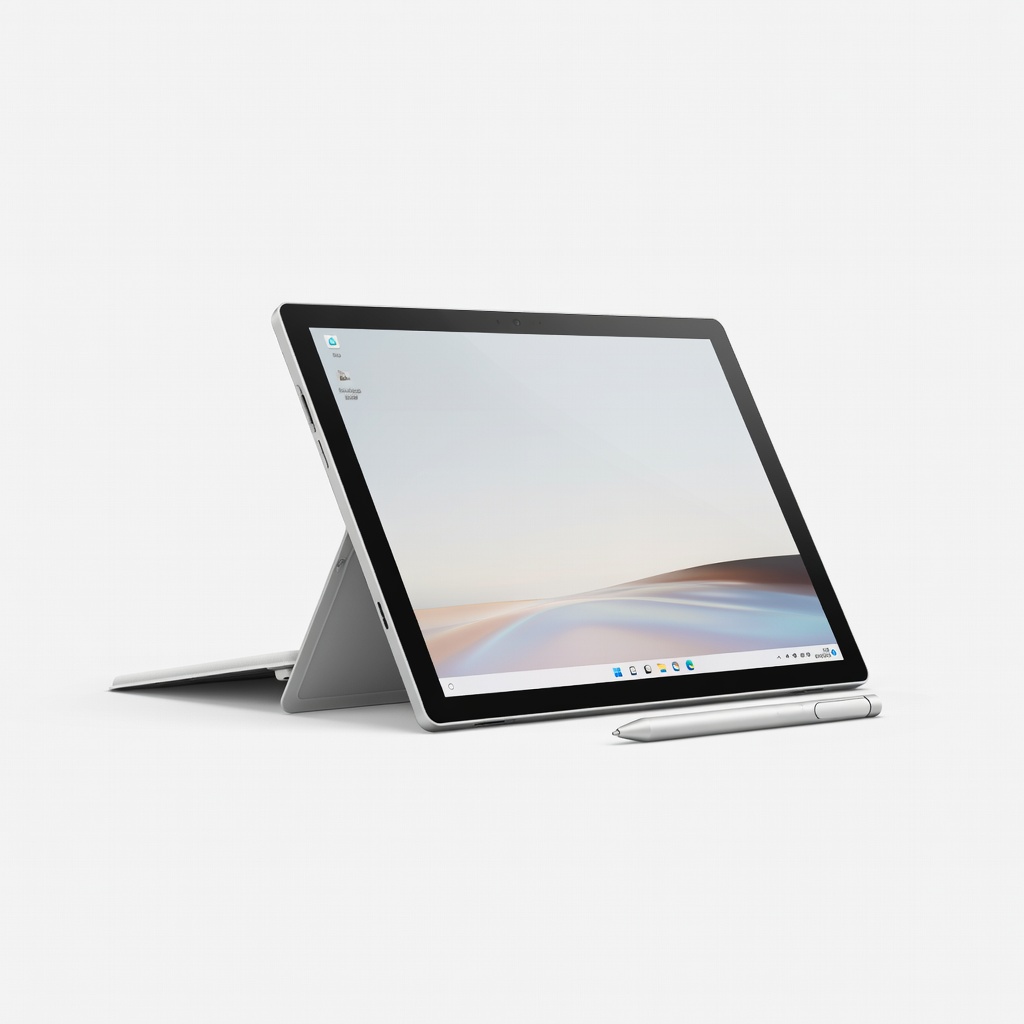
Tablet-first nomads needing max portability.
Microsoft Surface Pro 11 Modular design with detachable keyboard; Snapdragon X Elite for all-day unplugged use.
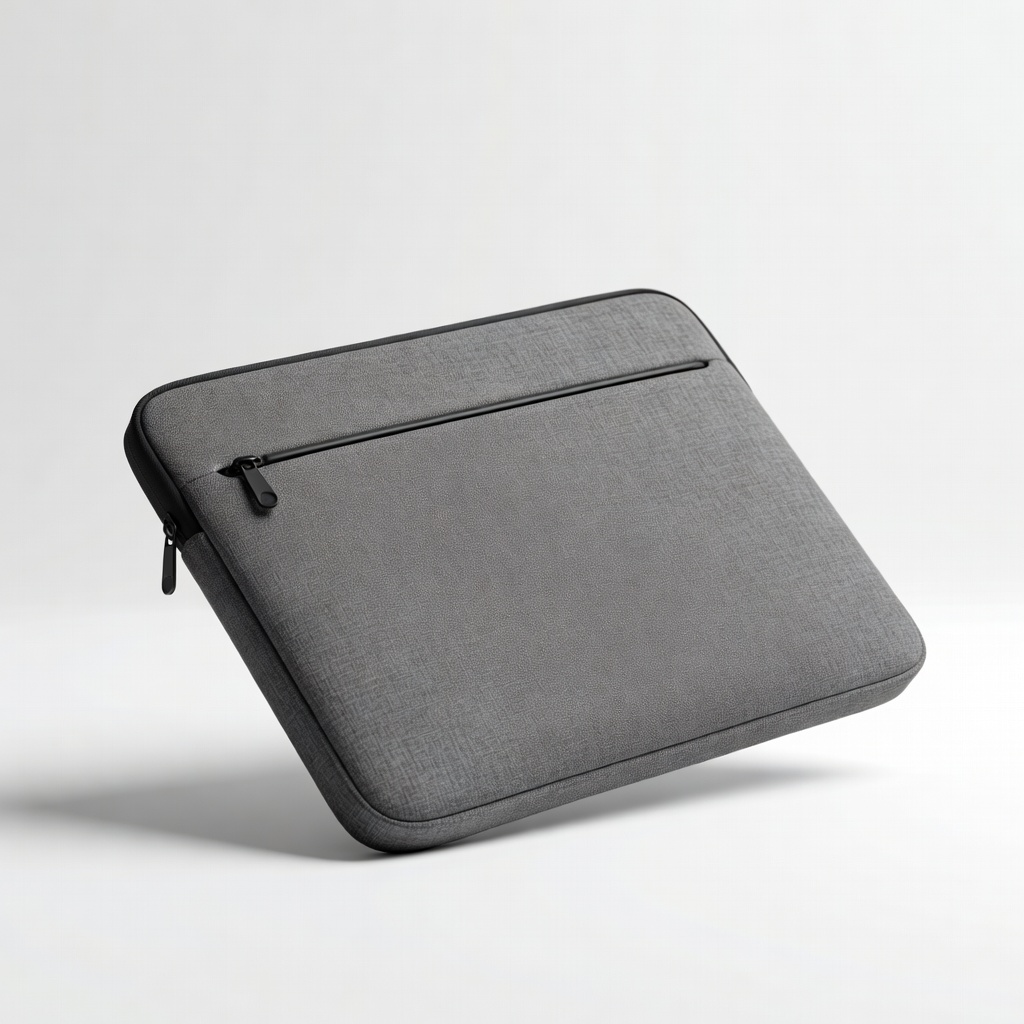
Safeguard during flights/backpacks.
Tomtoc 360 Protective Laptop Sleeve Shockproof for bumpy travel; fits 13-14in 2-in-1s with accessory pockets.
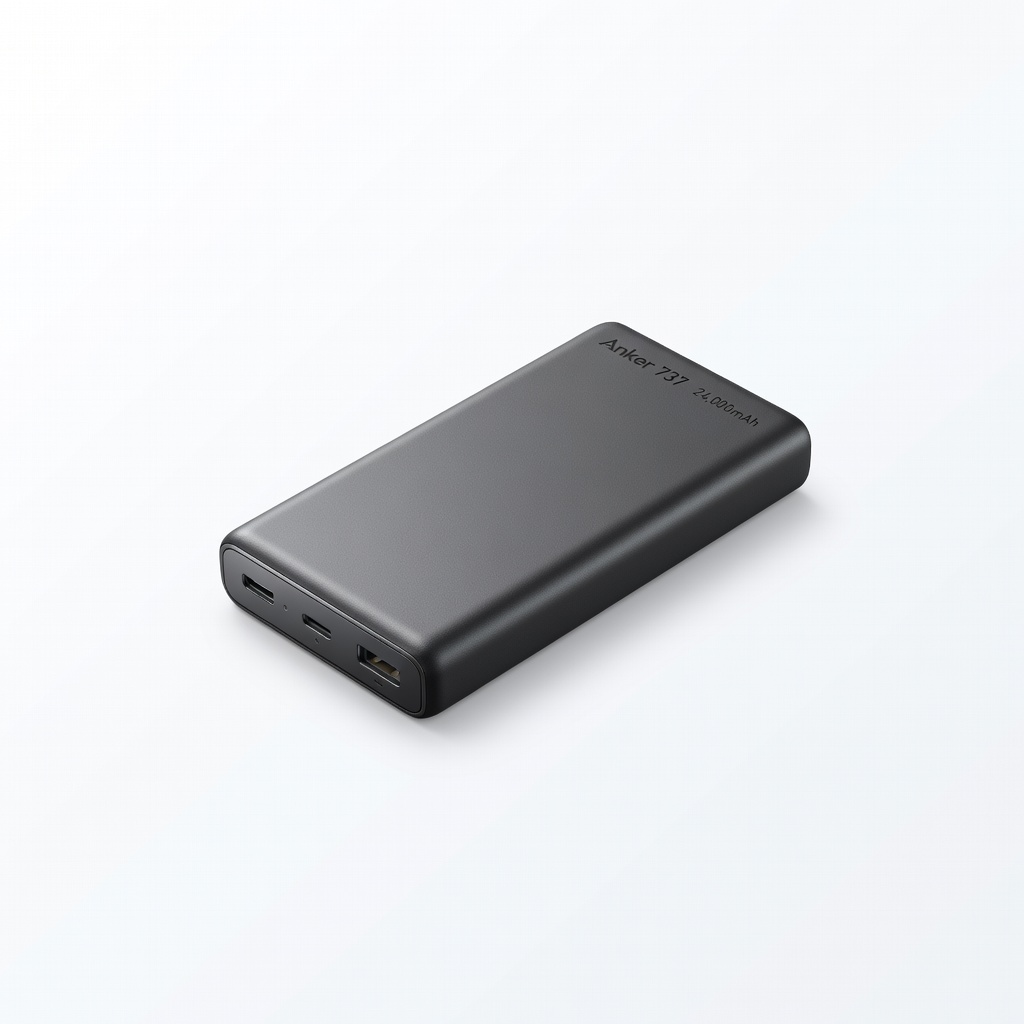
Long layovers without outlets.
Anker 737 Power Bank (24,000mAh) Powers 2-in-1 for 1.5 charges; compact for nomad bags.
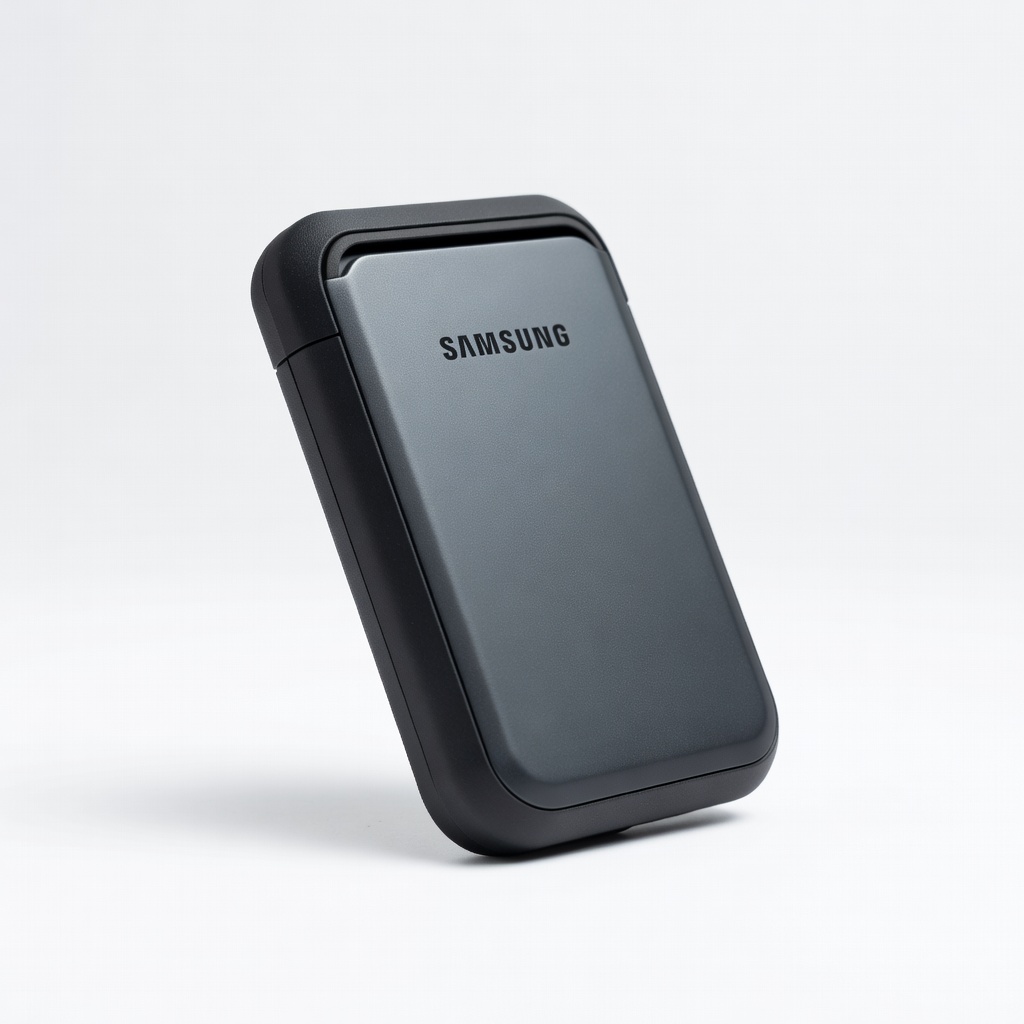
Portable file archiving on the road.
Samsung T7 Shield SSD (1TB) Rugged, fast backups; IP65 water/dust proof for outdoors.