As a freelancer, your accounting software is the backbone of your business, tracking income, expenses, and taxes. But neglected maintenance can lead to data loss, errors in tax filings, or even security breaches that cost thousands. Common pain points like slow performance, outdated features, or forgotten backups plague many solo pros.
In this guide, you'll learn a proven step-by-step process to maintain popular tools like QuickBooks, FreshBooks, or Xero. Expect to spend 30-60 minutes monthly on these tasks, building habits that prevent headaches during tax season.
By the end, your software will run smoothly, data will be secure, and you'll stay audit-ready—all tailored for intermediate users comfortable with basic accounting setups.
▸What You'll Need
- •Access to your accounting software (e.g., QuickBooks Online, FreshBooks, or Xero)
- •Administrative login credentials
- •External hard drive or cloud backup service (required for data safety)
- •Antivirus software (recommended)
- •Stable internet connection
- •Optional: Password manager for secure logins
Estimated Time: 30-60 minutes monthly
Difficulty: intermediate
▸Step-by-Step Instructions
Step 1: Set Up Automated Backups
Start by configuring daily or weekly automated backups to prevent data loss from crashes or hacks. In QuickBooks Online, go to Gear icon > Account and settings > Billing & Subscription > Back up data. For FreshBooks, enable export schedules under Settings > Imports & Exports.
Why it matters: Freelancers handle sensitive financial data; one glitch could erase months of invoices. Expect a confirmation email after setup, with backups stored locally or in the cloud.
Test by restoring a sample file to verify.
💡 Tips:
- •Use cloud services like Google Drive for offsite redundancy.
- •Schedule backups during off-hours to avoid slowdowns.
⚠️ Warnings:
- •Never skip testing restores—80% of data losses occur from untested backups.
Step 2: Update Software and Apps
Check for updates monthly. Log in, navigate to Help > Update Now (QuickBooks Desktop) or it auto-updates online versions. Restart the app post-update.
Updates fix bugs, add features like new tax forms, and patch security holes. You'll see a progress bar; success looks like 'Update complete' with improved speed.
For mobile apps, update via App Store/Google Play.
💡 Tips:
- •Enable auto-updates to never miss one.
- •Update during low-activity periods like weekends.
⚠️ Warnings:
- •Avoid mid-month updates during heavy invoicing to prevent disruptions.
Step 3: Clean Up Duplicate and Old Data
Run a data cleanup: In Xero, use Reconcile > Find & Match for duplicates; QuickBooks has Condense Data tool under File > Utilities.
This removes old transactions (e.g., archive pre-2-year-old entries), freeing space and improving accuracy. Expect reports showing cleaned volume—aim for under 10% bloat.
Why: Clutter leads to reconciliation errors and slow searches.
💡 Tips:
- •Tag old data before archiving for easy retrieval.
- •Do this quarterly for heavy users.
⚠️ Warnings:
- •Backup first—cleanup is irreversible.
Step 4: Reconcile All Bank Accounts
Match software records to bank statements monthly. Go to Banking > Reconcile, enter statement date/balance, and match transactions.
Success: Zero differences, green checkmarks. This catches errors like missed expenses, crucial for freelancers' cash flow.
Repeat for all linked accounts (PayPal, Stripe).
💡 Tips:
- •Import statements via CSV for speed.
- •Set reminders 1st of each month.
⚠️ Warnings:
- •Unreconciled accounts invite IRS audit flags.
Step 5: Run Integrity Checks and Reports
Use built-in diagnostics: QuickBooks > File > Utilities > Verify Data. Review error logs and fix issues.
Generate profit/loss and tax reports to spot anomalies. Clean reports mean healthy data—no red flags.
Why: Early detection prevents year-end scrambles.
💡 Tips:
- •Save reports as PDFs for records.
- •Compare month-over-month trends.
⚠️ Warnings:
- •Ignore errors at your peril—they compound.
Step 6: Secure Access and Permissions
Enable 2FA under Settings > Security. Review user logins and revoke unused ones. Use strong, unique passwords.
For shared access (e.g., accountant), set role-based permissions.
Expect login prompts with authenticator apps—success is locked-down access.
💡 Tips:
- •Integrate with password managers.
- •Log suspicious activity.
⚠️ Warnings:
- •Weak security = easy hacks for freelancer targets.
Step 7: Optimize Performance and Storage
Clear cache (Help > Clear Cache in most apps), uninstall unused add-ons. Monitor storage via dashboard.
Defrag databases if desktop version. Expect faster load times post-optimization.
Why: Slow software kills productivity.
💡 Tips:
- •Restart app weekly.
- •Upgrade storage for growing businesses.
⚠️ Warnings:
- •Overloaded storage causes crashes.
Step 8: Test Backup Restores and Compliance
Quarterly, restore a backup to a test environment. Check tax settings for updates (e.g., new freelance deductions).
Verify data integrity and compliance. Full functionality confirms success.
Why: Ensures you're prepared for audits or disasters.
💡 Tips:
- •Document test results.
- •Subscribe to software newsletters for tax alerts.
⚠️ Warnings:
- •Untested backups fail 30% of the time.
▸Pro Tips
- •Automate as much as possible—set calendar reminders for manual steps.
- •Use keyboard shortcuts (e.g., Ctrl+R for reconcile) to speed up 20%.
- •Integrate with bank APIs for auto-reconciliation.
- •Track maintenance time in your software for tax deductions.
- •Join freelancer forums like Reddit's r/freelance for software-specific tips.
- •Batch tasks: Do backups + updates on the same day.
- •Export year-end data to Excel for extra safety.
▸Common Mistakes to Avoid
- •Skipping backups: Leads to irrecoverable data loss—always prioritize.
- •Ignoring updates: Exposes you to vulnerabilities and misses tax features.
- •Not reconciling monthly: Causes cumulative errors snowballing at tax time.
- •Overlooking 2FA: Freelancers are prime hack targets—enable everywhere.
- •Hooging data forever: Slows software—archive ruthlessly.
▸Troubleshooting
Problem: Software freezes during updates
Solution: Close all apps, run as admin, or reinstall. Check system requirements.
Problem: Backup fails with 'space' error
Solution: Free up disk space or switch to cloud backup. Verify permissions.
Problem: Reconciliation discrepancies
Solution: Double-check imports, void duplicates. Consult bank statements pixel-by-pixel.
Problem: Slow performance persists
Solution: Clean temp files, upgrade hardware, or contact support. Seek pro if data corruption.
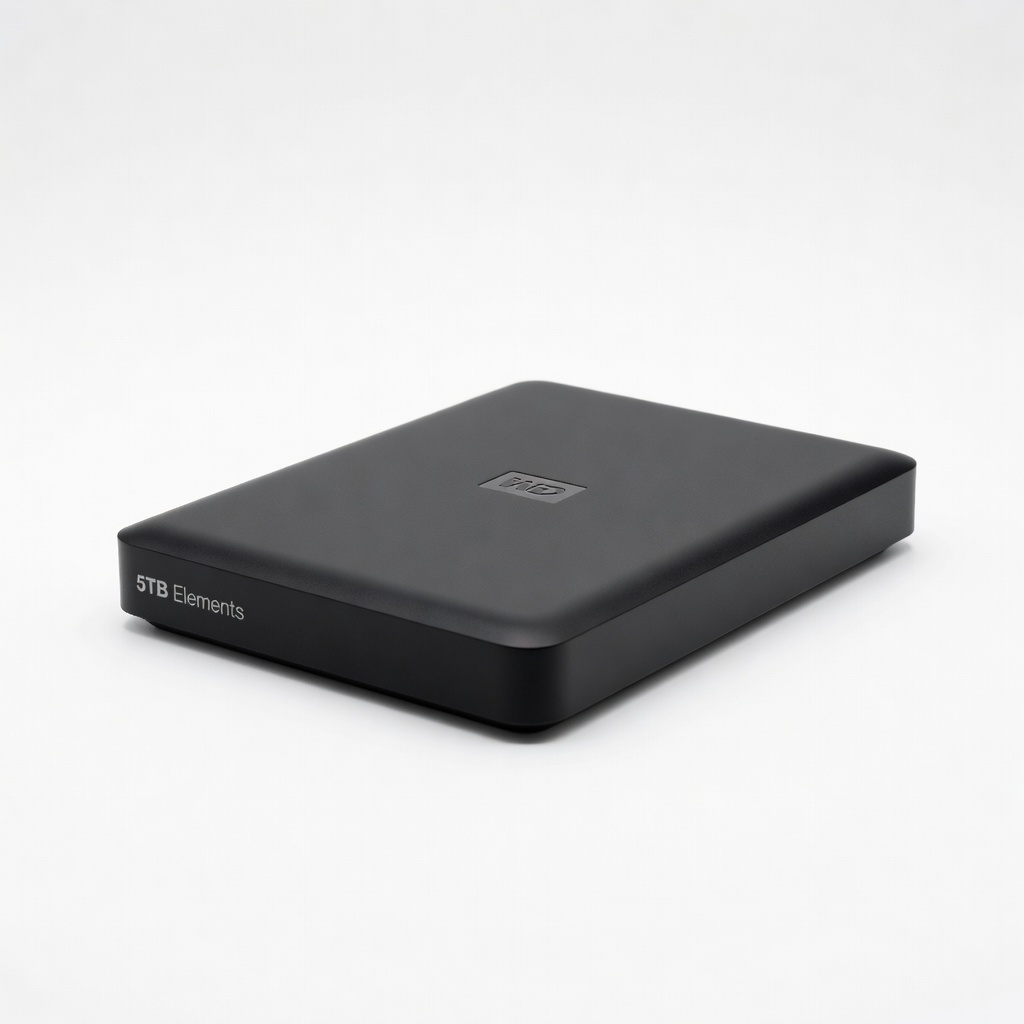
WD 5TB Elements Portable External Hard Drive
Reliable, high-capacity storage for frequent local backups without cloud dependency.
Best for: Daily manual backups for freelancers with large transaction volumes.
Price Range: $119.99
Samsung T7 Portable SSD 1TB
Lightning-fast read/write speeds for quick backups and restores.
Best for: Freelancers needing portable, durable storage for on-the-go maintenance.
Price Range: $99.99
Bitdefender Antivirus Plus 2025 (3 Devices, 1 Year)
Top-rated protection against malware targeting financial data.
Best for: Securing your accounting workstation during maintenance sessions.
Price Range: $39.99
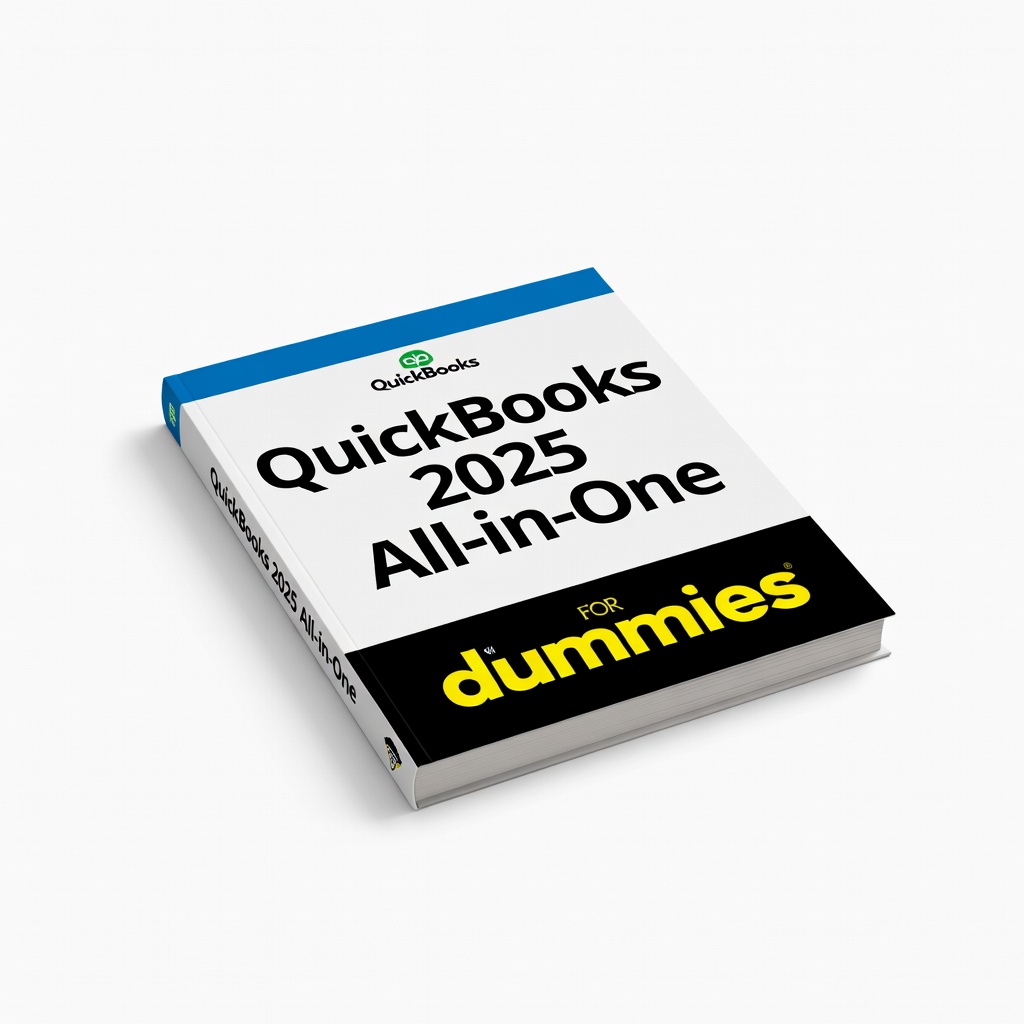
QuickBooks 2025 All-in-One For Dummies
Step-by-step maintenance guidance tailored to QuickBooks users.
Best for: Reference for intermediate freelancers troubleshooting software issues.
Price Range: $29.99