Nothing kills the thrill of action-packed adventures like lag—sudden stutters during intense chases or boss fights can turn epic moments into frustration. If you're playing titles like Assassin's Creed, Cyberpunk 2077, or Elden Ring on PC and dealing with choppy performance, you're not alone. Lag often stems from outdated drivers, background processes, overheating, or hardware limits.
In this guide, you'll learn a systematic approach to diagnose and fix lag, starting with quick software tweaks and progressing to hardware checks. By the end, expect 30-100% FPS improvements, depending on your setup. It's intermediate-level, requiring basic PC navigation but no deep tech expertise—total time: 30-60 minutes for most fixes.
We'll cover verification, optimization, monitoring, and upgrades, with real-world tips to keep your games running at peak performance.
▸What You'll Need
- •PC with Windows 10/11 (administrative access required)
- •Installed action/adventure game (e.g., via Steam, Epic Games)
- •Internet connection for updates
- •Optional: Task Manager (built-in), HWMonitor or MSI Afterburner (free downloads)
Estimated Time: 30-60 minutes
Difficulty: intermediate
▸Step-by-Step Instructions
Step 1: Check if Your PC Meets Game Requirements
Before tweaking, confirm your hardware can handle the game. Open the game's store page (Steam/Epic) or official site and compare your specs.
Press Win + R, type dxdiag, hit Enter. Note your CPU, GPU, RAM under System/Display tabs. Minimum requirements are baselines; aim for recommended for lag-free play.
Success looks like: Green checkmarks—all specs meet or exceed. If not, note bottlenecks (e.g., low RAM). This prevents wasting time on unfixable issues.
💡 Tips:
- •Use CanYouRunIt.com for quick automated checks.
- •Benchmark with UserBenchmark for relative performance.
⚠️ Warnings:
- •Don't ignore this—upgrading without checking wastes money.
Step 2: Update Graphics Drivers
Outdated GPU drivers cause 40% of lag issues. For NVIDIA, download GeForce Experience; AMD uses Radeon Software; Intel has its tool.
NVIDIA: Install GeForce Experience > Scan for updates > Express install. AMD/Intel: Similar via their apps. Restart PC after.
Success: Drivers version matches latest (check via Device Manager > Display adapters). Test game—expect smoother frames immediately.
💡 Tips:
- •Enable 'Game Ready' drivers for optimized game profiles.
- •Use DDU for clean install if issues persist.
⚠️ Warnings:
- •Avoid generic Windows drivers—they lack gaming optimizations.
Step 3: Close Background Apps and Processes
Resource hogs like Chrome (10+ tabs) steal CPU/RAM. Press Ctrl + Shift + Esc for Task Manager > Processes tab.
Sort by CPU/Memory, end tasks like browsers, Discord overlays (unless needed), antivirus scans. Disable startup apps via Startup tab > Disable high-impact ones.
Success: CPU usage <20% idle, RAM free >50%. Launch game—lag reduced as resources focus on gameplay.
💡 Tips:
- •Use Razer Cortex (free) for one-click game boosting.
- •Whitelist game in antivirus.
⚠️ Warnings:
- •Don't kill system processes like explorer.exe.
Step 4: Lower In-Game Graphics Settings
High settings overload weak GPUs. In game menu: Set to Medium/Low, disable VSync, Motion Blur, AA. Cap FPS at monitor refresh rate (e.g., 60Hz=60FPS).
Enable NVIDIA/AMD control panel overlays for per-game tweaks (e.g., Low Latency Mode On).
Success: Stable 60+ FPS in menus/heavy scenes. Use in-game benchmark if available.
💡 Tips:
- •DLSS/FSR upscaling boosts FPS without quality loss on supported games.
- •Test settings incrementally.
⚠️ Warnings:
- •Don't drop too low—balance visuals vs. performance.
Step 5: Update Windows and DirectX
Win + I > Update & Security > Check for updates. Install all, including optional (DirectX often bundled).
Download latest DirectX End-User Runtime from Microsoft if needed.
Success: No pending updates; restart. Games load faster, fewer crashes.
💡 Tips:
- •Enable automatic updates to stay current.
- •Run
sfc /scannow in admin CMD for system fixes.
⚠️ Warnings:
- •Skip if on deadline—updates can take 30+ mins.
Step 6: Monitor and Reduce Temperatures
Overheating throttles performance. Download HWMonitor/MSI Afterburner > Run during game (overlay FPS/temp).
Clean dust from PC/laptop vents with compressed air. Use cooling pad for laptops.
Success: Temps <80°C GPU/CPU under load. FPS stabilizes, no thermal throttling.
💡 Tips:
- •Repaste thermal compound every 2 years for advanced users.
- •Undervolt GPU via Afterburner for cooler runs.
⚠️ Warnings:
- •High temps (>90°C) risk hardware damage—stop immediately.
Step 7: Upgrade Storage and RAM if Needed
HDDs cause loading stutters; <16GB RAM swaps to disk. Check usage in Task Manager during play.
If HDD: Clone to SSD. Low RAM: Add sticks matching existing (e.g., DDR4 3200MHz).
Success: No disk thrashing, RAM usage <80%. Seamless open-world exploration.
💡 Tips:
- •Use CrystalDiskInfo for HDD health check.
- •Match RAM speed/timings for dual-channel boost.
⚠️ Warnings:
- •Mismatched RAM slows system—buy kits.
Step 8: Test Network for Online Lag (Multiplayer Games)
Ping spikes ruin co-op. Run speedtest.net; aim <50ms ping. Use Ethernet over WiFi.
Flush DNS: Admin CMD ipconfig /flushdns. Change DNS to 1.1.1.1.
Success: Stable ping in game netgraph. Fluid online action.
💡 Tips:
- •VPN only if ISP throttling; otherwise worsens lag.
- •Close bandwidth hogs like downloads.
▸Pro Tips
- •Benchmark before/after with FRAPS or CapFrameX for measurable gains.
- •Enable Resizable BAR in BIOS for 10-20% FPS uplift on modern GPUs.
- •Schedule monthly driver updates and cleanups.
- •Use wired peripherals—wireless adds input lag.
- •Overclock RAM via XMP in BIOS for easy gains.
- •Game in fullscreen exclusive mode for lower latency.
- •Defrag HDD monthly if not upgrading to SSD.
▸Common Mistakes to Avoid
- •Ignoring hardware specs—leads to futile tweaks; always verify first.
- •Updating drivers via Windows—misses game optimizations; use OEM tools.
- •Overlooking temps—causes inconsistent lag; monitor always.
- •Closing wrong processes—system instability; stick to obvious hogs.
- •Not restarting after changes—fixes don't apply without reboot.
▸Troubleshooting
Problem: Lag persists after all steps
Solution: Run stress tests (FurMark, Prime95); failing hardware? Consider pro repair or upgrade.
Problem: BSOD/crashes during fixes
Solution: Revert drivers with System Restore; check PSU wattage for GPU loads.
Problem: FPS drops randomly
Solution: Disable overlays (Steam, Discord); scan for malware with Malwarebytes.
Problem: Input lag only
Solution: Cap FPS, disable VSync, check monitor Hz match.
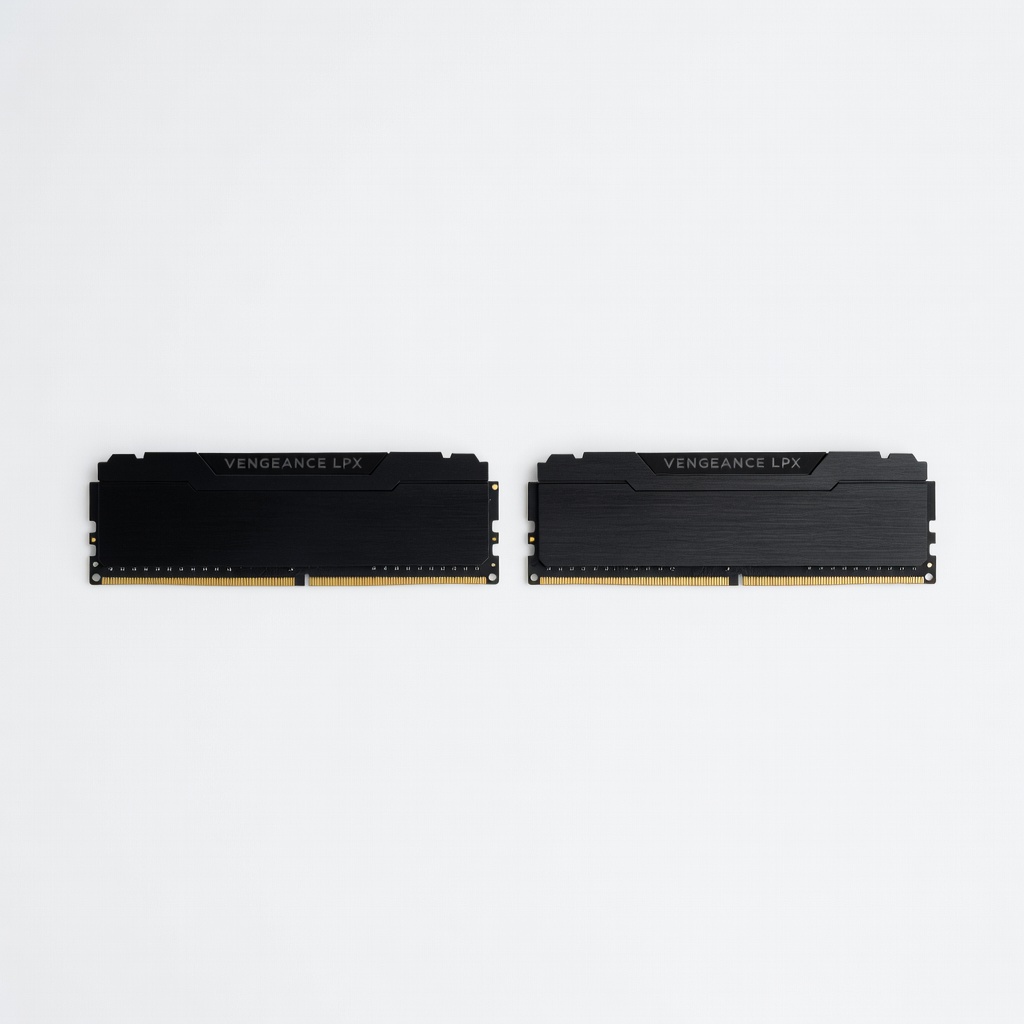
Corsair Vengeance LPX 16GB (2x8GB) DDR4 3200MHz RAM
Boosts multitasking and open-world loading, fixing RAM bottlenecks in demanding games.
Best for: When Task Manager shows >90% RAM usage during play.
Price Range: $45-$55
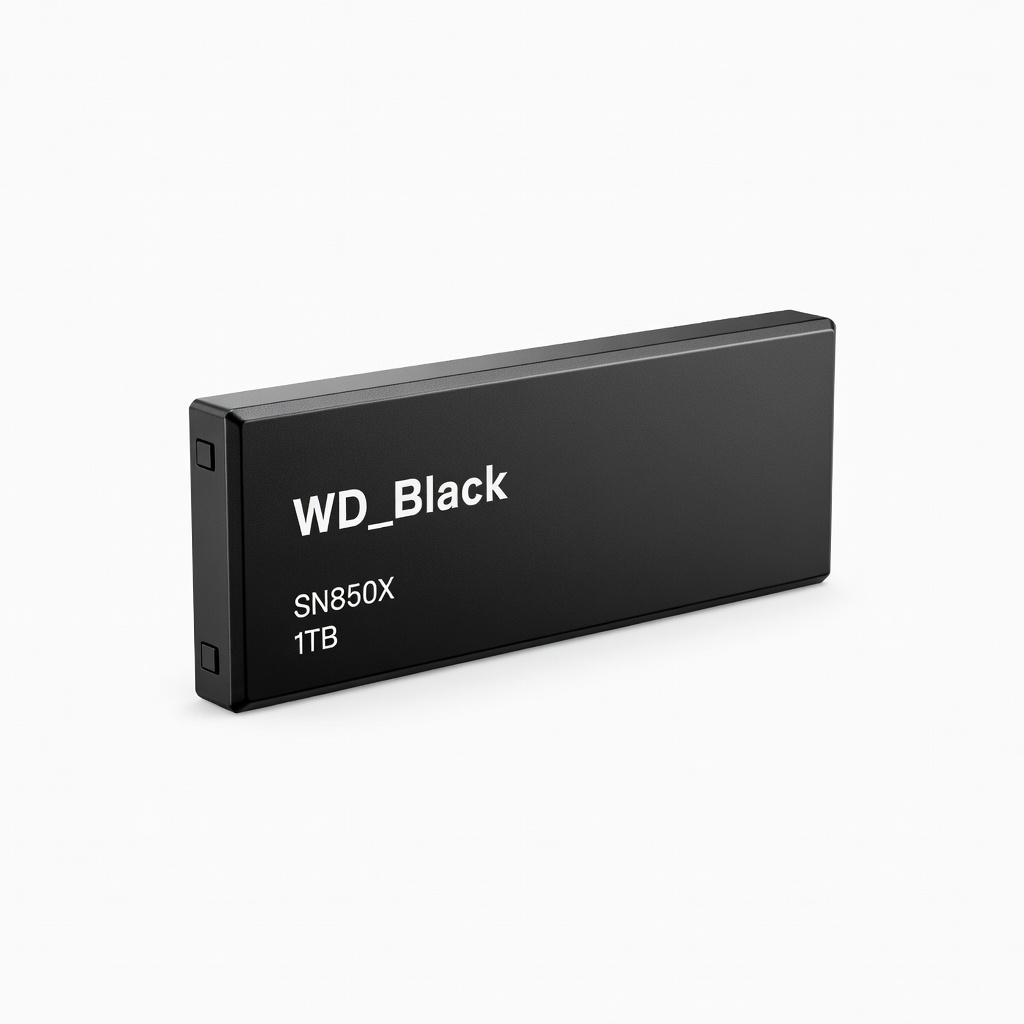
WD_Black SN850X 1TB NVMe SSD
Eliminates HDD stuttering with 7000MB/s speeds for fast asset loading.
Best for: Texture pop-in or long loads in adventure games.
Price Range: $80-$100
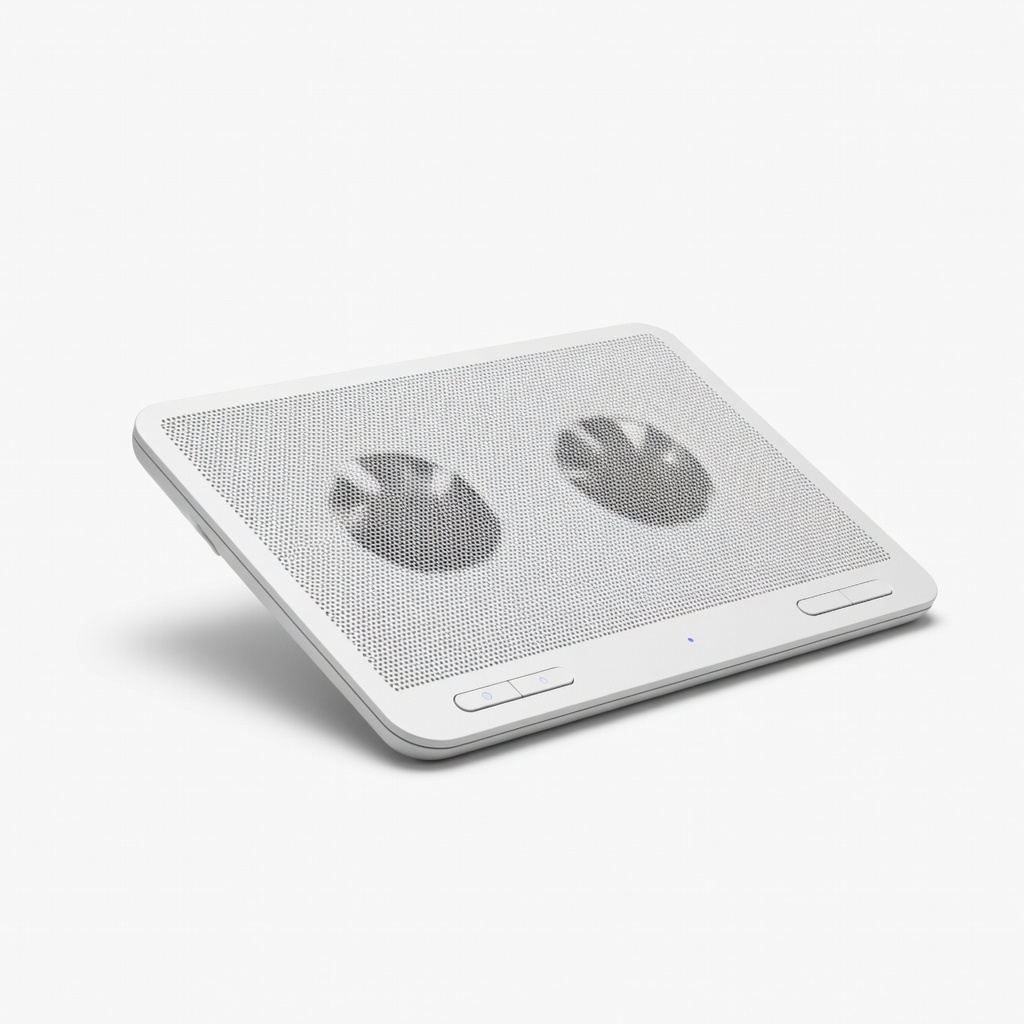
KLIM Wind Laptop Cooling Pad
Reduces throttling by 20°C, stabilizing FPS in long sessions.
Best for: Laptop gamers with temps >85°C.
Price Range: $25-$35
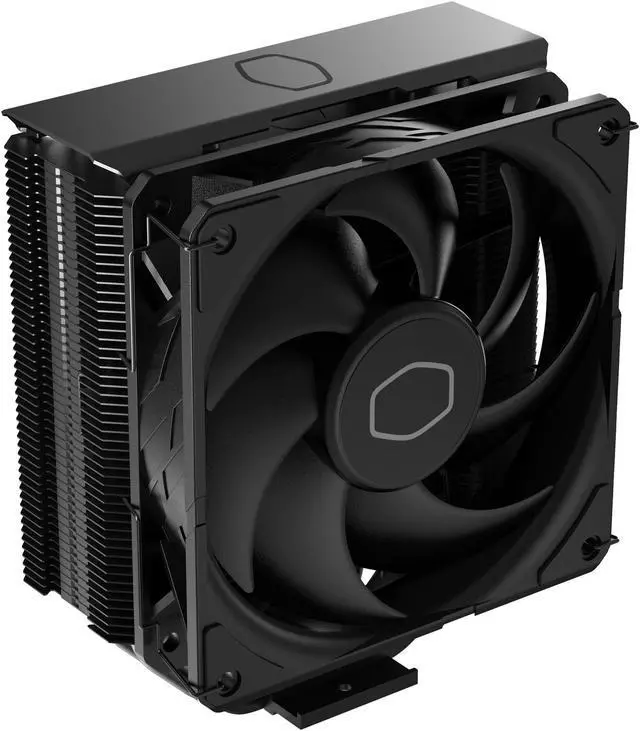
Cooler Master Hyper 212 Black CPU Cooler
Drops CPU temps 15-25°C for consistent performance.
Best for: Desktop builds with stock coolers overheating.
Price Range: $30-$40
Razer Cortex PC Booster Software (Lifetime License)
Automates background closing and optimizations with one click.
Best for: Frequent gamers wanting hands-off fixes.
Price Range: $10-$20