Dreaming of sleek, minimalist modern architecture but turned off by expensive tools like AutoCAD or Revit? You're not alone—many aspiring architects and hobbyists face steep subscription costs just to experiment with designs. The good news: free software like Blender delivers pro-level results for modern styles with clean lines, open spaces, and parametric forms.
In this guide, you'll learn to design a complete modern villa, from 2D floor plan to photorealistic render. We'll cover Blender's architecture workflow, tailored for intermediates who know basics like navigation but want modeling power. Expect a logical process: plan, model, detail, visualize.
This takes 3-5 hours total, depending on your machine. Intermediate difficulty assumes familiarity with 3D interfaces—no prior Blender experience needed, but patience with hotkeys helps.
▸What You'll Need
- •Computer with 8GB RAM, dedicated GPU recommended (Windows, Mac, or Linux)
- •Blender (free: download from blender.org)
- •Mouse with scroll wheel (3-button minimum)
- •Optional: Graphics tablet for precise sketching
- •Internet for tutorials/plugins
Estimated Time: 3-5 hours
Difficulty: intermediate
▸Step-by-Step Instructions
Step 1: Download and Install Blender
Head to blender.org/download and grab the latest stable version (4.2+ in 2025). Choose your OS—it's 100% free and open-source. Run the installer, launch Blender, and delete the default cube (select + X > Delete) to start clean.
Why? Blender's node-based materials and geometry nodes excel at modern parametric designs like facades with repeating patterns. Expect a splashy startup screen; set units to Metric (Scene Properties > Units) for architectural accuracy (e.g., meters). Success: Empty viewport ready.
Image description: Screenshot of Blender download page and fresh startup interface.
💡 Tips:
- •Enable 'Industry Compatible' keymap in Preferences for familiar shortcuts.
⚠️ Warnings:
- •Avoid beta versions for tutorials—stick to LTS releases.
Step 2: Configure Workspace for Architecture
File > New > General, then switch to Modeling layout (top tabs). Add Archimesh addon: Edit > Preferences > Add-ons > search 'Archimesh' > enable. This free built-in tool adds doors/windows/roofs instantly.
Why it matters: Custom workspaces prevent clutter; Archimesh speeds modern elements like curtain walls. Expect panels for 3D View, Outliner, Properties. Success: Sidebar shows Archimesh tab.
Pro move: Save as startup file (File > Defaults > Save Startup File).
Image description: Blender workspace with Archimesh panel open.
💡 Tips:
- •Split windows (drag corner) for floorplan in Top Ortho view (Numpad 7).
⚠️ Warnings:
- •Don't overload addons—disable extras to avoid lag.
Step 3: Sketch the Floor Plan in 2D
Switch to Top View (Numpad 7), enter Edit Mode (Tab). Add Plane (Shift+A > Mesh > Plane), scale (S > 10 for 10m x 10m base). Extrude inner walls (E > drag), use Loop Cut (Ctrl+R) for rooms.
Modern tip: Open-plan layout—large living/kitchen (20x10m), bedrooms offset. Why? Ensures scale accuracy before 3D. Success: Clean wireframe floorplan visible in Ortho.
Use snapping (magnet icon) for precision.
Image description: Top-down wireframe floorplan of modern villa.
💡 Tips:
- •Grid floor (Add > Mesh > Grid) as guide; Snap to Grid (Shift+Tab).
Step 4: Extrude Walls and Add Height
Select top faces (Face Select mode), Extrude (E > Z > 3m for walls). Solidify (Modifier tab > Add > Solidify, Thickness 0.2m). Boolean for openings later.
Why: Builds volume quickly; modern homes have flat 3m ceilings. Expect solid structure. Merge vertices (M > By Distance) for clean geo.
Image description: 3D extruded walls from floorplan.
⚠️ Warnings:
- •Avoid overlapping geometry—use Knife tool (K) for clean cuts.
Step 5: Insert Modern Elements: Windows, Doors, Roof
Archimesh tab > Add Sliding Door/Window (scale to fit). For flat roof: Add Plane > Extrude edges down slightly, Bridge Edge Loops (Ctrl+E > Bridge).
Modern flair: Floor-to-ceiling glass (tall windows), cantilever roof. Why? Instant realism without manual modeling. Success: Functional villa shell.
Image description: Villa with large glass windows and flat roof.
💡 Tips:
- •Use Array modifier for repeating balustrades.
Step 6: Apply Modern Materials and Textures
Switch to Shading workspace. Principled BSDF shader: Base Color white for walls, Glass for windows (IOR 1.45). UV unwrap (U > Smart) for textures.
Download free PBR packs (cc0textures.com). Why? Modern = matte concrete, glossy steel. Expect viewport preview (Rendered mode).
Image description: Material-applied model in viewport.
💡 Tips:
- •Node Wrangler addon (enabled) > Ctrl+Shift+LeftClick for previews.
Step 7: Set Up Lighting, Camera, and Environment
Add HDRI (World > Color > Environment Texture, free from polyhaven.com). Area Light for key, Sun for shadows. Add Camera (Shift+A), Ctrl+Alt+0 to align.
Why: Photoreal renders sell designs. Fly around (Shift+drag), compose shot. Success: Realistic lit scene.
Image description: Lit villa with camera view.
⚠️ Warnings:
- •High samples crash weak PCs—start low.
Step 8: Render and Export Your Design
Render tab: Cycles engine, 128-512 samples. F12 for image, Ctrl+F12 animation. Export OBJ/GLTF (File > Export) for web/print.
Why: Shareable portfolio piece. Success: Stunning PNG/JPG of your modern villa.
Image description: Final photoreal render of modern architecture.
💡 Tips:
- •Denoise (Render Properties) for clean fast renders.
▸Pro Tips
- •Use Geometry Nodes for procedural facades—repeat modern panels infinitely.
- •Hotkey Numpad for views saves mouse travel; customize in Preferences.
- •Version control: Save increments (File > Save As, villa_v01.blend).
- •Boost speed: Eevee render for previews, Cycles for finals.
- •Join communities like Blender Artists forum for modern arch presets.
- •Scale check: Measure tool (Properties > Tool) ensures real-world sizes.
- •Free assets: BlendSwap for furniture to populate interiors.
▸Common Mistakes to Avoid
- •Ignoring scale—fix by setting Scene Units early; looks toy-like otherwise.
- •Messy topology from bad extrudes—use Remesh modifier to clean.
- •Overlighting HDRI—dial exposure down 0.5-1.0 stops.
- •No backups—Blender autosaves, but manual versions prevent crashes.
- •Skipping modifiers—apply only at end for non-destructive edits.
▸Troubleshooting
Problem: Blender crashes on render
Solution: Reduce tile size (Render Properties > Performance), close other apps, or switch to Eevee.
Problem: Addons not appearing
Solution: Restart Blender, check Preferences > Add-ons > refresh.
Problem: Models look blocky
Solution: Subdivide surfaces (W > Subdivide), add Subdivision Surface modifier.
Problem: Slow viewport
Solution: Simplify mesh (Decimate modifier), lower viewport shading.
Logitech MX Master 3S Wireless Mouse
Precision scrolling and gestures perfect for Blender's viewport navigation and precise modeling.
Best for: Daily design sessions—thumb wheel zooms flawlessly in orthographic views.
Price Range: $99.99
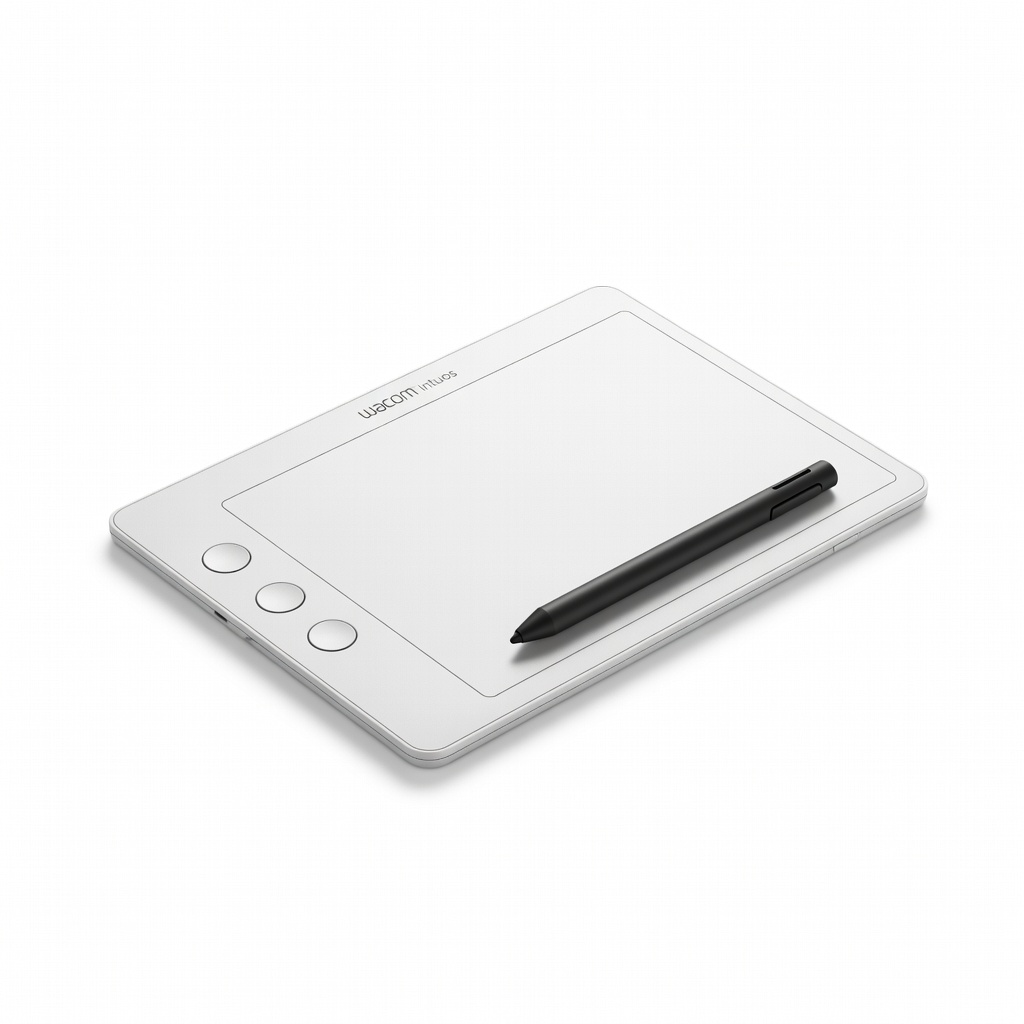
Wacom Intuos Small Graphics Tablet
Pressure-sensitive drawing for intuitive floorplan sketching vs. mouse.
Best for: Tracing imported plans or freehand modern curves.
Price Range: $49.95
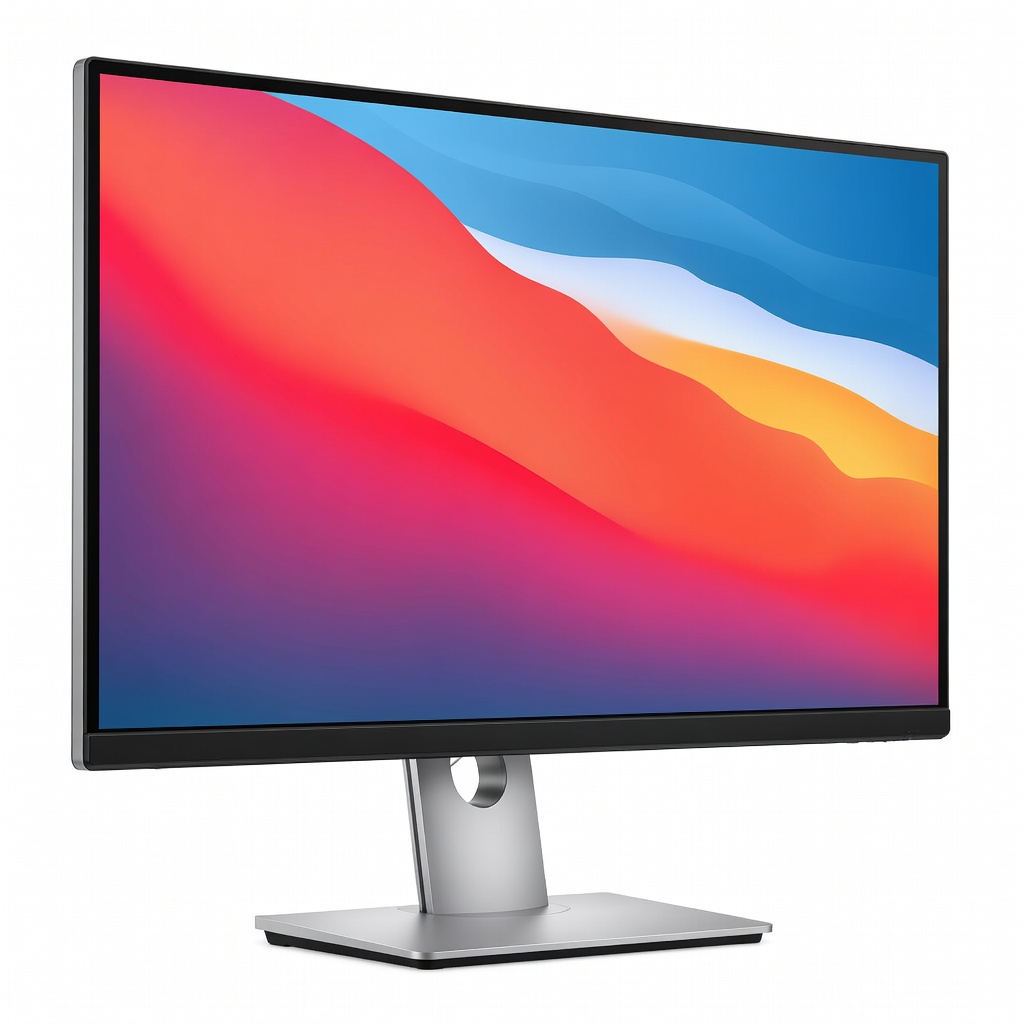
Dell S2721QS 27-inch 4K Monitor
Sharp 4K detail reveals fine architecture textures and renders accurately.
Best for: Dual-monitor setup: one for Blender, one for references.
Price Range: $249.99
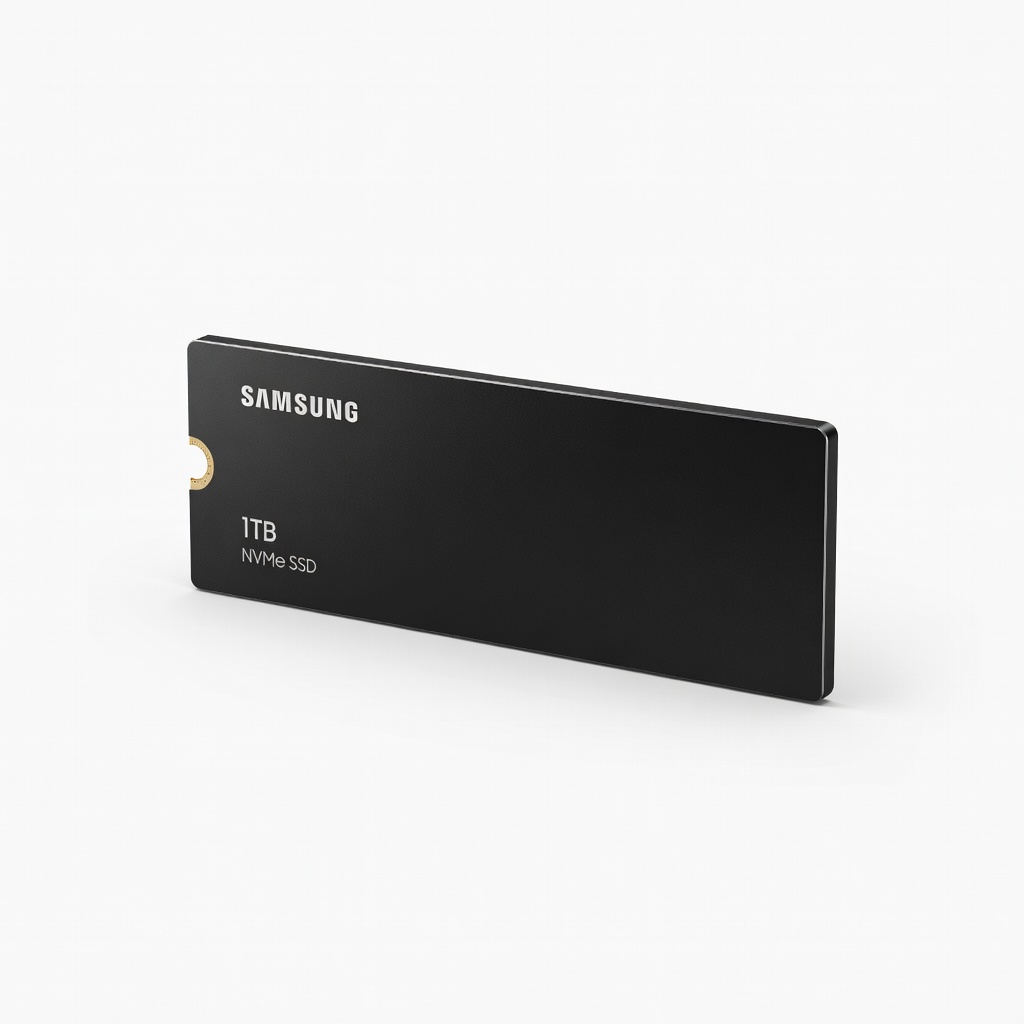
Samsung 980 PRO 1TB NVMe SSD
Lightning-fast asset loading and renders—essential for large scene files.
Best for: Store Blender projects and HDRI libraries.
Price Range: $99.99
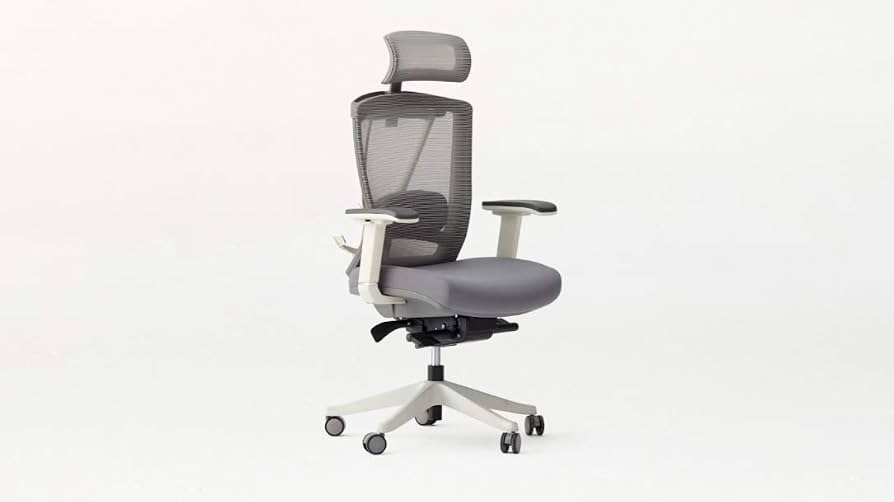
Autonomous ErgoChair 2
Ergonomic support for long design marathons without back pain.
Best for: Comfort during 3-5 hour tutorials.
Price Range: $399-$499