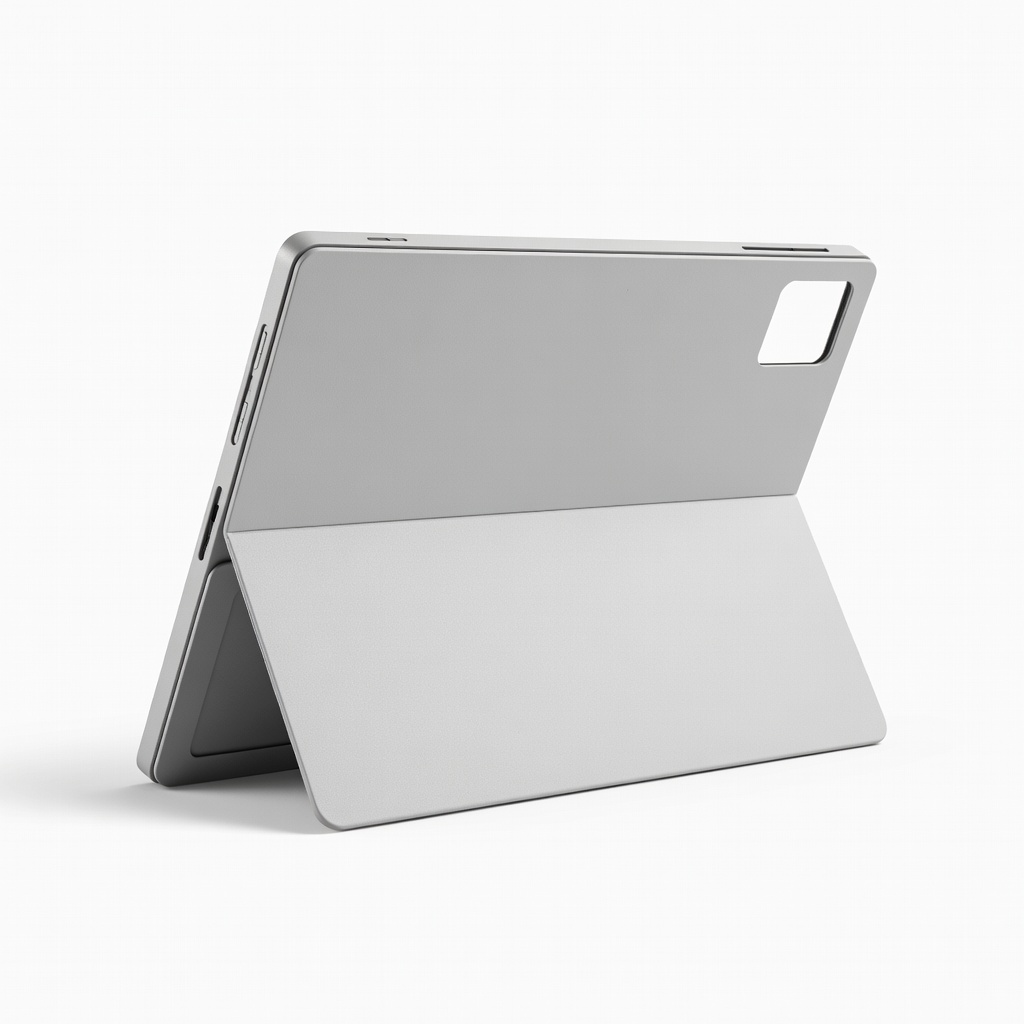
Struggling with a clunky 2-in-1 laptop that won't flip into tablet mode smoothly? You're not alone—many beginners face hinge resistance, screen rotation glitches, or unresponsive touch. This guide fixes that, turning your device into a versatile tablet for note-taking, streaming, or sketching on the go.
You'll learn step-by-step how to prepare, convert, and optimize your 2-in-1 for flawless tablet use. Whether it's a Lenovo Yoga, HP Spectre, or Microsoft Surface, these instructions work across Windows-based convertibles. Expect a quick 5-10 minute process with no tech expertise needed.
By the end, your laptop will auto-detect tablet mode, rotate perfectly, and feel like a dedicated tablet—perfect for beginners diving into hybrid computing.
▸What You'll Need
- •Compatible 2-in-1 laptop (convertible hinge or detachable, e.g., Lenovo Yoga or Surface Pro)
- •Internet connection for updates (required)
- •Optional: Active stylus pen for testing touch input
- •Charged battery (at least 50% to avoid interruptions)
Estimated Time: 5-10 minutes
Difficulty: beginner
▸Step-by-Step Instructions
Step 1: Confirm Your Laptop Supports Tablet Mode
Start by checking if your 2-in-1 is designed for tablet conversion. Look for a 360-degree hinge (convertible) or detachable keyboard (like Surface Pro). Open Settings > System > About in Windows to note your model.
Why it matters: Not all laptops support this—rigid-screen models won't work. Success looks like confirming specs on the manufacturer's site (e.g., 'tablet mode compatible').
Image description: Close-up of a Lenovo Yoga laptop flipped halfway, with Settings window open showing model details.
💡 Tips:
- •Search your model + 'tablet mode' on Google for confirmation.
⚠️ Warnings:
- •Avoid forcing non-convertible laptops—risks hinge damage.
Step 2: Update Windows and Drivers
Outdated software causes mode detection failures. Go to Settings > Update & Security > Windows Update > Check for updates. Install all, then restart.
Next, update drivers: Search 'Device Manager,' expand 'Human Interface Devices' and 'HID-compliant touch screen.' Right-click > Update driver.
Expect a 2-5 minute process; success is no pending updates and smooth restarts. This ensures auto-rotation and touch work seamlessly.
💡 Tips:
- •Use manufacturer's app like Lenovo Vantage for one-click updates.
⚠️ Warnings:
- •Skip if battery <30%—plug in first.
Step 3: Enable Auto-Rotation and Touch Settings
Navigate to Settings > System > Display > Graphics settings and ensure 'Rotation lock' is off. Under Tablet mode, toggle 'When I sign in' or 'Don't ask me' for auto-switch.
In Action Center (Win+A), confirm 'Tablet mode' toggle is available. Test by tilting—the screen should rotate.
Success: Screen flips orientation freely without manual intervention.
💡 Tips:
- •Pin Action Center to taskbar for quick access.
Step 4: Physically Flip to Tablet Mode
Gently fold the screen 360 degrees until the keyboard faces back (convertible) or detach the base (detachable). Hold the screen edges—avoid gripping the keyboard.
Windows should auto-prompt or switch modes. If not, tap the Tablet mode tile in Action Center.
What to expect: Fans may spin briefly; touch keyboard disappears, taskbar optimizes for touch.
💡 Tips:
- •Practice on a soft surface to build confidence.
⚠️ Warnings:
- •Never force the hinge—listen for smooth clicks.
Step 5: Test Touch Gestures and Responsiveness
Swipe from edges: Left for Action Center, right for notifications, bottom for taskbar. Pinch to zoom in apps like Edge or Photos.
Open Paint or OneNote—draw with finger or stylus. Success: Fluid swipes, accurate taps, no lag.
Why: Confirms full tablet functionality for reading, browsing, or drawing.
💡 Tips:
- •Enable 'Press and hold for right-click' in Pen settings for stylus.
Step 6: Optimize Apps and Battery for Tablet Use
Dock apps to taskbar for touch access. Go to Settings > System > Power & sleep—set balanced mode. Close unused apps via Task View (Win+Tab).
Install touch-friendly apps like Netflix or Adobe Fresco. Expect 20-30% better battery in tablet mode.
Final success: Seamless use for hours without reverting issues.
💡 Tips:
- •Use Continuum-like apps for phone mirroring.
▸Pro Tips
- •Keep hinges clean with compressed air for smoother flips.
- •Use a screen protector to reduce fingerprints during touch use.
- •Enable 'Tablet mode improvements' in Windows Insider for better gestures.
- •Pair a Bluetooth keyboard for hybrid work without flipping back.
- •Calibrate stylus in Pen & Windows Ink settings for precision drawing.
- •Stand your tablet in a case for hands-free video calls.
- •Backup data before major updates to avoid glitches.
▸Common Mistakes to Avoid
- •Forcing the hinge without checking model specs—leads to breakage; verify compatibility first.
- •Ignoring driver updates—causes rotation failures; always update before flipping.
- •Leaving rotation lock on—screen stays landscape; toggle off in Display settings.
- •Using in low battery—mode switches fail; charge to 50%+.
- •Overloading with desktop apps—slows touch; switch to tablet-optimized apps.
▸Troubleshooting
Problem: Screen doesn't rotate
Solution: Turn off Rotation lock in Action Center; update accelerometer drivers in Device Manager.
Problem: Touch not responding
Solution: Restart explorer.exe in Task Manager or reinstall HID drivers.
Problem: Hinge stiff or stuck
Solution: Apply hinge lubricant sparingly or contact manufacturer warranty.
Problem: Tablet mode won't auto-activate
Solution: Reset Action Center tiles; check for Windows updates.
Problem: Battery drains fast
Solution: Enable Battery Saver; close background apps.
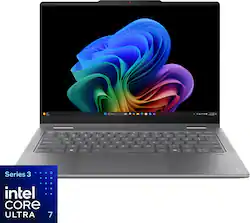
Lenovo Yoga 7i 2-in-1 (14", Intel Core Ultra)
Exceptional 360-degree hinge and responsive touch for seamless flips; Intel Arc graphics enhance tablet drawing.
Best for: Daily productivity and creative work in tablet mode.
Price Range: $700-$900
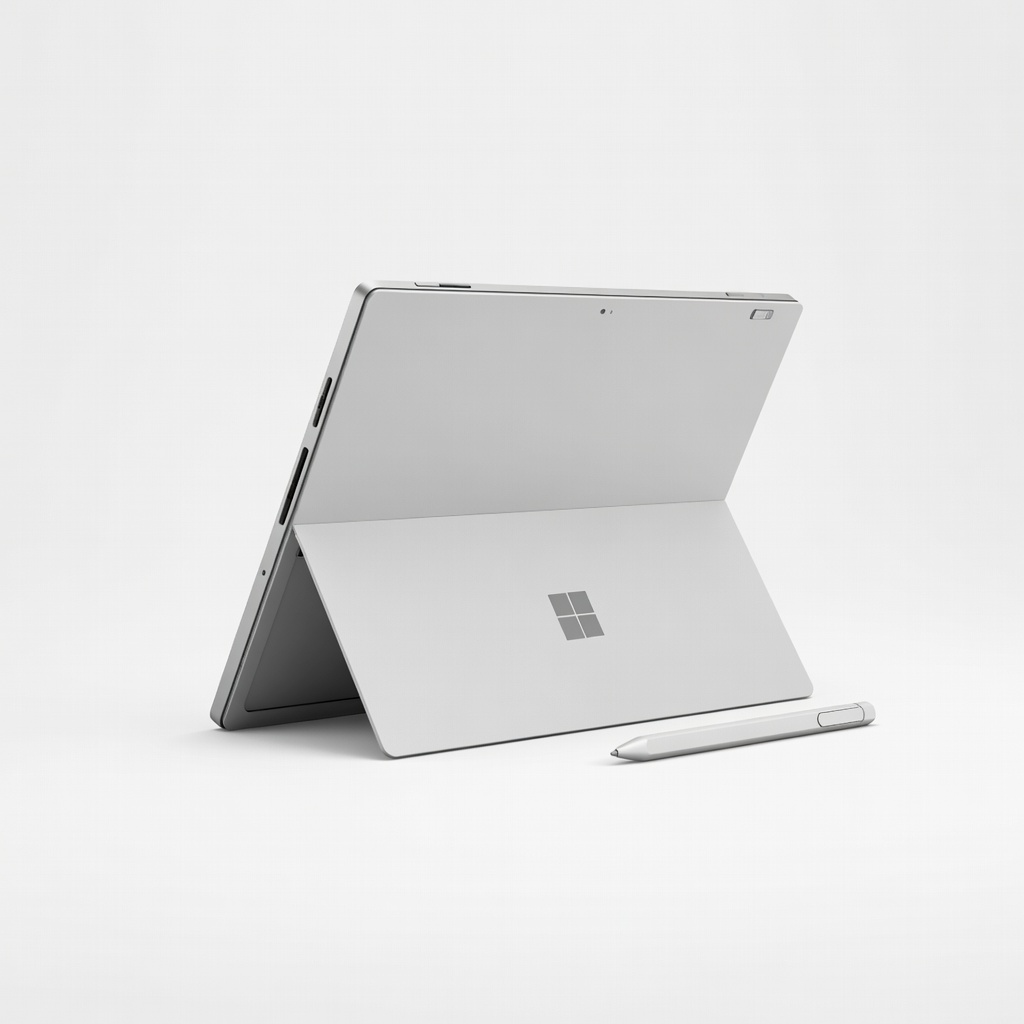
Microsoft Surface Pro 11th Edition
Detachable design with best-in-class kickstand and pen support for true tablet feel.
Best for: Portable note-taking and media consumption.
Price Range: $1000-$1500
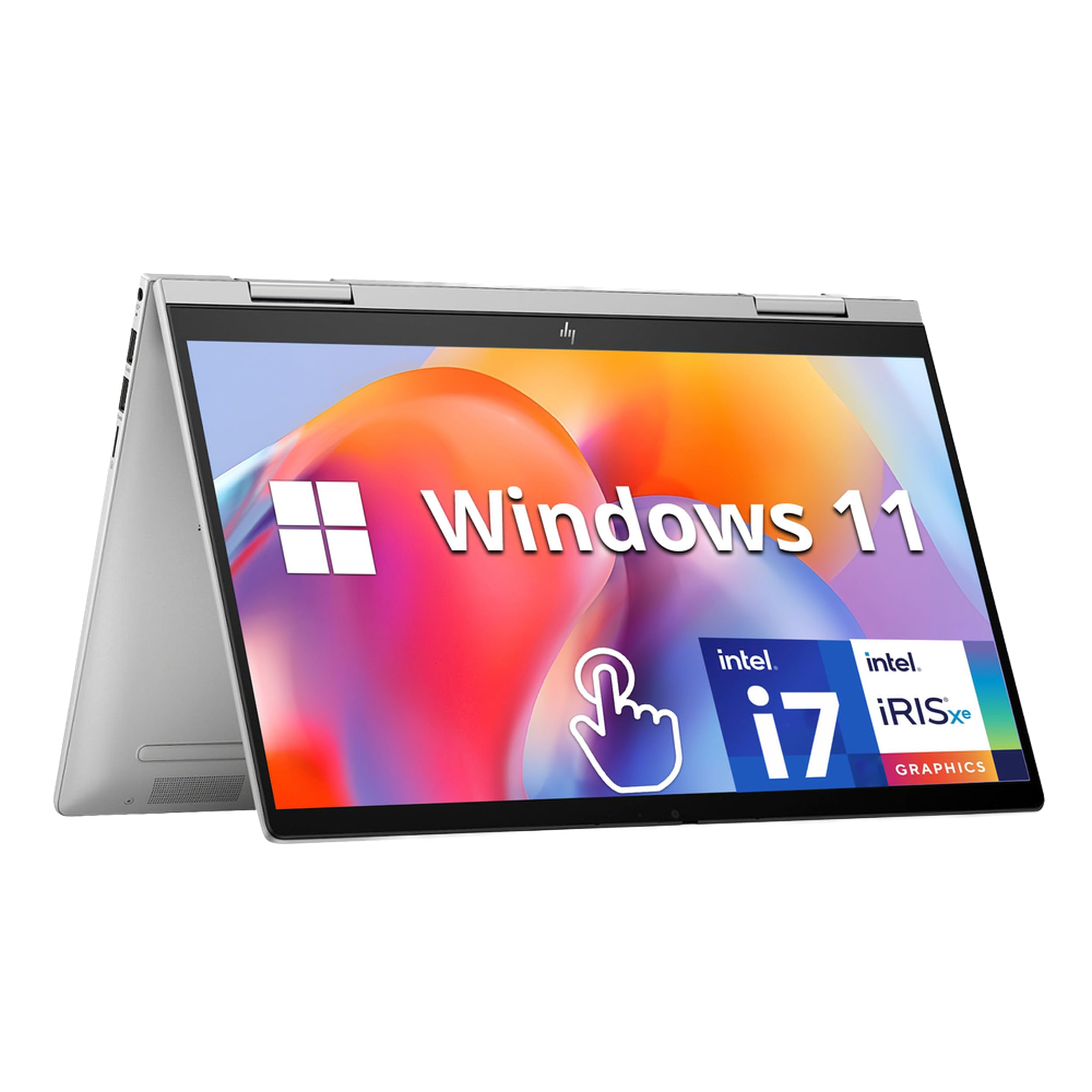
HP Envy x360 14" 2-in-1
Affordable with smooth hinge and vibrant OLED touch screen for beginners.
Best for: Budget-friendly entry to tablet mode.
Price Range: $500-$700
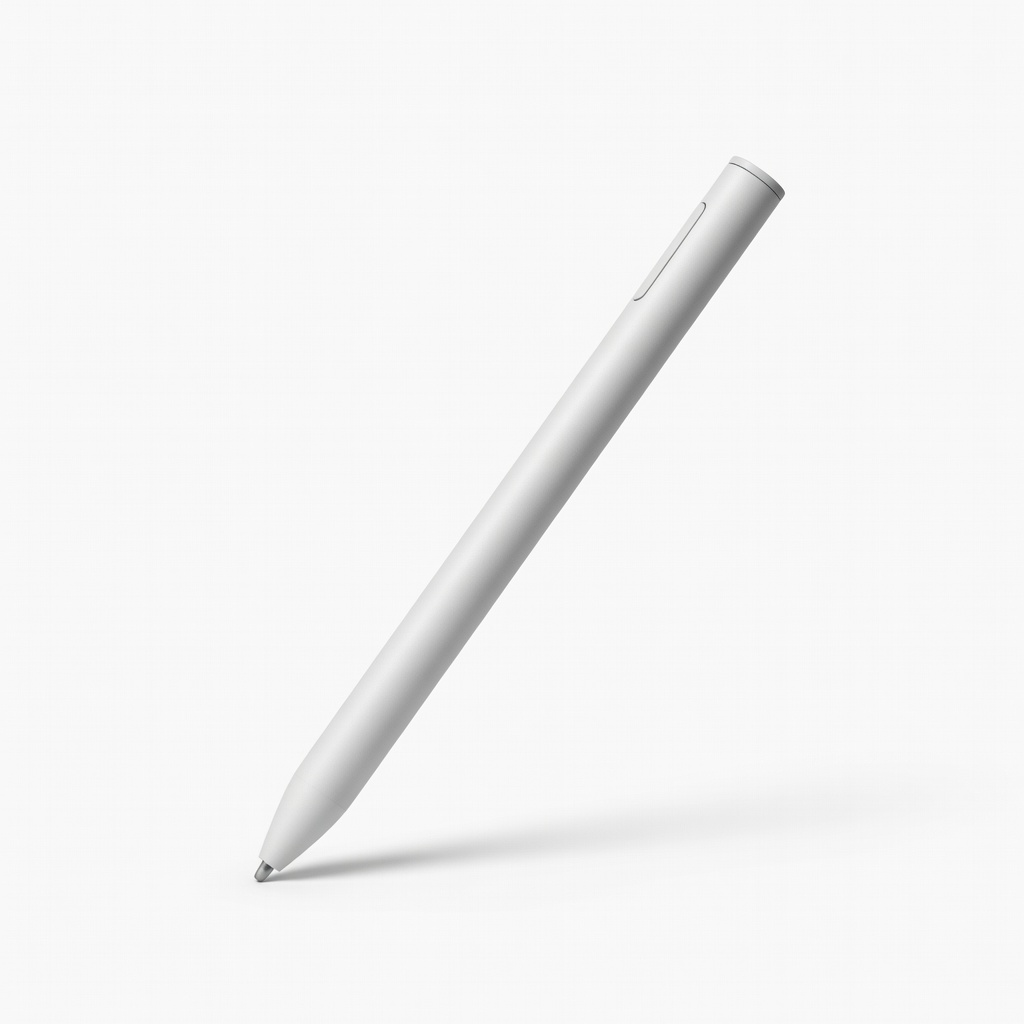
Microsoft Surface Pen
Pressure-sensitive stylus perfect for testing and enhancing tablet input.
Best for: Drawing and precise navigation in tablet mode.
Price Range: $90-$100
ESR Rebound Magnetic Case for Surface Pro
Protects screen and adds stand angles for stable tablet use.
Best for: On-the-go protection during flips.
Price Range: $25-$35