Watching TV late at night or in a shared space can be tricky when audio disturbs others. Bluetooth headphones solve this by delivering personal sound directly to your ears without wires. If you've ever struggled with tangled cords or low volume from built-in speakers, connecting Bluetooth headphones is a game-changer for immersive viewing.
In this guide, you'll learn how to check compatibility, enable Bluetooth on your TV, and pair your headphones step by step. Whether your TV has built-in Bluetooth or needs an adapter, we'll cover both scenarios. The process is straightforward for beginners and typically takes just 10-15 minutes, depending on your device.
By the end, you'll enjoy movies, shows, or games with clear, private audio—no more subtitles or shouting matches over volume levels.
▸What You'll Need
- •Bluetooth-enabled headphones (required; ensure they're charged)
- •TV with built-in Bluetooth support (required; check your model manual)
- •TV remote (required)
- •Bluetooth transmitter/adapter (optional, if your TV lacks Bluetooth)
- •Smartphone or computer (optional, for troubleshooting or checking compatibility)
Estimated Time: 10-15 minutes
Difficulty: beginner
▸Step-by-Step Instructions
Step 1: Check Your TV and Headphones Compatibility
Before starting, verify that your TV supports Bluetooth audio output. Most modern smart TVs from brands like Samsung, LG, or Sony do, but older models might not. Open your TV's settings menu using the remote and look for a 'Bluetooth' or 'Sound Output' option. If it's there, you're good to go.
For your headphones, confirm they support Bluetooth pairing (most do, like AirPods or Sony models). Charge them fully to avoid interruptions. This step ensures you won't waste time on incompatible devices and sets a smooth foundation.
Success looks like seeing Bluetooth options in your TV menu and your headphones powered on with a steady light.
💡 Tips:
- •Download your TV's manual from the manufacturer's website if you can't find the settings.
- •Test headphones with your phone first to confirm they pair elsewhere.
⚠️ Warnings:
- •Don't proceed if your TV is very old (pre-2015); you may need an adapter—see Step 7.
Step 2: Turn On Your Bluetooth Headphones
Power on your headphones by pressing the power button until the LED indicator lights up (usually blue or white). Most models enter pairing mode automatically on first use or after holding the Bluetooth button for 3-5 seconds.
Why this matters: Headphones must be discoverable for the TV to see them. Listen for a voice prompt saying 'pairing mode' or watch for a flashing light—this indicates readiness.
Expect the headphones to announce or blink, signaling they're ready to connect. If they don't, consult the headphone manual for the exact pairing button.
💡 Tips:
- •Keep headphones within 30 feet of the TV to avoid signal loss.
- •Reset headphones by holding power + volume down for 10 seconds if they've paired to another device.
⚠️ Warnings:
- •Avoid pairing near microwaves or cordless phones, which can interfere with Bluetooth signals.
Step 3: Enable Bluetooth on Your TV
Using your TV remote, press the 'Home' or 'Menu' button to access settings. Navigate to 'Sound' > 'Sound Output' or 'Bluetooth Devices' (exact path varies by brand—e.g., Samsung: Settings > General > External Device Manager).
Select 'Bluetooth' and toggle it on. This allows your TV to scan for nearby devices. Why it matters: Without this, your TV can't detect headphones, leading to failed attempts.
Success: The TV screen shows 'Bluetooth On' or a scanning list. It might take 10-20 seconds to initialize.
💡 Tips:
- •If your TV runs Android TV or webOS, search 'Bluetooth' in the settings search bar for quicker access.
- •Disconnect any existing Bluetooth devices from the TV first.
⚠️ Warnings:
- •Don't skip this if your TV has multiple audio outputs; ensure Bluetooth is selected over HDMI or speakers.
Step 4: Scan for and Select Your Headphones
In the TV's Bluetooth menu, choose 'Add Device' or 'Pair New Device.' Your TV will scan for available Bluetooth signals—your headphones should appear as '[Headphone Model] Pairing' or similar.
Select it from the list. The TV will attempt to pair, showing a confirmation code if needed (accept on both devices). Why this: Pairing establishes a secure connection for audio streaming.
Expect a 'Connected' message on the TV and a solid light or confirmation tone on headphones. Audio should route to them immediately.
💡 Tips:
- •If headphones don't appear, put them back in pairing mode and rescan.
- •Rename devices in settings for easier identification next time.
⚠️ Warnings:
- •Pairing can fail if headphones are too far; move them closer to the TV.
Step 5: Test the Connection and Adjust Audio
Play some audio or video on your TV. Sound should come through the headphones clearly, not the TV speakers. If needed, go back to settings and set 'Audio Output' to Bluetooth headphones.
Adjust volume using headphone controls or TV remote. Why it matters: Testing confirms the link works for your content, like movies or streaming apps.
Success: Crisp audio in headphones with no lag or static. Latency under 200ms is ideal for video sync.
💡 Tips:
- •For lip-sync issues, enable 'Low Latency' mode in TV audio settings if available.
- •Update your TV's firmware via settings for better Bluetooth performance.
⚠️ Warnings:
- •High-volume TV speakers might still play faintly; mute them in settings.
Step 6: Troubleshoot If No Built-in Bluetooth (Use Adapter)
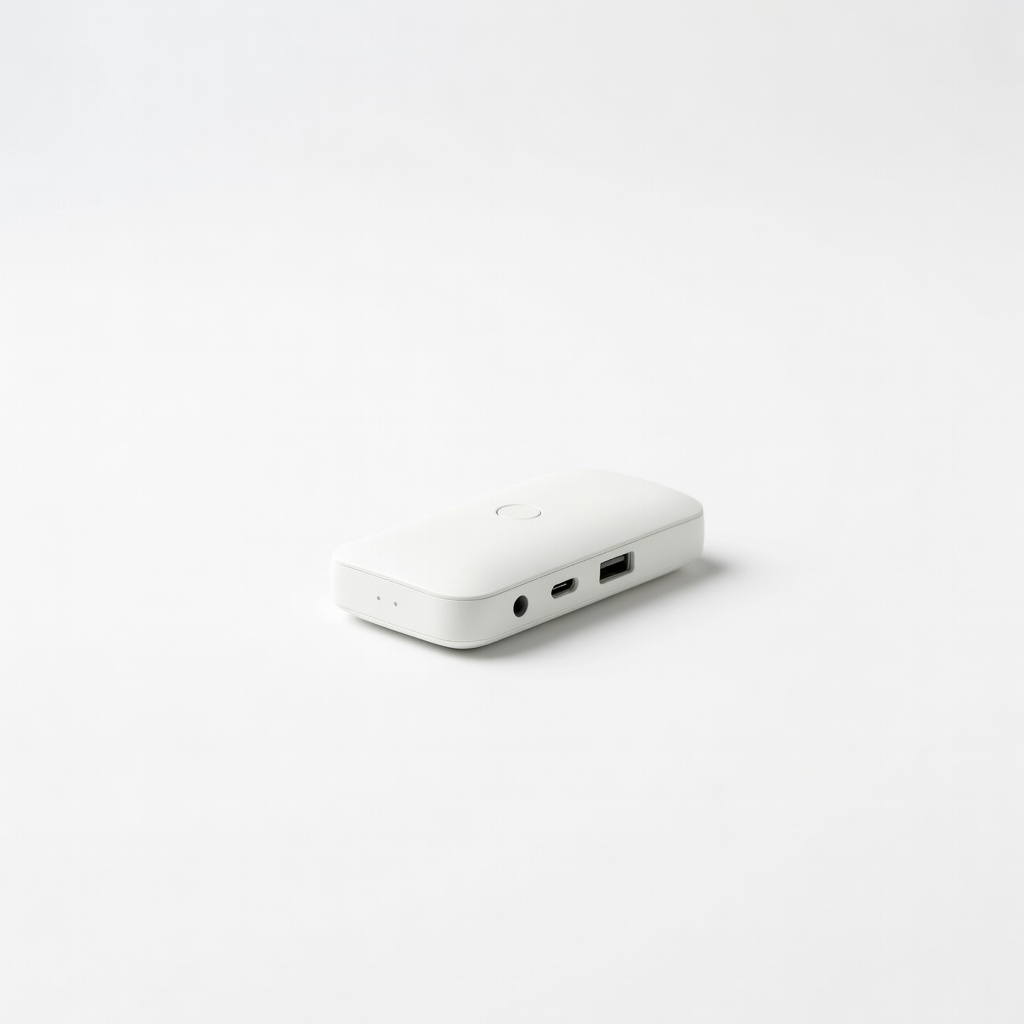
If your TV lacks Bluetooth, plug a Bluetooth transmitter into the TV's audio out (3.5mm jack or optical). Power it on and put it in pairing mode, then follow Steps 2-5 treating the adapter as the 'TV' source.
Why: Adapters bridge older TVs to wireless audio. Expect similar pairing but with the adapter's lights confirming connection.
Success: Headphones pair to the adapter, and TV audio transmits wirelessly.
💡 Tips:
- •Choose transmitters with aptX Low Latency for minimal audio delay.
- •Ensure the adapter supports your TV's audio port type.
⚠️ Warnings:
- •Optical adapters need a digital-to-analog converter if your TV only has optical out.
▸Pro Tips
- •Keep firmware updated on both TV and headphones for stable connections.
- •Use a Bluetooth 5.0+ device for better range and less interference.
- •Pair in a quiet room to hear confirmation tones clearly.
- •For multiple users, create Bluetooth profiles on your TV to switch headphones quickly.
- •Charge headphones during long sessions using a wireless dock to avoid breaks.
- •Enable TV's 'Private Listening' mode if available for optimized headphone audio.
- •Test with different apps (e.g., Netflix vs. cable) as some handle Bluetooth better.
▸Common Mistakes to Avoid
- •Forgetting to put headphones in pairing mode, leading to no detection—always check the LED flash.
- •Pairing headphones to the wrong device like a phone first, causing TV scan failures—disconnect others via their settings.
- •Ignoring TV audio output settings, so sound stays on speakers—double-check after pairing.
- •Overlooking distance; signals drop beyond 30 feet—keep devices close during setup.
- •Not charging devices fully, resulting in dropouts mid-session—aim for 80% battery minimum.
▸Troubleshooting
Problem: Headphones not appearing in TV scan
Solution: Restart both devices, ensure pairing mode, and reduce distance. Clear TV's Bluetooth cache in advanced settings.
Problem: Audio lag or delay during video
Solution: Switch to low-latency codec in headphone settings or use a transmitter with aptX LL. Avoid 2.4GHz interference sources.
Problem: Connection drops randomly
Solution: Move away from Wi-Fi routers or microwaves. Re-pair devices and check for firmware updates.
Problem: No sound after pairing
Solution: Verify TV output is set to Bluetooth, not internal speakers. Test headphones with another source.
Problem: TV doesn't have Bluetooth at all
Solution: Purchase and install a Bluetooth audio transmitter. Seek professional setup if ports are unclear.
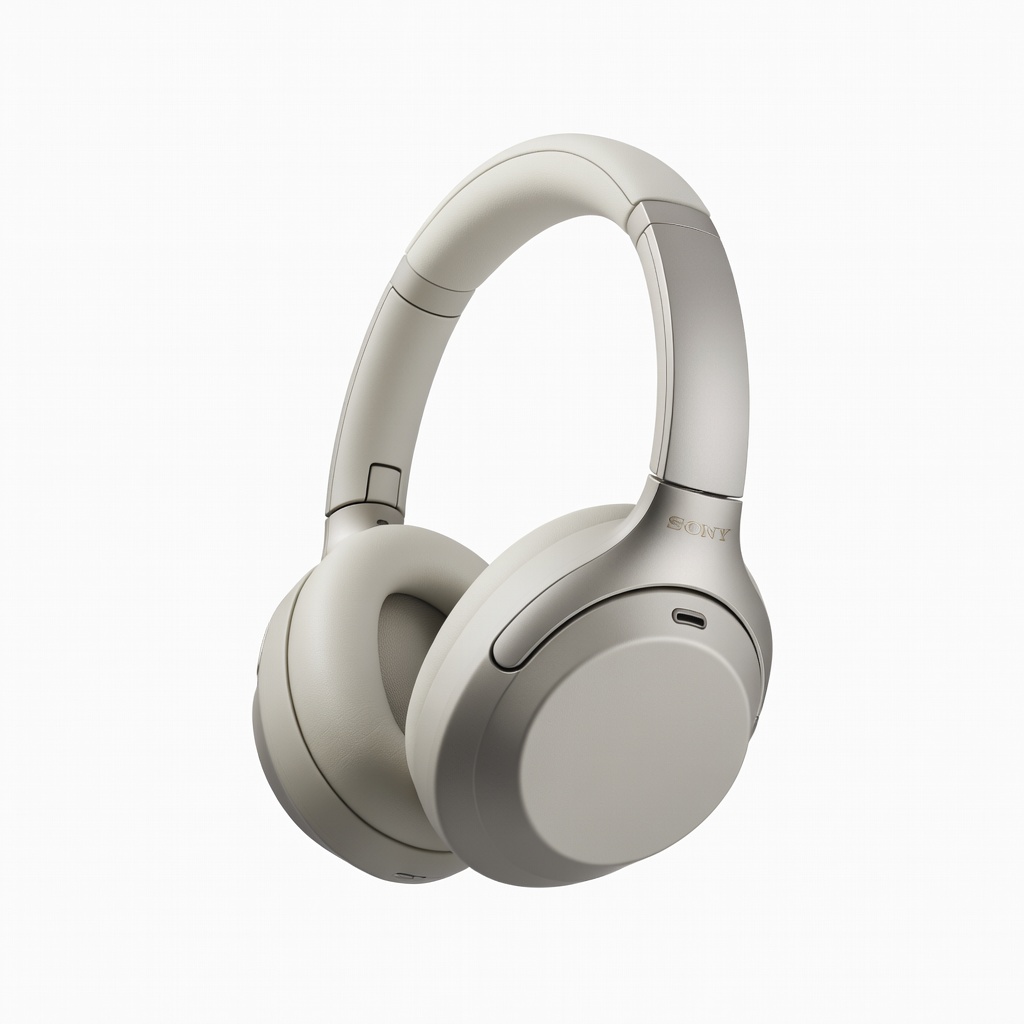
Sony WH-1000XM5 Wireless Headphones
Excellent Bluetooth 5.2 connectivity with low latency and noise cancellation, perfect for TV audio without distractions.
Best for: Ideal for immersive movie nights; pairs seamlessly with smart TVs.
Price Range: $350-$400
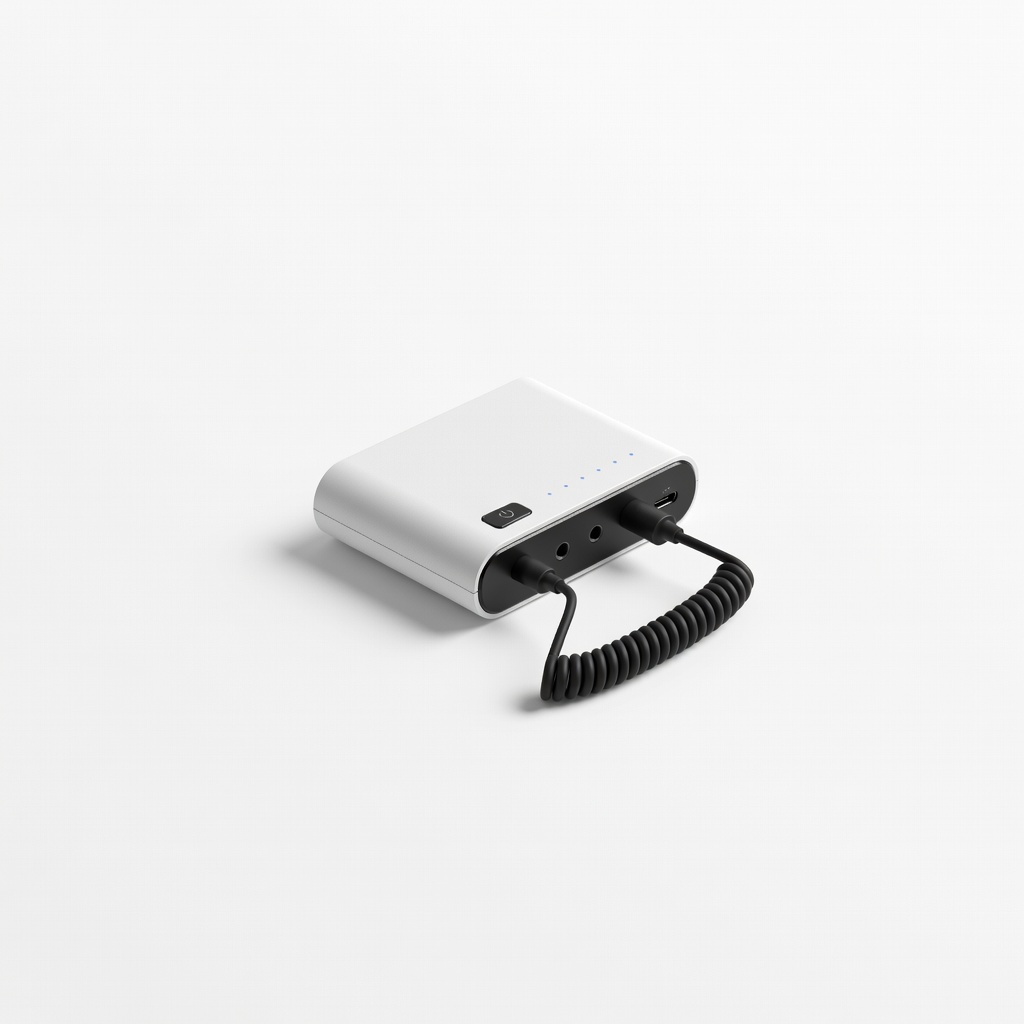
Avantree Oasis Plus Bluetooth Transmitter
Transmits TV audio to any Bluetooth headphones with aptX Low Latency to minimize sync issues on non-Bluetooth TVs.
Best for: Great for older TVs; supports dual headphone pairing for shared viewing.
Price Range: $70-$90
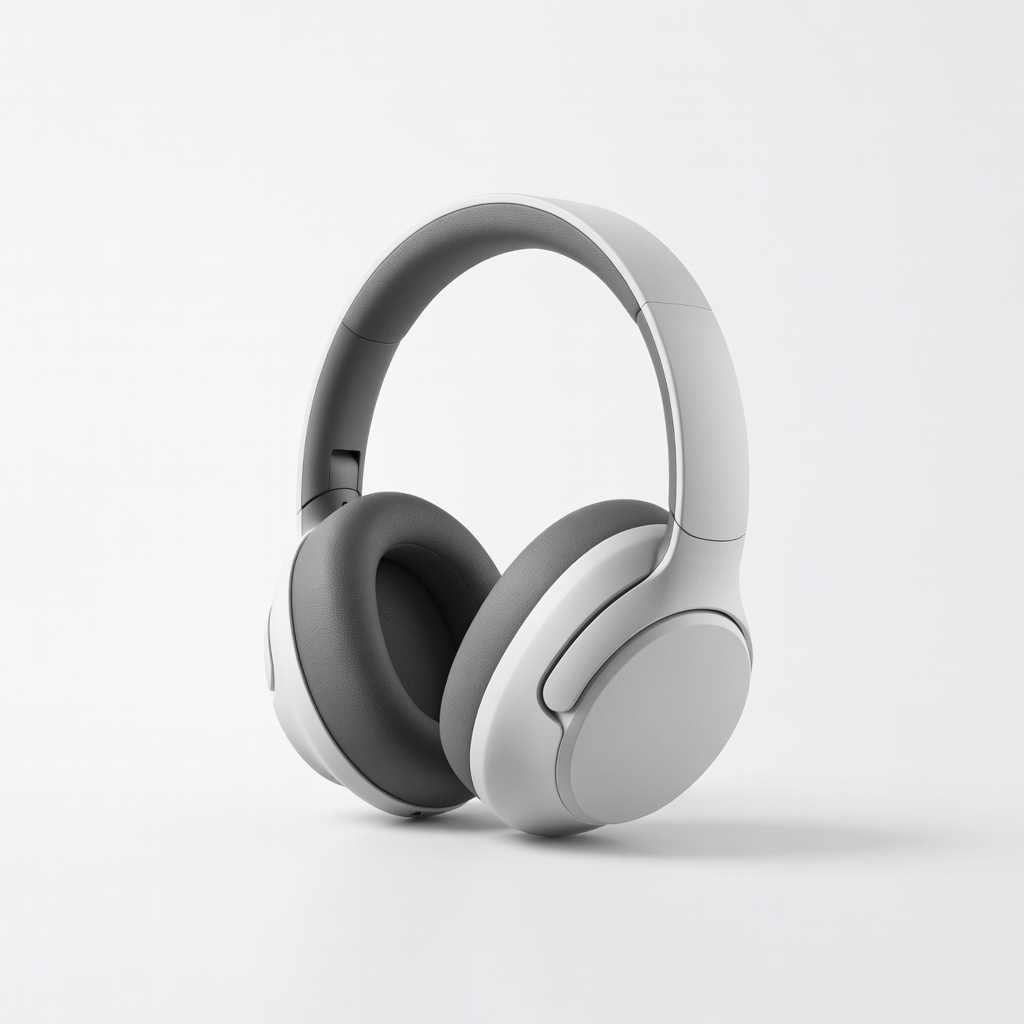
Anker Soundcore Life Q20 Headphones
Budget-friendly with strong Bluetooth range and 40-hour battery, reliable for everyday TV use.
Best for: Beginners wanting affordable wireless audio without setup hassles.
Price Range: $50-$70
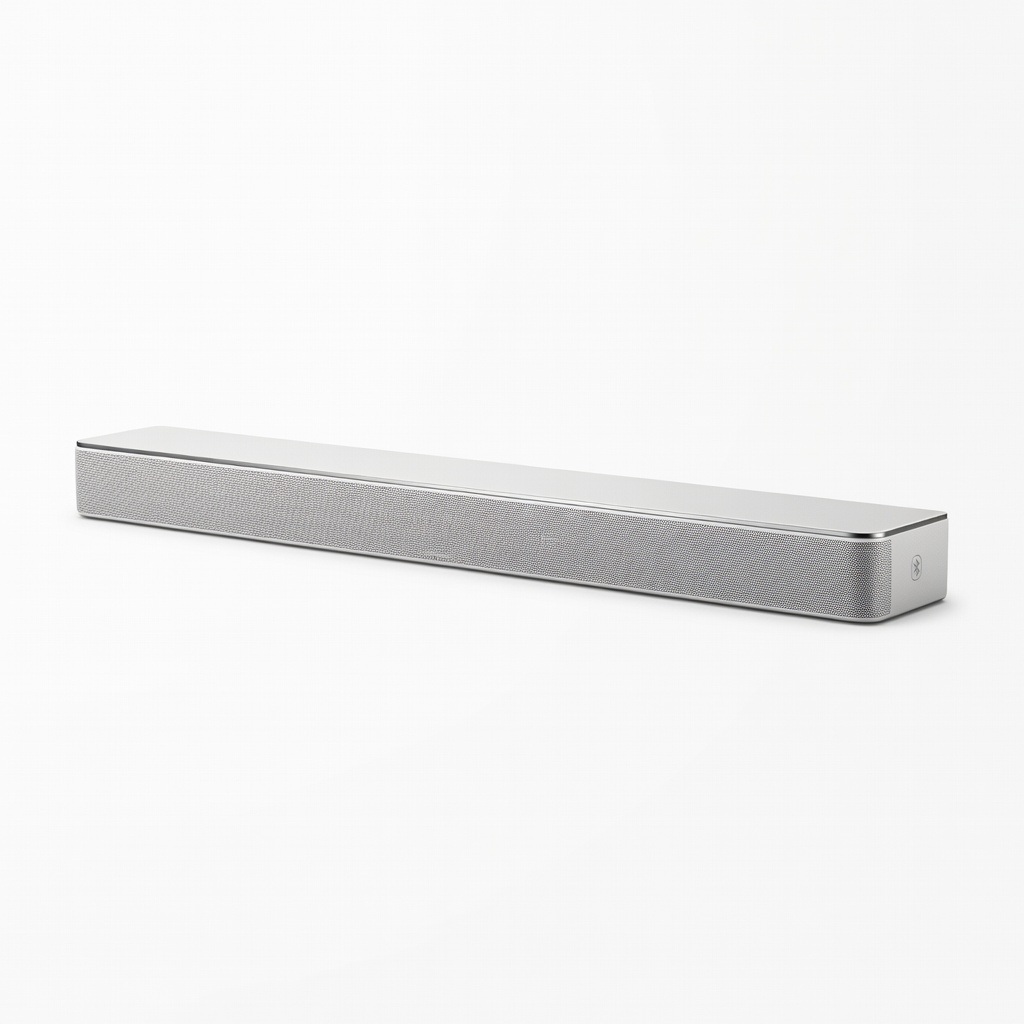
Samsung HW-Q600C Soundbar (with Bluetooth)
If upgrading, this soundbar enhances TV Bluetooth while allowing headphone pairing for private mode.
Best for: For users wanting better overall audio; doubles as a hub for headphones.
Price Range: $200-$250
TaoTronics Bluetooth 5.0 Transmitter/Receiver
Versatile adapter for TVs without Bluetooth, with easy plug-and-play and long range.
Best for: Quick fix for legacy TVs; receives and transmits audio modes.
Price Range: $20-$30