Struggling to get your AirPods to pair with a new device? You're not alone—Bluetooth connections can feel tricky at first, especially when switching between Apple and non-Apple gadgets. But once connected, you'll enjoy wireless freedom for calls, music, and podcasts without cables holding you back.
In this guide, you'll learn step-by-step how to connect your AirPods to virtually any Bluetooth-enabled device, from iPhones and iPads to Android phones, Windows laptops, and even smart TVs. We'll cover the basics of pairing mode and device-specific tweaks to ensure success every time. Whether you're a total beginner or just need a refresher, this process is straightforward and takes only 5-10 minutes.
By the end, your AirPods will be seamlessly linked, ready for use. We'll also share tips, common pitfalls, and troubleshooting to make it foolproof.
▸What You'll Need
- •AirPods (any model: 1st, 2nd, 3rd Gen, Pro, or Max) with at least 20% battery
- •Compatible Bluetooth-enabled device (iPhone/iPad/Mac running iOS 10+, Android 5.0+, Windows 8+, etc.)
- •AirPods charging case (required for pairing mode)
- •Optional: Lightning/USB-C cable for charging if battery is low
Estimated Time: 5-10 minutes
Difficulty: beginner
▸Step-by-Step Instructions
Step 1: Charge Your AirPods
Before connecting, ensure your AirPods and case have enough power. Open the lid of the charging case and check the status light: green means fully charged, amber indicates low battery. If needed, connect the case to a power source using the included Lightning or USB-C cable (depending on your model).
This step matters because low battery can interrupt pairing or cause disconnections mid-process. Expect the light to turn green after 15-30 seconds of charging—aim for at least 20% battery for reliable setup. For AirPods Pro or Max, the earbuds themselves should show a similar status when removed.
Once charged, you're set to proceed without interruptions.
💡 Tips:
- •Charge overnight for convenience if you're setting up multiple devices.
⚠️ Warnings:
- •Avoid using while charging to prevent accidental damage to the cable.
Step 2: Enable Bluetooth on Your Device
Bluetooth is the wireless technology that links your AirPods to devices. On iOS: Swipe down from the top-right (or up on older models) to open Control Center and tap the Bluetooth icon to turn it on. For Android: Go to Settings > Connections > Bluetooth and toggle it on. On Windows: Click the Start menu, search for 'Bluetooth,' and enable it in Settings > Devices.
Why this matters: Without Bluetooth active, your device can't detect the AirPods. You should see a Bluetooth symbol appear in your status bar or settings menu, confirming it's ready. This takes just seconds and is a must for all devices.
If your device doesn't have built-in Bluetooth, consider an adapter (more on that later).
💡 Tips:
- •Keep Bluetooth on for automatic reconnections later.
Step 3: Put AirPods in Pairing Mode
For first-time pairing, open the AirPods case lid with the earbuds inside. Press and hold the setup button on the back of the case for about 5 seconds until the status light flashes white (not amber, which is for charging). This activates pairing mode, making your AirPods discoverable.
This is crucial as it broadcasts the AirPods' signal for nearby devices to find. Expect the light to pulse white—on Apple devices, a setup animation may pop up automatically near the case. For non-Apple devices, you'll manually search for them in Bluetooth settings.
If the light doesn't flash, ensure the case is charged and try holding the button longer.
⚠️ Warnings:
- •Don't close the lid during this step, or pairing mode will end.
Step 4: Pair with Apple Devices (iPhone, iPad, Mac)
Bring the open AirPods case close (within 2 inches) to your unlocked iPhone or iPad. A pop-up animation should appear on screen saying 'Connect'—tap it, then follow prompts to complete setup, including optional Hey Siri activation. On Mac, go to System Settings > Bluetooth; your AirPods will appear—click Connect.
Apple's seamless pairing uses iCloud for automatic syncing across devices. Success looks like the AirPods appearing in your Bluetooth list as 'Connected,' with audio routing to them immediately. This is the easiest method, often taking under 30 seconds.
If no pop-up, manually select them in Settings > Bluetooth.
💡 Tips:
- •Sign in to the same Apple ID on all devices for auto-switching.
Step 5: Pair with Non-Apple Devices (Android, Windows, etc.)
On Android: Open Settings > Connections > Bluetooth, tap 'Pair new device,' and select 'AirPods' from the list. Confirm the pairing code if prompted (usually 0000 or auto-accept). For Windows: In Bluetooth settings, click 'Add device,' choose Bluetooth, and select your AirPods.
Non-Apple pairing requires manual selection since there's no auto-popup. Why it works: AirPods use standard Bluetooth 5.0, compatible with most devices. Expect a confirmation sound in the earbuds and 'Connected' status in settings.
For TVs or other media devices, navigate to Bluetooth settings similarly—range is up to 30 feet once paired.
⚠️ Warnings:
- •Some Android features like spatial audio won't work without Apple's ecosystem.
Step 6: Test the Connection
Play music, a podcast, or make a call to verify audio plays through the AirPods. Check both earbuds for balanced sound and mic functionality. On your device, go to sound/output settings to confirm AirPods are selected as the audio source.
This confirms everything's working—success means clear, wireless audio without lag. If issues arise, refer to troubleshooting below.
Reinsert AirPods into the case and close the lid to save battery when done.
💡 Tips:
- •Test volume controls on the AirPods stem for quick adjustments.
▸Pro Tips
- •Keep devices within 3 feet during initial pairing for a stronger signal.
- •Reset AirPods by holding the setup button for 15 seconds if they've been paired before—flashing amber then white.
- •Use the 'Find My' app on Apple devices to locate lost AirPods post-setup.
- •For multi-device use, manually forget a device in Bluetooth settings before switching to avoid conflicts.
- •Enable automatic ear detection in AirPods settings for pause/resume when removing an earbud.
- •Update your device's OS and AirPods firmware (via iPhone) for better compatibility.
- •Charge via a wireless pad for hands-free topping up during use.
▸Common Mistakes to Avoid
- •Forgetting to open the case lid: This prevents pairing mode—always open it first to activate the setup button.
- •Bluetooth turned off or in airplane mode: Double-check settings before starting to avoid frustration.
- •Pairing from too far away: Stay close (under 3 feet) initially, as signal weakens with distance.
- •Not updating device software: Outdated OS can cause compatibility issues—check for updates in settings.
- •Trying to pair while AirPods are in use elsewhere: Forget the old device first to clear connections.
▸Troubleshooting
Problem: AirPods not appearing in Bluetooth list
Solution: Ensure pairing mode (flashing white light) and restart Bluetooth on your device. Move closer and try again. If persists, reset AirPods by holding the setup button for 15 seconds.
Problem: Connection drops or one earbud doesn't work
Solution: Clean the earbuds with a soft, dry cloth. Re-pair by forgetting the device in settings and starting over. Check battery levels—charge if low.
Problem: No sound after connecting
Solution: Verify AirPods are selected as the output device in sound settings. Test with a different app or restart the device.
Problem: Pairing code issues on non-Apple devices
Solution: Enter '0000' if prompted, or accept auto-pairing. If it fails, reset AirPods and try a different device to isolate the issue.
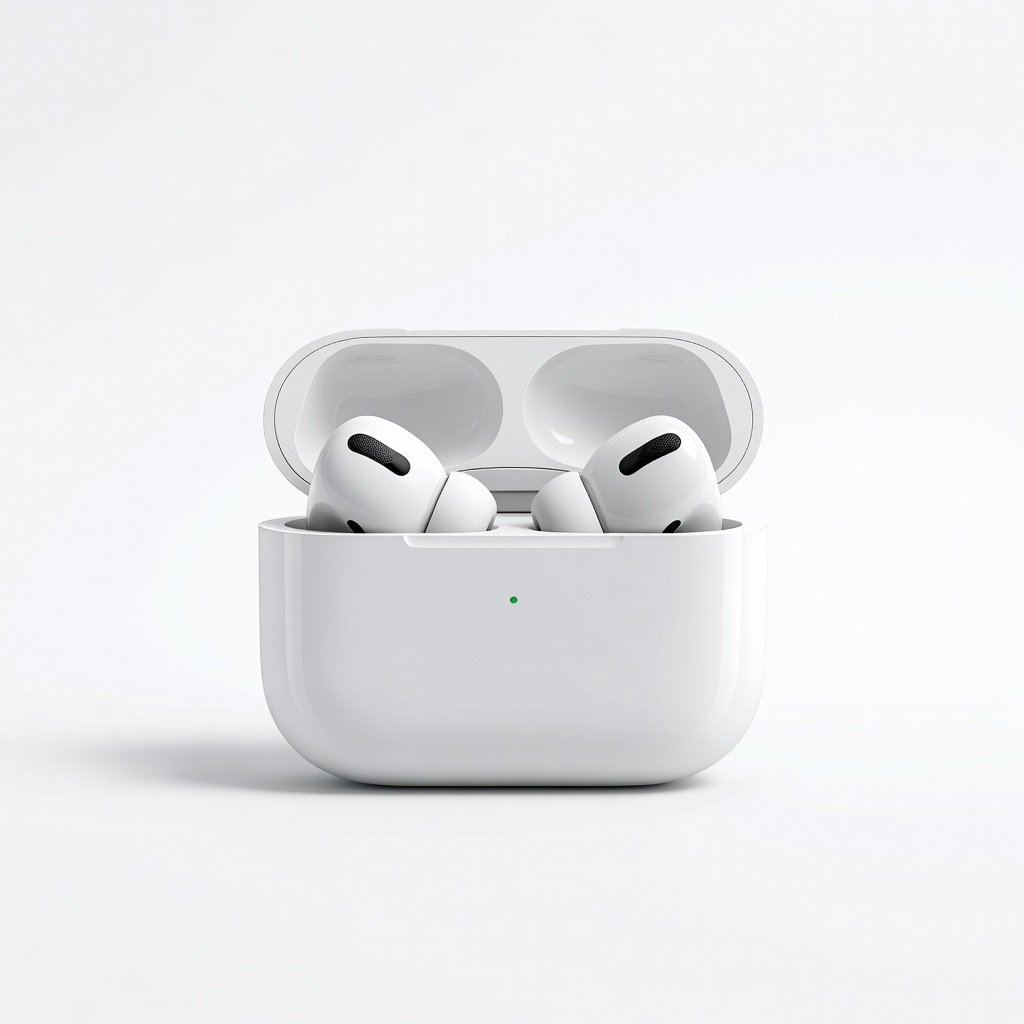
Apple AirPods Pro (2nd Generation)
These offer advanced noise cancellation and seamless Apple integration, making pairing effortless with auto-switching between devices.
Best for: Ideal for iPhone users wanting premium features like spatial audio during daily commutes or workouts.
Price Range: $200-$250
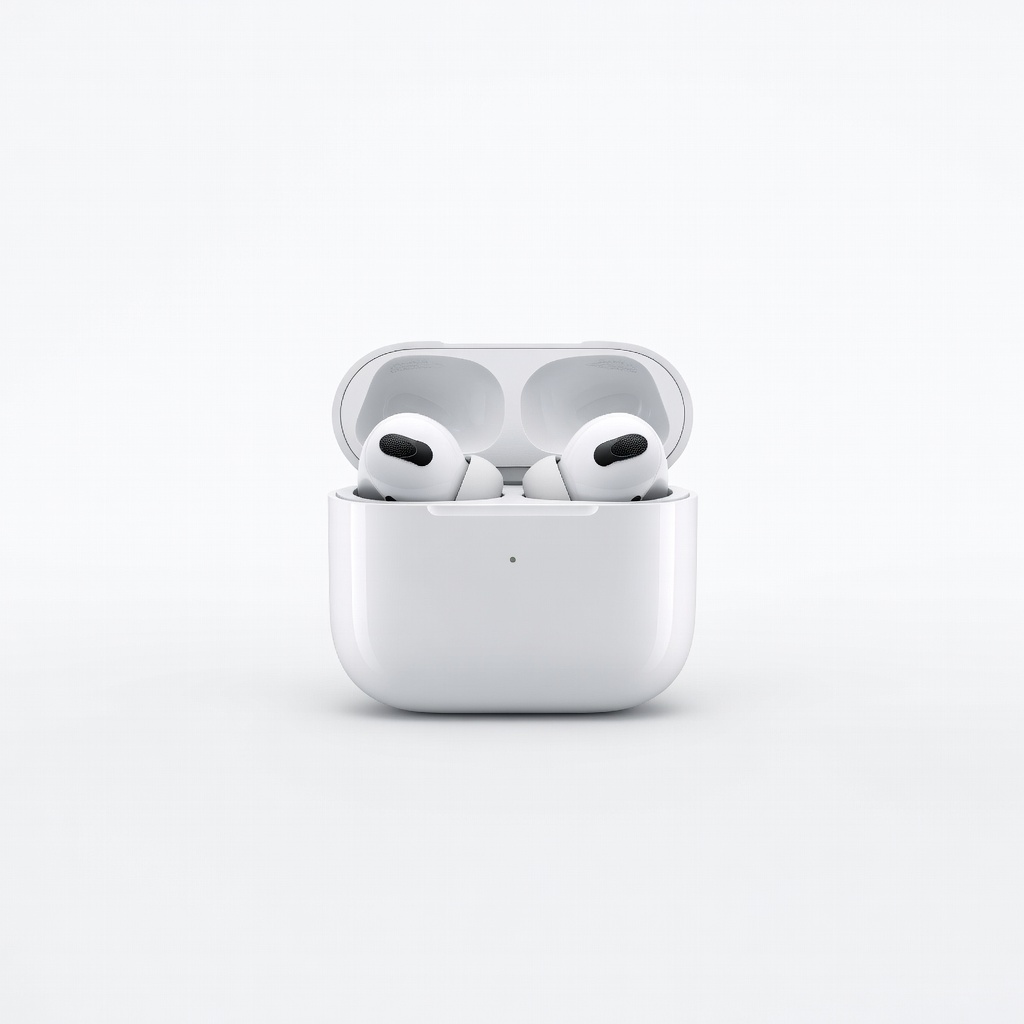
Apple AirPods (3rd Generation)
Affordable entry-level option with easy Bluetooth 5.0 pairing across all devices, including spatial audio for non-Pro users.
Best for: Great for beginners connecting to mixed ecosystems like iPhone and Android for casual listening.
Price Range: $150-$180
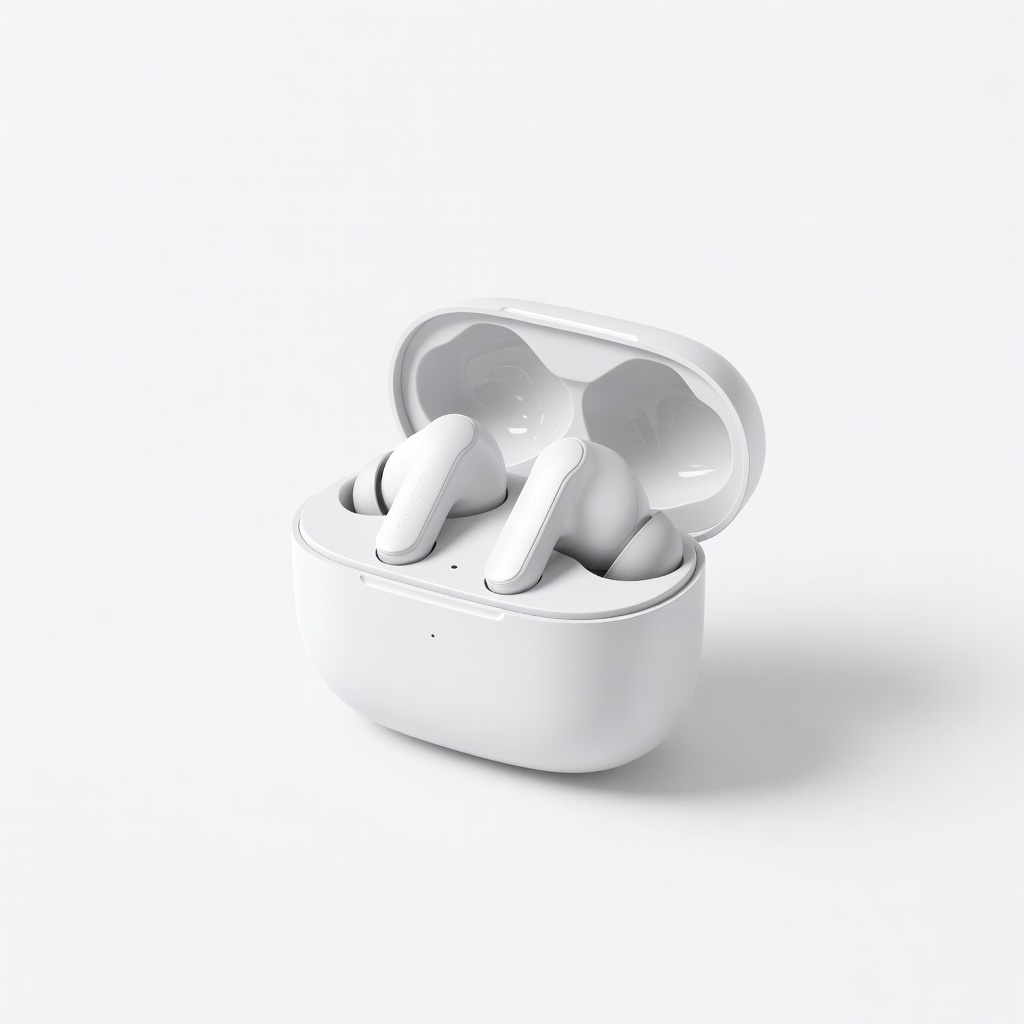
Anker Soundcore Life P3
Excellent budget alternative to AirPods with multi-device pairing and app controls, compatible with any Bluetooth device.
Best for: For non-Apple users seeking affordable earbuds that pair quickly to Android or Windows without ecosystem lock-in.
Price Range: $50-$80
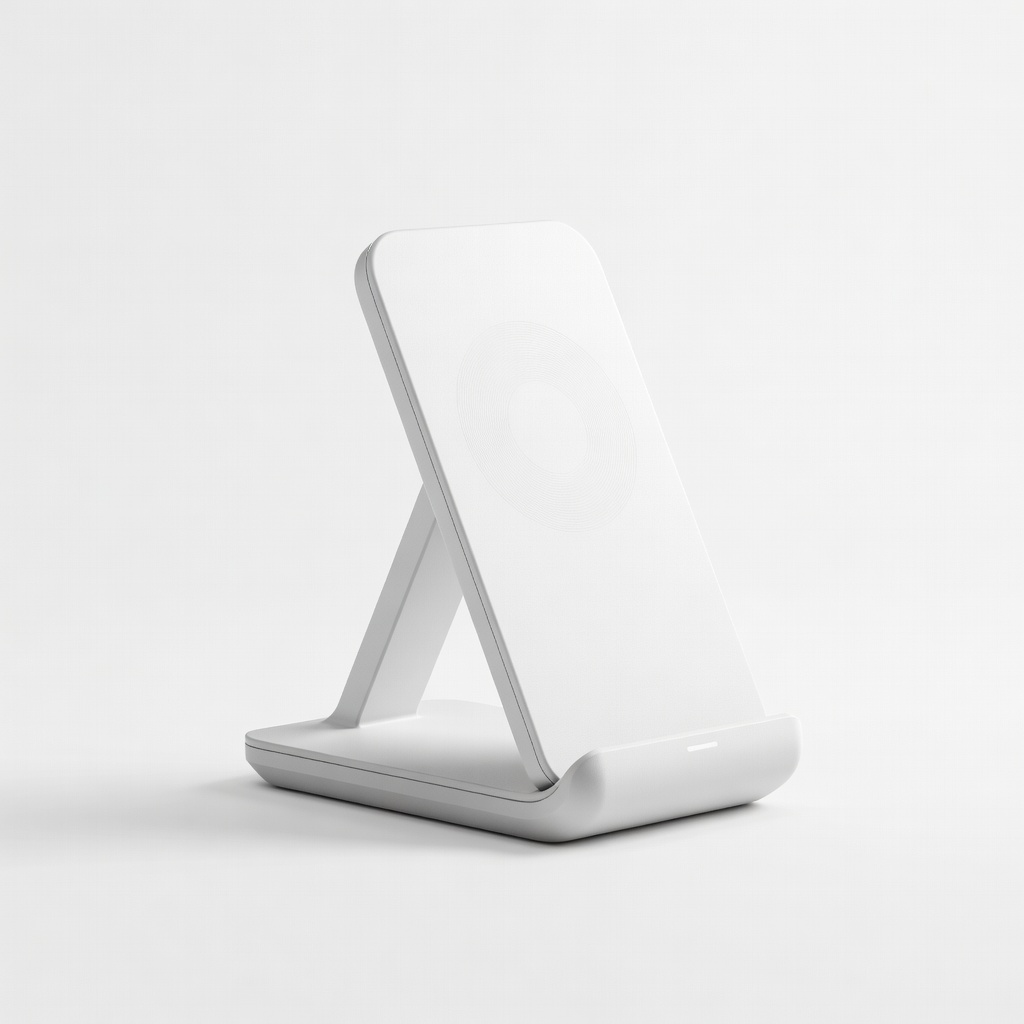
Belkin BoostCharge Pro Wireless Charging Stand
Conveniently charges AirPods case while you use your phone, ensuring they're always ready for pairing.
Best for: Perfect for desk setups where you frequently connect and recharge multiple devices.
Price Range: $30-$50
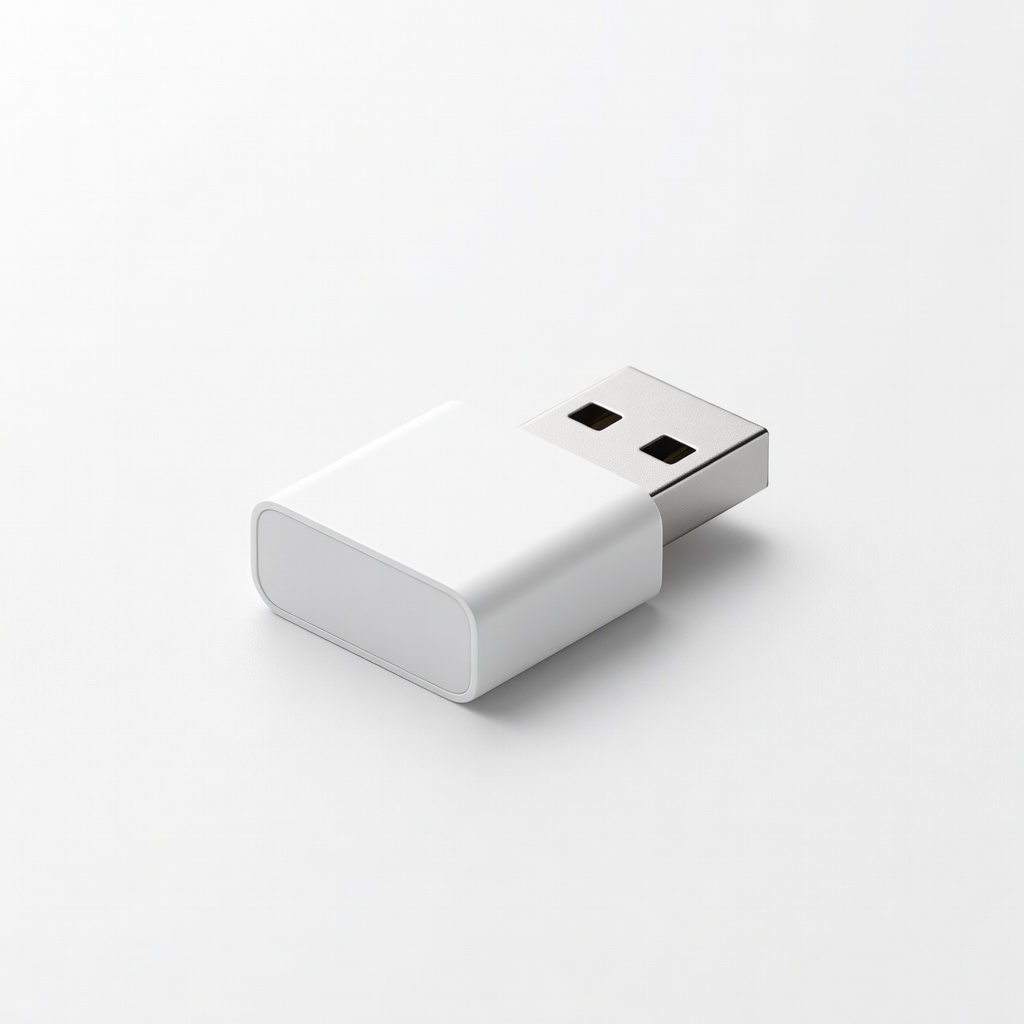
Bluetooth USB Adapter (TP-Link UB500)
Adds Bluetooth to older PCs or devices without it, enabling AirPods connection where built-in support is missing.
Best for: Essential for connecting AirPods to desktop computers or legacy TVs for home audio setups.
Price Range: $10-$20
▸Frequently Asked Questions
Can AirPods connect to non-Apple devices?
Yes, AirPods work with any Bluetooth-enabled device like Android phones or Windows PCs, though some features like Siri or auto-switching are Apple-exclusive. Follow the manual pairing steps for best results.
How long does pairing take?
Typically 30 seconds to 2 minutes for first-time setup. Apple devices are fastest with auto-popups; non-Apple may require manual selection.
Do I need to pair AirPods every time?
No, once paired, they auto-connect when in range and Bluetooth is on. Just open the case near the device to resume.
What if my AirPods won't pair?
Reset them by holding the setup button for 15 seconds in the case, then retry. Ensure battery is above 20% and devices are updated.
Can I connect AirPods to multiple devices?
Yes, pair to up to 8 devices, but only one active at a time. Manually switch in Bluetooth settings or use auto features on Apple ecosystem.
Is it safe to use AirPods while charging?
Yes, but avoid wired charging during active use to prevent strain. Wireless charging pads are safer for on-the-go top-ups.
How do I update AirPods firmware?
Connect to an iPhone with internet; updates happen automatically in the case. Check version in Settings > General > About > AirPods.