
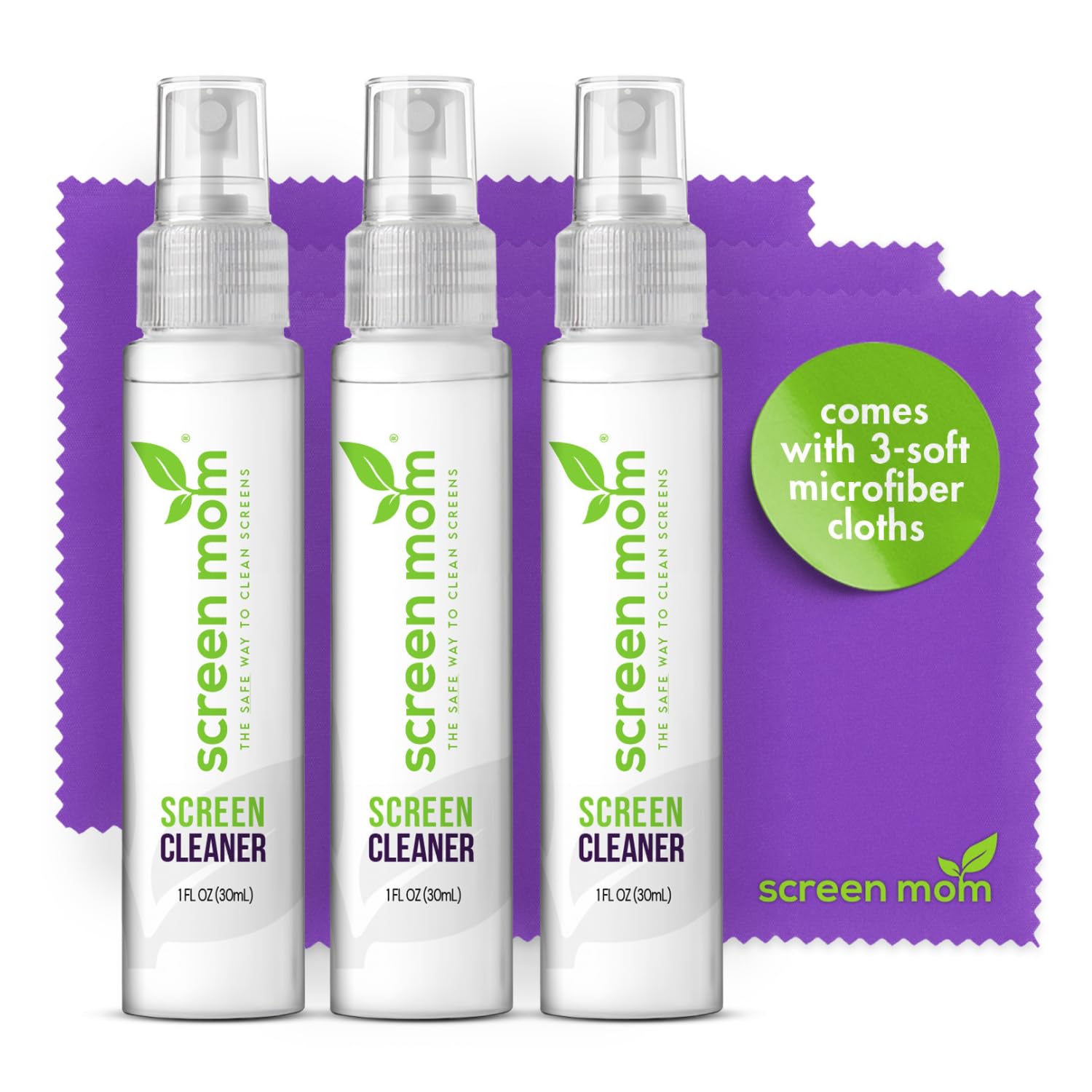
Screen Mom Screen Cleaner Kit
Ideal for beginners needing all-in-one for regular 2-in-1 cleaning.
$19.99
Screen Mom Screen Cleaner Kit Complete kit with safe formula, cloths, and brush—prevents damage and streaks.
Get the App
Better experience on mobile
Discover simple, beginner-friendly steps to safely remove smudges and dust from your 2-in-1 laptop screen, restoring crystal-clear visibility in minutes without risking damage.
Nothing ruins the vibrant display of your 2-in-1 laptop faster than fingerprints, dust, and smudges from daily use. Whether you're flipping it into tablet mode or typing away, a dirty screen can make colors look dull and hinder touch responsiveness. The good news? Cleaning it safely is quick and easy when done right—no expensive repairs needed.
In this guide, you'll learn a foolproof, step-by-step process using household or affordable items to clean your screen effectively. We'll cover everything from preparation to finishing touches, ensuring your convertible laptop's touchscreen stays pristine. Expect a hassle-free process that's safe for most models like Lenovo Yoga, HP Spectre, or Microsoft Surface.
This takes just 10-15 minutes and requires no technical skills—perfect for beginners. Follow along, and your screen will sparkle like new!
Estimated Time: 10-15 minutes Difficulty: beginner
Start by completely shutting down your 2-in-1 laptop and unplugging it from the power source. If it's in tablet mode, fold it back to laptop mode for stability.
Why this matters: Electricity and moisture don't mix—cleaning a powered-on device risks short circuits or permanent damage to the screen or internals. You'll know it's ready when the screen is black and cool to the touch (wait 5 minutes if it was in use).
Expect a safe, static-free surface ready for cleaning.
💡 Tips:
⚠️ Warnings:
Lay out your microfiber cloth, distilled water, isopropyl alcohol, and optional tools on a clean, lint-free surface.
Mix a solution in a spray bottle: 50% distilled water and 50% isopropyl alcohol. Shake gently. Why it matters: Tap water leaves mineral spots; alcohol cuts grease without harming coatings. This prep ensures efficiency and prevents residue buildup.
Success looks like organized tools and a ready-to-use solution—no rushing mid-clean.
💡 Tips:
⚠️ Warnings:
Hold the laptop at a 45-degree angle. Use compressed air in short bursts to blow away dust from the screen, keyboard, and ports. For stubborn particles, gently sweep with a soft brush.
Why this matters: Loose debris can scratch the screen if rubbed. This step prevents micro-abrasions during wiping.
Expect visible dust removal—the screen should look mostly clear of particles.
💡 Tips:
⚠️ Warnings:
Lightly mist the cleaning solution onto the microfiber cloth—never directly on the screen. The cloth should be damp, not dripping wet.
Why it matters: Excess liquid can seep into edges, damaging the display or touchscreen layer. A damp cloth provides just enough moisture for safe cleaning.
Check: Wring out if too wet; it should glide without puddles.
💡 Tips:
Wipe the screen starting from the top, using gentle circular or straight-line motions with minimal pressure. Work top-to-bottom to let drips fall off.
Why it matters: Circular motions lift smudges evenly without streaks; light pressure protects the delicate oleophobic coating.
Success: Smudges lift gradually—flip the cloth if it gets dirty.
💡 Tips:
⚠️ Warnings:
For fingerprints, re-dampen and wipe again. Use a dry swab for bezels and hinges.
Why it matters: Edges trap oils—cleaning them prevents migration to the screen.
Expect fully streak-free results after 1-2 passes.
💡 Tips:
Use a dry section of the microfiber cloth to buff in straight lines top-to-bottom. Let air-dry for 2-3 minutes.
Why it matters: Buffing removes residue; drying prevents water marks.
Final check: Crystal-clear, fingerprint-free screen ready to power on.
💡 Tips:
Problem: Streaks remain after wiping
Solution: Re-dampen cloth with more alcohol ratio and buff dry. Ensure cloth is lint-free.
Problem: Screen looks hazy post-clean
Solution: Wipe with dry cloth only; let evaporate fully. Avoid if coating damage suspected—check warranty.
Problem: Liquid seeped into edges
Solution: Power off, tilt to drain, let dry 24+ hours. If issues persist, contact manufacturer.
Problem: Scratches appeared
Solution: Micro-scratches may be from debris—use polish kit sparingly. Deep ones need pro repair.
Complete kit with safe formula, cloths, and brush—prevents damage and streaks.
Best for: Ideal for beginners needing all-in-one for regular 2-in-1 cleaning.
Price Range: $19.99
Alcohol-free, streak-free formula safe for touchscreens and anti-glare coatings.
Best for: Quick sprays for fingerprints on convertible laptops.
Price Range: $14.95
Powerful, non-conductive air for safe dust removal without static.
Best for: Initial dust blast before wiping screens and keyboards.
Price Range: $11.99
Ultra-soft, reusable cloths that clean with just water—no chemicals needed.
Best for: Eco-friendly daily maintenance for sensitive screens.
Price Range: $9.99
Pre-moistened, individually wrapped for on-the-go spot cleaning.
Best for: Travel-friendly for 2-in-1 users; no mixing required.
Price Range: $9.99
Ideal for beginners needing all-in-one for regular 2-in-1 cleaning.
Screen Mom Screen Cleaner Kit Complete kit with safe formula, cloths, and brush—prevents damage and streaks.
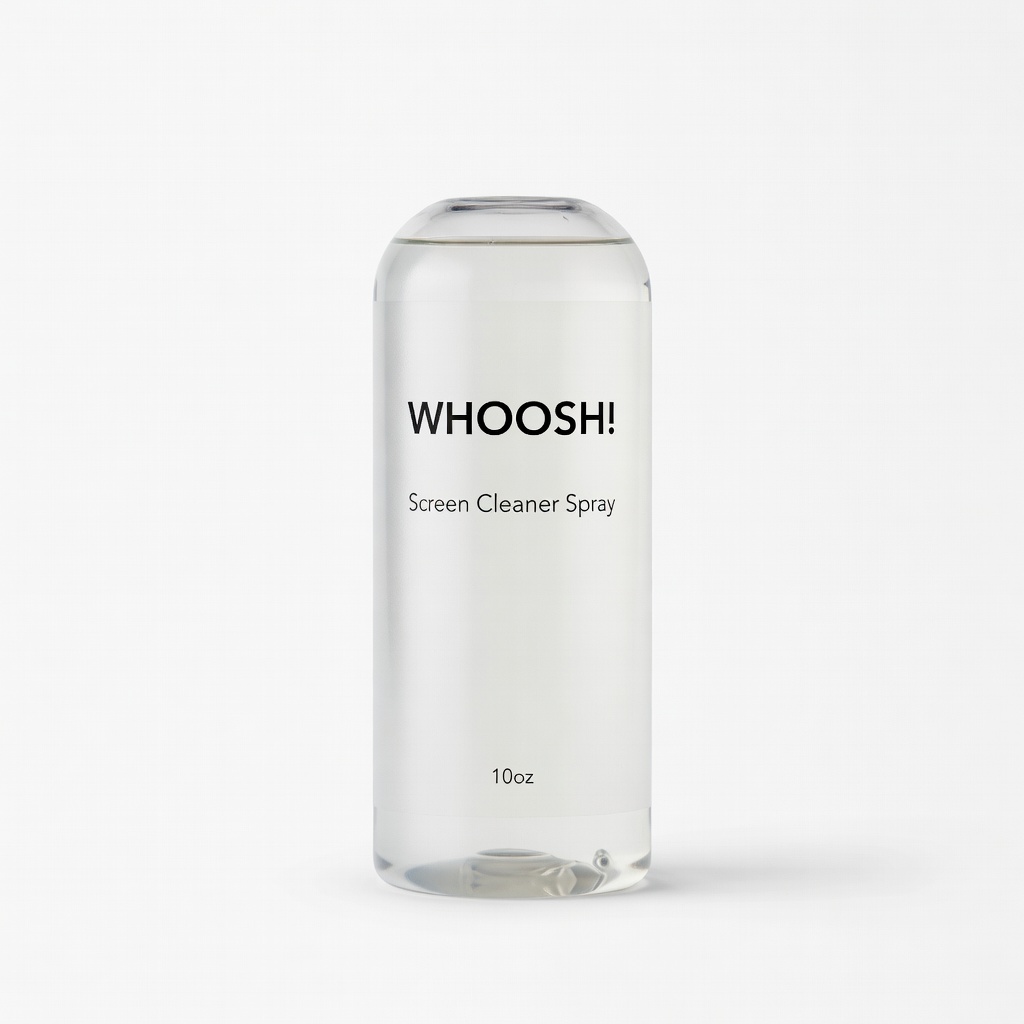
Quick sprays for fingerprints on convertible laptops.
WHOOSH! Screen Cleaner Spray (10oz) Alcohol-free, streak-free formula safe for touchscreens and anti-glare coatings.
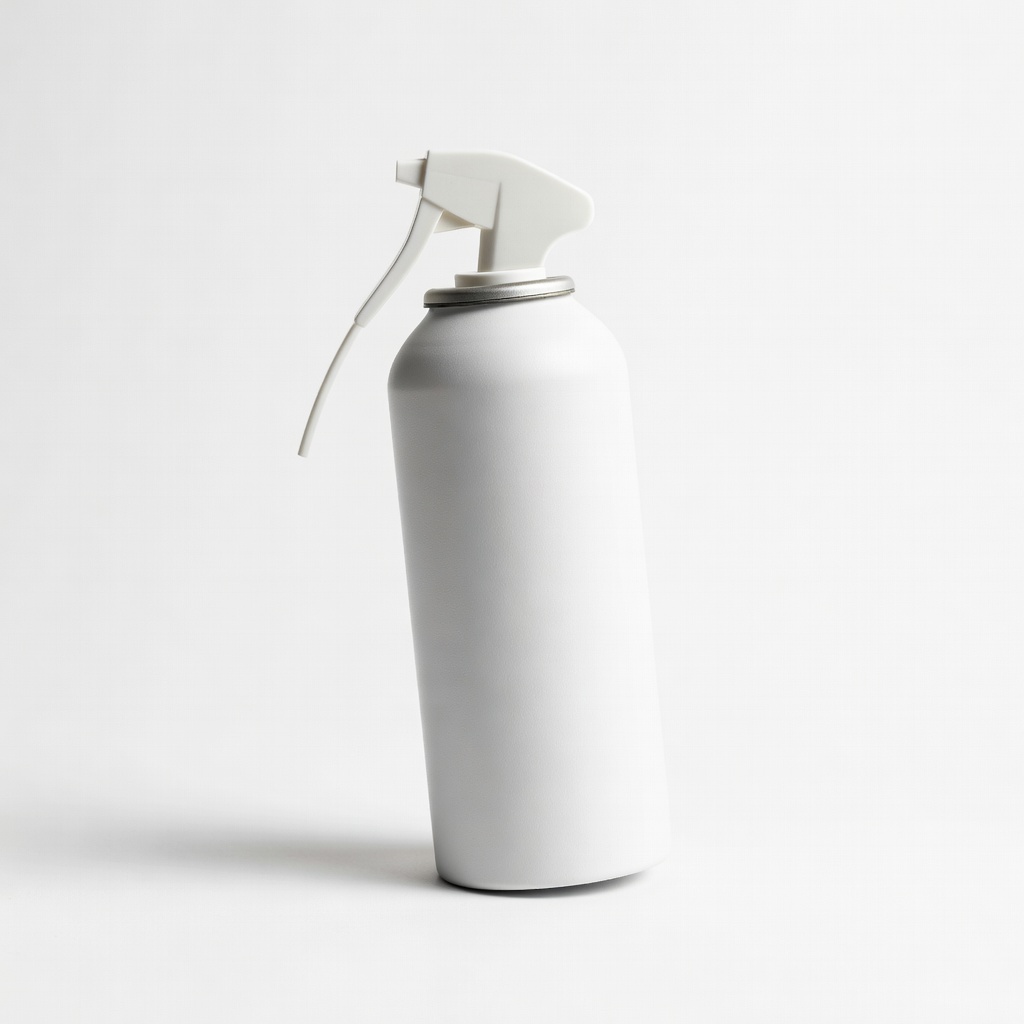
Initial dust blast before wiping screens and keyboards.
Dust-Off Compressed Gas Duster Powerful, non-conductive air for safe dust removal without static.
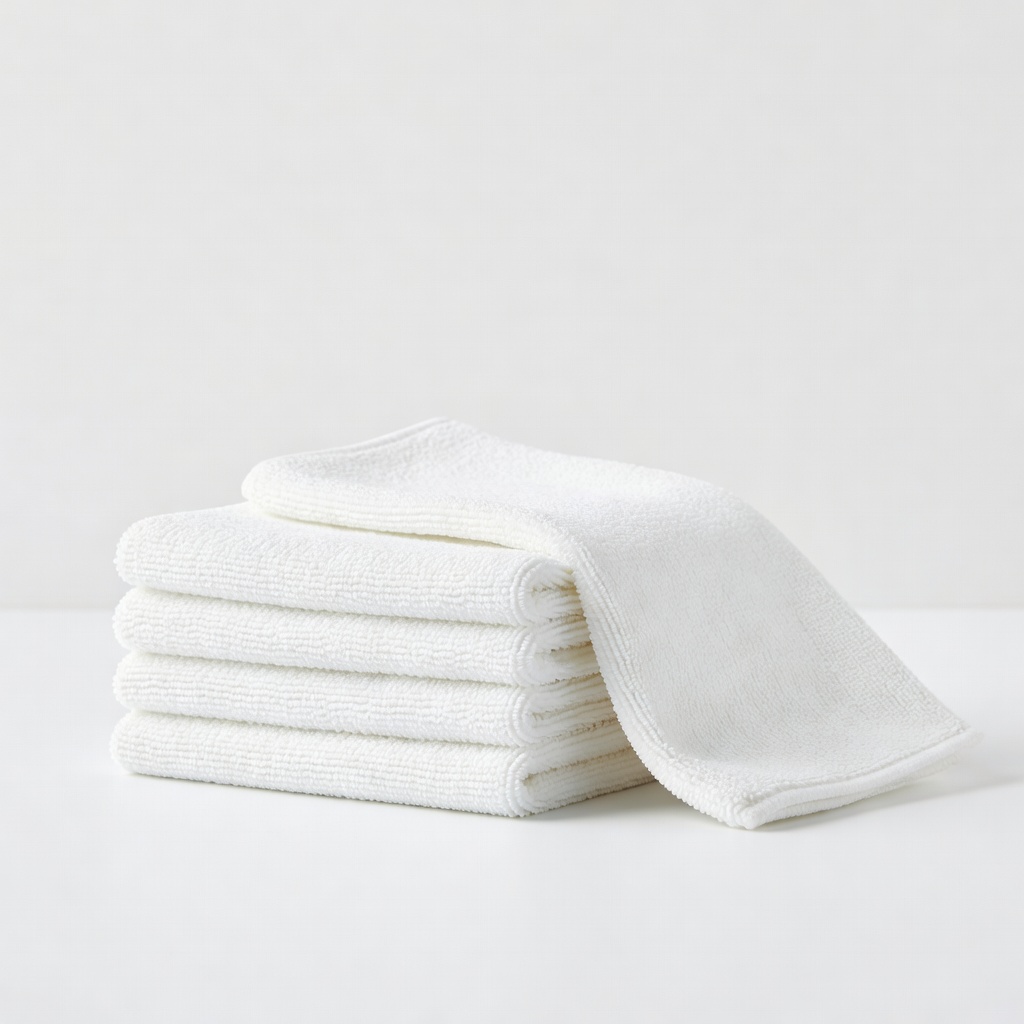
Eco-friendly daily maintenance for sensitive screens.
E-Cloth Microfiber Cleaning Cloths Ultra-soft, reusable cloths that clean with just water—no chemicals needed.
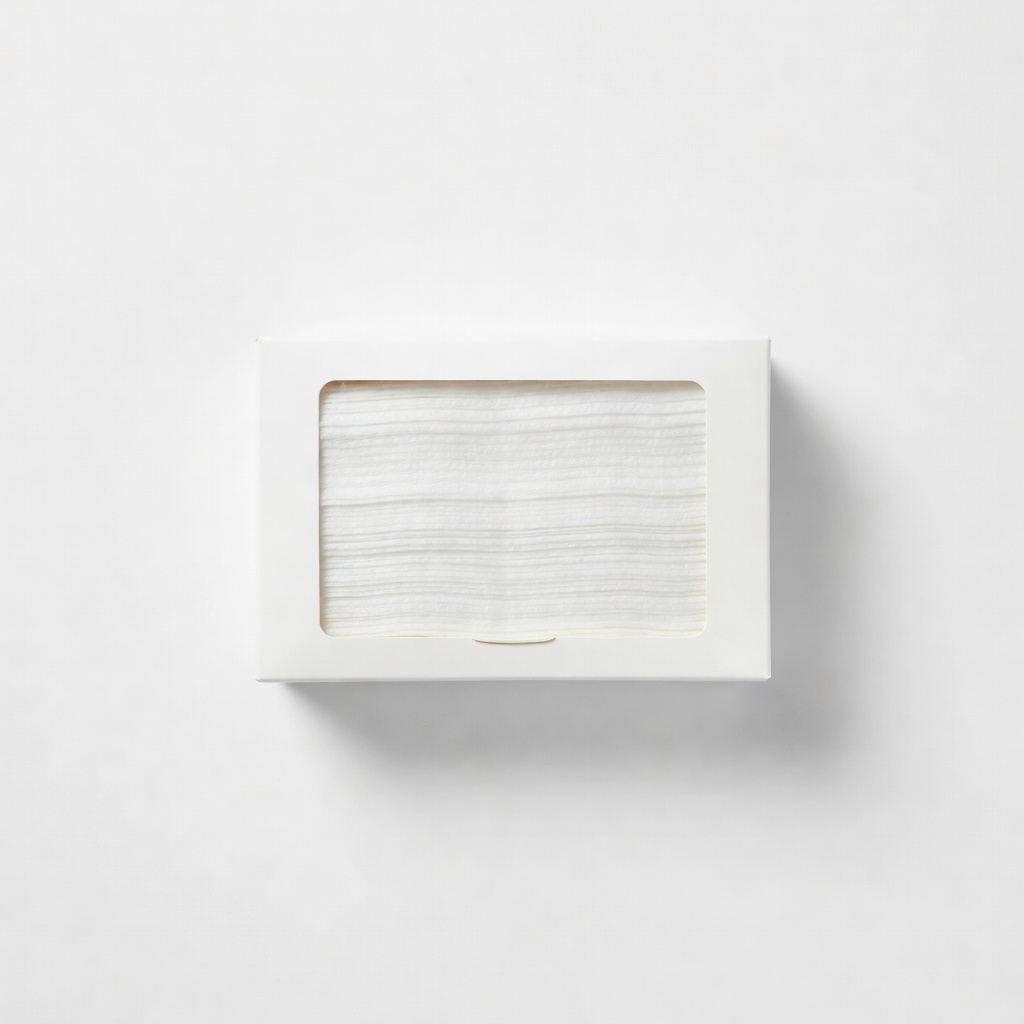
Travel-friendly for 2-in-1 users; no mixing required.
Zeiss Mobile Screen Wipes (120ct) Pre-moistened, individually wrapped for on-the-go spot cleaning.