You’re ready to binge-watch a show on Netflix or Hulu, but you get the dreaded “You seem to be using a VPN” message. Or maybe you’re traveling abroad and your home library disappears. A VPN can solve these problems, but not all VPNs work with streaming services. This guide will teach you exactly what features to prioritize—speed, server locations, obfuscation, and device support—so you can pick a VPN that actually unblocks Netflix and Hulu reliably. We’ll break down technical terms into simple concepts and help you avoid common pitfalls. By the end, you’ll know how to evaluate any VPN for streaming and which products are worth your money.
▸What You'll Need
- •A compatible device (smartphone, tablet, laptop, smart TV, or streaming stick) – required
- •A subscription to Netflix (any plan) and/or Hulu – required
- •A list of your must-watch shows and their typical regions (US, UK, Japan, etc.) – optional but helpful
- •Basic knowledge of how to install apps from app stores – recommended
- •A reliable internet connection (at least 10 Mbps for HD streaming) – required
Estimated Time: 30 minutes to read and understand; 1-2 hours to test and set up your chosen VPN
Difficulty: beginner
▸Step-by-Step Instructions
Step 1: Understand How VPNs Unblock Streaming
A VPN routes your internet traffic through a server in another location, making it appear you’re browsing from that region. Streaming services like Netflix and Hulu try to block known VPN IP addresses to enforce licensing agreements. To beat these blocks, a VPN needs obfuscated servers (that hide the fact you’re using a VPN) and a large pool of residential IPs. Not all VPNs invest in this, so look for services that explicitly advertise streaming support. Think of it like a secret tunnel: the VPN disguises your traffic as regular internet activity, so the streaming service doesn’t turn you away.
💡 Tips:
- •Check the VPN’s website for a list of supported streaming services – many publish which platforms they work with.
- •Look for reviews from other users who specifically tested Netflix or Hulu with that VPN.
⚠️ Warnings:
- •Free VPNs almost never work with streaming and often leak your data. Avoid them for this purpose.
Step 2: Prioritize Speed and Reliability
Streaming requires a stable, fast connection. A VPN adds overhead, so you need a service with high-speed servers and low latency. Look for VPNs that offer wireguard protocol – it’s faster than OpenVPN and still secure. Many premium VPNs have servers optimized for streaming, often labeled as “streaming” or “unblocking”. Generally, aim for a VPN that can maintain at least 75% of your base internet speed over a nearby server. Also consider the server network size: more servers mean less congestion. For example, a VPN with 3,000+ servers across 60+ countries gives you plenty of options to find a fast one.
💡 Tips:
- •During your free trial (if available), test the VPN’s speed at different times of day using a tool like Fast.com or Speedtest.net.
- •Choose a server geographically close to the streaming service’s target region (e.g., a US server for Hulu).
⚠️ Warnings:
- •Avoid VPNs that cap bandwidth or throttle after a certain amount of data – that kills streaming quality.
Step 3: Check Server Coverage for Your Desired Regions
Different streaming libraries require different regions. Hulu is mostly US-only, so you need a US server. Netflix offers different catalogs in the US, UK, Japan, Canada, etc. Make sure the VPN has multiple servers in the countries you need. More importantly, those servers must reliably unblock the streaming service. Some VPNs have “Netflix-dedicated” IP addresses or servers that are regularly refreshed to avoid blacklists. For instance, ExpressVPN and NordVPN are known for this. Do not assume any server in a country works – read recent user reports or use the VPN’s live chat to confirm.
💡 Tips:
- •If you travel often, choose a VPN with servers in many countries so you can access local content too.
- •Use the VPN’s “recommended server” feature for streaming if available – it’s often tested for unblocking.
⚠️ Warnings:
- •Some VPNs claim thousands of servers but only a handful actually work with Netflix – verify before committing.
Step 4: Ensure Strong Security and Privacy Features
While streaming is your main goal, don’t ignore security. A good streaming VPN should also protect your privacy with a strict no-logs policy (audited), strong encryption (AES-256), and features like a kill switch (stops internet if VPN drops). Also, consider split tunneling – it lets you route only streaming traffic through the VPN while leaving other apps on your normal connection, which can speed things up. Privacy is especially important if you’re using public Wi-Fi to stream. Look for VPNs that have undergone independent audits and have a transparent privacy policy.
💡 Tips:
- •Enable the kill switch in VPN settings to prevent your real IP from leaking if the connection drops mid-stream.
- •Use split tunneling if your VPN supports it – set Netflix and Hulu apps to use the VPN, everything else direct.
⚠️ Warnings:
- •Be wary of free VPNs that log your data – they often sell it or use it to target ads, defeating the purpose of privacy.
Step 5: Verify Compatibility with Your Devices
You need a VPN that works on the devices you stream from – laptops, phones, tablets, smart TVs, gaming consoles, or streaming sticks like Roku or Apple TV. The easiest way is a VPN with apps for Windows, macOS, iOS, Android, and Android TV. For devices that don’t support VPN apps (like many smart TVs), consider a VPN router or using a device that can share the VPN connection (e.g., a laptop acting as a hotspot). Some VPNs offer browser extensions that only protect browser traffic, which can be enough if you stream via browser. Check the number of simultaneous connections – most premium VPNs allow 5-10 devices, which is fine for a household.
💡 Tips:
- •If you have an Amazon Fire TV Stick, look for a VPN with a native Fire TV app – it’s much easier than router setup.
- •For gaming consoles (PS5, Xbox), set up the VPN on your router so all console traffic is protected.
⚠️ Warnings:
- •Not all VPN apps are available on all platforms – confirm compatibility before subscribing.
Step 6: Test with Free Trials or Money-Back Guarantees
The best way to know if a VPN works for your specific streaming setup is to test it. Most reputable streaming VPNs offer a 30-day money-back guarantee (like ExpressVPN, NordVPN, Surfshark) or a free trial for a limited period. Take advantage of this. Use the trial to connect to a server in the region you want, then open Netflix or Hulu and try to play a show. Also test on at least two different devices and at different times. If the VPN fails to unblock or is too slow, you can get a refund. This step saves you from wasting money on a VPN that doesn’t meet your needs.
💡 Tips:
- •During the trial, also test customer support – send a quick chat question to see if they are helpful.
- •Check if the refund policy is hassle-free (no questions asked) – some VPNs make it difficult.
⚠️ Warnings:
- •Some VPNs have very short trial periods (7 days) or no refund policy – avoid those if you need longer testing.
- •Ensure you cancel within the refund window if you decide not to keep it – set a reminder.
Step 7: Compare Pricing and Choose a Plan
Streaming VPNs typically cost between $3 and $12 per month when you subscribe for a year or more. Short-term plans are more expensive. Compare the features versus price: the cheapest option may lack streaming-optimized servers or have slower speeds. However, you don’t need the most expensive VPN – many mid-range options (like Private Internet Access or CyberGhost) work well for streaming. Look for discounts on long-term plans (e.g., 2-year deals). Also consider value: some VPNs allow unlimited devices (Surfshark) while others limit to 5-7. If you have many devices, unlimited may be worth a slightly higher price.
💡 Tips:
- •Search for 'VPN coupon code' before purchasing – there are often 50% off deals on top of listed prices.
- •Avoid paying yearly upfront if you’re unsure – use monthly with a money-back guarantee first.
⚠️ Warnings:
- •Be cautious of extremely cheap VPNs (<$2/month) – they may not invest enough to keep streaming servers updated.
- •Read the fine print on auto-renewal – set a calendar reminder to cancel if you don't want to continue.
Step 8: Set Up and Optimize Your VPN for Streaming
After choosing a VPN, install it on your devices. Open the VPN app, sign in, and connect to a server in the region you want (e.g., a US server for Hulu). Then launch your streaming app. If it doesn’t work, try a different server in the same country. Sometimes a server gets blocked, so having alternatives is key. You can also tweak settings: switch between VPN protocols (WireGuard is fastest, OpenVPN is more compatible), enable obfuscation if available, and turn on the kill switch. For best performance, avoid servers that are overloaded (indicated by high latency in the app). Now you’re ready to stream without geo-restrictions.
💡 Tips:
- •If Netflix is still blocked, clear your browser cache or app data and restart the app.
- •Use a separate browser profile for VPN browsing to avoid cookies that might trigger blocks.
⚠️ Warnings:
- •Some streaming services require a specific VPN protocol – check the VPN’s help center for recommended settings.
- •Don’t toggle VPN on/off while streaming – it can cause buffering or errors; connect before opening the stream.
▸Pro Tips
- •Use the VPN’s fastest server (often labeled 'recommended') for general browsing, but switch to a streaming-optimized server for Netflix/Hulu.
- •If you encounter a block, try a server in a nearby country – sometimes the US library is available from Canadian or Mexican servers.
- •Enable a ‘stealth’ or ‘obfuscated’ mode in the VPN settings to make traffic look like regular HTTPS.
- •Keep your VPN app updated – new servers and protocols are added to combat streaming blocks.
- •Use a wired Ethernet connection when possible for the most stable streaming speed.
- •For smart TVs without native VPN apps, consider a VPN router or use a streaming device (Fire Stick, Apple TV) that supports VPNs.
- •Test the VPN on multiple days – blocks can appear after a server IP gets blacklisted.
▸Common Mistakes to Avoid
- •Choosing a free VPN: Free VPNs lack the server resources and obfuscation needed to bypass streaming blocks, and they often sell your data.
- •Ignoring the kill switch: If the VPN drops mid-stream, your real IP may be exposed, and streaming services can flag your account.
- •Assuming all servers work equally: Even within a good VPN, some servers may be blocked. Always have a few backup servers bookmarked.
- •Forgetting to clear cookies: Old cookies can reveal your actual location even if the VPN is active. Clear browser data or use incognito mode.
- •Overlooking device limits: Subscribing to a VPN with only 5 devices when you have 7 gadgets means some stay unprotected.
▸Troubleshooting
Problem: Netflix shows 'You seem to be using a VPN' even when connected.
Solution: Try a different server in the same country. If that fails, contact the VPN’s support – they may have a list of servers that currently work with Netflix. Also ensure your VPN’s obfuscation is enabled.
Problem: Streaming is very slow or buffering.
Solution: Check your base internet speed. If it’s slow, upgrade your plan. Use a server closer to you (both geographically and in terms of internet routing). Switch to WireGuard protocol if available. Disable any other background apps using bandwidth.
Problem: Hulu says 'Hulu is not available in your region' after connecting.
Solution: Hulu is US-only. Confirm you’re connected to a US server. Also, Hulu checks your payment method – you need a US credit card or gift card. Try using a VPN in incognito mode or clearing cookies. If still blocked, the server IP may be blacklisted – try another US city.
Problem: VPN app crashes or disconnects frequently.
Solution: Update the VPN app. Restart your device. Try a different protocol (OpenVPN instead of WireGuard). If the problem persists, the VPN may not be reliable – consider a refund and choose another provider.
Problem: Can’t find my streaming device in the VPN app list.
Solution: Check if your device supports VPN natively. For most smart TVs, you need to set up the VPN on your router. Alternatively, use a streaming stick that supports VPN apps (like Amazon Fire TV Stick).
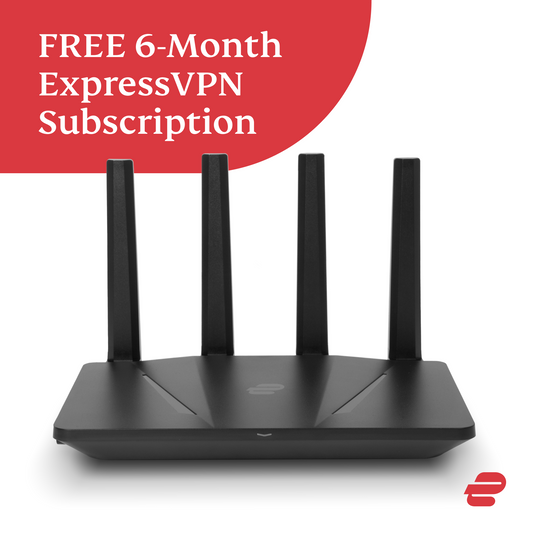
ExpressVPN
Consistently works with Netflix and Hulu, has extremely fast servers with streaming-optimized nodes, and offers a 30-day money-back guarantee. Uses Lightway protocol for speed.
Best for: Best for beginners who want a hassle-free streaming experience with excellent customer support.
Price Range: $8.32-$12.95/month (long-term plan)
NordVPN
Large server network with dedicated streaming servers, strong obfuscation, and security features like Double VPN. Works reliably with Netflix libraries in multiple countries.
Best for: Ideal for users who want robust privacy plus streaming – great for accessing multiple regional libraries.
Price Range: $3.99-$11.99/month (long-term plan)
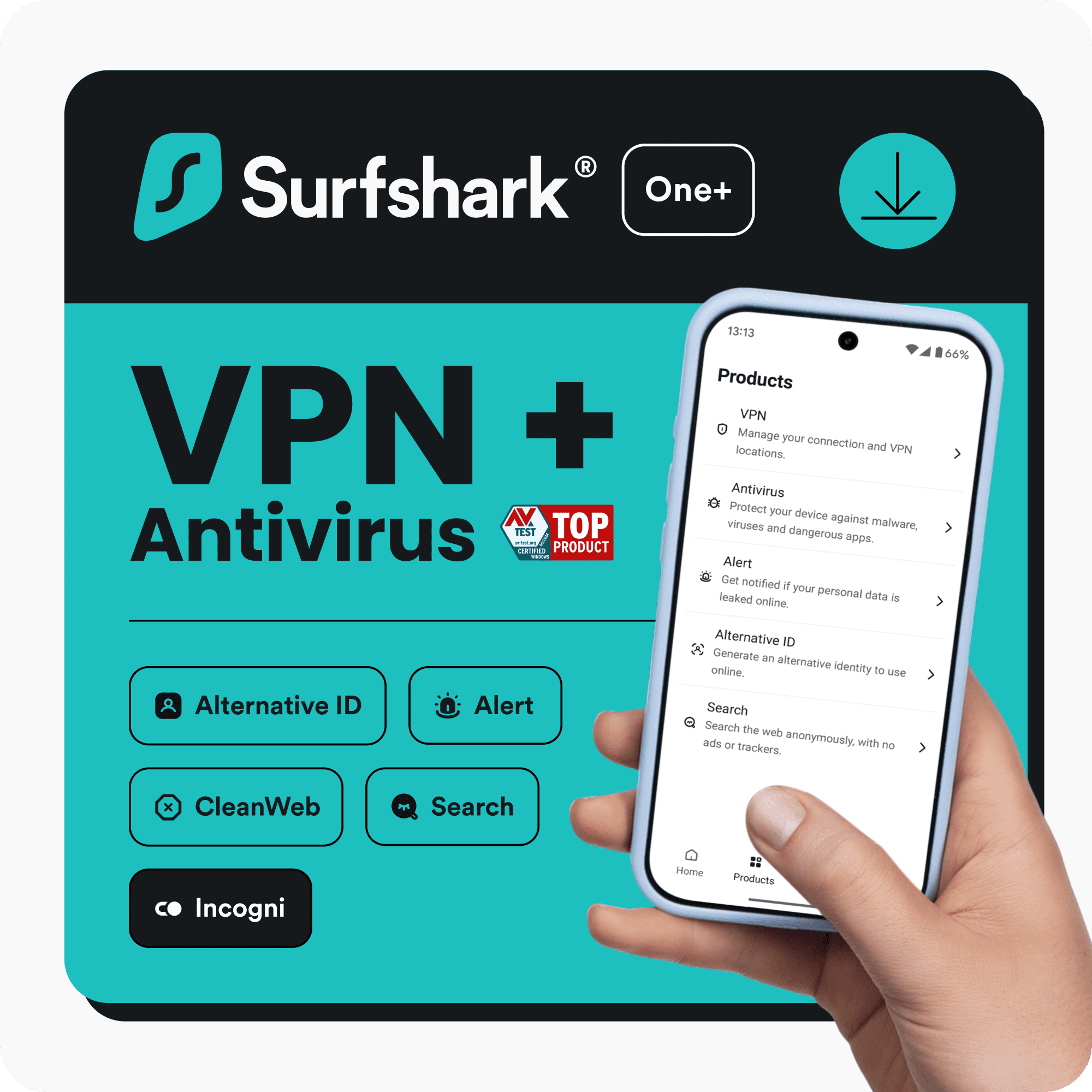
Surfshark
Unlimited device connections make it perfect for families. Includes CleanWeb ad-blocker and has streaming-optimized servers. Budget-friendly with strong unblocking.
Best for: Best for households with many devices and users who want to stream on everything simultaneously.
Price Range: $2.49-$10.99/month (long-term plan)
CyberGhost VPN
Specialized servers for Netflix, Hulu, and other platforms – clearly labeled in the app. Good speed and 45-day money-back guarantee (longer than most).
Best for: Good for those who want a simple interface with pre-configured streaming servers and a longer trial period.
Price Range: $2.19-$12.99/month (long-term plan)
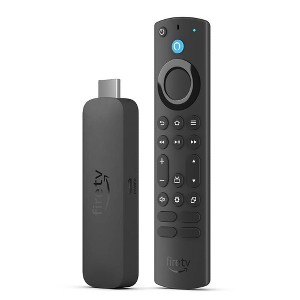
Amazon Fire TV Stick 4K Max
While not a VPN, this device supports many VPN apps natively, making it easy to set up streaming VPNs on your TV. It’s fast and affordable.
Best for: Essential if you want to stream VPN-protected content on a TV without a smart TV VPN app.
Price Range: $34.99-$49.99