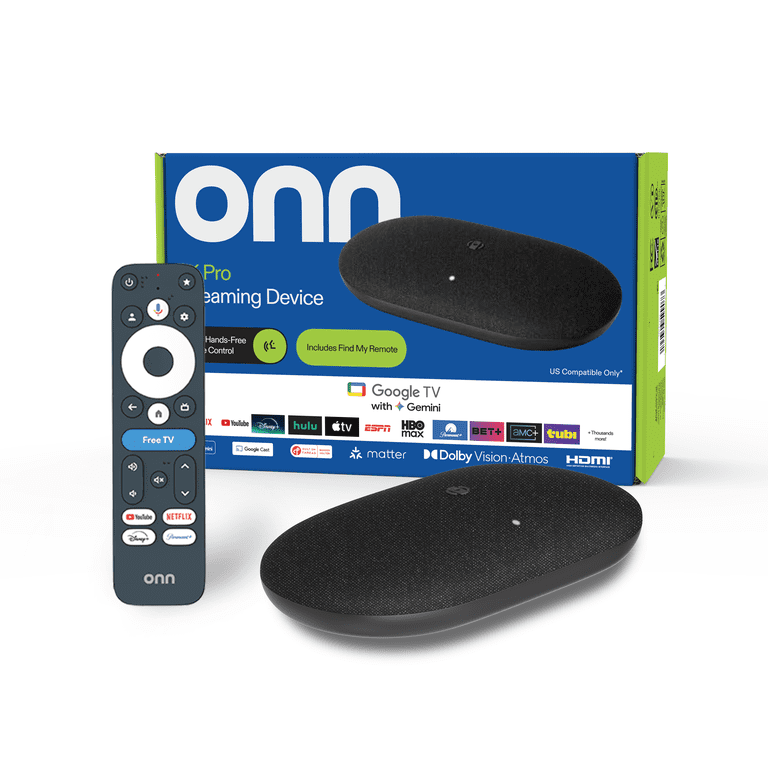
Have you ever sat down to watch a movie, only to have your smart TV's app crash or buffer for minutes? Or maybe you're tired of a clunky interface that hasn't been updated in years. That's where a dedicated streaming device comes in.
A streaming device is a small, affordable gadget that plugs into your TV via HDMI, giving you a fast, reliable way to watch Netflix, YouTube, Hulu, and hundreds of other channels. In this guide, you'll learn everything you need to know to choose the right one for your needs and budget. We'll break down the major platforms—Roku, Amazon Fire TV, Google TV, and Apple TV—and walk you through the key features, hidden pitfalls, and tips to make your decision painless.
Whether you're a total beginner or just upgrading an old model, this step-by-step guide will help you buy with confidence in 2025.
▸What You'll Need
- •A clear list of your favorite streaming services (Netflix, Hulu, Prime Video, etc.)
- •A look at your TV's ports and capabilities (check for HDMI, 4K, HDR support)
- •Your home Wi-Fi network name and password
- •A budget in mind (from $20 to $200+)
- •A short list of must-have features (voice control, 4K, Ethernet, etc.)
- •Optional: A smartphone for easy app setup and casting
Estimated Time: 30–45 minutes
Difficulty: beginner
▸Step-by-Step Instructions
Step 1: Assess Your Streaming Habits and Services
Before you buy anything, take a quick inventory of the apps and services you use every day. Do you live on YouTube? Are you an Amazon Prime subscriber? Do you use Apple Arcade or rent movies from iTunes?
Write down your top 3–5 streaming services. While most devices support the big names (Netflix, YouTube, Hulu, Disney+), some platforms have exclusive integrations. For example, Fire TV is tightly bundled with Amazon services, Apple TV makes renting iTunes content effortless, and Google TV excels at YouTube and Google Assistant. If you have a favorite niche app or a cable replacement service like YouTube TV, check its compatibility before committing.
💡 Tips:
- •Use your phone's TV apps usage screen to see which apps you open most often.
- •Consider whether you want to watch live sports through services like Hulu + Live TV or Sling TV.
⚠️ Warnings:
- •Don't assume every app is on every device—some niche apps are missing from certain platforms.
Step 2: Check Your TV's Ports and Capabilities
Walk over to your TV and inspect its ports and specs. You'll need an HDMI port for almost all streaming devices. If your TV is from the past 10 years, it almost certainly has one. If your TV supports 4K and HDR, you'll want a device that can match those resolutions—otherwise, you'll be leaving quality on the table. Look for the HDMI labeled 'ARC' or 'eARC' if you're connecting a soundbar or AV receiver via one cable, since that allows lossless audio pass-through.
Also check if your TV has a USB port. Many streaming sticks can be powered via USB, though using the included power adapter ensures consistent performance.
💡 Tips:
- •If you're not sure whether your TV supports 4K, search its model number online.
- •Older TVs without HDMI can still be used with a special adapter, but you'll get only DVD-quality (480p) picture.
⚠️ Warnings:
- •If your TV lacks HDCP 2.2, your device may limit 4K content to 1080p—check the official specs.
Step 3: Understand the Main Streaming Platforms
There are four big players in streaming: Roku, Amazon Fire TV, Google TV, and Apple TV. Roku stands out for its dead-simple, impartial interface and exceptional channel library. Fire TV, powered by Amazon, puts your Prime content front and center and includes hands-free Alexa. Google TV—the successor to Chromecast with Google TV—delivers personalized recommendations and deep Google Assistant integration. Apple TV is the premium pick, with buttery-smooth performance, privacy, and tight integration with iPhones and Apple services.
Each platform has its own app store, voice assistant, and remote. You'll spend a lot of time poking around the interface, so think about which one feels most intuitive to you. If you can, try a friend's device or read about their experiences.
💡 Tips:
- •The Nvidia Shield and Apple TV support advanced audio formats like DTS:X for a true home theater experience.
- •If you only use one service (e.g., Netflix), any device will work.
⚠️ Warnings:
- •Avoid off-brand 'Android TV' boxes from unknown manufacturers—they often lack security updates and come with no support.
Step 4: Decide Which Features Are Must-Haves
Now think about the extras that make your life easier. Features like 4K/HDR support are standard on newer models, but you'll also find variable refresh rates (important for gamers), Dolby Atmos audio, voice remotes with volume and power controls, and smart home integration.
Make a checklist of what's non-negotiable for you. If you want to use your streaming device to control Philips Hue lights or Ring cameras, it must work with your preferred assistant—Alexa, Google Assistant, or Siri. If you plan to use a headphone jack for late-night viewing, look for one with a headphone feature or buy a Bluetooth audio add-on.
💡 Tips:
- •Voice search is a huge time-saver: 'Find action movies on Netflix' works across many platforms.
- •If you care about privacy, Roku and Apple TV are more privacy-friendly than Fire TV.
⚠️ Warnings:
- •Not all '4K' devices support HDR10+, Dolby Vision, or HLG—check the spec sheet to match your TV and content.
Step 5: Evaluate Your Internet Setup and Wi-Fi
Streaming is only as good as your network. For 4K content, you'll want a steady 25 Mbps or faster. Use a speed test to see what your Wi-Fi delivers. A cheap 1080p device might be fine on a slower connection, but a 4K stream can buffer and stutter.
If your router is far from the TV, consider a streaming device with dual-band Wi-Fi support (2.4GHz and 5GHz) and the ability to connect via Ethernet. Models like the Nvidia Shield TV Pro and Apple TV 4K have Ethernet ports for a stable wired connection. Most devices will tell you your signal strength during setup.
💡 Tips:
- •Place your router in line-of-sight to the TV for stronger signal.
- •In large homes, a Wi-Fi mesh system (like Eero) prevents buffering.
⚠️ Warnings:
- •Don't rely on a Wi-Fi hotspot for streaming—it'll eat up data and reduce speed.
Step 6: Set a Realistic Budget
Streaming devices range from $20 to $200. Budget models like the Amazon Fire TV Stick (1080p) or the Roku Express cost under $30—they're perfect for secondary TVs. Mid-range 4K sticks (Roku Streaming Stick 4K, Fire TV Stick 4K Max) run $40–$70 and cover nearly everyone's needs. Premium boxes (Apple TV 4K, Nvidia Shield TV Pro) are $100–$200 and offer extra performance, storage, and wired Ethernet.
Set your budget before you browse. Once you know your must-haves, you can pick the cheapest device that includes all of them. Don't overspend for features you'll never use, but don't skip important features just to save a few dollars.
💡 Tips:
- •Keep an eye on sales: Amazon Prime Day and Black Friday regularly discount Fire TV Sticks.
- •If you're buying multiple devices, consider sticking with one platform so you can master one remote.
⚠️ Warnings:
- •Beware of unauthorized third-party sellers on marketplaces—buy from the official brand or a trusted retailer to get a genuine product.
Step 7: Read Recent Reviews and User Feedback
Once you've narrowed it down, do a final round of research. Look at professional reviews from sites like Wirecutter and TechRadar, but also check user feedback on Amazon or Reddit—they expose long-term reliability issues, remote build quality, and software quirks. Pay attention to how often the manufacturer releases updates and whether they fix bugs promptly.
For example, some streaming devices have had occasional issues with Wi-Fi 6 or eARC, and older models have slowed down after major OS updates. A quick search for '[model] review' and '[model] reddit' will surface patterns.
💡 Tips:
- •Search for the specific generation: something like 'Roku Stick 4K 2024 review' to get recent info.
- •Look at the one-star reviews first to see the most common complaints.
⚠️ Warnings:
- •Ignore 'influencer' content that's paid sponsorship—cross-check with unbiased reviewers.
Step 8: Make Your Purchase and Set Up
When you've chosen, buy from a reputable seller. Streaming devices are quick to set up: plug the stick into your TV's HDMI port, power it via the adapter, switch to that HDMI input, and follow the on-screen prompts to connect to Wi-Fi and sign into your streaming services.
After setup, make sure to install your favorite apps, update the system, and adjust settings like display resolution and audio. Then sit back and enjoy—you've earned that movie night.
💡 Tips:
- •Use the included remote to its full potential: remap buttons if needed, or use the mobile app for easy typing and casting.
- •Let the device update to the latest version before you start using it.
⚠️ Warnings:
- •Don't use a basic USB cable with insufficient power from your TV—it can cause dropouts.
▸Pro Tips
- •Match your device to your existing gadgets: Roku works with any assistant, but Fire TV and Google TV run on Amazon and Google, respectively.
- •Look for a remote with volume and power buttons to replace your TV remote.
- •If you watch a lot of sports, check whether your device supports the specific live TV apps you need.
- •For privacy-conscious users, Roku and Apple TV offer simpler ad experiences.
- •Consider buying a 'streaming box' with an Ethernet port if your Wi-Fi is weak.
- •Check the OS update policy: some vendors support devices longer than others.
- •Don't forget about audio: if you have a soundbar, make sure the device supports passthrough of Dolby Atmos.
▸Common Mistakes to Avoid
- •Buying the cheapest stick and later realizing it doesn't support 4K or HDR.
- •Checking compatibility only for Netflix and missing that your niche sports app isn't on the platform.
- •Assuming all streaming devices support the same Wi-Fi standards—older ones might only have 2.4GHz.
- •Ignoring the importance of an Ethernet port in a large home.
- •Buying from an unofficial seller and getting a fake device with security risks.
▸Troubleshooting
Problem: Device won't power on.
Solution: Try a different USB power source, use the included power adapter, or swap the power cable.
Problem: Remote isn't working.
Solution: Replace the batteries, re-pair the remote (often hold Home for 5-10 seconds), or use the mobile app as a temporary remote.
Problem: 4K streaming doesn't show 4K.
Solution: Check that your TV's HDMI port supports HDCP 2.2, use an 18 Gbps HDMI cable, and verify your internet speed.
Problem: App says 'not compatible' with your device.
Solution: Update the app or the device, or check if an alternate app version exists. Sometimes the app is only on your TV's built-in platform, not the streaming device.
Problem: Frequent buffering.
Solution: Move the router closer, reduce Wi-Fi interference, try switching between 2.4GHz and 5GHz, or invest in a Wi-Fi mesh system.
Problem: When to consider replacing your device.
Solution: If the device lags even after a reset and hasn't received updates in years, it may be time to upgrade for better performance and security.
Roku Streaming Stick 4K
Roku is the go-to for simplicity and neutrality. It supports every major app, has a clean interface, and works with Alexa/Google Assistant as well.
Best for: Ideal for cord-cutters who want a no-frills, reliable 4K streamer with a great remote.
Price Range: $40 - $50
Amazon Fire TV Stick 4K Max
Excellent value, built-in Alexa, and hands-free controls. It's one of the most popular sticks for Amazon Prime members and smart home users.
Best for: Best if you're in the Amazon ecosystem and want a budget-friendly 4K device with fast performance.
Price Range: $40 - $60
Google TV Streamer (4K)
The upgraded Google TV Streamer (formerly Chromecast) delivers a fast, personalized 4K experience with Google Assistant and perfect YouTube integration.
Best for: Great for Android users, those who use Google services, and anyone who likes a modern, AI-driven home screen.
Price Range: $99 - $130
Apple TV 4K
Premium build quality, best-in-class software updates, and deep integration with iPhone, AirPods, and Apple Fitness+. Also one of the most private streaming devices.
Best for: Best if you're already invested in the Apple ecosystem and want a fast, reliable, no-compromise streamer.
Price Range: $129 - $149
Nvidia Shield TV Pro
The most powerful streaming device with AI upscaling, perfect for Plex, gaming, and advanced home theater setups. It includes an Ethernet port and supports high-res audio formats.
Best for: For enthusiasts who want gaming, media server capabilities, and the best possible performance in a streaming box.
Price Range: $199