Is your desk a tangled mess of cables? Do you constantly hunt for an extra outlet to charge your phone, tablet, or wireless headphones? A power strip with built-in USB ports can solve these problems, giving you both AC outlets and USB charging points in one compact unit. Choosing the right one, however, requires more than just picking the cheapest option. You need to consider surge protection, USB charging speed (including Power Delivery for fast laptop charging), the number and type of ports, and safety features like overload protection. This guide will walk you through every step to find the perfect power strip for your desk setup.
▸What You'll Need
- •List of devices you'll plug in (laptop, monitor, phone, tablet, etc.)
- •Desk layout measurements (to ensure the power strip fits and cable reaches)
- •Knowledge of your devices' charging requirements (standard USB-A vs USB-C Power Delivery)
- •Optional: a tape measure to check available space
Estimated Time: 10-15 minutes to read and apply the criteria to your shopping
Difficulty: beginner
▸Step-by-Step Instructions
Step 1: Assess Your Device Needs
Start by listing every device you expect to plug into the power strip. Count both AC-powered items (like a desk lamp, monitor, laptop charger) and USB-charged devices (phone, tablet, wireless keyboard, earbuds). This will tell you the minimum number of AC outlets and USB ports required. For example, if you have a laptop that charges via USB-C, you'll want at least one USB-C port that supports Power Delivery (PD) for fast charging. If you have multiple devices with USB-A cables, standard USB-A ports are fine. Also note the physical size of your devices: large power adapters might block adjacent outlets, so consider a strip with widely spaced outlets.
💡 Tips:
- •Overestimate by one or two ports to future-proof.
- •Measure the width of your desk to ensure the strip fits without cluttering your workspace.
⚠️ Warnings:
- •Don't exceed the power strip's rated wattage (usually 1800W for 15A/120V strips in the US).
Step 2: Decide on Surge Protection
Surge protection is critical for expensive electronics like computers, monitors, and gaming consoles. A surge protector absorbs voltage spikes (e.g., from lightning or power grid fluctuations) and prevents damage. Look for a power strip with a surge protection rating measured in joules: the higher the joules, the better the protection. For a desk setup, 1000-2000 joules is a good range. Also check for a clamping voltage (the voltage at which it kicks in) of 330V or lower. Many quality strips also have an indicator light that shows protection is active – if it goes out, the strip is no longer protecting your gear and needs replacement. If you only connect low-cost devices like lamps, a basic power strip without surge protection may suffice.
💡 Tips:
- •For maximum protection, consider a strip with coaxial and phone line protection if you have cable TV or modem.
- •Look for UL 1449 certification for surge protectors.
⚠️ Warnings:
- •Do not daisy-chain surge protectors (plugging one into another) – this can overload circuits and reduce effectiveness.
Step 3: Choose the Right USB Ports: USB-A vs USB-C and Charging Speed
USB ports on power strips can be USB-A (the rectangular shape) or USB-C (the oval, reversible shape). USB-A ports are common for older devices, while USB-C is becoming the standard for newer phones, tablets, and laptops. Charging speed matters too. Basic USB-A ports often deliver 2.4A (12W) total shared among ports. For faster charging, look for ports that support Qualcomm Quick Charge (QC) or USB Power Delivery (PD). A USB-C PD port can deliver up to 60W or more, enough to charge a laptop. If you have a laptop that charges via USB-C, a PD port is essential. Otherwise, standard 2.4A ports will charge phones and tablets at a reasonable pace. Also consider the number of USB ports – one high-power PD port plus two regular ports is a common setup.
💡 Tips:
- •If you need to charge multiple tablets, look for a strip with multiple high-speed ports or one that can deliver high current on each port (e.g., 2.4A per port).
- •For iPhone users, USB-C PD can fast charge iPhone 8 and later (with a USB-C to Lightning cable).
⚠️ Warnings:
- •Avoid 'smart' ports that claim to auto-detect device needs – they often underperform compared to dedicated charging ICs.
Step 4: Check Safety Certifications and Features
Safety should never be compromised. Look for certifications from recognized testing laboratories: UL (Underwriters Laboratories) in the US, ETL or CSA in North America, or CE in Europe. These ensure the product meets safety standards for electrical and fire hazards. Additional safety features include overload protection (the strip shuts off if too much current is drawn), fire-resistant casing (usually made of ABS or polycarbonate), and child safety shutters on outlets. Some strips also have a built-in circuit breaker that can be reset. Avoid cheap, uncertified power strips, especially those without clear markings – they may not protect your devices and could pose a fire risk.
💡 Tips:
- •Look for the mark directly on the product or its packaging.
- •Some strips have a 'thermal fuse' that cuts power if overheating occurs – a nice extra.
⚠️ Warnings:
- •Never use a power strip with damaged cables or plugs, even if it's certified.
Step 5: Consider Physical Design: Cable Length, Spacing, and Mounting
The physical design affects usability. Cable length: measure the distance from your desk outlet to where you want the strip. 4-6 feet is common; too long can create clutter, too short may not reach. Outlet spacing: some power strips have outlets spaced extra wide to accommodate bulky AC adapters. If you have chunky power bricks, look for a 'large adapter-friendly' design with at least 2 inches between outlets. Form factor: choose between a straight strip, a flat/block design (like a 'charging station' that sits on your desk), or a cube with ports on multiple sides. Mounting options: many strips have keyhole slots or screw holes for under-desk mounting, which keeps your desk clear. Also consider if you need a USB cable built into the strip for neatness, or if you prefer separate cables.
💡 Tips:
- •Under-desk mounting can vastly improve cable management – look for strips that include mounting screws or sticky pads.
- •If your desk is metal, consider magnetic strips for easy attachment.
⚠️ Warnings:
- •Avoid placing the power strip on the floor where it can be stepped on or kicked.
Step 6: Match the Power Strip to Your Desk Environment
Think about how you'll use the strip. If you travel frequently, you might want a compact travel power strip with USB ports that fits in a bag. If you have a standing desk, consider a strip with a long cable and a way to attach it to the desk frame. For a home office, aesthetics matter – look for slimmer designs in white or black that blend in. If your desk has limited surface space, a vertical tower or a strip that plugs directly into a wall outlet (like an outlet expander with USB) might be better. Also check if the strip has a master switch (to turn off all devices at once) or individual switches (to control each outlet separately).
💡 Tips:
- •For a clean look, choose a power strip with a right-angle plug so it sits flush against the wall.
- •Consider a strip with built-in nightlight or Bluetooth speaker if those features appeal to you.
⚠️ Warnings:
- •Don't choose style over function – ensure all your devices will work with the port configuration.
Step 7: Set a Budget and Compare Options
Power strips with USB ports range from $10 for basic models to $50 or more for premium surge protectors with multiple high-speed USB-C PD ports. Determine your budget based on the value of the devices you're protecting. For a desk with a $1000+ laptop and monitor, spending $30-$40 on a quality surge protector is wise. For simple charging of phones and a lamp, a $15 strip may suffice. Read product reviews (especially from verified purchasers) to gauge real-world performance and durability. Pay attention to complaints about USB ports failing after a few months or the surge protector not working.
💡 Tips:
- •Look for bundle deals that include cable ties or mounting hardware.
- •Price trackers can alert you to sales on your chosen model.
⚠️ Warnings:
- •Avoid very cheap strips – they may skimp on safety components.
▸Pro Tips
- •Use a cable management box to hide the power strip and excess cables for a clutter-free desk.
- •If you have a laptop that charges via USB-C, prioritize a strip with at least one USB-C Power Delivery port (18W or higher).
- •For under-desk mounting, measure the space between the strip's mounting holes and your desk structure.
- •Label each outlet on the strip with a small sticker to identify which device is plugged where.
- •Unplug the power strip during thunderstorms to protect against indirect surges (though a good surge protector can help).
- •Check the total output of USB ports: some strips have a single 5V/4A circuit shared among ports, meaning charging slows if you plug in multiple devices.
▸Common Mistakes to Avoid
- •Buying a strip without enough USB-C PD ports for quickly charging newer laptops and tablets.
- •Ignoring the total power rating – plugging too many high-wattage devices can trip the circuit breaker or start a fire.
- •Assuming all USB ports charge at the same speed – many cheap strips share current among ports, slowing charging.
- •Not checking outlet spacing – bulky AC adapters can block adjacent outlets, reducing usable ports.
- •Neglecting surge protection – basic strips without surge protection won't save your expensive electronics from a power spike.
▸Troubleshooting
Problem: USB port doesn't charge my device.
Solution: Try a different cable; if that works, the cable was faulty. If not, the port may be defective – test with another device. If still no charge, the USB circuit may be broken; consider returning the strip.
Problem: Surge protector indicator light is off.
Solution: This means the surge protection has expired (usually after a major surge or over time). Replace the strip immediately as it no longer protects against surges.
Problem: Power strip feels warm to the touch.
Solution: A slight warmth is normal under heavy load. If it's hot to the touch, unplug it and reduce the load or replace it, as this could be a fire hazard.
Problem: The plug doesn't fit the wall outlet (polarized/unpolarized issue).
Solution: Ensure the wall outlet is compatible (most modern outlets accept both). If the strip has a polarized plug (one prong wider), it will only fit one way; don't force it.
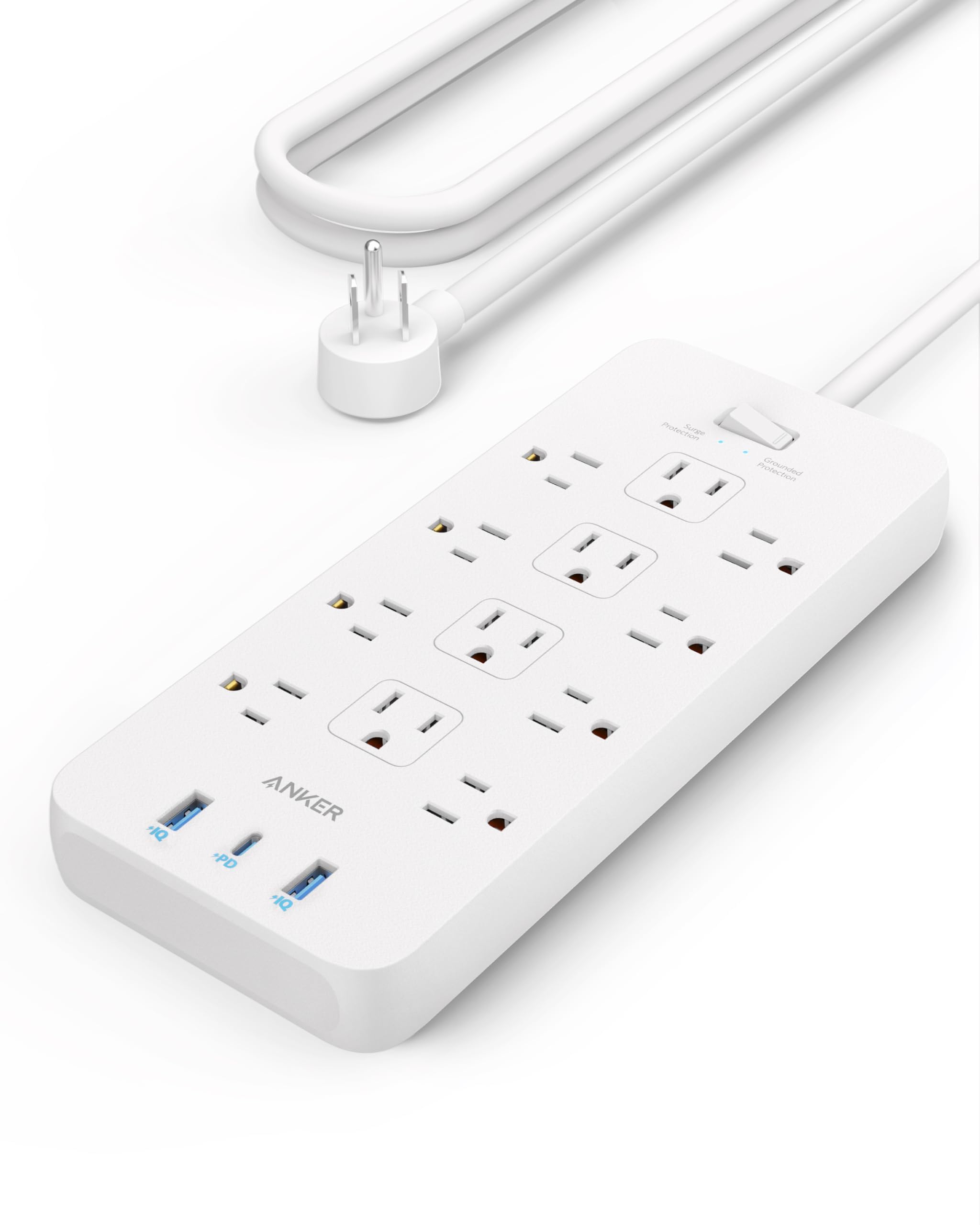
Anker Power Strip with USB-C and Surge Protection
Anker is known for reliable charging products. This model includes 3 AC outlets, 2 USB-A ports, and 1 USB-C PD port (30W), making it perfect for most desk setups.
Best for: Ideal for home offices or dorm rooms needing fast laptop and phone charging in one compact unit.
Price Range: $30-$40
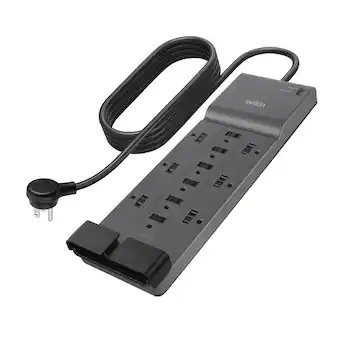
Belkin 12-Outlet Surge Protector with USB
Belkin offers robust surge protection (up to 4000 joules) and 12 AC outlets – great for heavy desk setups with many peripherals. It also has two USB-A ports.
Best for: Best if you have many AC-powered devices like monitors, speakers, and external drives, plus a couple of USB chargers.
Price Range: $40-$60
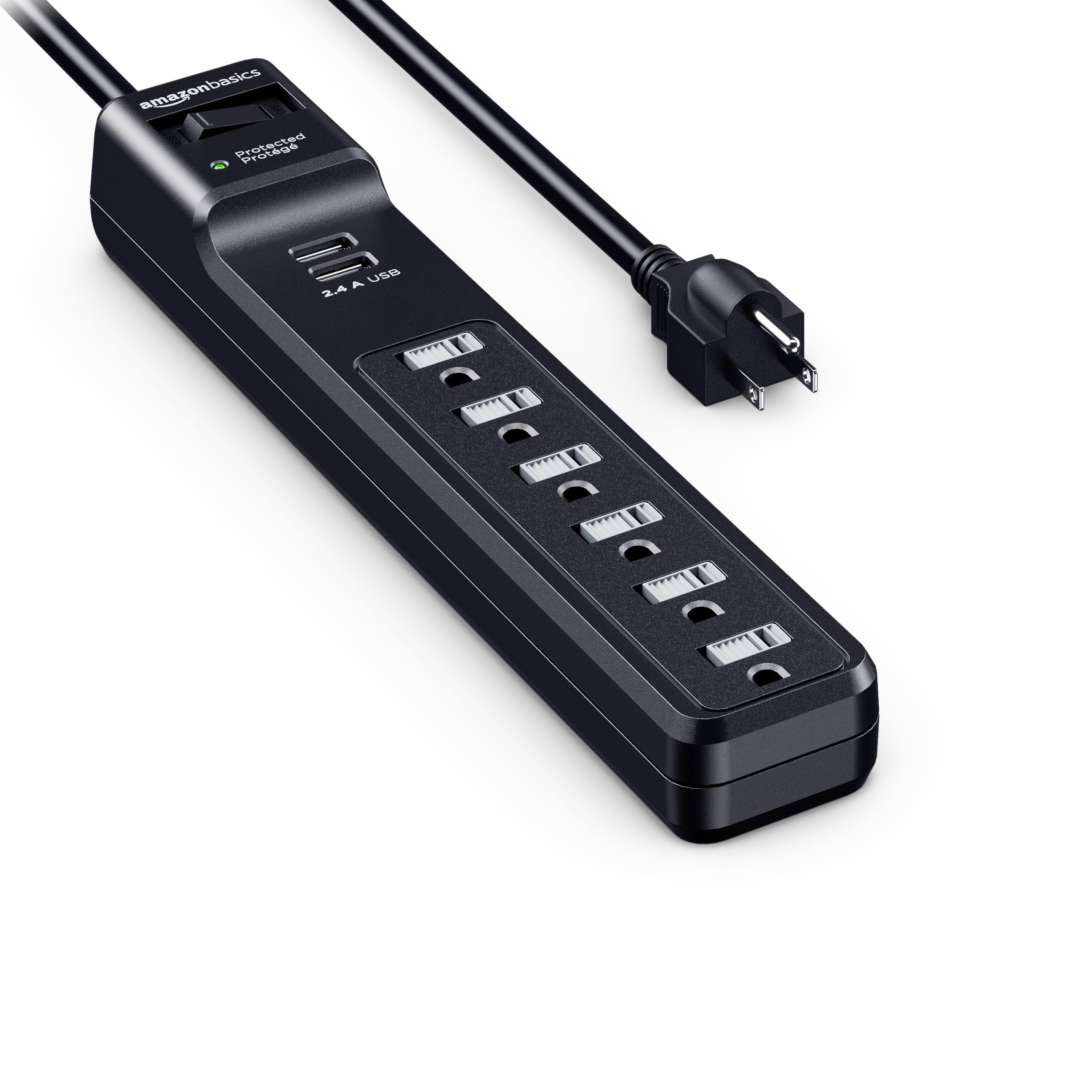
AmazonBasics 6-Outlet Surge Protector with 2 USB Ports
An affordable option that still offers UL certification and 1080 joules of surge protection. Good for basic setups where budget is a concern.
Best for: Budget-friendly for student desks or secondary workstations.
Price Range: $15-$25
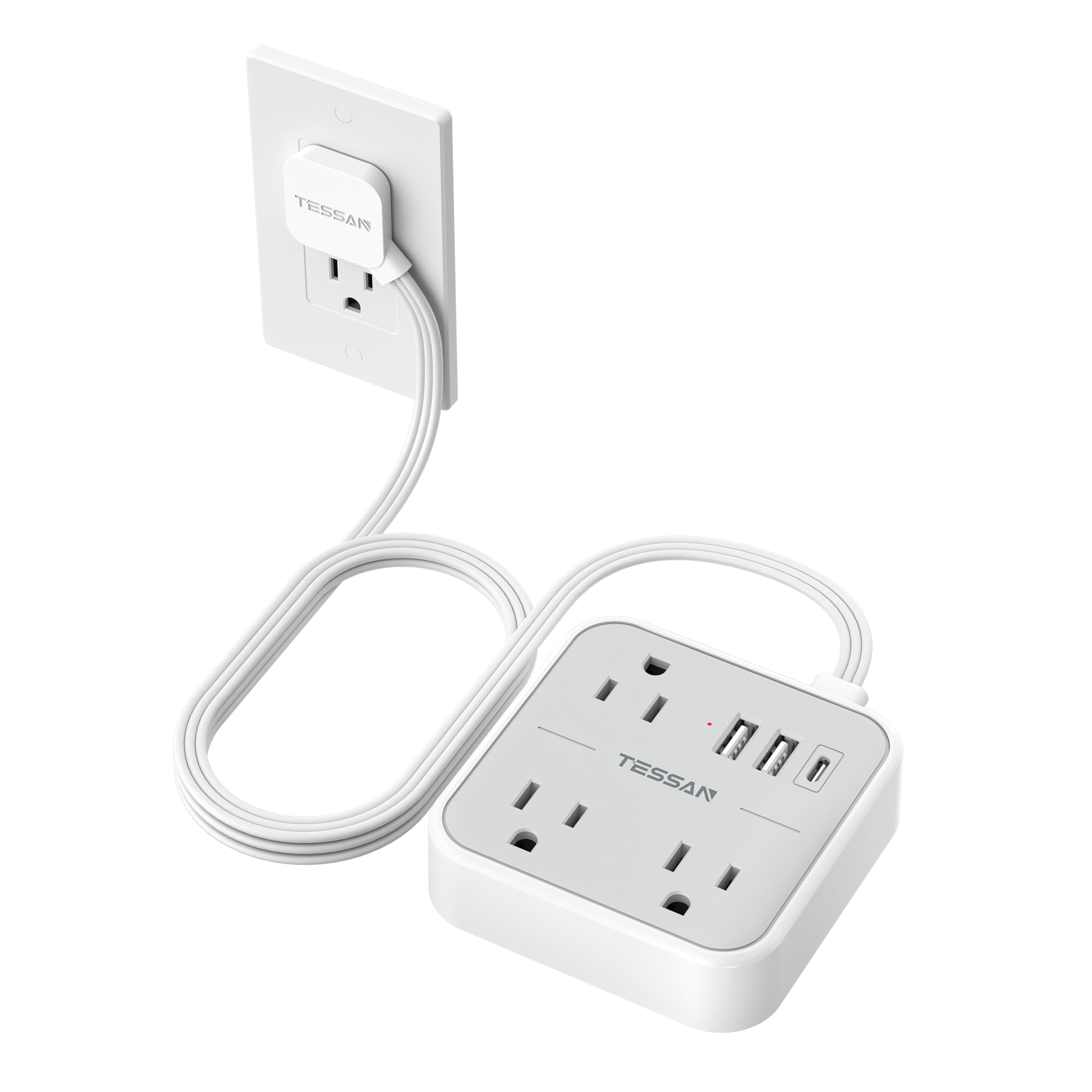
TESSAN USB C Power Strip with 5 Outlets and 3 USB Ports
This compact strip features widely spaced outlets (adapter-friendly) and one USB-C PD 20W port plus two USB-A ports. Excellent for small desks.
Best for: Perfect for travel or small desks where space is tight but you need fast USB-C charging.
Price Range: $20-$30
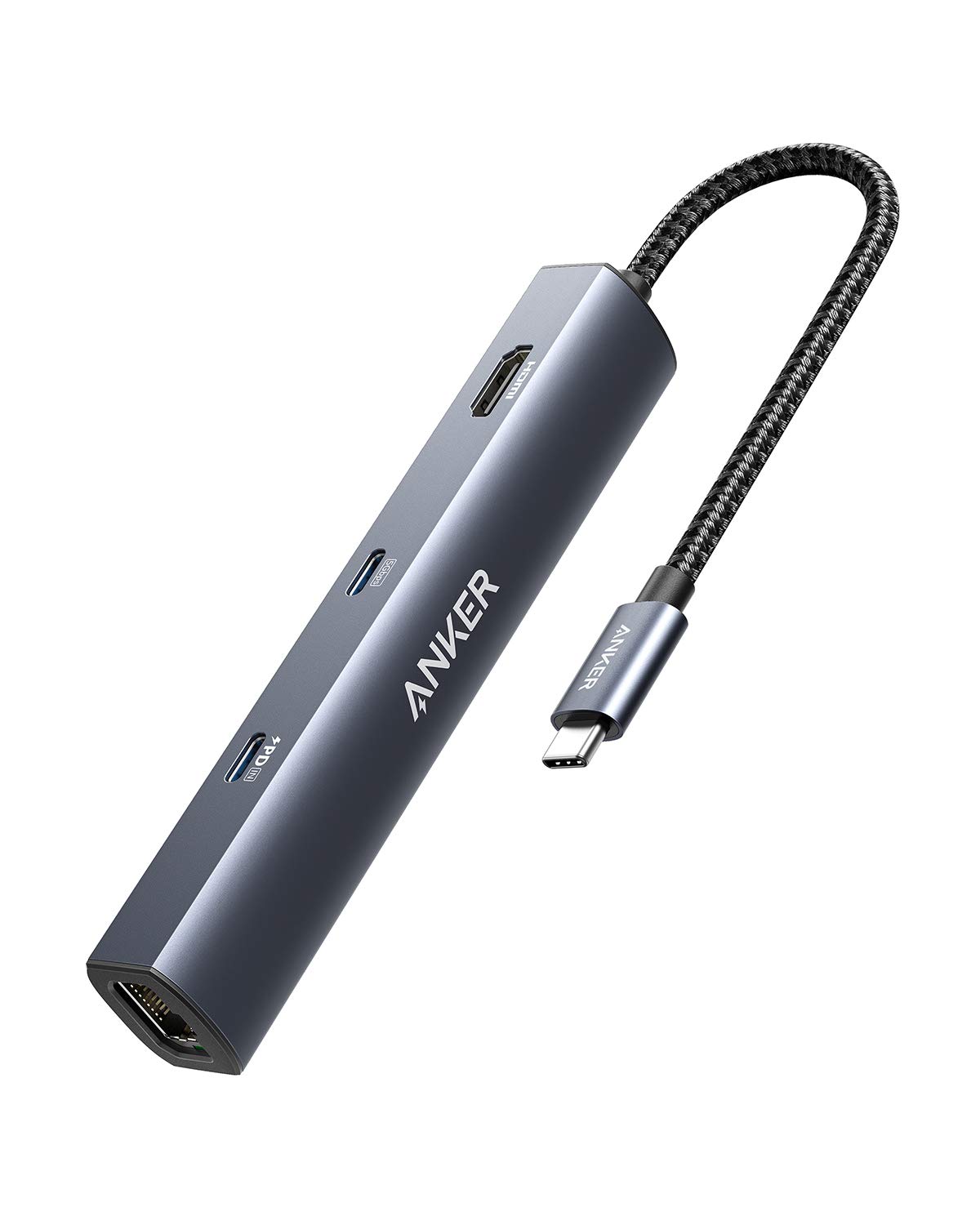
Anker USB C Hub with Power Strip (PowerExpand 6-in-1)
Combines a power strip with a USB-C hub, adding data ports (HDMI, Ethernet, SD card) for laptop users. Includes a 100W PD passthrough.
Best for: Ideal for USB-C laptop users (MacBook, etc.) who also need additional data ports and charging.
Price Range: $50-$80