Taking notes in class or meetings has evolved beyond paper. A 2-in-1 laptop lets you type, draw, and write naturally, blending the power of a laptop with the flexibility of a tablet. But with so many models, choosing the right one for note-taking can be overwhelming. This guide breaks down the essential features—from pen technology to battery life—to help you pick a device that turns your handwritten ideas into digital text, diagrams, and study guides.
You’ll learn what to look for in a 2-in-1 for note-taking, including display types, stylus options, and software compatibility. We’ll also recommend specific models for different budgets. By the end, you’ll know exactly which features matter most and how to find a laptop that feels as natural as pen on paper.
▸What You'll Need
- •Basic understanding of laptop specifications (CPU, RAM, storage)
- •List of note-taking apps you plan to use (e.g., OneNote, GoodNotes, Notability)
- •Preference for operating system (Windows, ChromeOS, or iPadOS if considering iPad Pro)
Estimated Time: 10–12 minutes reading + 20–30 minutes research on specific models
Difficulty: beginner
▸Step-by-Step Instructions
Step 1: Understand the Two Main Form Factors: Convertible vs. Detachable
2-in-1 laptops come in two styles: convertibles (hinge that rotates 360°, like Lenovo Yoga) and detachables (keyboard snaps off, like Microsoft Surface Pro). For note-taking, both work, but they differ in lap usability and pen storage.
- •Convertibles: The keyboard is always attached. They feel more like a traditional laptop but can be heavy in tablet mode. Pens often attach magnetically or slide into a garage.
- •Detachables: The screen becomes a standalone tablet. They’re lighter when detached, making handheld note-taking easier, but the kickstand adds bulk and they’re less stable on your lap.
Which to choose? If you mostly take notes at a desk, a convertible is fine. If you often stand or hold the device, a detachable may be better.
💡 Tips:
- •Try holding both form factors in a store to see which feels more comfortable for writing.
- •Check if the pen can be stored inside the laptop (like on some Lenovo models) so you don’t lose it.
⚠️ Warnings:
- •Detachables with separate keyboards can be top-heavy when typing on your lap—the keyboard might flex or disconnect.
Step 2: Prioritize Active Pen Support (Digitizer Technology)
For note-taking, you need an active pen that uses a digitizer (like Wacom AES, Microsoft Pen Protocol, or Apple Pencil). Passive styluses don’t provide pressure sensitivity or palm rejection. Look for:
- •Pressure sensitivity: at least 4096 levels for natural line variation.
- •Palm rejection: automatic blocking of hand contact while writing.
- •Tilt support: helps shading if you sketch.
Modern 2-in-1s usually include a pen, but some budget models require separate purchase (check Amazon for “active pen for [model]”).
💡 Tips:
- •Test the pen latency in a store—the less lag, the more natural it feels.
- •If you take long notes, look for a pen with an eraser button on the top (like Surface Pen).
⚠️ Warnings:
- •Avoid generic capacitive styluses—they lack precision and won’t work for note-taking apps that require pressure.
Step 3: Choose a Screen Size and Aspect Ratio for Note-Taking
Screen size impacts portability and writing space. Common sizes:
- •13–14 inches: Good balance of portability and writing area. Most 2-in-1s fall here.
- •15–16 inches: More screen real estate for split-screen note-taking but heavier.
- •12–13 inches: Ultra-portable (like Surface Pro 9) but may feel cramped for long notes.
Aspect ratio matters too: 3:2 or 16:10 ratios (taller) show more vertical content, reducing scrolling when reading PDFs or writing. 16:9 is widescreen, better for media but less natural for portrait-oriented notes.
💡 Tips:
- •If you plan to hold the device like a clipboard, a smaller screen (12–13”) is lighter and easier to manage.
- •For university or business, a 14” 3:2 screen is a sweet spot.
⚠️ Warnings:
- •Larger 2-in-1s (15”+) can be unwieldy in tablet mode; the weight can tire your wrists.
Step 4: Evaluate Display Quality: Brightness, Color, and Glare
For note-taking, display clarity matters more than 4K resolution. Key factors:
- •Brightness: Aim for at least 300 nits for indoor use; 500+ nits if you work near windows.
- •Anti-glare coating: A matte screen reduces reflections and eye strain during long writing sessions.
- •Color accuracy is less critical for notes but nice if you also sketch or edit photos.
OLED screens offer deep blacks but may suffer from burn-in if you keep static notes open for hours. IPS LCD is safe and cost-effective.
💡 Tips:
- •If you work outdoors often, prioritize a bright, matte display (e.g., Microsoft Surface Laptop Studio).
- •A 1920x1080 (Full HD) resolution is sufficient for note-taking; higher res adds battery drain.
⚠️ Warnings:
- •Glossy screens (common on convertibles) can cause distracting reflections—test before buying.
Step 5: Check Battery Life (Real-World Writing Usage)
Note-taking apps (OneNote, Notability) are relatively light, but the display and pen digitizer consume power. Look for:
- •Manufacturer rating: but real-world battery life is often 30–40% less for mixed use.
- •Reviews: Search YouTube for “battery test [model] note-taking” to see actual hours.
Aim for at least 8 hours of active note-taking. Some convertibles (like HP Spectre x360) can last 10+ hours, while detachables (Surface Pro) often get 6–7 hours.
💡 Tips:
- •Turn down screen brightness to 50% and disable keyboard backlighting to extend battery life.
- •Consider a model with fast charging (like Lenovo’s Rapid Charge) for top-ups during breaks.
⚠️ Warnings:
- •Battery life degrades over time; models with user-replaceable batteries are rare but prefer those with easy serviceability if possible.
Step 6: Assess Processor, RAM, and Storage Needs for Note-Taking
Note-taking doesn’t require a powerhouse, but multitasking (having a browser with research open) does. Minimum specs:
- •CPU: Intel Core i5 or AMD Ryzen 5 (or Apple M-series for iPads). An i3 or ARM (like Surface Pro X) might struggle with heavy multitasking.
- •RAM: 8GB is okay for light use; 16GB recommended if you keep many tabs/apps open.
- •Storage: 256GB SSD minimum—but if you store notes locally, 128GB may suffice if you use cloud sync.
Avoid eMMC storage; it’s slow for syncing large notebooks.
💡 Tips:
- •If you use note-taking apps that sync automatically (e.g., OneNote), cloud storage reduces local SSD needs.
- •For future-proofing, 16GB RAM and 512GB SSD are ideal.
⚠️ Warnings:
- •Many note-taking apps (like GoodNotes) are not available on Windows; check app availability for your OS before buying.
Step 7: Consider Weight, Thickness, and Portability
Since you’ll likely carry your 2-in-1 to class, meetings, or coffee shops, weight is crucial. Typical weights:
- •Detachable (tablet only): 1.5–2 lbs (0.7–0.9 kg), plus keyboard adds 0.5–1 lb.
- •Convertible (full laptop): 2.5–4 lbs (1.1–1.8 kg).
Thickness affects how it feels in tablet mode. A device thicker than 0.7 inches (18mm) can be awkward to hold for long writing sessions.
Also, consider the form factor’s stability when used as a tablet—kickstands (Surface) vs. tent mode (convertible).
💡 Tips:
- •If you commute, a lightweight detachable (like Lenovo IdeaPad Duet 5) is easier to carry.
- •Try writing while holding the device in one hand—if it’s too heavy, consider a smaller model.
⚠️ Warnings:
- •Some detachables become top-heavy when on a lap; the keyboard may tilt, making typing difficult.
Step 8: Evaluate Pen Storage, Charging, and Accessories
Losing the pen is a top frustration. Check how the pen attaches:
- •Garage: Built-in slot that also charges the pen (e.g., Lenovo Yoga with Slim Pen).
- •Magnetic side: Common on Surface Pro and HP Spectre—pen sticks to the side but may fall off in a bag.
- •Separate case: Often bundled, but easy to misplace.
Pen charging: Most pens charge via USB-C or slot into the laptop. Some use AAAA batteries (e.g., older Surface Pen). Battery-powered pens require replacements, so choose rechargeable for convenience.
💡 Tips:
- •Look for a pen that attaches securely—magnetic attachment may not survive being tossed in a backpack.
- •If you take notes daily, a pen with a built-in battery that lasts months (like Apple Pencil 2) is great.
⚠️ Warnings:
- •Some pens use proprietary charging, so losing the charger could be a problem.
Step 9: Check Compatibility with Your Note-Taking Apps
Not all 2-in-1s run every app well. Key considerations:
- •Windows: Full OneNote, Drawboard PDF, Nebo, Journal. Windows has the broadest pen app support.
- •ChromeOS: Limited pen apps but good Android note-taking apps (LectureNotes, Squid). Works with USI pens.
- •iPadOS: Apple Pencil + Notability/GoodNotes is the gold standard for handwritten notes, but iPad is not a full laptop.
For students, check if your school’s preferred app works on your OS. For example, if you rely on OneNote with advanced features, Windows is best.
💡 Tips:
- •Download free trials of your chosen apps and test pen input on the device before committing.
- •If you need to annotate PDFs, look for a device that supports low-latency inking (e.g., Surface Laptop 5).
⚠️ Warnings:
- •Some note-taking apps on ChromeOS may have lag or missing features compared to Windows/iPad versions.
Step 10: Set a Budget and Compare Finalists
2-in-1s range from $300 (budget Chromebooks) to $3,000+ (high-end convertibles). Typical note-taking budget levels:
- •Under $600: Lenovo IdeaPad Duet 5 (ChromeOS), Surface Go 3 (small but capable). Good for light note-taking.
- •$600 – $1,200: HP Envy x360, Dell Inspiron 14 2-in-1, Lenovo Yoga 7i. Great balance of performance and pen support.
- •$1,200+: Microsoft Surface Pro 9, Lenovo ThinkPad X1 Yoga, HP Spectre x360. Premium build, best pens, longer battery.
For professional or serious students, invest in the $800–$1,200 range to get adequate RAM and a good pen experience.
💡 Tips:
- •Check refurbished model prices on Amazon Warehouse or manufacturer outlets—significant savings with warranty.
- •Look for back-to-school sales (June–August) or Black Friday deals for best prices.
⚠️ Warnings:
- •Avoid base models with only 4GB RAM—they will struggle with multitasking and may become unusable in a year.
▸Pro Tips
- •Use a screen protector that mimics paper (like Paperlike) for better pen friction and less glare.
- •Set your note-taking app to auto-sync to cloud (OneDrive, Google Drive) so you never lose your notes.
- •Enable battery saver mode when taking notes to extend writing time.
- •Try using a tilt pen for shading if you also sketch diagrams.
- •Customize the pen’s shortcut button to quickly launch your note-taking app.
- •For long writing sessions, use a tablet stand to reduce wrist strain.
- •Regularly clean the screen with a microfiber cloth to prevent smudges that affect pen tracking.
▸Common Mistakes to Avoid
- •Buying a 2-in-1 without checking if it includes a digitizer pen—some require separate purchase.
- •Choosing a model with a glossy screen for note-taking—glare makes writing outdoors nearly impossible.
- •Overlooking storage: note-taking apps can consume space with PDFs and recordings, so 128GB may fill quickly.
- •Assuming all 2-in-1s have palm rejection—many budget models lack this, leading to accidental marks.
- •Not testing the pen’s feel—some pens are too thin or slippery, causing hand fatigue.
▸Troubleshooting
Problem: Pen not writing or lines are jittery.
Solution: Replace pen batteries (if removable) or recharge. Check Bluetooth connection; re-pair the pen. Update pen drivers from manufacturer website.
Problem: Palm rejection not working.
Solution: Ensure your note-taking app is updated. Some apps require enabling palm rejection in settings. If it’s a hardware issue, try a different app to confirm.
Problem: Battery drains quickly while note-taking.
Solution: Reduce screen brightness to 50%, turn off keyboard backlight, close unnecessary background apps. Check if pen is charging wirelessly (some pens drain laptop battery).
Problem: Screen flickers when using pen.
Solution: This may be due to conflicting GPU drivers. Update graphics drivers from Intel/AMD. If persistent, try disabling hardware acceleration in the note-taking app.
Problem: Keyboard detach sensor fails.
Solution: Clean the pogo pins or magnetic connectors with a dry cloth. Restart the device. If problem persists, check for firmware updates.
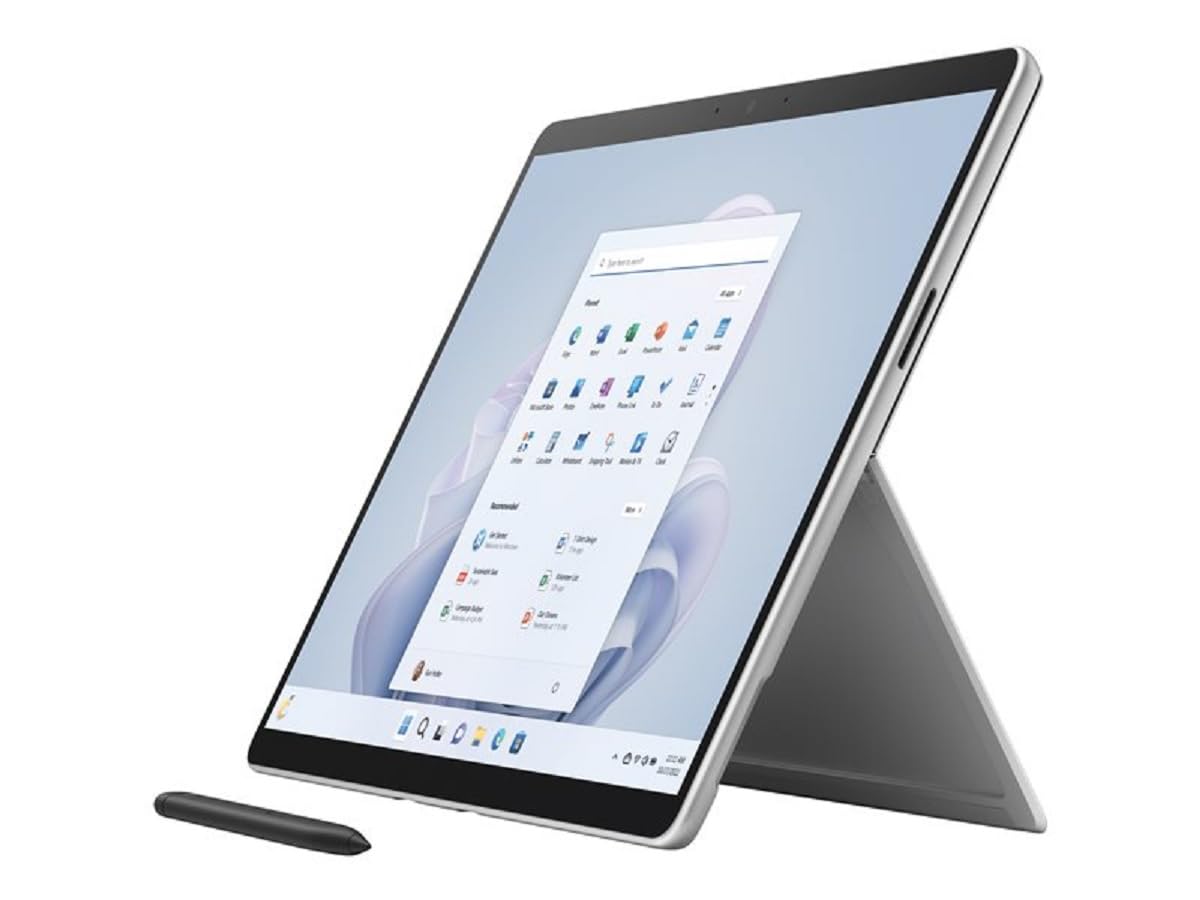
Microsoft Surface Pro 9 (i5, 8GB/256GB)
Industry-leading pen experience with low latency and excellent palm rejection. Detachable form factor is ideal for handheld note-taking.
Best for: Best for students and professionals who want a premium note-taking tablet that can replace a laptop.
Price Range: $1,200 - $1,600
Lenovo Yoga 7i 14 (i5, 16GB/512GB)
undefined
Best for: Perfect for users who want a convertible laptop with integrated pen storage and solid note-taking performance.
Price Range: $800 - $1,000
HP Spectre x360 14 (i7, 16GB/512GB)
Premium build, gorgeous OLED display with anti-glare option, and excellent battery life. HP Pen comes included with tilt support.
Best for: Ideal for creative professionals who need both note-taking and media consumption with top-tier build quality.
Price Range: $1,300 - $1,700
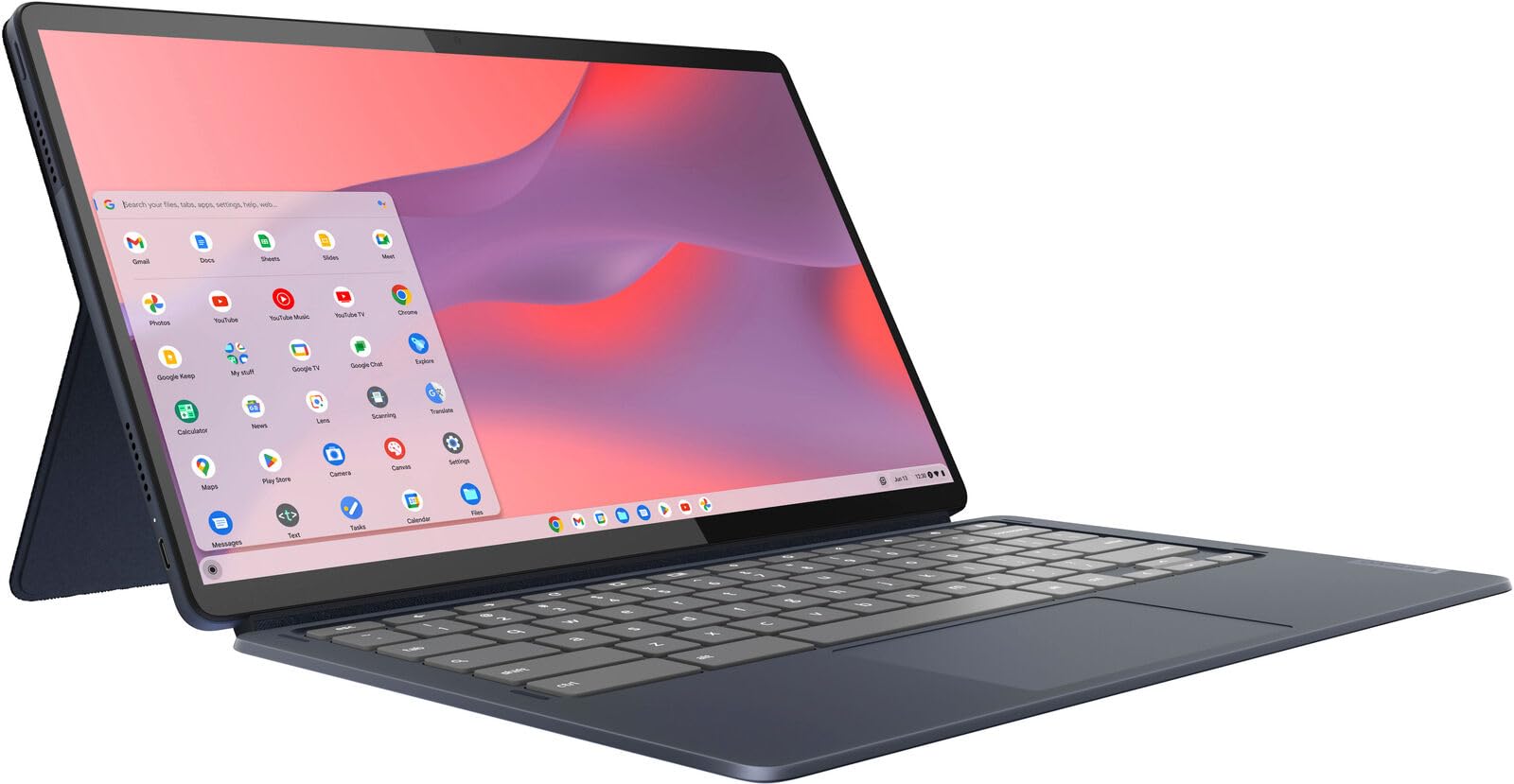
Lenovo IdeaPad Duet 5 (Chromebook)
Affordable 13.3-inch OLED detachable with USI pen support. Runs Android note-taking apps like Squid and keeps costs low.
Best for: Best budget option for students who already use Google apps and want a lightweight device for basic note-taking.
Price Range: $300 - $500
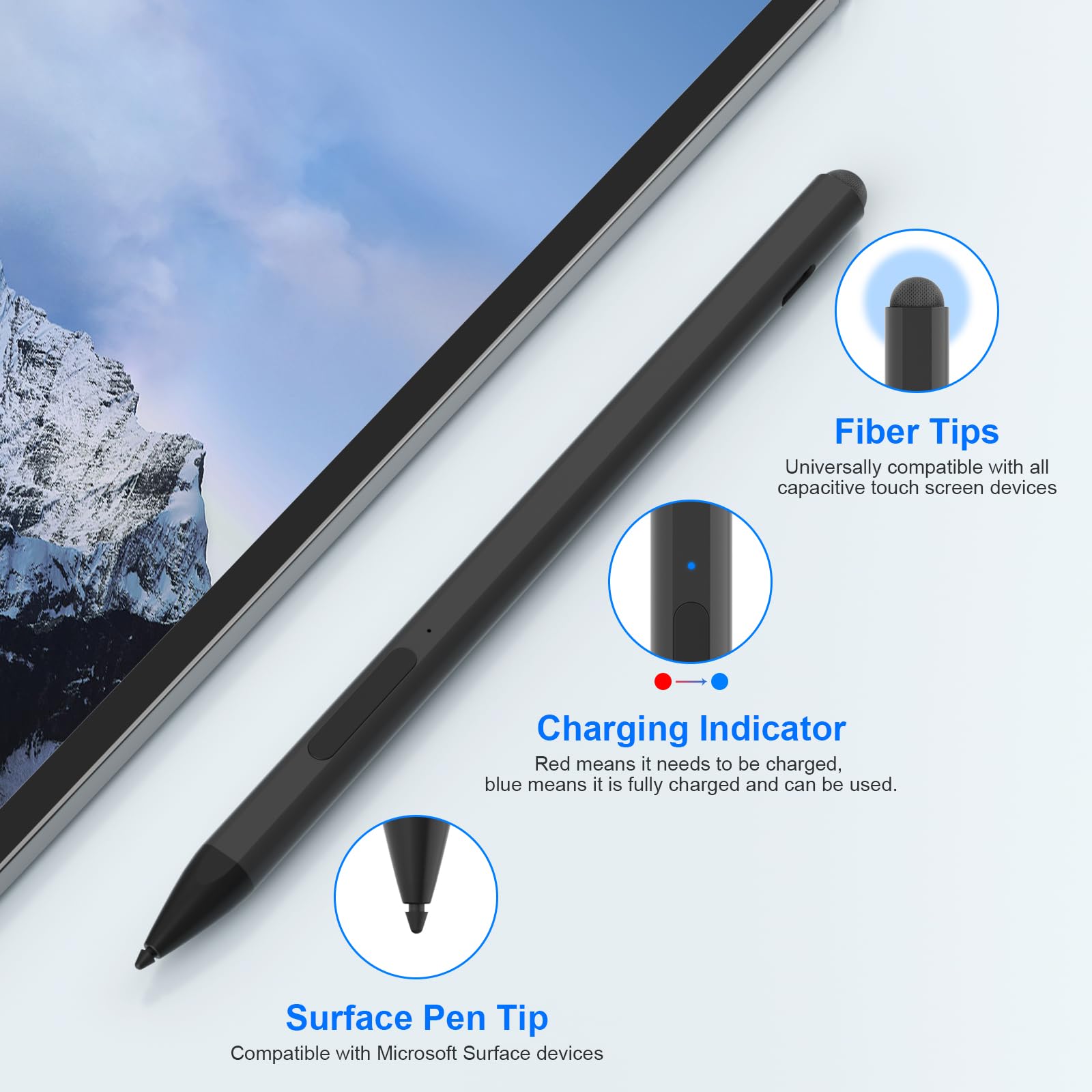
Microsoft Surface Pen (for compatibility)
If your device supports Microsoft Pen Protocol but doesn’t include a pen, this is the best upgrade with tilt and eraser.
Best for: Accessory for laptops that support MPP 2.0 (e.g., Surface Pro 9, Dell XPS 13 2-in-1) to get premium note-taking capabilities.
Price Range: $60 - $100