Graphic designers often face a dilemma: the need for a powerful laptop that can run demanding creative software, paired with the desire to sketch, annotate, and present directly on the screen. 2-in-1 laptops aim to bridge that gap, but not all are created equal. Choosing the right one requires understanding which specs truly impact your work—from color accuracy and pen responsiveness to processing power and portability.
In this guide, we'll break down exactly what to look for when shopping for a 2-in-1 for graphic design. You'll learn how to evaluate display quality, pen input technologies, performance requirements, and build considerations. By the end, you'll have a clear set of criteria to match your design needs and budget.
We'll cover these factors step by step, drawing on current models and industry standards. Whether you're a freelance illustrator, a UI/UX designer, or a mixed-media artist, this guide will help you make an informed choice.
▸What You'll Need
- •A clear list of your graphic design tools and software (e.g., Adobe Creative Cloud, Affinity, SketchUp, Blender)
- •An approximate budget range
- •Basic understanding of laptop specifications (CPU, GPU, RAM, storage, display resolution)
- •A list of non-negotiable features (e.g., specific port needs, battery life goals)
Estimated Time: 30-45 minutes (for research and evaluation; reading this guide takes about 15 minutes)
Difficulty: intermediate
▸Step-by-Step Instructions
Step 1: Identify Your Design Workload and Software Requirements
Before looking at laptops, list the specific software you rely on and the types of projects you handle. For instance, 2D vector work in Illustrator has different demands than photo editing in Photoshop or 3D modeling in Blender. Check each app's recommended system requirements. Adobe recommends at least 16GB RAM for heavy multi-tasking and a dedicated GPU for 3D and video tasks. If you primarily draw and paint, you may prioritize pen performance over sheer compute.
💡 Tips:
- •Create a checklist of your daily apps and note any GPU-accelerated features you use (e.g., Adobe Sensei, AI filters).
- •If you're unsure about GPU needs, consider models with both an integrated GPU (e.g., Intel Iris Xe) and a discrete option (e.g., NVIDIA GeForce).
⚠️ Warnings:
- •Don't rely solely on minimum system requirements—always aim above them to ensure smooth performance over the laptop's lifespan.
Step 2: Prioritize Display Quality: Color Accuracy, Resolution, and Size
The display is your canvas. For graphic design, look for a high-resolution panel (at least 1920x1080, but 2560x1600 or 4K is better) with excellent color coverage. Aim for 100% sRGB or better; for print or video work, consider 100% DCI-P3 or Adobe RGB. Panel type matters: IPS generally offers good color accuracy and viewing angles, while OLED provides deep blacks but may have burn-in risk for static UI elements. A 16:10 or 3:2 aspect ratio gives extra vertical space for toolbars.
💡 Tips:
- •Check if the display is factory-calibrated (many creative laptops advertise Delta E < 2).
- •For outdoor or bright studio usage, consider brightness above 400 nits.
- •Use a colorimeter to calibrate even factory-calibrated screens monthly.
⚠️ Warnings:
- •Avoid budget 2-in-1s that only cover 60-70% sRGB—colors will appear dull and inaccurate.
- •OLED burn-in is more common if you keep static windows open for long hours; consider IPS for heavy workflow.
Step 3: Evaluate Pen Input Support: Technology, Pressure, and Latency
A 2-in-1's pen is its main differentiator. Most modern convertibles use an active digitizer with 4096 levels of pressure sensitivity, tilt support, and low latency (under 30ms). Two main technologies dominate: Wacom AES (used in HP, Lenovo, Asus) and Microsoft Pen Protocol (Surface devices). Wacom AES generally offers better palm rejection and more nib options, while MPP pens are often more accurate in the center but have more jitter at angles. Test tilt and hover distance if possible.
💡 Tips:
- •Look for a pen that charges via USB-C or uses AAAA batteries for quick replacement.
- •Check if the pen has a built-in eraser (some designers prefer it).
- •Read user reviews focused on drawing experience—specs don't always match real feel.
⚠️ Warnings:
- •Avoid generic capacitive styluses; they lack precision and pressure sensitivity.
- •Some laptops (e.g., Dell XPS 2-in-1) use outdated MPP 1.0 pens with high jitter—opt for MPP 2.0+ for smoother strokes.
Step 4: Match Performance Specs to Your Work: CPU, GPU, RAM, Storage
For handling large files, live filters, and multitasking, a powerful processor is key. Intel Core i7/i9 (13th or 14th gen) or AMD Ryzen 7/9 are ideal; for video editing or 3D, a dedicated GPU like NVIDIA GeForce RTX 3050/4050 or Intel Arc. RAM should be at least 16GB, but 32GB is safer for complex work. Storage should be fast (NVMe SSD) and ample (512GB minimum). Some laptops allow upgrades, but many have soldered RAM—choose accordingly.
💡 Tips:
- •If your software benefits from GPU acceleration (e.g., Premiere Pro, Blender's Cycles), invest in a discrete GPU.
- •For heavy multitasking, get dual-channel RAM (two sticks) for better performance.
- •Consider external GPUs (eGPU) if a laptop's integrated GPU is insufficient but you want portability.
⚠️ Warnings:
- •Avoid 8GB RAM—it will bottleneck design software and cause lag.
- •Check if the laptop has a spare M.2 slot for future storage expansion.
Step 5: Balance Portability and Battery Life
As a 2-in-1, the laptop should be portable enough to use in tablet mode. Weight under 1.5 kg (3.3 lbs) is ideal for frequent carrying. Battery life is tricky: powerful specs and high-res screens drain quickly. Look for at least 8 hours of mixed usage (web, light design) or 5-6 hours under heavy load. OLED panels are less efficient than IPS. Also consider thermal design—thin fanless models may throttle under sustained loads.
💡 Tips:
- •If you work on AC power most of the time, battery life is less critical; prioritize performance.
- •Use battery saving modes and lower screen brightness when on the go.
- •Check real-world battery tests from reviewers (not just manufacturer claims).
⚠️ Warnings:
- •Smaller fanless models may get uncomfortably hot during long drawing sessions.
- •Laptops with high-refresh-rate displays (120Hz+) will drain battery faster; choose 60Hz if battery is a concern.
Step 6: Check Build Quality and Port Selection
A sturdy hinge that holds the screen steady at any angle is crucial for drawing. Look for a 360-degree hinge that feels solid. Ports matter: at least one Thunderbolt 4/USB-C for fast data and display, plus USB-A for legacy devices, an SD card slot, and a headphone jack. But note many thin models sacrifice USB-A—you may need a dongle. Also consider keyboard feel if you type a lot; some 2-in-1s have shallow travel.
💡 Tips:
- •If you use a drawing tablet often, choose a laptop with multiple USB-C ports for simultaneous charging and docking.
- •Test the hinge in a store: open and close it slowly, and try tent mode.
- •For stylus storage, check if the laptop has a silo or a magnetic attachment.
⚠️ Warnings:
- •Avoid laptops with only one USB-C port if you need to charge and use a drive simultaneously.
- •Cheaper hinges may loosen over time, causing wobble during drawing.
Step 7: Compare Top Models and Read Trusted Reviews
Once you've narrowed down the specs, compare a few leading models: HP Spectre x360 16 (large OLED, great GPU), Lenovo Yoga 9i (good all-around, built-in pen), Microsoft Surface Pro 9 (excellent portability and pen), Dell XPS 13 2-in-1 (compact but limited ports), and Asus ROG Flow Z13 (gamer-grade GPU for 3D). Read reviews from sites like Notebookcheck, PCWorld, or mobile tech reviewers who test color gamut and pen latency.
💡 Tips:
- •Focus on reviews that include professional graphics workloads (e.g., Adobe Suite benchmarks).
- •Check user forums for long-term reliability reports (e.g., screen flickering, battery swelling).
- •Use filters on retailer sites to compare specs side-by-side.
⚠️ Warnings:
- •Don't rely solely on user reviews label—some may be biased. Cross-reference with expert reviews.
- •Beware of models that lower screen resolution options—a lower-res screen may have worse color accuracy.
▸Pro Tips
- •Use a colorimeter like the X-Rite i1Display Pro for monthly calibration to maintain color accuracy.
- •When testing pens in a store, open a drawing app and test diagonal strokes to check for jitter.
- •For heavy Adobe users, consider models with 'OpenGL' or 'DirectX' certification to avoid GPU rendering glitches.
- •If you plan to use Photoshop on battery, lower the resolution to save power and reduce lag.
- •Look for laptops with a 'studio' mode or color profile switch (e.g., HP DreamColor, Lenovo X-Rite).
- •Buy a screen protector (matte) if you work in bright environments or dislike glare.
- •Join online communities (r/Surface, r/Lenovo, r/stylus) to see real user feedback on specific models.
▸Common Mistakes to Avoid
- •Buying a laptop with only 8GB RAM for multitasking design work—it will cause frequent slowdowns.
- •Ignoring GPU requirements: trying to run 3D software on integrated graphics leads to poor performance.
- •Overlooking pen technology: generic pens or older MPP versions produce wobbly lines.
- •Choosing a small screen (13-inch) for detailed drawing without testing if you have room for toolbars.
- •Forgetting about calibration: even a good display looks off without proper color management.
▸Troubleshooting
Problem: Pen not tracking accurately or skipping strokes.
Solution: Check for screen protector interference, update pen drivers, or replace the pen nib. If using MPP 1.0, consider upgrading to a newer model.
Problem: Display colors look washed out or oversaturated.
Solution: Calibrate the display. If the laptop has multiple color profiles (e.g., vivid, sRGB), switch to the correct one. An OLED may need adjustment for true white balance.
Problem: Laptop lags or fans run loud during design work.
Solution: Close background apps, check task manager for high CPU/GPU usage. Ensure laptop is in 'performance' power mode. If thermal throttling occurs, clean vents or use a cooling pad.
Problem: Battery drains too fast while drawing.
Solution: Lower screen brightness, disable keyboard backlight, close unused software. Some laptops have 'power saving' modes that limit refresh rate to 60Hz.
Microsoft Surface Pro 9
Excellent portability, best-in-class pen (MPP 2.0) with low latency, and a vibrant 120Hz display. Ideal for designers who prioritize drawing on the go.
Best for: Sketching, illustration, note-taking, light Photoshop work.
Price Range: $1,300 – $2,200
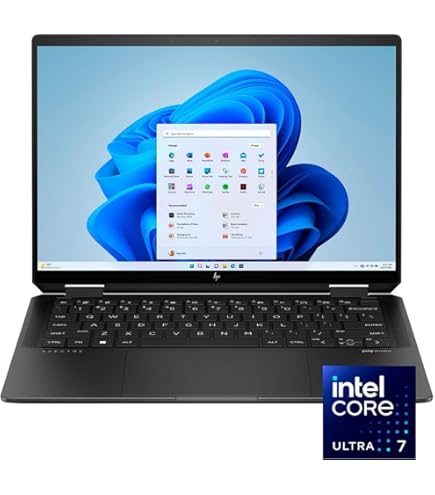
HP Spectre x360 16
Large 16-inch OLED with 100% DCI-P3, dedicated GPU options, and a sleek design. Great for those who need a bigger canvas and color-critical work.
Best for: Photo editing, video editing, UI/UX design, print design.
Price Range: $1,500 – $2,500
Lenovo Yoga 9i (15-inch)
Excellent all-around performer with a built-in garaged stylus, 16:10 OLED display, and strong battery life. A balanced choice for most designers.
Best for: General design, digital art, and multitasking with Adobe Suite.
Price Range: $1,400 – $2,000
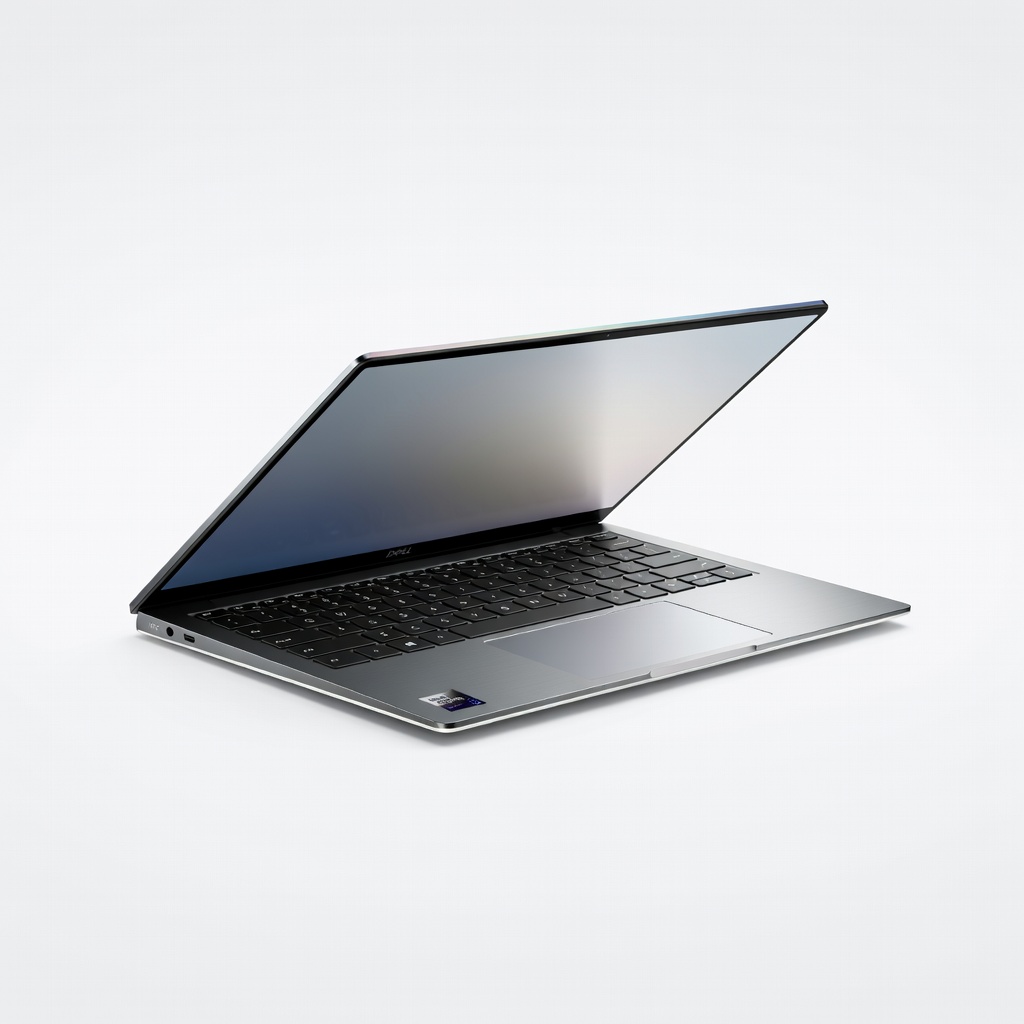
Dell XPS 13 2-in-1 (9310/9320)
Ultra-portable 13.4-inch with a high-resolution IPS touchscreen and good color accuracy. Best for those who value mobility over screen size.
Best for: Travel-friendly design, light editing, client presentations.
Price Range: $1,200 – $1,800
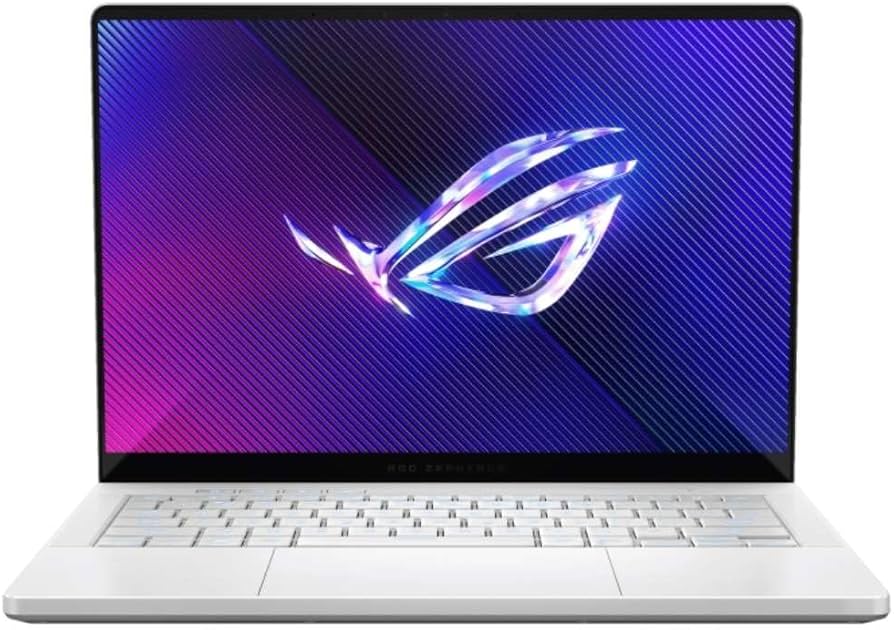
Asus ROG Flow Z13 (GZ301)
Unique tablet form factor with up to an RTX 4050 GPU, ideal for 3D modeling and game design. Also supports the XG Mobile eGPU for desktop-class performance.
Best for: 3D rendering, animation, CAD, heavy video editing.
Price Range: $1,500 – $2,500