If you're a digital artist or illustrator looking for a portable device that can double as a sketchbook, a 2-in-1 laptop offers a tempting blend of power and flexibility. But with so many options—different stylus technologies, screen types, and performance levels—choosing the right one can feel overwhelming. This guide breaks down every critical factor, from pressure sensitivity to pen latency, so you can confidently pick a 2-in-1 that matches your creative workflow, whether you're a beginner or a seasoned pro.
▸What You'll Need
- •A budget range (e.g., $800–$2,500)
- •Knowledge of your preferred drawing software (e.g., Photoshop, Clip Studio Paint, Krita)
- •Understanding of key specs: display resolution, color accuracy, refresh rate, stylus technology (active vs. passive)
- •A list of your must-have ports (USB-C, Thunderbolt, headphone jack)
- •Optional: test unit at a store if possible
Estimated Time: 30–45 minutes to read and make a decision
Difficulty: intermediate
▸Step-by-Step Instructions
Step 1: Understand the Two Main Types of 2-in-1s: Detachable vs. Convertible
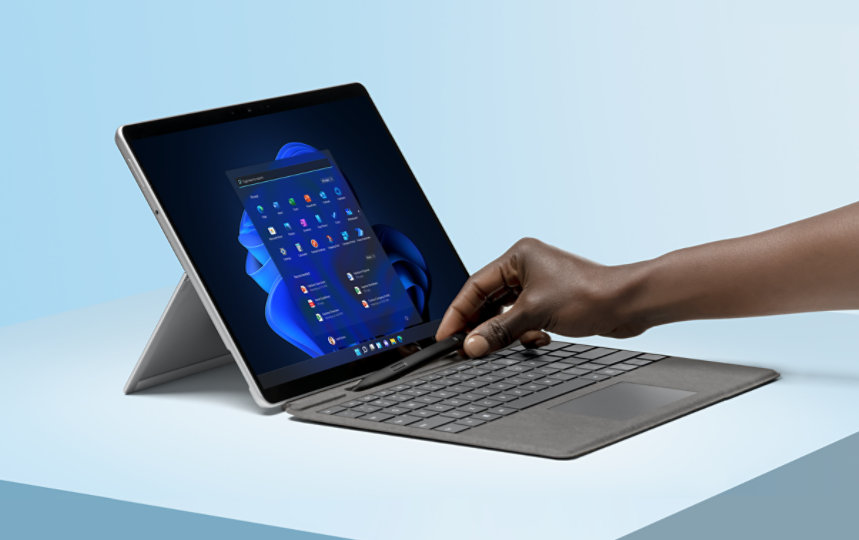
2-in-1 laptops come in two form factors. Detachables (like Microsoft Surface Pro) have a keyboard that fully separates, leaving you with a standalone tablet. Convertibles (like Lenovo Yoga, HP Spectre x360) have a 360-degree hinge that folds the keyboard behind the screen. For drawing, detachables offer a lighter, more tablet-like experience, but convertibles often have more powerful processors and larger battery capacities. Consider which form factor fits your drawing posture (e.g., using it on a lap vs. a desk).
💡 Tips:
- •If you draw on a desk, a convertible is fine; if you prefer freehand in a chair, a detachable may be better.
- •Check the weight: detachables are typically 1.5–2 lbs (tablet only), convertibles 3–4 lbs.
⚠️ Warnings:
- •Some convertibles have wobbly hinges when used in tablet mode—check user reviews.
Step 2: Prioritize the Stylus: Active Pen Technology is a Must
For any serious drawing, you need an active stylus with pressure sensitivity and palm rejection. Avoid passive capacitive styli (those that work on phones)—they have no pressure sensitivity. Look for pens using Microsoft Pen Protocol (MPP) or Wacom AES technology. MPP is common in Surface devices and many Lenovo/HP models; Wacom AES offers higher pressure levels (4096 or 8192) and lower latency. Many 2-in-1s include a pen in the box, but some (like some Dells) require a separate purchase. Always check battery life of the pen (AES pens are usually battery-powered; MPP pens can be rechargeable or use AAAA batteries).
💡 Tips:
- •Test the pen's tilt support—some art apps use tilt for shading.
- •Check if the pen has an eraser tail; it's a nice extra for quick corrections.
⚠️ Warnings:
- •Avoid models with outdated pens (e.g., Synaptics)—they have high latency and poor tracking.
Step 3: Evaluate Display Quality: Resolution, Color Accuracy, and Refresh Rate
For digital art, the display is your canvas. Aim for at least 1080p resolution (1920x1080) for decent detail, but 2K (2560x1440) or 4K is better for fine lines and avoiding pixelation. Color accuracy is critical: look for 100% sRGB or 72% NTSC as a baseline; for print work, consider models with DCI-P3 coverage (like the Surface Pro 9 with its PixelSense display). Refresh rate matters for smooth pen response: 120Hz is ideal (especially for fast sketching), though 60Hz is still usable. Also check brightness (300+ nits) for outdoor use.
💡 Tips:
- •If you do photo editing, prioritize DCI-P3 coverage (e.g., HP Spectre x360 16 has 100% DCI-P3).
- •Glossy screens look vibrant but reflect lights; matte screens reduce glare but may soften colors slightly.
⚠️ Warnings:
- •Avoid low-res TN panels—they have poor viewing angles and color shifts.
Step 4: Check Processor, RAM, and Storage: Balancing Power with Portability
Drawing applications are CPU-intensive for brushes and filters, and RAM-hungry for large canvases. For smooth performance in apps like Photoshop, Clip Studio Paint, or Krita, choose Intel Core i5 or i7 (12th/13th Gen) or AMD Ryzen 5/7. For heavy 3D work or complex layers, an i7 or Ryzen 7 with 16GB RAM is recommended. 8GB is a minimum for basic drawing but may cause lag with large files. Storage: SSD (NVMe) is a must; 256GB is tight, 512GB+ is safer. If you work with massive files, consider 1TB.
💡 Tips:
- •Many creative apps don't use dedicated GPUs much, but a good integrated GPU (Iris Xe or Radeon) helps with screen refresh and 3D.
- •If you do heavy rendering, look for a model with a discrete GPU like the Asus ROG Flow Z13.
⚠️ Warnings:
- •Avoid Celeron or Pentium processors—they will stutter on serious art apps.
Step 5: Assess Battery Life and Portability for On-the-Go Creativity
Drawing on battery drains power faster than typical office work. Look for a 2-in-1 with at least 8–10 hours of real-world battery life (manufacturer claims are often higher). Detachables like Surface Pro 9 get around 8–9 hours; convertibles like Lenovo Yoga 9i can reach 10–12 hours. Remember that battery life decreases with high brightness and heavy stylus use. Also consider weight: a heavy laptop can be tiring to hold in tablet mode. Ideally under 3.5 lbs for convertibles, under 2 lbs for detachable tablets (keyboard adds weight).
💡 Tips:
- •Check if the laptop supports fast charging (USB-C PD) for top-ups between sessions.
- •Some pen makers claim extra battery life for the pen itself—good for long drawing days.
⚠️ Warnings:
- •Battery life varies drastically by use—check independent reviews for real-world figures.
- •Some 2-in-1s throttle performance on battery to conserve power, slowing down drawing apps.
Step 6: Evaluate Connectivity: Ports, Wireless, and Pen Storage
For drawing, you may want to connect external monitors, tablets, or storage. Ensure you have at least one USB-C port with Thunderbolt 4 (for fast data transfer and display output), and if possible, a USB-A for legacy devices. Also check Wi-Fi 6E for fast cloud backups and Bluetooth 5.0+ for wireless peripherals. Pen storage is often overlooked—some laptops have a built-in slot (like Surface Pro) or magnetic attachment, while others leave you to carry it separately.
💡 Tips:
- •If you use an external drawing tablet as a second screen, two USB-C ports are handy.
- •Magnetic pen attachment on the side is convenient but can be knocked off easily.
⚠️ Warnings:
- •Avoid models that only have USB-C and require dongles for everything—dongles get lost.
- •Check if the pen attaches securely; some magnets are weak.
Step 7: Read Real User Reviews from Artists
Specs don't tell the whole story. Search for reviews specifically from digital artists who use the same software as you. Look for feedback on pen latency, jitter, and line accuracy. Common complaints: parallax (gap between pen tip and cursor), screen wobble (the screen flexing under pressure), and driver issues. Sites like Reddit, YouTube, and dedicated artist forums are gold mines. If possible, try the device in a store with your art app installed.
💡 Tips:
- •Search for 'Surface Pro 9 drawing review' or 'Lenovo Yoga drawing performance' for targeted feedback.
- •Pay attention to comments about palm rejection—some models accidentally trigger touch when your hand rests.
⚠️ Warnings:
- •Beware of paid or sponsored reviews that downplay issues.
▸Pro Tips
- •Buy a screen protector with a matte finish to simulate paper texture and reduce glare.
- •If the pen is battery-powered, keep a spare battery or a backup pen (like the Renaisser Raphael 520) for emergencies.
- •Use the laptop's pen settings to customize button shortcuts for undo, brush size, etc.
- •Calibrate the pen display if you notice offset between pen tip and cursor—most models have a built-in tool.
- •For maximum portability, consider a detachable like the Surface Pro, but pair it with a Bluetooth keyboard for ergonomics.
- •If you need to draw on a lap desk, choose a convertible with a sturdy hinge (like the HP Spectre x360).
- •Use cloud storage or a fast microSD card (if available) to backup artwork automatically.
▸Common Mistakes to Avoid
- •Buying a 2-in-1 with a passive stylus (like a capacitive disc) thinking it will work for art—it won't register pressure at all.
- •Choosing a glossy screen without trying; reflections can be annoying in brightly lit rooms.
- •Ignoring pen latency: a cheap active pen might have 80ms+ lag, making drawing feel sluggish.
- •Getting a model with only 8GB RAM if using large canvases (e.g., 6000x4000px) or heavy 3D sculpting.
- •Not checking the pen's charging method—some pens require replacing AAAA batteries often, which is inconvenient.
▸Troubleshooting
Problem: Pen cursor lags behind tip (high latency).
Solution: Update drivers (Intel graphics often affect pen performance). Also disable Windows Ink if using Wacom AES pens, as it can add latency. Revert to an older pen driver if the newest causes issues.
Problem: Palm rejection not working; random touch input while drawing.
Solution: Make sure the palm rejection is enabled in the tablet settings. If still problematic, disable touch input when using the pen (some drivers have this toggle). Clean the screen and check for overlays affecting detection.
Problem: Screen wobbles or flexes when pressing down with pen.
Solution: This is more common on thin laptops. Use a harder surface (desk not lap) and avoid pressing too hard. Some models have stiffer chassis—check reviews before buying.
Problem: Colours on screen look off compared to print or phone.
Solution: Calibrate the display using built-in tools or a hardware calibrator. Ensure you're using a color profile that matches your output (e.g., sRGB for web, Adobe RGB for print).
Microsoft Surface Pro 9 (with Slim Pen 2)
The gold standard for 2-in-1 drawing: excellent PixelSense display (120Hz, high color accuracy), best-in-class MPP pen with haptic feedback, and a detachable form factor that's great for tablet-mode sketching.
Best for: Perfect for artists who prioritize portability and want a device that feels like a tablet when drawing.
Price Range: $1,200–$2,100 (depending on configuration and pen inclusion)
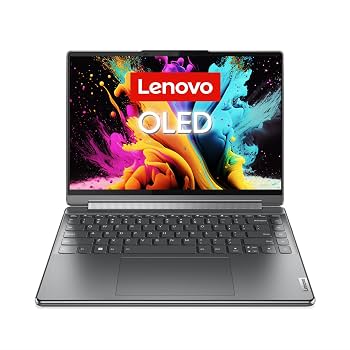
Lenovo Yoga 9i (14" 2.8K OLED)
A convertible with a stunning OLED display (100% DCI-P3, 400 nits), powerful i7 processor, and included active pen (Lenovo Precision Pen 2). Great color accuracy for photo editing and vibrant art.
Best for: Ideal for artists who need a laptop-first device but want the flexibility of a 360° hinge for tent or tablet mode.
Price Range: $1,200–$1,700
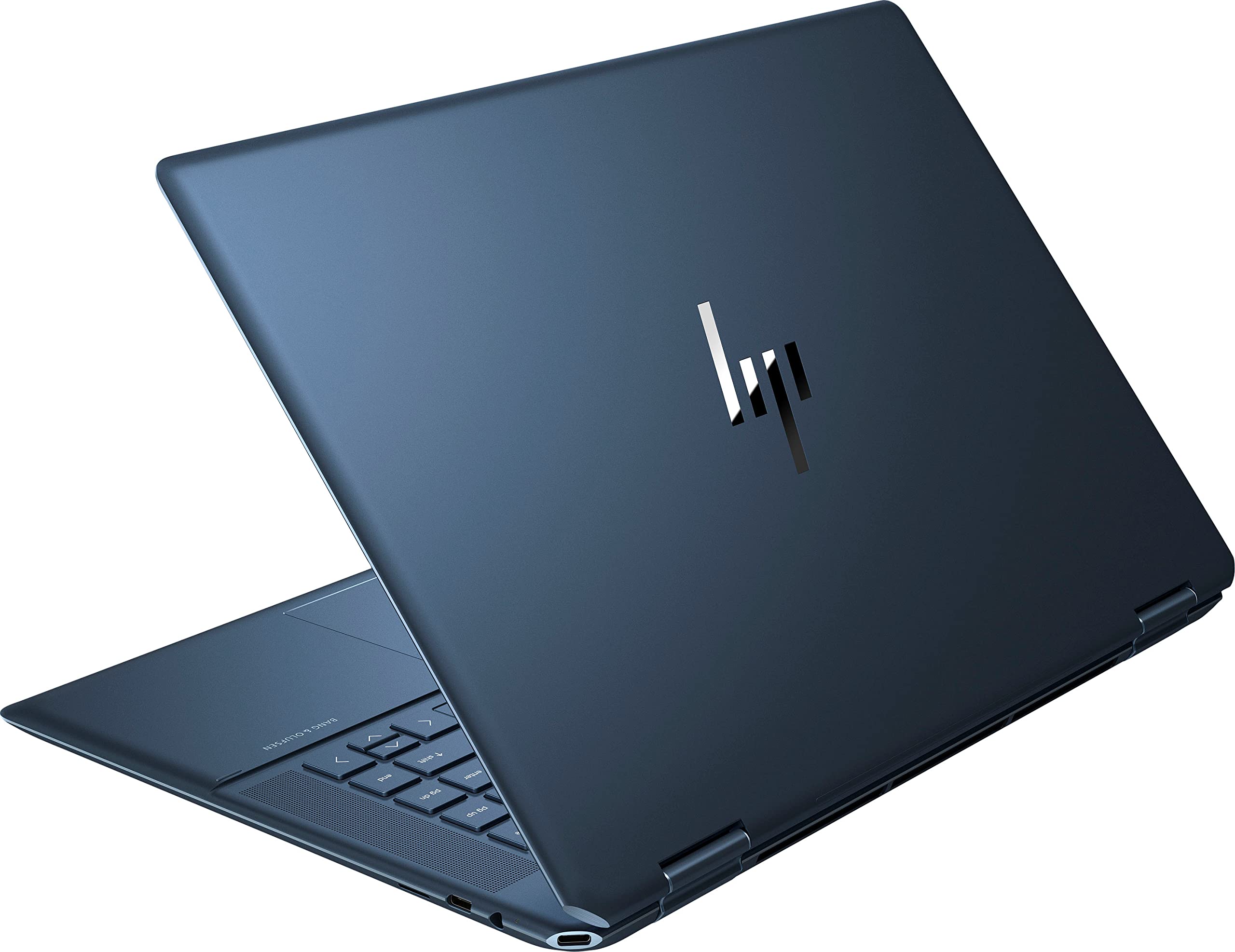
HP Spectre x360 16 (with HP MPP 2.0 pen)
Offers a large 16-inch 3K+ OLED display (100% DCI-P3), 12th Gen i7, and includes an active pen with tilt support. The hinge is sturdy, and the design is premium.
Best for: Best for artists who want a larger canvas for detailed work but still want a convertible form factor.
Price Range: $1,400–$2,000
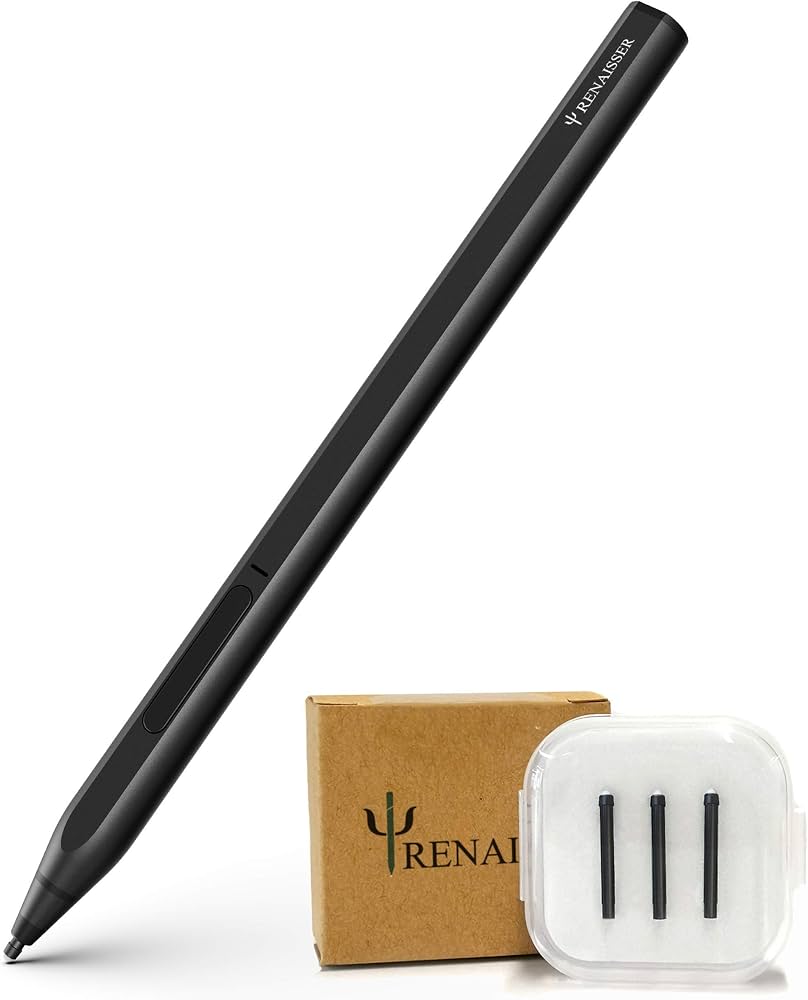
Renaisser Raphael 520 Pen (for non-included pen models)
An affordable, high-quality replacement stylus that supports Microsoft Pen Protocol (MPP). It has 4096 pressure levels, tilt support, and an eraser, making it great for any MPP-compatible 2-in-1 (like Surface, Lenovo).
Best for: If your 2-in-1 doesn't include a pen or you want a backup, this is a cost-effective option.
Price Range: $30–$40
Matte Screen Protector (e.g., by Mosiso or JETech)
Reduces glare and adds a paper-like texture for a more natural drawing feel. It also protects the screen from scratches and fingerprints.
Best for: Essential for artists who work in brightly lit environments or prefer a textured surface for pen control.
Price Range: $10–$20