Video editors often juggle deadlines on the go, but traditional laptops can be bulky and lack touchscreen flexibility. 2-in-1 laptops solve this by converting from laptop to tablet mode, offering portability without sacrificing power for editing software like Adobe Premiere or Final Cut Pro. The challenge? Not all 2-in-1s are built for intensive tasks like 4K rendering.
In this guide, you'll learn a step-by-step process to evaluate specs, balance performance with battery life, and avoid underpowered models. By the end, you'll confidently select a 2-in-1 that boosts your workflow. Expect 30-45 minutes of research—no technical expertise needed beyond basics.
We'll break down hardware essentials with real-world examples, so you can compare models quickly and make a smart buy.
▸What You'll Need
- •Budget range (e.g., $800-$2000)
- •Video editing software (e.g., Adobe Premiere Pro, DaVinci Resolve)
- •Prerequisite knowledge: Basic understanding of CPU, RAM, and GPU (we'll explain)
- •Access to review sites like NotebookCheck, PCMag, or YouTube benchmarks (optional but recommended)
- •List of your editing needs (e.g., 1080p vs. 4K, color accuracy)
Estimated Time: 30-45 minutes
Difficulty: intermediate
▸Step-by-Step Instructions
Step 1: Define Your Editing Needs and Budget
Start by listing your workflow: Do you edit 1080p timelines, 4K footage, or handle effects-heavy projects? Note software (Premiere Pro needs more GPU than iMovie) and portability (travel vs. desk-bound). Set a realistic budget—$800-$1200 for entry-level editing, $1500+ for pro 4K.
Why it matters: This filters 90% of options. A $600 Chromebook won't cut 4K without crashing.
Expect to narrow to 2-3 categories: budget, mid-range, premium.
💡 Tips:
- •Use a spreadsheet to track needs vs. budget.
- •Factor in extras like external SSD ($50).
⚠️ Warnings:
- •Don't lowball—video editing chews RAM and GPU.
Step 2: Prioritize CPU Power
The CPU handles timeline scrubbing and encoding. For video editing, aim for Intel Core Ultra 7/9, AMD Ryzen 7/9 (Zen 4+), or Apple M3/M4 (if macOS compatible software). Example: Intel Core i7-13700H scores 12,000+ in Cinebench R23 multi-core—great for multi-track edits.
Analogy: CPU is the brain; weak ones cause lag like a slow chef in a busy kitchen.
Check benchmarks on CPU UserBenchmark or PassMark.
💡 Tips:
- •Newer chips (2024+) have NPUs for AI effects in Resolve.
⚠️ Warnings:
- •Avoid older Intel 11th gen or below—they throttle under load.
Step 3: Evaluate GPU Performance
Discrete GPUs shine for rendering, but 2-in-1s often use integrated like Intel Arc or AMD Radeon 780M. Minimum: NVIDIA RTX 3050 or equivalent. Test with PugetBench for Premiere—scores over 800 indicate smooth 4K playback.
Why crucial: GPU accelerates effects, exports 5x faster than CPU-only.
Integrated GPUs suffice for 1080p; discrete for pro work.
💡 Tips:
- •Look for MUX switch to bypass integrated GPU.
Step 4: Check RAM and Storage
Minimum 16GB RAM (32GB ideal, soldered in many 2-in-1s). Use DDR5 for speed. Storage: 1TB NVMe SSD minimum—video files balloon fast.
Real-world: 8GB chokes on 4K proxies; 32GB handles 10+ tracks.
Verify upgradability (rare in 2-in-1s).
💡 Tips:
- •Pair with external Thunderbolt SSD for archives.
⚠️ Warnings:
- •Soldered RAM means buy future-proof now.
Step 5: Assess Display Quality
Need 14-16" OLED/IPS, 100% DCI-P3 color, 120Hz+, 400+ nits brightness. Touchscreen with stylus support for precise masking.
Analogy: Like editing on a foggy window vs. crystal glass—color accuracy prevents washed-out exports.
Check DisplayMate scores.
💡 Tips:
- •Calibrate with SpyderX for pro results.
Step 6: Review Battery and Portability
Target 8+ hours unplugged editing. Weigh under 3.5lbs for tablet mode. 360-degree hinge must be sturdy.
Balance: Power hogs drain fast—test real reviews.
💡 Tips:
- •USB-C charging is key for travel.
⚠️ Warnings:
- •Ignore 'up to 20hrs' claims—real editing halves it.
Step 7: Examine Build, Ports, and Extras
Aluminum chassis, backlit keyboard, fingerprint reader. Ports: 2x Thunderbolt 4, HDMI 2.1, SD slot.
Why: SD for direct footage import; Thunderbolt for docks/externals.
💡 Tips:
- •Webcam 1080p+ for client calls.
Step 8: Read Reviews, Benchmarks, and Compare
Cross-check Puget Systems, LaptopMedia benchmarks. Compare 3-5 models on Amazon/ Best Buy.
Finalize: Use tools like PCPartPicker for laptops.
💡 Tips:
- •Watch Linus Tech Tips for real stress tests.
⚠️ Warnings:
- •Beware sponsored reviews.
▸Pro Tips
- •Benchmark your current laptop first to know upgrade gaps.
- •Prioritize Windows 11 Copilot+ for AI upscaling in edits.
- •Buy during sales (Black Friday) for 20% off.
- •Test stylus pressure sensitivity for motion graphics.
- •Use external monitor via Thunderbolt for dual-screen workflow.
- •Check return policy—test editing stability first week.
- •Opt for 3-year warranty for repair-prone hinges.
▸Common Mistakes to Avoid
- •Choosing based on looks—ignores thermal throttling during long renders.
- •Skimp on RAM—leads to constant proxy workflows and frustration.
- •Overlooking color accuracy—exports look off on other screens.
- •Ignoring hinge durability—cheap ones wobble after months.
- •Forgetting ports—buying dongles adds clutter and cost.
▸Troubleshooting
Problem: Laptop throttles/heats during edits
Solution: Ensure good airflow; choose models with vapor chamber cooling. Undervolt via ThrottleStop if advanced.
Problem: Software crashes on import
Solution: Verify GPU drivers updated; test with latest Adobe beta.
Problem: Battery dies too fast
Solution: Enable battery saver in editing apps; limit to 80% charge.
Problem: Can't decide between models
Solution: Use comparison tools like Versus.com; prioritize top 3 specs.
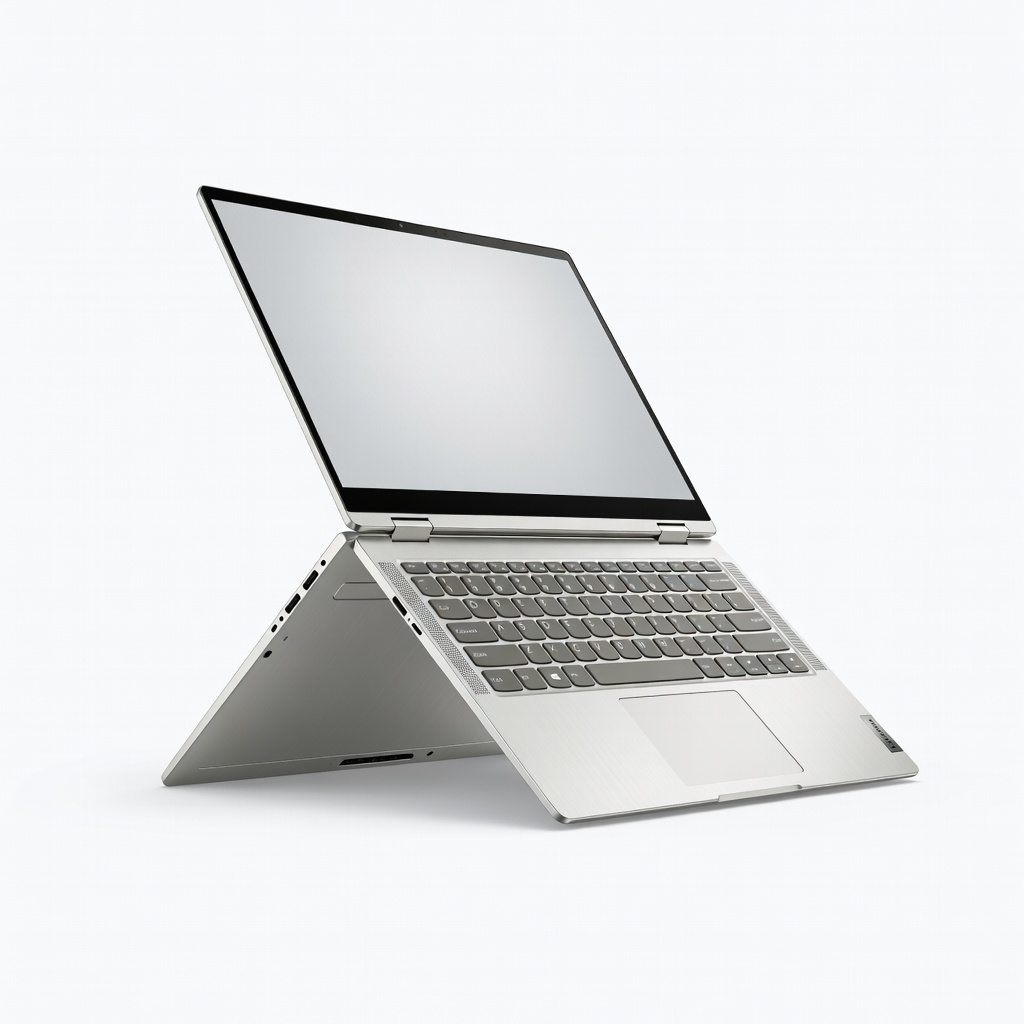
Lenovo Yoga 9i 2-in-1 (14", Intel Core Ultra 7)
Excellent OLED display (100% DCI-P3), 32GB RAM, Arc GPU for smooth 4K Premiere editing; convertible design with stylus.
Best for: Pro editors needing portability and color accuracy.
Price Range: $1,400-$1,600
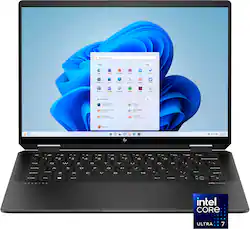
HP Spectre x360 14 (Intel Core Ultra 7)
Thunderbolt 4 ports, 16GB+ RAM, vibrant OLED—handles DaVinci Resolve effects without lag; premium build.
Best for: Mid-range travelers editing on-the-go.
Price Range: $1,200-$1,400
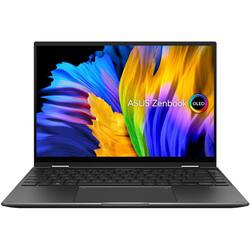
ASUS Zenbook 14 Flip OLED (AMD Ryzen 7)
Budget-friendly with Radeon 780M GPU rivaling entry discrete, 1TB SSD, 120Hz screen for fluid timelines.
Best for: Intermediate editors on 1080p/4K intro level.
Price Range: $900-$1,100
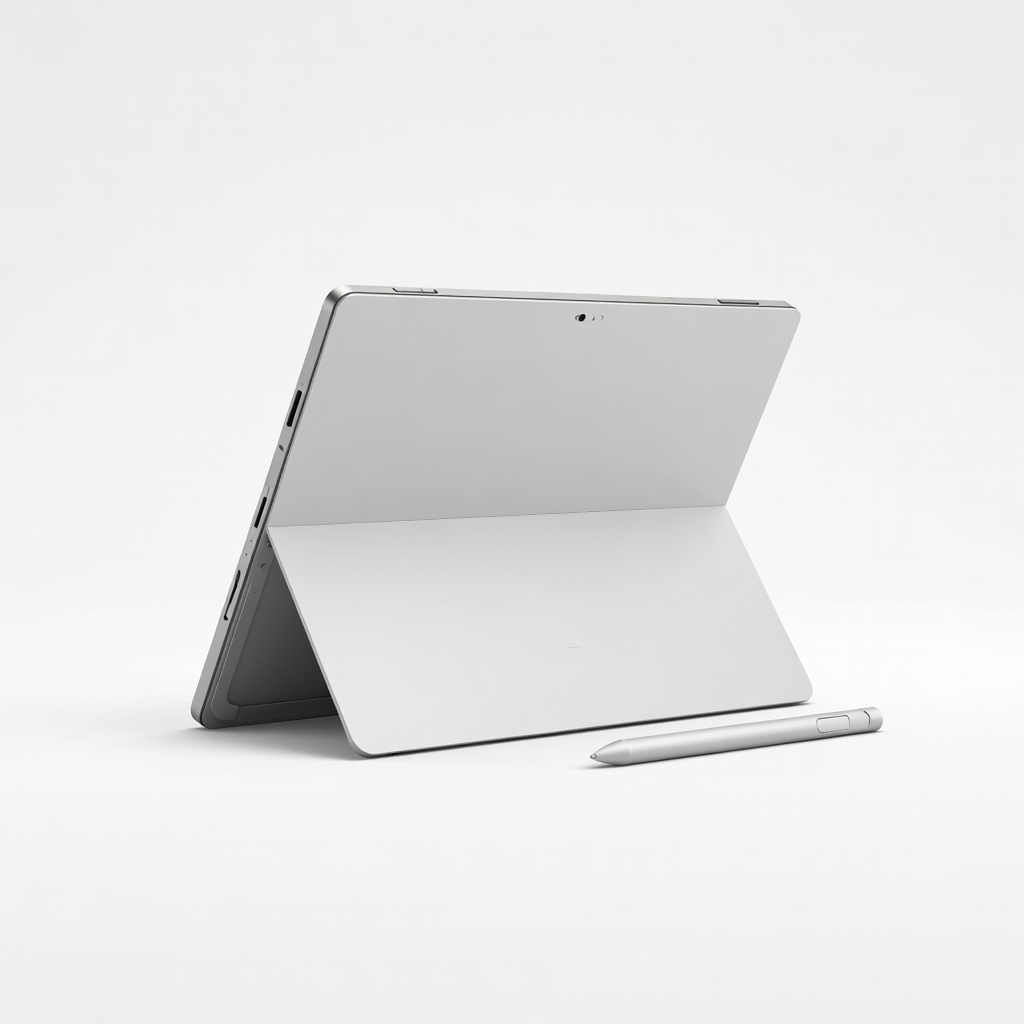
Microsoft Surface Pro 11 (Snapdragon X Elite)
Arm-based efficiency for 15+hr battery, NPU for AI edits; detachable keyboard for ultimate tablet mode.
Best for: Mobile creators prioritizing battery over raw GPU power.
Price Range: $1,200-$1,500