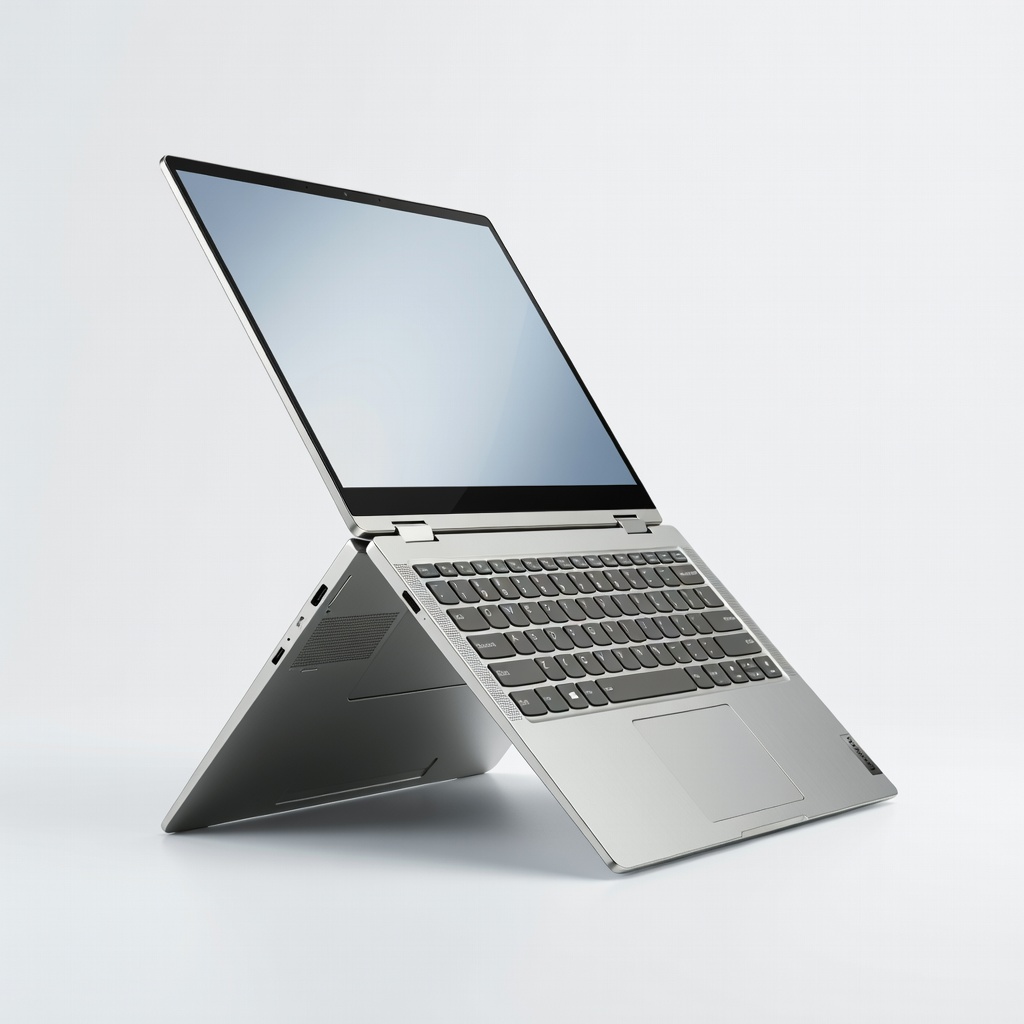
Graphic designers often juggle sketches, edits, and renders on the go, but traditional laptops fall short with poor touch support or weak graphics. A 2-in-1 laptop flips the script—converting from laptop to tablet for intuitive drawing while packing desktop-level power. If you're tired of compromising on portability or performance, this guide is your roadmap.
You'll learn to evaluate essential specs, avoid overhyped features, and compare models tailored for tools like Photoshop, Illustrator, and Blender. By the end, you'll confidently select a 2-in-1 that matches your workflow, whether freelancing or studio work. This process takes just 20-30 minutes of focused research—no tech degree required.
Expect actionable steps from needs assessment to final picks, with real-world tips to sidestep pitfalls like color-inaccurate screens.
▸What You'll Need
- •Budget range (e.g., $800-$2000)
- •List of software (e.g., Adobe Creative Cloud, Affinity Designer)
- •Access to review sites (e.g., Laptop Mag, PCMag, YouTube benchmarks)
- •Basic knowledge of CPU/GPU terms (optional: quick glossary below)
Estimated Time: 20-30 minutes
Difficulty: intermediate
▸Step-by-Step Instructions
Step 1: Assess Your Specific Graphic Design Needs
Start by listing your workflow: Do you sketch with a stylus daily? Run heavy 3D renders? Edit 4K videos? 2-in-1s shine for touch-based design but vary in power.
Why it matters: A video editor needs GPU muscle; an illustrator prioritizes pen precision. Jot down must-haves like 'stylus support for Procreate' or 'multi-layer Photoshop handling.'
Expect a personalized checklist—e.g., 80% laptop mode for editing, 20% tablet for ideation.
💡 Tips:
- •Rate needs on a 1-10 scale for priority.
- •Consider screen size: 14" for portability, 16" for immersion.
⚠️ Warnings:
- •Don't overlook hybrid use—pure tablets lack keyboard productivity.
Step 2: Prioritize Processor and Graphics Performance
Look for Intel Core Ultra 7/9, AMD Ryzen 7/9, or Apple M3+ chips with integrated Arc/Radeon or discrete NVIDIA RTX 4050 GPUs. Graphic design demands vector rendering and AI filters—avoid base i5s.
Benchmark analogy: Think CPU as your brain (multi-tasking), GPU as muscle (renders). Check Cinebench/PugetBench scores >15,000 for Photoshop.
You'll spot 'creator-ready' labels, ensuring smooth 100+ layer comps.
💡 Tips:
- •Use NotebookCheck for GPU benchmarks.
- •Integrated GPUs suffice for 2D; discrete for 3D.
⚠️ Warnings:
- •Older Intel 12th-gen lacks AI acceleration for modern Adobe tools.
Step 3: Demand 16GB+ RAM and NVMe SSD Storage
Minimum 16GB LPDDR5X RAM (32GB ideal) for multitasking; 512GB+ SSD (1TB preferred) for large PSD files. Soldered RAM means no upgrades—buy future-proof.
Why crucial: RAM lag crashes designs; slow storage bottlenecks exports. Expect seamless 4K timelines.
Pro tip: Check upgradable slots, rare in slim 2-in-1s.
💡 Tips:
- •RAM calculator: Layers x file size > your current usage.
⚠️ Warnings:
- •8GB is fine for browsing, disastrous for design.
Step 4: Select a Color-Accurate, High-Res Display
Target OLED/IPS with 100% DCI-P3 coverage, 120Hz refresh, 2880x1800+ resolution, touch-enabled. Calibrate for Delta E <2 accuracy.
Analogy: Like a painter's canvas—wrong colors ruin prints. Touch + Gorilla Glass for scratch-free drawing.
Expect vibrant gradients and precise color grading.
💡 Tips:
- •Verify Pantone validation badges.
⚠️ Warnings:
- •TN panels are cheap but color-washed—avoid.
Step 5: Ensure Stylus Support and Pen Precision
Require active stylus (e.g., MPP 2.0, USI) with 4096 pressure levels, tilt, low latency <10ms. Includes pen? Detachable keyboard?
Matters for: Natural drawing in Clip Studio or Photoshop brushes. Test hover detection.
Feel like digital paper with palm rejection.
💡 Tips:
- •Buy Surface Pen compatible for Microsoft ecosystem.
⚠️ Warnings:
- •Passive styluses lack pressure—feels like crayons.
Step 6: Evaluate Battery Life, Ports, and Portability
Aim for 10+ hours real-world use; Thunderbolt 4/USB-C ports for docks/monitors. Weigh <3.5lbs, 360° hinge durability.
Why: All-day freelancing without outlets. Ports for external GPUs/drives.
Slim designs travel easy but check hinge tests.
💡 Tips:
- •Battery sim tools like 3DMark.
⚠️ Warnings:
- •Weak hinges fail in tablet mode.
Step 7: Check OS, Software Compatibility, and Extras
Windows 11 for Adobe breadth; check ARM compatibility. Webcam 1080p+, good keyboard/trackpad.
Key: Native app support—no emulation slowdowns.
Bonus: AI features like Copilot for asset generation.
💡 Tips:
- •Test trial software on similar specs.
⚠️ Warnings:
- •ChromeOS limits pro apps.
Step 8: Set Budget and Compare Reviews/Benchmarks
Budget tiers: $800 entry, $1200 mid, $1800 pro. Cross-reference PCMag, Reddit r/GraphicDesign, Puget Systems.
Final filter: User reviews on heat/noise during renders.
Shortlist 3 models.
💡 Tips:
- •Use CamelCamelCamel for price history.
⚠️ Warnings:
- •Flash sales hide poor support.
▸Pro Tips
- •Prioritize 2-in-1s with user-replaceable SSDs for longevity.
- •Calibrate display with free Datacolor Spyder tools post-purchase.
- •Opt for matte screens to reduce glare in bright studios.
- •Pair with external monitor via USB-C for dual-screen workflow.
- •Check return policies—test stylus feel within 30 days.
- •Hunt Black Friday for 20% off creator models.
- •Use VRAM-heavy benchmarks for GPU truth.
▸Common Mistakes to Avoid
- •Choosing based on looks alone—ignores thermal throttling in renders.
- •Skimping on RAM—leads to constant file reloading.
- •Ignoring color gamut—causes print mismatches.
- •Overlooking pen storage—loses accessories easily.
- •Buying detachable without keyboard case—incomplete setup.
▸Troubleshooting
Problem: Laptop throttles during long renders
Solution: Ensure good airflow; undervolt CPU via ThrottleStop; choose vapor chamber cooling models.
Problem: Stylus lag or inaccuracy
Solution: Update drivers/firmware; disable palm rejection conflicts; test on glass-free protector.
Problem: Poor Adobe performance on ARM chips
Solution: Stick to x86 Intel/AMD; verify PugetBench scores before buying.
Problem: Short battery in tablet mode
Solution: Lower refresh rate; use power-saving profiles; check for firmware updates.
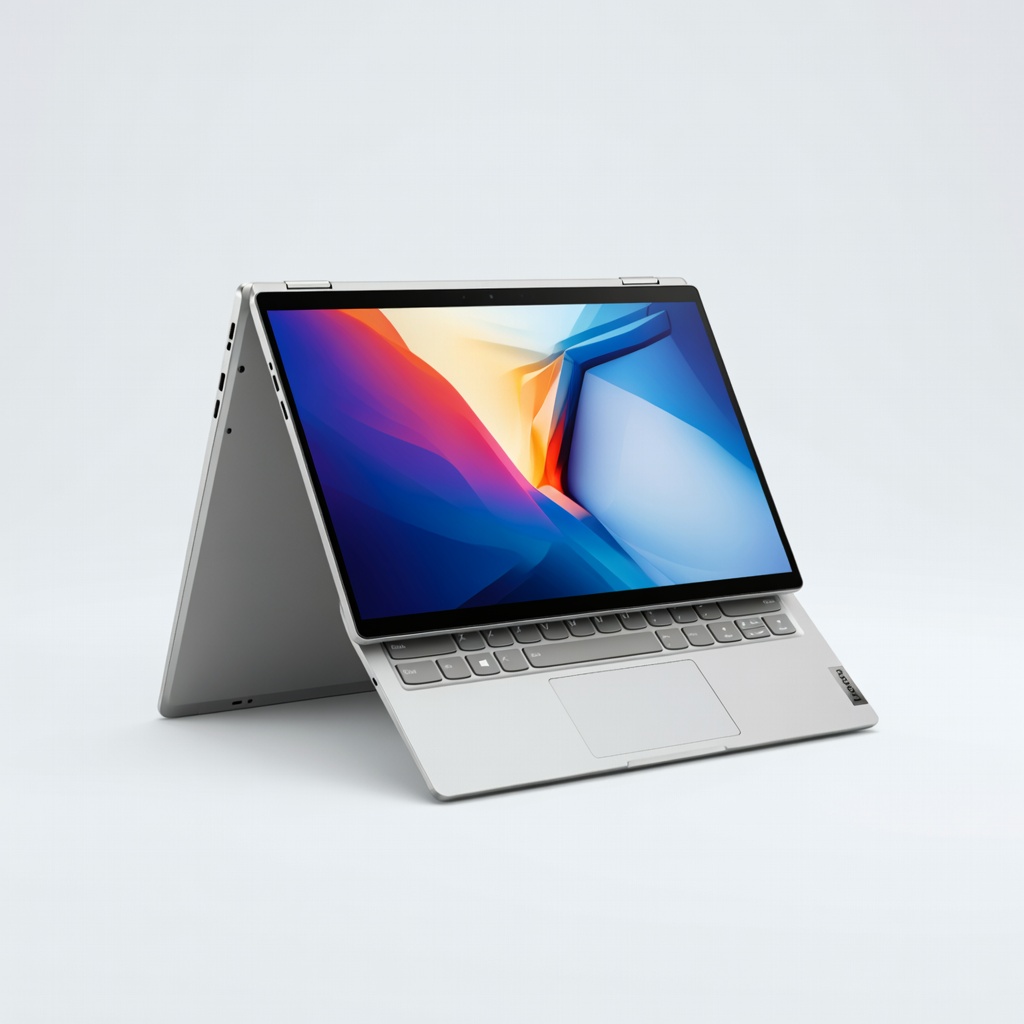
Lenovo Yoga 9i 2-in-1 (2024, Intel Core Ultra 7)
Exceptional OLED display (100% DCI-P3), 32GB RAM, RTX-like integrated Arc graphics excel in Photoshop/Illustrator.
Best for: Daily 2D/3D design with stylus sketching; portable studio work.
Price Range: $1,400 - $1,800
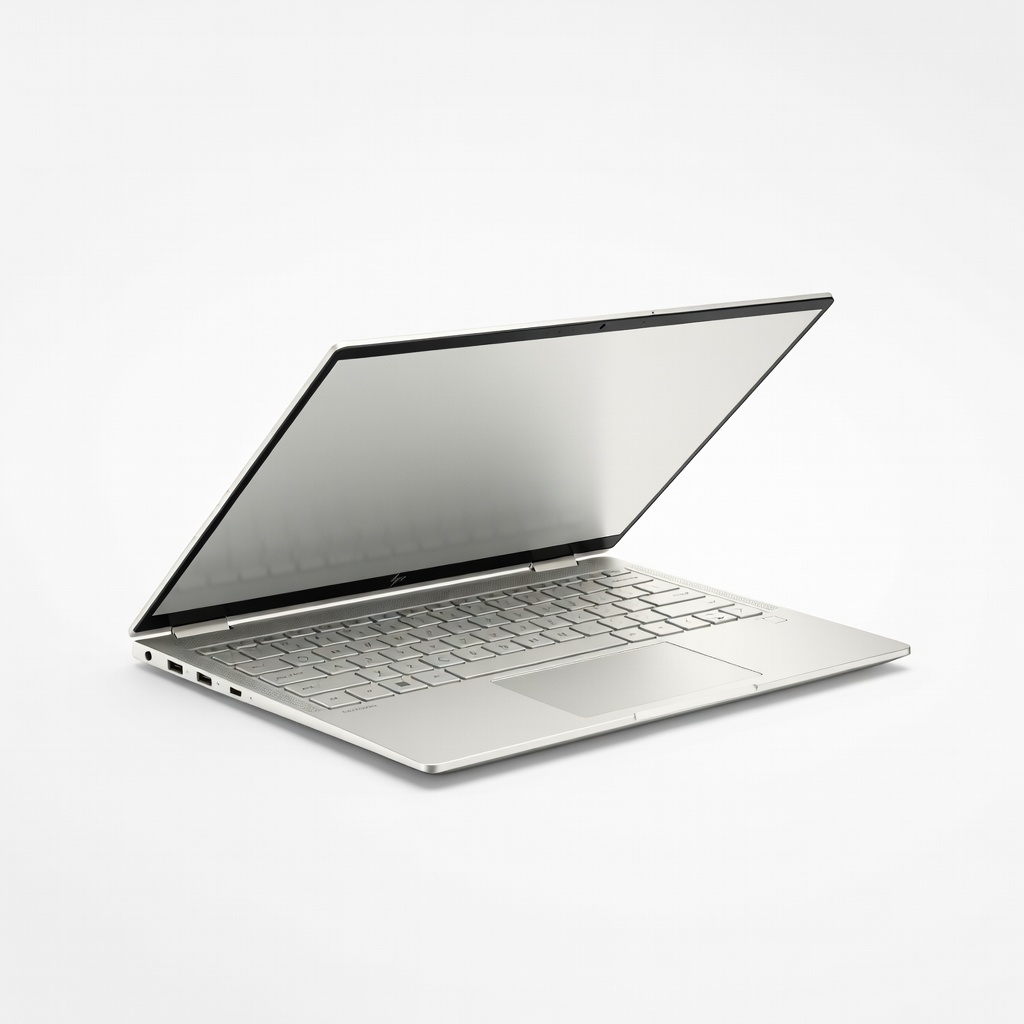
HP Spectre x360 14 (2024)
Stunning 2.8K OLED touch, Intel Ultra 7, 16GB+ RAM with precise HP Tilt Pen for vector work.
Best for: Freelancers needing premium build and color accuracy for client presentations.
Price Range: $1,300 - $1,600
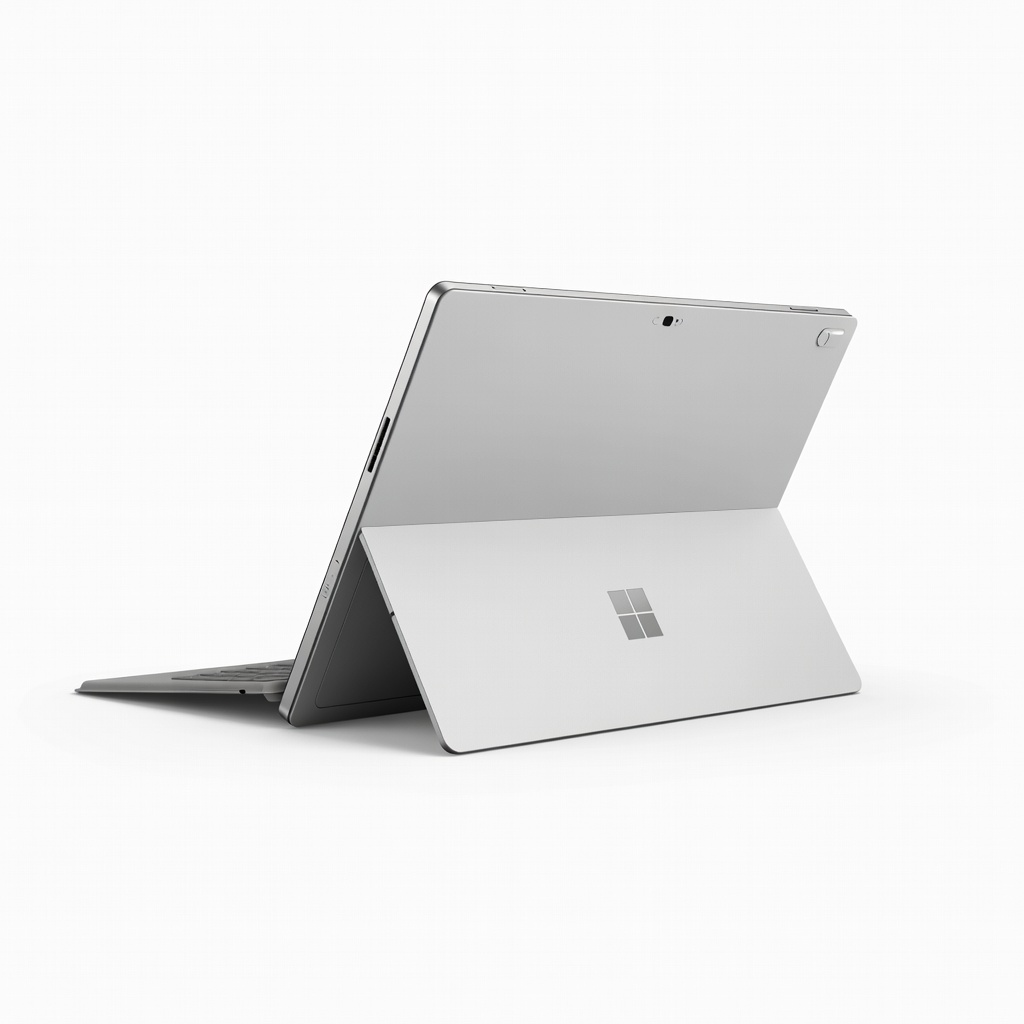
Microsoft Surface Pro 11 (Snapdragon X Elite)
Detachable 13" LCD/OLED, excellent pen latency, all-day battery for on-the-go ideation.
Best for: Tablet-first designers using Surface Slim Pen for natural drawing sessions.
Price Range: $1,000 - $1,500
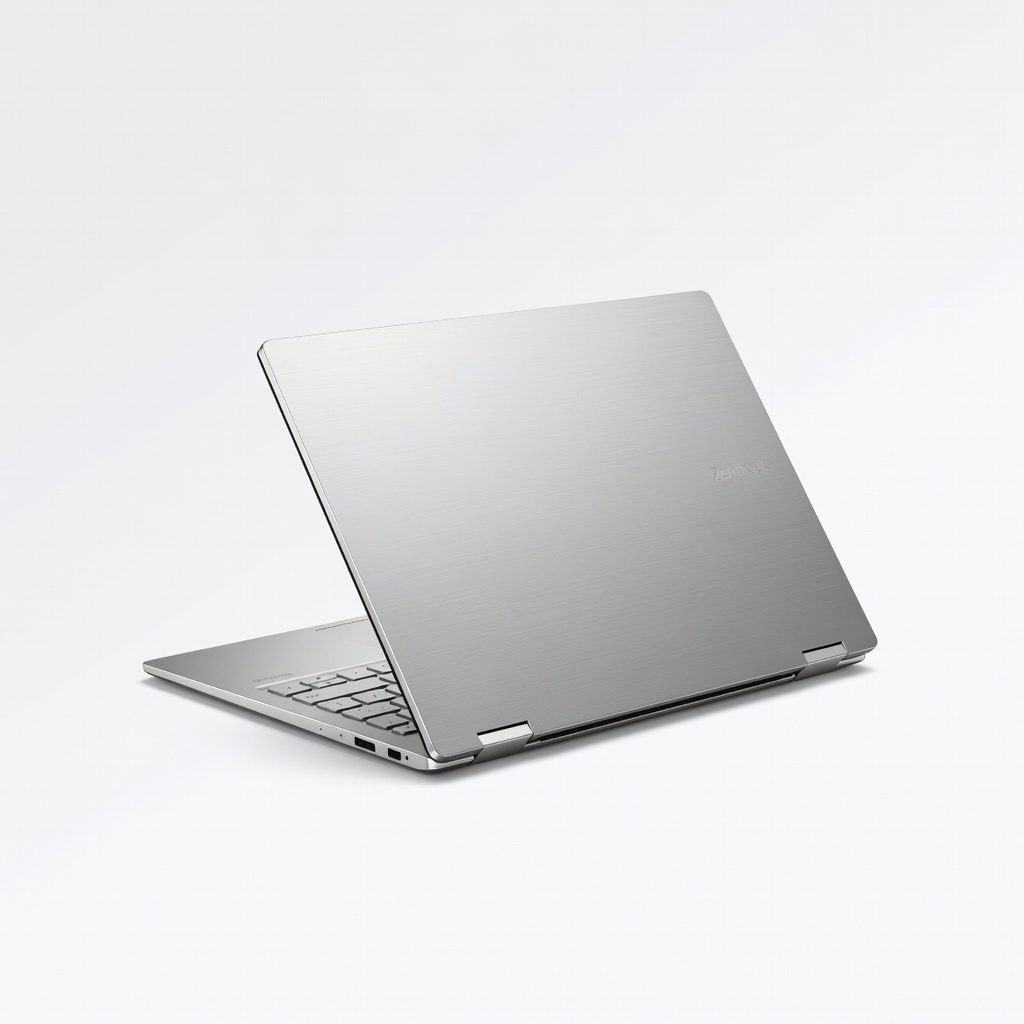
ASUS Zenbook 14 Flip OLED (UM3406)
AMD Ryzen AI 9, 32GB RAM, vibrant 3K OLED—budget powerhouse for Blender renders.
Best for: Value seekers handling mid-level 3D without breaking $1200.
Price Range: $1,000 - $1,300
Lenovo Yoga 7i 2-in-1 (16GB RAM)
Affordable entry with Intel Core Ultra 5, touch IPS, solid for lighter Affinity/Photoshop tasks.
Best for: Beginner-intermediate designers testing 2-in-1 workflow.
Price Range: $800 - $1,000