Have you ever started streaming a movie only to face endless buffering, or struggled with lag during online gaming? Slow Wi-Fi can frustrate anyone, but the good news is that checking your connection speed is straightforward and reveals if the problem lies with your ISP, router, or device. In this guide, you'll learn how to accurately measure your download, upload, and ping speeds using free tools.
By the end, you'll know multiple methods to test your Wi-Fi, interpret the results, and take basic steps to improve performance if needed. Whether you're troubleshooting a sluggish network or just curious about your bandwidth, this beginner-friendly process takes only a few minutes and requires no technical expertise.
Expect a quick, hassle-free experience—most tests run in under a minute, and we'll cover both browser-based and app options for desktops, phones, and tablets.
▸What You'll Need
- •A device connected to Wi-Fi (computer, smartphone, or tablet)
- •An internet browser (like Chrome or Safari) or a speed test app (optional but recommended for mobile)
- •Stable Wi-Fi connection (test on the network you want to measure)
Estimated Time: 5-10 minutes
Difficulty: beginner
▸Step-by-Step Instructions
Step 1: Prepare Your Device
Before running a speed test, ensure your device is ready to get accurate results. Close all unnecessary apps and browser tabs that might consume bandwidth, such as streaming services or downloads. This minimizes interference and gives a true picture of your Wi-Fi performance.
Why it matters: Background processes can skew results, making your speed appear slower than it is. Connect to the Wi-Fi network you want to test—avoid switching to mobile data. If possible, test on a device close to your router to reduce signal interference from walls or distance.
What to expect: Your device should feel responsive, with no heavy tasks running. Success looks like a clean, focused setup ready for the test.
💡 Tips:
- •Restart your router and device beforehand for a fresh connection
⚠️ Warnings:
- •Avoid testing during peak hours (evenings) for baseline results; instead, test off-peak for your true speed
Step 2: Choose a Reliable Speed Test Tool
Select a trusted speed test service. The most popular and accurate is Ookla's Speedtest.net, which works on any browser. For mobile users, download the free Speedtest app from the App Store or Google Play. Alternatives include Google's built-in speed test in Chrome or Fast.com by Netflix.
Why it matters: Not all tools are equal—some servers are closer to your location, providing more precise local results. Ookla uses global servers to simulate real-world usage like video calls or downloads.
What to expect: You'll see a simple interface with a 'Go' button. Success is landing on a reputable site without redirects or ads overwhelming the page.
💡 Tips:
- •Use the same tool for consistent tracking over time
Step 3: Run the Speed Test
On your chosen tool, click the 'Start' or 'Go' button to begin. The test will measure download speed (how fast data comes to you), upload speed (how fast you send data), and ping (latency, or response time in milliseconds). It typically takes 20-30 seconds.
Stay still and avoid using other internet during the test. Why it matters: Movement or usage can interrupt the measurement. For Wi-Fi specifics, ensure you're on wireless, not Ethernet, to test the actual airwave performance.
What to expect: A progress bar filling up, followed by results in Mbps (megabits per second) for speeds and ms for ping. Success is completing without errors, showing numbers like 100 Mbps download.
💡 Tips:
- •Test from different rooms to map your home's Wi-Fi coverage
⚠️ Warnings:
- •Don't multitask— even scrolling can affect accuracy
Step 4: Interpret the Results
Review the output: Download speeds above 25 Mbps are good for HD streaming; upload over 3 Mbps suffices for video calls. Ping under 50 ms is ideal for gaming. Compare to your ISP's promised speeds (check your bill or account).
Why it matters: If results are 20-30% below advertised, contact your provider. Factors like distance from router or interference from microwaves can lower Wi-Fi speeds.
What to expect: Clear graphs or numbers. Success is understanding if your speed meets needs—e.g., no lag for Zoom means it's working well.
💡 Tips:
- •Run 3-5 tests and average them for reliability
Step 5: Test on Multiple Devices
Repeat the process on another device, like switching from phone to laptop. This checks if the issue is device-specific or network-wide.
Why it matters: Older devices might not support modern Wi-Fi standards, capping speeds. It helps isolate problems.
What to expect: Similar results across devices indicate a router/ISP issue. Success is consistent speeds, confirming your Wi-Fi's overall health.
💡 Tips:
- •Update your device's Wi-Fi drivers if speeds vary
⚠️ Warnings:
- •VPNs can slow tests—disable them first
Step 6: Log and Monitor Over Time
Note the results in a simple spreadsheet or app. Retest weekly to track changes, especially after ISP upgrades or new devices.
Why it matters: Fluctuations can signal hardware failure or peak-time throttling. It empowers you to demand better service if speeds drop.
What to expect: A record showing trends, like consistent 100 Mbps. Success is proactive monitoring for optimal performance.
💡 Tips:
- •Use apps with history features for easy logging
▸Pro Tips
- •Test at different times of day to understand peak vs. off-peak performance
- •Position yourself near the router for baseline tests, then move around for coverage mapping
- •Disable antivirus temporarily during tests—it can interfere with bandwidth measurements
- •For apartments, test near walls to spot neighbor interference
- •Combine with a Wi-Fi analyzer app to see channel congestion
- •If speeds are low, try 5GHz band over 2.4GHz for faster but shorter-range connections
- •Save results screenshots for ISP complaints
▸Common Mistakes to Avoid
- •Testing while downloading or streaming, which inflates usage and lowers apparent speed—avoid by closing apps first
- •Using mobile data instead of Wi-Fi, leading to irrelevant results—double-check your connection type
- •Only testing once, as single runs can be skewed by temporary glitches—always average multiple tests
- •Ignoring location, where far-from-router tests show falsely low speeds without noting the distance
- •Forgetting to compare to ISP promises, missing opportunities to upgrade or complain
▸Troubleshooting
Problem: Test shows 0 Mbps or fails to load
Solution: Check if you're connected to Wi-Fi; restart router and device. Try a different tool or server location in the app.
Problem: Inconsistent results across tests
Solution: Run tests multiple times, close background apps, and ensure no VPN is active. If persists, check for router firmware updates.
Problem: Speeds much lower than expected
Solution: Move closer to router, switch Wi-Fi bands, or contact ISP. Consider interference from cordless phones or microwaves.
Problem: High ping but good speeds
Solution: This indicates latency issues—optimize router settings or upgrade to a gaming-focused router. Seek pro help for wiring problems.
Ookla Speedtest App
It's the most accurate and user-friendly tool for quick Wi-Fi checks, with global servers and history tracking.
Best for: Daily monitoring on mobile or desktop to benchmark and troubleshoot speeds.
Price Range: Free (with optional premium features at $0.99/month)
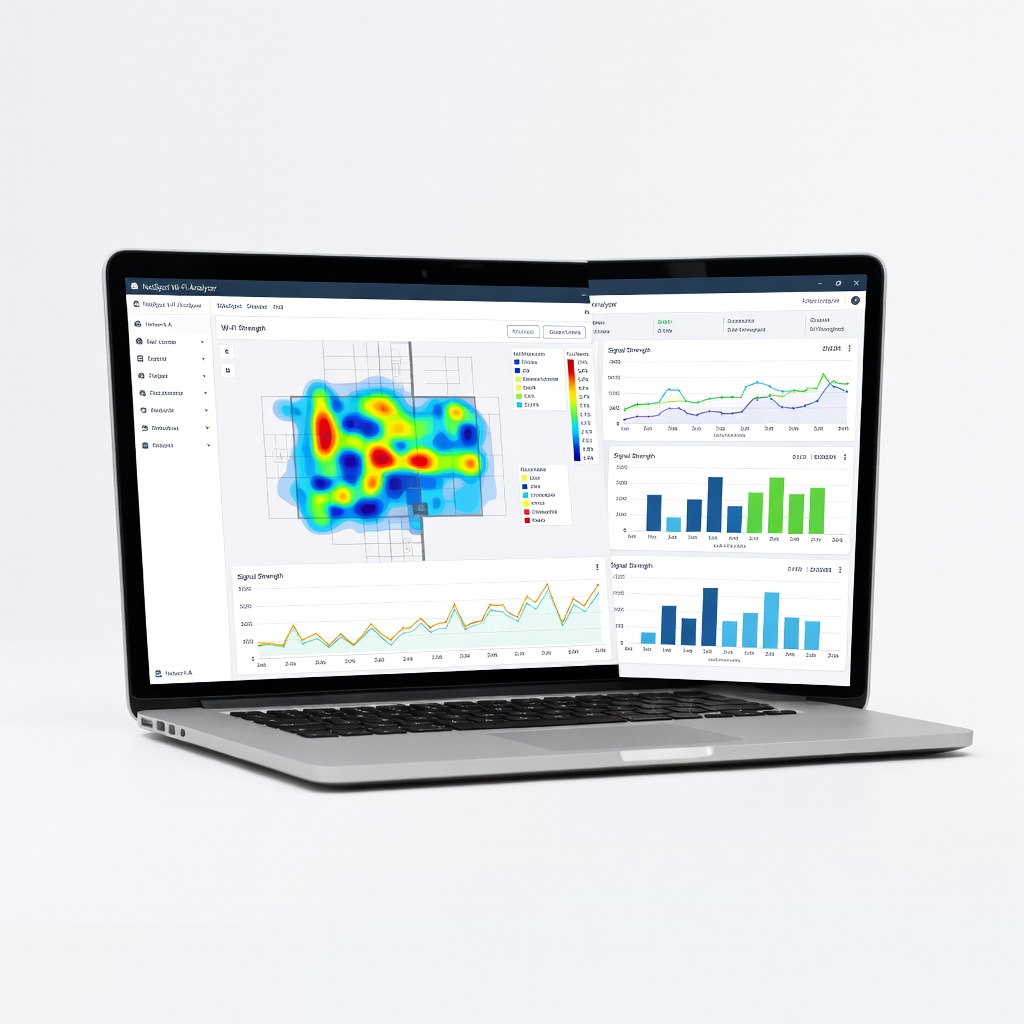
NetSpot Wi-Fi Analyzer
Goes beyond basic speed tests by scanning for signal strength, interference, and optimal channels, helping diagnose Wi-Fi issues.
Best for: Mapping home coverage or fixing dead zones after initial speed checks.
Price Range: Free basic version; pro at $49 one-time
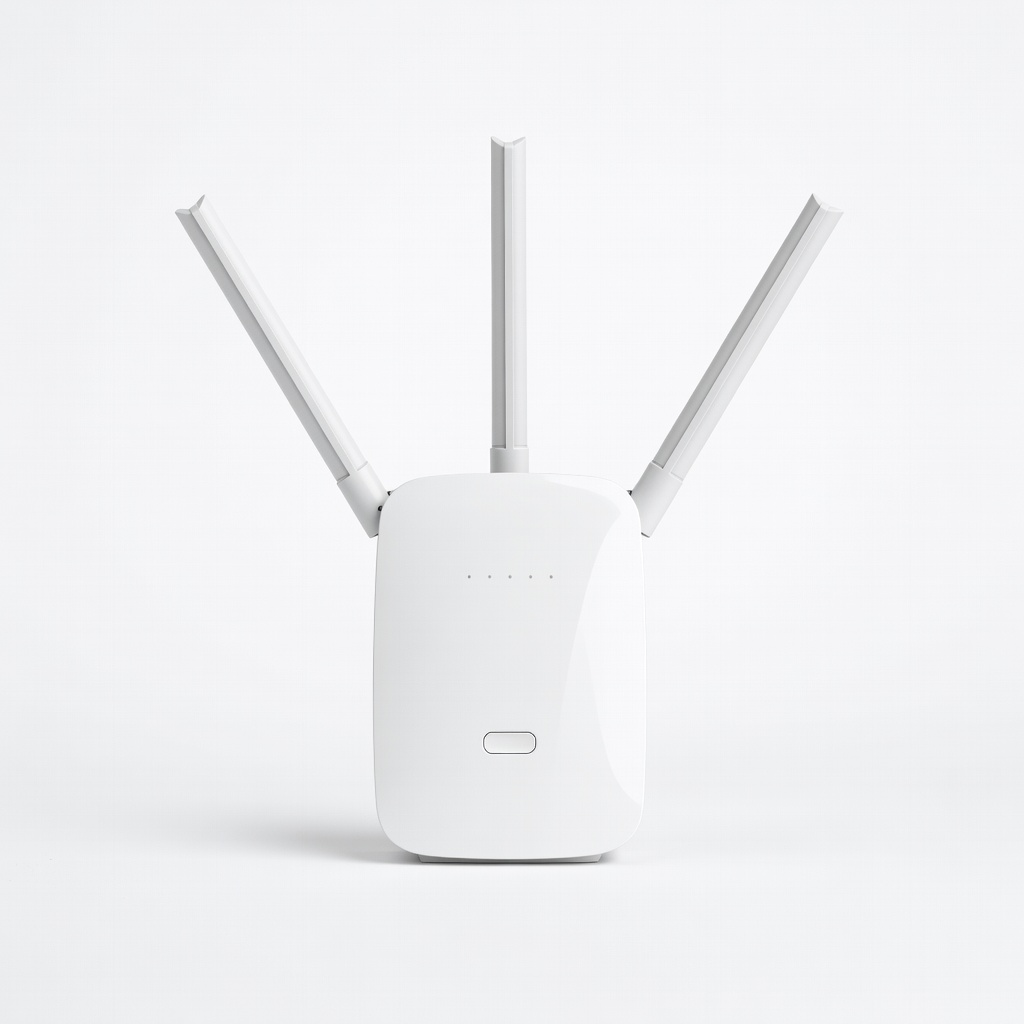
TP-Link RE450 Wi-Fi Extender
If tests reveal weak signals in certain areas, this boosts coverage without replacing your router, improving speeds up to 50%.
Best for: Extending range in large homes where base tests show drops over distance.
Price Range: $40-50
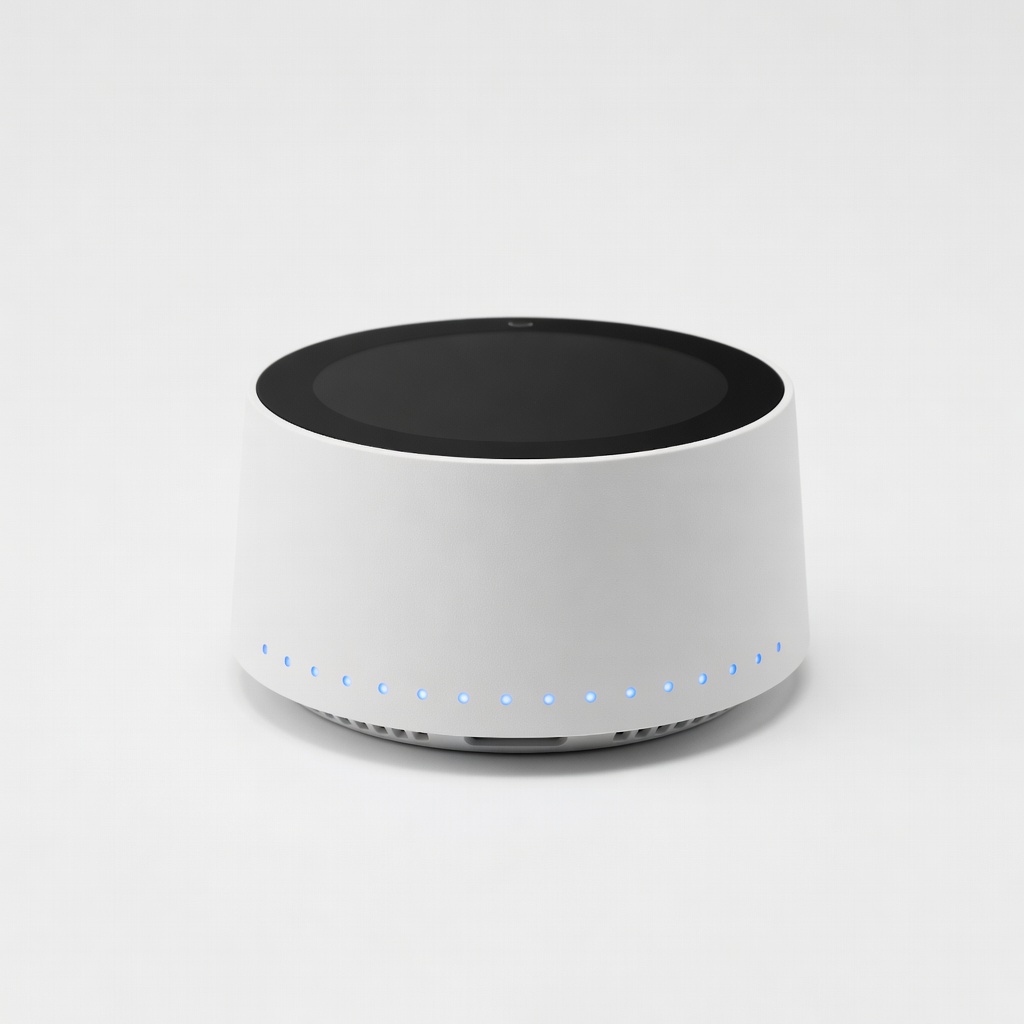
Google Nest Wi-Fi Router
For consistently low speeds, this mesh system provides whole-home coverage with easy setup and built-in speed optimization.
Best for: Upgrading from old routers to achieve reliable 100+ Mbps throughout your space.
Price Range: $150-250 for 2-pack
Ubiquiti UniFi Dream Machine
Advanced users can use this for detailed network monitoring post-speed tests, including app-based analytics.
Best for: Professional troubleshooting when basic tests aren't enough for complex setups.
Price Range: $300-400