Struggling with erratic cursor movement or false low-battery warnings on your wireless mouse? Poorly calibrated AAA batteries are often the culprit, especially with rechargeables, leading to frustrating interruptions during work or gaming. This guide fixes that by teaching you how to condition your batteries for optimal voltage stability and precise capacity readings.
You'll learn a beginner-friendly, step-by-step process to fully discharge, recharge, and test AAA batteries specifically for use in wireless mice. No technical expertise needed—just basic tools. The whole active process takes 20-30 minutes, but allow 4-8 hours for discharging and charging cycles.
By the end, your mouse will glide reliably with extended battery life and trustworthy indicators, saving you from constant replacements.
▸What You'll Need
- •Wireless mouse using AAA batteries (rechargeable NiMH preferred for calibration)
- •AAA rechargeable batteries (2 or as required by your mouse)
- •Smart NiMH battery charger (required for proper calibration)
- •Optional: Digital battery tester/multimeter for voltage checks
- •Optional: High-drain device like a flashlight for faster discharge
Estimated Time: 20-30 minutes active time + 4-8 hours for discharge/charge cycles
Difficulty: beginner
▸Step-by-Step Instructions
Step 1: Remove Batteries from Your Wireless Mouse
Power off your wireless mouse and flip it over. Slide open the battery compartment cover carefully to avoid breaking the plastic tabs. Gently remove the AAA batteries, noting their orientation (positive/negative ends).
This step prevents accidental power drain during calibration and allows inspection for corrosion. Expect clean, shiny contacts if your mouse is well-maintained; success looks like batteries sliding out smoothly without residue.
💡 Tips:
- •Label batteries with tape to track pairs later.
⚠️ Warnings:
- •Avoid forcing the cover—mice like Logitech models have fragile latches.
Step 2: Inspect and Clean Battery Contacts
Examine batteries for leaks, dents, or swelling (discard if damaged). Wipe contacts on batteries and mouse compartment with a dry cloth or isopropyl alcohol on a cotton swab. Let dry fully.
Clean contacts ensure optimal power transfer post-calibration. You'll know it's done when metal ends shine without residue—dirty contacts cause voltage drops mimicking low batteries.
💡 Tips:
- •Use pencil eraser for stubborn oxidation on contacts.
⚠️ Warnings:
- •Never use water; it can cause shorts.
Step 3: Fully Discharge the Batteries
Insert batteries into a high-drain device (e.g., flashlight or toy) or your mouse (turn on continuously). Use until devices won't power on—this may take 4-8 hours.
Full discharge resets the battery's memory effect in NiMH cells, calibrating capacity. Success: Devices fail completely; voltage under 1.0V per cell if using a tester.
💡 Tips:
- •Leave mouse cursor moving on screen for discharge if no other device.
Step 4: Charge Batteries to Full Capacity
Place discharged batteries in a smart NiMH charger. Charge at standard rate (e.g., 200mA) until indicator shows full—typically 8-12 hours for AAA.
Proper slow charging calibrates the internal gauge for accurate readings in your mouse. Expect batteries to feel slightly warm; fully charged voltage is 1.4-1.5V each.
💡 Tips:
- •Match batteries in pairs from same discharge cycle.
⚠️ Warnings:
- •Avoid fast chargers; they overheat and skew calibration.
Step 5: Reinstall Batteries in the Mouse
Align batteries correctly (+/- as marked) and secure the cover. Power on the mouse and test tracking on a non-reflective surface.
Proper polarity prevents reverse damage. Success: Smooth cursor movement immediately, no lag.
💡 Tips:
- •Use matched pairs for even drain.
Step 6: Test and Cycle for Final Calibration
Use the mouse normally until low-battery warning (1-2 days). Repeat discharge-charge 1-2 more times if indicator seems off.
Multiple cycles fine-tune the meter's accuracy. Success: Consistent battery life estimates matching usage.
💡 Tips:
- •Monitor via mouse software if available (e.g., Logitech Options).
⚠️ Warnings:
- •Don't interrupt cycles midway.
▸Pro Tips
- •Always use NiMH rechargeables like Eneloop for mice—alkalines don't need calibration but lack reusability.
- •Pair batteries from the same batch to avoid imbalance.
- •Calibrate every 3-6 months or after 50 cycles for peak performance.
- •Store extras in a cool, dry place to maintain calibration.
- •Test voltage pre-install: Aim for 1.25-1.3V rested.
- •Enable mouse power-saving mode during tests to extend evaluation time.
- •For laser mice, test on mouse pad for accurate tracking assessment.
▸Common Mistakes to Avoid
- •Using mismatched or alkaline batteries for calibration—causes uneven drain; stick to identical NiMH.
- •Partial discharge/charge cycles—fails to reset memory effect; always go full.
- •Ignoring contact cleaning—leads to false low readings; clean every time.
- •Overcharging with wrong charger—damages cells; use NiMH-specific smart chargers.
- •Forgetting polarity—risks explosion or no power; double-check marks.
▸Troubleshooting
Problem: Mouse still lags after calibration
Solution: Recheck contacts, surface, receiver connection; try new batteries if persists.
Problem: Batteries won't fully discharge
Solution: Use a resistor discharger or high-drain toy; test voltage to confirm <1.0V.
Problem: Charger shows error
Solution: Ensure NiMH mode; replace if batteries are old (>5 years).
Problem: Battery indicator inaccurate post-cycle
Solution: Repeat 2-3 full cycles; consult mouse manual for reset.
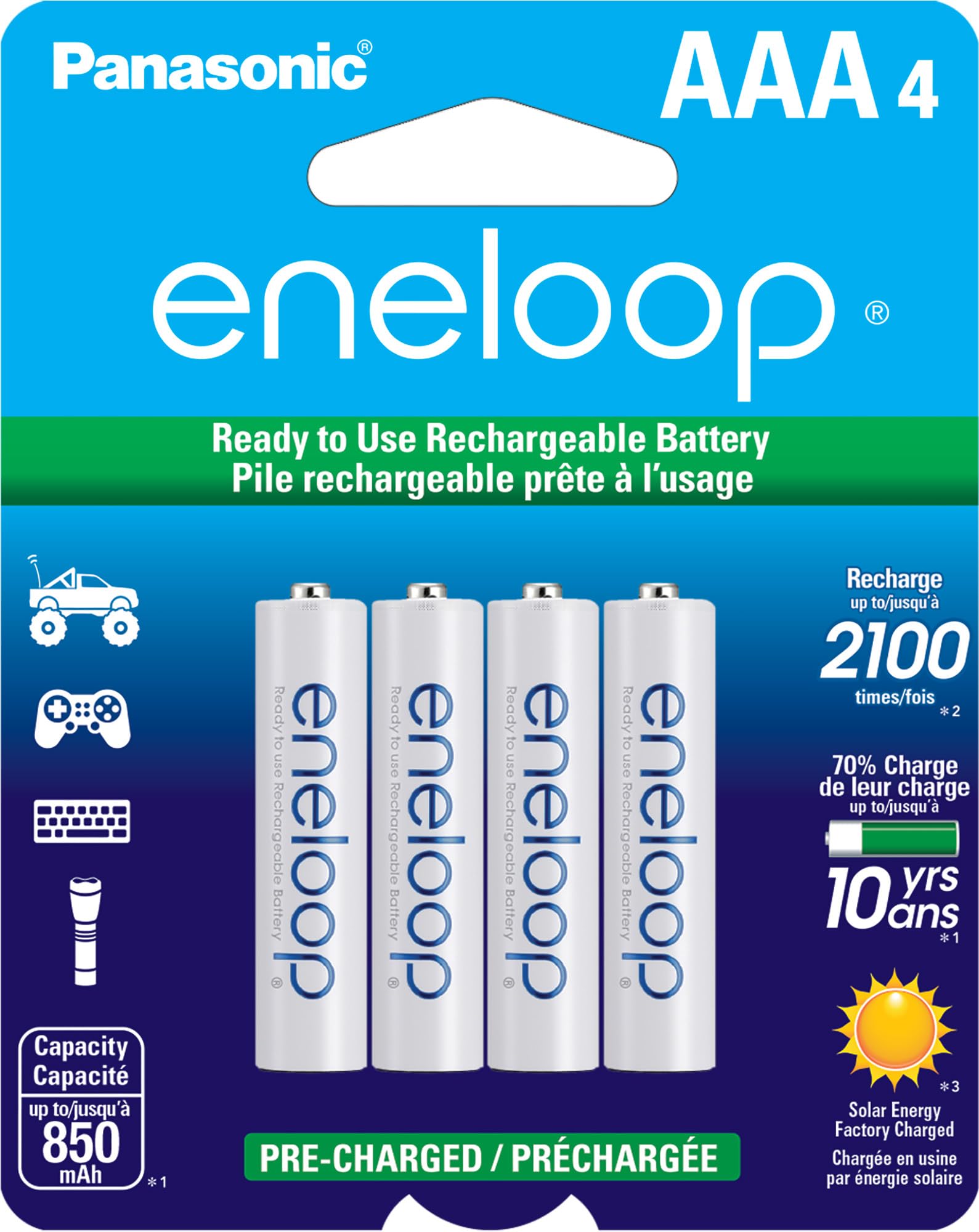
Panasonic Eneloop AAA Rechargeable Batteries (4-Pack)
Industry-leading low self-discharge NiMH batteries perfect for calibration cycles with consistent 800mAh capacity.
Best for: Ideal for wireless mice needing long-lasting, calibratable power.
Price Range: $18-22
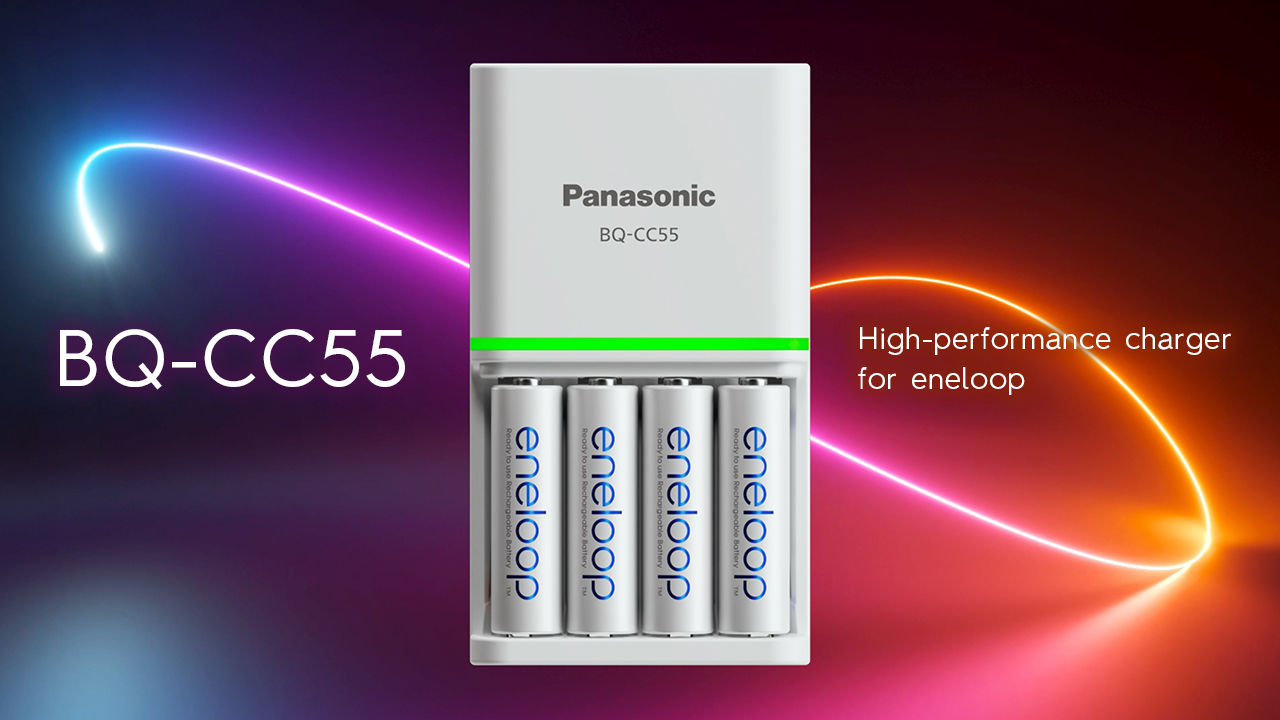
Panasonic Eneloop BQ-CC55 Charger
Smart charger with individual slots and discharge function for precise AAA calibration.
Best for: Essential for full charge/discharge cycles without overheating.
Price Range: $14-18
Kriëger Digital Battery Tester
Measures AAA voltage accurately to verify calibration success.
Best for: Quick checks before/after cycles to ensure 1.25V+.
Price Range: $10-15
Energizer Ultimate Lithium AAA (non-rechargeable alternative)
No calibration needed but superior longevity if rechargeables unavailable.
Best for: Backup for disposable use in mice.
Price Range: $12-16 for 8-pack
La Crosse Technology BC700 Alpha Charger
Advanced charger with refresh/calibration mode for AAA batteries.
Best for: Pro-level conditioning for frequent mouse users.
Price Range: $35-45