
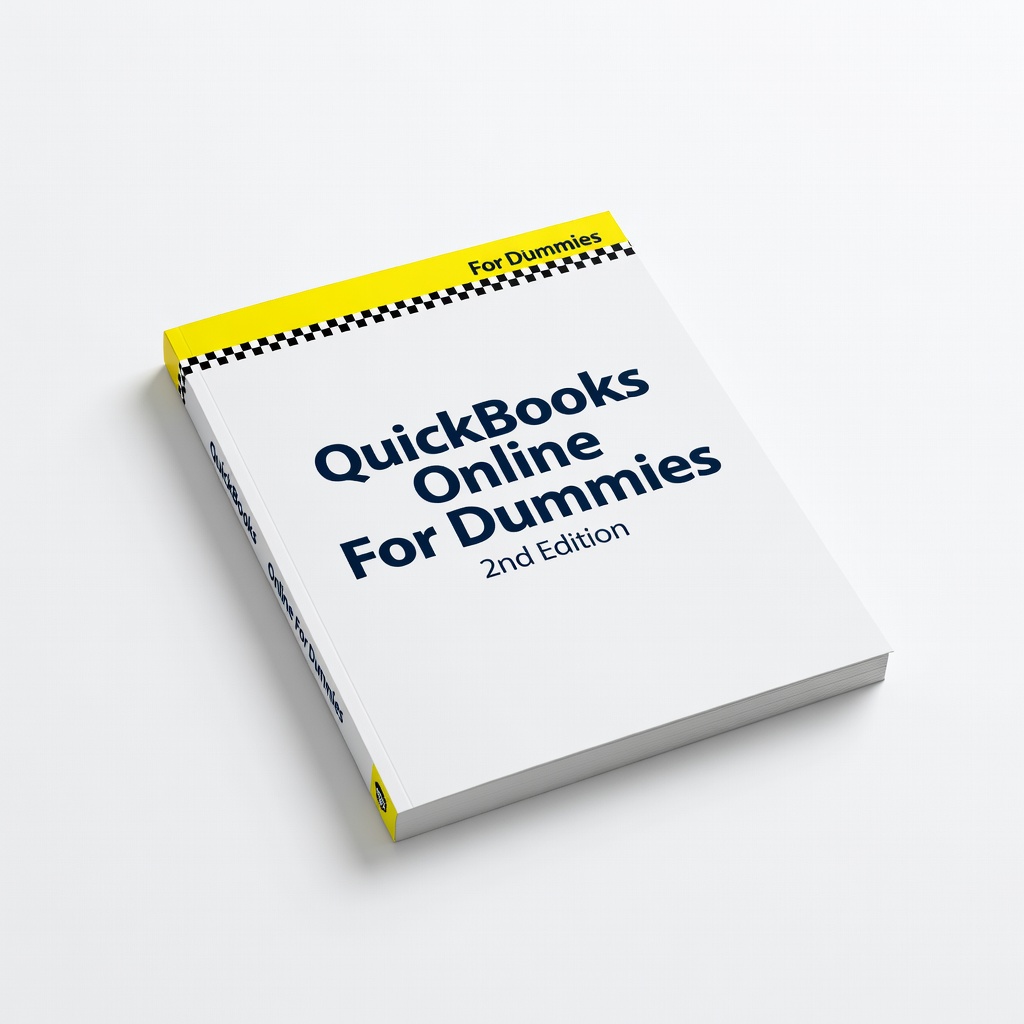
QuickBooks Online For Dummies, 2nd Edition
Reference during/after steps for deeper understanding.
$20-$25
QuickBooks Online For Dummies, 2nd Edition Provides visual guides and extra tips beyond software help for beginners mastering reconciliation.
Get the App
Better experience on mobile
Master bank reconciliation in QuickBooks step-by-step to ensure your accounts match your statements and avoid costly errors.
Struggling with unbalanced books in QuickBooks? Many beginners face discrepancies between their software records and bank statements, leading to tax headaches or audit fears. Proper balancing, or reconciliation, keeps your finances accurate and compliant.
In this guide, you'll learn how to reconcile your bank accounts in QuickBooks Online or Desktop. We'll cover everything from prep to verification in clear, sequential steps. No prior experience needed—just follow along.
Expect 30-60 minutes for your first reconciliation. It's beginner-friendly with screenshots in mind, and you'll end with perfectly balanced books and confidence in your numbers.
Estimated Time: 30-60 minutes Difficulty: beginner
Log into your QuickBooks account using your credentials. Ensure all recent transactions are downloaded and categorized.
Go to Banking (or Transactions) > Banking. QuickBooks auto-connects to your bank if linked—click Update to fetch the latest data. This syncs your online banking with QuickBooks, preventing outdated info from causing imbalances.
Success looks like: All transactions up to your statement date appear uncategorized or matched. Why it matters: Fresh data ensures accurate reconciliation.
💡 Tips:
⚠️ Warnings:
Download or print your bank statement for the period you want to reconcile (e.g., last month). Note the beginning and ending balances, plus total deposits and withdrawals.
Compare the statement ending balance with QuickBooks' register. This prep step identifies potential issues early.
Success looks like: Statement handy, key figures noted. It matters because mismatches here predict reconciliation problems.
💡 Tips:
Accounting > Reconcile (or Banking > Reconcile in Online). Select the account to reconcile, enter the Ending Balance from your statement, and the Statement Date.
QuickBooks calculates the difference—aim for $0.00 to begin matching.
Success looks like: Reconciliation window open with $0 difference if prepared correctly.
💡 Tips:
⚠️ Warnings:
Review transactions in QuickBooks against your statement. Check off matching items (deposits, checks, fees). Use Find for searches.
Uncleared items stay unchecked. QuickBooks flags duplicates.
Success looks like: Difference narrows to $0 as you match 90%+ items. Why: Builds accuracy incrementally.
💡 Tips:
If difference > $0, add missing transactions via Add or edit categorizations. For bank fees, create a new entry.
Use Locate Discrepancies report if needed. Adjust only with proof.
Success looks like: Difference at $0.00. Matters for audit-proof books.
💡 Tips:
⚠️ Warnings:
Preview the Reconciliation Summary. If $0 difference, click Finish Now or Reconcile Now.
QuickBooks saves and marks as reconciled.
Success looks like: 'Reconciled' status and summary report. Confirms accuracy.
💡 Tips:
Go to Reports > Accounting > Reconciliation Discrepancy or Trial Balance. Ensure no outliers.
Print or export for records.
Success looks like: Clean reports matching statement. Final proof of balanced books.
💡 Tips:
Problem: Difference won't zero out
Solution: Run Previous Reconciliation report; undo last if error, or find duplicate/outstanding check.
Problem: Transactions not downloading
Solution: Reconnect bank account or manually import CSV; check firewall.
Problem: Reconciled items editable
Solution: Hold Ctrl while editing; consult accountant if undoing needed.
Problem: Large discrepancy (>1%)
Solution: Seek accountant help—may indicate categorization errors.
Provides visual guides and extra tips beyond software help for beginners mastering reconciliation.
Best for: Reference during/after steps for deeper understanding.
Price Range: $20-$25
Scans bank statements quickly for digital organization and easy QuickBooks upload.
Best for: Digitize paper statements for side-by-side reconciliation.
Price Range: $120-$130
Secure, fast backups of QuickBooks files to protect reconciled data.
Best for: Daily backups before reconciliations.
Price Range: $140-$160
Reliable for manual math checks on totals during discrepancies.
Best for: Verify sums when QuickBooks flags issues.
Price Range: $10-$15
Keeps statements and reports sorted physically for easy access.
Best for: Organize monthly reconciliation docs.
Price Range: $25-$30
Reference during/after steps for deeper understanding.
QuickBooks Online For Dummies, 2nd Edition Provides visual guides and extra tips beyond software help for beginners mastering reconciliation.
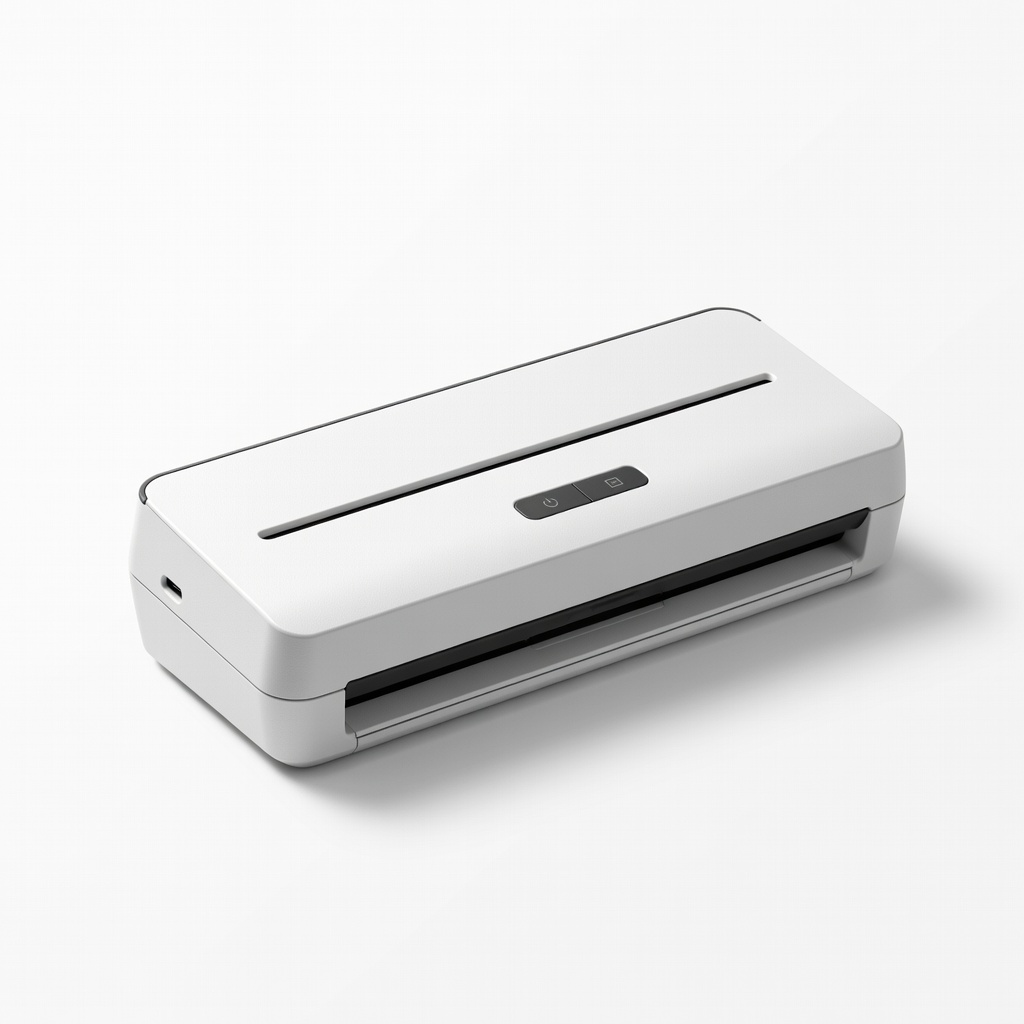
Digitize paper statements for side-by-side reconciliation.
Brother DS-640 Compact Mobile Document Scanner Scans bank statements quickly for digital organization and easy QuickBooks upload.
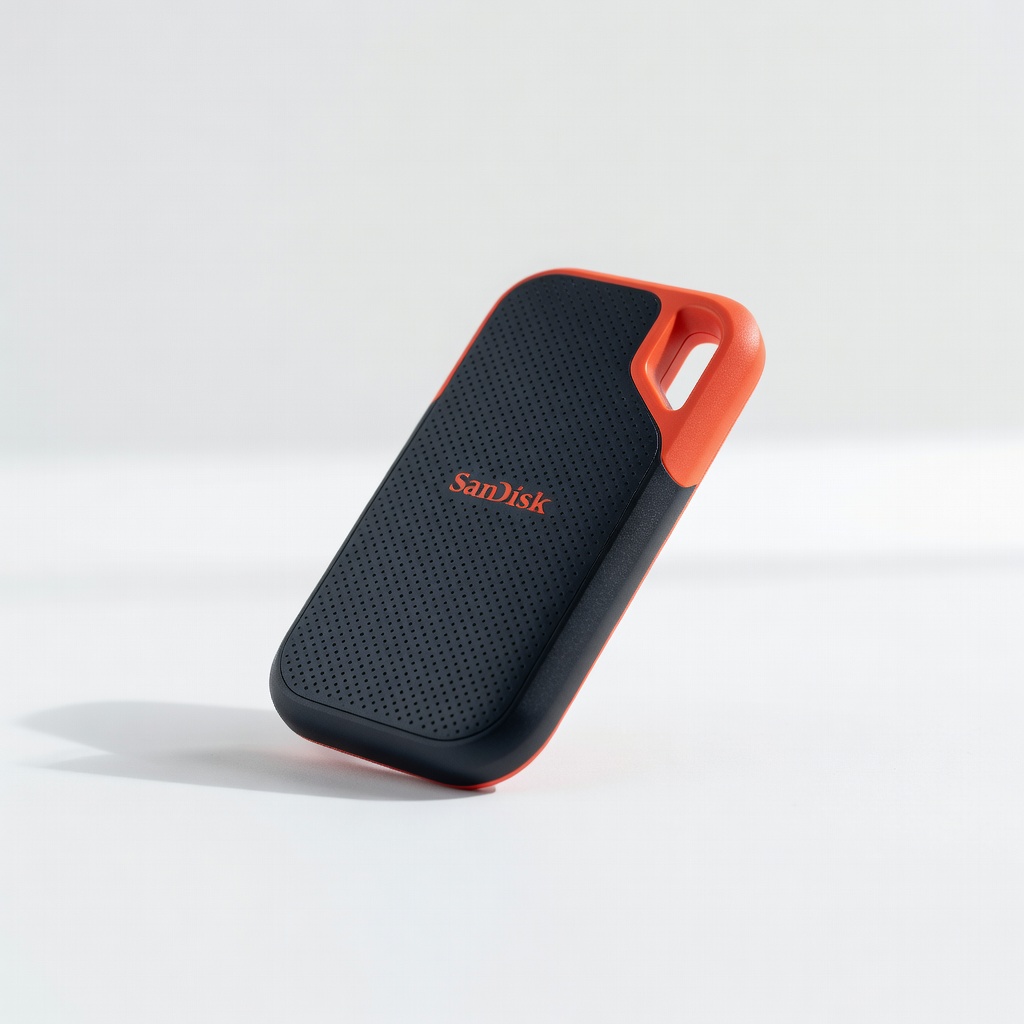
Daily backups before reconciliations.
SanDisk 2TB Extreme Portable SSD Secure, fast backups of QuickBooks files to protect reconciled data.
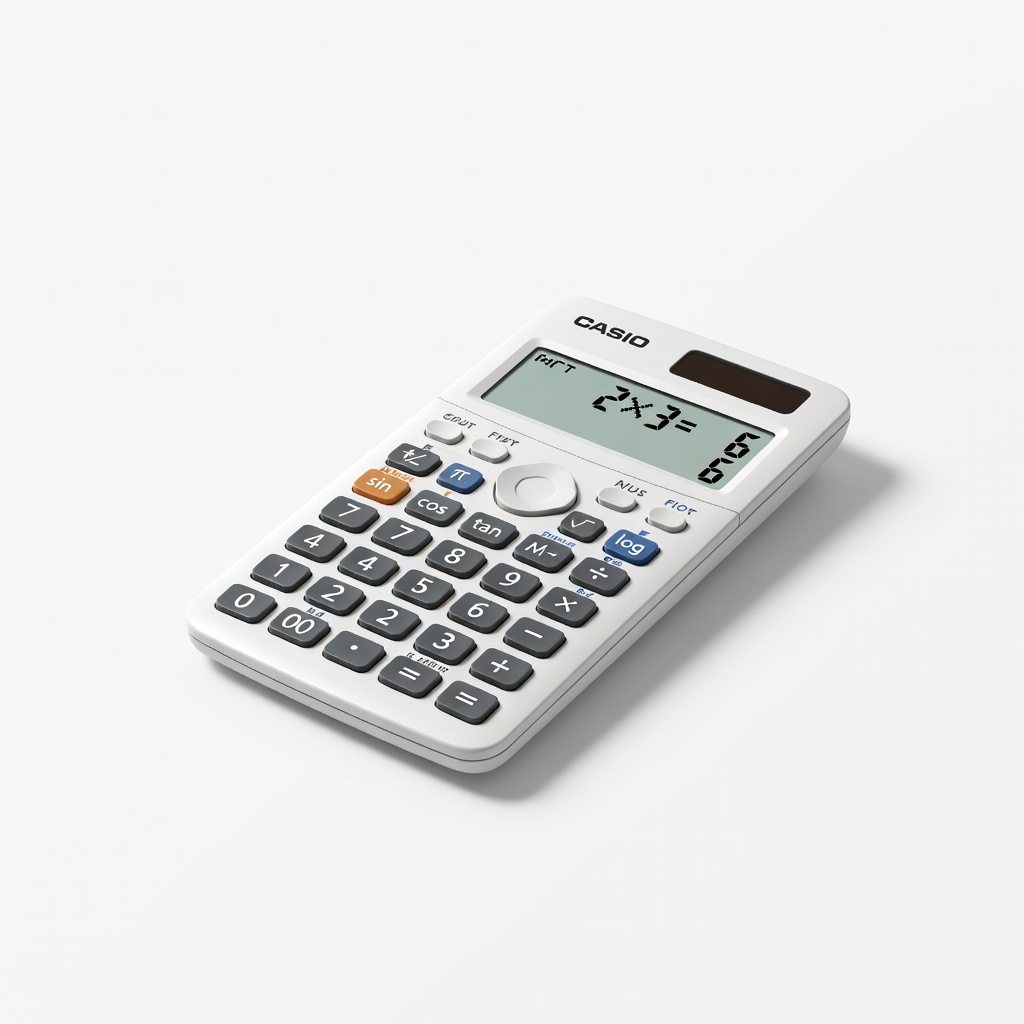
Verify sums when QuickBooks flags issues.
Casio fx-300ES Plus 2-Line Scientific Calculator Reliable for manual math checks on totals during discrepancies.

Organize monthly reconciliation docs.
Smead Organized Up Stackable Desk File Sorter Keeps statements and reports sorted physically for easy access.