Tax season brings dread for many small business owners and freelancers—racing deadlines, mismatched numbers, and IRS penalties looming if your books don't balance. But it doesn't have to be chaotic. With a systematic approach, you can reconcile your accounts confidently and uncover deductions you might miss.
In this guide, you'll learn a proven, intermediate-level process to balance your books: from gathering records to final reviews. Expect clear steps tailored for QuickBooks or Excel users, with real-world tips to save time. This typically takes 4-6 hours for a small business with moderate transactions.
By the end, your books will match your bank statements, profit/loss will be crystal clear, and you'll be tax-ready—potentially saving hundreds in accountant fees.
▸What You'll Need
- •Computer or laptop with accounting software (QuickBooks, Xero, or Excel/Google Sheets)
- •Digital or physical bank/credit card statements for the tax year
- •All receipts, invoices, and expense records (scanned or organized)
- •Tax forms/schedules (e.g., Schedule C for US sole proprietors)
- •Calculator or built-in software tools (optional: receipt scanner)
- •Backup storage (USB drive or cloud like Google Drive)
Estimated Time: 4-6 hours (spread over 1-2 days for a small business with 500-1000 transactions)
Difficulty: intermediate
▸Step-by-Step Instructions
Step 1: Gather All Financial Documents
Start by collecting every piece of financial data for the tax year. This includes bank statements, credit card statements, PayPal/Venmo summaries, investment account reports, and all income docs like 1099s or sales invoices.
Why it matters: Missing items lead to incomplete books and overlooked deductions. Sort into folders: Income, Expenses, Assets/Liabilities.
What success looks like: A complete pile or digital folder with no gaps—check against your accounting software's transaction list.
💡 Tips:
- •Scan everything digitally first using a phone app or scanner for easy access.
- •Use the last 3 months as a trial run to spot forgotten sources.
⚠️ Warnings:
- •Don't guess—request duplicates from banks if missing.
Step 2: Organize and Import Transactions
Import statements into your software. In QuickBooks, use 'Banking > Update' or CSV import; in Excel, paste columns for date, description, amount.
Why it matters: Raw data must be centralized before balancing. Match imported totals to statement ending balances.
What success looks like: All transactions listed chronologically, with totals matching statement summaries (e.g., $50,000 income matches bank deposit total).
💡 Tips:
- •Download CSV files directly from bank portals for accuracy.
- •Tag uncategorized items immediately.
Step 3: Reconcile Bank Accounts
Go to reconciliation module (QuickBooks: Banking > Reconcile). Enter statement start/end dates and balances, then match transactions one-by-one or in batches.
Why it matters: This core step ensures your books reflect reality—discrepancies here flag fraud or errors.
What success looks like: $0.00 difference, with a reconciliation report generated.
💡 Tips:
- •Reconcile monthly throughout the year to make tax season easier.
- •Ignore cleared checks by marking them properly.
⚠️ Warnings:
- •Never force a balance by editing uncleared items—investigate instead.
Step 4: Categorize Income and Expenses
Assign categories: Income (sales, services), Expenses (COGS, marketing, rent). Use IRS Schedule C categories for tax alignment.
Why it matters: Proper categorization maximizes deductions and simplifies tax form population.
What success looks like: 95%+ transactions categorized, with subtotals per category (e.g., Office Expenses: $2,500).
💡 Tips:
- •Create rules in software for recurring items like 'Amazon' to Supplies.
- •Split mixed transactions (e.g., office supplies + snacks).
Step 5: Identify and Resolve Discrepancies
Run a trial balance report. Compare debits/credits; hunt uncleared items, duplicates, or math errors.
Why it matters: Unresolved issues distort profits and trigger audits.
What success looks like: Trial balance debits = credits; no outliers over $50.
💡 Tips:
- •Use 'Find Duplicates' tools in QuickBooks.
- •Cross-check with 1099 totals.
⚠️ Warnings:
- •Avoid 'plugging' numbers—document adjustments as journal entries.
Step 6: Generate Profit & Loss and Balance Sheet
Pull P&L for the year and balance sheet as of year-end. Verify net income flows to equity.
Why it matters: These are your tax storytellers—accurate P&L feeds directly into forms.
What success looks like: P&L shows realistic profit (e.g., 10-20% margins); assets = liabilities + equity.
💡 Tips:
- •Compare to prior years for red flags.
- •Export to PDF for records.
Step 7: Prepare Tax Schedules and Review
Map categories to tax forms (e.g., Line 18 Schedule C from Advertising). Double-check totals.
Why it matters: Ensures compliance and deduction optimization.
What success looks like: All schedules completed, totals match books.
💡 Tips:
- •Use software export to TurboTax.
- •Note home office sq ft for calculations.
Step 8: Backup and Final Audit
Export reports, backup data, and self-audit: re-run reconciliations.
Why it matters: Protects against data loss and catches last errors.
What success looks like: Timestamped backups and clean final reports ready for filing.
💡 Tips:
- •Store offsite in cloud.
- •Share with accountant for second eyes.
⚠️ Warnings:
- •Shred physical docs after digital backup securely.
▸Pro Tips
- •Reconcile quarterly to avoid year-end overload.
- •Automate bank feeds in QuickBooks for 80% matching.
- •Track mileage with apps like MileIQ for easy deductions.
- •Use keyboard shortcuts (e.g., Ctrl+R for reconcile) to speed up.
- •Batch similar expenses weekly.
- •Leverage AI categorization in modern software.
- •Keep a 'suspense' account for uncategorizes—clear monthly.
▸Common Mistakes to Avoid
- •Skipping monthly reconciliations, leading to compounded errors.
- •Misclassifying personal vs. business expenses, risking audits.
- •Forgetting 1099 income sources like contractors.
- •Not documenting adjustments, which confuses tax pros.
- •Overlooking accrual vs. cash basis mismatches.
▸Troubleshooting
Problem: Bank balance off by $100+
Solution: Check for cleared-but-missing deposits, bank fees, or duplicates. Adjust via journal entry with notes.
Problem: Receipts missing for big expenses
Solution: Request duplicates from vendors; use bank memos as backup. Seek accountant for substantiation rules.
Problem: Software won't import CSV
Solution: Verify date/amount formats (MM/DD/YYYY, no $). Use sample CSV from software help.
Problem: Trial balance won't zero
Solution: Run audit log for changes. Common: unposted payroll. Seek pro if over $500 variance.
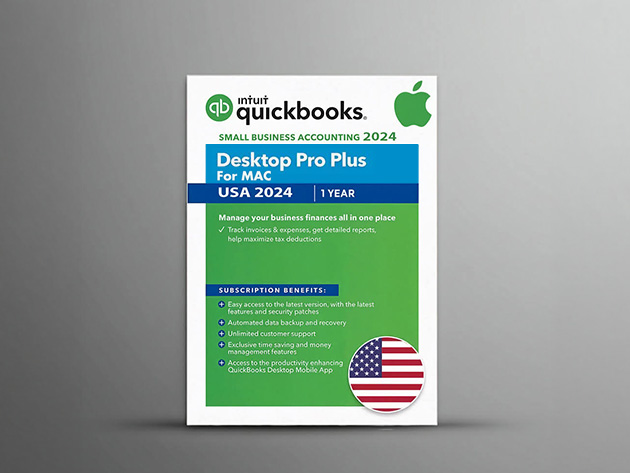
Intuit QuickBooks Desktop Pro Plus 2024
Automates reconciliation, categorization, and tax reports with bank feeds for error-free balancing.
Best for: Ideal for small businesses with 1000+ transactions needing robust desktop tools.
Price Range: $349.99
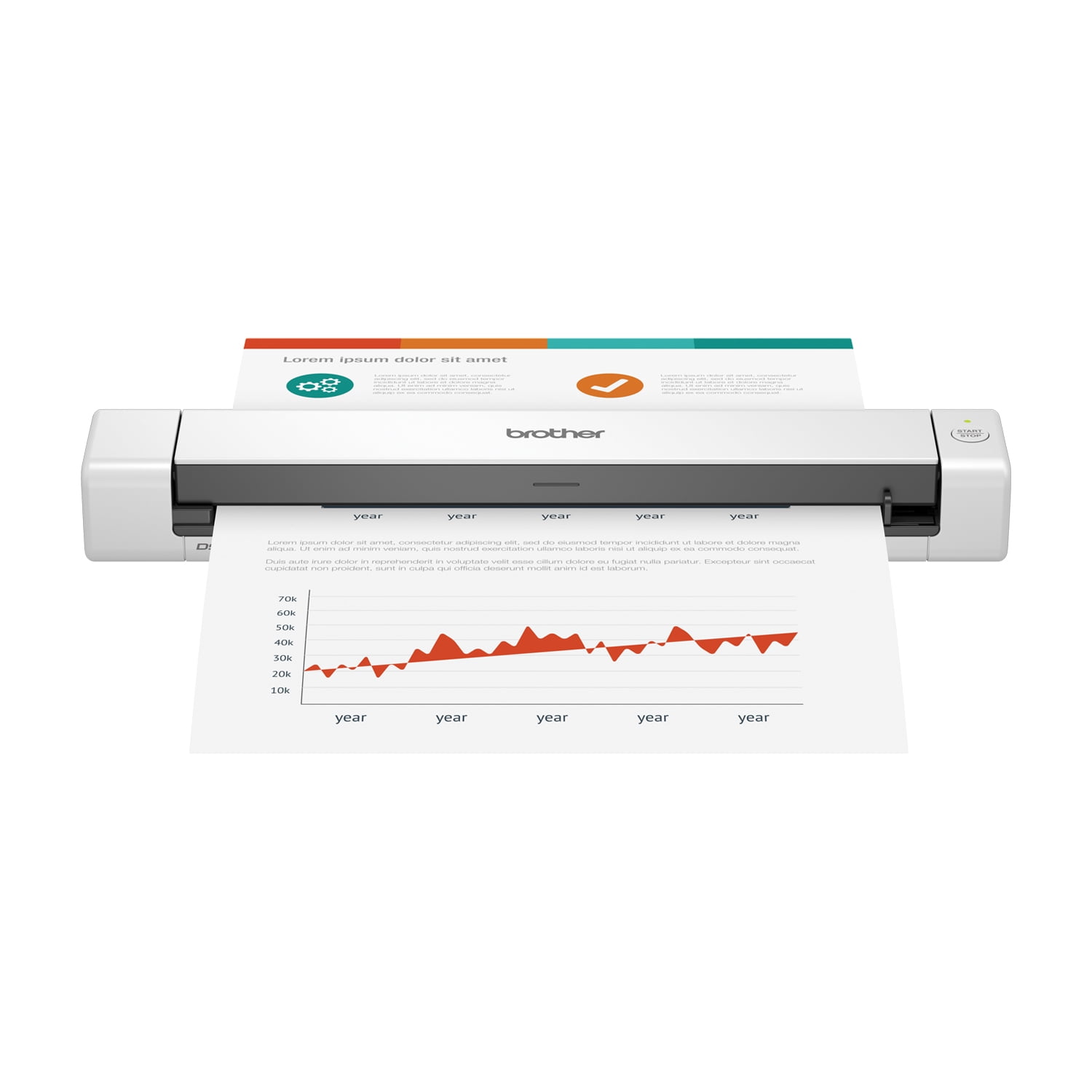
Brother DS-640 Compact Mobile Document Scanner
Scans receipts/statements in seconds to digital, preventing loss and speeding organization.
Best for: Freelancers digitizing paper piles before import.
Price Range: $129.99
Intuit TurboTax Business 2023 Desktop
Directly imports QuickBooks data for seamless tax schedule population post-balancing.
Best for: Sole proprietors/S-Corps prepping Forms 1040/1120S.
Price Range: $139.99
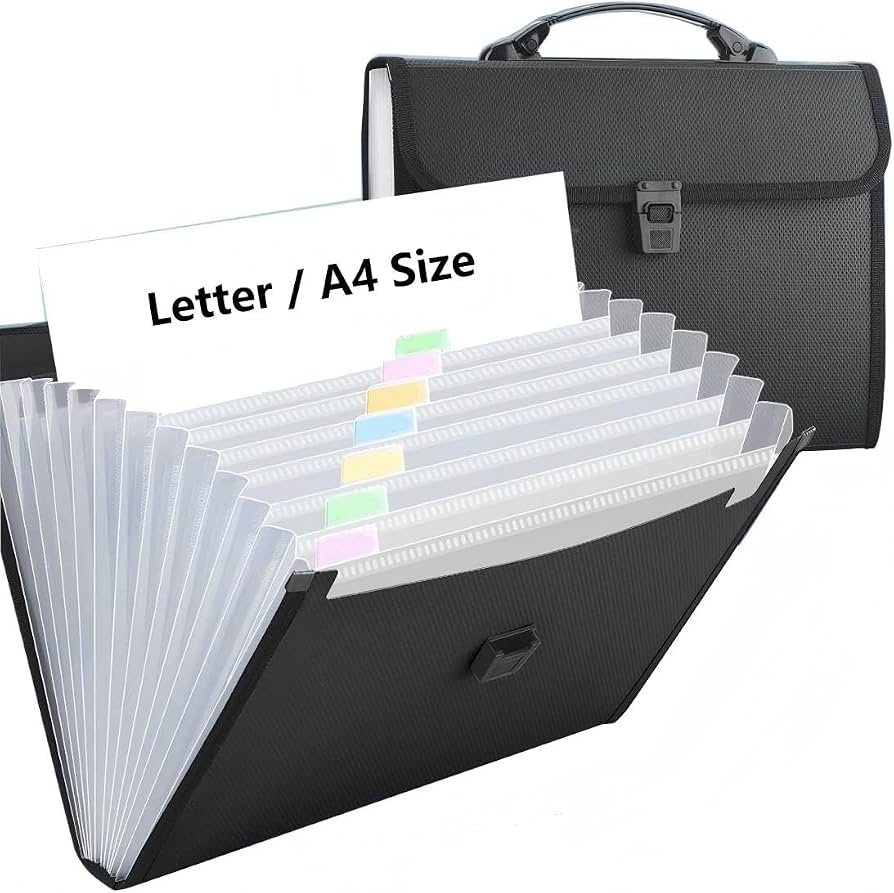
Cahootify Expanding File Folder 12 Pockets
Portable organizer for physical receipts/statements during gathering phase.
Best for: Budget option for pre-digital sorting.
Price Range: $19.99
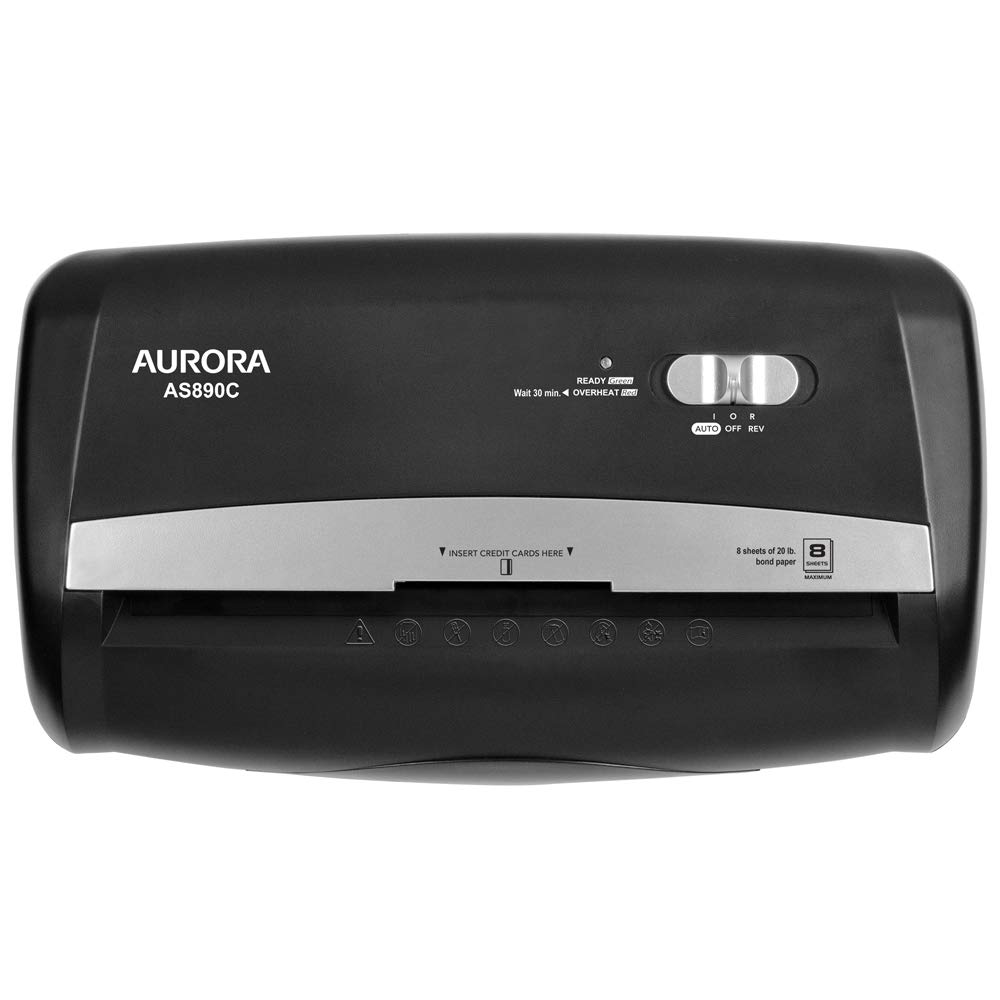
Aurora AS890C 8-Sheet Crosscut Paper Shredder
Securely destroys sensitive docs after backup for privacy compliance.
Best for: Final step post-balancing.
Price Range: $29.99