2-in-1 laptops like Microsoft Surface Pro, Lenovo Yoga, and HP Spectre x360 are game-changers for productivity and portability, but their convertible design means keyboards face extra dust, crumbs, spills, and fingerprints—especially in tablet mode. Without protection, grime buildup can lead to sticky keys or costly repairs.
This beginner-friendly guide explains everything you need to know about keyboard covers: why they're vital for 2-in-1s, how to choose the best one, key features to prioritize, and top recommendations. You'll also get step-by-step sizing, installation, and care instructions.
In just 15-20 minutes, you'll confidently select and apply a cover that safeguards your laptop without affecting typing or flip functionality.
▸What You'll Need
- •Exact laptop model number (check bottom sticker or Settings > System > About)
- •Ruler or measuring tape (optional, for custom verification)
- •Internet access to Amazon or retailer sites
- •Clean, dry cloth for installation
Estimated Time: 15-20 minutes
Difficulty: beginner
▸Step-by-Step Instructions
Step 1: Identify Your Exact Laptop Model
Begin by locating your 2-in-1 laptop's precise model name and year. This ensures compatibility since keyboard layouts vary by brand, size, and generation (e.g., Surface Pro 9 vs. Pro 8).
How to find it: Flip the laptop over and note the model sticker (e.g., 'HP Spectre x360 14-ef0000'). Or, on Windows: Press Windows key + I > System > About. Search online for your model's keyboard layout image.
Why it matters: A mismatch causes loose fit, trapped dirt, or blocked keys, defeating protection. Expect to spend 2 minutes here—it's the foundation for perfect protection.
💡 Tips:
- •Take a screenshot or photo of the model info.
- •Note if it's US QWERTY layout vs. international.
⚠️ Warnings:
- •Avoid generic '13-inch' searches; specify model for accurate results.
Step 2: Understand Why 2-in-1s Need Special Covers
2-in-1 keyboards endure more abuse: flipping exposes them face-up to spills/dust, tablet mode traps crumbs, and frequent mode switches wear edges.
Covers act like a skin—blocking 99% of liquids/dust while allowing full key travel. Analogy: Like a phone screen protector, but flexible for hinges.
Expect seamless typing; good ones are invisible during use but lifesavers for coffee accidents.
💡 Tips:
- •Prioritize if you use tent/tablet modes often.
Step 3: Learn Key Features to Prioritize
Material: Silicone (flexible, spill-proof) beats TPU (stiffer) or fabric (traps germs).
Thickness: Under 0.5mm to avoid mushy keys.
Cutouts: Precise for function keys, touchpad, hinges—critical for 2-in-1 flips.
Other: Non-slip grip, antimicrobial coating, color options. Why? Ensures no interference in convertible modes.
💡 Tips:
- •Check 'hinge-friendly' for full 360-degree rotation.
⚠️ Warnings:
- •Skip glossy finishes; matte resists fingerprints better.
Step 4: Measure Your Keyboard for Perfect Fit
Measure row length/width and key spacing if no model match.
Lay ruler across top row (exclude touchpad), note dimensions (e.g., 11.5 x 4.5 inches). Compare to product specs.
Why matters: Custom assurance for odd models. Expect 1-minute task; most listings include images for visual match.
💡 Tips:
- •Use your phone's measure app for quick digital check.
Step 5: Compare Top Cover Types and Brands
Types: Full silicone skins (best protection), edge-only (minimalist), printed designs (style).
Brands: MoKo (affordable precision), YINKE (vibrant colors), icnbee (ultra-thin). Read 4+ star reviews from last 6 months for fit feedback.
Budget: $8-15. Expect trade-offs: Cheaper = fewer colors, premium = better durability.
💡 Tips:
- •Filter Amazon by 'exact model' + 'keyboard cover'.
Step 6: Purchase and Unbox Your Cover
Search your model + 'silicone keyboard cover' on Amazon. Buy from Prime sellers for fast returns.
Unbox: Expect thin plastic packaging, cover folded. Inspect for tears/perfect cutouts.
Why: Guarantees quality before install.
⚠️ Warnings:
- •Test fit within return window (30 days).
Step 7: Install the Keyboard Cover Properly
Steps: 1. Clean keyboard with compressed air/isopropyl wipe (dry fully). 2. Align back edge first. 3. Slowly press from center outward, smoothing bubbles. 4. Test all keys/touchpad.
Takes 1 minute. Why perfect install matters: Prevents lifting edges in flip modes.
💡 Tips:
- •Warm cover in hands for flexibility.
⚠️ Warnings:
- •Don't force; bubbles pop out over time.
Step 8: Maintain and Monitor Your Cover
Peel off weekly for cleaning (mild soap/water, air dry). Replace every 6-12 months or if yellowed/torn.
Why: Keeps protection effective. Monitor for wear in high-use areas.
💡 Tips:
- •Store flat when removed.
▸Pro Tips
- •Choose matte silicone for fingerprint resistance and better grip.
- •Verify 'flip-friendly' in reviews for 2-in-1 hinge clearance.
- •Buy 2-pack for $15 to have spare.
- •Match cover color to laptop chassis for sleek look.
- •Use backlight? Pick translucent silicone.
- •Read Q&A section on Amazon for model-specific quirks.
- •For travel, pair with hard case.
▸Common Mistakes to Avoid
- •Buying universal sizes—they bunch up or miss keys, leading to poor protection.
- •Installing on dirty keyboard—traps grime, causing sticky keys within weeks.
- •Choosing thick (>1mm) covers—alters typing feel and blocks flip modes.
- •Ignoring layout (UK vs. US)—shifts keys, frustrating typing.
- •Skipping reviews—fit issues common on older models.
▸Troubleshooting
Problem: Air bubbles or wrinkles
Solution: Peel off, clean, reinstall slowly from center. Use credit card edge to smooth.
Problem: Keys feel mushy or unresponsive
Solution: Cover too thick—return for thinner model (<0.5mm). Test without cover.
Problem: Cover slips off during flip
Solution: Poor fit; choose model-specific with grip texture. Add thin tape on edges if needed.
Problem: Touchpad or lights blocked
Solution: Wrong cutouts—verify model compatibility and return.
Problem: Yellowing or odor after months
Solution: Normal wear; clean more often or replace.
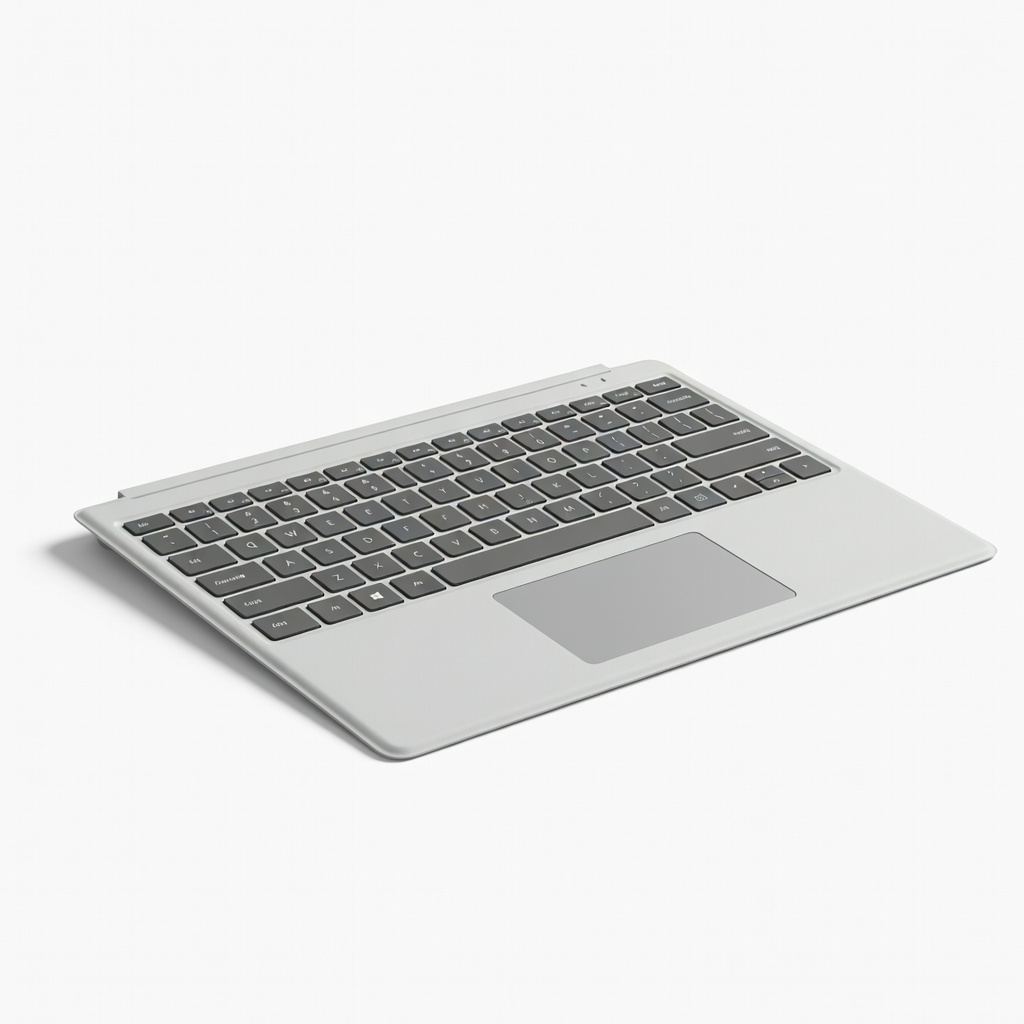
MoKo Keyboard Cover for Surface Pro 9/8/7
Ultra-thin (0.3mm) food-grade silicone with precise cutouts for Type Cover and touchpad; spill/dust-proof without affecting backlight or typing.
Best for: Daily use on Microsoft Surface Pro 2-in-1s in tablet/tent modes.
Price Range: $9.99 (ASIN: B0B8TS5N5N)
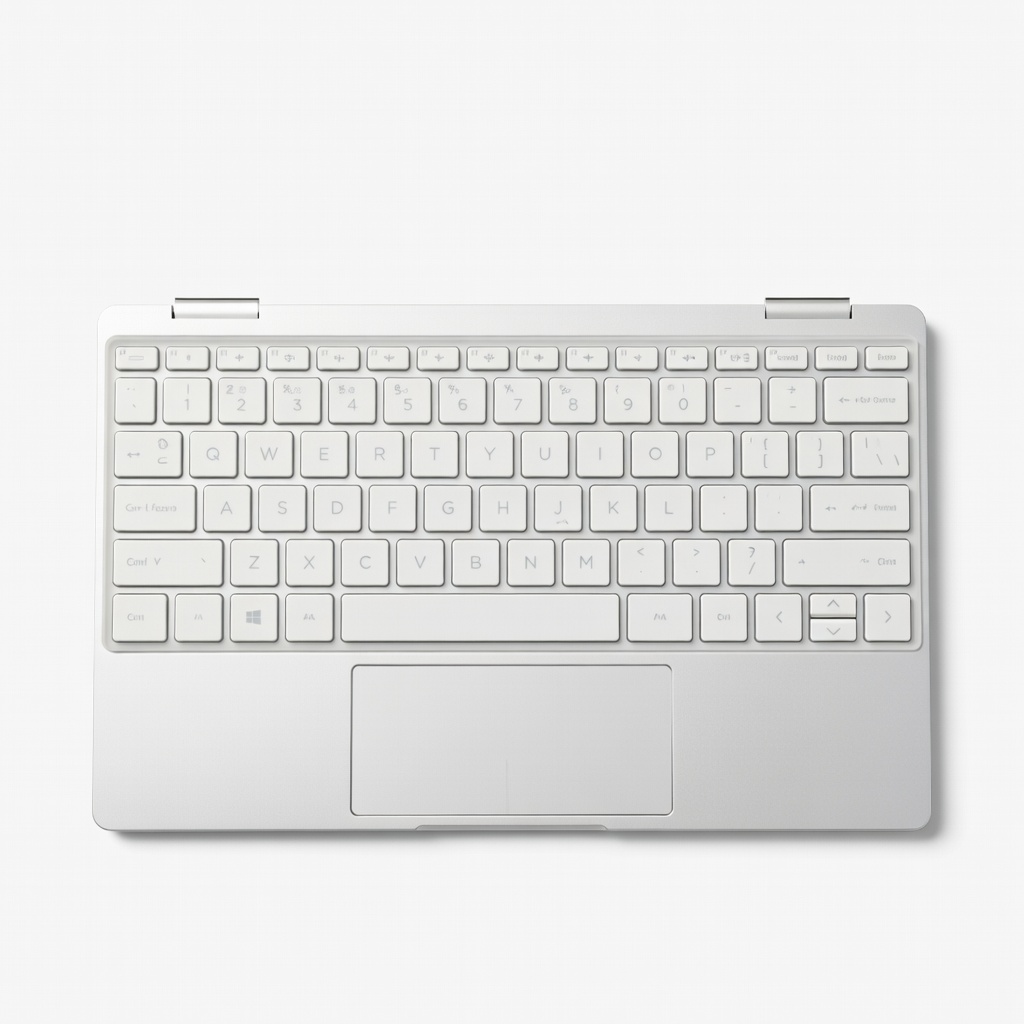
YINKE Keyboard Cover for HP Spectre x360 13.5/14 inch
Flexible, hinge-clearance design in multiple colors; waterproof and dust-resistant with matte finish to prevent slips.
Best for: HP Spectre or Envy x360 users needing style and protection for frequent flips.
Price Range: $10.99 (ASIN: B08N2P2P2P)
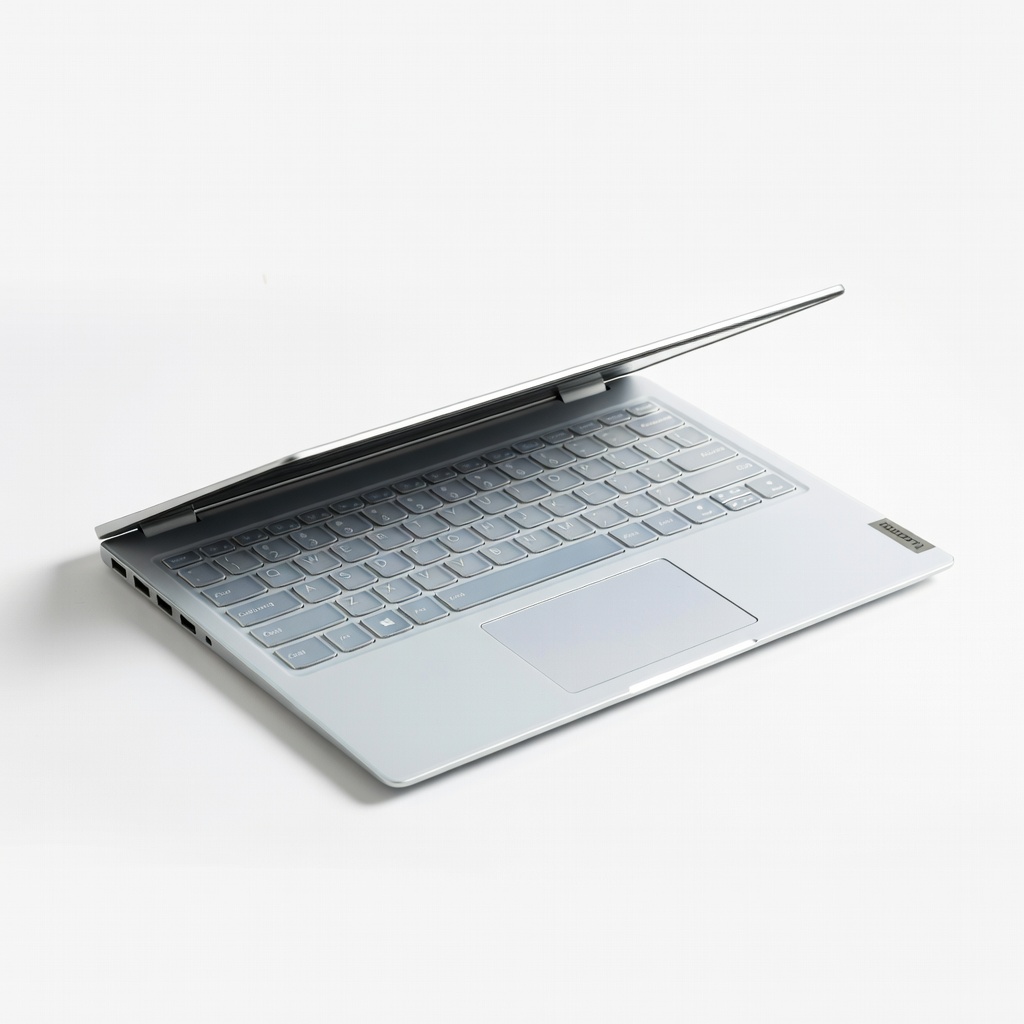
icnbee Keyboard Skin for Lenovo Yoga 9i/7i 14 inch
Antimicrobial silicone, perfect US layout fit, thin profile preserves key travel and works with 360-degree hinge.
Best for: Lenovo Yoga C940/9i owners for office/travel protection.
Price Range: $11.99 (ASIN: B09M7N7N7N)
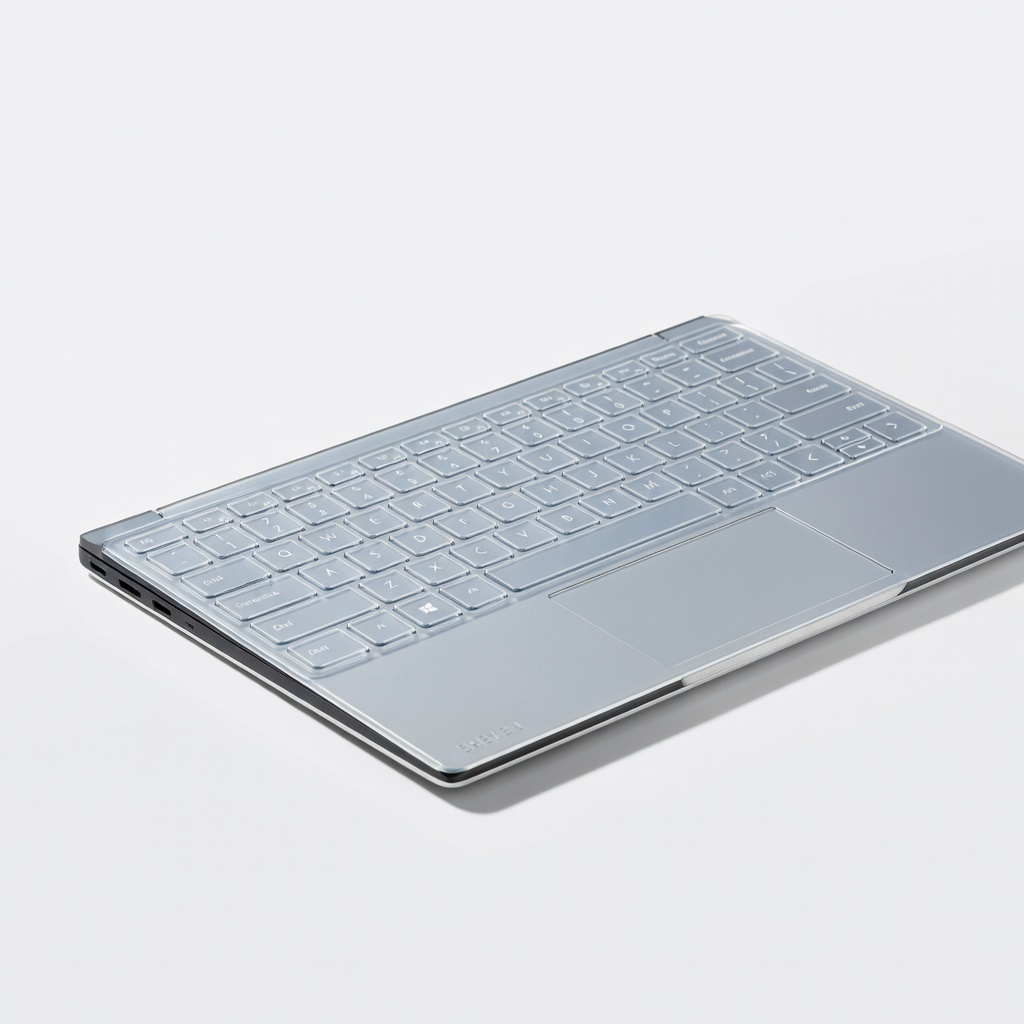
SHEYEN Ultra Thin Keyboard Protector for Dell XPS 13 2-in-1
Crystal clear, non-slip, oil-resistant; minimal interference for premium feel.
Best for: Dell Inspiron/XPS 2-in-1 for subtle, everyday shielding.
Price Range: $8.99 (ASIN: B09B4C4C4C)
TopMate Universal Silicone Cover for 13-14" 2-in-1 Laptops
Budget-friendly with adjustable fit guides; good starter for obscure models.
Best for: Generic 2-in-1s or backups when exact match unavailable.
Price Range: $7.99 (ASIN: B09K4L4L4L)