

Anker 310 USB-C to HDMI Adapter (4K@60Hz)
Daily laptop-to-TV for work/movies; Mac/Windows compatible.
$19.99
Anker 310 USB-C to HDMI Adapter (4K@60Hz) Reliable chip for stable 4K, compact aluminum build, 18-month warranty.
Get the App
Better experience on mobile
Find the top adapters for crystal-clear 4K video from your USB-C laptop to HDMI displays, with expert picks and buying guide.
Struggling to connect your modern laptop or tablet to an HDMI TV or monitor? USB-C to HDMI adapters bridge that gap, but not all are created equal—cheap ones often fail at 4K or cause flickering. This guide helps you choose the best one for reliable, high-quality video output.
You'll learn how USB-C to HDMI conversion works, key factors to consider like compatibility and specs, and our top recommendations tested for real-world use. Whether for presentations, gaming, or home theater, expect plug-and-play simplicity with the right pick.
No technical expertise needed beyond basic device knowledge; you'll be set up in minutes.
Estimated Time: 10-15 minutes Difficulty: intermediate
Start by confirming your USB-C port supports video output. Most modern laptops (MacBooks, Dell XPS, Surface) use DisplayPort Alt Mode over USB-C, which enables HDMI conversion. Thunderbolt 3/4 ports always support it.
How to check: Search your device model + 'USB-C video output' or use system info (Windows: Device Manager > Display Adapters; Mac: About This Mac > System Report > USB). Expect 'DP Alt Mode' or 'Thunderbolt' confirmation.
This matters because incompatible ports need docks, not simple adapters—avoid frustration later.
💡 Tips:
⚠️ Warnings:
Match adapter capabilities to your setup. For 1080p TVs, any adapter works; for 4K monitors, need HDMI 2.0+ supporting 4K@60Hz.
Analogy: Think of it like water pipes—narrow pipes (HDMI 1.4) limit flow to 4K@30Hz; wide ones (HDMI 2.0) handle 60Hz smoothly for gaming/movies.
Check display specs via menu or manual. Aim for adapters rated equal or higher.
💡 Tips:
Passive adapters are chip-less, cheap converters (good for 1080p). Active ones have a chip for signal conversion (essential for 4K, multi-monitor, or some Intel GPUs).
Why it matters: Passive fails on high-res; active ensures stability but costs more.
For intermediates: Most USB-C video uses DP-to-HDMI chip conversion.
⚠️ Warnings:
Look for USB-IF and HDMI certifications—they guarantee standards compliance, reducing compatibility issues.
Prioritize aluminum housings, braided cables (if included), and heat dissipation. Gold-plated connectors resist corrosion.
Real-world: Certified adapters last years without failures.
💡 Tips:
Some adapters pass Power Delivery (PD) to charge your laptop while displaying. Ideal for long sessions.
Multiport versions add USB-A/SD for hubs.
Trade-off: Pure HDMI adapters are slimmer/cheaper.
Scan Amazon/Reddit for your device + adapter model. Look for 4.5+ stars, 1k+ reviews.
Benchmarks: Test 4K@60Hz, HDR, multi-monitor.
Pro move: Buy from return-friendly sellers.
💡 Tips:
Buy, plug in: USB-C to adapter to HDMI cable to display. Select external display in settings.
Expect: Instant mirror/extend. Update GPU drivers if needed.
Done—enjoy seamless conversion!
⚠️ Warnings:
Problem: No signal or black screen
Solution: Cycle display inputs, check cable connections, update drivers/graphics firmware. Try different USB-C port.
Problem: Flickering or low resolution
Solution: Lower refresh rate in display settings, use shorter HDMI cable, ensure active adapter for 4K.
Problem: No audio over HDMI
Solution: Set HDMI as default audio output in sound settings. Confirm adapter supports ARC if needed.
Problem: Overheating or disconnects
Solution: Ventilate area, use PD passthrough, replace if faulty. Seek warranty.
Reliable chip for stable 4K, compact aluminum build, 18-month warranty.
Best for: Daily laptop-to-TV for work/movies; Mac/Windows compatible.
Price Range: $19.99
Premium build, USB-IF certified, supports 4K@60Hz HDR.
Best for: Professional presentations or gaming monitors.
Price Range: $34.99
Budget-friendly with PD passthrough, solid reviews for multi-OS.
Best for: Charging + display for tablets/laptops on a budget.
Price Range: $15.99
Versatile for 8K@30Hz/4K@120Hz, durable braided design.
Best for: High-refresh gaming or future-proof setups.
Price Range: $16.99
Sleek metal, VESA certified, excellent Mac integration.
Best for: Creative pros needing reliable single-cable solution.
Price Range: $24.99
Daily laptop-to-TV for work/movies; Mac/Windows compatible.
Anker 310 USB-C to HDMI Adapter (4K@60Hz) Reliable chip for stable 4K, compact aluminum build, 18-month warranty.
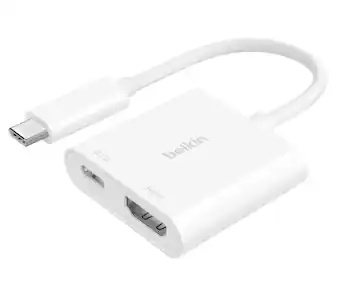
Professional presentations or gaming monitors.
Belkin USB-C to HDMI Adapter Premium build, USB-IF certified, supports 4K@60Hz HDR.
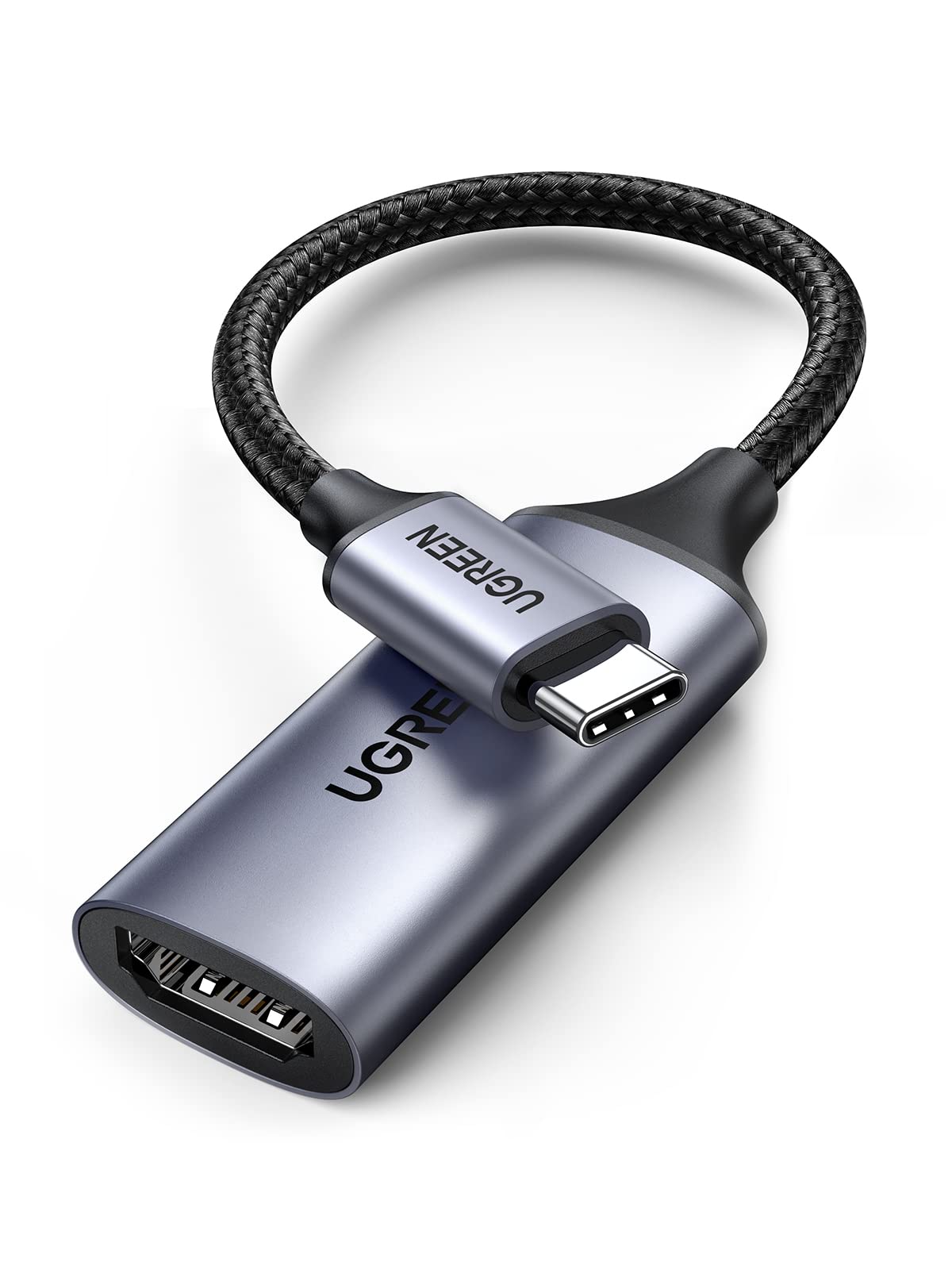
Charging + display for tablets/laptops on a budget.
UGREEN USB C to HDMI Adapter 4K 60Hz Budget-friendly with PD passthrough, solid reviews for multi-OS.

High-refresh gaming or future-proof setups.
Cable Matters USB-C to HDMI Adapter Versatile for 8K@30Hz/4K@120Hz, durable braided design.
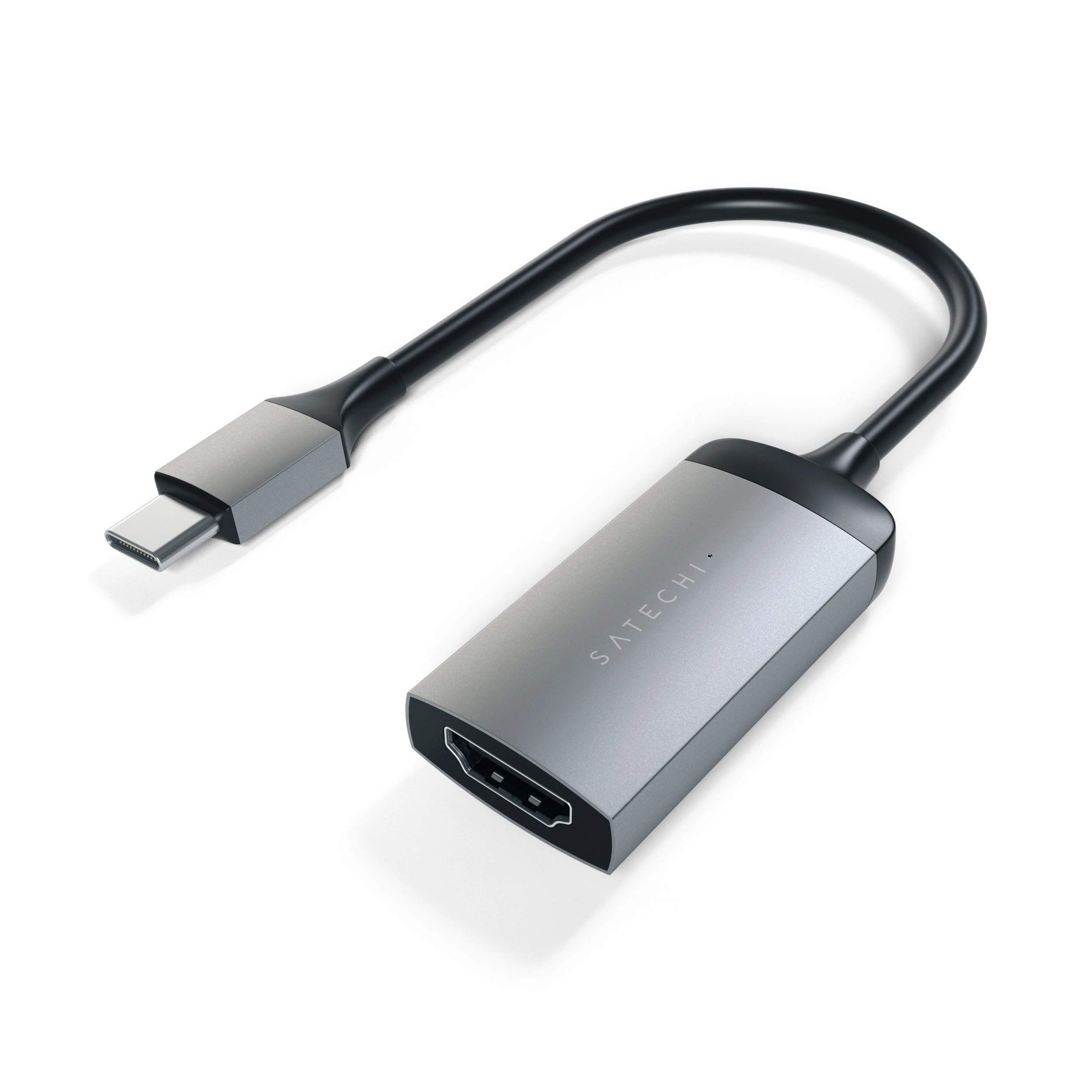
Creative pros needing reliable single-cable solution.
Satechi USB-C to HDMI 2.0 Adapter Sleek metal, VESA certified, excellent Mac integration.