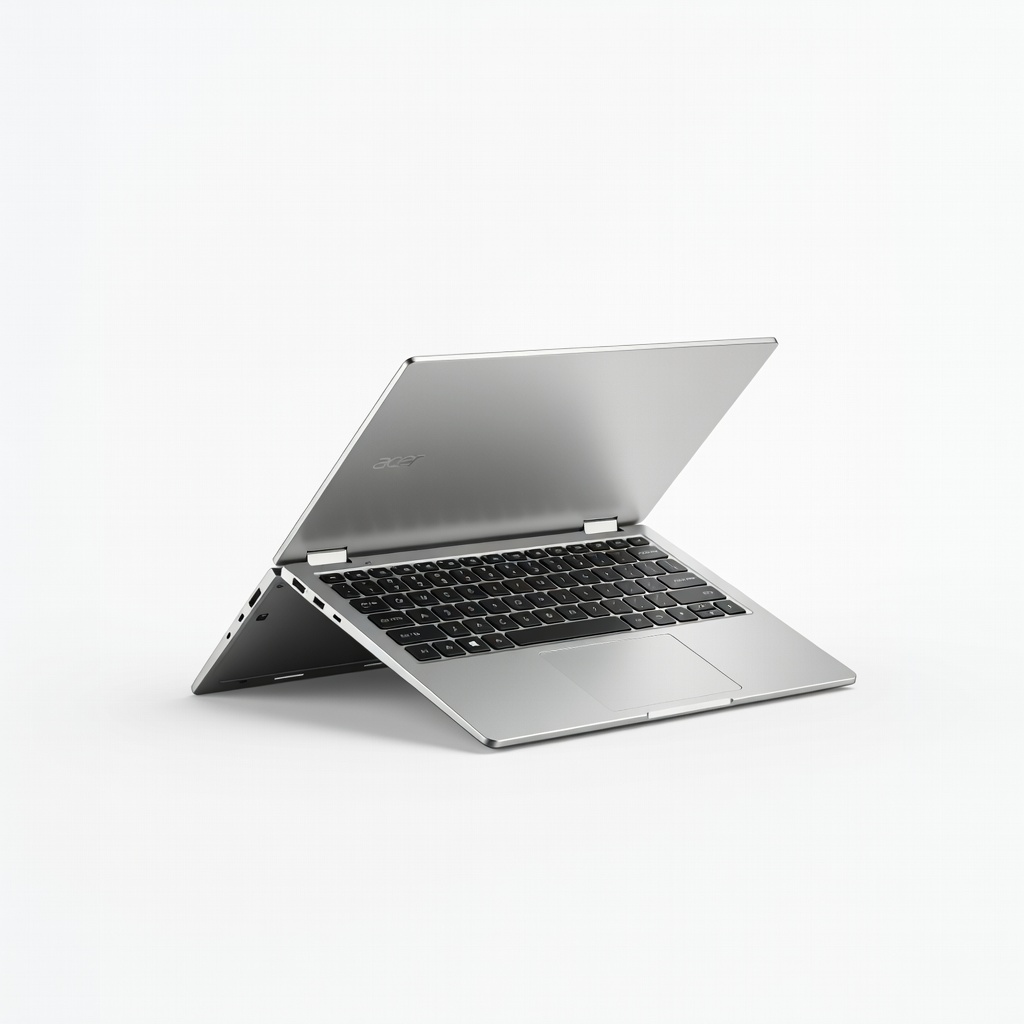
Video editing demands power, but as a mobile creator, you need a device that's also lightweight and flexible. Traditional laptops can be bulky, while tablets lack editing muscle—enter 2-in-1 laptops, which flip into tablet mode for on-the-go sketching storyboards or precise touch edits. The challenge? Doing this on a budget without sacrificing speed for 1080p or 4K workflows.
In this guide, you'll learn the key specs that matter for video editing (like CPU, RAM, and display), how to evaluate options, and our top picks under $1000. Expect to understand why certain models excel, compare them, and confidently choose one. It's intermediate-level—assuming basic knowledge of editing software like Premiere Pro or DaVinci Resolve.
By the end, you'll know exactly which budget 2-in-1 handles your edits without lag, in about 20-30 minutes of reading.
▸What You'll Need
- •Basic knowledge of video editing software (e.g., Adobe Premiere, DaVinci Resolve)
- •Defined budget ($500-$1000)
- •Access to review sites like NotebookCheck, Puget Systems benchmarks
- •Optional: Video editing test files (e.g., 4K sample footage)
Estimated Time: 20-30 minutes
Difficulty: intermediate
▸Step-by-Step Instructions
Step 1: Understand 2-in-1 Benefits for Video Editors
A 2-in-1 laptop combines laptop power with tablet flexibility via a 360-degree hinge or detachable screen. For video editing, this means precise touch controls for scrubbing timelines, stylus support for annotations, and portability for field shoots.
Why it matters: Editing often involves multitasking—review footage on tablet mode, then switch to keyboard for detailed cuts. Unlike rigid laptops, 2-in-1s adapt to your workflow, reducing neck strain during long sessions.
Expect hybrid designs with touchscreens (at least 1080p IPS) and pen compatibility. Analogy: Like a Swiss Army knife vs. a single tool—versatile for creators on the move.
💡 Tips:
- •Prioritize models with included stylus for drawing edits.
- •Test hinge durability in stores.
⚠️ Warnings:
- •Avoid cheap hinges that wobble—check reviews for build quality.
Step 2: Prioritize Processor (CPU) Power
The CPU handles rendering, effects, and exports. For budget video editing, aim for Intel Core i5/i7 (13th gen+ or Ultra series) or AMD Ryzen 5/7 (7000/8000 series)—at least 6-8 cores.
Why it matters: Weak CPUs cause lag in 4K timelines. Example: Ryzen 7 8840HS scores ~10,000 in PugetBench Premiere, rivaling pricier machines.
Expect integrated graphics like Intel Arc or AMD Radeon 780M, sufficient for 1080p/ light 4K without discrete GPU.
💡 Tips:
- •Use Cinebench R23 scores (>12,000 multi-core) to compare.
⚠️ Warnings:
- •Skip older Intel 11th gen or low-core Celeron—they bottleneck edits.
Step 3: Ensure Ample RAM and Storage
Minimum 16GB RAM (LPDDR5 preferred) for smooth multitasking; 32GB ideal for 4K. Storage: 512GB NVMe SSD minimum, upgradable if possible.
Why: RAM previews footage without stuttering; SSD speeds imports/exports. Analogy: RAM is workspace desk size—too small, and clips spill over.
Check for soldered vs. slot RAM—budget 2-in-1s often solder 16GB, fine for intermediate use.
💡 Tips:
- •Run Task Manager during edits to monitor RAM usage.
Step 4: Evaluate Display and Graphics
Seek 14-16" IPS touchscreens at 1920x1200+ resolution, 100% sRGB color accuracy, 300+ nits brightness. Graphics: Integrated Intel Arc/AMD Radeon for basic GPU acceleration.
Why: Accurate colors prevent washout in exports; high refresh (60Hz+) eases timeline scrubbing.
Test with calibration tools post-purchase.
⚠️ Warnings:
- •TN panels distort colors—stick to IPS/OLED.
Step 5: Check Battery, Ports, and Build
Aim for 8+ hours battery under load, aluminum chassis (<4lbs). Ports: USB4/Thunderbolt, HDMI 2.1, SD reader for footage import.
Why: Long sessions without plugs; ports avoid dongles. Expect fan noise during renders—normal.
Weight under 3.5lbs for true portability.
💡 Tips:
- •Use USB-C docks for multi-monitor setups.
Step 6: Set Your Budget and Research Benchmarks
$600-800 for solid 1080p editing; $800-1000 for 4K capable. Use Puget Systems, NotebookCheck for real-world tests.
Why: Benchmarks predict your workflow. Compare 3-5 models.
Narrow to Windows 11 machines for full Adobe support.
💡 Tips:
- •Wait for sales like Prime Day for 20% off.
⚠️ Warnings:
- •Chromebooks limit pro software—avoid for Premiere.
Step 7: Test and Compare Top Models
Shortlist based on specs, read user reviews on Reddit/r/VideoEditing. Test in-store or via return policy.
Run sample edits to verify. See our product picks below for starters.
Finalize by balancing price/performance.
▸Pro Tips
- •Optimize software: Use proxy editing in Premiere for low-spec machines.
- •External SSDs via USB4 speed up storage-heavy projects.
- •Update BIOS/drivers monthly for better integrated GPU performance.
- •Pair with a USB-C hub for 4K external monitor support.
- •Use cloud storage like Google Drive for backups during travel.
- •Enable power-saving modes for longer battery in tablet mode.
- •Stylus precision beats mouse for mask painting in Resolve.
▸Common Mistakes to Avoid
- •Choosing 8GB RAM: Causes crashes in multi-layer timelines—go 16GB min.
- •Ignoring color gamut: Leads to inaccurate exports—verify 100% sRGB.
- •Overlooking thermals: Budget models throttle; check cooling reviews.
- •Buying screen-only size focus: Larger 15" aids timeline visibility but hurts portability.
- •Skipping benchmarks: Specs lie—real tests reveal render times.
▸Troubleshooting
Problem: Lag during playback
Solution: Lower preview resolution to 1/2 or use proxies; close background apps.
Problem: Overheating during exports
Solution: Use cooling pad; limit CPU to 99% in power settings; ensure vents clean.
Problem: Battery drains fast
Solution: Disable RGB keyboard if present; use balanced power plan; update firmware.
Problem: Software crashes
Solution: Update GPU drivers from Intel/AMD site; allocate more RAM in app settings.
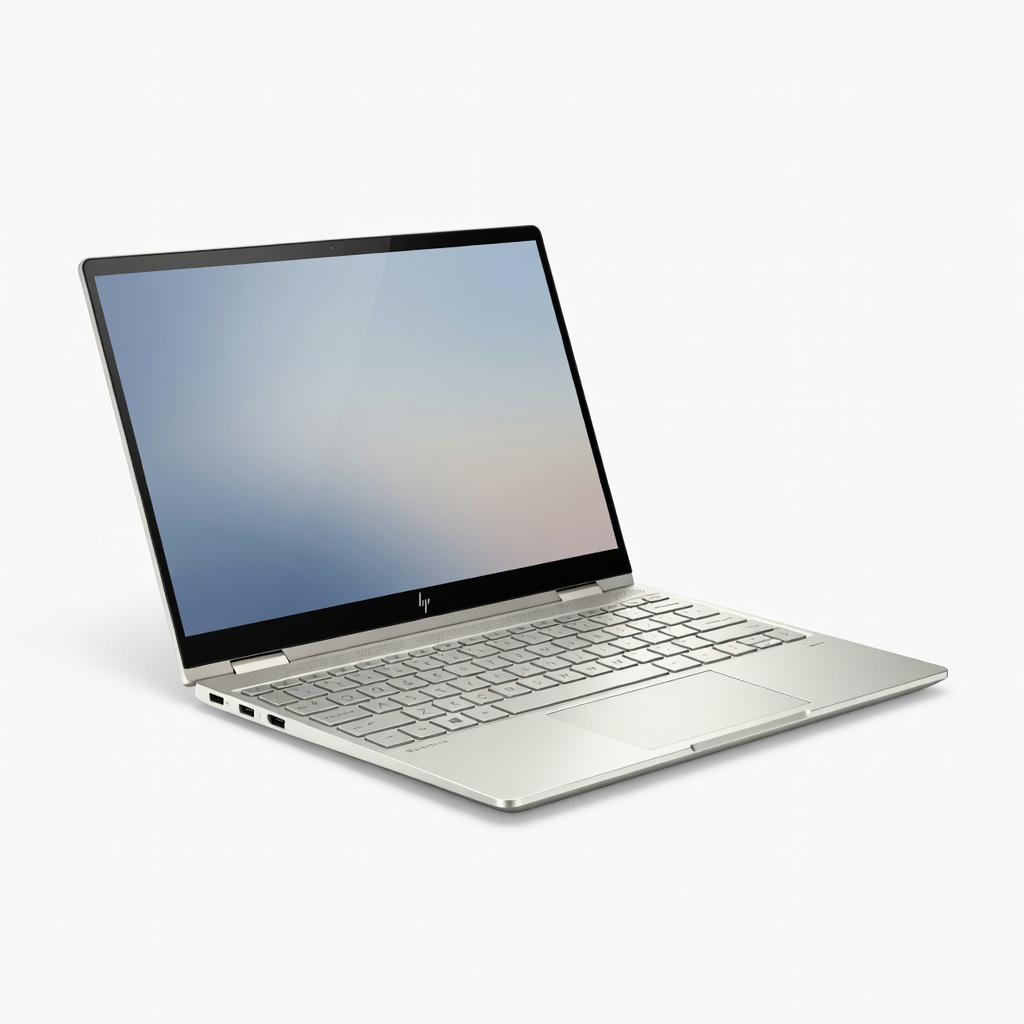
HP Envy x360 15.6-inch 2-in-1 (Ryzen 7 8840HS, 16GB RAM, 1TB SSD)
Powerful AMD CPU/GPU handles 4K edits smoothly; vibrant OLED option for color accuracy.
Best for: Intermediate editors needing multi-monitor portability.
Price Range: $850-$950
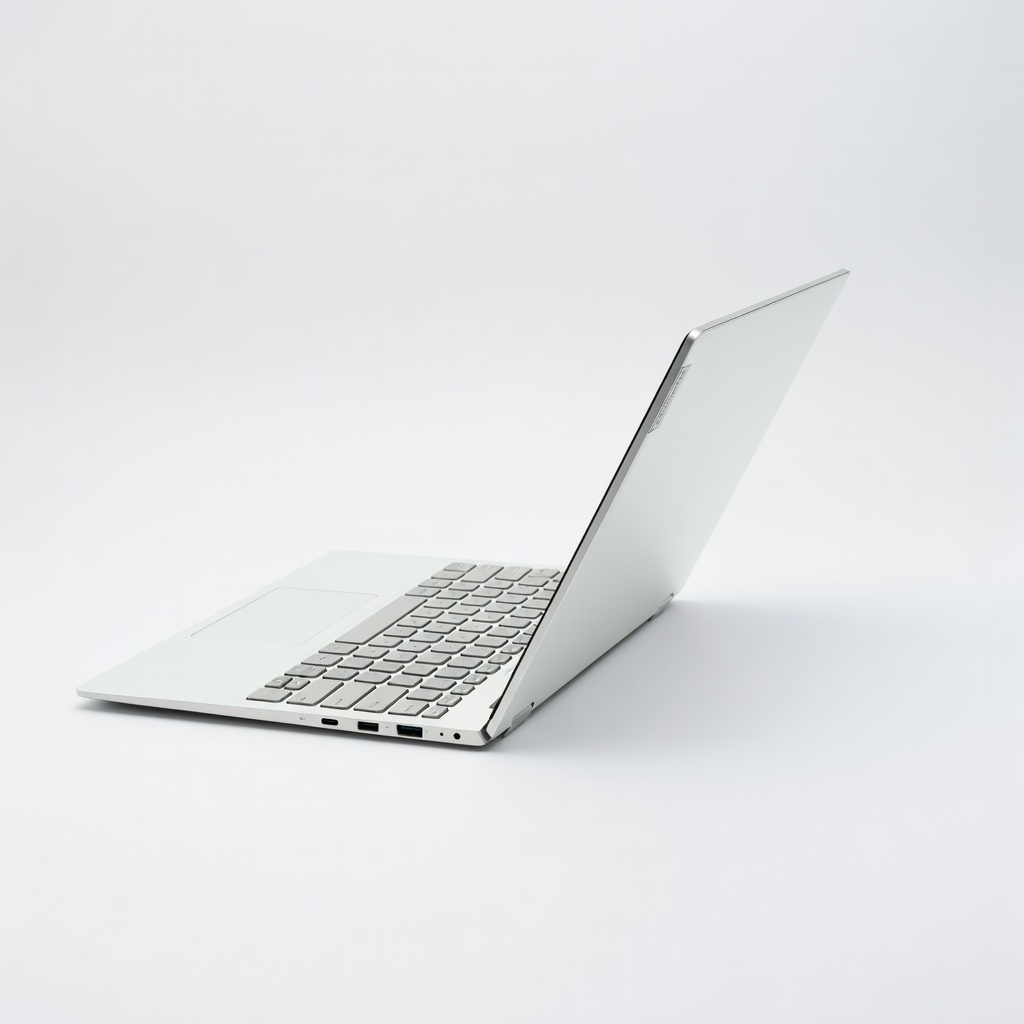
Lenovo Yoga 7i 2-in-1 14-inch (Intel Core Ultra 5 125U, 16GB RAM, 512GB SSD)
Excellent battery (12+ hrs), lightweight (3.2lbs), Arc graphics for Premiere acceleration.
Best for: Traveling creators editing 1080p/ light 4K on battery.
Price Range: $750-$850
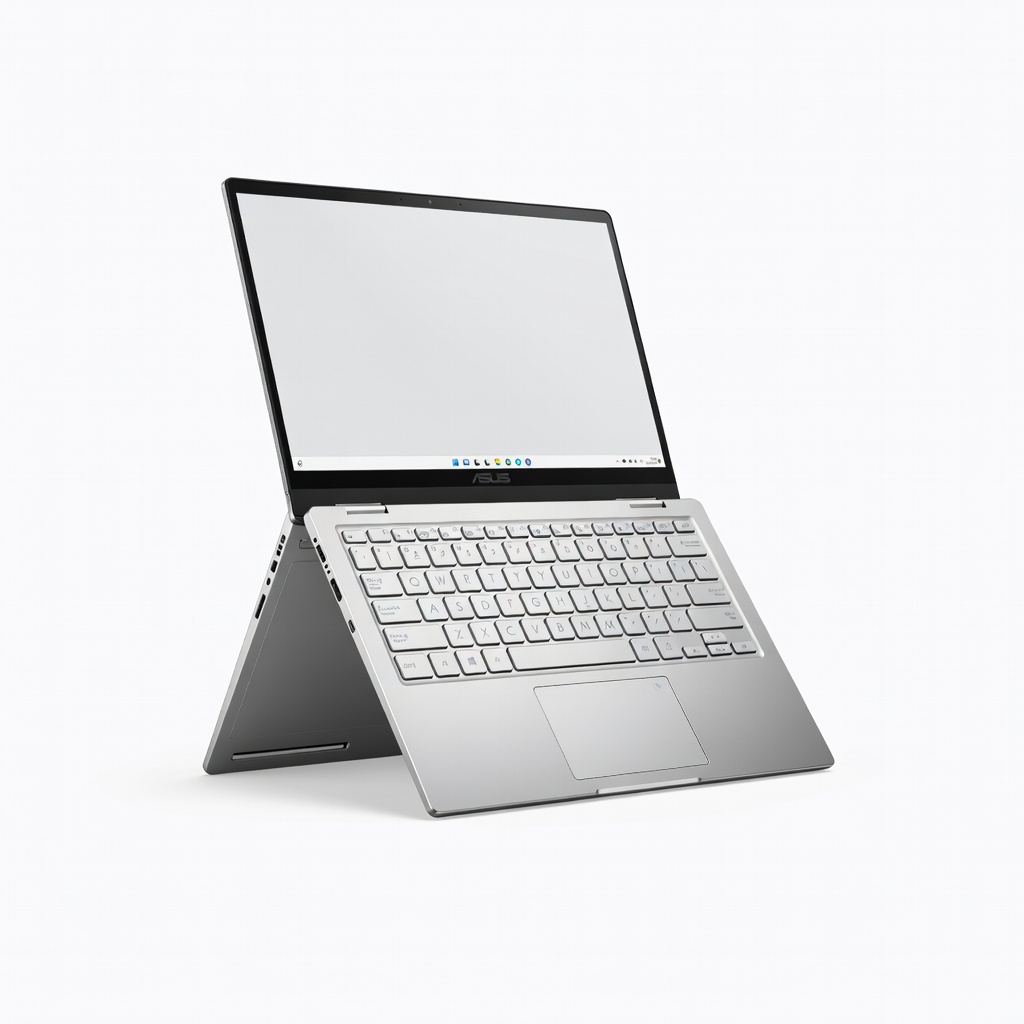
ASUS VivoBook S 14 Flip (Intel Core i7-13700H, 16GB RAM, 512GB SSD)
High-core CPU excels in multi-cam edits; 100% DCI-P3 display for pro color.
Best for: Budget pros doing effects-heavy work.
Price Range: $700-$800
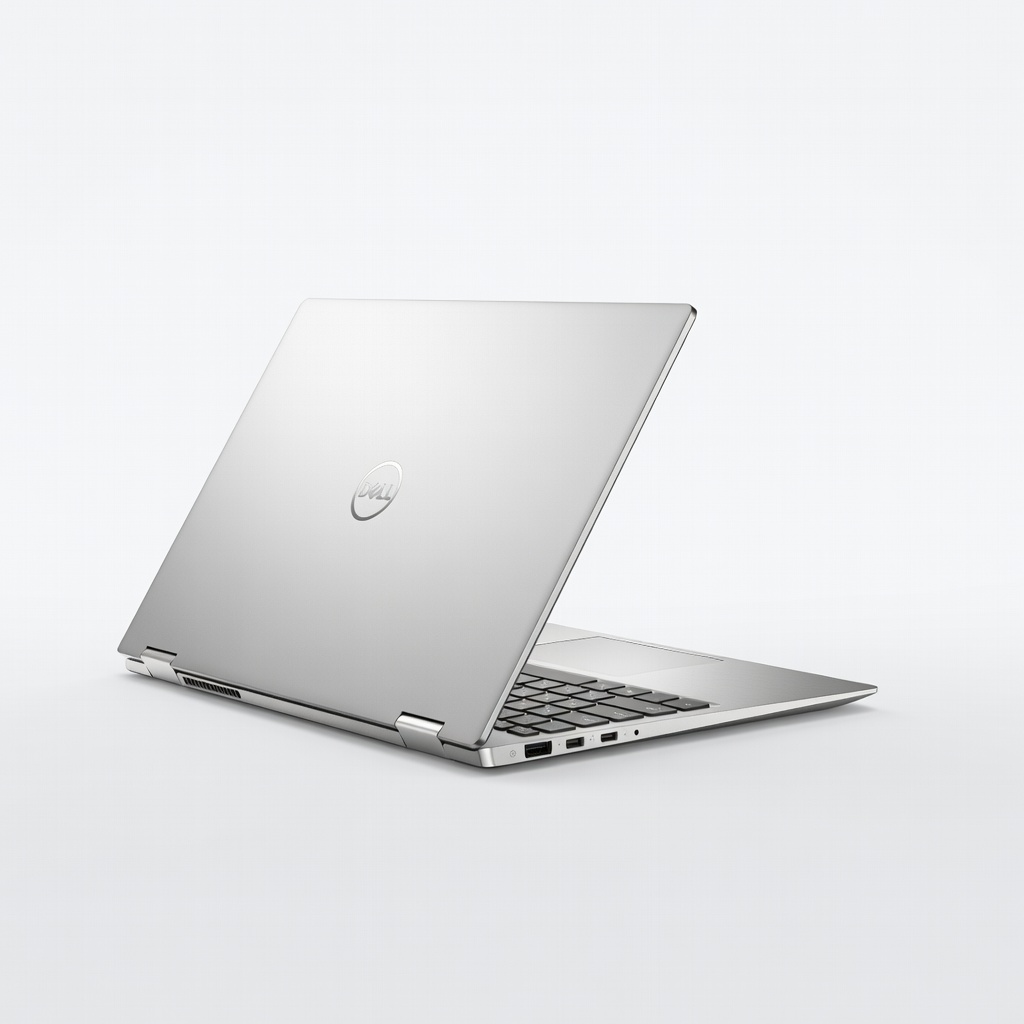
Dell Inspiron 14 2-in-1 Plus (Ryzen 7 7730U, 16GB RAM, 1TB SSD)
Upgradable storage, solid build, good value for entry 4K editing.
Best for: Students/upgraders on tight budgets.
Price Range: $600-$700
Acer Spin 5 (Intel Core i5-1335U, 16GB RAM, 512GB SSD)
Affordable entry with stylus included; handles 1080p timelines well.
Best for: Beginner-intermediate for quick social media edits.
Price Range: $550-$650