Get the App
Better experience on mobile
A step-by-step guide to diagnose and fix disc reading issues on your Xbox Series X, with upgrade options if needed.
Dealing with an Xbox Series X that won’t read discs can be incredibly frustrating, especially when you’re eager to dive into your favorite game. You’re not alone—this is a common issue reported by many Xbox users, often leaving them stuck with a console that seems to reject every disc they insert. Whether it’s a new release or an old classic, the problem can disrupt your gaming experience and leave you searching for answers.
This issue often stems from simple fixes like a dirty disc or console settings to more complex hardware failures. Based on real user experiences and expert advice, this guide will walk you through 7 actionable solutions to get your Xbox reading discs again. From quick checks to advanced troubleshooting, we’ll help you identify the root cause and decide whether to repair or replace your console.
By the end of this guide, you’ll know how to test for common issues, apply effective fixes, and understand when it’s time to consider an upgrade. Let’s get started with diagnosing why your Xbox Series X isn’t reading discs and how to fix it!
Difficulty: easy | Time: 5 minutes
Start by examining the disc for visible scratches, smudges, or dirt. A dirty or damaged disc is one of the most common reasons an Xbox Series X won’t read it. Use a soft, lint-free cloth to gently wipe the disc from the center to the edge in straight lines (not circular motions). Avoid using harsh chemicals or abrasive materials.
Why this works: Surface dirt or minor scratches can prevent the laser from reading the data. If the disc looks clean or only has minor scratches, it should work after cleaning. Insert the disc again—if it’s recognized and loads, you’ve solved the issue. If not, move to the next step, as the problem might lie elsewhere.
Tools needed: Soft cloth
Difficulty: easy | Time: 2 minutes
Ensure you’re inserting the disc correctly—label side up—and that it clicks into place. Sometimes, a disc isn’t fully seated in the drive, causing the Xbox to fail to detect it. Remove the disc, wait a few seconds, and reinsert it firmly until you hear or feel it lock in.
Why this works: A misaligned disc can’t be read by the laser. If it works after reinsertion, the game should start loading. If the console still doesn’t recognize the disc or ejects it immediately, there might be a deeper issue with the drive or settings.
Difficulty: easy | Time: 5 minutes
A simple restart can resolve temporary software glitches that prevent the Xbox from reading discs. Hold down the Xbox button on the console for about 10 seconds to fully power it off. Wait 30 seconds, then turn it back on. Once restarted, insert the disc and check if it loads.
Why this works: Restarting clears minor software hiccups that might interfere with the disc drive’s operation. If successful, the disc should appear on the dashboard. If it still doesn’t work, the issue might not be software-related.
Difficulty: easy | Time: 10-15 minutes
Outdated firmware can cause compatibility issues with the disc drive. Go to Settings > System > Updates & Downloads to check for updates. Ensure your Xbox is connected to the internet, and if an update is available, install it. After updating, restart the console and test the disc again.
Why this works: Updates often include fixes for hardware recognition issues. If the disc loads post-update, the firmware was likely the culprit. If not, the problem may be hardware-related.
Difficulty: medium | Time: 10 minutes
Dust or debris in the disc drive can obstruct the laser or prevent proper disc seating. Use a can of compressed air to gently blow into the disc slot to remove loose particles. Avoid inserting anything solid into the slot to prevent damage. Test with a disc after cleaning.
Why this works: Clearing debris allows the laser to read the disc without interference. If the disc now loads, dust was the issue. If there’s no improvement, or if you hear unusual noises from the drive, it might be a mechanical problem. Warning: Don’t use excessive force or liquids, as they can damage internal components.
Tools needed: Can of compressed air
Difficulty: easy | Time: 5 minutes
Try inserting a different game or Blu-ray disc to see if the issue is specific to one disc. Use a disc you know works on another device if possible. If the new disc is read successfully, the original disc is likely damaged beyond repair.
Why this works: This isolates whether the problem is with the disc or the console’s drive. If other discs work, replace the faulty one. If no discs are recognized, the drive itself may be failing, and you should proceed to the next step or consider professional repair.
Difficulty: medium | Time: 20-30 minutes
If none of the above steps work, a factory reset may resolve deep software issues. Go to Settings > System > Console Info > Reset Console, and choose ‘Reset and keep my games & apps’ to avoid losing data. Back up important saves to the cloud first if possible. After resetting, test a disc again.
Why this works: A reset clears persistent software errors affecting the drive. If the disc loads post-reset, the issue was software-based. If it still fails, the disc drive hardware is likely defective. Warning: This will erase settings, so note your preferences beforehand. Also, check warranty status before proceeding to repairs.
If you’ve tried all the troubleshooting steps and your Xbox Series X still won’t read discs, it might be time to consider whether repair or replacement makes more sense. Persistent disc drive failure, especially if accompanied by unusual noises (grinding or clicking) or frequent ejections, often indicates a hardware issue that’s beyond simple DIY fixes. If your console is out of warranty—typically one year for the Xbox Series X—or if it’s showing other signs of wear (like overheating or performance issues), the cost of professional repair (often $100-$200) may not be worth it compared to investing in a new or refurbished unit.
Consider the age of your console as well. The Xbox Series X was released in November 2020, so if yours is several years old and experiencing multiple issues, newer models or alternatives might offer better performance and reliability. Additionally, if you’re primarily using digital downloads, you might not need a disc drive at all, making an upgrade to a disc-less console like the Xbox Series S a cost-effective choice. Check Microsoft’s warranty page to see if you’re still covered for free repairs before spending money.
Safety isn’t a major concern with disc drive issues, but avoid forcing discs into a malfunctioning drive, as this can cause further damage. If repair costs approach half the price of a new console, or if you’re frustrated with recurring issues, upgrading to a new system or a digital-only model could save you time and hassle in the long run.
🛒 Buy Xbox Series X (Renewed) on Amazon
🛒 Buy Xbox Series S (512GB) on Amazon
🛒 Buy Xbox Series X (New) on Amazon
🛒 Buy Seagate Storage Expansion Card for Xbox Series X|S (1TB) on Amazon
A renewed Xbox Series X offers the same powerful performance and disc drive functionality at a lower cost, backed by Amazon’s guarantee.
Price Range: $400-$450
Key Benefits:
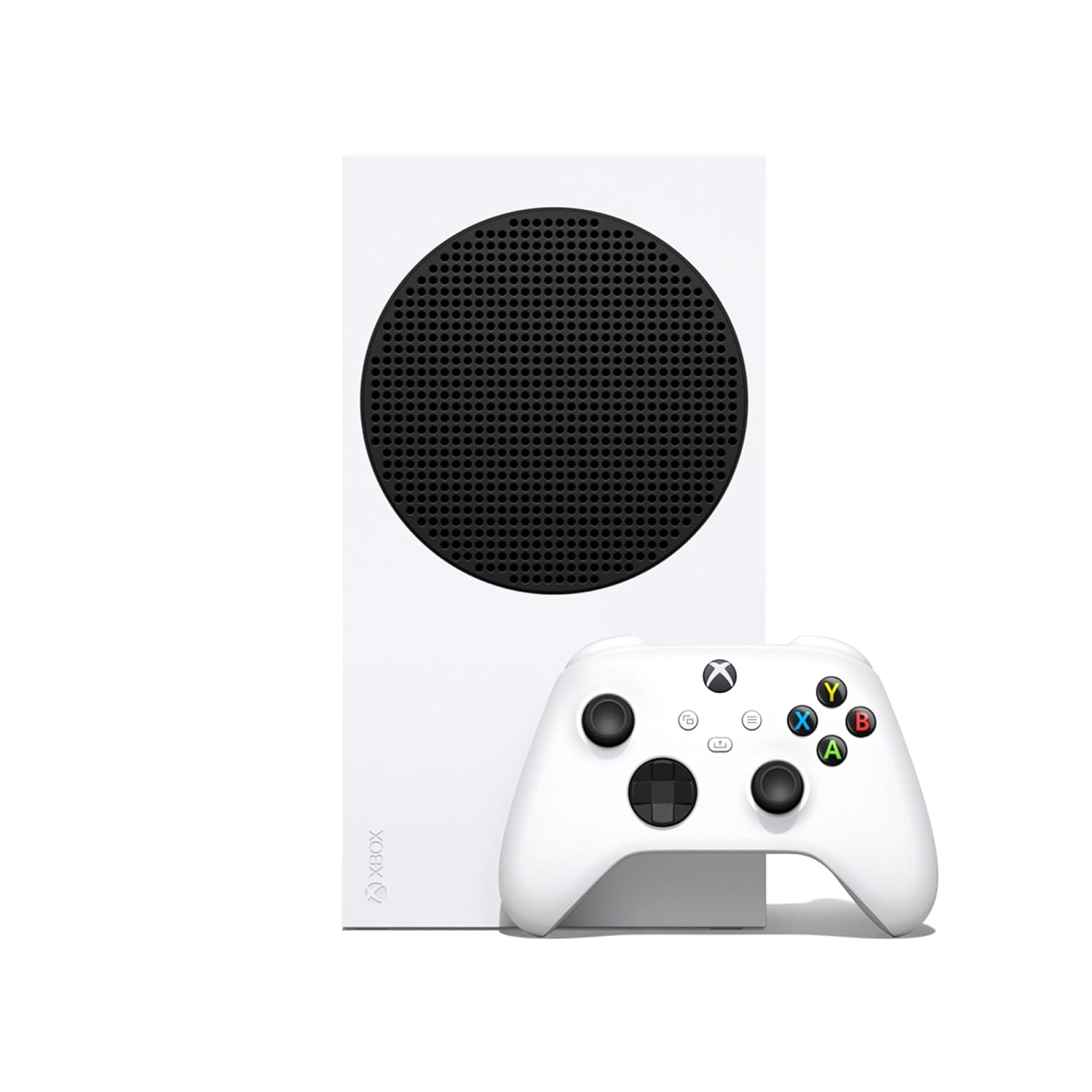
A budget-friendly digital-only console for those who don’t need a disc drive, with excellent performance for the price.
Price Range: $240-$300
Key Benefits:

The premium choice for a brand-new console with a reliable disc drive and the latest hardware updates from Microsoft.
Price Range: $490-$550
Key Benefits:
If you upgrade to a digital-only console like the Series S, this expansion card adds storage for more games.
Price Range: $150-$200
Key Benefits:
Compare key specs and features of all our recommendations side-by-side
| Product | Recommendation | Rating | Price |
|---|---|---|---|
Xbox Series X (Renewed) Rank #1 | 🏆 Top Pick | — | — |
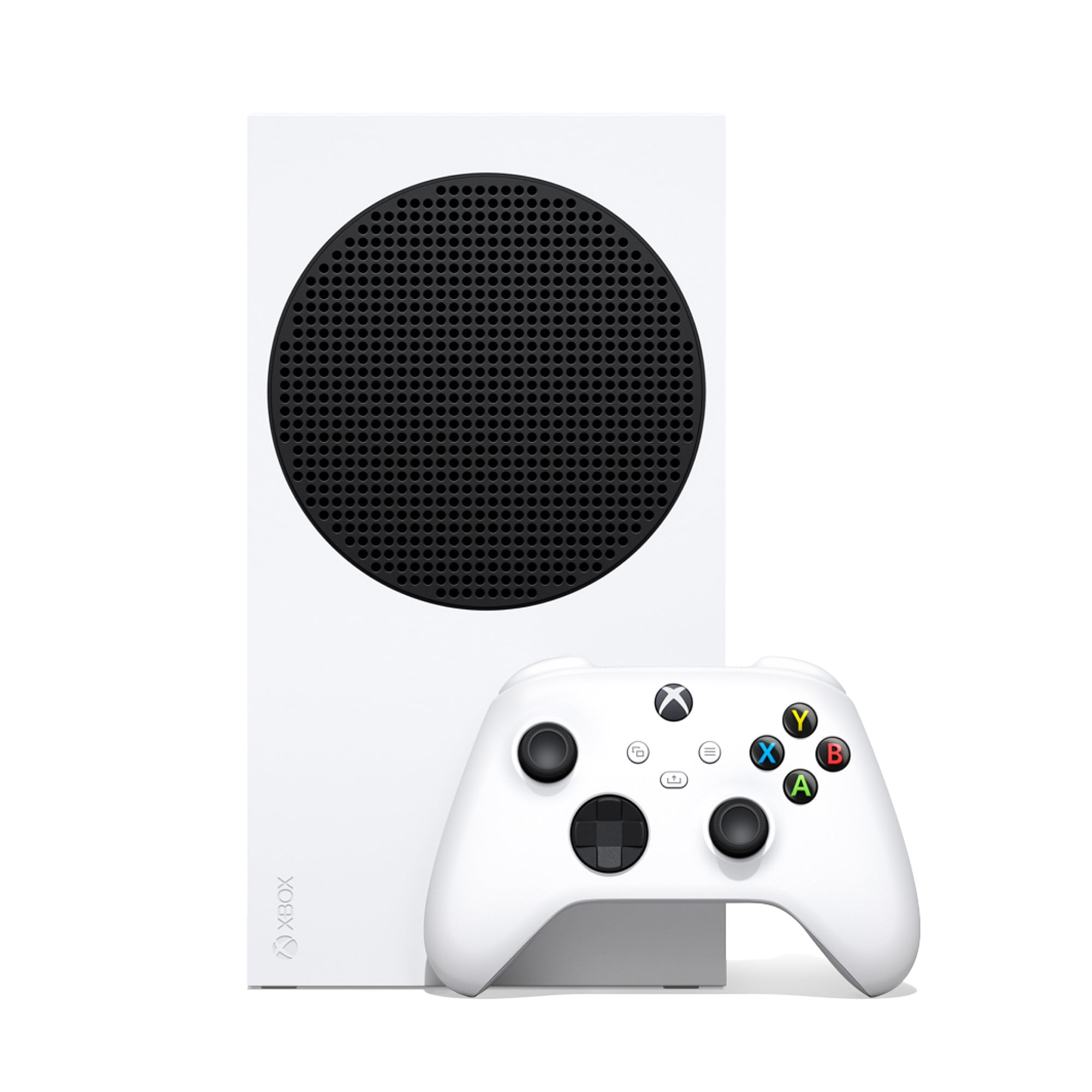 Xbox Series S - All Digital Gaming Console - 512GB SSD - Includes Xbox Wireless Controller - 120FPS - Robot White Series S 512GB + Controller Rank #2 | 💰 Budget Pick | 4.7 4.7 | |
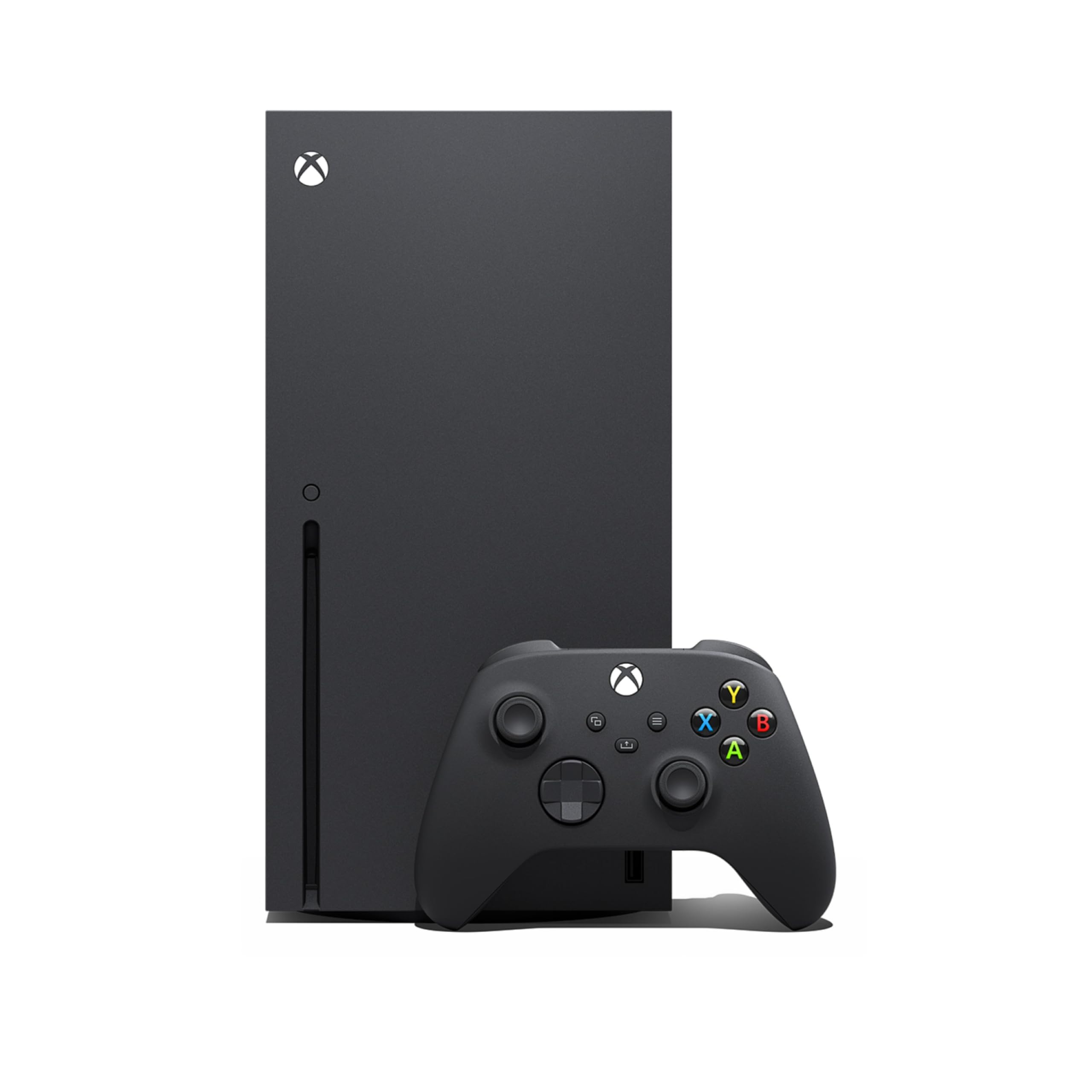 Xbox Series X - Gaming Console - 1TB SSD - Includes Wireless Controller - 4K Gaming - 120FPS - Carbon Black Xbox Series X 1TB Disc Drive Edition + Controller Rank #3 | — | 4.8 4.8 | Check price → |
Seagate Storage Expansion Card for Xbox Series X|S (1TB) Rank #4 | — | — | — |
