Get the App
Better experience on mobile
A step-by-step guide to diagnose and fix your Peloton Bike screen issue, with upgrade options if needed.
Having your Peloton Bike screen refuse to turn on can be incredibly frustrating, especially when you're ready for a workout. You're not alone—this is a relatively common issue reported by many Peloton users across forums and social media. Whether it’s a simple power glitch or a deeper hardware problem, this guide is here to help you get back to riding.
The issue can stem from power supply problems, software glitches, or hardware failures like a faulty screen or internal wiring. In this guide, we'll walk you through 7 actionable fixes, starting with the easiest checks and progressing to more involved troubleshooting. We'll also cover when it’s time to consider a repair or replacement, ensuring you make the best decision for your fitness setup.
By the end, you'll know how to diagnose the problem, attempt DIY fixes, and prevent future issues—or decide if an upgrade is the smarter move.
Difficulty: easy | Time: 2 minutes
Ensure the bike is properly plugged into a working outlet. Sometimes, the power cord may have come loose or been accidentally unplugged. Verify that the power adapter is securely connected to both the bike and the wall outlet. Look for any visible damage to the cord or adapter.
Why this works: A disconnected or damaged power supply is the most common reason for a non-responsive screen. If the bike powers on after reconnecting, you’ll see the screen light up within a few seconds.
What to see: The Peloton logo should appear on the screen if power is restored. If not, move to the next step.
Warning signs: If the cord is frayed or the outlet doesn’t work with other devices, replace the cord or use a different outlet.
Difficulty: easy | Time: 5 minutes
Turn off the bike by holding the power button on the back of the touchscreen for 10 seconds. Unplug the power cord from the wall for at least 30 seconds, then plug it back in and turn the bike on.
Why this works: A hard reset can clear temporary software glitches that prevent the screen from booting up.
What to see: The screen should display the Peloton logo and boot up within 1-2 minutes. If it remains blank, proceed to the next step.
Warning signs: If the bike doesn’t respond at all, there may be a deeper issue.
Difficulty: easy | Time: 3 minutes
Check if the power button on the back of the touchscreen feels responsive when pressed. Also, look for any visible cracks or damage on the screen itself.
Why this works: A stuck power button or damaged screen can prevent the system from turning on.
What to see: If the button clicks and feels normal but the screen stays off, the issue may not be with the button. If the screen is cracked, it’s likely a hardware failure.
Warning signs: Visible damage usually means a replacement part is needed.
Difficulty: easy | Time: 30-60 minutes
Feel the area around the touchscreen and the base of the bike. If it feels unusually hot, let the bike cool down for 30-60 minutes before attempting to turn it on again.
Why this works: Overheating can cause the system to shut down or prevent startup as a safety measure.
What to see: After cooling, the screen should turn on normally if overheating was the issue. If it doesn’t, move to the next step.
Warning signs: Persistent overheating could indicate a failing component or poor ventilation.
Difficulty: medium | Time: 15 minutes
Safety Note: Unplug the bike before proceeding. Remove the back panel of the touchscreen (refer to Peloton’s support site for specific instructions or videos). Look for any loose cables connecting the screen to the main board and gently reseat them.
Why this works: Loose internal connections can disrupt power or data to the screen.
What to see: After reconnecting cables and powering on, the screen should boot up if this was the issue. If not, the problem might be with the hardware itself.
Warning signs: If cables are damaged or you’re uncomfortable with this step, stop and contact support to avoid warranty issues or safety risks.
Tools needed: Small screwdriver (if panel removal is needed)
Difficulty: medium | Time: 20 minutes
If the screen flickers or partially works, connect the bike to Wi-Fi and check for software updates via the settings menu (if accessible) or by contacting Peloton support for a manual update process.
Why this works: A corrupted software update can prevent the screen from functioning properly.
What to see: The screen should display update progress and restart normally. If it still doesn’t work, proceed to the final step.
Warning signs: If the screen is completely unresponsive, this step won’t apply.
Difficulty: hard | Time: 30+ minutes (plus wait time)
If none of the above steps work, the issue may be a failed touchscreen or internal component. Contact Peloton support (via their website or app) to schedule a diagnostic or repair. Be ready to provide your bike’s serial number and a description of the issue.
Why this works: Peloton’s team can confirm if the screen needs replacement or if there’s a deeper motherboard issue.
What to see: Support will guide you through next steps or send a technician. If under warranty, repairs may be free.
Warning signs: If the bike is out of warranty, repair costs can be high—consider upgrade options below.
If your Peloton Bike screen still won’t turn on after trying all troubleshooting steps, it may be a sign of permanent hardware failure, especially if the bike is over 3-5 years old or has seen heavy use. Repair costs for a new touchscreen or internal components can range from $200-$500+, which might not be worth it compared to investing in a new or refurbished model with updated features and a fresh warranty.
Check your warranty status on the Peloton website—if it’s still active, you may qualify for a free or discounted repair. However, if the bike is out of warranty and you’re facing frequent issues (e.g., recurring screen failures, other component problems), it’s a red flag that the system is nearing the end of its lifespan. Safety isn’t typically a concern with screen issues, but a non-functional display can hinder your ability to track workouts effectively.
Ultimately, if repair costs approach 50% or more of the price of a new bike, or if you’re craving modern features like a larger screen or better integration, upgrading makes more sense. Below, we’ve listed reliable alternatives to consider.
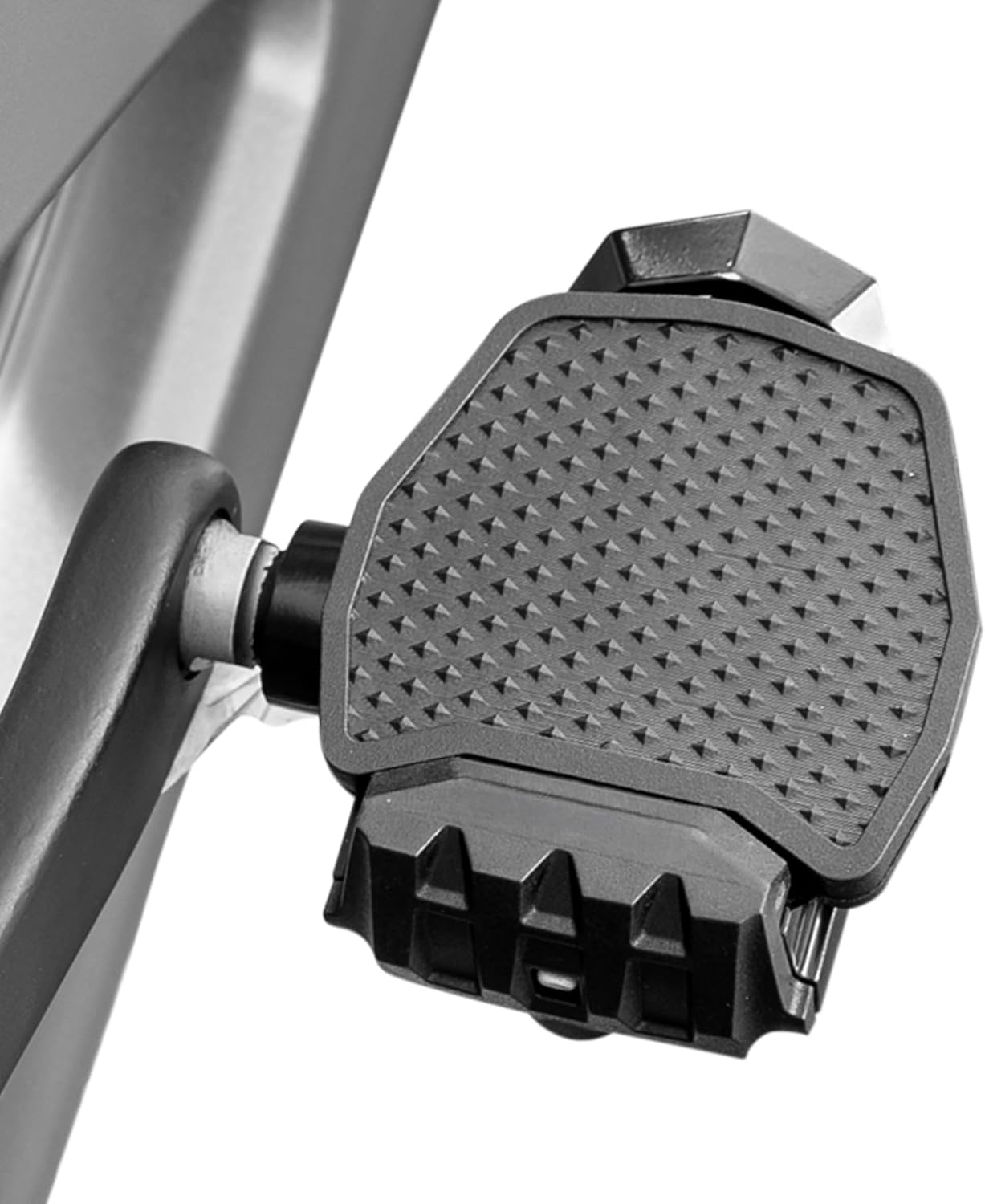
The upgraded version of the original Peloton Bike with a larger, rotating screen and improved hardware reliability.
Price Range: $2,495
Key Benefits:

A strong competitor with a reliable 22-inch touchscreen and iFit integration for diverse workouts.
Price Range: $1,499-$1,999
Key Benefits:
A budget-friendly alternative with a sturdy frame and compatibility with third-party apps, though screen reliability varies.
Price Range: $999-$1,299
Key Benefits:

Premium option with a focus on immersive classes and a high-quality 21.5-inch touchscreen.
Price Range: $2,000-$2,500
Key Benefits:
Compare key specs and features of all our recommendations side-by-side
| Product | Recommendation | Rating | Price |
|---|---|---|---|
Pedal Converters for Original Peloton Bike & Bike+ and Cross Training Bike & Bike+ - Ride The Peloton with Sneakers - Pedal Platform for Look Delta Pedals - Great for Kids Rank #1 | 🏆 Top Pick | 4.4 4.4 | |
Matrix Fitness C50 Climbmill with XUR | 22" Touchscreen (WiFi+BT+HDMI) | High Calorie Burn, Low Impact Workout, Cardio Endurance | Low Ceilings Design, Powerful Exact Force Induction Brake Rank #2 | 💰 Budget Pick | 5.0 5.0 | |
Divoom Times Frame-10.1" WiFi Digital Picture Frame with 64GB, Free App with No Subscription Fees, Supports Uploading Photos/Videos/Calendars/Weather/Sports Scores and Various DIY Content White Rank #3 | — | 4.3 4.3 | |
Smart Bluetooth Glasses, Sunglasses with UV and Blue Light Protection, AI Real-time Translation with 140 Languages, Touch Control, Music & Call for Athletic/Outdoor, Unisex (Green) Rank #4 | — | 3.5 3.5 |
