Get the App
Better experience on mobile
A step-by-step guide to diagnose and fix your LG TV's flickering screen issue, with upgrade options if needed.
Dealing with a flickering screen on your LG TV can be incredibly frustrating. Whether you're in the middle of a movie or a crucial game, a flickering display disrupts your experience and leaves you wondering what's wrong. You're not alone—many LG TV owners report this issue, and it’s a common problem across various models, often discussed on forums like Reddit and LG support pages.
This problem can stem from simple connection issues to more complex hardware failures. Based on user experiences and expert insights, causes range from loose cables to outdated firmware or even failing internal components. In this guide, you'll learn how to troubleshoot the issue with 8 practical fixes, starting with quick checks and moving to advanced solutions. We'll also cover when it's time to consider a replacement and how to prevent this issue in the future.
By the end, you’ll either have a working TV or a clear plan for the next steps. Let’s dive into the most common causes and solutions to get your screen steady again.
Difficulty: easy | Time: 5 minutes
Unplug and inspect all cables connected to your LG TV, including power, HDMI, and any other inputs. Loose or damaged cables are a frequent cause of screen flickering. Reseat them firmly into their ports, ensuring there’s no visible damage to the cords or connectors. Turn the TV back on after reconnecting everything.
Why this works: A poor connection can interrupt the signal or power delivery, causing the screen to flicker. If it works, the flickering should stop immediately. If it doesn’t, move to the next step as the issue might not be cable-related.
Difficulty: easy | Time: 2 minutes
Turn off your LG TV and unplug it from the power source for at least 1 minute. Then, plug it back in and turn it on. This resets temporary glitches in the TV’s system.
Why this works: A power cycle clears minor software bugs that can cause display issues. If it works, the screen should stabilize. If it doesn’t, there might be a deeper software or hardware issue. Note: Avoid frequent power cycling as it can stress components.
Difficulty: easy | Time: 5 minutes
Go to your TV’s menu (press the gear icon on your remote) and navigate to Picture Settings. Set the refresh rate to match your input source (e.g., 60Hz for most content) and disable features like TruMotion or Motion Smoothing, as they can cause flickering on some LG models.
Why this works: Incorrect settings can create display artifacts or flickering, especially with fast-moving content. If it works, the screen will look smooth without flickering. If it doesn’t, the issue might not be settings-related.
Difficulty: medium | Time: 10-20 minutes
Check for firmware updates via the TV’s menu under Settings > Support > Software Update. If an update is available, download and install it (ensure a stable internet connection). Restart the TV after the update completes.
Why this works: Outdated firmware can cause compatibility issues leading to flickering. If it works, the display should be stable post-update. If it doesn’t, the problem might be hardware-related. Warning: Do not turn off the TV during the update process to avoid bricking the device.
Difficulty: easy | Time: 5 minutes
Move any electronic devices like routers, speakers, or fluorescent lights away from your TV. Test the TV after relocating these items to see if the flickering stops.
Why this works: Electromagnetic interference can disrupt the TV’s display signal. If it works, the screen should stop flickering once interference is removed. If it doesn’t, the issue is likely internal to the TV.
Difficulty: easy | Time: 5 minutes
Connect a different device (e.g., a Blu-ray player or gaming console) to your TV using a different HDMI port or cable. Observe if the flickering persists with the new source.
Why this works: This isolates whether the issue is with the original source device or cable rather than the TV itself. If it works, the flickering stops with the new setup, indicating a problem with the original input. If it doesn’t, the TV hardware might be at fault.
Tools needed: Alternate HDMI cable/device
Difficulty: medium | Time: 10 minutes
Go to Settings > General > Reset to Initial Settings on your LG TV. Follow the prompts to reset (note: this will erase saved settings and data, so back up if possible). Test the TV after the reset.
Why this works: A factory reset clears software glitches that might cause flickering. If it works, the screen should be stable. If it doesn’t, the issue is likely hardware-related. Warning: Ensure you have your Wi-Fi password handy for reconnection post-reset.
Difficulty: hard | Time: 30-60 minutes
If comfortable, open the back panel of your LG TV (unplug it first for safety) to check for loose internal connections, especially to the T-Con board or backlight. Secure any loose ribbons or cables. If you see burnt components or smell something unusual, stop immediately and seek professional help.
Why this works: Internal hardware issues like a failing T-Con board or backlight can cause flickering. If it works, securing connections might resolve the issue temporarily. If it doesn’t or you’re unsure, do not proceed—hardware repairs can be dangerous and may void your warranty. Contact LG support or a technician. Warning: Risk of electric shock; only attempt if you have experience with electronics.
Tools needed: Screwdriver, Safety gloves
If none of the above fixes work, your LG TV might be showing signs of permanent failure. Persistent flickering, especially with lines or dark spots on the screen, often indicates a failing backlight, T-Con board, or panel—repairs for which can cost $200-$500 or more, depending on the model. If your TV is over 5-7 years old, the cost of repair often outweighs the benefit, as newer models offer better technology (e.g., 4K, OLED) at a similar price point to high-end repairs.
Check your warranty status via LG’s website or your purchase receipt. If the TV is still under warranty (typically 1-2 years), contact LG support for a free or discounted repair. However, if it’s out of warranty and repair costs approach 50% or more of a new TV’s price, upgrading makes more sense. Also, consider safety—if you’ve noticed burning smells or unusual heat from the TV, stop using it immediately to avoid potential hazards.
Red flags for upgrading include frequent recurring issues, outdated technology, or if the TV no longer meets your needs (e.g., lack of smart features). At this point, investing in a new model with improved durability and display quality is often the smarter long-term choice. Below, we’ve outlined reliable upgrade options to avoid similar flickering issues.
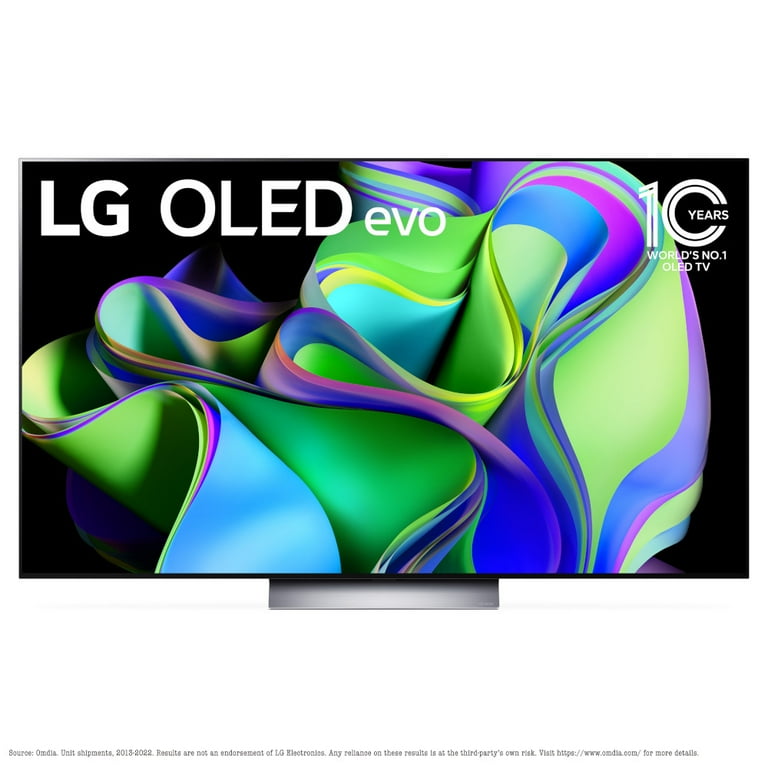
LG’s latest OLED technology minimizes flickering issues with superior panel quality and advanced processing.
Price Range: $1,200 - $2,500 (depending on size)
Key Benefits:
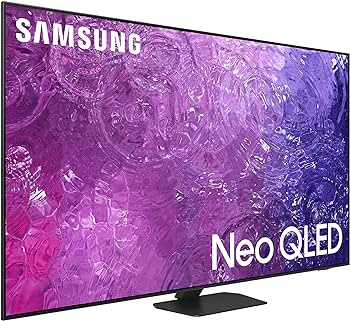
A strong alternative to LG with QLED tech that reduces flickering and offers excellent brightness.
Price Range: $1,000 - $2,000 (depending on size)
Key Benefits:
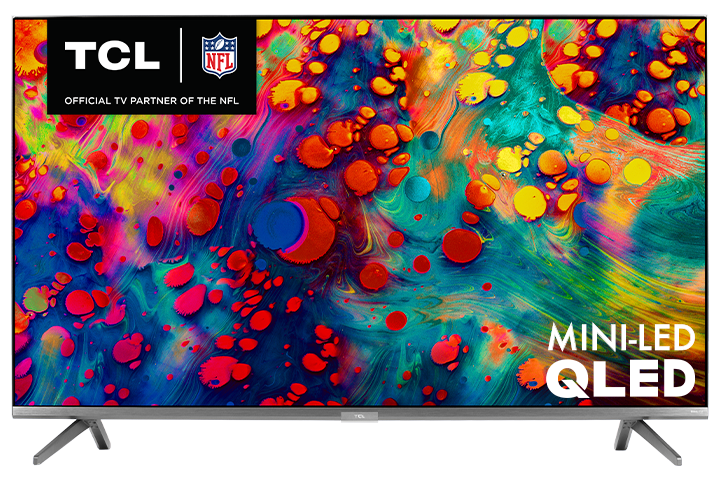
A budget-friendly option with QLED tech that avoids common flickering issues seen in older LCDs.
Price Range: $600 - $1,000 (depending on size)
Key Benefits:
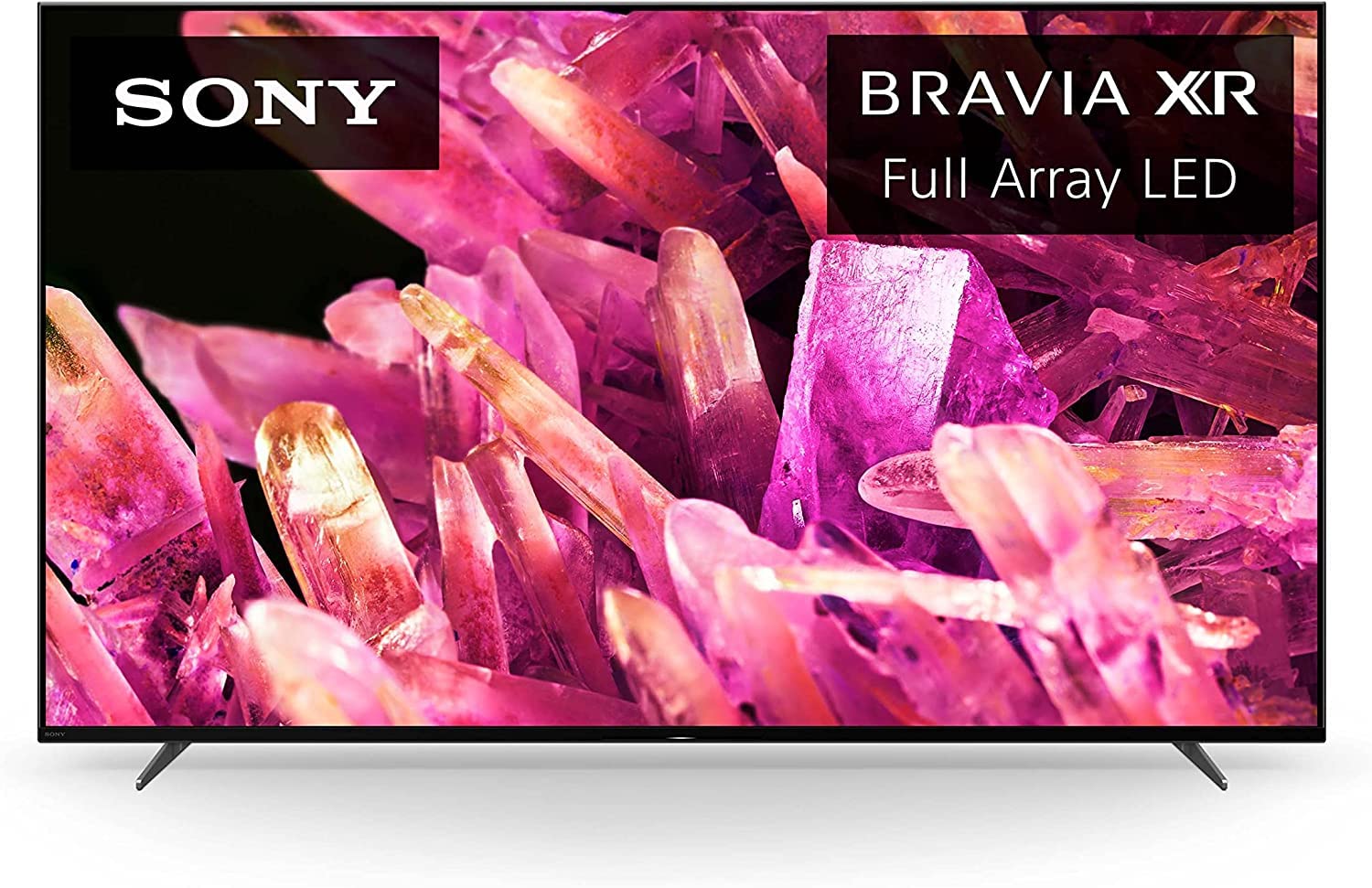
Sony’s processing and panel quality reduce flickering, with excellent user reviews for reliability.
Price Range: $900 - $1,800 (depending on size)
Key Benefits:
Compare key specs and features of all our recommendations side-by-side
| Product | Recommendation | Rating | Price |
|---|---|---|---|
LG C3 Series OLED 4K TV (2023) Rank #1 | 🏆 Top Pick | — | Check price → |
Samsung QN90C QLED 4K TV (2023) Rank #2 | 💰 Budget Pick | — | Check price → |
TCL 6-Series Roku TV (R635) 4K QLED Rank #3 | — | — | Check price → |
Sony X90K LED 4K TV (2022) Rank #4 | — | — | Check price → |
