Get the App
Better experience on mobile
A step-by-step guide to diagnose and fix your overheating iPhone, with upgrade options if needed.
Having an iPhone that overheats can be incredibly frustrating. Whether you're in the middle of a call, gaming, or just browsing, that sudden heat in your hand—or worse, a warning message—can disrupt your day. You're not alone; overheating is a common issue reported by iPhone users across models, from older devices to the latest releases.
This problem often stems from a mix of hardware strain, environmental factors, or software glitches. According to user forums and Apple support discussions, it’s frequently tied to heavy app usage, poor ventilation, or even a failing battery. In this guide, you'll learn the root causes of iPhone overheating, follow 8 actionable fixes to cool it down, and discover when it’s time to consider an upgrade. We’ll start with quick, easy solutions and move to more involved steps if needed.
By the end, you’ll either have a cooler iPhone or a clear plan for replacement. Let’s dive into the causes and get your device back to normal!
Difficulty: easy | Time: 10-15 minutes
Take off any protective case from your iPhone and place it in a cool, shaded area away from direct sunlight or heat sources. Cases can trap heat, especially thick or rubber ones, exacerbating overheating. Let the device rest for 10-15 minutes without using it. If it works, you’ll notice the phone feels cooler to the touch and doesn’t display a temperature warning. If it’s still hot, move to the next step. Warning: Don’t put it in a fridge or freezer; extreme cold can damage the battery.
Difficulty: easy | Time: 2 minutes
Swipe up from the bottom of the screen (or double-click the Home button on older models) to view open apps. Swipe each app up to close it. Background apps can drain resources and cause the processor to overwork, generating heat. If successful, the phone should cool down within a few minutes of inactivity. If it remains hot even with apps closed, there might be a deeper issue. Note: Check if specific apps (like games or GPS) consistently trigger overheating.
Difficulty: easy | Time: 5 minutes
Disable Wi-Fi, Bluetooth, and Location Services temporarily via the Control Center (swipe down from the top-right corner on newer models). These features can strain the processor, especially if apps are constantly using them. Also, lower screen brightness. If this works, the phone should start cooling within 5-10 minutes. If heat persists, it’s likely not a connectivity issue. Warning: Don’t disable critical features if you’re in an emergency situation.
Difficulty: easy | Time: 2 minutes
Hold the power button (or power + volume button on newer models) until the 'slide to power off' option appears. Turn it off, wait 30 seconds, then power it back on. A restart can clear temporary software glitches causing excessive CPU usage. If fixed, the phone should operate normally without overheating during light use. If the problem returns quickly, a software bug or hardware issue might be at play.
Difficulty: medium | Time: 15-30 minutes
Go to Settings > General > Software Update to check for and install any available updates. Software bugs in older iOS versions can cause overheating by mismanaging resources. After updating, monitor the phone for an hour during normal use. If it stays cool, the issue is resolved. If not, or if updates aren’t available, move to hardware checks. Note: Ensure you have a stable Wi-Fi connection and sufficient battery before updating.
Difficulty: easy | Time: 5 minutes
Navigate to Settings > Battery > Battery Health & Charging. If the 'Maximum Capacity' is below 80% or you see a warning about degraded performance, the battery might be failing and causing heat buildup. A healthy battery shouldn’t overheat under normal use. If degraded, consider a replacement (see Apple Support for costs). If the battery health is fine but overheating continues, it’s likely another hardware issue. Warning: Don’t ignore battery warnings; a failing battery can be a safety risk.
Difficulty: easy | Time: 10 minutes
If your iPhone overheats while charging, unplug it and avoid using resource-intensive apps (like games or video streaming) during charging. Charging generates heat, and combining it with heavy usage can push temperatures too high. If the phone cools down when unplugged and lightly used, adjust your habits. If it overheats even when not charging, a deeper hardware fault might exist. Safety Tip: Use only Apple-certified chargers and cables to prevent heat issues.
Difficulty: medium | Time: 10-15 minutes
Go to Settings > General > Transfer or Reset iPhone > Reset > Reset All Settings. This won’t erase data but will reset system settings to default, potentially fixing software misconfigurations causing overheating. Back up your data first just in case. If successful, the phone should run cooler during normal tasks. If overheating persists, it’s likely a hardware problem requiring professional repair. Warning: You’ll need to reconfigure Wi-Fi passwords and other preferences after this.
If your iPhone continues to overheat after trying all troubleshooting steps, it might be a sign of permanent hardware failure, especially if it’s an older model (over 4-5 years old, like an iPhone 8 or earlier). Persistent overheating can indicate a failing battery, damaged internal components, or thermal management issues that DIY fixes can’t resolve. A professional repair, such as a battery replacement, can cost $49-$99 through Apple, but if other components are failing, costs can climb to $200+—often not worth it for older devices compared to upgrading.
Check your warranty status via Apple’s website (support.apple.com). If your device is still under AppleCare or standard warranty (typically 1 year), you might get a free or discounted repair. However, if it’s out of warranty and repair costs approach half the price of a new model, upgrading makes more sense. Safety is also a concern—an overheating battery can swell or, in rare cases, pose a fire risk. If you notice bulging, unusual smells, or the phone shutting down unexpectedly, stop using it and seek professional help or replace it immediately.
Red flags for upgrading include frequent thermal warnings even during light use, battery health below 75%, or if the device is too outdated to run modern apps efficiently (causing constant strain). At this point, a newer iPhone with better thermal management and battery life will save you time, money, and frustration in the long run.
🛒 Buy Apple iPhone 13 (128GB, Midnight) on Amazon
🛒 Buy Apple iPhone 14 (128GB, Blue) on Amazon
🛒 Buy Apple iPhone 15 Pro (128GB, Natural Titanium) on Amazon
🛒 Buy Anker PowerCore 10000 Portable Charger on Amazon

A reliable mid-range upgrade with improved thermal management and battery efficiency compared to older models.
Price Range: $600-$700
Key Benefits:

A step up with advanced cooling systems and crash detection, ideal for users wanting the latest tech without premium pricing.
Price Range: $700-$800
Key Benefits:

Premium option with cutting-edge A17 Pro chip and titanium design for superior heat management and durability.
Price Range: $1000-$1100
Key Benefits:
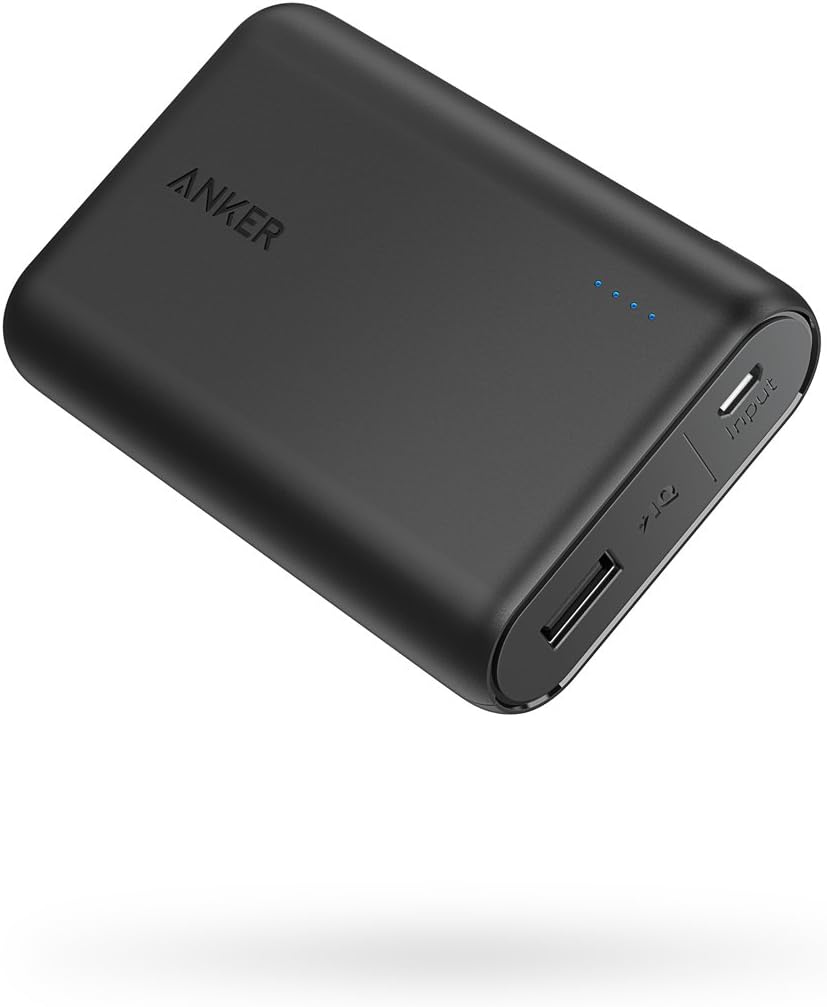
A useful accessory to avoid overcharging your current iPhone with a reliable external power source, reducing heat during use.
Price Range: $25-$30
Key Benefits:
Compare key specs and features of all our recommendations side-by-side
| Product | Recommendation | Rating | Price |
|---|---|---|---|
Apple iPhone (Renewed Premium) 13, 128GB, Midnight - Unlocked 128GB Midnight Unlocked Renewed Premium Rank #1 | 🏆 Top Pick | 4.3 4.3 | |
Apple iPhone 14 (Renewed), 128GB, Blue - Unlocked Blue 128GB Rank #2 | 💰 Budget Pick | 4.2 4.2 | |
 Apple iPhone 15 Pro, 128GB, Natural Titanium - Unlocked (Renewed) Rank #3 | — | 3.9 3.9 | |
Anker PowerCore 10000 Portable Charger, 10K Power Bank, Ultra-Compact Battery Pack, Phone Charger for iPhone, Samsung and More Black Rank #4 | — | 4.6 4.6 |
