Get the App
Better experience on mobile
A step-by-step guide to diagnose and fix charging issues with your iPhone, plus advice on when to upgrade.
Having your iPhone refuse to charge can be incredibly frustrating, especially when you rely on it for communication, work, or entertainment. You're not alone—this is one of the most common issues iPhone users face, with thousands of complaints reported online across forums like Apple Support Communities and Reddit. Whether it's a sudden failure or an intermittent problem, a non-charging iPhone can disrupt your day.
This issue often stems from simple causes like a faulty cable or dirt in the port, but it can also signal deeper hardware or software problems. In this guide, you'll learn 8 actionable fixes to get your iPhone charging again, starting with quick checks and progressing to more involved solutions. We'll also cover when it's time to consider an upgrade if repairs aren't worth it.
From cleaning the charging port to resetting settings, we've got you covered with solutions based on real user experiences and expert advice. Let's get your iPhone back to full power!
Difficulty: easy | Time: 2 minutes
Start with the basics: ensure your charger is properly plugged into the wall outlet and your iPhone. Inspect the Lightning cable for visible damage like fraying or bent connectors. Try a different outlet to rule out power issues.
Why this works: Loose connections or a faulty outlet can prevent charging.
What you should see: If this fixes it, the charging icon (a lightning bolt) should appear on your iPhone screen within a few seconds.
Warning signs: If there's no response or the icon flickers, move to the next step.
Difficulty: easy | Time: 3 minutes
Swap out your current Lightning cable and adapter with another set, preferably Apple-certified (MFi-certified). Borrow one from a friend or use a spare if you have it.
Why this works: Cables and adapters wear out over time, especially third-party ones.
What you should see: A working cable/adapter should trigger the charging icon immediately.
Warning signs: If it still doesn't charge, the issue might be with the port or phone itself.
Difficulty: easy | Time: 5 minutes
Inspect the Lightning port on your iPhone for lint, dust, or debris. Use a wooden toothpick or a plastic dental pick to gently remove any buildup. Avoid metal tools to prevent damage. Shine a flashlight into the port to check for cleanliness.
Why this works: Debris can block the connection between the cable and port.
What you should see: After cleaning, plug in the charger—look for the charging icon.
Warning signs: If cleaning doesn't help or the port looks damaged, proceed to the next steps. Safety note: Be gentle to avoid bending internal pins.
Tools needed: Wooden toothpick or plastic pick, Flashlight
Difficulty: easy | Time: 2 minutes
Perform a simple restart by holding the power button (or power + volume down on newer models) until the 'slide to power off' option appears. Turn it off, wait 30 seconds, then power it back on. Plug in the charger after rebooting.
Why this works: A restart can resolve minor software glitches affecting charging.
What you should see: Post-restart, the charging icon should appear if software was the issue.
Warning signs: If it still won't charge, a deeper software or hardware issue may exist.
Difficulty: medium | Time: 10-30 minutes
Go to Settings > General > Software Update to check for iOS updates. If an update is available, download and install it (ensure you have at least 50% battery or are plugged into a power source if possible). If your phone won’t charge, you may need to update via a computer using iTunes/Finder.
Why this works: Software bugs in outdated iOS versions can interfere with charging.
What you should see: After updating, test charging again—look for the icon.
Warning signs: If updating doesn’t help, the issue might not be software-related.
Tools needed: Wi-Fi connection, Computer (optional)
Difficulty: easy | Time: 5 minutes
If your iPhone model supports wireless charging (iPhone 8 or newer), place it on a Qi-certified wireless charger. Ensure the charger is powered and your phone is centered on the pad. Remove any thick cases that might interfere.
Why this works: This bypasses the Lightning port, isolating whether the port or internal hardware is the issue.
What you should see: A charging icon should appear if wireless charging works.
Warning signs: If wireless charging also fails, the battery or internal components may be faulty.
Tools needed: Wireless charger
Difficulty: medium | Time: 10 minutes
Go to Settings > General > Transfer or Reset iPhone > Reset > Reset All Settings. This won’t erase data but will reset preferences like Wi-Fi passwords. Back up your phone first if possible. After resetting, test the charger.
Why this works: Corrupted settings can disrupt charging functionality.
What you should see: Charging should resume if settings were the culprit.
Warning signs: If this doesn’t work, hardware issues are likely. Note: You’ll need to reconfigure some settings afterward.
Difficulty: hard | Time: 1-2 hours (for visit)
Go to Settings > Battery > Battery Health to check the maximum capacity. If it’s below 80% or shows a service warning, the battery may need replacement. If all previous steps failed, visit an Apple Store or authorized repair center for diagnostics.
Why this works: A degraded battery or damaged charging circuitry requires professional assessment.
What you should see: A technician can confirm if the battery or port needs repair.
Warning signs: If the battery health is critically low or hardware damage is confirmed, repair costs may be high. Safety note: Don’t attempt DIY battery replacement—risk of fire or injury.
If your iPhone still won’t charge after trying all the steps above, it might be time to consider an upgrade. Signs of permanent failure include a battery health below 80%, visible damage to the charging port, or recurring issues even after professional repair. If your iPhone is over 4-5 years old (e.g., iPhone 6 or 7), internal components like the battery or logic board may be nearing the end of their lifespan, and repair costs can approach $150-$400 at Apple or third-party shops—sometimes close to the price of a newer model.
Check your warranty status via Apple’s website (apple.com/support) using your serial number. If under AppleCare or standard warranty (1 year from purchase), repairs might be free or discounted. However, for out-of-warranty devices, weigh the cost-benefit: a battery replacement might be $69-$99, but if other hardware issues persist, investing in a new device with better performance, longer support, and modern features could be smarter. Safety is also a concern—swollen or damaged batteries can pose risks, so don’t ignore warning signs like overheating.
Red flags for upgrading include frequent crashes, inability to hold a charge even after repair, or if the device no longer meets your needs (e.g., slow performance, no iOS updates). At this point, a new iPhone or even a certified refurbished model can save you from ongoing frustration and provide a reliable long-term solution.
🛒 Buy Apple iPhone SE (3rd Gen, 2022) on Amazon
🛒 Buy Apple iPhone 13 on Amazon
🛒 Buy Apple iPhone 15 Pro on Amazon
🛒 Buy Anker PowerCore 10000 Portable Charger on Amazon

A budget-friendly iPhone with modern features, fast charging, and long-term iOS support.
Price Range: $400-$450
Key Benefits:

A mid-range option with excellent battery life, MagSafe charging, and durability.
Price Range: $600-$700
Key Benefits:

A premium upgrade with USB-C charging, top-tier performance, and cutting-edge features.
Price Range: $1000-$1200
Key Benefits:
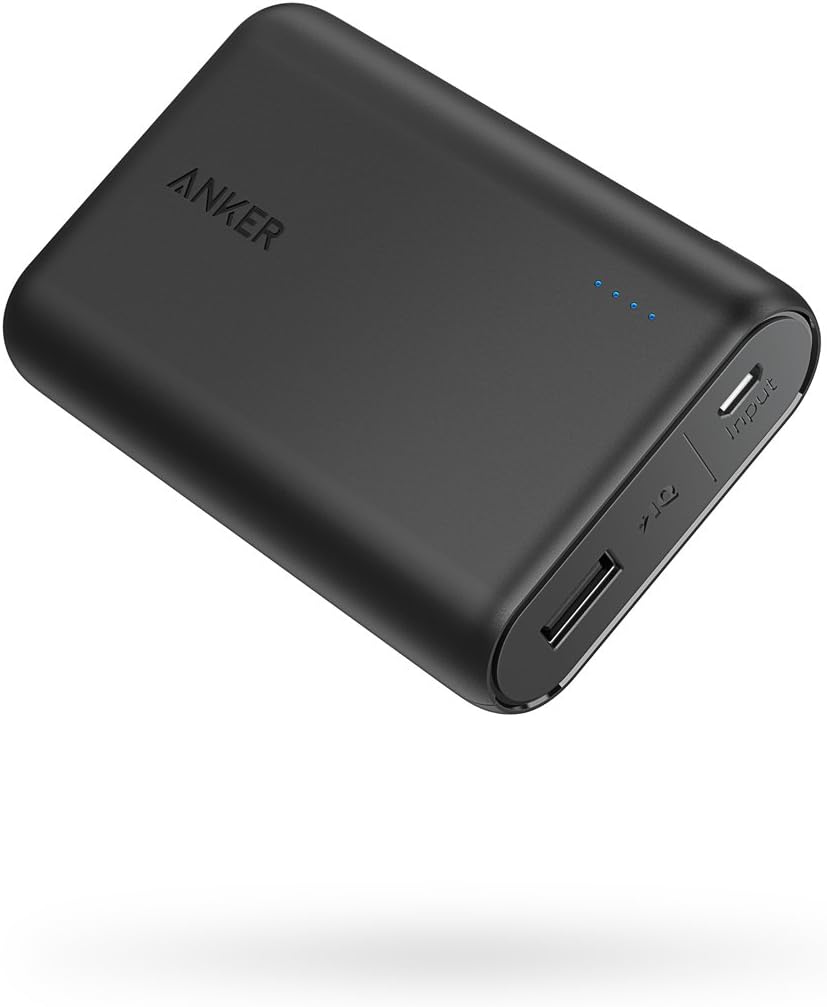
A reliable backup power bank for emergencies if you’re not ready to upgrade your iPhone.
Price Range: $25-$30
Key Benefits:
Compare key specs and features of all our recommendations side-by-side
| Product | Recommendation | Rating | Price |
|---|---|---|---|
Apple iPhone SE 3rd Gen, 128GB, Midnight - Unlocked (Renewed) Unlocked Midnight 128GB Rank #1 | 🏆 Top Pick | 4.0 4.0 | |
Apple iPhone 13 (Renewed), 128GB, Midnight - Unlocked Unlocked Midnight 128GB Rank #2 | 💰 Budget Pick | 4.0 4.0 | |
Apple iPhone 15 Pro, 128GB, Blue Titanium - Unlocked (Renewed) Blue Titanium 128GB Rank #3 | — | 4.1 4.1 | |
Anker PowerCore 10000 Portable Charger, 10K Power Bank, Ultra-Compact Battery Pack, Phone Charger for iPhone, Samsung and More Black Rank #4 | — | 4.6 4.6 |
