Get the App
Better experience on mobile
A step-by-step guide to diagnose and fix your GoPro not recording, with upgrade options if needed.
Having your GoPro fail to record at the perfect moment—whether you're capturing an epic adventure or a family milestone—can be incredibly frustrating. You're not alone; this is a common issue reported by many GoPro users across forums and support channels. The problem can stem from simple oversights like a full memory card to more complex issues like firmware glitches or hardware failure.
In this guide, we'll walk you through the most common causes and provide 8 actionable fixes to get your GoPro recording again. From quick checks to detailed troubleshooting, we'll cover everything you need to know. If all else fails, we'll also help you decide whether it's time to upgrade to a newer model. Let's dive into the solutions and get your camera back in action!
Difficulty: easy | Time: 2 minutes
Start by checking your memory card. A full or improperly inserted card is one of the most common reasons a GoPro won't record. Remove the card, ensure it's not full, and reinsert it firmly into the slot. If your GoPro has a screen, look for a 'No SD' or 'Card Full' error message. If the card is full, delete unnecessary files or replace it with a new one. If it works, you should see the recording icon or a prompt to start capturing.
Warning: If the card feels loose or the error persists, it might be corrupted—move to the next step for formatting.
Difficulty: easy | Time: 5 minutes
A corrupted memory card can prevent recording. Use your GoPro's settings menu to format the card (check your model's manual for exact steps—usually under 'Preferences' or 'Settings'). Alternatively, connect the card to a computer and format it as FAT32 or exFAT. After formatting, reinsert it and test recording. You should see the GoPro recognize the card and allow recording.
Warning: Formatting erases all data, so back up important files first. If formatting fails, the card may be damaged—try a new one.
Tools needed: Computer (optional)
Difficulty: easy | Time: 5 minutes
A low or improperly seated battery can cause recording issues. Remove the battery, inspect for dirt or damage on the contacts, and clean with a dry cloth if needed. Reinsert it securely or charge it fully using the official GoPro charger. Turn on the camera and attempt to record. If it works, the battery icon should show a stable charge, and recording should start normally.
Warning: If the battery doesn't charge or the camera still won't record, it might be a faulty battery—consider replacing it.
Tools needed: Dry cloth (optional)
Difficulty: easy | Time: 3 minutes
Incorrect settings (like a locked mode or wrong resolution) can prevent recording. Navigate to the settings menu on your GoPro and select 'Reset' or 'Factory Reset' (refer to your model's manual). This will revert all custom settings to default. After resetting, test recording. You should see the camera behave as it did out of the box, with recording enabled.
Warning: This won't erase footage but will reset preferences. If recording still fails, move to firmware updates.
Difficulty: medium | Time: 15 minutes
Outdated or buggy firmware often causes recording glitches. Visit the GoPro website, download the latest firmware for your model, and follow their instructions to update (usually via the GoPro app or by transferring files to the SD card). After updating, test recording. A successful update should show the latest version in settings, and recording should work smoothly.
Warning: Ensure a stable internet connection during updates. If the update fails or issues persist, the problem might be deeper.
Tools needed: Computer or smartphone, Internet connection
Difficulty: medium | Time: 5 minutes
If formatting didn't work, your memory card might be incompatible or damaged. Replace it with a GoPro-recommended card (like SanDisk Extreme) with the correct speed class (UHS-I or higher). Insert the new card, format it via the camera, and test recording. If it works, the recording icon should appear, and footage should save properly.
Warning: Using non-recommended cards can cause issues. If a new card doesn't help, the problem likely isn't the card.
Tools needed: Compatible memory card
Difficulty: medium | Time: 10 minutes
Physical damage to the camera, lens, or ports can prevent recording. Inspect your GoPro for cracks, water damage, or debris in the SD card slot and battery compartment. Clean gently with a soft, dry cloth if needed, and test recording. If undamaged, recording should start normally. If you find damage, especially from water or drops, it might not be fixable at home.
Warning: Don't attempt internal repairs unless experienced—risk of further damage is high. Consider professional repair or replacement.
Tools needed: Soft cloth
Difficulty: hard | Time: 30+ minutes (plus shipping time)
If none of the above work, the issue might be a hardware failure (like a faulty sensor or motherboard). Visit GoPro's support website or call their helpline to check warranty status and request a repair. Be prepared to send the camera in for diagnosis. If under warranty, you might get a free fix or replacement. If it works post-repair, recording should function as new.
Warning: Out-of-warranty repairs can be costly—compare costs to a new device before proceeding.
If your GoPro still won't record after trying all troubleshooting steps, it might be time to consider an upgrade. Signs of permanent failure include consistent freezing even after resets, visible hardware damage (like a cracked lens or water ingress), or error messages that persist despite new memory cards and firmware updates. If your GoPro is over 4-5 years old, internal components may be outdated or worn out, making repairs less cost-effective. Out-of-warranty repair costs can range from $100-$200, often close to the price of a new entry-level model.
Check your warranty status on the GoPro website—most models come with a 1-year warranty, and extended plans like GoPro Plus may cover accidental damage. If warranty coverage isn't an option and repair quotes are high, upgrading to a newer model often provides better features (like improved stabilization or 5K recording) for a similar investment. Safety isn't typically a concern with recording issues, but if water damage is involved, avoid using the camera until inspected to prevent short circuits.
🛒 Buy GoPro HERO12 Black on Amazon
🛒 Buy GoPro HERO11 Black on Amazon
🛒 Buy GoPro HERO10 Black on Amazon
🛒 Buy SanDisk 128GB Extreme microSDXC Card (GoPro Compatible) on Amazon
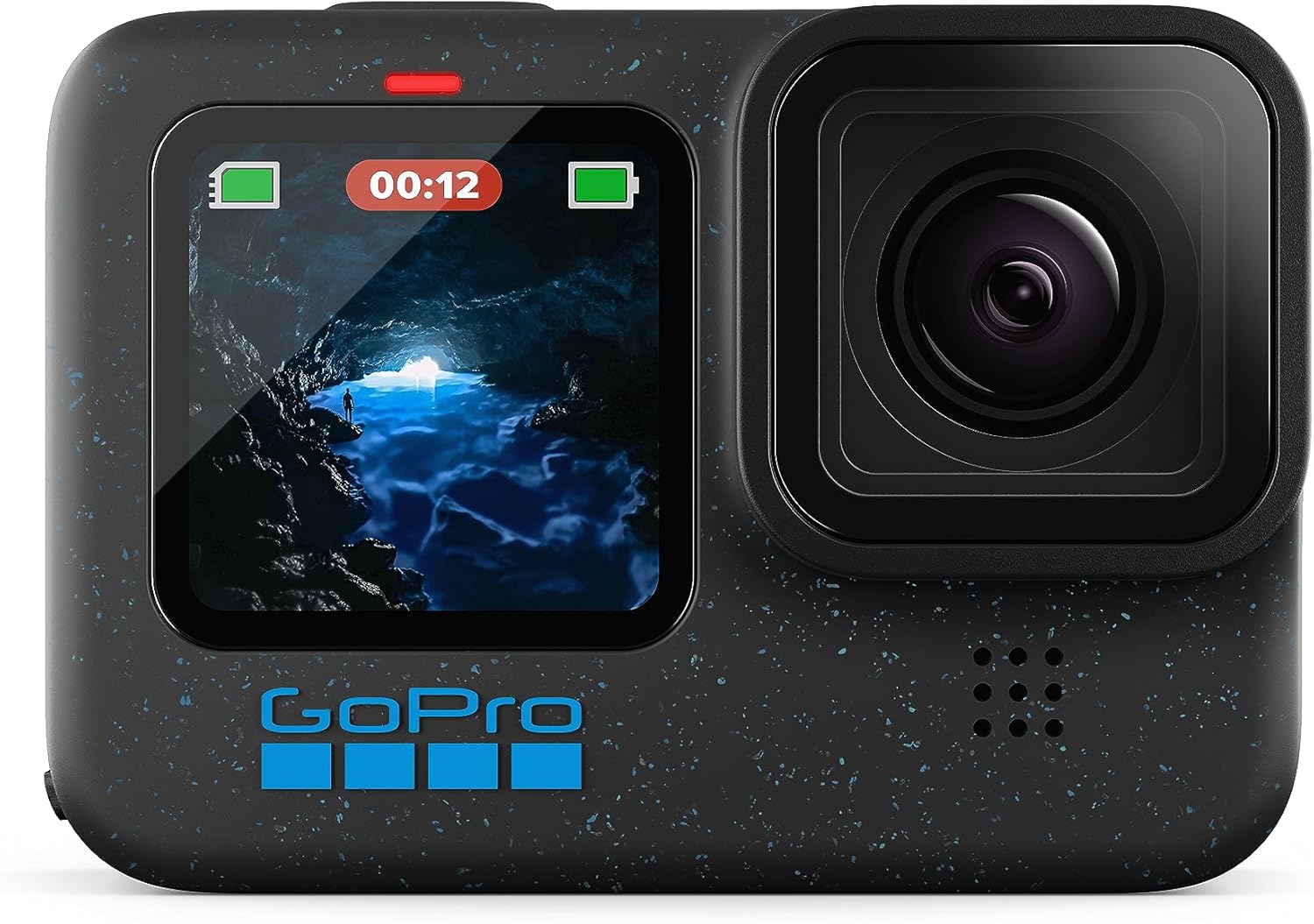
Latest model with superior recording quality (5.3K video) and improved battery life, addressing hardware limitations of older models.
Price Range: $350-$400
Key Benefits:

A reliable mid-range option with excellent recording capabilities (5.3K) at a slightly lower price than the HERO12.
Price Range: $300-$350
Key Benefits:

A budget-friendly yet powerful option for those wanting GoPro quality without the latest model price tag.
Price Range: $250-$300
Key Benefits:
If memory card issues are the root cause, upgrading to a reliable, high-speed card can prevent recording failures.
Price Range: $20-$30
Key Benefits:
Compare key specs and features of all our recommendations side-by-side
| Product | Recommendation | Rating | Price |
|---|---|---|---|
 GoPro HERO12 Black - Waterproof Action Camera with 5.3K60 Ultra HD Video, 27MP Photos, HDR, 1/1.9" Image Sensor, Live Streaming, Webcam, Stabilization Waterproof Action w/ 5.3K60 Ultra Rank #1 | 🏆 Top Pick | 4.3 4.3 | |
GoPro HERO11 (Hero 11) Black - Waterproof Action Camera with 5.3K Video, 27MP Photos, 1/1.9" Sensor, Live Streaming, Webcam, Stabilization + 64GB Card, 50 Piece Accessory Kit and 2 Extra Batteries 3 Battery Bundle Retail Rank #2 | 💰 Budget Pick | 4.4 4.4 | |
GoPro HERO10 Black - Waterproof Action Camera with Front LCD and Touch Rear Screens, 5.3K60 Ultra HD Video, 23MP Photos, 1080p Live Streaming, Webcam, Stabilization Rank #3 | — | 4.5 4.5 | |
SanDisk 128GB Extreme microSDXC Card (GoPro Compatible) Rank #4 | — | — | — |
