Get the App
Better experience on mobile
A step-by-step guide to diagnosing and resolving paper jam issues with your Epson printer.
Dealing with a paper jam in your Epson printer can be incredibly frustrating. You're in the middle of printing an important document, and suddenly, the printer grinds to a halt, leaving you with crumpled paper and error messages. You're not alone—paper jams are one of the most common issues reported by Epson printer users, often disrupting workflows at the worst possible times.
This problem is widespread due to a variety of reasons, including improper paper loading, worn-out rollers, or even environmental factors like humidity. Based on user forums and expert advice, we've compiled a comprehensive guide to help you troubleshoot and fix paper jams effectively. We'll walk you through potential causes like misaligned paper trays, debris buildup, and mechanical wear.
In this guide, you'll learn 8 actionable fixes, ranging from quick checks to more in-depth solutions, to get your printer back up and running. We'll also discuss when it might be time to consider an upgrade and provide tips to prevent future jams. Let’s dive in and clear that jam!
Difficulty: easy | Time: 5 minutes
What to do: Turn off your Epson printer and unplug it from the power source for safety. Open the printer cover and carefully look for any visible jammed paper in the input tray, output tray, or inside the printer.
Why this works: A simple visual check can often reveal the problem. Paper jams are frequently caused by a sheet stuck in an obvious spot.
What you should see: If you find paper, gently pull it out in the direction of the paper path to avoid tearing. If the jam clears and no error messages remain after powering on, your printer should resume normal operation.
Warning signs: If you can’t see any paper or if pulling it causes tearing, stop and move to the next step to avoid damaging internal components.
Difficulty: easy | Time: 5 minutes
What to do: Remove all paper from the input tray. Check if the paper guides are aligned properly with the stack size (e.g., A4 or letter). Reload the paper, ensuring it’s not overfilled (check the max fill line).
Why this works: Misaligned guides or overfilling can cause uneven feeding, leading to jams.
What you should see: After reloading, print a test page. If the paper feeds smoothly without jamming, the issue is resolved.
Warning signs: If jams persist even with proper alignment, there may be an issue with the tray or rollers.
Difficulty: medium | Time: 10 minutes
What to do: With the printer off and unplugged, use a flashlight to look inside the paper path for small bits of paper, dust, or foreign objects like staples or clips. Use tweezers to carefully remove any debris.
Why this works: Tiny obstructions can disrupt the paper feed mechanism, causing jams.
What you should see: After clearing debris, power on and test print. Smooth operation indicates the obstruction was the issue.
Warning signs: If you can’t access certain areas or debris remains, avoid forcing tools inside to prevent damage.
Tools needed: Flashlight, Tweezers
Difficulty: medium | Time: 15 minutes
What to do: Unplug the printer. Locate the feed rollers (check your Epson manual for exact location—usually near the paper tray). Dampen a lint-free cloth with distilled water or isopropyl alcohol (avoid excess liquid) and gently clean the rollers to remove dust and residue.
Why this works: Dirty or worn rollers lose grip, causing paper to slip or jam.
What you should see: After cleaning and letting the rollers dry, test print. Improved paper feeding indicates success.
Warning signs: If rollers are cracked or heavily worn, cleaning won’t help, and replacement may be needed.
Tools needed: Lint-free cloth, Distilled water or isopropyl alcohol
Difficulty: easy | Time: 5 minutes
What to do: Check your Epson printer manual or settings for recommended paper weight (usually 20-24 lb) and type. Replace any curled, damp, or low-quality paper with fresh, compatible sheets.
Why this works: Incompatible or damaged paper often causes feeding issues and jams.
What you should see: Printing with the correct paper should result in smooth operation without jams.
Warning signs: If jams continue with proper paper, the issue may be mechanical.
Difficulty: easy | Time: 10 minutes
What to do: Turn off the printer, unplug it from the power source, and wait for 5 minutes. Plug it back in and power on to reset the system.
Why this works: A reset can clear temporary errors or sensor glitches related to paper jams.
What you should see: After resetting, print a test page. If no jam occurs, the issue was likely a software glitch.
Warning signs: Persistent jams after reset suggest a hardware problem.
Difficulty: medium | Time: 20 minutes
What to do: Visit the Epson support website, enter your printer model, and download any available firmware updates. Follow the instructions to install them via USB or Wi-Fi.
Why this works: Firmware updates can fix bugs in the printer’s paper handling algorithms.
What you should see: Post-update, test print to confirm if jams are resolved.
Warning signs: If updates don’t help, the issue is likely mechanical and not software-related.
Tools needed: Computer, Internet connection
Difficulty: hard | Time: 30 minutes
What to do: If comfortable, refer to your Epson manual to access internal components like the duplexer or rear cover (if applicable). Look for hidden jams or damaged parts. Safety warning: Do not disassemble beyond what the manual allows, as this risks permanent damage and may void your warranty.
Why this works: Hidden jams or misaligned parts deep inside can cause persistent issues.
What you should see: If you find and remove a jam or realign a part, test print to confirm resolution.
Warning signs: If you’re unable to access or fix internal issues, or if parts are visibly broken, stop and consider professional repair or replacement.
Tools needed: Screwdriver (if needed), Flashlight
If you’ve gone through all the troubleshooting steps and your Epson printer still experiences frequent paper jams, it might be a sign of permanent mechanical failure. Key red flags include visibly worn or cracked rollers, persistent error codes even after clearing jams, or grinding noises during operation. If your printer is over 5 years old, internal wear and tear often make repairs less cost-effective—replacement parts for older models can be expensive or hard to find, and labor costs for professional repair can range from $50 to $150, sometimes exceeding the cost of a new printer.
Consider your warranty status as well. If your printer is still under warranty, contact Epson support for a free or discounted repair before attempting further DIY fixes, as tampering could void coverage. For out-of-warranty units, weigh the cost of repair against a new printer—entry-level models start around $100 and often come with improved jam-prevention technology. Frequent jams can also lead to frustration and downtime, so if your workflow depends on reliable printing, upgrading might save you time and stress in the long run.
Safety is another factor. If you notice electrical issues (sparks, burning smells) alongside jams, stop using the printer immediately and do not attempt repairs. At this point, replacement is the safer and smarter choice to avoid potential hazards.
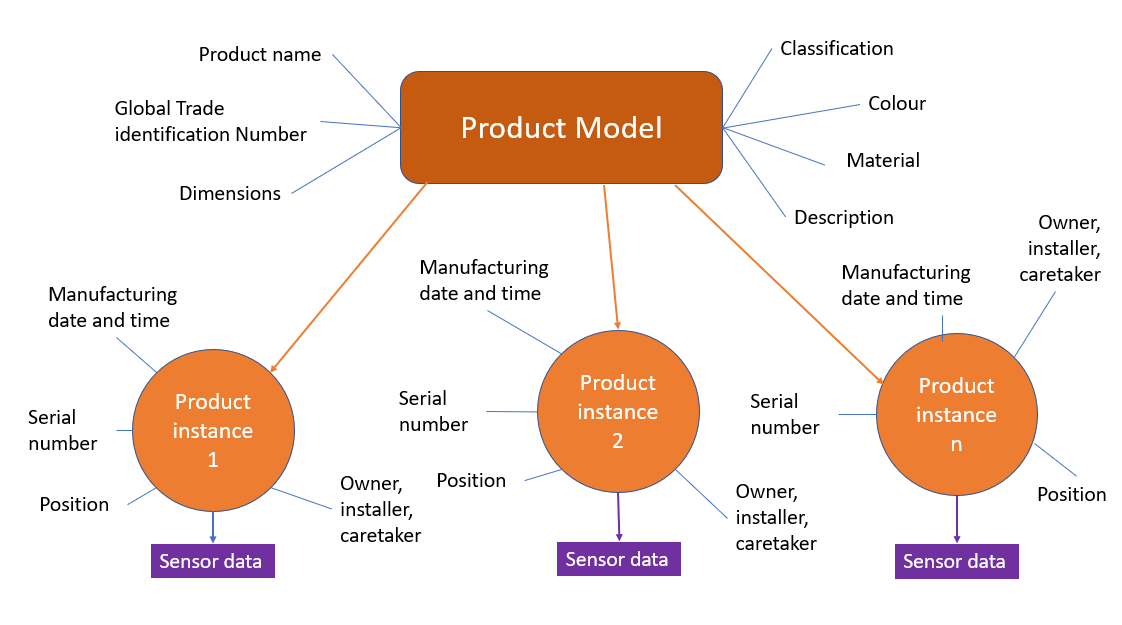
This model features advanced paper handling and jam-resistant technology, ideal for frequent printing.
Price Range: $150 - $200
Key Benefits:

A budget-friendly laser printer known for minimal paper jams and low maintenance.
Price Range: $120 - $150
Key Benefits:
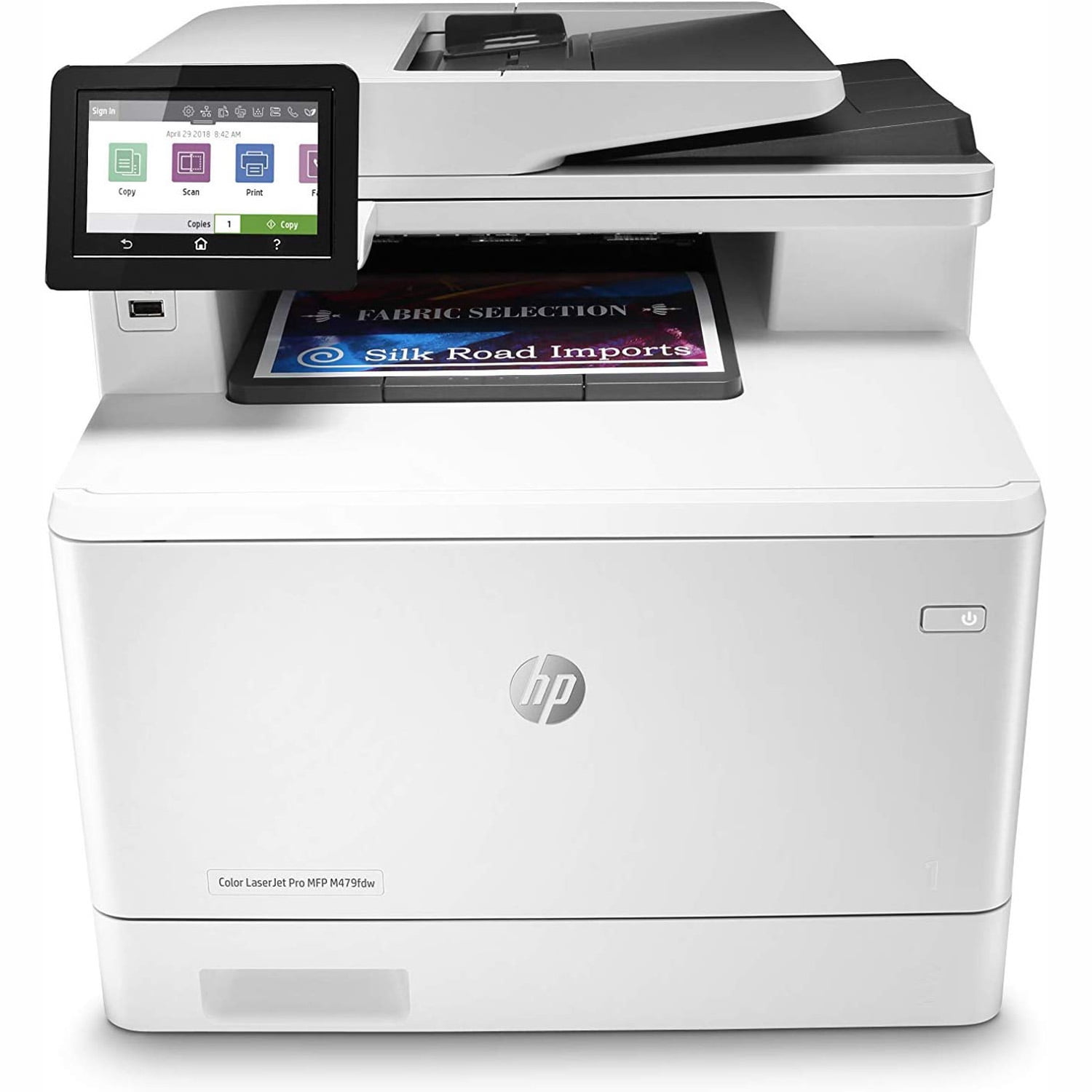
A premium option with robust build quality and advanced jam detection features for heavy-duty use.
Price Range: $400 - $500
Key Benefits:
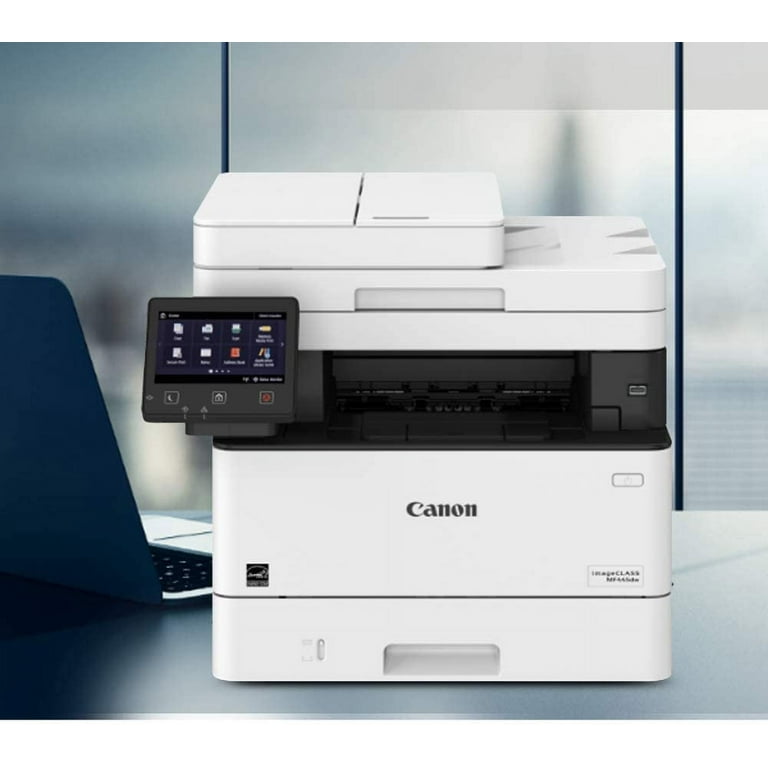
A mid-range all-in-one with strong paper handling capabilities and consistent user satisfaction.
Price Range: $250 - $300
Key Benefits:
Compare key specs and features of all our recommendations side-by-side
| Product | Recommendation | Rating | Price |
|---|---|---|---|
This model Rank #1 | 🏆 Top Pick | — | Check price → |
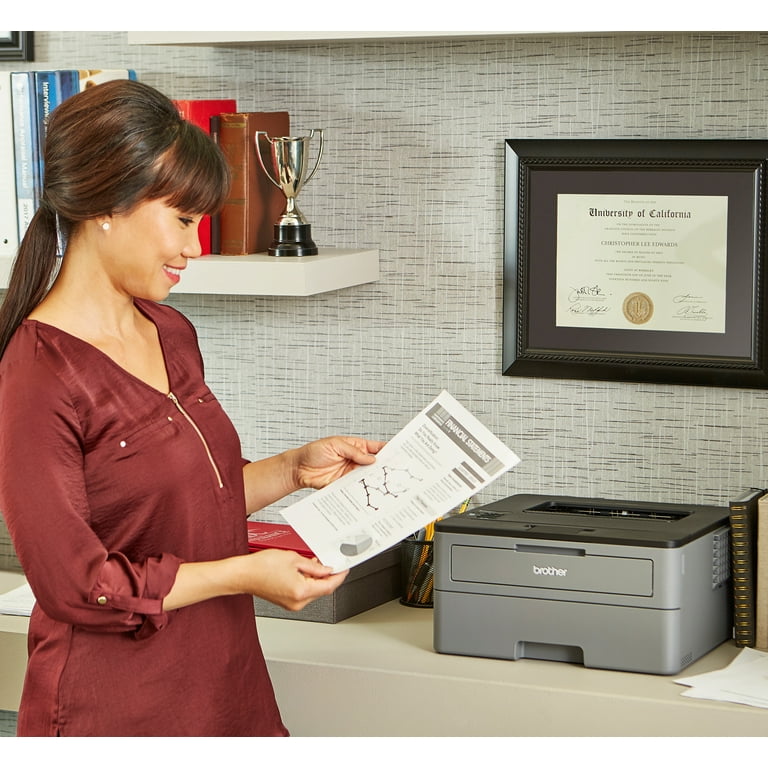 Brother HL-L2350DW Rank #2 | 💰 Budget Pick | 4.1 4.1 | Check price → |
HP LaserJet Pro M479fdw Rank #3 | — | — | Check price → |
Canon imageCLASS MF445dw Rank #4 | — | — | Check price → |
