Get the App
Better experience on mobile
Color-accurate monitors for photographers and digital artists, researched from leading expert reviews, specs, and buyer feedback.
The biggest mistake photo editors make is choosing a monitor by pixel count alone. A 4K screen with weak color gamut coverage can still render images with inaccurate hues and clipped shadows, forcing you to re-edit on your laptop display. In 2026, the market for high-resolution monitors is broader than ever, but true 'photo editing' monitors share specific traits: factory calibration, wide color gamut coverage, and precise panel uniformity.
We’ve researched dozens of models across every price tier, looking past marketing buzzwords like 'HDR-ready' to focus on what matters for still-image work: delta-E accuracy, coverage of Adobe RGB and DCI-P3, hardware calibration options, and the physical features that reduce eye strain during long edits. The picks below range from a budget 4K monitor that punches far above its price to a reference-grade Eizo that rivals the color tuners at print labs.
For most hobbyists and working photographers, a good 27-inch 4K monitor with factory calibration is the sweet spot. For pros printing at scale, hardware calibration is non-negotiable, and for those editing HDR stills, an OLED panel might be the only way to see true blacks. We’ve included all these use cases so you can match your budget and workflow to the right display.
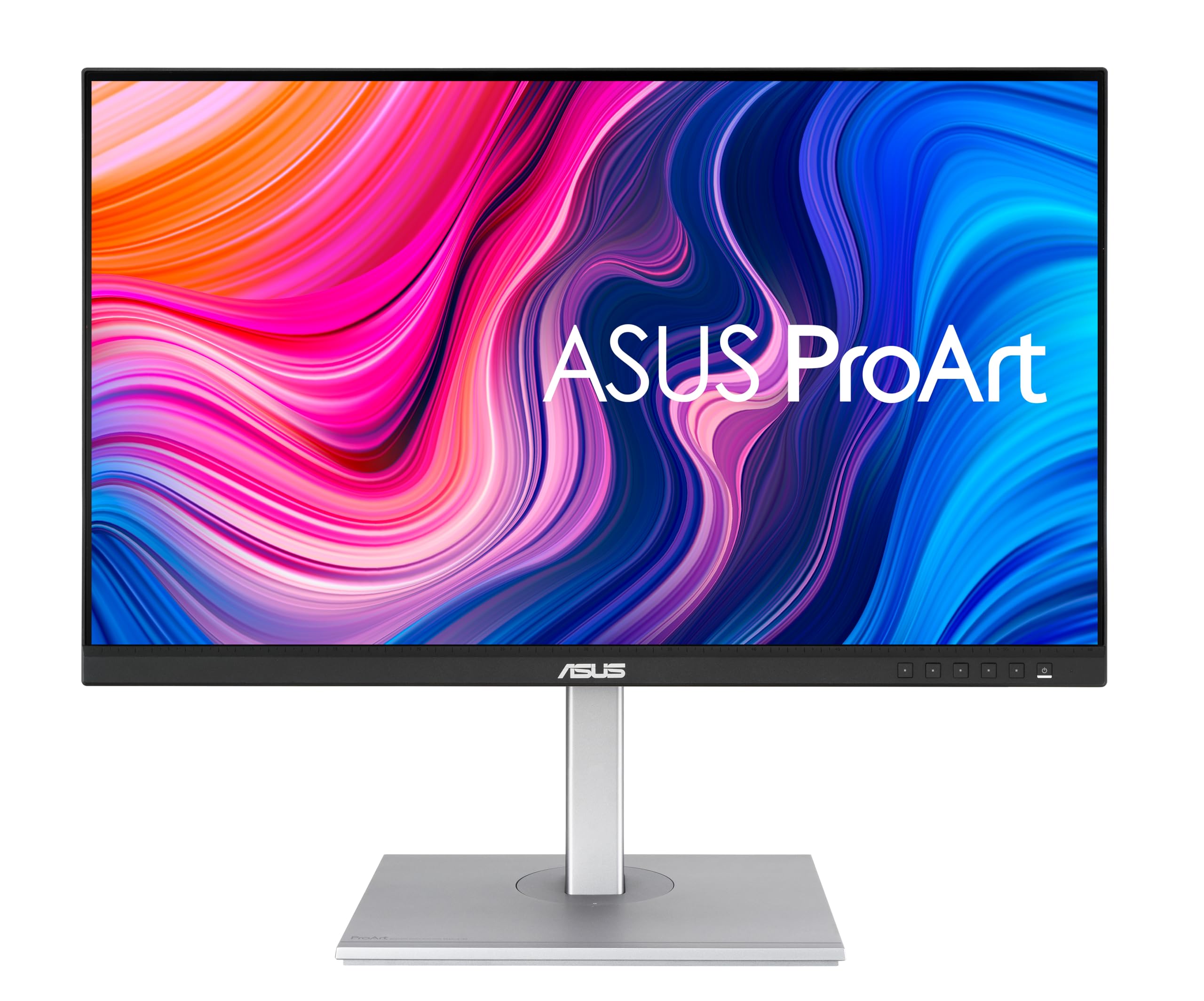
The ASUS ProArt PA279CV delivers excellent out-of-the-box color accuracy, covering 100% sRGB, 100% Rec.709, and 99% Adobe RGB, with each unit factory calibrated to Delta E < 2. Its 27-inch 4K panel and USB-C with 65W power delivery make it a versatile hub for photo editing. The trade-off is modest contrast and no built-in hardware calibration, so serious print work will require a separate calibrator.
Main limitation: Contrast is average for an IPS panel, and it lacks a hardware calibration LUT for advanced color management.
Skip if: Photographers who need a reference monitor for print proofing or who require hardware calibration built in.
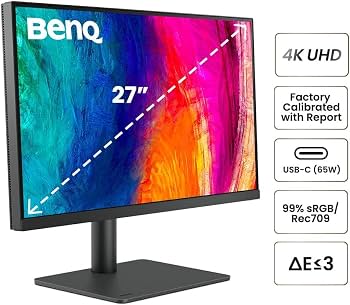
The BenQ PD2705U is a legitimate 4K photo editing monitor at a budget price, with 95% P3 and 100% sRGB coverage plus a USB-C port that delivers 65W. It also includes KVM support and an ergonomic stand, making it a fantastic value for designers and photographers. The main compromise is its limited Adobe RGB coverage (about 80%), so it’s not suited for wide-gamut print reproduction.
Main limitation: Adobe RGB coverage is only about 80%, limiting its usefulness for print workflows that depend on that gamut.
Skip if: Editors who print frequently or need faithful reproduction of Adobe RGB colors.
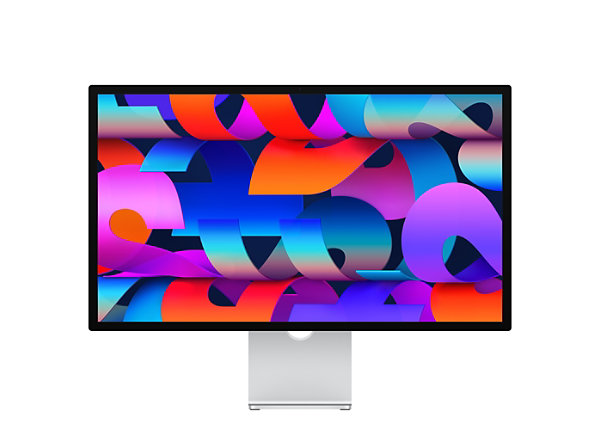
The Apple Studio Display is a 27-inch 5K monitor engineered for macOS, offering outstanding color accuracy out of the box with P3 wide color, True Tone, and 600 nits of brightness. Its ultra-sharp text and seamless integration with Mac apps make it a joy for daily editing, especially for photographers who work primarily in Capture One or Lightroom. The trade-offs are a glossy screen that reflects light and a price that climbs quickly with stand upgrades.
Main limitation: The glossy screen can be problematic in bright rooms, and there are no built-in hardware calibration controls.
Skip if: Windows users or those who require a matte anti-glare panel for consistent visibility in varied lighting.
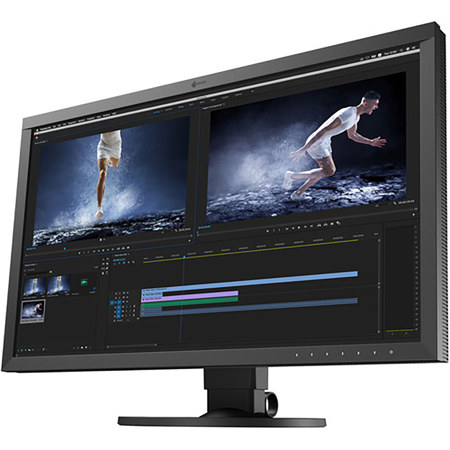
The Eizo ColorEdge CS2740 is the definitive choice for color-critical editing, delivering 99% Adobe RGB and 98% DCI-P3 coverage with a hardware calibration LUT that ensures consistent, reproducible color. Its integrated ColorNavigator software and light shield make it ideal for print labs and museum reproduction work. The premium price and lack of high refresh rates are acceptable if your only priority is absolute color fidelity.
Main limitation: It's expensive and not suited for video editing above 60Hz, so it’s not a workstation all-rounder.
Skip if: Amateurs or hobbyists on a budget, as the cost is overkill for casual photo editing or screen viewing.
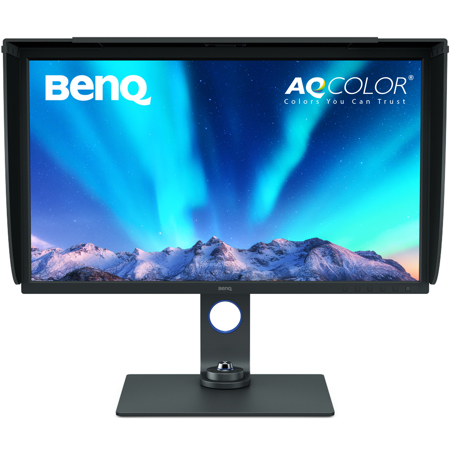
The BenQ SW321C brings a 32-inch 4K panel to photo editors who need space for high-res images, toolbars, and side-by-side comparisons. It covers 99% Adobe RGB and 97% DCI-P3, includes a shading hood, and supports hardware calibration for accurate, repeatable results. The large footprint and lack of USB-C power delivery are its main drawbacks, but it’s an excellent choice for a dedicated editing suite.
Main limitation: The large pedestal and weight require a sturdy desk, and it doesn't offer USB-C power delivery for laptop users.
Skip if: People with limited desk space or those who primarily edit on a laptop without a docking station.
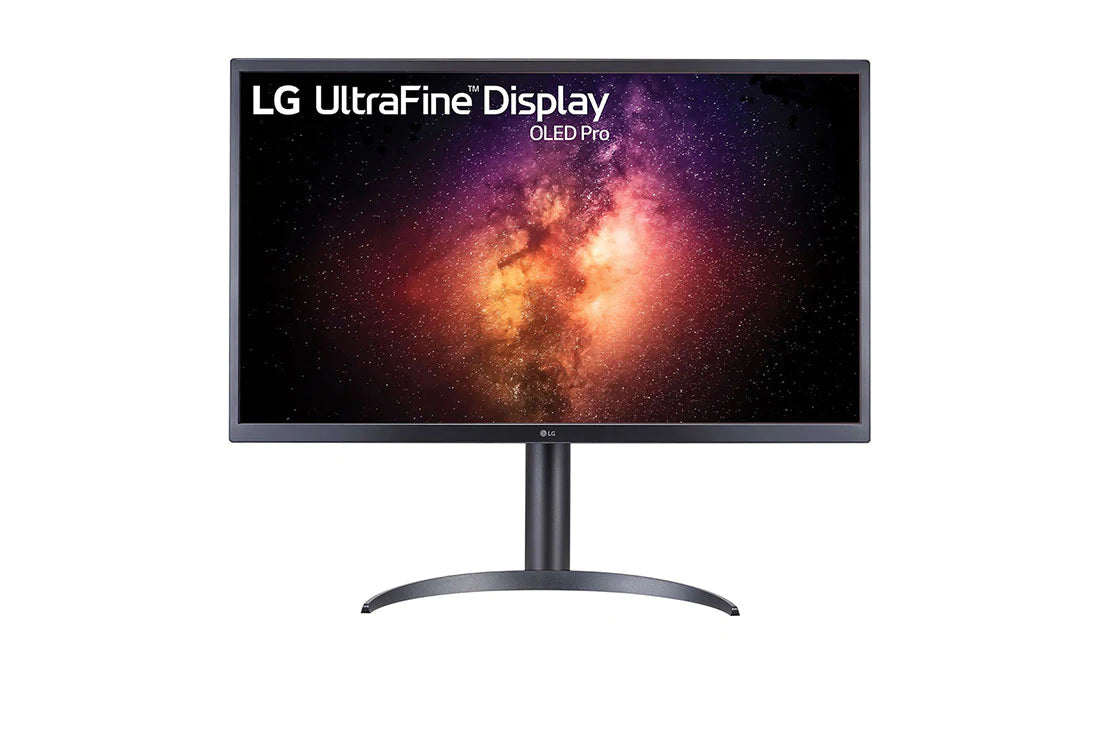
The LG UltraFine OLED Pro 32EP950 is the first OLED designed for photo editing, offering pixel-perfect blacks and a stunning wide color gamut (99% Adobe RGB, 99% DCI-P3). Its HDR1000 performance makes it unmatched for editing HDR stills and fine-art shadow detail. The glossy OLED panel reflects light easily and carries burn-in risk for users who keep static toolbars on screen for long periods, along with a premium price.
Main limitation: Potential burn-in over years of static UI elements and a glossy coating that can cause distracting reflections.
Skip if: Editors who spend 10-hour days in the same software window and are concerned about OLED longevity.
Compare key specs and features of all our recommendations side-by-side
| Product | Recommendation | Rating | Price |
|---|---|---|---|
ASUS ProArt PA279CV 27" 4K IPS Monitor Rank #1 | 🏆 Top Pick | 9.0/10 | $550–$650 Check current price → |
BenQ PD2705U 27" 4K IPS Monitor Rank #2 | 💰 Budget Pick | 8.3/10 | $380–$450 Check current price → |
Apple Studio Display 27" 5K Monitor Rank #3 | ⭐ Editor's Choice | 8.8/10 | $1,599–$1,799 Check current price → |
Eizo ColorEdge CS2740 4K Monitor Rank #4 | — | 9.2/10 | $2,099–$2,499 Check current price → |
BenQ SW321C 32" 4K Photo Editing Monitor Rank #5 | — | 8.6/10 | $1,500–$1,700 Check current price → |
LG UltraFine OLED Pro 32EP950 32" 4K OLED Monitor Rank #6 | — | 8.9/10 | $2,899–$3,299 Check current price → |
Common questions buyers have about this category.
A 4K monitor is not strictly required, but it gives you significantly more screen real estate and detail when zooming into high-resolution images. At 27 inches, 4K pixels are nearly indistinguishable to the eye, but it allows you to see texture, noise, and sharpening adjustments more accurately. For most modern photo editing workflows, 4K is the sweet spot because it matches the pixel density of large photo prints. If you rarely edit high-megapixel files and don't need to view 100% crops, a high-quality 1440p monitor can still be adequate, but 4K is worth the extra cost.
The ideal monitor should cover at least 100% sRGB, 95% DCI-P3, and ideally 99% Adobe RGB if you plan to output to print or edit in professional color spaces. sRGB is the baseline for web and email, while Adobe RGB offers a wider range of greens and cyans that are crucial for print reproduction. DCI-P3 is broader than sRGB and is used in HDR and video editing. For still photography, if you shoot JPEG, you're almost always in sRGB; if you shoot in a raw format and process using a camera's wide-gamut profile, you'll need more than sRGB. A monitor with at least 95% DCI-P3 and 99% Adobe RGB is considered professional grade.
Software calibration works by adjusting the graphics card's output values through a look-up table, which compensates for the monitor's inaccuracies after the fact. Hardware calibration, on the other hand, writes the correction directly to the monitor's internal LUT (look-up table), so the monitor processes the signal correctly at the panel level. Hardware calibration is superior because it does not lose color depth or introduce banding in the graphics card output, and it persists even if you switch computers. Monitors that support hardware calibration often come with a built-in calibration engine and software to guide the process, but you will still need a colorimeter (a measurement device) to perform the actual measurement.
OLED monitors provide true black levels and infinite contrast, which can reveal shadow detail that IPS monitors often crush. For editing HDR images, fine-art reproduction, or any work where you need to see deep blacks accurately, an OLED is superior. However, OLED displays have a potential for burn-in over time when static UI elements are displayed for many hours, and they are often more expensive than comparable IPS panels. If you consistently edit in the same software with fixed toolbars, you may want to choose an IPS panel with a good contrast ratio instead, or take precautions like enabling pixel-shift or hiding toolbars to mitigate burn-in risk.
Bit depth determines the number of colors a monitor can display, and it’s directly related to gradient smoothness and banding in your edits. An 8-bit panel can display about 16.7 million colors, while a 10-bit panel displays over a billion colors, yielding smoother transitions between shades. If you edit in a wide-gamut color space or work with high-bit TIFF files, a 10-bit or 8-bit+FRC panel is strongly recommended to avoid gradient banding. Many '8-bit' monitors use temporal dithering to simulate 10-bit depth, but for professional work, look for a native 10-bit panel or an 8-bit panel with good FRC implementation.
You can certainly use an office monitor, but be aware that it may not have factory calibration, accurate color gamut coverage, or the ergonomics you need for long editing sessions. The color may be overly saturated or have a blue cast, leading to images that look different when printed or viewed on other devices. If you’re just starting out, you can improve a standard monitor by using a software calibrator to create an ICC profile, but this only adjusts the output from your graphics card—it can’t correct hardware limitations like poor uniformity or low Adobe RGB coverage. For serious photo editing, it’s worth saving up for a dedicated monitor with high color gamut and factory calibration, even a budget model like the BenQ PD2705U.
Any modern graphics card from the last few years, including Intel integrated graphics, can handle a 4K monitor for basic photo editing. However, if you are working with large files, editing in multiple local contrast masks, or applying heavy noise reduction, a dedicated GPU with at least 4GB of VRAM will provide smoother performance and faster preview rendering. The graphics card also plays a role in color output, but modern GPUs have excellent color processing, so the monitor's calibration is more important. For dual monitors or very high-resolution screens like 5K, make sure your GPU supports the required number of displays and has DisplayPort 1.4 or HDMI 2.0 connections.
Products we evaluated but did not recommend — and why.
