Get the App
Better experience on mobile
Six color-accurate displays for retouching, print, and digital media, selected for image quality and ergonomic comfort.
Choosing a photo editing monitor involves more than picking the sharpest 4K screen; the key is verifying how accurately the display can reproduce the color spaces your work demands. For decades, editing on a monitor that silently boosts saturation or clips shadows could doom a print to look different from what you saw on screen. In 2026, we have a wider range of displays—from budget sRGB panels to exotic OLEDs—each with trade-offs that matter more than raw specs.
We've combed through published independent reviews, manufacturer specifications, and user feedback to identify six monitors that excel in color fidelity, image sharpness, and adjustability. Whether you're a first-time wedding shooter or a fine-art printmaker needing hardware calibration, this list covers a variety of price points and technologies.
The best pick for most photographers remains a 27-inch 4K IPS with Adobe RGB coverage, paired with a solid stand and USB-C connectivity. That's why our top choice, the Asus ProArt PA279CRV, lands at number one—it combines time-tested color performance with a practical feature set. But if you're on a tight budget or demand the ultimate in shadow detail, we've got targeted recommendations as well.
Read on to see how we ranked these displays, the specific compromises you'll accept at each price tier, and the questions to ask before you buy.
With a 28-inch 4K IPS panel, full Adobe RGB coverage, and Thunderbolt 3 connectivity, the PA279CRV is a versatile workhorse for photographers who want to see accurate colors across sRGB, Adobe RGB, and DCI-P3 spaces. The trade-off is its glossy-ish bezel and somewhat shallow menu system compared to BenQ's dedicated photo monitors; you'll still want to recalibrate monthly for critical work.
Main limitation: Factory calibration is good but drifts over time, and the on-screen menu lacks a dedicated 3D LUT emulation mode found on pricier competitors.
Skip if: If you never export for CMYK print or Adobe RGB, you can save money with an sRGB-only monitor.
This 27-inch QHD display delivers remarkably solid sRGB and Rec.709 coverage plus factory calibration for about a third of the price of a full 4K pro monitor. It's ideal for beginners or hobbyists who shoot mostly for web and small prints, though its lower resolution and lack of Adobe RGB mean serious retouchers will quickly hit limits.
Main limitation: Only 2560x1440 resolution and no wide gamut support beyond sRGB, so it's not suitable for high-end print work.
Skip if: Professional photographers who need 4K pixel detail or Adobe RGB coverage should look higher up the list.
For photographers who want to see their images large, the 32-inch 4K SW321C offers generous screen real estate with genuine hardware calibration support and a shading hood to tame glare. Its high price tag and need for external calibration hardware (sold separately) are the main compromises, but the big image and robust build are hard to beat for studio work.
Main limitation: The touchless Hotkey Puck G2 is handy but takes up clutter, and the monitor’s measured response time is slow, making it a poor choice for video editing.
Skip if: If you never print large or require a 16:10 aspect ratio for vertical compositions, this may be oversized for your desk.
If your editing work demands absolute precision, Eizo's ColorEdge includes a built-in calibration sensor that lets you maintain accuracy without additional tools. The price is astronomical, and its maximum brightness is modest compared to premium OLEDs, but for gallery prints and client-facing projects, this monitor is the gold standard for static images.
Main limitation: The CG319X's 60Hz refresh and average black levels make it a poor choice for video editing or gamers, and the price is far beyond most budgets.
Skip if: Photographers on a moderate budget or those who only deliver online should not spend this much on color fidelity.
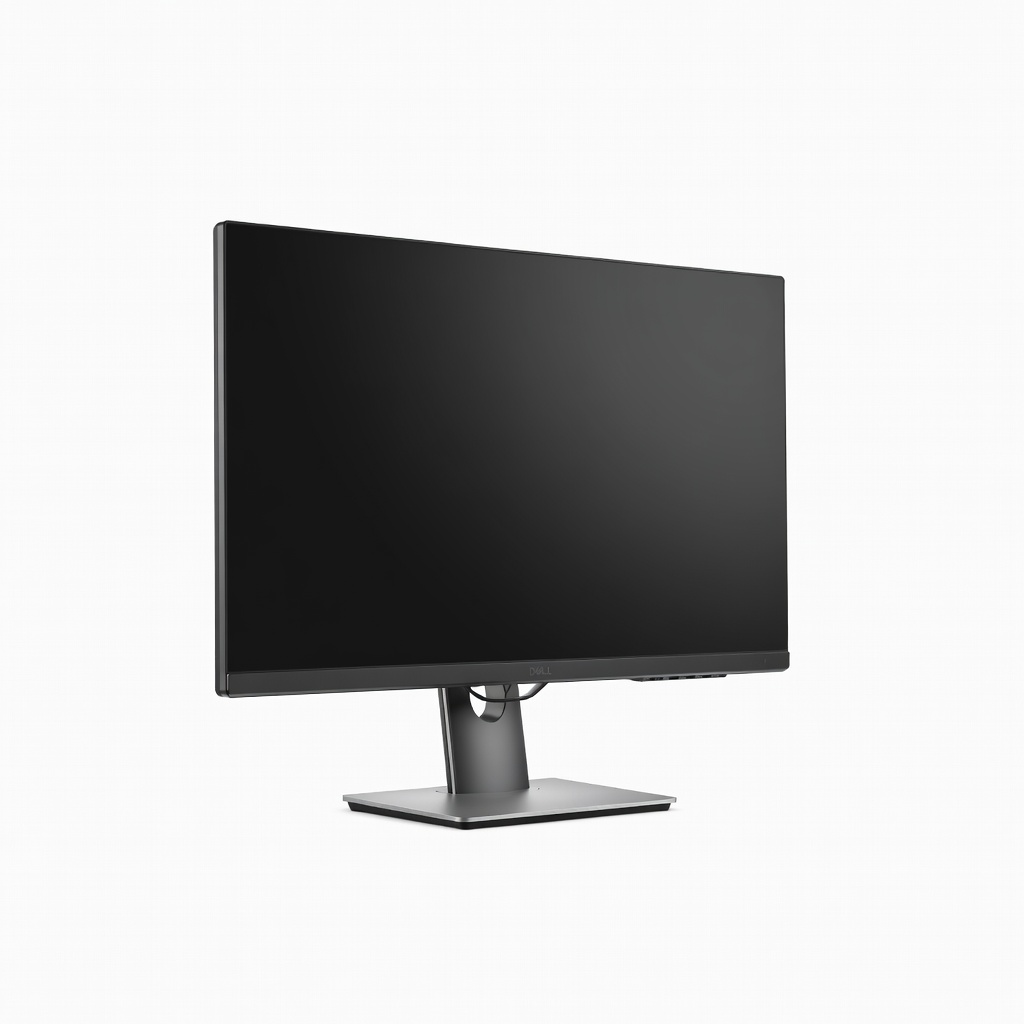
The U2723QE is the go-to choice when you need a single 4K display for both photography and everyday work: it packs an IPS Black panel, comprehensive USB-C hub with up to 90W charging, and solid sRGB/DCI-P3 coverage out of the box. The main compromise is that it lacks Adobe RGB support, so it's less suited for CMYK print workflows, and its factory calibration is decent but not as precise as dedicated pro monitors.
Main limitation: No hardware calibration support and only covers about 98% DCI-P3 without OSD adjustment, so it's more of a generalist's tool.
Skip if: If you require full Adobe RGB or built-in 3D LUT creation, this Dell isn't the ideal choice.
For absolute black levels and stunning contrast, the ProArt PA32DC pairs a 4K OLED panel with factory calibration and a manual-only menu, giving photographers an exceptional canvas for HDR and shadow detail. The main trade-off is the cost and the risk of burn-in on static UI elements, plus its modest 60Hz refresh rate, so it's really aimed at still-image specialists.
Main limitation: OLED screen burn-in is a real concern for the toolbars and windows common in photo editing, and the price is breathtaking.
Skip if: If you don't need perfect blacks or HDR previewing, an IPS monitor will be easier to maintain and far cheaper.
Compare key specs and features of all our recommendations side-by-side
| Product | Recommendation | Rating | Price |
|---|---|---|---|
Asus ProArt PA279CRV 28-inch 4K Monitor Rank #1 | 🏆 Top Pick | 8.8/10 | $800–$900 Check current price → |
ASUS ProArt PA278QV 27-inch QHD Monitor Rank #2 | 💰 Budget Pick | 7.8/10 | $300–$330 Check current price → |
BenQ SW321C 32-inch 16:9 4K Monitor Rank #3 | ⭐ Editor's Choice | 8.5/10 | $1,500–$1,800 Check current price → |
Eizo ColorEdge CG319X 31.1-inch 4K Monitor Rank #4 | — | 8.2/10 | $4,500–$5,500 Check current price → |
Dell UltraSharp U2723QE 27-inch 4K USB-C Hub Monitor Rank #5 | — | 7.9/10 | $600–$700 Check current price → |
Asus ProArt PA32DC 31.5-inch OLED Monitor Rank #6 | — | 8.0/10 | $3,000–$3,500 Check current price → |
Common questions buyers have about this category.
Adobe RGB gives you a wider range of colors, especially greens and cyans, that CMYK printers can reproduce. If you'll be delivering prints or working in Adobe RGB files, a monitor with at least 90% coverage is wise. For web-only images, sRGB is sufficient, and a monitor with high sRGB accuracy will be more affordable.
You should calibrate every two to four weeks if you're working on professional print projects, because backlight aging and color drift happen gradually. For casual editing, once a month is enough, but every time you work on a critical job, re-verify with a colorimeter.
IPS panels offer wide viewing angles, true-to-life color, and no burn-in, making them a safe choice for long sessions with static toolbars. OLEDs have infinite contrast and per-pixel dimming, which reveals detail in shadows, but they're more expensive and can experience permanent burn-in from static UI elements.
4K is valuable for inspecting fine details such as sharpness, sensor dust, and texture without enlarging. If you're on a budget, a good 2560x1440 QHD monitor is still usable, but on 27 inches and larger, 4K reduces the need for zooming and can be more comfortable.
Hardware calibration adjusts the monitor's internal look-up table, so changes apply to all inputs and don't alter the graphics card output. Software calibration uses the video card to compensate, which can reduce contrast or cause slight banding. For professional work, hardware calibration is more reliable.
Thunderbolt 3 (or USB-C with DisplayPort Alt Mode) lets you connect a Mac with a single cable, carrying video, data, and power. If you work in a clean, minimalist setup, a monitor with 80W+ of power delivery is invaluable for charging your laptop.
Factory calibration means the monitor is tested and adjusted before shipping, often with a report showing delta-E values. It gives you a good starting point, but the measurement is taken once; panel performance drifts with temperature and time. You should still recalibrate or at least use the included report as a baseline.
Products we evaluated but did not recommend — and why.
