Get the App
Better experience on mobile
A researched guide to the best laptops for 4K, 8K, and multicam editing across Mac and Windows.
Video editing laptops live or die by three specs that rarely appear together: sustained CPU and GPU performance, a color-accurate display, and enough fast storage to hold camera files without forcing every project into a proxy workflow. A laptop can look impressive on a spec sheet and still stumble during a long timeline render or misrepresent skin tones in a graded shot.
The right pick depends less on raw benchmark scores and more on the codecs you edit, the resolution you deliver, and whether you need true portability or a desk-bound workstation. Final Cut Pro editors benefit from Apple silicon media engines, while Premiere Pro and DaVinci Resolve users often get more flexibility from NVIDIA RTX graphics and Windows workstations. Display quality matters just as much as speed if you color grade or deliver client work.
This guide covers seven laptops across budget, midrange, and premium tiers. We compared manufacturer specifications, published expert reviews, aggregated buyer feedback, and current price data to narrow the field. Each pick includes a genuine trade-off so you can match the machine to your editing workload rather than a marketing bullet point.
You will find options for students cutting 4K social videos, freelance editors who need a portable studio, and post-production professionals working with HDR, 8K, or heavy effects. The best laptop for video editing is not simply the fastest one; it is the one that fits your software, your camera media, and your daily workflow.
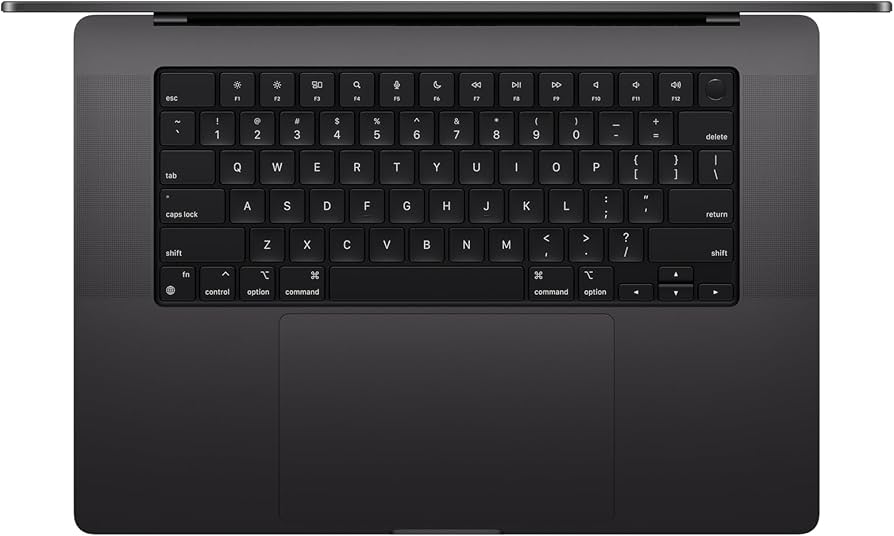
The MacBook Pro 16-inch remains the most complete video-editing laptop for most editors, thanks to its hardware-accelerated ProRes and H.264 media engines, long battery life, and a calibrated Liquid Retina XDR display. The trade-off is cost and limited upgrade flexibility after purchase.
Main limitation: It is expensive, and storage and memory upgrades carry steep price premiums at checkout.
Skip if: Skip it if your editing work depends on CUDA-only plugins, NVIDIA-specific workflows, or Windows-only studio software.
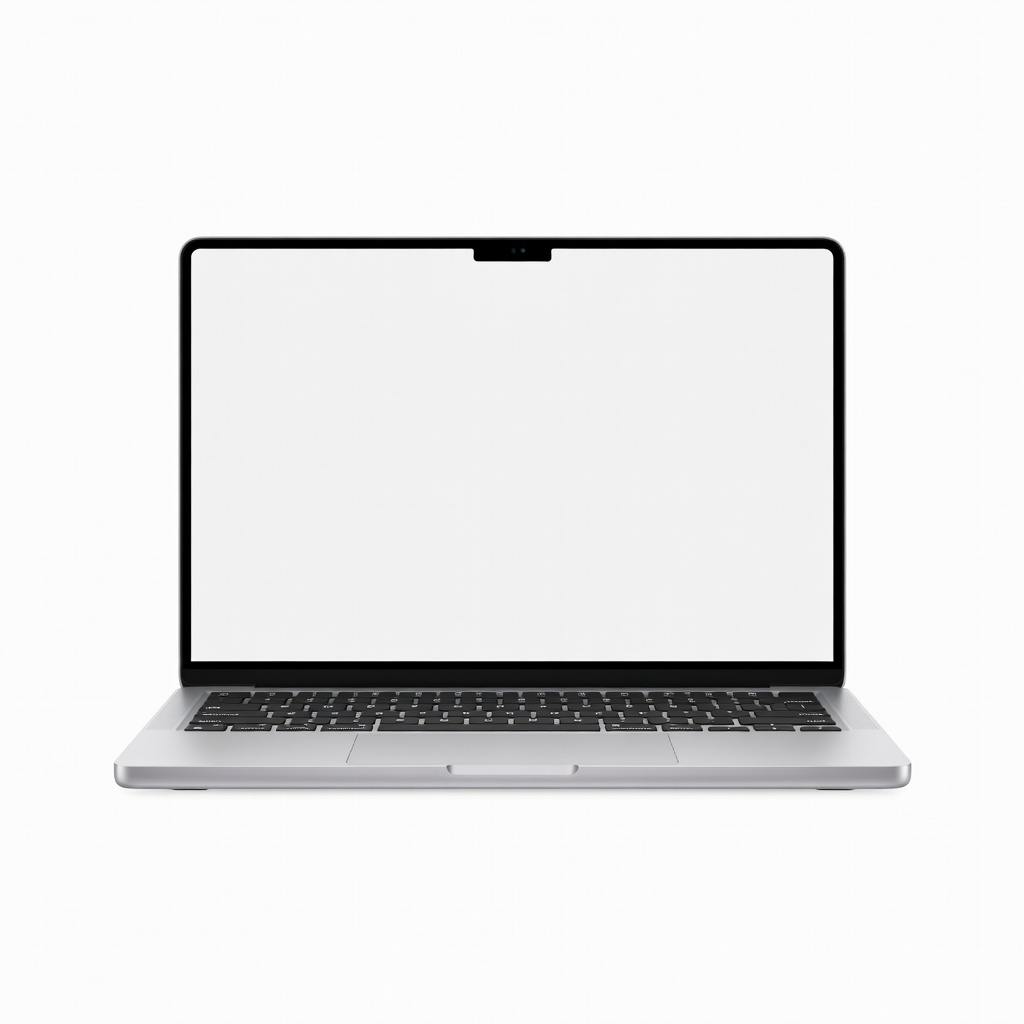
The MacBook Air 15-inch M4 is the best low-cost entry into Apple's editing ecosystem, handling 4K timelines, proxies, and moderate multicam work with quiet efficiency. Its fanless design means sustained exports and heavy effects can throttle compared with pro laptops.
Main limitation: The fanless chassis limits sustained performance, and it has fewer ports than dedicated editing machines.
Skip if: Skip it if you regularly render long 8K projects, use heavy noise reduction, or need a built-in SD card slot and HDMI.
The Dell XPS 16 pairs a sharp 4K OLED display with Intel Core Ultra and NVIDIA RTX graphics, making it a strong Windows alternative for Premiere Pro and DaVinci Resolve editors. It looks premium, but the minimalist port layout and capacitive function row can frustrate editors who rely on physical keys and full-size SD cards.
Main limitation: Limited ports and no full-size SD card slot can slow down camera-media workflows.
Skip if: Skip it if you need a full-size SD reader, many legacy ports, or a tactile function row for editing shortcuts.
The ProArt Studiobook 16 OLED is built for editors who care about color accuracy above all, offering a Pantone-validated OLED panel and a physical ASUS Dial for scrubbing and adjustment. It is heavier and less efficient than premium ultrabooks, so it works best as a studio or desk-based machine.
Main limitation: Its larger chassis and modest battery life make it less convenient for frequent travel.
Skip if: Skip it if you prioritize ultra-portable design and all-day battery life over display accuracy and creative controls.
The ThinkPad P1 Gen 7 combines workstation-class graphics, a comfortable keyboard, and business-grade service options, making it a practical choice for editors who spend long hours in timelines. Its performance varies widely by configuration, and the best displays and GPUs push the price into premium territory.
Main limitation: Configuration pricing escalates quickly, and the base panel is not ideal for critical color work.
Skip if: Skip it if you want the brightest possible OLED display or the lowest weight in this class.
The Razer Blade 16 is the strongest dual-purpose pick for editors who also game, packing desktop-class RTX graphics and a fast OLED display into a relatively slim chassis. The trade-offs are poor battery life, a high price, and a support experience that buyers describe as inconsistent.
Main limitation: Battery life is short, and the high-end configurations cost as much as dedicated workstations.
Skip if: Skip it if you need long unplugged battery life or primarily want a quiet, cool-running editing machine.
The HP ZBook Studio G11 is a true mobile workstation with ISV certifications, security features, and optional DreamColor displays for color-critical editing. It is heavier and more expensive than consumer creator laptops, and the best GPU and display options require a significant budget.
Main limitation: It is pricey and bulky compared with premium consumer laptops, especially when configured with workstation graphics.
Skip if: Skip it if you want a lightweight consumer laptop and do not need ISV certifications or enterprise security.
Compare key specs and features of all our recommendations side-by-side
| Product | Recommendation | Rating | Price |
|---|---|---|---|
Apple MacBook Pro 16-inch M4 Max (2024/2025) Rank #1 | 🏆 Top Pick | 9.5/10 | $3,499–$4,999 Check current price → |
Apple MacBook Air 15-inch M4 (2025) Rank #2 | 💰 Budget Pick | 8.0/10 | $1,199–$1,699 Check current price → |
Dell XPS 16 (9640, 2024/2025) Rank #3 | ⭐ Editor's Choice | 8.7/10 | $2,099–$3,499 Check current price → |
ASUS ProArt Studiobook 16 OLED (H7604, 2024/2025) Rank #4 | — | 8.6/10 | $2,199–$3,299 Check current price → |
Lenovo ThinkPad P1 Gen 7 (2024/2025) Rank #5 | — | 8.4/10 | $2,499–$4,299 Check current price → |
Razer Blade 16 (2024/2025) Rank #6 | — | 8.3/10 | $2,999–$4,499 Check current price → |
HP ZBook Studio G11 (2024/2025) Rank #7 | — | 8.2/10 | $2,799–$4,999 Check current price → |
Common questions buyers have about this category.
For 1080p and light 4K editing, 16GB is the practical minimum, but 32GB is a safer target for 4K multicam and effects-heavy timelines. If you work with 8K, HDR, or After Effects compositions, 64GB or more prevents constant cache clearing and keeps playback smoother.
MacBook Pros excel for Final Cut Pro, ProRes workflows, battery life, and quiet operation, while Windows laptops offer broader NVIDIA GPU options and easier access to CUDA-accelerated plugins. The better choice depends on your editing software: Apple silicon for Final Cut, and an RTX-equipped Windows machine for Premiere Pro or Resolve workflows that depend on CUDA.
A discrete GPU helps significantly with effects, color grading, noise reduction, and timeline playback, especially at 4K and above. Integrated graphics can handle simple cuts and proxy workflows, but an NVIDIA RTX or Apple M-series Pro/Max chip will reduce render times and improve responsiveness.
Color accuracy is critical if you grade footage or deliver to clients, because an inaccurate screen can lead to shifts in skin tones, whites, and brand colors. Look for at least 100% sRGB coverage, and for professional work aim for 100% DCI-P3 or Adobe RGB with factory calibration or hardware calibration support.
Yes, many gaming laptops have powerful GPUs that accelerate editing and rendering, but they often prioritize refresh rate over color accuracy and may have loud fans and short battery life. If you choose one, verify the display covers the color space you need and budget for an external calibrated monitor for critical grading.
At least 1TB is the realistic starting point, because camera files, proxies, cache files, and project assets consume space quickly. For 4K or 8K workflows, 2TB or more is advisable, and you should plan for fast external SSD storage or a NAS for archived projects.
OLED laptops offer excellent contrast, deep blacks, and wide color coverage, which makes them appealing for HDR grading and review. However, they can be more expensive, may have brightness limitations in very bright rooms, and carry some long-term burn-in risk if static interfaces are displayed for many hours.
Products we evaluated but did not recommend — and why.
