Get the App
Better experience on mobile
From budget-friendly 4K editors to professional color-grading workstations, these are the laptops that deliver performance where it counts.
Video editing is a uniquely demanding laptop task because it stresses every major component at once: the CPU for decoding and rendering, the GPU for effects and timeline playback, the display for color accuracy, and the storage for raw footage. A machine that scores well in general benchmarks can still stumble when you add multiple streams of 4K ProRes or a dozen layers of effects. That's why the best editing laptops are not the ones with the most impressive spec sheets, but the ones that balance performance, thermals, and usability without sacrificing your workflow.
In 2026, the field is more diverse than ever. Apple's M4 Pro and M4 Max chips have raised the bar for battery life and raw horsepower, while Windows laptops with RTX 40-series and newer GPUs offer compelling alternatives—especially if you rely on CUDA-accelerated plugins in Adobe Premiere Pro. Color-critical editors increasingly look for OLED or mini-LED panels with factory calibration, while budget buyers need a laptop that can handle 1080p and entry-level 4K editing without crawling to a stop.
We combed through published reviews from professional editing communities, manufacturer specifications, verified customer feedback, and price tracking data to find seven laptops that cover a wide range of needs and budgets. Every recommendation includes its strengths, its honest weaknesses, and the specific editor who should skip it. If you're about to invest in a machine that you'll spend thousands of hours in front of, these are the ones worth your attention.
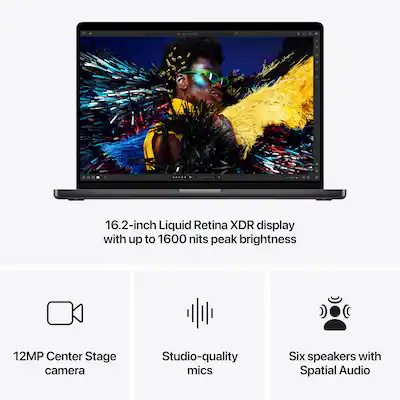
The M4 Max delivers desktop-class rendering speeds and an extended battery that outlasts most Windows workstations. The Liquid Retina XDR display is excellent for HDR editing, and the fans rarely spin up even during 4K exports. The main trade-off is price: fully spec'd with a 2TB drive, it easily tops $4,000.
Main limitation: It's heavy, and the 1080p webcam is still mediocre for a laptop in this price class.
Skip if: If you're strictly a Windows user and rely on CUDA-accelerated plugins in Premiere Pro, a Windows laptop with an NVIDIA RTX GPU may be a better fit.
For under $1,400, this laptop tackles 4K video editing in Premiere Pro and DaVinci Resolve with surprising speed, thanks to the RTX 5060 and a fast 16" 2.5K display. The build quality is solid, though the screen dims a bit when unplugged to save battery. It's the best pure value for aspiring editors who don't want to spend MacBook money.
Main limitation: The display covers only 100% sRGB, not Adobe RGB or DCI-P3, so color-critical work requires an external monitor.
Skip if: If you earn your living from color grading and need out-of-the-box P3/Adobe RGB coverage, this is not the right display.
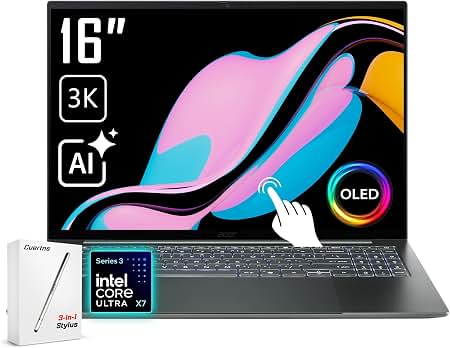
This 16-inch laptop has a 4K OLED display factory-calibrated to Delta E < 1, covering 100% DCI-P3 and Adobe RGB—making it a trusted choice for colorists. The RTX 4070 and i9 handle multi-stream 4K editing easily, and the included dial and hotkeys speed up timeline scrubbing. The trade-off is weight: at 5.3 pounds, it's not a laptop you'll casually sling into a backpack.
Main limitation: The OLED panel has glossy glass, which can cause reflections in bright studios.
Skip if: If you need to work under bright light and can't adjust the screen angle, consider a matte mini-LED alternative.
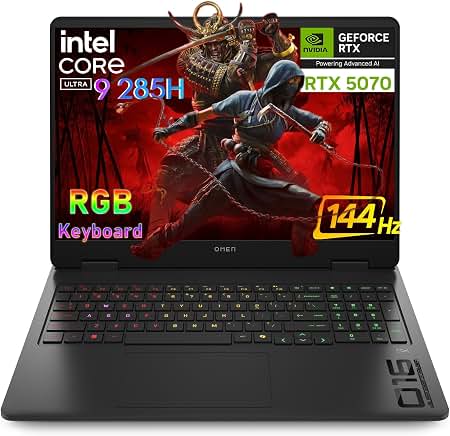
For Windows users who want a premium build and top-tier CUDA performance for Premiere Pro, the XPS 16 is the go-to. The factory-calibrated 4K+ display is superb, and the RTX 4080 delivers quick exports and smoother effect playback. It's expensive, and the glass palm rest can smudge, but it's a reliable workhorse for a Windows-based workflow.
Main limitation: Soldered RAM means you can't upgrade later—pick your configuration carefully from the start.
Skip if: If you plan to keep a laptop for four-plus years and want to upgrade memory later, this isn't the right choice.
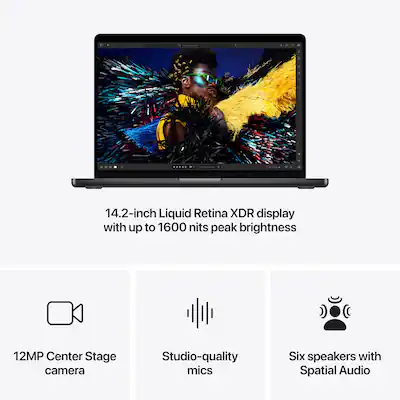
The 14-inch model packs much of the M4 Max's capability into a 3.5-pound chassis, making it a perfect travel partner for editors who cut during commutes or on location. You get the same XDR display and Thunderbolt 5 ports, though the smaller chassis does drop a few ports and sustained heavy exports can start to throttle sooner than the 16-inch. It's the best balance of performance and portability for mobile editors.
Main limitation: Battery life under heavy 4K exports drops to around 4 hours, which is mediocre for a MacBook.
Skip if: If you're mostly editing in a studio and want max sustained performance, the 16-inch M4 Max will serve you better.
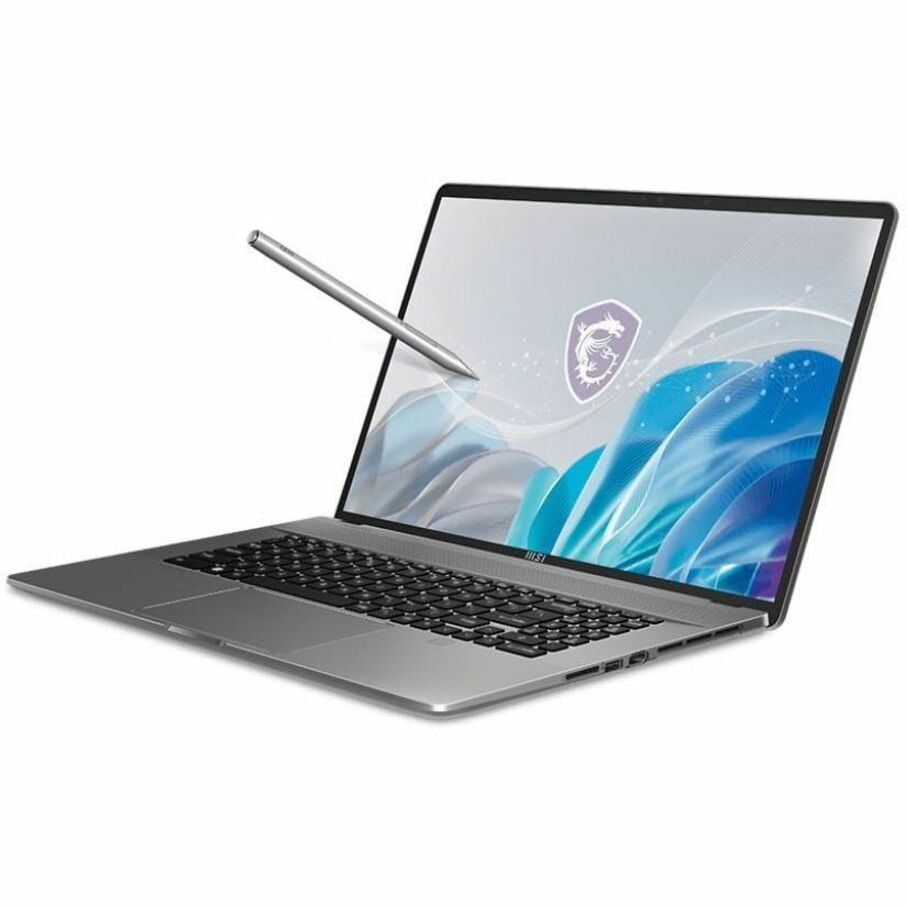
The 24-core i9-14900HX is a render beast, out-muscling most other Windows laptops in CPU-heavy tasks like After Effects playback and 3D renders. It also has a beautiful 17-inch QHD+ 165Hz display and a comfortable keyboard. The fan noise is noticeable under full load, and the battery drains quickly when unplugged, so it's best tethered to an outlet.
Main limitation: The chassis gets hot around the rear vent, so it's not ideal for lap use during intense exports.
Skip if: If you rarely render or export longer than 5 minutes, you can save money with a thinner and lighter 16-inch model.
If you want one laptop that can edit 4K footage and play the latest titles at 120+ fps, the Zephyrus G16 is the perfect hybrid. It has a vivid 16:10 OLED display and a solid RTX 4070 with NVIDIA Studio drivers, making it a versatile choice. The trade-off is that the fans spin up audibly during heavy gaming or rendering, and battery life is just average.
Main limitation: The lack of a built-in SD card slot is a real drag for camera-users, and the webcam is mediocre.
Skip if: If you don't game at all, you're paying extra for a high-refresh screen and aggressive design that you won't fully utilize.
Compare key specs and features of all our recommendations side-by-side
| Product | Recommendation | Rating | Price |
|---|---|---|---|
Apple MacBook Pro 16-inch (M4 Max, 48GB RAM, 1TB SSD) Rank #1 | 🏆 Top Pick | 9.5/10 | $3,499–$4,299 Check current price → |
Lenovo IdeaPad Pro 5i 16" (Intel Core Ultra 7 255H, RTX 5060, 32GB RAM, 1TB SSD) Rank #2 | 💰 Budget Pick | 8.3/10 | $1,199–$1,499 Check current price → |
ASUS ProArt Studiobook 16 OLED (Intel Core i9-14900HX, RTX 4070, 64GB RAM, 2TB SSD) Rank #3 | ⭐ Editor's Choice | 8.8/10 | $2,299–$2,699 Check current price → |
Dell XPS 16 (Intel Core Ultra 9 285H, RTX 4080, 64GB RAM, 2TB SSD) Rank #4 | — | 8.6/10 | $2,899–$3,499 Check current price → |
Apple MacBook Pro 14-inch M4 Pro (24GB RAM, 1TB SSD) Rank #5 | — | 8.7/10 | $2,199–$2,799 Check current price → |
MSI Creator Z17 HX (Intel Core i9-14900HX, RTX 4070, 64GB RAM, 2TB SSD) Rank #6 | — | 8.4/10 | $2,599–$3,199 Check current price → |
ASUS ROG Zephyrus G16 (AMD Ryzen AI 9 HX 370, RTX 4070, 32GB RAM, 1TB SSD) Rank #7 | — | 8.2/10 | $1,899–$2,399 Check current price → |
Common questions buyers have about this category.
It depends on your software and personal preference. Macs with M4 Pro/Max chips offer unmatched battery life and excellent performance in Final Cut Pro and DaVinci Resolve, but Windows laptops with NVIDIA RTX GPUs are better for Premiere Pro users who rely on CUDA acceleration. If you work in a team that uses Windows-only tools or gaming in your free time, a Windows laptop may be the better fit.
For 1080p editing, 16GB is the absolute minimum, but 32GB is strongly recommended for smooth multitasking and to ensure you don't run into memory bottlenecks when working with 4K footage. If you primarily edit in After Effects or handle complex motion graphics, 64GB is worth the upgrade because RAM fills up quickly with multiple comps and previews.
Yes, for any serious video editing, a dedicated GPU is essential. Modern editing software like Premiere Pro, DaVinci Resolve, and Final Cut Pro use GPU acceleration for timeline playback, effect rendering, and video encoding. A strong integrated GPU (like Apple's M4) can handle light 4K editing, but discrete graphics from NVIDIA or AMD will provide much faster exports and smoother scrubbing with color corrections and transitions.
For video editing, color accuracy and resolution are more important than refresh rate. A 4K display gives you precise control over fine details in your footage, and that's crucial for tasks like masking and color grading. High refresh rates (120Hz+) are nice for smooth cursor movement, but they're more valuable for gaming. If you're on a budget, a good 1440p display with 100% sRGB coverage is a better investment than a 4K screen with poor color.
Absolutely, with some caveats. Gaming laptops usually have powerful GPUs and CPUs, but their displays often have poor color accuracy (oversaturated gamuts) and a gamer aesthetic that might not suit a professional environment. If you're okay with the look, check the screen's color coverage and consider whether the battery life and portability are acceptable. You may also need to calibrate the display yourself.
A 1TB SSD is the practical minimum for a video editing laptop in 2026. Raw footage files, especially in 4K or higher, consume space quickly—a single 4K ProRes file can be several hundred GBs per hour. Use a 1TB or 2TB internal drive for your OS, applications, and project files, and rely on external SSDs for storing raw footage and archived projects. Look for laptops with a second M.2 slot for easy storage expansion.
For beginners, free software like DaVinci Resolve is the best starting point because it offers professional-grade color tools and a complete editing suite without the cost. Apple's iMovie is also free and user-friendly on Macs, but it's limited for advanced work. If you're on Windows, Clipchamp (now part of Microsoft 365) is a decent free option, while Adobe Premiere Rush is a simpler, paid alternative to Premiere Pro. Eventually, you'll want to master a professional tool like Premiere Pro, Final Cut Pro, or DaVinci Resolve as your skills grow.
Products we evaluated but did not recommend — and why.
