Get the App
Better experience on mobile
We've evaluated the latest 4K, QHD, and OLED monitors to find the perfect balance of speed and color accuracy for work and play.
The best monitor for gaming and productivity is the one that makes you forget you're looking at a screen. In 2026, that means a panel with high refresh, wide color gamut, and a versatile port hub — not a mismatch of compromises. Historically, buyers had to choose between a 120Hz+ gaming monitor with washed-out colors and a color-accurate 4K workhorse with a 60Hz limit. That trade-off has mostly disappeared in the last few years.
Today, 4K 144Hz monitors are commonplace, and OLED has crashed down in price. But you also have to weigh your GPU budget, the ergonomics of your desk, and how much text you'll process per day. The good news: there's a perfect dual-purpose panel for every budget, from under $250 to over $1,200. We've filtered the market down to six standouts based on published expert reviews, manufacturer specs, and aggregated buyer feedback.
In this guide, we look at what matters most for dual-use: refresh rate, panel technology, connectivity, and ergonomics. We'll explain why a 27-inch QHD monitor might be smarter than a 32-inch 4K, and why OLED isn't necessarily a productivity killer. We also cover the best budget options, ultrawide perspectives, and the all-important HDMI 2.1 connectivity for console players.
Whether you're a remote worker who wants to unwind with Warzone, or a creative professional who occasionally overclocks a GPU, these picks span the spectrum. Here are the best gaming and productivity monitors of 2026.
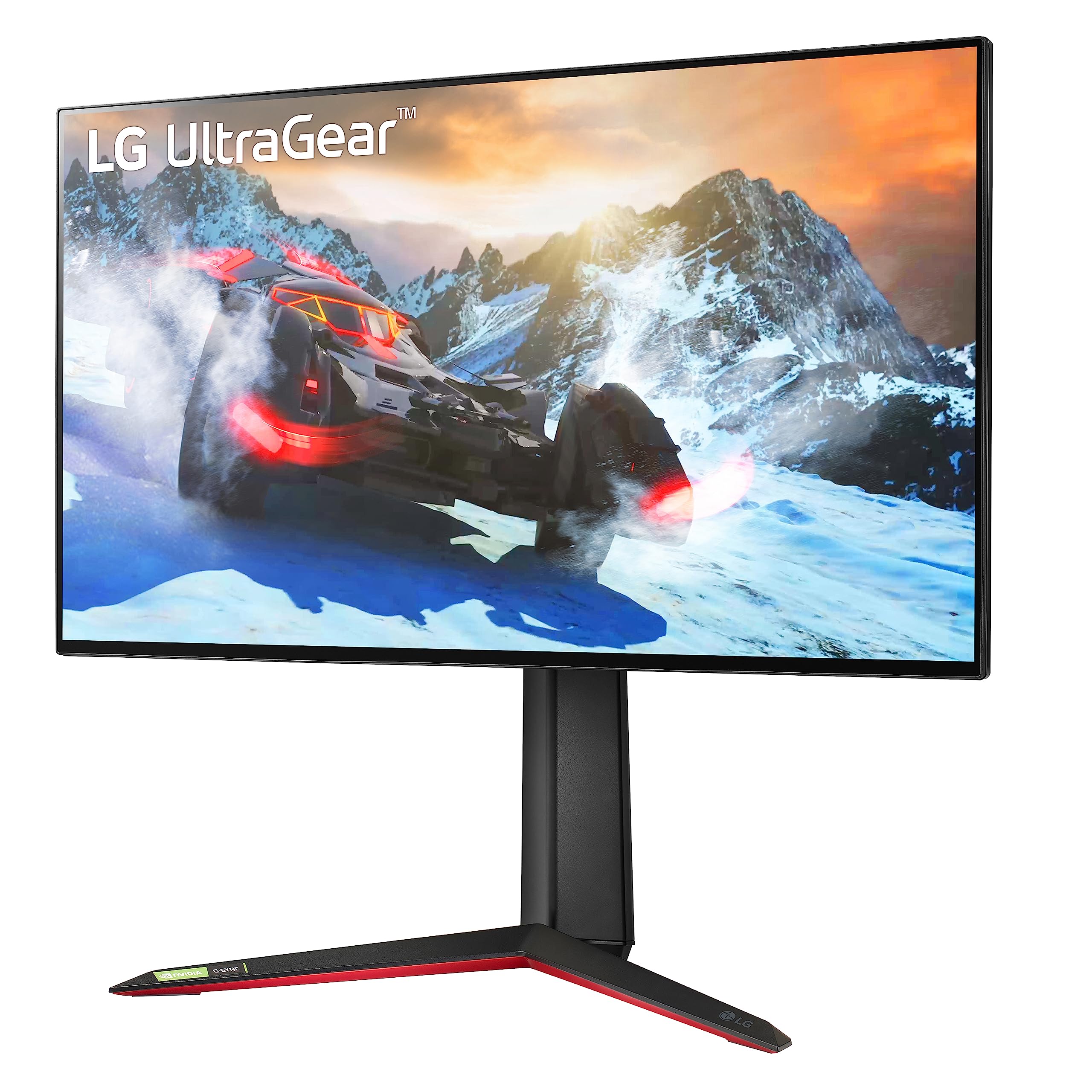
The LG UltraGear 27GP95R-B is the rare 4K monitor that doesn't ask you to choose between fast gaming and accurate work. Its Nano IPS panel delivers a 160Hz refresh rate with a 1ms response, plus 98% DCI-P3 coverage and HDMI 2.1 for console support. The trade-off: driving 4K at 160Hz requires a top-of-the-line GPU, and the 27-inch size might feel tight for spreadsheet-heavy multitasking.
Main limitation: HDR performance is underwhelming at only DisplayHDR400, and 27-inch 4K can cause scaling issues in Windows if you run it at 100%.
Skip if: If you're on a tight budget or run a mid-range GPU that can't push 4K at high frame rates, this monitor is overkill.
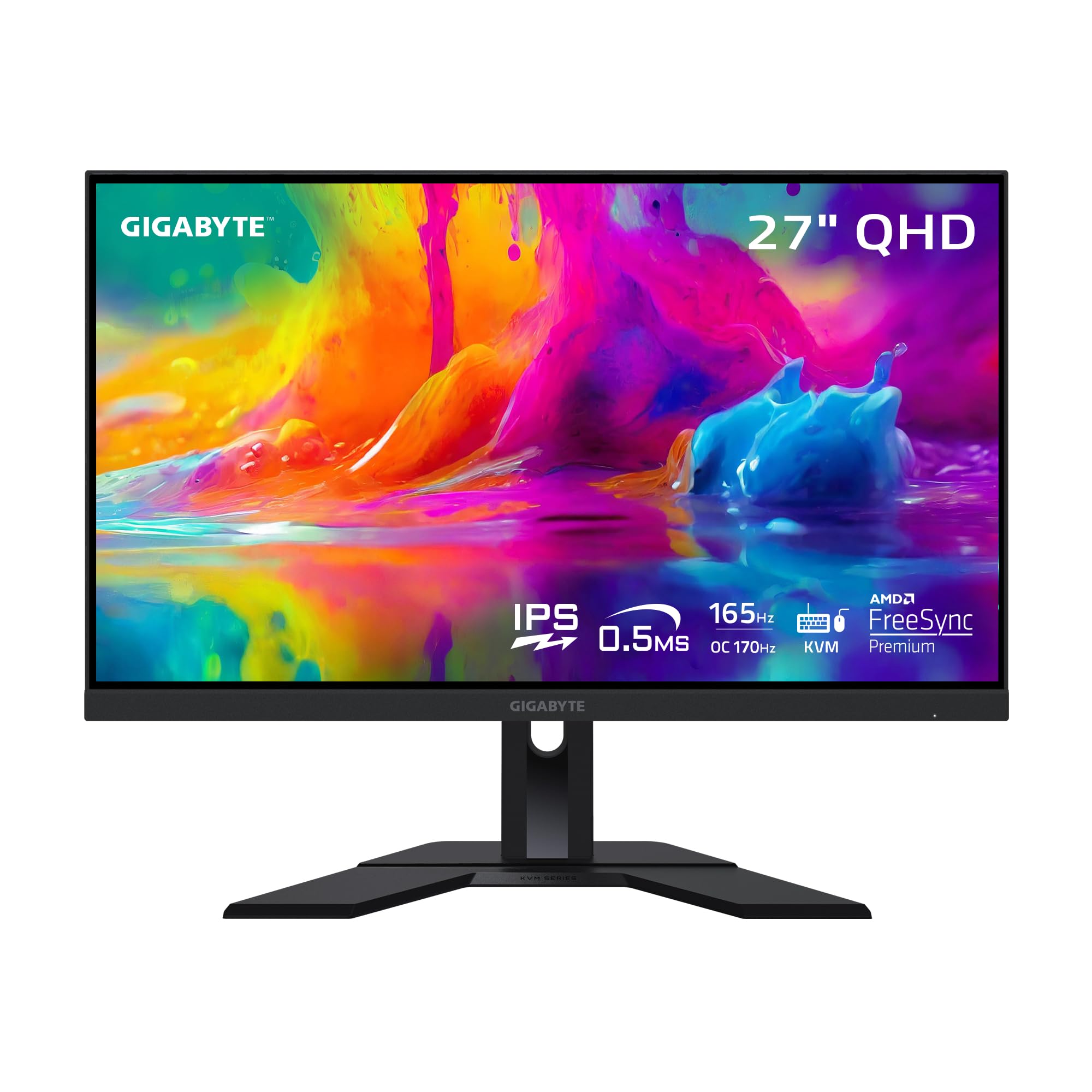
The Gigabyte M27Q delivers QHD resolution and a 165Hz refresh rate for less than $300, making it a top value for dual-use buyers. Its KVM switch and built-in USB hub easily connect a work laptop and a gaming PC at the same time. The trade-off is the BGR subpixel layout, which can cause minor text fringing on Windows unless you adjust ClearType.
Main limitation: BGR pixel layout makes text look slightly less sharp on Windows, and HDR performance is minimal at HDR400.
Skip if: If you absolutely need 4K resolution or want great HDR, this isn't the panel for you.
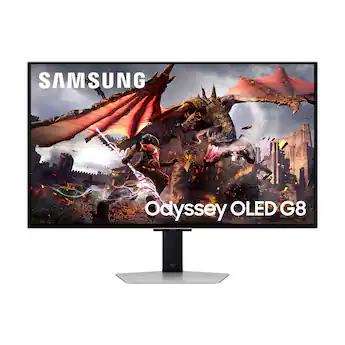
Samsung's Odyssey OLED G80SD brings 4K QD-OLED visuals to a 240Hz refresh, with perfect blacks and stunning HDR for both gaming and content creation. The 32-inch size offers ample real estate, and modern subpixel structures reduce text fringing compared to older OLEDs. The trade-off is the premium price and the ever-present burn-in risk when working with static elements.
Main limitation: The smart interface feels unnecessary, and OLED burn-in potential makes it risky for 40-hour work weeks.
Skip if: If you spend most of the day on static spreadsheets or documents, an IPS panel might be safer against burn-in.
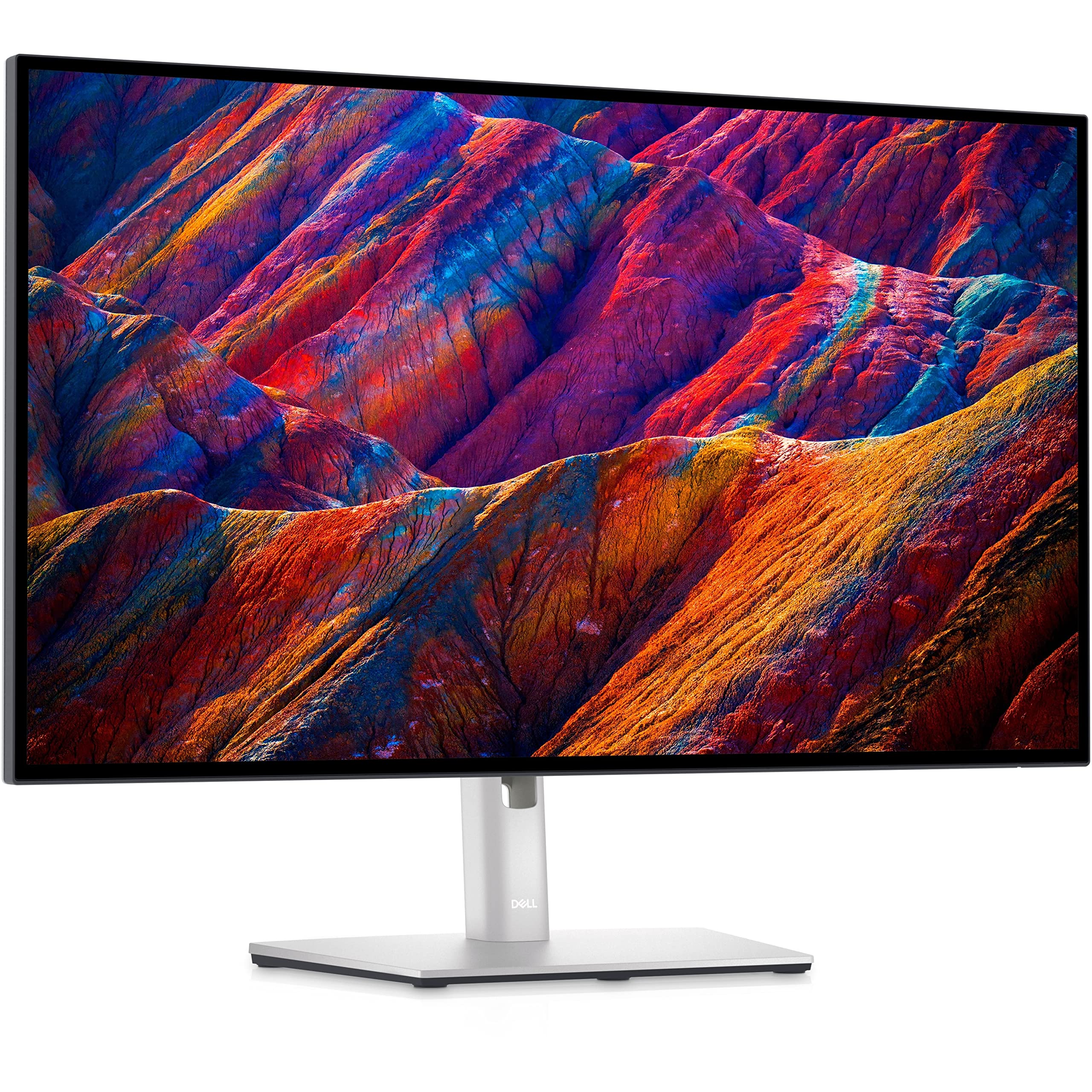
Dell's UltraSharp U2723QE is the productivity powerhouse, using IPS Black technology to boost contrast and a USB-C hub with 90W power delivery to charge your laptop in one cable. It's factory-calibrated to 98% DCI-P3 and features a 4K resolution with ergonomic adjustments. The trade-off is the 60Hz refresh rate, which is fine for casual games but not competitive play.
Main limitation: 60Hz and no HDMI 2.1 means it's not a gaming monitor — it's for work with light gaming.
Skip if: If you prioritize buttery-smooth gameplay over color accuracy, look elsewhere.
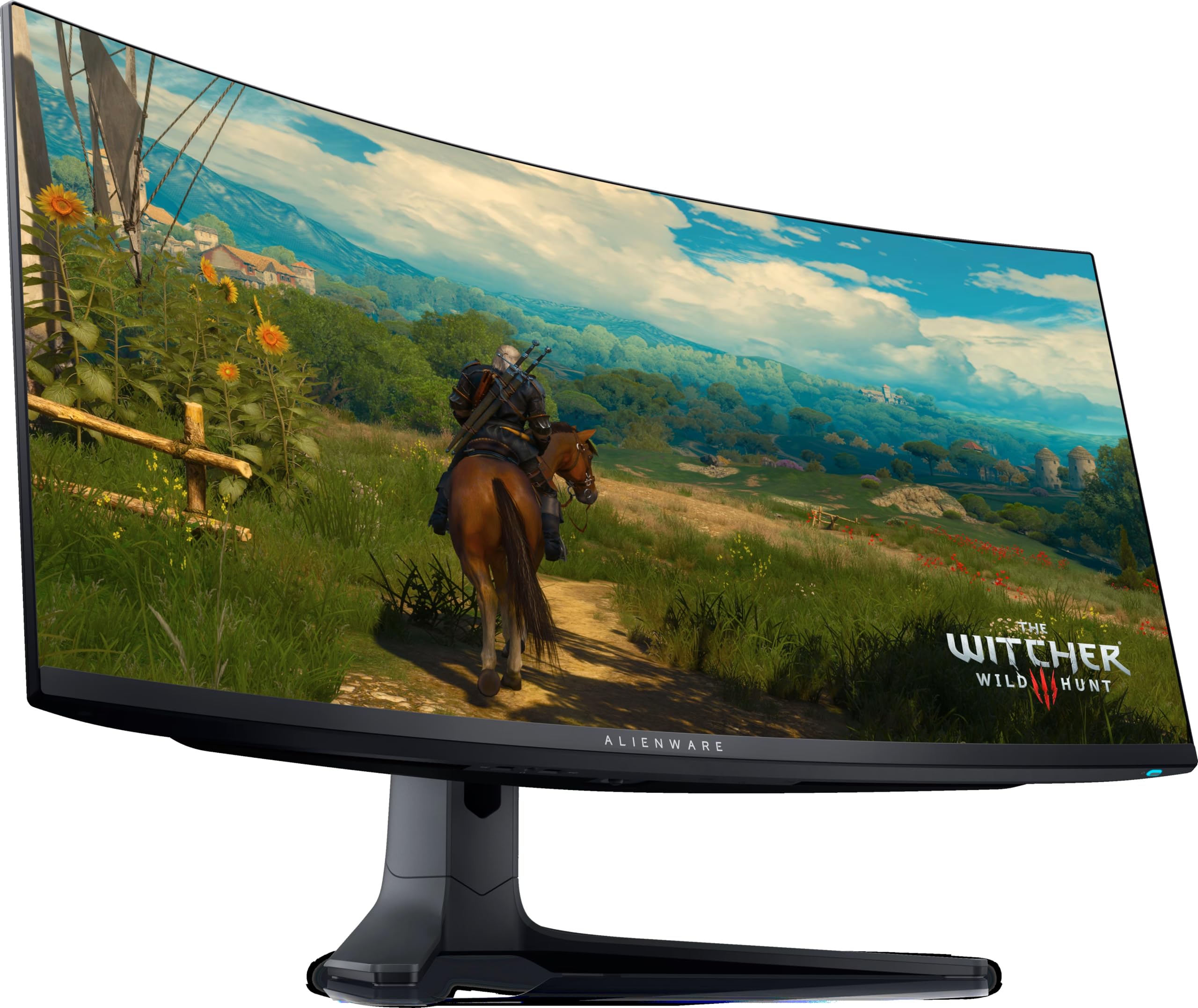
The Alienware AW3423DWF is a 34-inch QD-OLED ultrawide with a 165Hz refresh, combining height-adjusted text density with a cinematic field of view. It's great for multitasking and immersive gaming, and the 1800R curve helps pull you into the game. The trade-off is that the subpixel arrangement can make white text look slightly fuzzy, and it's not true 4K — 'only' 3440x1440.
Main limitation: Fan-powered cooling adds a low hum, and the OLED panel requires careful handling to avoid burn-in.
Skip if: If you need true 4K resolution or especially crisp text rendering on Windows, consider a non-OLED option.
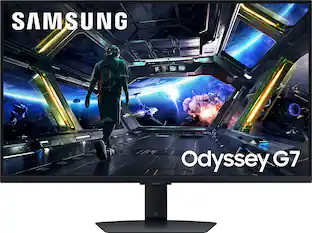
The Samsung Odyssey G7 S28BG700E is a 28-inch 4K 144Hz monitor with HDMI 2.1, making it a perfect companion for PS5 or Xbox Series X. It also works well on PC with fast response and low input lag, and its price has dropped below $400. The trade-off is a typical IPS glow and a lack of USB-C for modern laptops.
Main limitation: HDR brightness is limited to DisplayHDR400, and there's no USB-C port for direct laptop hookup.
Skip if: If you're a demanding PC gamer who wants better HDR or faster response, or if you need USB-C for laptop charging, look elsewhere.
Compare key specs and features of all our recommendations side-by-side
| Product | Recommendation | Rating | Price |
|---|---|---|---|
LG UltraGear 27GP95R-B Rank #1 | 🏆 Top Pick | 9.0/10 | $649–$749 Check current price → |
Gigabyte M27Q Rev 2.0 Rank #2 | 💰 Budget Pick | 8.3/10 | $249–$299 Check current price → |
Samsung Odyssey OLED G80SD Rank #3 | ⭐ Editor's Choice | 8.8/10 | $1,199–$1,399 Check current price → |
Dell UltraSharp U2723QE Rank #4 | — | 8.0/10 | $419–$499 Check current price → |
Alienware AW3423DWF Rank #5 | — | 8.7/10 | $799–$999 Check current price → |
Samsung Odyssey G7 S28BG700E Rank #6 | — | 8.3/10 | $379–$449 Check current price → |
Common questions buyers have about this category.
Yes—4K gives you crisp text and detail for spreadsheets and design, while a 120Hz+ refresh rate is a huge leap for gaming. However, you'll need a powerful GPU, like an RTX 4070 Super or better, to push 4K at 120fps in modern titles. If you're on a mid-range GPU, QHD 165Hz is a more realistic dual-use choice.
Modern QD-OLED monitors have made significant strides in text clarity, but they still aren't as sharp as IPS on white backgrounds. Burn-in is still a risk if you keep static elements like taskbars and icons on screen for 8+ hours a day. Use dark mode, hide the taskbar, and screen-saver blanking to mitigate risk.
27 inches is the most common size because it works for both gaming and productivity. 32 inches gives you more screen real estate, but you'll need to sit further away to avoid eye strain. Ultrawides like 34-inch 21:9 are perfect for multitasking but may require some games to compromise on FOV.
If you're connecting a PlayStation 5 or Xbox Series X, yes—HDMI 2.1 is the only way to get 4K at 120Hz with VRR. On PC, DisplayPort 1.4 with DSC can achieve 4K 144Hz without HDMI 2.1. Make sure your monitor and GPU both support the same standard.
IPS panels offer superior color accuracy and viewing angles, making them better for productivity. VA panels have higher contrast, but they typically have slower pixel transition times, which can cause ghosting in fast-moving games. For a mix of work and gaming, IPS or IPS-like panels are the safest choice.
You can get a quality QHD 165Hz monitor like the Gigabyte M27Q for around $250-$300, which is a great starting point. For 4K 144Hz, expect to spend at least $400-$500, and premium OLED panels cost anywhere from $800 to $1,500. Determine your GPU's capability first, then choose a monitor that won't bottleneck it.
Products we evaluated but did not recommend — and why.
