Get the App
Better experience on mobile
From budget 1440p to 4K OLED, these six monitors balance fast refresh rates with color accuracy, ergonomic stands, and hub connectivity.
Gamers don't just game anymore — they work, stream, and create in the same space, and the old rift between fast gaming monitors and color-faithful work displays is thankfully shrinking. What used to be a trade-off between 144Hz refresh and accurate sRGB has become a category where 4K IPS panels reach 120Hz and budget 1440p monitors add local dimming. But a great spec sheet doesn't guarantee a great experience for dual duty; text clarity, ergonomics, and connectivity often matter as much as pixel count.
The best dual-purpose monitor of 2026 needs to deliver three things together: a smooth, responsive gaming mode, crisp and comfortable display for document work, and enough ports to connect both your work laptop and gaming PC. It also has to be affordable enough to make practical sense. Based on published expert reviews, manufacturer specifications, and aggreg ated buyer feedback, we focused on models that avoid major compromises on either front.
We included six monitors spanning from $280 to around $1,200, mixing IPS, Mini-LED, and OLED technologies. You'll find budget picks that get most of the gaming experience for half the price, and premium OLEDs that deliver exceptional contrast and response times. By highlighting the best option for each distinct use case — from esports to 4K productivity — we hope to help you choose a monitor that you'll enjoy for years.
Before you buy, remember that refresh rate is only one piece of the picture. Variable refresh rate, panel type, text clarity, stand adjustability, and USB-C charging will determine whether you actually want to use the monitor all day. Our picks below make the trade-offs clear, and we've included alternatives for shoppers with specific constraints.
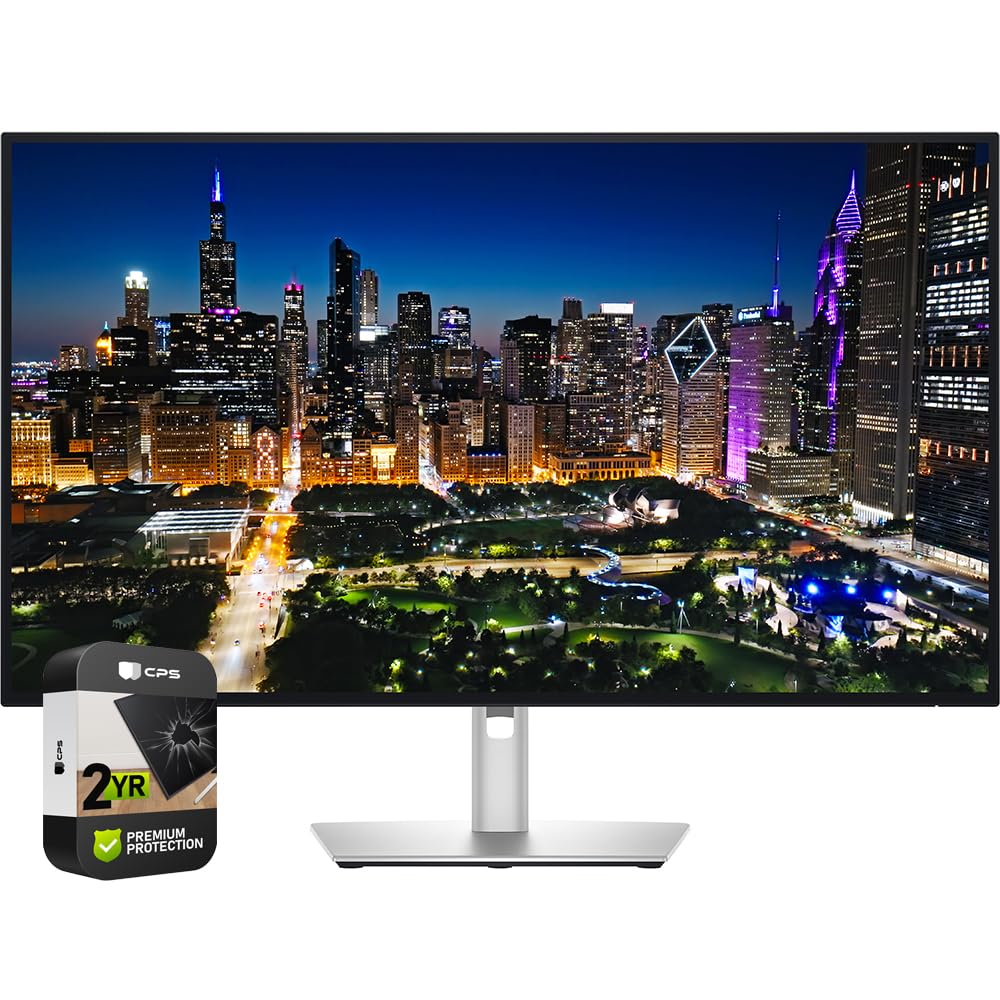
Combines 4K resolution and 120Hz refresh with a 3000:1 contrast IPS Black panel, making it the most balanced choice for professionals who also game. Thunderbolt 4, a USB hub, and wide color coverage make it a true desktop centerpiece. The main trade-off is price — it costs more than many comparable gaming monitors, and 120Hz is not enough for esports purists.
Main limitation: The 120Hz panel is smooth but not competitive-grade, and the premium price skips advanced HDR features found on OLED rivals.
Skip if: If your after-hours gaming is dominated by fast-paced competitive esports, a 240Hz+ OLED or smaller high-refresh TN will serve you better.
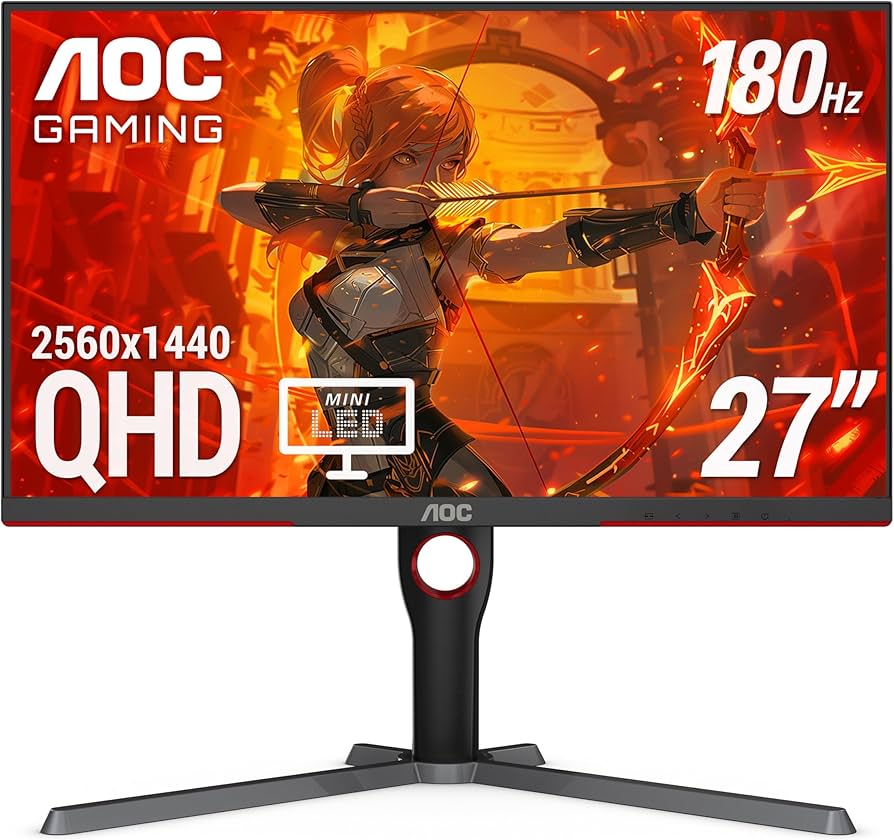
Delivers 1440p, 180Hz, and Mini-LED local dimming for around $280, making it the value king for dual-duty use. VA contrast is excellent for dark games and its HDR presence is a boon at this price. But the stand is basic and viewing angles show color shift unless you sit squarely in front.
Main limitation: Limited ergonomic adjustments and no USB-C port reduce its productivity flexibility.
Skip if: Photo editors who need factory-calibrated 4K color, or anyone who needs a fully adjustable stand out of the box.
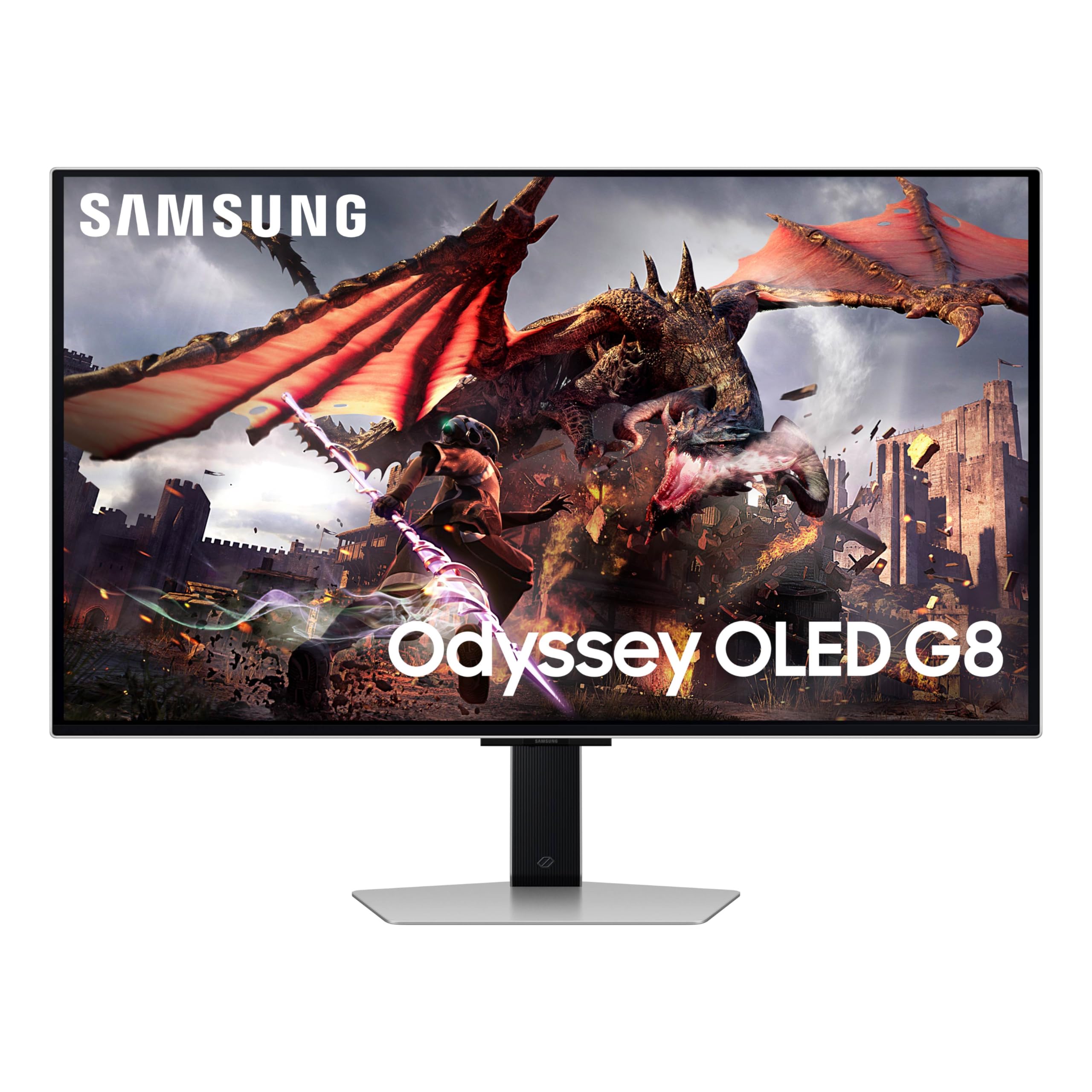
Combines a 32-inch 4K QD-OLED panel with 240Hz refresh and near-infinite contrast, delivering the most immersive HDR experience for both games and movies. OLED’s fast response times and wide viewing angles make even casual play feel fluid, while the matte coating reduces reflections. The main trade-off is that OLED text can look slightly fringed, and static desktop elements carry a burn-in risk over years of heavy use.
Main limitation: OLED text fringing and potential burn-in make it less ideal for all-day, document-heavy productivity work.
Skip if: If you spend eight hours a day in static spreadsheets and only game occasionally, you don’t need to spend this much for panel and speed.
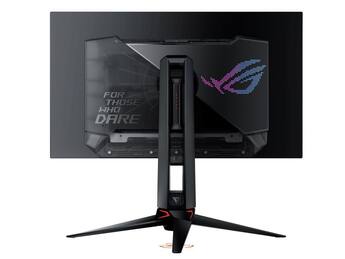
If your gaming time is dominated by Valorant, Counter-Strike, or other esports titles, this 480Hz OLED gives you the highest possible motion clarity and near-instant response. It also covers 99% DCI-P3, so it honestly doubles as a color-accurate 1440p productivity display. The downsides are a steep price, no USB-C hub, and a 1440p panel that won’t give you 4K sharpness for photo or video work.
Main limitation: No USB-C or multipurpose hub features, and the 1440p pixel density isn’t enough for detailed 4K creative work.
Skip if: Creative professionals who need 4K per-pixel detail, or Mac users who prefer a single USB-C connection.
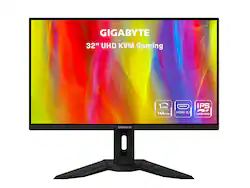
A 32-inch 4K IPS panel with 144Hz refresh, built-in KVM switch, and two HDMI 2.1 ports makes it a smart desktop hub for switching between a work PC and a console. The ergonomic stand and sRGB mode cover daily productivity needs without breaking the bank. It lacks the deep contrast of OLED and the peak brightness of Mini-LED, but its feature set is hard to beat near $700.
Main limitation: The KVM only auto-switches with USB-C input, and contrast ratio is average for an IPS panel.
Skip if: Those who care more about deep blacks than connectivity, or need a smaller 27-inch footprint.
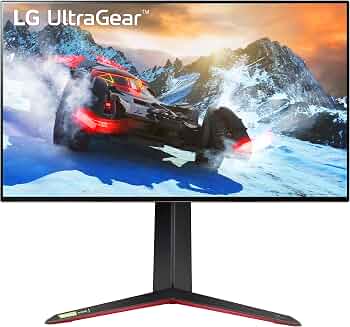
This 27-inch 4K Nano IPS panel hits a sweet spot between sharp productivity text and silky 160Hz gaming, at a price that undercuts many rivals. It supports 4K at high refresh on both PC and consoles via HDMI 2.1, and covers 95% DCI-P3. There’s no USB-C, and the companion stand is stiffer than LG’s more premium UltraGear models.
Main limitation: Lacks USB-C and a full-featured USB hub, so switching between two laptops is cumbersome.
Skip if: Mac users needing a one-cable setup, or people who prefer a larger 32-inch screen.
Compare key specs and features of all our recommendations side-by-side
| Product | Recommendation | Rating | Price |
|---|---|---|---|
Dell UltraSharp U3225QE 32-inch 4K IPS Black Monitor Rank #1 | 🏆 Top Pick | 9.0/10 | Around $950 Check current price → |
AOC Q27G3XMN 27-inch QHD Mini-LED Gaming Monitor Rank #2 | 💰 Budget Pick | 8.0/10 | Around $280 Check current price → |
Samsung Odyssey OLED G80SD 32-inch 4K Smart Gaming Monitor Rank #3 | ⭐ Editor's Choice | 8.5/10 | Around $1,200 Check current price → |
ASUS ROG Swift OLED PG27AQDP 27-inch 1440p 480Hz Gaming Monitor Rank #4 | — | 8.5/10 | Around $1,100 Check current price → |
Gigabyte M32U 32-inch 4K 144Hz IPS Monitor with KVM Rank #5 | — | 8.0/10 | Around $700 Check current price → |
LG 27GP95R-B 27-inch 4K Nano IPS 160Hz Gaming Monitor Rank #6 | — | 8.0/10 | Around $600 Check current price → |
Common questions buyers have about this category.
1440p offers a good balance of pixel density and frame rate, especially if you have a mid-range GPU. 4K gives you noticeably sharper text and more screen space for productivity, but it demands a powerful GPU for high-refresh gaming. If your graphics card is older, 1440p is safer; if your PC can push 4K at 60+ fps, a 4K 144Hz monitor is the long-term pick.
OLED delivers outstanding contrast, response times, and HDR, making gaming and video look incredible. However, subpixel text rendering can cause color fringing or slightly fuzzy text, and static elements like toolbars carry a burn-in risk. For heavy spreadsheet or document use, many users prefer IPS or Mini-LED; OLED is best if you can vary your content and take protective measures like screen savers.
120Hz is enough to make cursor movement and window scrolling feel fluid, and it covers most casual to mid-level gaming. 144Hz is the sweet spot for most players because it aligns well with CPU/GPU output and feels noticeably better than 60Hz. For professional esports, 240Hz or higher offers measurable advantages, though those speeds matter little for office work.
Yes if you own a PlayStation 5, Xbox Series X, or a modern GPU that can output 4K at 120Hz. HDMI 2.1 also allows 10-bit HDR at high refresh rates, which older HDMI 2.0 cannot fully handle. On a PC, DisplayPort 1.4 is often enough for 4K 144Hz, but HDMI 2.1 future-proofs for console use and simplifies cable management.
IPS panels offer the best color consistency and viewing angles for text work, while VA panels provide higher contrast but can suffer from dark smearing and angular color shift. OLED has the best contrast but text fringing can be noticeable at typical sizes. IPS remains the easiest recommendation for mixed use, with Mini-LED IPS/VA as a premium alternative for better HDR.
If you regularly switch between a work laptop and a personal PC, a KVM allows you to share one keyboard, mouse, and display without unplugging cables. This feature usually adds $100–$200 to the price, but it saves desk space and time. If you only connect a single machine, skip the KVM and invest in a better panel or stand instead.
Products we evaluated but did not recommend — and why.
