Get the App
Better experience on mobile
A step-by-step guide to diagnose and fix notification issues on your Apple Watch.
Frustrated by your Apple Watch not getting notifications? You're not alone. Missing important calls, texts, or app alerts can be incredibly annoying, especially when you rely on your smartwatch for staying connected on the go. This is a common issue among Apple Watch users, often caused by simple settings misconfigurations or deeper software glitches.
Why does this happen? Based on user reports from forums like Apple Support Communities and Reddit, the problem often stems from connectivity issues, incorrect notification settings, or outdated software. In this guide, you'll learn how to troubleshoot and resolve these issues with 8 actionable fixes, ranging from quick checks to more advanced solutions. We'll also cover when it's time to consider an upgrade if the problem persists.
Quick Summary of Solutions: From checking your iPhone settings to resetting your Apple Watch, we've got you covered with easy-to-follow steps to get those notifications back on track.
Difficulty: easy | Time: 2 minutes
What to do: Open the 'Watch' app on your paired iPhone and go to 'Notifications.' Ensure that notifications for key apps (like Messages or Calls) are enabled and set to 'Mirror my iPhone' or 'Custom' with alerts turned on.
Why this works: The Apple Watch relies on the iPhone for most notification settings. If they're disabled here, your watch won't receive alerts.
What you should see: After adjusting settings, send a test message or call to your iPhone. If notifications appear on your watch, you're good to go.
Warning signs: If no notifications appear even after enabling them, proceed to the next step.
Difficulty: easy | Time: 2 minutes
What to do: On your iPhone, check that Bluetooth and Wi-Fi are turned on (Settings > Bluetooth and Settings > Wi-Fi). On your Apple Watch, swipe up to access the Control Center and confirm the Bluetooth icon is blue.
Why this works: Notifications depend on a stable connection between your watch and iPhone. A disconnected Bluetooth link can prevent alerts.
What you should see: If the connection icons are active, test by sending a message. Notifications should appear if this was the issue.
Warning signs: If the watch still doesn't connect or notifications don't show, move to the next step.
Difficulty: easy | Time: 1 minute
What to do: Swipe up on your Apple Watch to open the Control Center. Look for the crescent moon icon (Do Not Disturb) or the theater masks icon (Theater Mode). If either is highlighted, tap to disable them.
Why this works: These modes silence notifications to prevent disturbances, often accidentally enabled by users.
What you should see: Once disabled, notifications should resume. Test with a call or message.
Warning signs: If modes are off but the issue persists, there may be a deeper problem.
Difficulty: easy | Time: 5 minutes
What to do: Restart your iPhone by holding the power button and sliding to power off. For your Apple Watch, press and hold the side button until the power off slider appears, then slide to turn off. Turn both devices back on.
Why this works: A simple restart can resolve temporary software glitches affecting connectivity or notifications.
What you should see: After restarting, check for notifications. They should appear if this was a minor glitch.
Warning signs: If restarting doesn't help, proceed to software updates.
Difficulty: medium | Time: 15-30 minutes
What to do: On your iPhone, go to Settings > General > Software Update to ensure iOS is up to date. Then, open the Watch app, go to General > Software Update, and install any available updates for your Apple Watch (ensure it's charged above 50% and on Wi-Fi).
Why this works: Bugs in older software versions can cause notification issues, and updates often include fixes.
What you should see: After updating, test notifications. They should work if a software bug was the culprit.
Warning signs: If updates don't resolve the issue, there may be a pairing problem.
Difficulty: medium | Time: 10-15 minutes
What to do: Open the Watch app on your iPhone, tap 'All Watches,' select your watch, and choose 'Unpair Apple Watch.' Confirm and wait for the process to complete. Then, set up your watch again by following the on-screen pairing instructions.
Why this works: Unpairing resets the connection between devices, often resolving persistent glitches.
What you should see: After re-pairing, notifications should sync correctly. Test with a message or call.
Warning signs: If pairing fails or notifications still don't work, it could be a hardware issue.
Difficulty: medium | Time: 15-20 minutes
What to do: On your Apple Watch, go to Settings > General > Reset > Erase All Content and Settings. You'll need to enter your Apple ID password if Find My is enabled. After resetting, pair it with your iPhone again.
Why this works: This clears all data and settings, resolving deep software issues that might block notifications.
What you should see: Post-reset, notifications should work if it was a software corruption issue.
Warning signs: If the problem persists, it might be time to consider hardware failure or professional support.
Difficulty: hard | Time: 1-2 hours (plus travel time)
What to do: Visit support.apple.com or book an appointment at an Apple Store for a diagnostic test. Be prepared to provide your device serial number and explain the issue.
Why this works: If all software fixes fail, there could be a hardware issue with the watch's Bluetooth or notification system.
What you should see: Apple Support will confirm if it's a hardware fault and advise on repair or replacement.
Warning signs: Be aware that out-of-warranty repairs can be costly, often nearing the price of a new device.
Signs Your Apple Watch Is Beyond Repair: If you've gone through all troubleshooting steps and notifications still don't work, especially after Apple Support confirms a hardware issue, it might be time to upgrade. Persistent connectivity failures or random glitches can also indicate that internal components are failing, particularly on older models like the Series 3 or 4.
Age and Cost Considerations: If your Apple Watch is over 4-5 years old, repair costs (often $200-$300 for out-of-warranty fixes) may not be worth it compared to purchasing a newer model with better features and longer support. Check your warranty status at support.apple.com; if it's still covered, repairs might be free or discounted. However, for older devices, investing in a new watch often makes more financial sense.
Red Flags for Upgrading: If your device frequently disconnects, lags, or has other unrelated issues (like battery drain), these are signs of overall degradation. There's no major safety concern with notification failures, but missing critical alerts (like health notifications on newer models) could be problematic. Upgrading to a modern Apple Watch or alternative smartwatch can restore reliability and add features like improved health tracking.
🛒 Buy Apple Watch Series 9 on Amazon
🛒 Buy Apple Watch SE (2nd Gen) on Amazon
🛒 Buy Samsung Galaxy Watch 6 on Amazon
🛒 Buy Fitbit Charge 6 on Amazon
![Apple Watch SE 3 [GPS 40mm] Smartwatch with Midnight Aluminum Case with Midnight Sport Band - S/M. Fitness and Sleep Trackers, Heart Rate Monitor, Always-On Display, Water Resistant Midnight Aluminum Case with Midnight Sport Band 40mm case + Small/Medium band GPS Without AppleCare+ - Image 1 of 6](https://m.media-amazon.com/images/I/61ZTaGRrabL._AC_SL1500_.jpg)
Latest model with enhanced notification reliability, faster processing, and advanced health features.
Price Range: $399-$499
Key Benefits:
![Apple Watch SE 3 [GPS 40mm] Smartwatch with Starlight Aluminum Case with Starlight Sport Band - S/M. Fitness and Sleep Trackers, Heart Rate Monitor, Always-On Display, Water Resistant Starlight Aluminum Case with Starlight Sport Band 40mm case + Small/Medium band GPS Without AppleCare+ - Image 1 of 6](https://m.media-amazon.com/images/I/61xkvg-RStL._AC_SL1500_.jpg)
Budget-friendly Apple Watch with reliable notifications and essential features.
Price Range: $249-$299
Key Benefits:

A strong alternative to Apple Watch with excellent notification support and fitness focus for non-Apple ecosystem users.
Price Range: $449-$499
Key Benefits:

Great for Android users, with robust notification handling and a sleek design.
Price Range: $299-$349
Key Benefits:
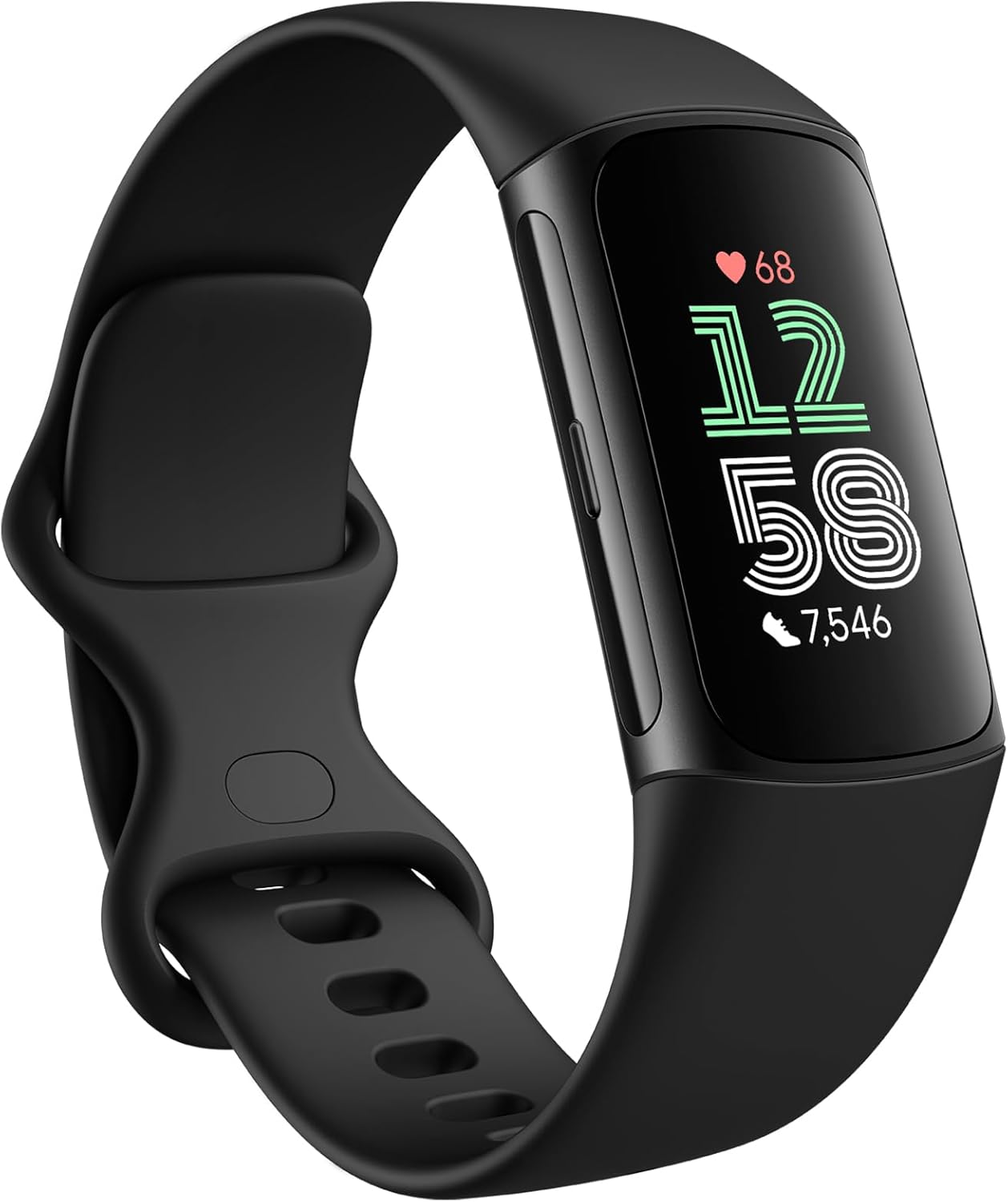
A fitness-focused alternative with reliable notification support at a lower price point.
Price Range: $159-$179
Key Benefits:
Compare key specs and features of all our recommendations side-by-side
| Product | Recommendation | Rating | Price |
|---|---|---|---|
Apple Watch SE 3 [GPS 40mm] Smartwatch with Midnight Aluminum Case with Midnight Sport Band - S/M. Fitness and Sleep Trackers, Heart Rate Monitor, Always-On Display, Water Resistant Midnight Aluminum Case with Midnight Sport Band 40mm case + Small/Medium band GPS Without AppleCare+ Rank #1 | 🏆 Top Pick | 4.8 4.8 | |
Apple Watch SE 3 [GPS 40mm] Smartwatch with Starlight Aluminum Case with Starlight Sport Band - S/M. Fitness and Sleep Trackers, Heart Rate Monitor, Always-On Display, Water Resistant Starlight Aluminum Case with Starlight Sport Band 40mm case + Small/Medium band GPS Without AppleCare+ Rank #2 | 💰 Budget Pick | 4.8 4.8 | |
Garmin Venu 3 Health Fitness GPS Smartwatch Silver Steel Bezel & Whitestone Case (45mm) | Official USA Partner Model | Bundle 010-02784-00 with 2 YR CPS Enhanced Protection Pack Silver Steel Bezel w/ Whitestone Case Rank #3 | — | 4.8 4.8 | |
 Samsung Galaxy Watch 7 Pro Rank #4 | — | 4.5 4.5 | Check price → |
 Fitbit Charge 6 Fitness Tracker with Google apps, Heart Rate on Exercise Equipment, 6-Months Premium Membership Included, GPS, Health Tools and More, Obsidian/Black, One Size (S & L Bands Included) Black Case w/ Black Band Tracker Rank #5 | — | 4.1 4.1 |
