
Quick Verdict
The Wacom Intuos Pro is an outstanding investment for photo retouching in Photoshop. Its pressure sensitivity, tilt, and programmable controls directly address the precision and speed that professional retouching demands. While the price and lack of a display are notable trade-offs, the Intuos Pro remains the industry standard and is highly recommended for serious retouchers.
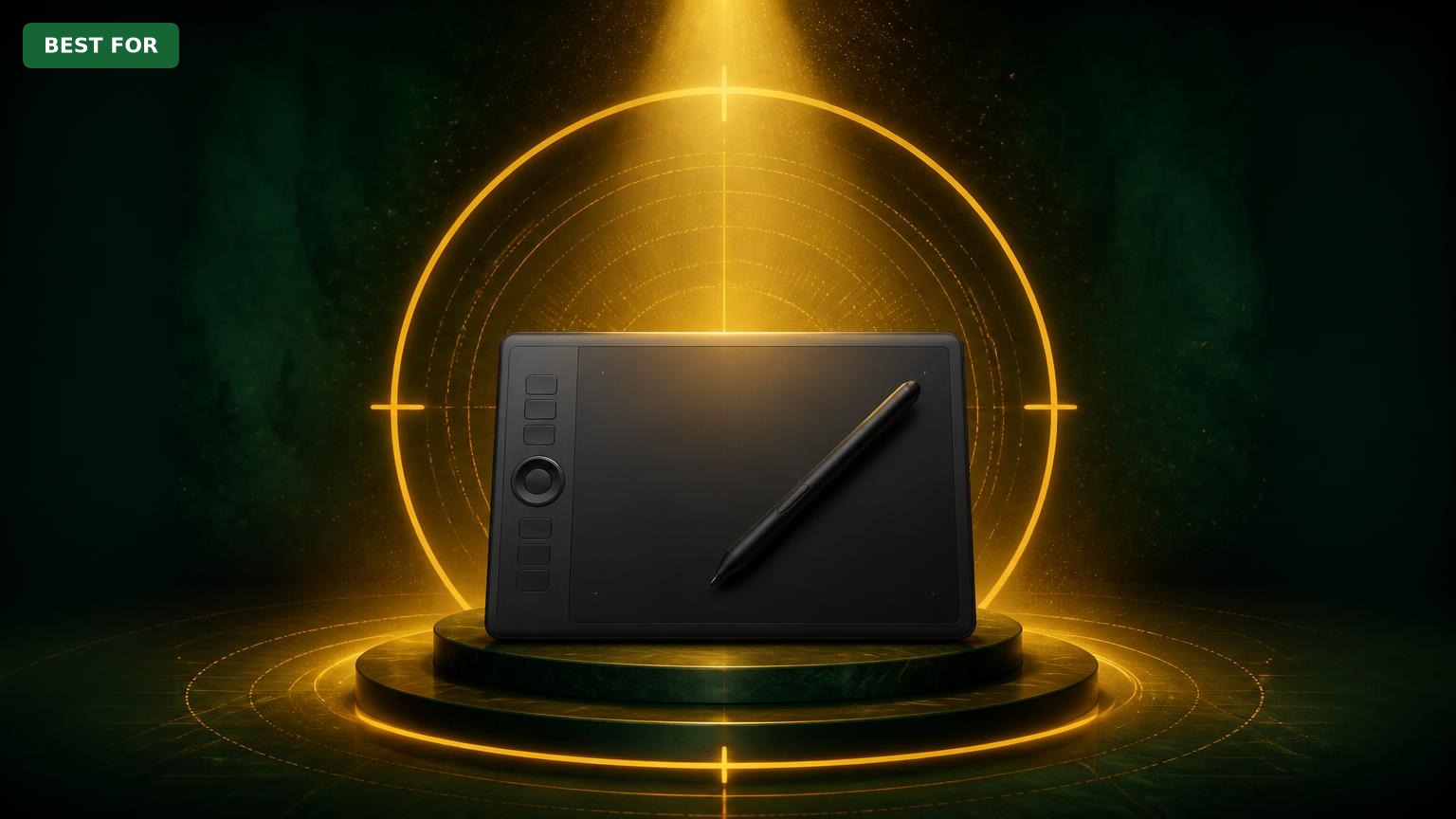
Wacom Intuos Pro
$399.99

✓ Key Strengths
- •8,192 pressure levels deliver incredible brush control for frequency separation, dodge/burn, and masking
- •Pro Pen 2 with tilt response creates natural shading and airbrush strokes
- •Customizable ExpressKeys and Touch Ring keep shortcuts at your fingertips, speeding up retouching
- •Multi-touch surface allows intuitive pinch-to-zoom and two-finger navigation in Photoshop
- •Medium and Large sizes give ample drawing surface without excessive arm movement
- •Bluetooth wireless reduces desk clutter and gives flexibility in positioning
- •Wacom’s driver integration with Photoshop is mature and reliable
- •Durable build quality and replaceable nibs extend the tablet’s lifespan
✗ Key Weaknesses
- •No integrated display—the hand-eye separation takes time to adjust to
- •Premium price compared to XP-Pen, Huion, and even Wacom’s own non-Pro line
- •Surface texture can wear down nibs quickly, requiring frequent replacements
- •Bluetooth can add a tiny input lag; most pros use USB for maximum responsiveness
- •Not as portable as an iPad or a small pen display; you need a desk setup
What is Wacom Intuos Pro?
What is photo retouching in Photoshop?
Detailed Analysis
👍 Perfect For
- ✓Professional retouchers who spend 4+ hours a day on fine detail work
- ✓Portrait, fashion, and commercial photographers who need precise skin retouching
- ✓Advanced Photoshop users who want customizable shortcuts and pressure control
- ✓Users who experience wrist or shoulder fatigue from mouse use
- ✓Digital artists who also do photo compositing and want industry-standard reliability
👎 Not Ideal For
- ✗Hobbyists who barely retouch photos and are not willing to learn a new input method
- ✗Users who want to draw directly on the screen—consider Wacom One or other pen displays
- ✗Budget-first buyers who are happy with a cheaper tablet from XP-Pen or Huion
- ✗Travelers who need a lightweight, minimal setup—a simple mouse or a small Intuos may be easier
Use Case Scenarios
Professional Retoucher with Heavy Workload
You spend 8+ hours a day retouching product shots, family portraits, or fashion editorials. Speed, accuracy, and comfort are non-negotiable.
✓ Strengths
- High pressure resolution reduces the chance of blown-out dodging/burning
- ExpressKeys and Touch Ring save clicks and keyboard reaches
- Multi-touch lets you pinch zoom without switching tools
- Stable drivers prevent mid-project crashes
- Easily ergonomic for all-day work
✗ Weaknesses
- Surface wears nibs down, adding a recurring cost
- No display, so you need good monitor placement
- Bluetooth can be less reliable under battery load
💡 Workarounds
- Buy replacement nibs in bulk to ensure you always have spares
- Use a USB cable for zero-lag input in critical sessions
- Adjust the Wacom pressure curve to a firmer feel to reduce accidental heavy strokes
The Intuos Pro is built for professional workloads. Every feature—pressure, buttons, touch, and driver support—aligns with high-volume retouching. The reliability and precision make it the default choice in professional studios.
Portrait and Fashion Photographer
You retouch portraits with skin smoothing, blemish removal, and eye enhancement. You need soft, natural transitions without losing texture.
✓ Strengths
- Tilt support makes airbrush-style skin retouching feel natural
- Precise pressure control allows gentle transitions in dodge/burn
- ExpressKeys can be mapped to frequency separation layer toggles
- Multi-touch zooming helps with detailed face work
✗ Weaknesses
- Learning curve for hand-eye coordination
- Touch Ring can be accidentally activated
- The textured surface may pick up hand oils over time
💡 Workarounds
- Assign the Touch Ring to scroll, not brush size, if it feels too sensitive
- Use a drawing glove to keep the surface clean and reduce friction
- Practice with Photoshop's 'Stylus Pressure' brush settings to get the feel
The Intuos Pro gives portrait photographers the control needed for natural-looking skin retouching. The tilt and pressure features are genuinely useful, and the tablet's reliability makes it a top pick for this niche.
Hobbyist Learning Photo Retouching
You're just starting to take photo editing seriously, retouching family photos or landscapes on weekends. You don't have a large budget and are unsure if a pen tablet is worth it.
✓ Strengths
- Future-proof, so you won't need to upgrade as your skills grow
- Professional-level pressure sensitivity helps you develop good habits from the start
- Multi-touch gestures are fun and intuitive for zooming
- Wacom's customer education resources are useful for beginners
✗ Weaknesses
- High price for occasional use
- You may not fully appreciate 8,192 pressure levels until you're more advanced
- The textured surface can feel unfamiliar if you're used to a mouse
💡 Workarounds
- Buy a budget alternative first (like Wacom Intuos or XP-Pen) to see if you like pen editing
- Look for refurbished or open-box Intuos Pro deals on Amazon
- Try free Wacom driver settings presets shared by the community to speed up setup
It works very well for hobbyists who are committed to learning, but it's not a necessary expense. A budget tablet will deliver 80% of the benefit at 30% of the price. If you have the budget available and plan to retouch frequently, the Intuos Pro is still a fantastic choice.
Digital Artist Who Also Does Photo Manipulation
You're a digital illustrator who uses Photoshop both for painting and for retouching photo composites. You need one tool that does all.
✓ Strengths
- Perfect cross-over for painting and retouching with the same high-quality pen
- Per-app ExpressKeys allow different shortcuts for painting vs. retouching
- Large active area (if you choose Medium or Large) supports sweeping brushstrokes
- Touch Ring can be mapped to rotation, which is very helpful for detailed work
✗ Weaknesses
- Slight Bluetooth latency can be annoying for painting
- The medium size might feel restrictive for large canvas artwork
- The surface can become slick over time, changing the pen feel
💡 Workarounds
- Use USB connection for critical painting tasks
- Apply a paper-like screen protector? Actually, you can use a Wacom texture sheet replacement to refresh the surface feel
- Regularly calibrate pressure curve in Wacom settings to match your style
The Intuos Pro is industry-standard for digital artists, and its capabilities extend perfectly into photo retouching. For creative professionals who do both, it is arguably the best tool available.
On-the-Go Retoucher with Laptop
You’re a photographer who edits photos while traveling with a laptop. You need portability and wireless capabilities.
✓ Strengths
- Bluetooth wireless eliminates cable tangle during travel
- Medium size fits in most laptop bags
- Built-in battery lasts around 10 hours on a charge
- Compatible with USB-C (with a cable) for lower-latency work on modern laptops
✗ Weaknesses
- Bluetooth latency is noticeable for very fine control
- You still need a flat, stable surface to draw on
- Not as efficient as an integrated pen display when you have no desk
💡 Workarounds
- Carry a USB-C/USB-A cable for wired mode when precision matters
- Use a hard laptop sleeve with an extra compartment for the tablet
- Create a custom ExpressKey profile for laptop use without a keyboard
The Intuos Pro is portable enough for travel and works with laptops, but Bluetooth lag and the lack of an integrated screen make it less ideal than a display tablet or iPad. Still, it's a solid companion for photographers on the road.
Bottom Line
Ready to get the Wacom Intuos Pro? Check the latest price on Amazon.
🛒 Buy on AmazonAs an Amazon Associate we earn from qualifying purchases.
Frequently Asked Questions
Is Wacom Intuos Pro good for photo retouching in Photoshop?
Yes, the Wacom Intuos Pro is one of the best pen tablets for photo retouching. Its 8,192 pressure levels and tilt support give you precise control over brush strokes, masks, and clone tools. Photoshop integrates seamlessly with Wacom's drivers, and the customizable buttons speed up your workflow.
Can you use Wacom Intuos Pro for photo retouching in Photoshop?
Absolutely. Wacom Intuos Pro is designed to work with Adobe Photoshop on both Windows and macOS. Just install the driver, and Photoshop will recognize the pen pressure and tilt. Many professional retouchers use this exact setup every day.
Do I need a pen tablet for photo retouching in Photoshop?
You don't strictly need one, but it makes retouching much easier and more precise. For tasks like dodging and burning, frequency separation, and fine masking, a pen tablet gives you the control that a mouse lacks. If you retouch more than a few hours a week, a pen tablet is highly recommended.
Wacom Intuos Pro vs Wacom Intuos (non-Pro) for photo retouching?
The Intuos Pro has 8,192 pressure levels, tilt support, and more customizable controls, making it better for detailed retouching. The standard Intuos has 4,096 pressure levels and no tilt, but it is still a significant upgrade over a mouse. For serious retouching, the Pro is worth the extra cost; for beginners, the basic Intuos is a reasonable starting point.
Wacom Intuos Pro vs Wacom One display tablet for photo retouching?
The Wacom One lets you draw directly on a 13.3-inch screen, which can be more intuitive. However, the Intuos Pro offers more active area, higher pressure resolution, and a larger range of button customization. The Intuos Pro also lets you work while looking at your primary monitor, which is usually larger and more color-accurate than the small embedded display.
How do I set up Wacom Intuos Pro for Photoshop?
Install the latest Wacom driver from the Wacom website, then connect your tablet via USB or Bluetooth. In Photoshop, open the Brush Settings panel and enable 'Control: Pen Pressure' under Shape Dynamics or Transfer. Customize the ExpressKeys in Wacom Tablet Properties to shortcuts like Brush Size, Hand Tool, Zoom, or Alt for the Clone Stamp.
Is Wacom Intuos Pro good for skin retouching?
Yes, it's excellent. The pen gives you precise control over opacity and flow, which is essential for frequency separation and dodging/burning. Tilt recognition helps create soft transitions when airbrushing or smoothing skin. The medium size is a favorite for portrait retouchers because it feels like working with a real brush.
Does Wacom Intuos Pro work with Photoshop on Mac?
Yes, Wacom Intuos Pro supports macOS including Apple Silicon M1, M2, and M3 chips. Wacom releases regular driver updates to maintain compatibility with the latest Photoshop versions. Simply disable 'Windows Ink' or 'Pointer Acceleration' if you experience odd behavior on Mac, though it is usually plug-and-play.
How long does Wacom Intuos Pro last?
With proper care, the Intuos Pro can easily last 5 to 10 years. The tablet is built with a solid shell and replaceable surface. Nibs will wear down and need replacement every few months, but that is a low-cost maintenance item. Some users have had the same Intuos Pro for over a decade and still use it every day.
Can I use Wacom Intuos Pro without a screen?
Yes, that is the design. The Intuos Pro is a pen tablet: it has no display, and you draw while looking at your computer monitor. Most people adapt within a few days. Many professionals prefer this because they keep their eyes on a large, color-correct monitor, and the ergonomics allow a neutral posture.
Is the large size Wacom Intuos Pro too big for photo retouching?
It depends on your drawing style. The Large model offers more drawing area but also requires more arm movement, which can become tiring over a long session. Most retouchers prefer the Medium because it provides enough surface for fluid strokes without excessive movement. The Small is often too cramped for frequent clone brush work.
What are the best settings for Wacom Intuos Pro in Photoshop?
Start by adjusting the pressure curve in Wacom Tablet Properties to a moderate response. In Photoshop, under Brush Settings, set Size and Opacity Jitter to 'Pen Pressure'. Use the Touch Ring for brush size and set ExpressKeys to modifier keys (Alt, Shift, Space) for quick selection and hand tools. Also, experiment with the 'Force Intensity' slider to match your physical pressure.