
Quick Verdict
The Samsung Galaxy Book3 Pro 360 is a solid but not perfect choice for digital drawing. Its AMOLED panel and included S Pen make it far better than typical laptops for sketching and moderate illustration. However, serious professionals and artists needing heavy GPU performance or a lighter handheld form factor should consider dedicated drawing devices.
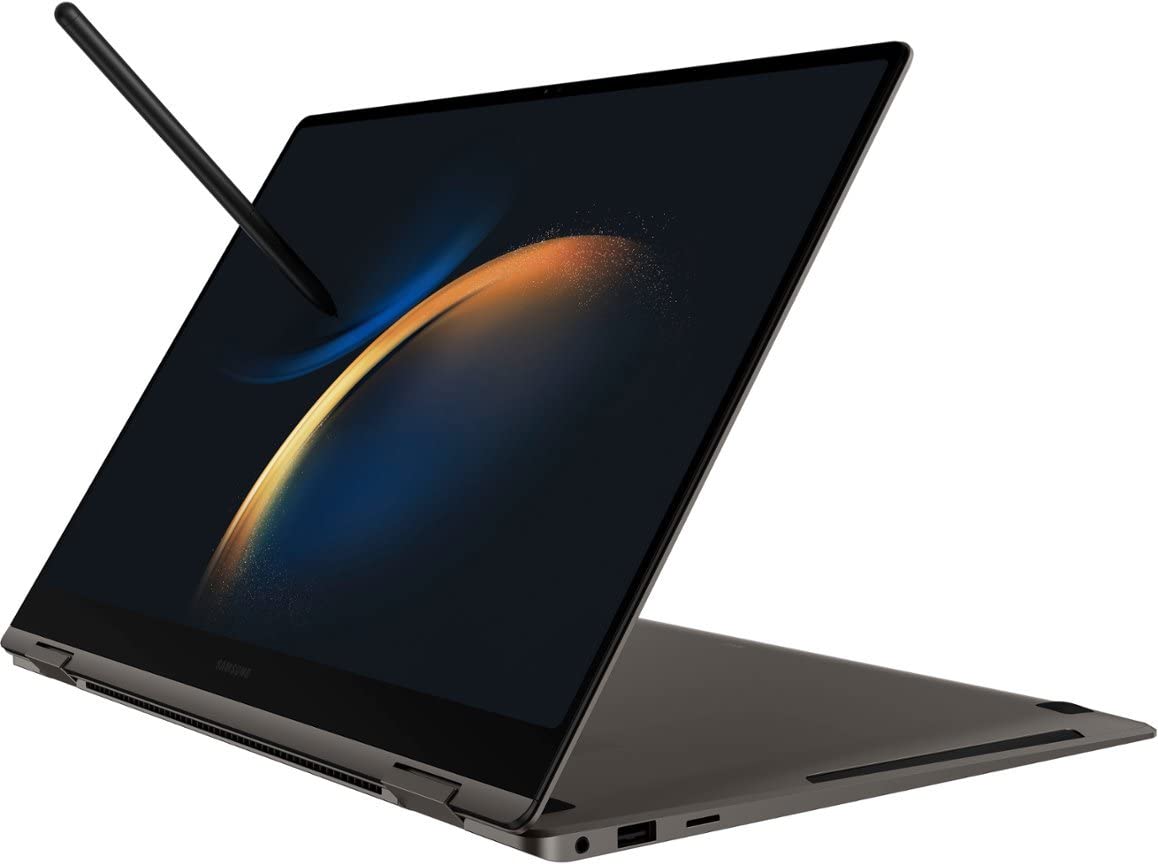
Samsung Galaxy Book3 Pro 360
$1399.99

✓ Key Strengths
- •Included S Pen uses Wacom EMR technology, offering 4,096 pressure levels and tilt support with no charging required.
- •Stunning 16-inch 3K AMOLED display with 120Hz refresh rate delivers bright, vivid colors and smooth line response.
- •360-degree convertible design lets you fold it flat for drawing or into tent mode for presentations.
- •Able to run full Windows creative software like Photoshop, Clip Studio Paint, and Krita without any compatibility issues.
- •Excellent DCI-P3 color coverage makes it suitable for color-critical illustration and photo editing.
- •Two Thunderbolt 4 ports allow connection to external monitors, pen displays, or eGPUs for expanded creativity.
- •Long-lasting 76Wh battery provides 8-12 hours of mixed use, so you can draw for extended sessions without searching for an outlet.
- •The S Pen is a standard Wacom-compatible stylus, giving you access to a wide range of replacement nibs and accessories.
✗ Key Weaknesses
- •No discrete GPU, so complex 3D work, large canvas sizes, and heavy effects will suffer from sluggish performance.
- •The slim, slippery S Pen may be less comfortable for hours of detailed drawing; it also lacks a dedicated eraser tail.
- •Glossy glass display is prone to reflections and finger smudges, limiting its usability in bright environments.
- •Heavy and unwieldy in tablet mode; holding it for long drawing sessions can cause hand and arm fatigue.
- •RAM and storage are soldered and not upgradeable, so you're stuck with the configuration you buy.
- •Palm rejection is app-dependent and not as reliable as Apple's or Samsung's tablet implementations.
- •Windows drawing drivers can occasionally conflict with certain apps, requiring troubleshooting that iPad and tablet users never face.
What is Samsung Galaxy Book3 Pro 360?
What is digital drawing?
Detailed Analysis
👍 Perfect For
- ✓Students who need a single laptop for note-taking, research, and occasional sketching, with the S Pen as a bonus.
- ✓Casual digital artists who want a large canvas for doodling and moderate illustration without buying a separate tablet.
- ✓Creative professionals who already use a Windows desktop and want a portable companion for sketching and concept work.
- ✓Travelers who need a versatile 2-in-1 for work, media consumption, and light drawing on the road.
- ✓Budget-conscious all-in-one buyers who want a premium display and S Pen without stepping up to a Wacom Cintiq.
👎 Not Ideal For
- ✗Professional illustrators who work with massive, high-resolution files and require GPU-accelerated brush engines.
- ✗Artists who prioritize a lightweight, handheld drawing device—an iPad Pro or Samsung Galaxy Tab S9 is much more portable.
- ✗Digital sculptors or animators using Blender, ZBrush, or other GPU-heavy applications.
- ✗Users who want a dedicated drawing tablet with a textured, matte surface and ergonomic pen—a Wacom or Huion device is better.
Use Case Scenarios
Student Taking Handwritten Notes and Sketching
A college student wants one laptop that can run Office, browse the web, and also serve as a digital notebook for handwritten notes and casual sketches.
✓ Strengths
- S Pen included at no extra cost, so no separate purchase needed
- Large 16-inch display makes split-screen note-taking easy
- 120Hz refresh rate makes handwriting feel smooth and immediate
- All-day battery handles back-to-back classes without charging
- One device covers typing, handwriting, and drawing needs
✗ Weaknesses
- Weighs 3.7 pounds, which is heavy for carrying around campus all day
- S Pen is thin and may feel cramped for users with larger hands
- No dedicated eraser on the pen, so you need to use the side button or software eraser
💡 Workarounds
- Use a comfortable stylus grip to make the S Pen easier to hold
- Assign the S Pen side button to the eraser in Windows pen settings
- Use a lightweight laptop bag with a dedicated pen loop
- Pair with a drawing glove to prevent palm smudges during note-taking
For students, the combination of included S Pen, large screen, and long battery life makes the Galaxy Book3 Pro 360 an excellent choice for digital note-taking and light sketching.
Professional Illustrator Using Photoshop or Clip Studio Paint
A freelance illustrator needs a reliable laptop for client work, including detailed illustrations with multiple layers, custom brushes, and occasional photo editing.
✓ Strengths
- Supports full versions of industry-standard software like Photoshop and Clip Studio Paint
- Accurate pressure curves that can be customized in Wacom driver settings
- Large 16-inch display provides a generous working area
- Convertible mode lets you lay the screen flat on a desk for a tabletop drawing position
- Color output is vibrant and accurate enough for client presentations
✗ Weaknesses
- Lack of discrete GPU limits performance in high-resolution, layer-heavy projects
- 16GB RAM max can become a bottleneck when working with multiple large files
- Fan noise can be noticeable during heavy rendering and export tasks
- S Pen surface is slick; you may need a paper-like screen protector for better control
💡 Workarounds
- Work at moderate canvas sizes and use smart objects instead of rasterizing everything
- Use preview mode in Photoshop to speed up drawing actions
- Connect an external S Pen-compatible monitor for a more ergonomic setup
- Keep a portable SSD like the Samsung T7 for archiving large files
- Use the Wacom driver to fine-tune pressure sensitivity to match your style
It's a workable but not ideal machine for professional illustration due to performance limitations under heavy loads. Artists with modest canvas needs will be satisfied, but those working on massive files should look elsewhere.
Casual Hobbyist Artist Shopping on the Couch
A hobbyist wants to relax on the couch and sketch or paint in their free time without being tied to a desk.
✓ Strengths
- No setup required—install Krita or Infinite Painter and start drawing
- S Pen is always stored with the device, so you won't misplace it easily
- AMOLED screen makes casual art look vibrant and inspiring
- Convertible modes give you flexible ways to set up on the couch
✗ Weaknesses
- 3.7-pound weight makes it uncomfortable for handheld tablet use
- Slippery glass surface affects shading and precision for advanced sketches
- Windows tablet mode is not as polished as iPadOS for touch-first navigation
💡 Workarounds
- Use a lap desk or portable laptop stand to create a stable drawing surface
- Apply a matte paper-like screen protector to reduce glare and add friction
- Use a Bluetooth keyboard for quick shortcuts without reaching for the screen
- Keep a drawing glove nearby to reduce palm friction
Casual artists will appreciate the beautiful screen and S Pen, but the weight and glossy display prevent it from being truly excellent in a relaxed, couch-based setting.
Traveling Digital Artist on the Go
A digital artist who travels frequently wants a laptop that can handle both work and drawing during flights, in hotels, and at cafes.
✓ Strengths
- All-day battery makes it reliable for travel
- Thin and relatively light for a 16-inch convertible
- S Pen requires no charging or pairing, so it's always ready
- Multiple ports allow you to connect to displays and storage devices while traveling
✗ Weaknesses
- Weight + bulk of a 16-inch 2-in-1 is noticeable on short trips
- Glossy screen reflects overhead lights on planes and airports
- S Pen can be easily lost if you don't have a dedicated sleeve pocket
💡 Workarounds
- Use a slim, padded laptop sleeve with a pen loop
- Bring a USB-C portable charger to top up during long layovers
- Save your artwork to cloud storage to avoid data loss
- Use a small lap desk for comfortable drawing on hotel beds
As a travel laptop, it's a fine choice for drawing, but its size and weight make it less convenient than a compact tablet or small laptop.
3D Sculpting and Animation
An artist wants to use the laptop for 3D sculpting in Blender or ZBrush, as well as 2D animation in After Effects.
✓ Strengths
- Color-accurate screen helps with texture painting
- USB-C and Thunderbolt support external GPUs (eGPU), which could improve 3D performance if you invest in one
✗ Weaknesses
- Iris Xe GPU is far too weak for 3D sculpting and animation
- 16GB RAM limit is restrictive for large scenes
- System gets hot and fans spin loudly during any GPU-intensive task
- Windows drivers can conflict with 3D applications
💡 Workarounds
- Use it only for texture painting or 2D frame-by-frame animation in Clip Studio Paint
- Connect an eGPU via Thunderbolt if you absolutely need 3D capability
- Keep 3D scenes low-poly and use preview modes
- Consider a separate desktop or gaming laptop for heavy 3D work
The lack of discrete GPU and limited RAM make the Galaxy Book3 Pro 360 unsuitable for 3D sculpting and animation, which require GPU acceleration and high memory bandwidth.
Related Products You Should Consider
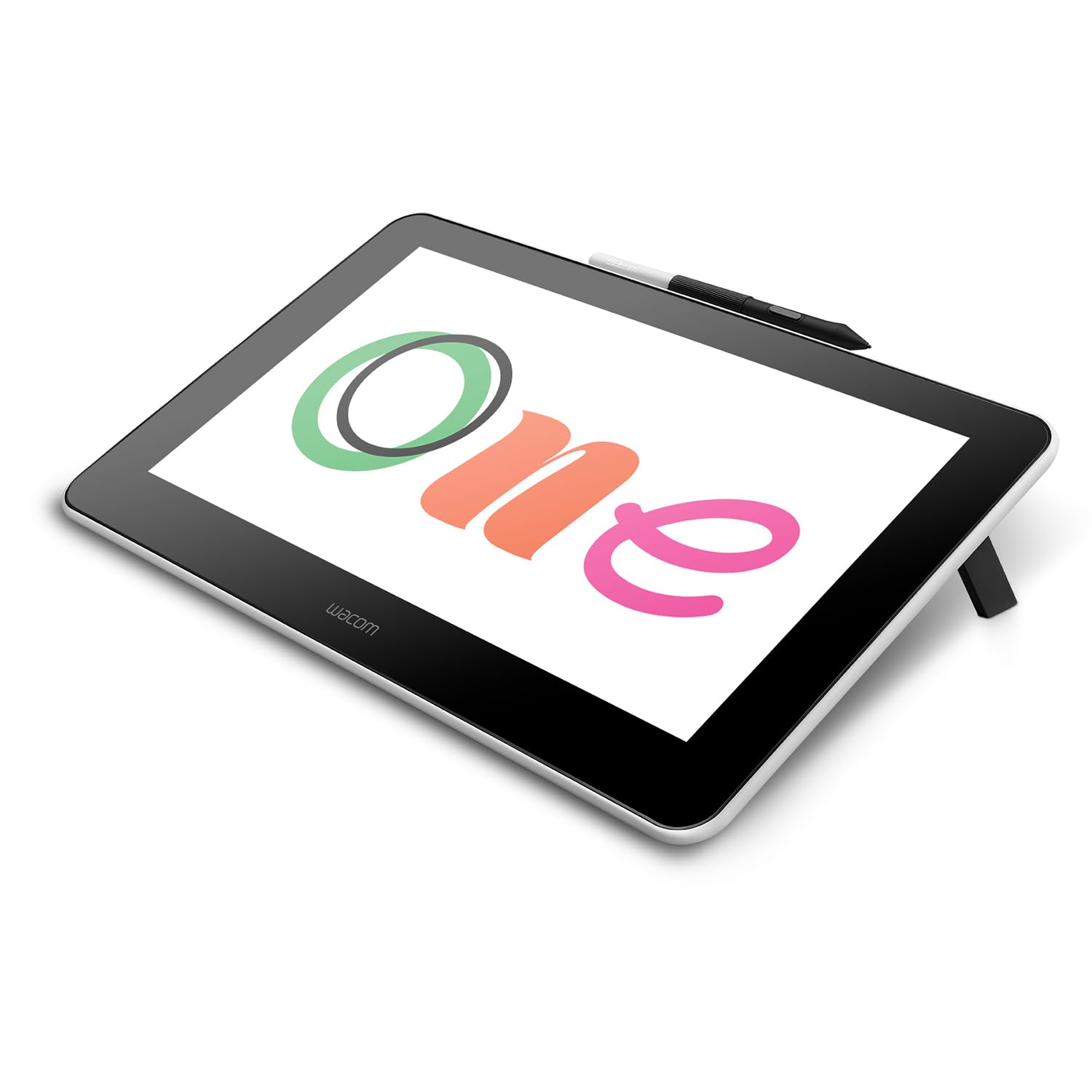
Wacom One Creative Pen Display 13
$399.95
Why recommend: Provides a dedicated drawing surface with proven Wacom pen tech, solving the glossy screen and ergonomic issues of drawing directly on a laptop.
Best for: Illustrators and hobbyists who want a traditional pen-display drawing experience and always work at a desk.
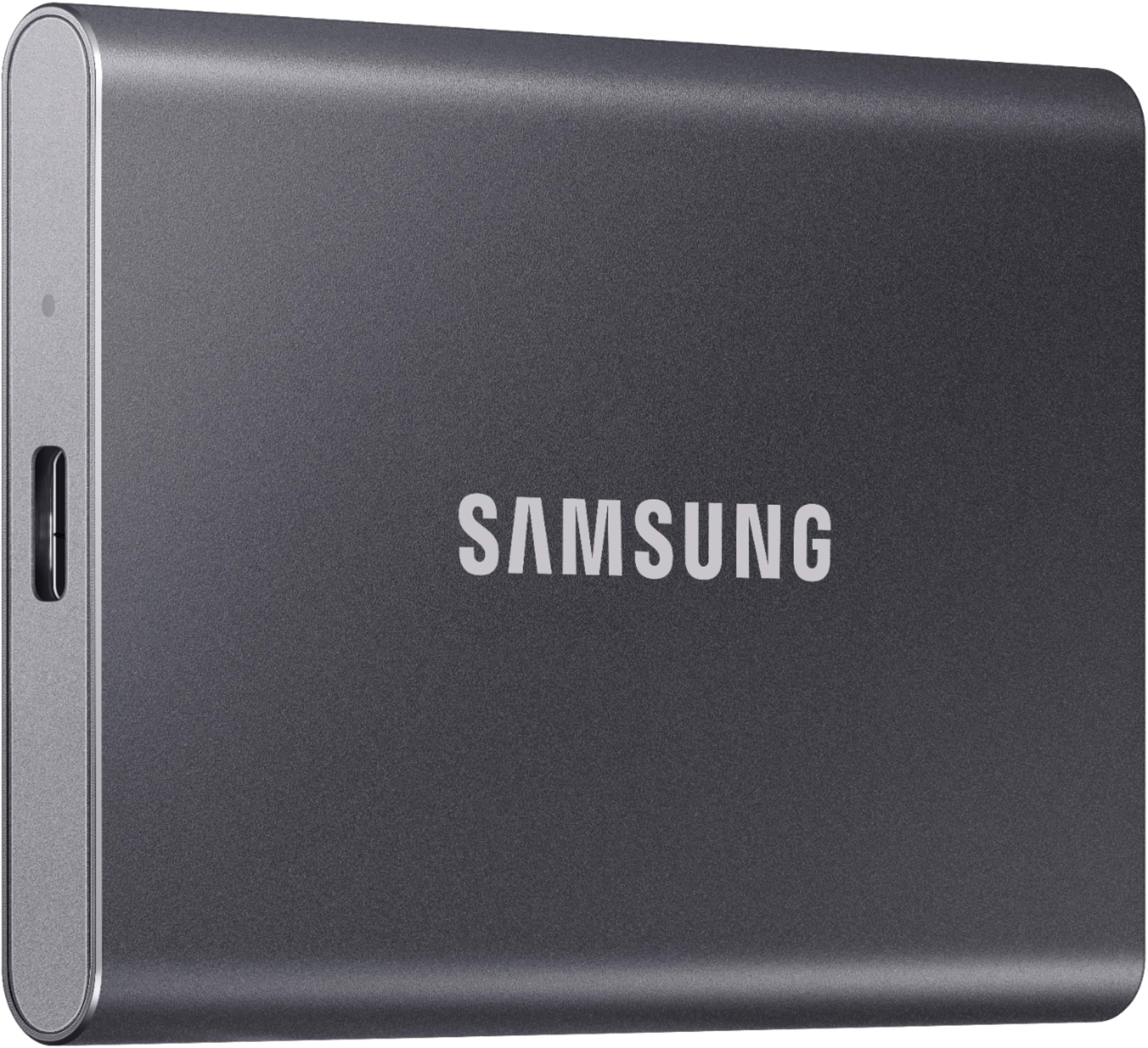
Samsung T7 Portable SSD 1TB
$159.99
Why recommend: Solves the storage bottleneck immediately with fast, portable storage that's ideal for large creative projects.
Best for: Artists who work with high-resolution files and need extra capacity for archiving or quick backups.
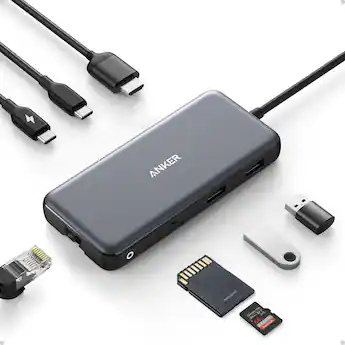
Anker 555 USB-C Hub (8-in-1)
$79.99
Why recommend: Essential for expanding connectivity, especially when using drawing tablets or external displays alongside the laptop.
Best for: Artists who use external monitors, pen displays, or multiple USB accessories in a desktop setup.
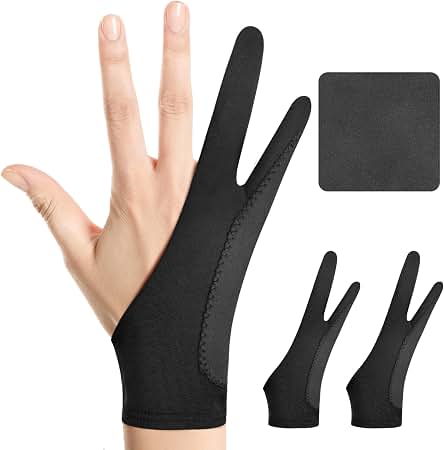
Huion Artist Glove (2-Pack)
$9.99
Why recommend: Cheap, practical accessory that dramatically improves the drawing experience on a glossy laptop screen.
Best for: Anyone doing extensive drawing, note-taking, or photo editing on the Galaxy Book3 Pro 360.
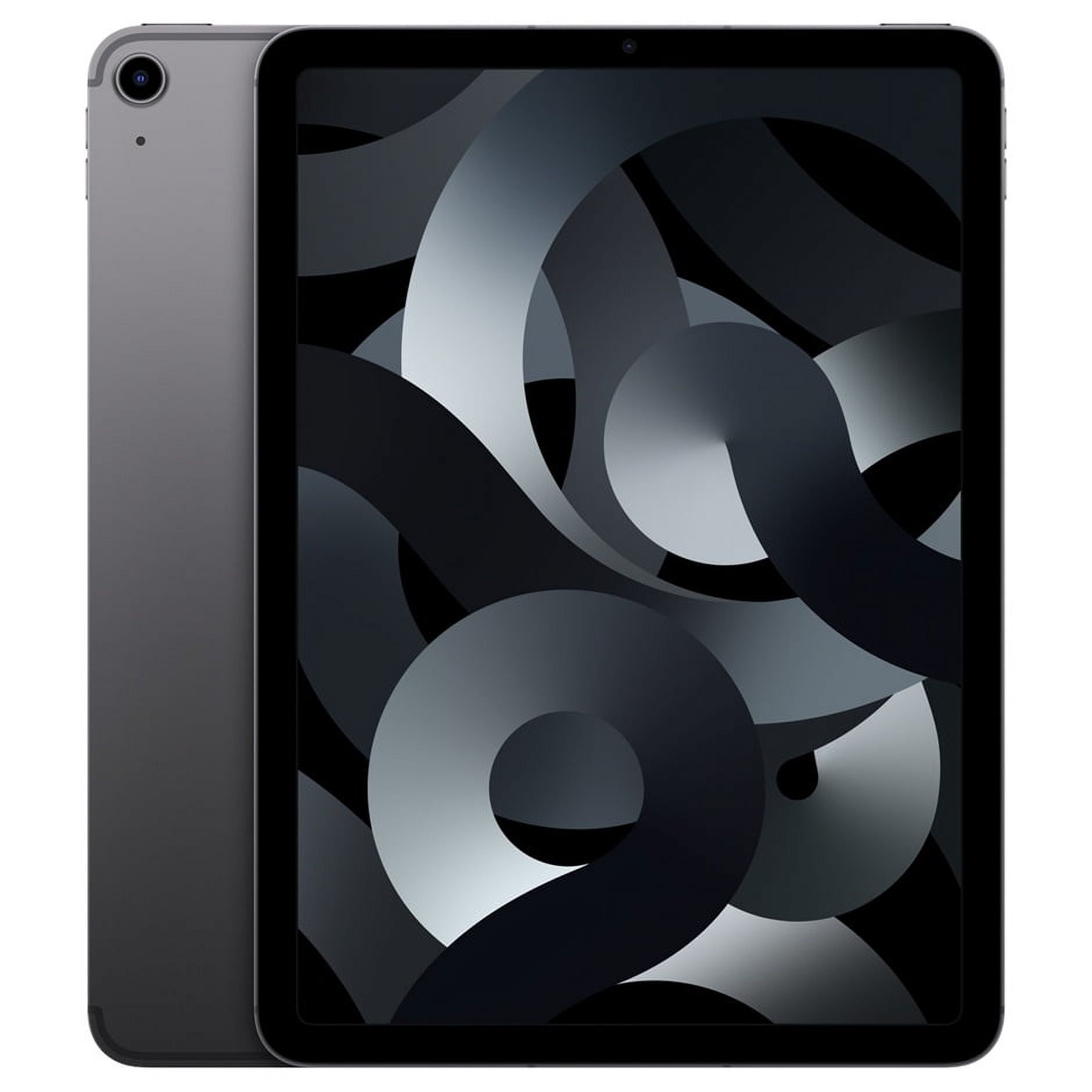
Apple iPad Air 5 10.9-inch
$599.00
Why recommend: A lighter, tablet-first drawing experience with industry-leading apps like Procreate, far better for handheld use.
Best for: Artists who want a portable, dedicated drawing tablet and already own or can work around a separate laptop.
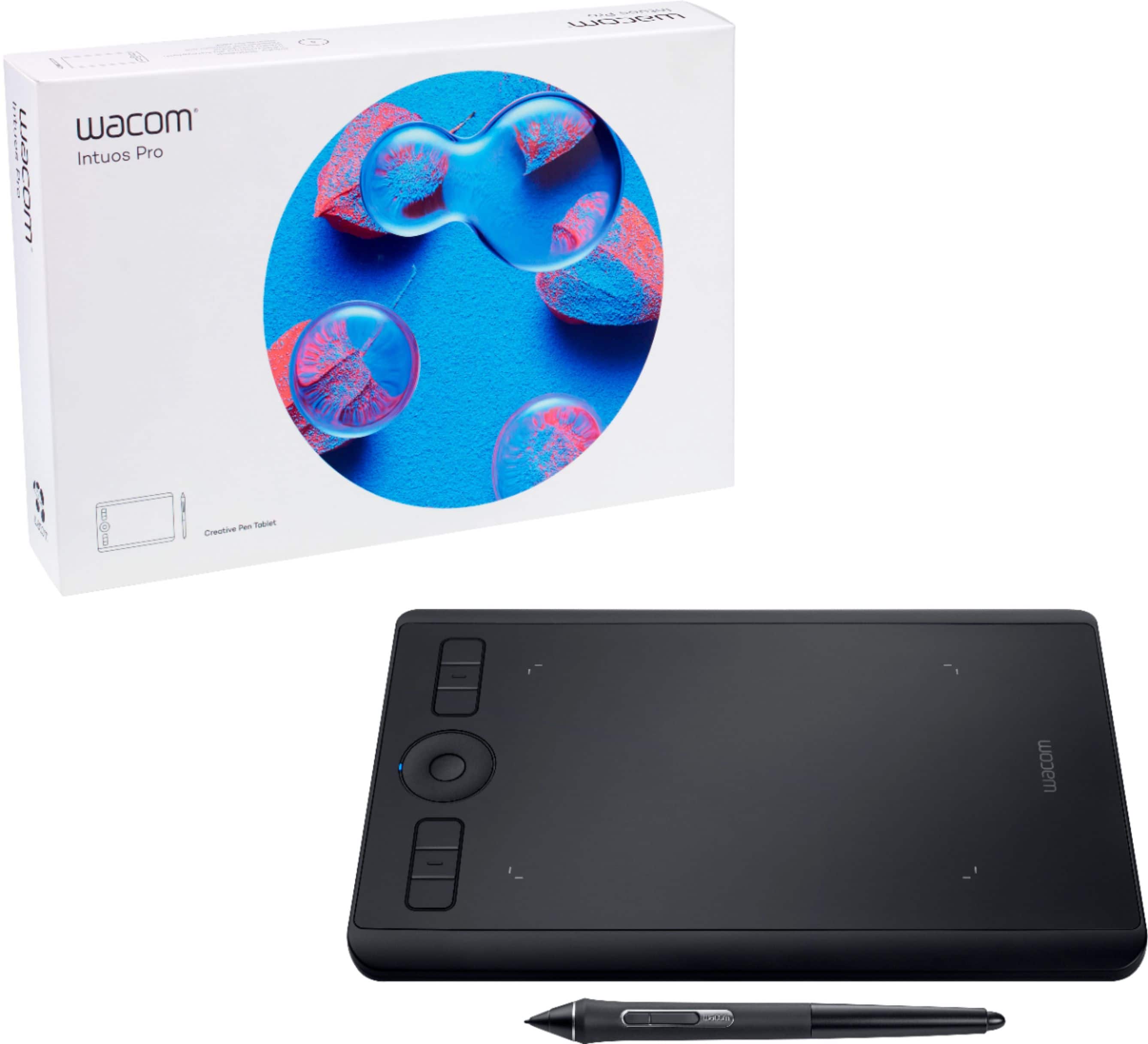
Wacom Intuos Pro Pen Tablet Small (PTH-460)
$299.95
Why recommend: Offers the precision of Wacom's top-tier pen technology at a reasonable price, letting you avoid the glossy screen issue entirely.
Best for: Artists who prefer traditional pen-tablet drawing and want a detached, comfortable input device.
Bottom Line
Ready to get the Samsung Galaxy Book3 Pro 360? Check the latest price on Amazon.
🛒 Buy on AmazonAs an Amazon Associate we earn from qualifying purchases.
Frequently Asked Questions
Is Samsung Galaxy Book3 Pro 360 good for digital drawing?
Yes, for casual and intermediate drawing. The included S Pen and AMOLED display make it one of the best Windows laptops for drawing without extra equipment. Heavy professional work will be limited by the lack of a discrete GPU.
Can you use Samsung Galaxy Book3 Pro 360 for drawing?
Absolutely. It features a Wacom EMR-based S Pen, so you can draw directly on the touchscreen. The 360-degree hinge lets you fold it into a tablet-like position for drawing.
Does Samsung Galaxy Book3 Pro 360 come with an S Pen?
Yes, the S Pen is included in the box. It requires no charging or pairing, and it supports 4,096 levels of pressure and tilt.
Is the S Pen pressure sensitivity good enough for professional art?
The 4,096 pressure levels are sufficient for most professional illustration work. The feel is very similar to modern Wacom tablets, though some artists prefer tablets with 8,192 levels for extra subtlety.
Can I use the Galaxy Book3 Pro 360 with Photoshop for drawing?
Yes, Photoshop works well with the S Pen. You can set up custom brush presets and pressure curves. Just be aware that very large canvases and heavy filters will be slower than on a desktop with a dedicated GPU.
Is the Galaxy Book3 Pro 360 like an iPad Pro for drawing?
Not exactly. It's heavier, smaller app ecosystem for pen-optimized software, and the screen is glossy rather than laminated. But it runs full desktop applications that the iPad can't, which is a big advantage for some artists.
Does the Galaxy Book3 Pro 360 have palm rejection?
Palm rejection is handled by Windows and the drawing app, not hardware. Apps like OneNote and Clip Studio Paint do a good job of ignoring palm touches while the pen is near the screen, but older or less optimized apps may show issues.
What alternatives are better for digital drawing than the Galaxy Book3 Pro 360?
For all-in-one laptop alternatives, look at the Lenovo Yoga 9i, Asus ROG Flow X16, or HP Spectre x360 16. For a pure tablet experience, the iPad Pro or Galaxy Tab S9 is lighter and easier to hold. A Wacom One or Cintiq pen display offers a more traditional drawing surface.
Can I draw 3D or animate on the Galaxy Book3 Pro 360?
You can do simple 2D animation in Clip Studio Paint or OpenToonz, but 3D sculpting in Blender or animation in After Effects will be sluggish due to the integrated GPU. For serious 3D work, you need a laptop with a discrete GPU.
How many layers can I use in Photoshop on the Galaxy Book3 Pro 360?
There is no fixed limit, but with 16GB RAM you will start to experience slowdowns when you have 30-50 layers on a 3000x2000 canvas. Lowering resolution or using Smart Objects can help maintain responsiveness.
Does the Galaxy Book3 Pro 360 support all drawing apps?
Yes, since it uses a Wacom-compatible digitizer, it works with any drawing app that supports Windows pen input, including Krita, Adobe Fresco, Corel Painter, and many more.
What accessories should I buy for drawing on the Galaxy Book3 Pro 360?
A paper-like screen protector reduces glare and adds texture, a drawing glove keeps your palm from smudging, a compact USB-C hub expands ports, and an external SSD provides essential storage. All are available on Amazon.