
Quick Verdict
The Surface Pro 9 is a solid choice for note-taking, especially if you need Windows apps. Its pen experience is excellent, but the added cost and weight compared to dedicated tablets make it a 'good' rather than 'excellent' fit.
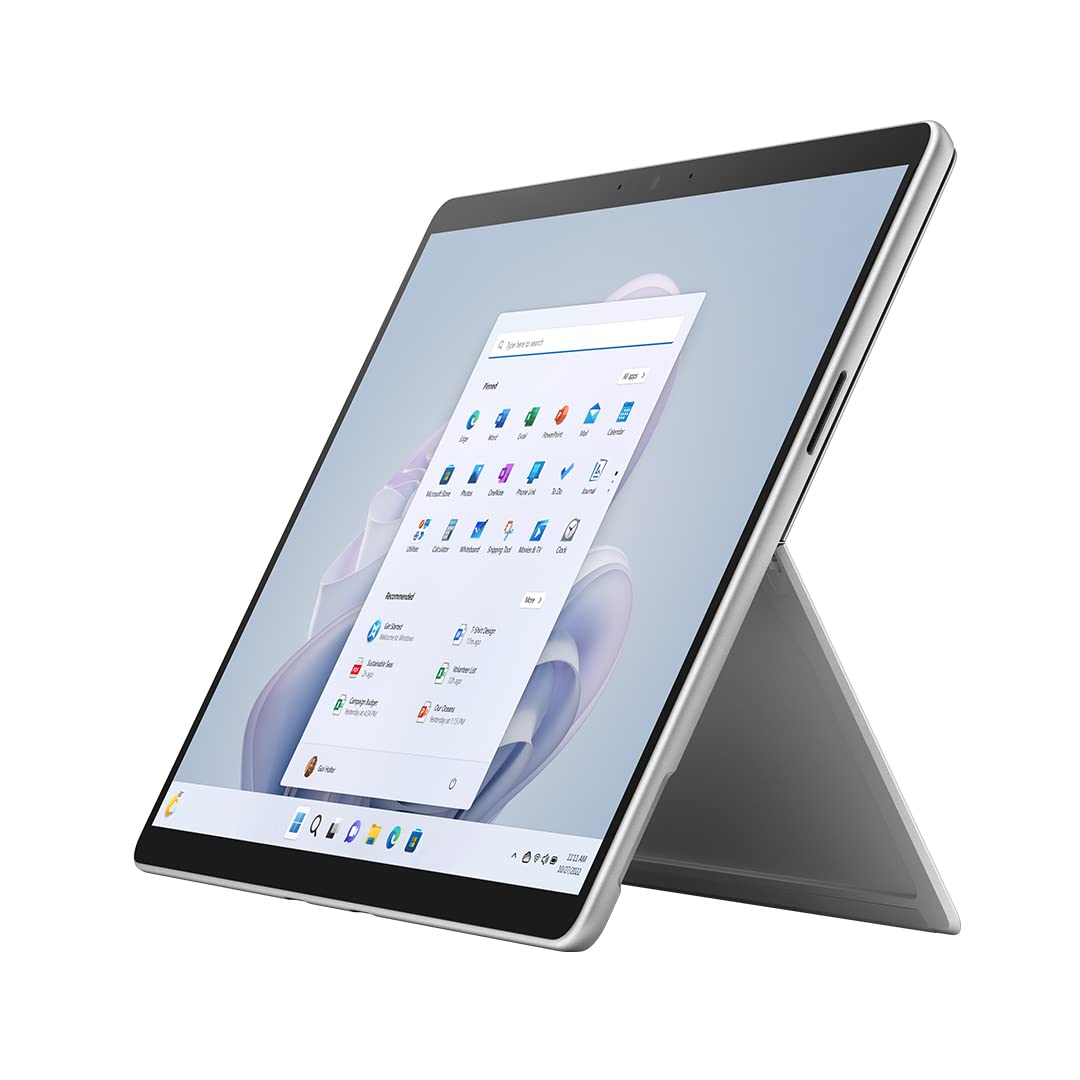
Microsoft Surface Pro 9
$999.99

✓ Key Strengths
- •120Hz PixelSense display with low latency for smooth inking
- •Surface Slim Pen 2 with haptic feedback and tilt support
- •Full Windows 11 access to desktop note-taking apps like OneNote and Adobe Acrobat
- •Long battery life (up to 15.5 hours) supports all-day note-taking
- •Versatile kickstand for adjustable writing angles
- •Excellent palm rejection and software integration
- •Portable at under 2 lbs (without keyboard)
✗ Key Weaknesses
- •Surface Slim Pen 2 and keyboard sold separately, adding to cost
- •Heavier than dedicated tablets like iPad Pro (1.94 lbs vs. 1.03 lbs)
- •Kickstand not comfortable for lap use while writing
- •Windows 11 can be complex for some users compared to iPadOS or Android
- •Active cooling fan can be audible under load
What is Microsoft Surface Pro 9?
What is note-taking?
Detailed Analysis
👍 Perfect For
- ✓Students studying engineering or design who need Windows-specific software (e.g., CAD, MATLAB)
- ✓Professionals who annotate PDFs and documents daily and require full desktop apps
- ✓Digital artists who also need a laptop for other tasks
- ✓Users who prefer the Windows ecosystem and want a single device for work and note-taking
👎 Not Ideal For
- ✗Students who only need a device for note-taking and prefer a lighter, simpler tablet
- ✗Users on a tight budget who don't want to invest in a separate pen and keyboard
- ✗Those who prioritize an e-ink experience for distraction-free writing
- ✗People who primarily take notes on the go without a desk (lap use)
Use Case Scenarios
Student Taking Lecture Notes
A student attends classes and needs to handwrite notes, sometimes typing, and wants to organize them with OneNote.
✓ Strengths
- Excellent handwriting conversion (ink to text)
- OneNote integration with Office 365
- Long battery life for all-day classes
- Keyboard attachment allows quick typing for longer notes
✗ Weaknesses
- Heavier than tablet competitors
- Kickstand not ideal for cramped desks
- Additional cost for pen and keyboard
💡 Workarounds
- Use a tablet sleeve with a pen loop to keep the pen accessible
- Consider a portable stand for better ergonomics on desks
- Use Microsoft Journal for a more paper-like experience
Great for students who need Windows apps (e.g., for coding or engineering) and want a laptop-tablet hybrid, but the weight and cost are drawbacks.
Professional Annotating Documents
A business professional reviews and marks up PDF contracts and reports daily, needing precision and easy file management.
✓ Strengths
- Precision pen for small annotations
- Full Windows file management
- High-res screen for reading detail
- Multitasking with split-screen apps
✗ Weaknesses
- No LTE option on some models (requires mobile hotspot)
- Pen can get lost without a secure holder
💡 Workarounds
- Use a pen loop case or a stylus holder attached to the device
- Enable Find My Pen in settings if supported
A strong tool for professionals who rely on Windows apps and need to annotate documents daily.
Artist Sketching Ideas
A digital artist uses the device for quick concept sketches and detailed illustrations using apps like Fresco or Sketchable.
✓ Strengths
- Accurate pressure and tilt sensitivity
- Large canvas with high resolution
- Runs full Adobe Creative Cloud apps like Photoshop
✗ Weaknesses
- Fewer optimized art apps compared to iPad
- No ProMotion 120Hz for gaming-like smoothness (still 120Hz but limited)
- Fan noise under load
💡 Workarounds
- Use a screen protector with a paper-like texture for better drawing feel
- Take frequent breaks to prevent fan noise from being distracting
Good for quick sketches and concept art, but professional digital artists will find the iPad Pro or Wacom tablets better suited.
Writer Journaling Daily
An individual writes a daily journal using handwriting or typing, values portability, and wants a distraction-free experience.
✓ Strengths
- Can use distraction-free apps like Focus Mode in OneNote
- Option to type or handwrite
- Large screen for those who enjoy writing with more space
✗ Weaknesses
- Heavy and bulky for one-handed use in bed or on commute
- Windows notifications can be distracting
- Shorter battery life than e-ink tablets (days vs hours)
💡 Workarounds
- Enable focus assist to block notifications
- Use a lightweight case to reduce weight
- Try an e-ink tablet if distraction-free writing is the priority
Over-engineered for daily journaling; a dedicated e-ink tablet or even a simple paper notebook is more suitable.
Related Products You Should Consider
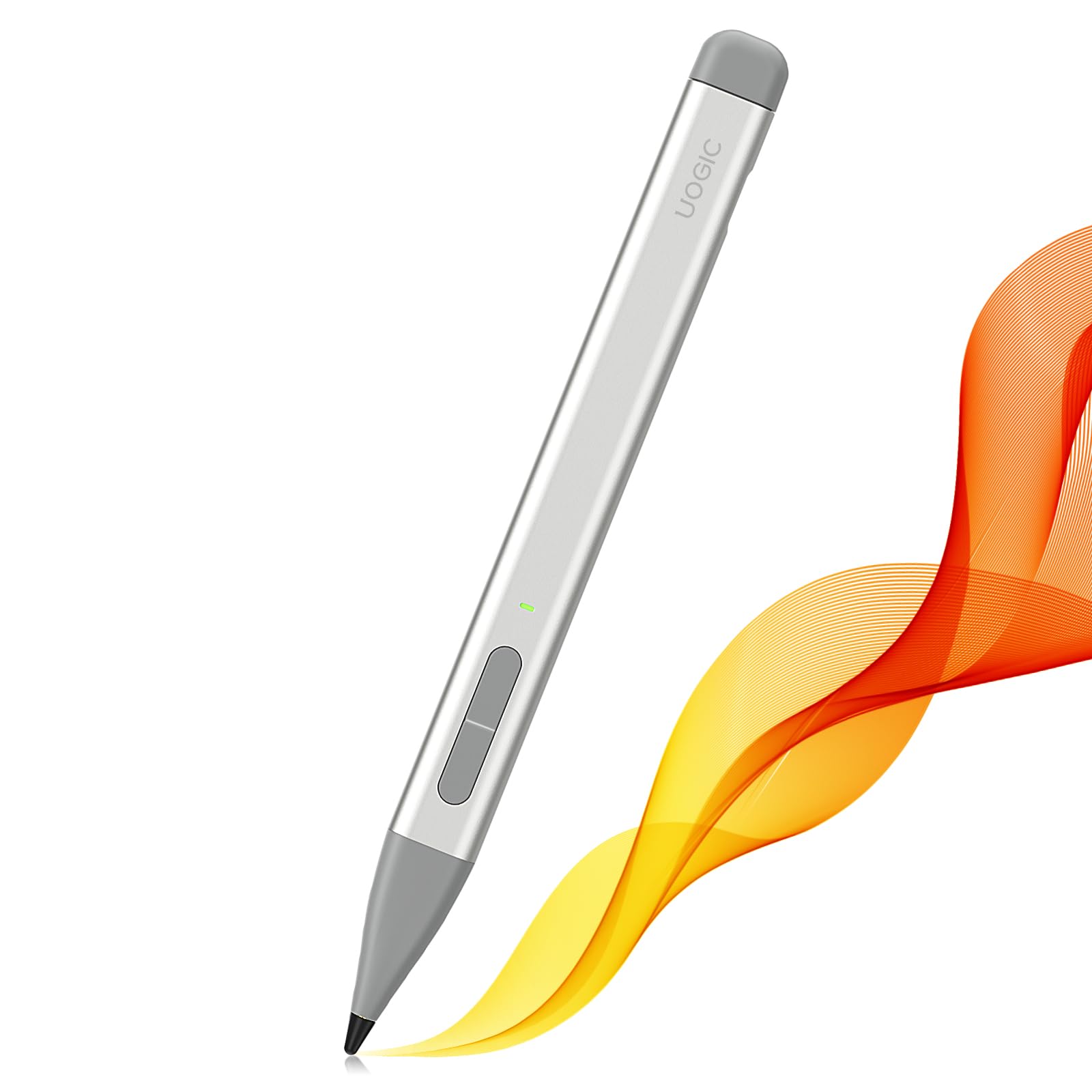
Surface Slim Pen 2
$129.99
Why recommend: Best-in-class stylus specifically designed for the Surface Pro 9, delivering a natural ink-on-paper feel.
Best for: Note-takers who prioritize handwriting accuracy and want haptic feedback.
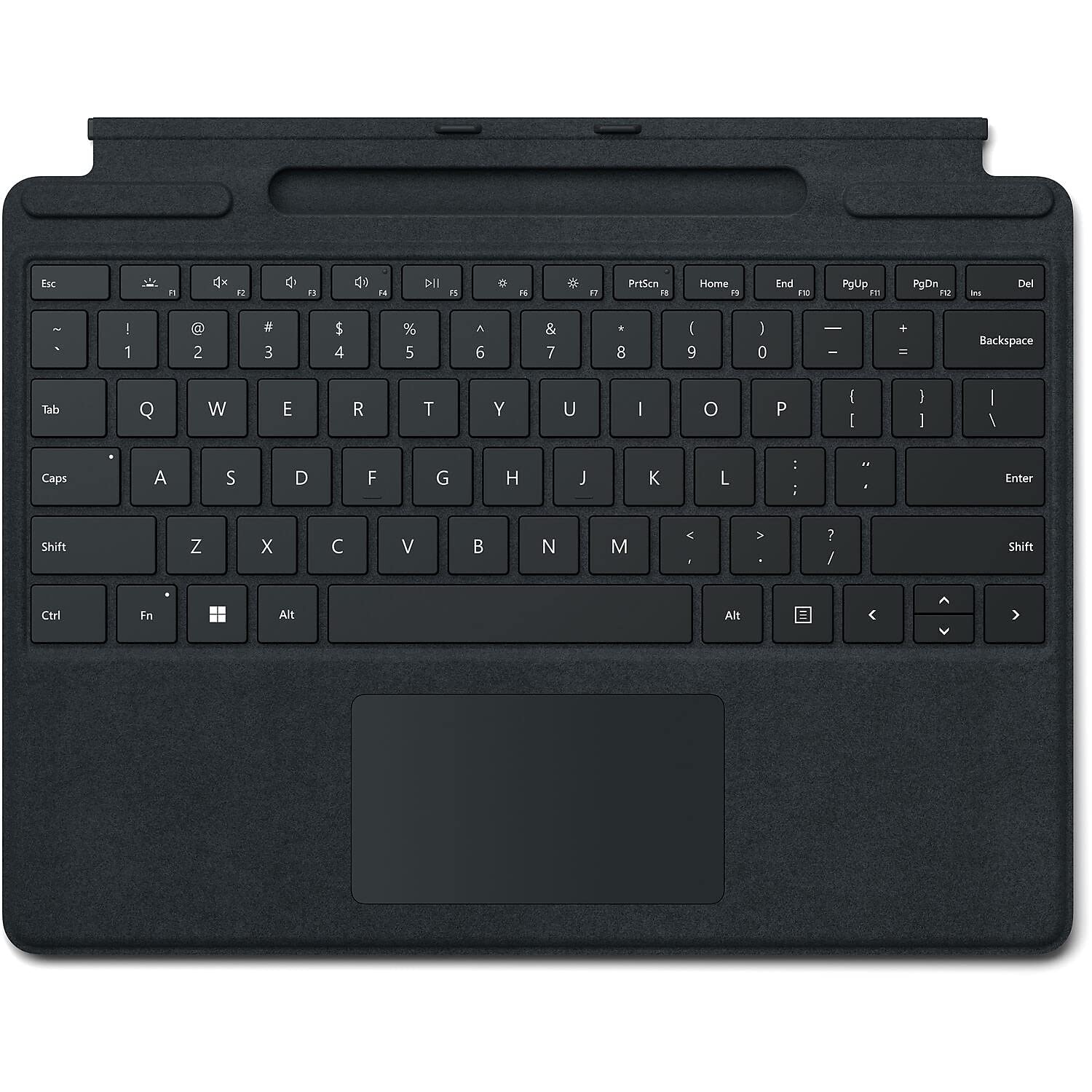
Surface Pro Signature Keyboard
$179.99
Why recommend: Enables quick typing and protects the device; pen storage keeps the stylus always with you.
Best for: Users who need both handwriting and typing notes frequently.
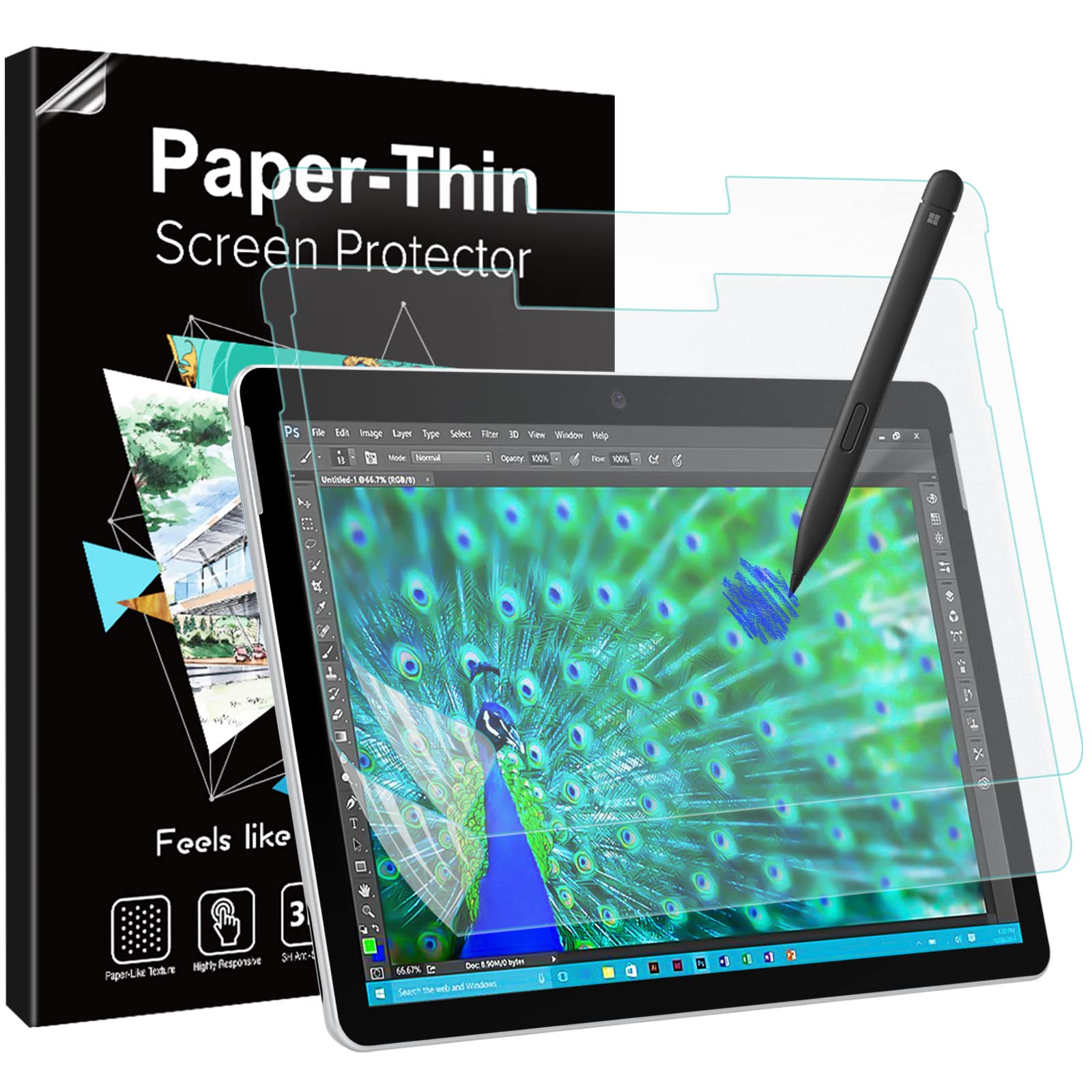
Paper-Like Screen Protector (for Surface Pro 9)
$12.99
Why recommend: Enhances the writing experience by providing a paper-like feel and reducing slippage.
Best for: Users who find the glass surface too slippery for handwriting.
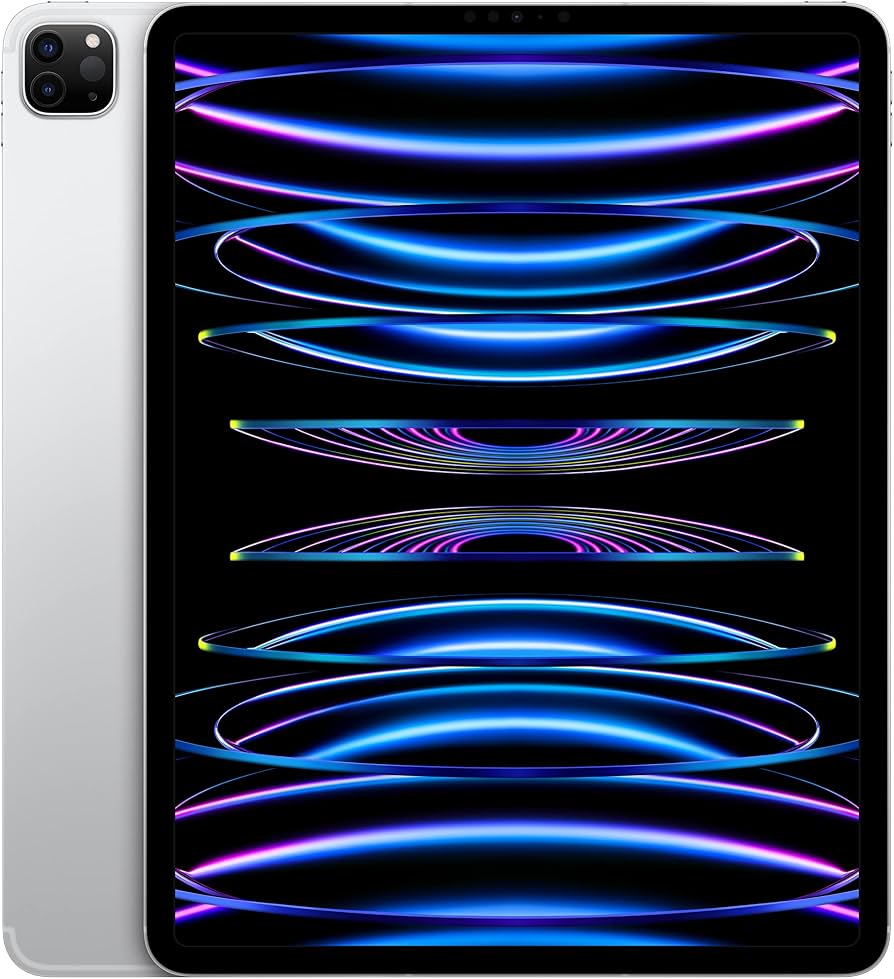
iPad Pro 12.9-inch (6th Generation)
$1099.00
Why recommend: Superior pen experience and lighter weight for dedicated note-taking; better app ecosystem for handwritten notes.
Best for: Users who prioritize the best inking experience and are comfortable with iPadOS.
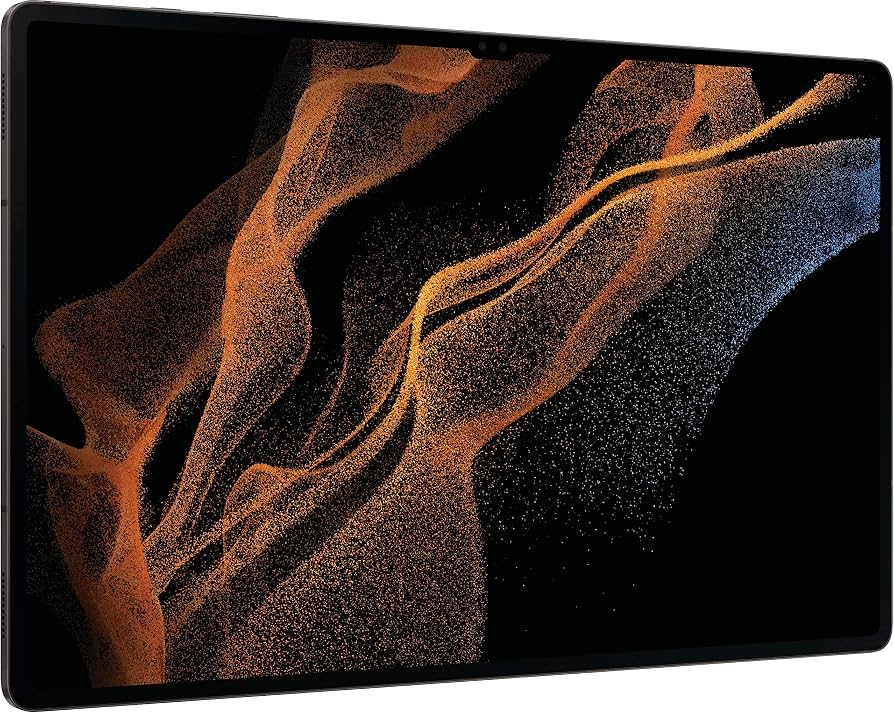
Samsung Galaxy Tab S8 Ultra
$1099.99
Why recommend: Included S Pen, gorgeous AMOLED display, and Android flexibility at a similar price point.
Best for: Android users who want a large screen and great handwriting performance without extra costs.
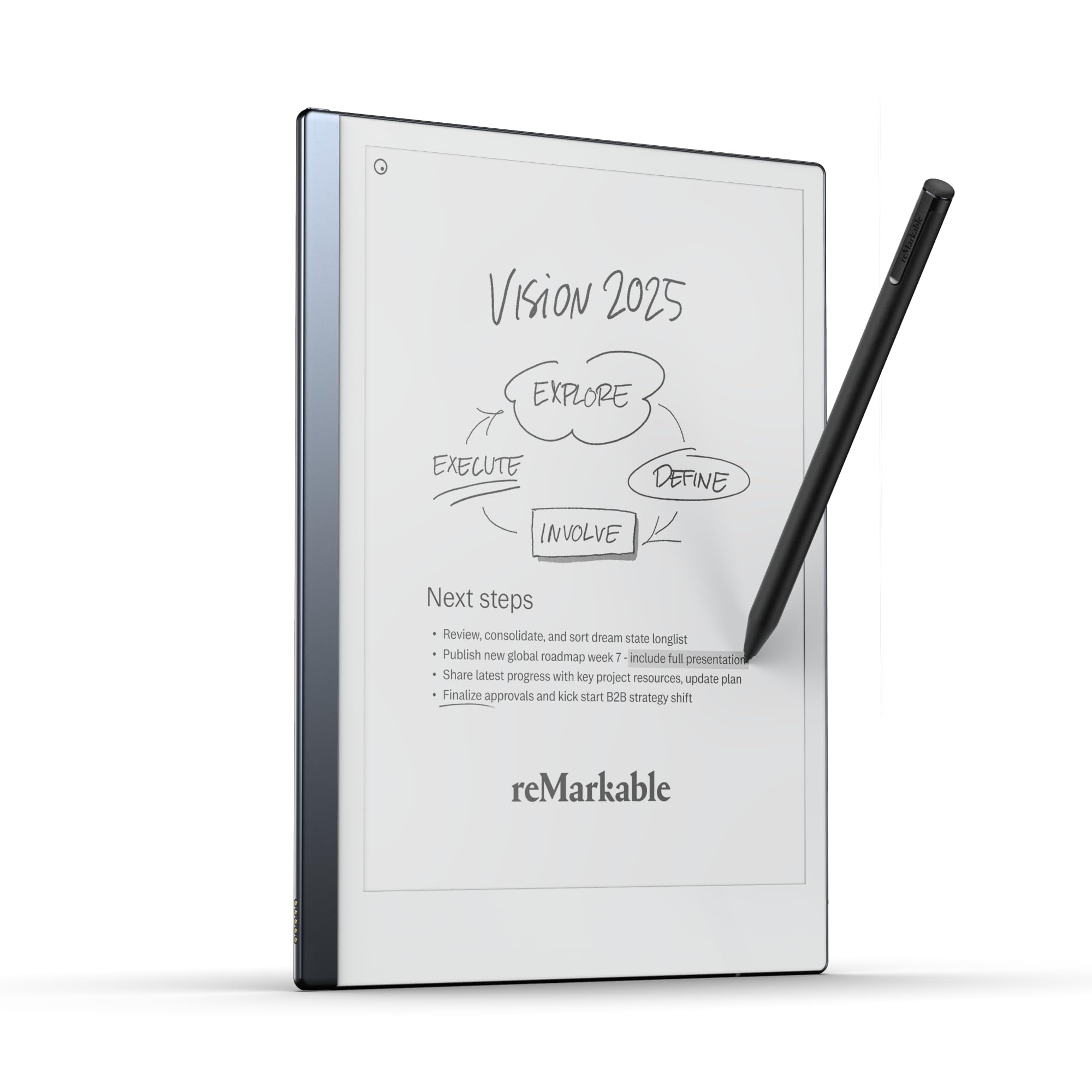
reMarkable 2 Tablet
$299.00
Why recommend: Unmatched distraction-free writing experience and portability; ideal for focused note-taking.
Best for: Users who want to eliminate digital distractions and have the most paper-like experience.
Microsoft 365 Personal Subscription (1 Year)
$69.99
Why recommend: Unlocks OneNote premium features and full Office suite for enhanced productivity.
Best for: Students and professionals who use Office apps extensively with their notes.
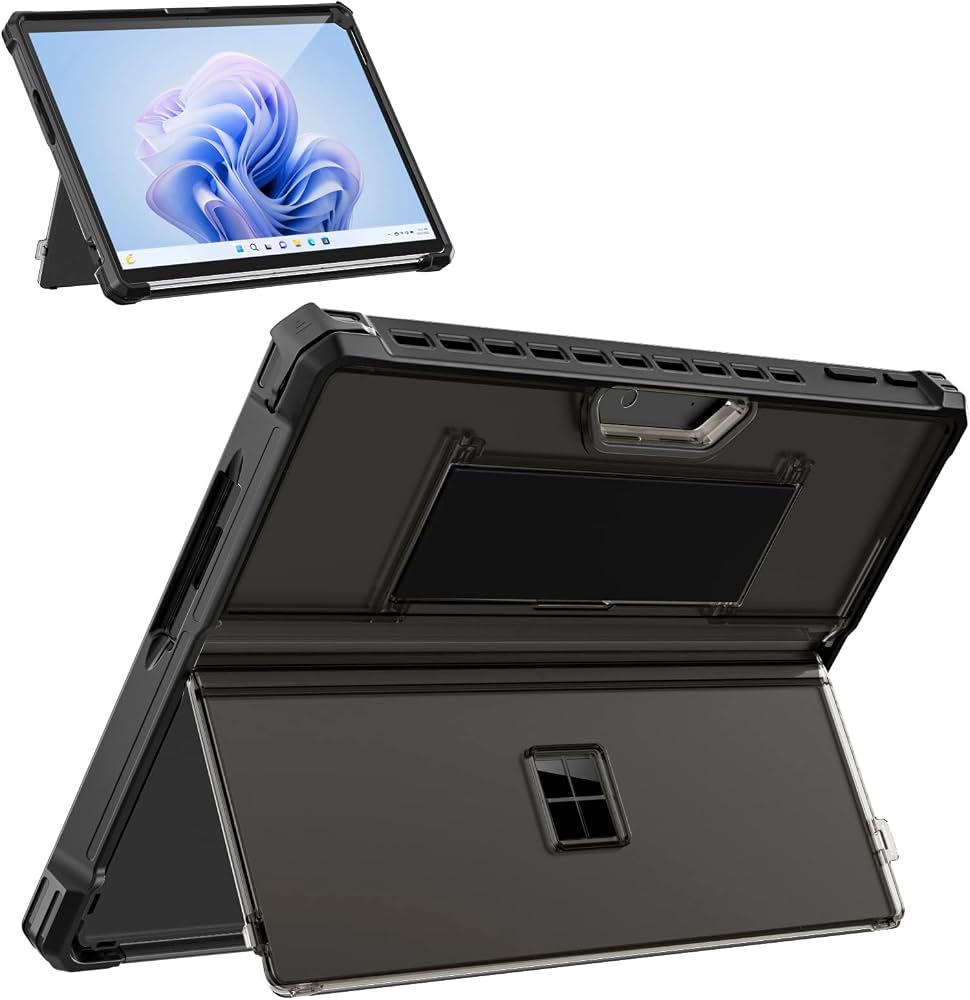
MoKo Carrying Case for Surface Pro 9
$15.99
Why recommend: Affordable protection that keeps the device and accessories organized.
Best for: Students and commuters who carry their Surface Pro 9 daily.
Bottom Line
Ready to get the Microsoft Surface Pro 9? Check the latest price on Amazon.
🛒 Buy on AmazonAs an Amazon Associate we earn from qualifying purchases.
Frequently Asked Questions
Is the Microsoft Surface Pro 9 good for note-taking?
Yes, it is a very good note-taking device, especially if you need Windows apps. The 120Hz display, Surface Slim Pen 2 with haptic feedback, and powerful software like OneNote make it a strong choice. However, it's heavier and more expensive than dedicated tablets like the iPad Pro, and the pen and keyboard are sold separately.
Can you use the Surface Pro 9 for note-taking without the keyboard?
Absolutely. You can handwrite notes with the Surface Slim Pen 2 while in tablet mode. The kickstand allows you to prop it up on a desk. For lap use, the keyboard fold-back mode (if attached) provides a stable surface, but the device is not as comfortable as a traditional tablet for handheld writing due to weight.
Does the Surface Pro 9 work with any stylus?
The Surface Pro 9 works best with the Surface Slim Pen 2, which supports haptic feedback and magnetic charging. It also works with the Surface Pen (older model) and some third-party active pens that use N-trig technology, but compatibility and performance may vary. For the best note-taking experience, the Slim Pen 2 is recommended.
What note-taking apps are best for the Surface Pro 9?
Top apps include Microsoft OneNote (free, powerful, integrates with Office), Microsoft Journal (free, paper-like), Drawboard PDF (for PDF annotation), Nebo (handwriting recognition), and GoodNotes 5 (via Windows, though originally iPad). All run natively on Windows 11.
Is the Surface Pro 9 better than the iPad Pro for note-taking?
It depends. The iPad Pro has a slightly lower latency, more optimized note-taking apps, and is lighter. The Surface Pro 9 offers a full desktop file system and Windows apps. If you need Windows software, choose Surface; if pen experience and portability are priority, choose iPad Pro.
Is the Surface Pro 9 good for students?
Yes, especially for STEM students who need specific Windows software (e.g., CAD, MATLAB). Its long battery life and ability to handwrite and type notes are valuable. However, its higher cost and weight compared to tablets like the iPad Air may be a drawback for budget-conscious or frequent travelers.
Does the Surface Pro 9 have palm rejection?
Yes, excellent palm rejection. It uses a built-in sensor that detects the pen and ignores your palm resting on the screen. Works seamlessly in OneNote and other apps. You can rest your hand comfortably while writing.
How long does the Surface Pro 9 battery last for note-taking?
Microsoft rates battery life up to 15.5 hours for typical use. With active note-taking (pen usage and screen on), you can expect 8-10 hours, depending on brightness and background apps. This is generally enough for a full day of classes or work.
Can you take handwritten notes on a Surface Pro 9?
Yes, that's one of its primary uses. With the Surface Slim Pen 2, you can handwrite, draw, and annotate directly on the screen. The 120Hz display makes it feel smooth and responsive. You can convert handwriting to text in apps like OneNote.
What are the best accessories for note-taking on the Surface Pro 9?
Essential accessories include the Surface Slim Pen 2, the Surface Pro Signature Keyboard (for typing and pen storage), a paper-like screen protector, and a carrying case. A Microsoft 365 subscription can also enhance OneNote features.