
Quick Verdict
The Logitech Brio 4K is an excellent webcam for professional webinars due to its exceptional video quality, versatile framing, and reliable performance. While its microphone is not on par with a dedicated mic, the camera itself exceeds the needs of most webinar hosts.

Logitech Brio 4K
$199.99

✓ Key Strengths
- •Excellent 4K Ultra HD resolution with 20MP sensor, providing crisp detail for product demos and close-ups.
- •HDR support and RightLight 3 auto-adjustment prevent blown-out backgrounds and produce flattering skin tones.
- •Three field-of-view presets (90°, 78°, 65°) allow instant switching from wide room view to close-up headshot.
- •5x digital zoom lets you enlarge text or objects without physically moving the camera.
- •Certified for Zoom, Teams, Webex, and Meet, so it's plug-and-play with popular webinar platforms.
- •USB-C connectivity, privacy shutter, and dual omni microphones add convenience for business use.
✗ Key Weaknesses
- •4K mode is limited to 30fps, which is fine for webinars but not ideal for fast-moving video.
- •Microphone quality is decent but not professional-grade; a separate USB mic is recommended for webinars.
- •Autofocus can hunt occasionally in low-light scenes, but manual focus works as a workaround.
- •Price is higher than many 1080p webcams, and you may not need 4K for most webinar platforms.
- •Advanced settings require Logitech Capture software, which is not available for all operating systems.
What is Logitech Brio 4K?
What is professional webinars?
Detailed Analysis
👍 Perfect For
- ✓Professional webinar hosts who want top-tier video quality and need to demonstrate products or charts.
- ✓Remote presenters who work in variable lighting conditions and want automatic exposure.
- ✓IT/AV professionals equipping a studio with multiple 4K-capable webcams.
- ✓Educators and trainers who need to clearly show whiteboards, documents, or physical objects.
- ✓Team moderators who switch between solo presentation and small-group panel formats.
👎 Not Ideal For
- ✗Budget-conscious users who present infrequently and can get by with a 1080p webcam.
- ✗Streamers who require no built-in audio and want a more configurable camera like an Elgato Facecam.
- ✗Mobile-first presenters who rely heavily on on-the-go audio capture.
- ✗IT departments that prefer a webcam with dedicated software management across many machines.
Use Case Scenarios
Solo Webinar Presenter
You are the only presenter, delivering slides and answering questions from your home office or studio. You need a camera that shows you clearly, handles difficult lighting, and stays reliable for a 60–90 minute session.
✓ Strengths
- HDR ensures consistent skin tones in mixed or variable lighting.
- 65° field of view is ideal for a single presenter.
- Manual controls in Logitech Capture let you pre-set white balance.
- Plug-and-play with Zoom and Teams reduces setup time.
✗ Weaknesses
- Autofocus may occasionally lag when you move quickly.
- No built-in lens cap, but the privacy shutter is included.
💡 Workarounds
- Use Logitech Capture to set manual focus to avoid hunting.
- Position a ring light close to the webcam for consistent exposure.
- Use a tripod or a laptop stand to keep the Brio at eye level.
The Brio's excellent low-light performance and configurable framing make it a top choice for a solo presenter who wants a no-headache professional look.
Interview or Panel Host
You host a live or recorded panel discussion with one or two other participants. The camera may be in the same room or used for a remote interview where you interact via video conference.
✓ Strengths
- Wide field of view options help capture multiple people.
- Digital zoom allows you to emphasize the active speaker.
- HDR maintains quality even with mixed lighting from multiple screens.
✗ Weaknesses
- Single camera cannot simultaneously show a wide shot and a close-up of each panelist.
- Built-in mics are inadequate for multi-person audio capture.
💡 Workarounds
- Use a professional USB microphone or lapel mics for each panelist.
- Mount the Brio on a tripod and use the 78° field of view for a balanced shot.
- If using a video conferencing platform, you can rely on automatic switching between individual webcams on each participant's computer.
The Brio's video flexibility is excellent, but panel scenarios demand external microphones and often a multi-camera setup. For a single host interviewing remote guests, it performs very well.
Virtual Classroom / Educator
You are teaching an online course, using slides, a digital whiteboard, or hands-on demonstrations. The audience needs to see both you and the material clearly.
✓ Strengths
- 4K detail makes small text and objects readable.
- HDR prevents whiteboards from looking washed out.
- 5x zoom lets you magnify details in physical objects.
✗ Weaknesses
- Not a 360° camera, so your movements are limited.
- No built-in teleprompter mode.
💡 Workarounds
- Use the 90° FOV to show the entire desk or workspace.
- Set up a dedicated 'demo area' with a secondary camera or tripod.
- Add a USB extension cable to place the web cam closer to the object.
For educators who prioritize visual detail, the Brio provides a meaningful advantage over 1080p webcams, and the HDR maintains a professional appearance.
Product Launch / Live Demo
You are launching a new product, unboxing it, or demonstrating its features to a live audience. You need to show close-up details while keeping your face on screen.
✓ Strengths
- High resolution and HDR make product details look premium.
- Digital zoom helps show small features without moving the camera.
- Adjustable field of view lets you capture hands and the product.
✗ Weaknesses
- Minimum focus distance is about 10 cm, so it cannot act as a true macro lens.
- Zooming digitally degrades sharpness at high magnification.
💡 Workarounds
- Use a separate camera or phone for extreme close-ups.
- Pre-set a camera angle using Logitech Capture with zoom and focus saved for demo segments.
- Consider a document camera or a secondary webcam for a top-down view.
The Brio is better than average for product demos, but true macro shots require additional equipment. For most webinar product showcases, it performs admirably.
Related Products You Should Consider
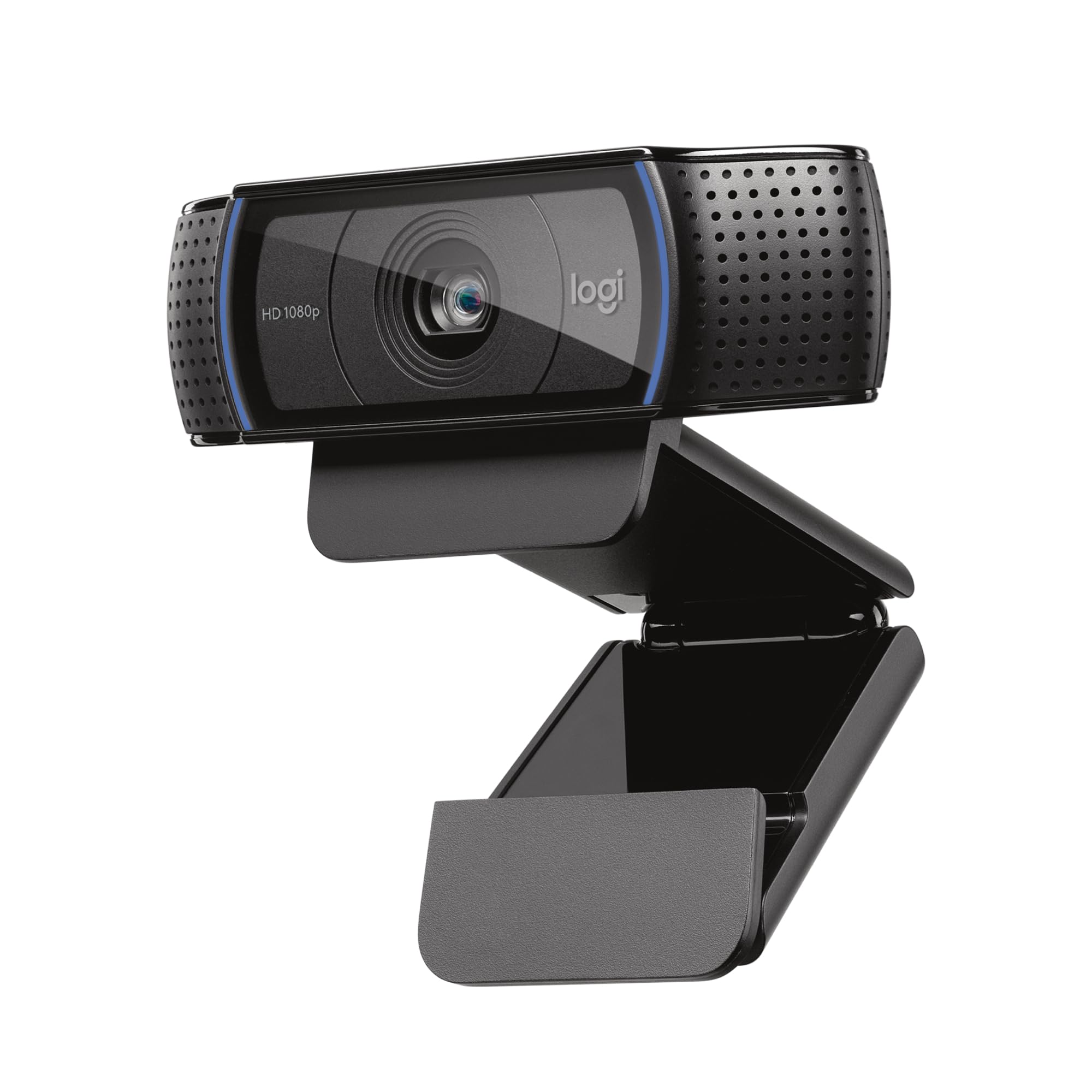
Logitech C920x HD Pro Webcam
$69.99
Why recommend: If you don't want to spend over $150 on a webcam, the C920x gives you 90% of the Brio's practical value for typical webinar usage.
Best for: Budget-conscious webinar hosts who need solid 1080p video without the premium price.
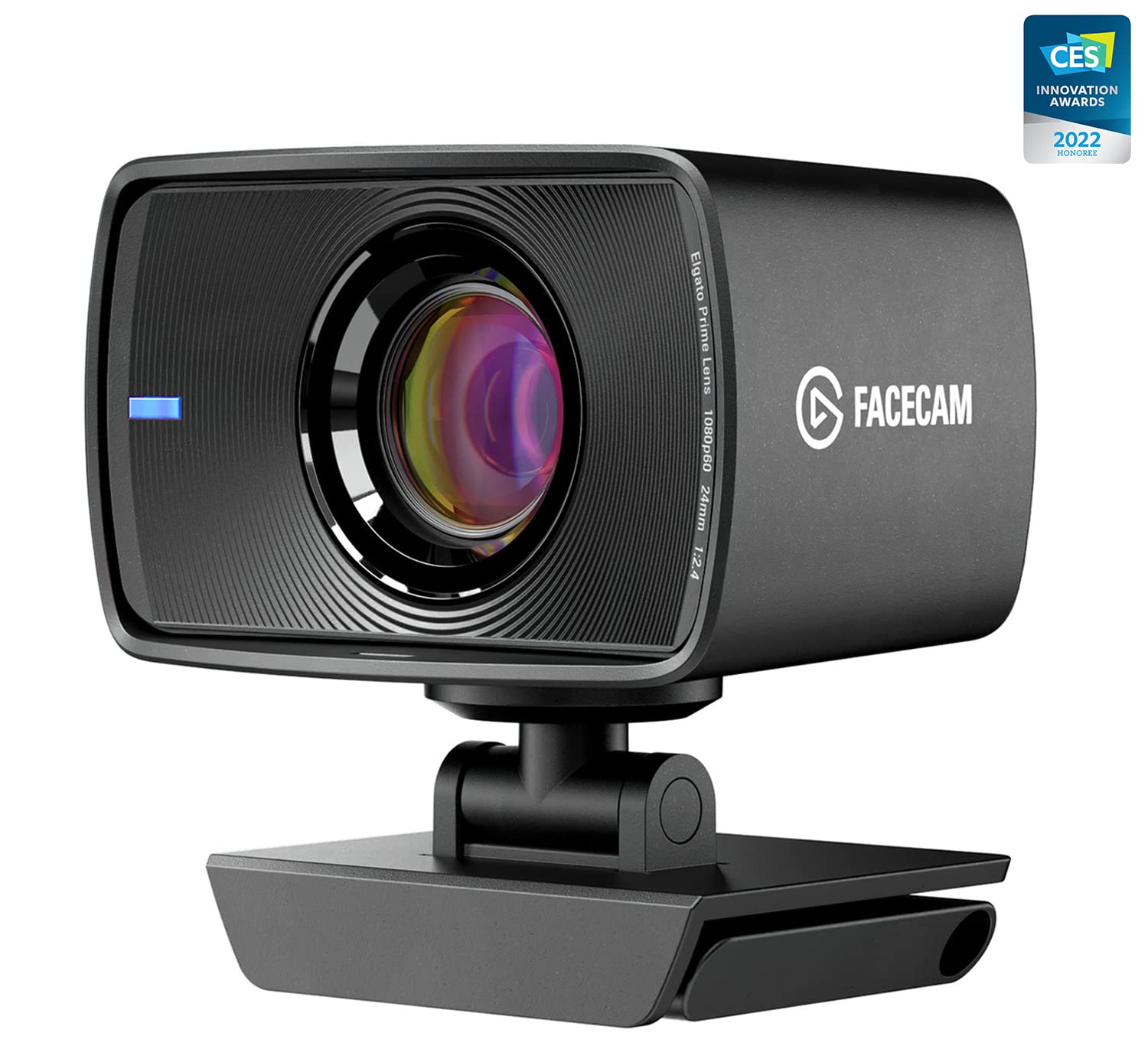
Elgato Facecam
$199.99
Why recommend: If you prefer the crispness of a fixed-focus lens and often use an external mic, the Elgato Facecam is a strong alternative to the Brio for webinar hosting.
Best for: Streamers and professionals who want a no-focus-worry camera and already have a dedicated microphone.
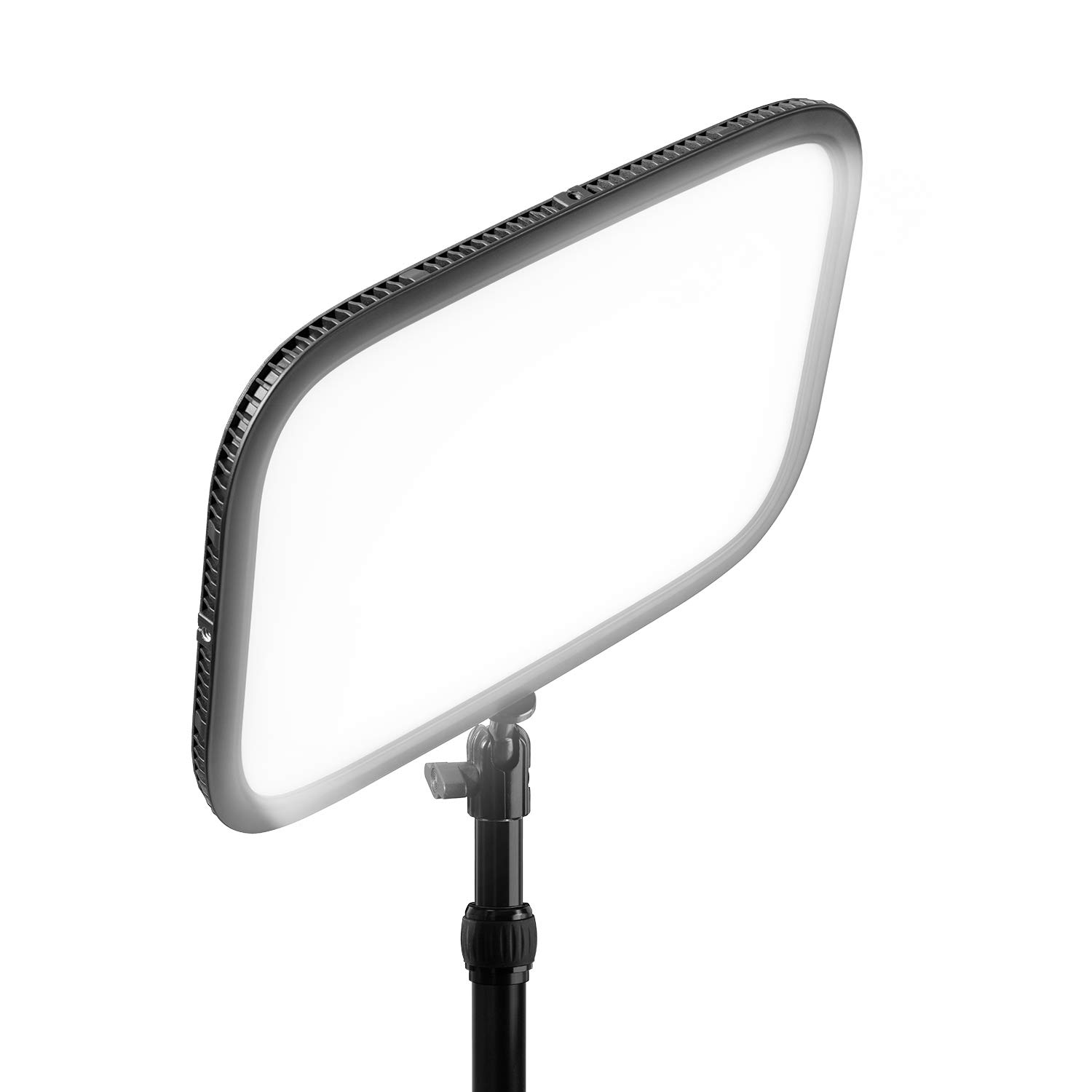
Elgato Key Light
$199.99
Why recommend: Great lighting is as important as a great camera. This key light helps the Brio reach its full low-light potential.
Best for: Webinar hosts who want a predictable, studio-quality look and are willing to invest a bit more.
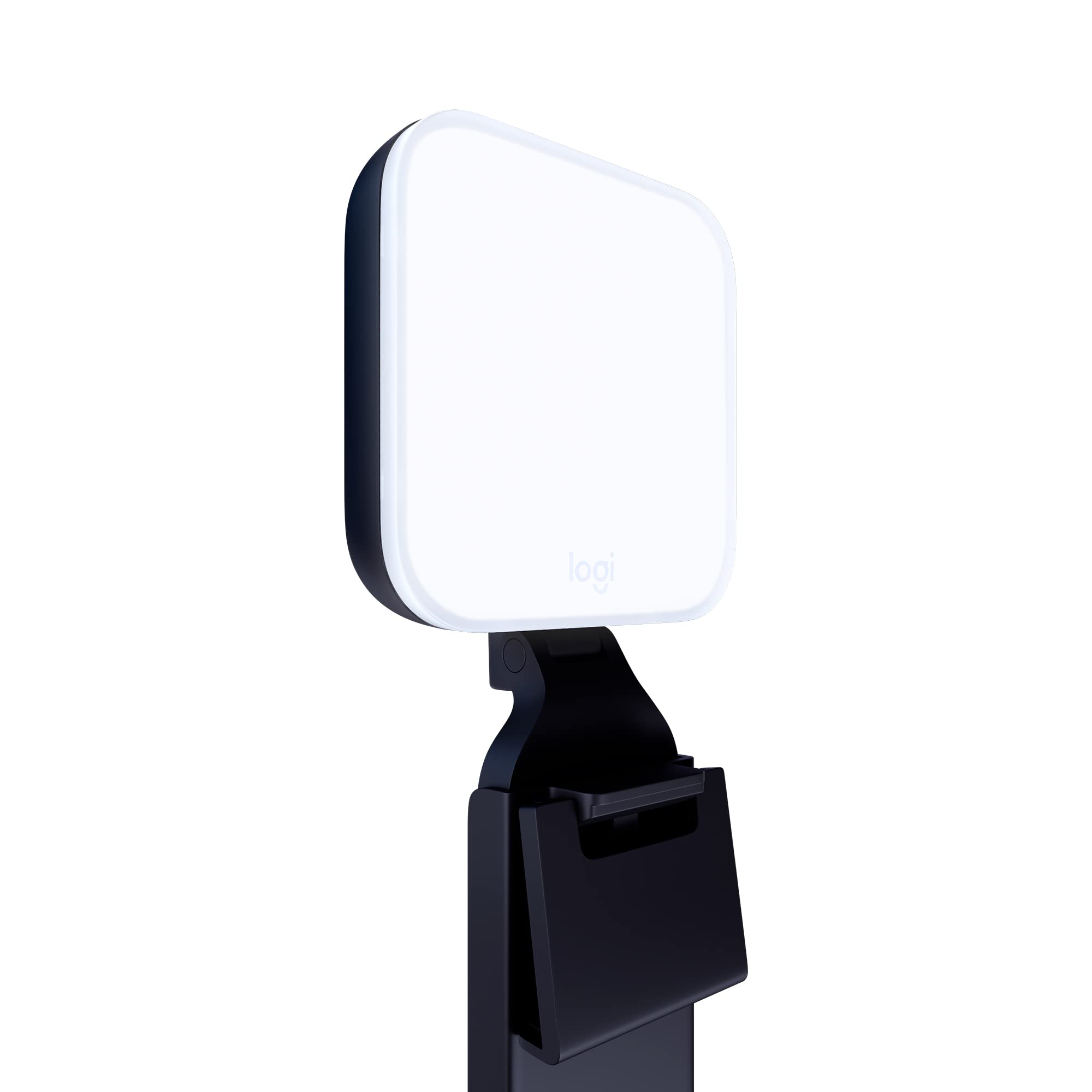
Logitech Litra Glow
$59.99
Why recommend: An affordable way to improve your webinar lighting without a full studio setup, and it directly helps the Brio's HDR sensor.
Best for: Home-office presenters on a budget who need one simple lighting solution.
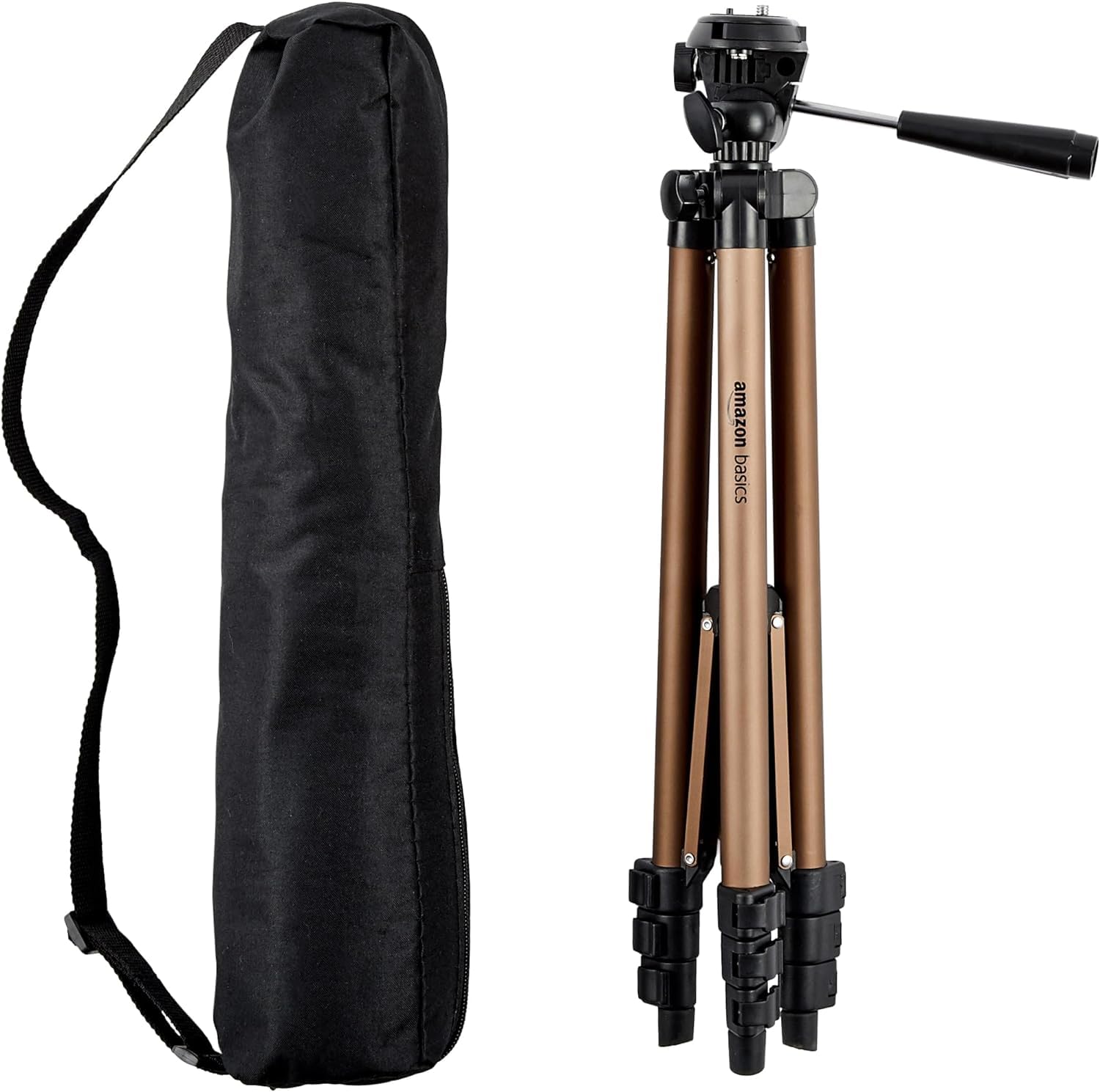
Amazon Basics 50-Inch Tripod
$29.99
Why recommend: A tripod is one of the simplest upgrades to improve your webinar video. This one is affordable and sturdy.
Best for: Webinar hosts who want to avoid the too-low laptop camera angle.
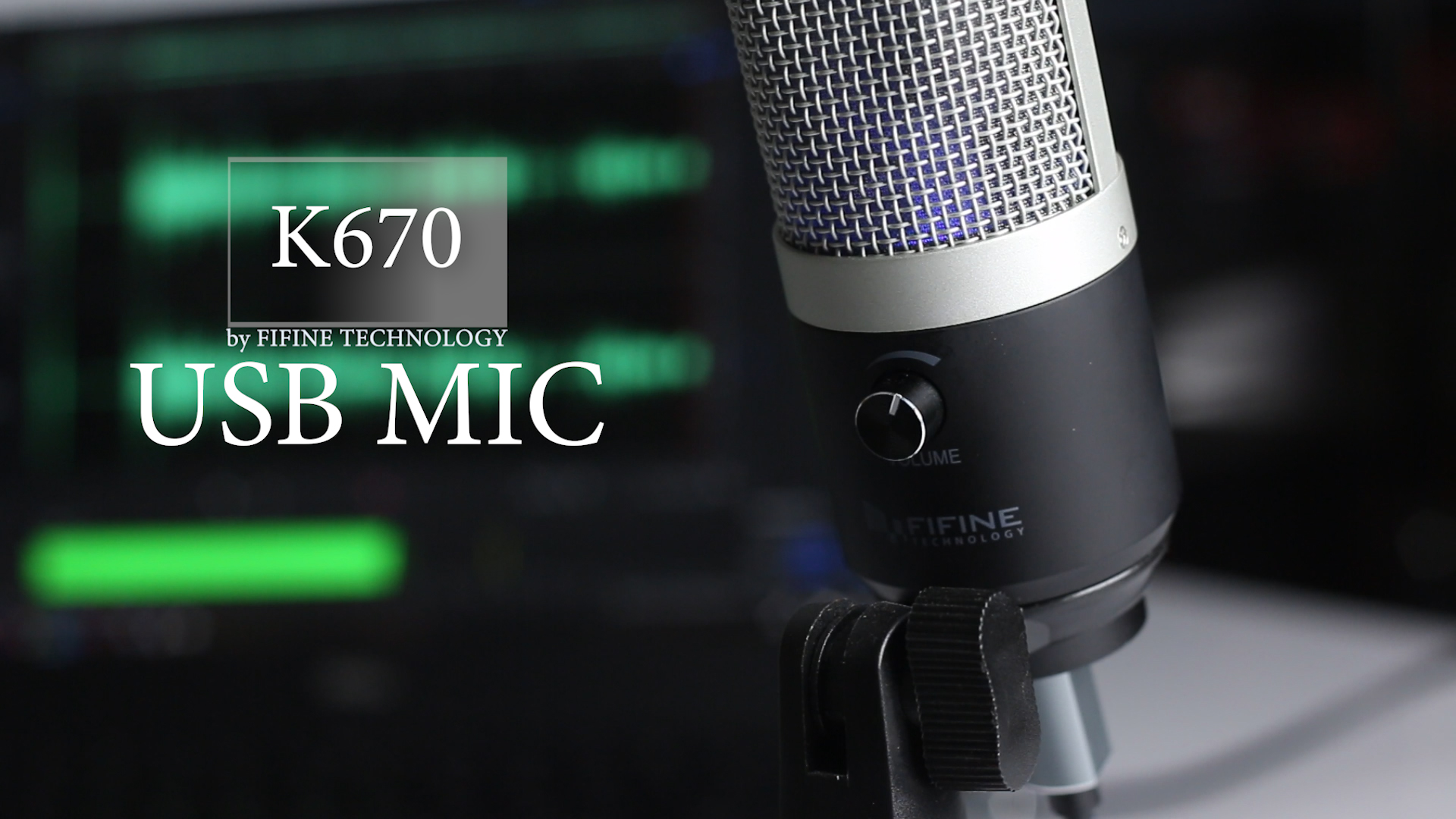
FIFINE K670 USB Microphone
$35.99
Why recommend: Professional webinars require professional audio. This microphone provides a significant upgrade without breaking the bank.
Best for: Webinar hosts who want clearer voice capture and better echo rejection.
Logitech Brio 4K (on Amazon)
$199.99
Why recommend: The definitive choice for those who want the proven quality of the Brio 4K for their professional webinar setup.
Best for: Anyone who has read this analysis and decided the Brio is the right fit.
Bottom Line
Ready to get the Logitech Brio 4K? Check the latest price on Amazon.
🛒 Buy on AmazonAs an Amazon Associate we earn from qualifying purchases.
Frequently Asked Questions
Is the Logitech Brio 4K good for professional webinars?
Yes, the Logitech Brio 4K is an excellent webcam for professional webinars. It provides sharp 4K video, HDR for difficult lighting, and versatile field-of-view options. Its only real limitation is the built-in microphone, so you'll want a dedicated USB mic for best results.
Can you use the Logitech Brio 4K for webinars on Zoom?
Absolutely. The Brio is certified for Zoom and works seamlessly with the platform. Simply select it as your camera in Zoom's settings, and you can even adjust some camera controls within Zoom, like pan and zoom, if you're using the companion app.
Does the Logitech Brio 4K require special software?
The Brio works plug-and-play without extra software on Windows, macOS, and Chrome OS. However, to access advanced controls like manual focus, white balance, and zoom presets, Logitech recommends the free Logitech Capture app. It's available for Windows and macOS, but not Chrome OS or Linux.
What's better than the Logitech Brio 4K for professional webinars?
For the same price, the Elgato Facecam offers slightly sharper 1080p with a fixed-focus lens and is favored by streamers, but it lacks a built-in mic and 4K. The Brio remains the best all-rounder for conference room and webinar use because of its HDR and 4K capability. A high-end mirrorless camera with an HDMI capture card will outperform it, but that's much more expensive.
Is the 4K resolution worth it if webinars stream at 1080p?
Yes, because the Brio's 4K sensor uses supersampling that produces a much cleaner and more detailed 1080p image than a native 1080p sensor. You also get the flexibility to crop deep into the frame in post-production or live streaming without losing sharpness.
Does the Brio 4K have autofocus?
Yes, the Brio features Logitech's autofocus system. In most well-lit conditions it locks on fast and stays focused. In dark environments it can be slower and occasionally hunt, but you can switch to manual focus using Logitech Capture to set a fixed focus distance.
Can you use the Brio 4K with an external microphone?
Yes, the Brio has a built-in microphone array, but you can ignore it and connect any external USB microphone or audio interface to your computer. This is common in professional webinar setups. The Brio's video will be unaffected.
Does the Brio 4K have a privacy shutter?
Yes, it comes with a physical flip-up privacy shutter that completely covers the lens. It also has a secure mount that prevents accidental removal.
Is the Logitech Brio 4K compatible with Mac and Windows?
Yes, the Brio works on Windows 10/11, macOS 10.10 or later, and even Chrome OS. It connects via USB-C, and the included adapter makes it work with traditional USB-A ports. It doesn't require drivers on Windows and macOS.
What accessories do I need with the Brio 4K for webinars?
For a professional webinar setup, consider a dedicated USB microphone (like the FIFINE K670), a small ring light or LED panel (like the Litra Glow), and a tripod if you want to level the camera and move away from your desk. These accessories complement the Brio's excellent video quality.
How does the Brio 4K compare to the Logitech C920?
The Brio is superior in almost every way: it has 4K resolution, HDR support, higher dynamic range, better low-light performance, and adjustable fields of view. The C920 is limited to 1080p and lacks HDR, so it can look washed out in contrasty lighting. The Brio is more expensive but significantly better for professional use.
Should I use a PTZ camera instead of the Brio for webinars?
If you present from a fixed position, the Brio is more than enough. If you need to move around a stage or switch between different speakers in a physical room, a PTZ (pan-tilt-zoom) camera adds flexibility, but it is more expensive and complex. For most professional webinars from a desk, a fixed webcam like the Brio is the smarter choice.