
Quick Verdict
LG C3 OLED is a fantastic PC gaming monitor with exceptional picture quality, low input lag, and 120Hz VRR. Its main drawbacks—text fringing and burn-in risk—are manageable for dedicated gamers but may be problematic for productivity-heavy use. Overall, it's a strong, immersive choice for gaming-focused desktop setups.
✓ Key Strengths
- •Excellent contrast and perfect blacks for immersive gaming
- •Very low input lag of ~4ms in Game Mode
- •120Hz refresh rate with VRR (G-Sync/FreeSync) for smooth, tear-free play
- •All four HDMI 2.1 ports support 4K@120Hz with full bandwidth
- •Outstanding HDR performance with near-infinite dynamic range
- •Large 42-inch size best-in-class for a desktop monitor
- •Fast pixel response times eliminate ghosting and smearing
- •Wide color gamut (~98% DCI-P3) with rich, accurate colors
✗ Key Weaknesses
- •Risk of permanent burn-in from static PC elements like taskbars and HUDs
- •Text clarity is compromised due to WRGB subpixel layout, causing fringing
- •No DisplayPort or USB-C connectivity, requires HDMI or adapters
- •Peak brightness is lower than high-end Mini-LED monitors, especially in Bright rooms
- •Large size (42-inch) doesn't fit on shallow desks and may strain neck if too close
- •Pixel response times are ultra-fast, but 120Hz is lower than 144Hz/240Hz competition
What is LG C3 OLED?
What is PC gaming monitor?
Detailed Analysis
👍 Perfect For
- ✓Single-player gamers who prioritize visual fidelity and immersion
- ✓Simulator and racing enthusiasts who want a large, vivid display close to the wheel
- ✓Media consumers who also game and enjoy movies in a dark room
- ✓Users with powerful GPUs capable of 4K@120fps and ample desk space
👎 Not Ideal For
- ✗Productivity professionals who read text all day and need crisp fonts
- ✗Esports competitive players who demand maximum refresh rates (240Hz+)
- ✗Users in bright rooms with ambient light, as OLED peak brightness may not suffice
- ✗Anyone who leaves static content on screen for long periods and won't take burn-in precautions
Use Case Scenarios
Casual Single-Player Gamer
Plays story-driven games like The Witcher 3, Cyberpunk, or God of War at leisurely pace, valuing graphics and atmosphere over competitive speed.
✓ Strengths
- Stunning HDR brings out highlights and shadows in rich graphics
- Immersive 42-inch screen creates a theater-like experience
- 120Hz with VRR provides smooth gameplay even at 60fps dips
- Low input lag makes even action sequences responsive
✗ Weaknesses
- Potential burn-in from static game HUDs if you pause for long periods
- Text fringing might be noticeable in menus and NPC dialogue
💡 Workarounds
- Enable the Game Optimizer's 'OLED Care' features like Pixel Shift and Logo Luminance Adjustment
- Hide the HUD in games where possible
- Always exit to a moving screensaver or turn off the screen when taking breaks
For immersive, story-driven gaming, the C3's display quality is unmatched, and the mild drawbacks are easy to live with.
Competitive FPS / Esports Gamer
Plays Valorant, CS:GO, Apex Legends, and other fast-paced shooters, where 240Hz, low input lag, and a smaller screen are often preferred.
✓ Strengths
- Very low input lag for an OLED TV
- Excellent motion clarity, almost no ghosting
- 4K resolution offers crisp visuals for spotting details
- VRR prevents screen tearing during high-frame-rate gameplay
✗ Weaknesses
- 120Hz refresh rate is lower than competitive-grade 240Hz monitors
- 42-inch screen is large and can make it hard to take in all game elements at once
- Standby (default) latency might be slightly higher than the fastest TN/IPS panels
💡 Workarounds
- Use the Game Optimizer to set 'Boost' mode for lowest latency
- Sit farther back or use a monitor arm to push the screen further away, creating a smaller effective size
- Consider a secondary 240Hz monitor for ranked play if you're really competitive
While the C3 offers amazing image quality, it's not the optimal tool for competitive gaming where refresh rate and screen size are key.
Productivity + Gaming Hybrid
Uses the same desktop for 8 hours of work (coding, spreadsheets, web browsing) plus gaming after hours.
✓ Strengths
- 4K resolution offers lots of desktop space
- Perfect blacks and HDR make movies and games on the same machine look fantastic
- G-Sync/FreeSync works seamlessly between productivity and gaming
- Excellent colors for photo editing (though not factory-calibrated)
✗ Weaknesses
- Text fringing reduces text readability for prolonged work
- Burn-in risk from static desktop elements is substantial if precautions aren't taken
- The glossy screen can cause reflections in a well-lit office
💡 Workarounds
- Use a high-quality DP-to-HDMI adapter if you need more connectivity options
- Set up a script that runs a screensaver after 2 minutes of inactivity
- Use dark mode everywhere; hide the taskbar and desktop icons
- Consider a 32-inch 4K IPS monitor for productivity as a companion to the C3
With careful setup and a tolerance for slightly softer text, the C3 can be a great everyday display, but it demands more attention to burn-in prevention than a standard monitor.
Simulator / Racing Enthusiast
Uses a wheel/pedals for sim racing (iRacing, Assetto Corsa) and also plays flight simulators, wanting a large immersive display.
✓ Strengths
- Large flat screen provides an immersive, wide field of view
- Excellent response times reduce motion blur in fast-moving scenes
- HDR improves visibility in dimly lit racing environments
- 120Hz and VRR ensure smooth frame pacing even when frame rates fluctuate
✗ Weaknesses
- 16:9 aspect ratio is not as wide as dedicated ultrawide sim monitors
- Requires a heavy-duty mount or stand to position close to the wheel
- Text fringing doesn't matter much in sims, but your lap timing overlays might be slightly softer
💡 Workarounds
- Get a monitor arm capable of supporting a 42-inch TV (recommended below)
- Use a dedicated cockpit rig with a vesa adapter to securely mount the display
- Set the TV's aspect ratio to 'Just Scan' to avoid overscan and ensure every pixel is utilized
The C3 is a top pick for sim racing due to its size, response time, and low input lag, far surpassing a standard monitor in immersion.
Related Products You Should Consider
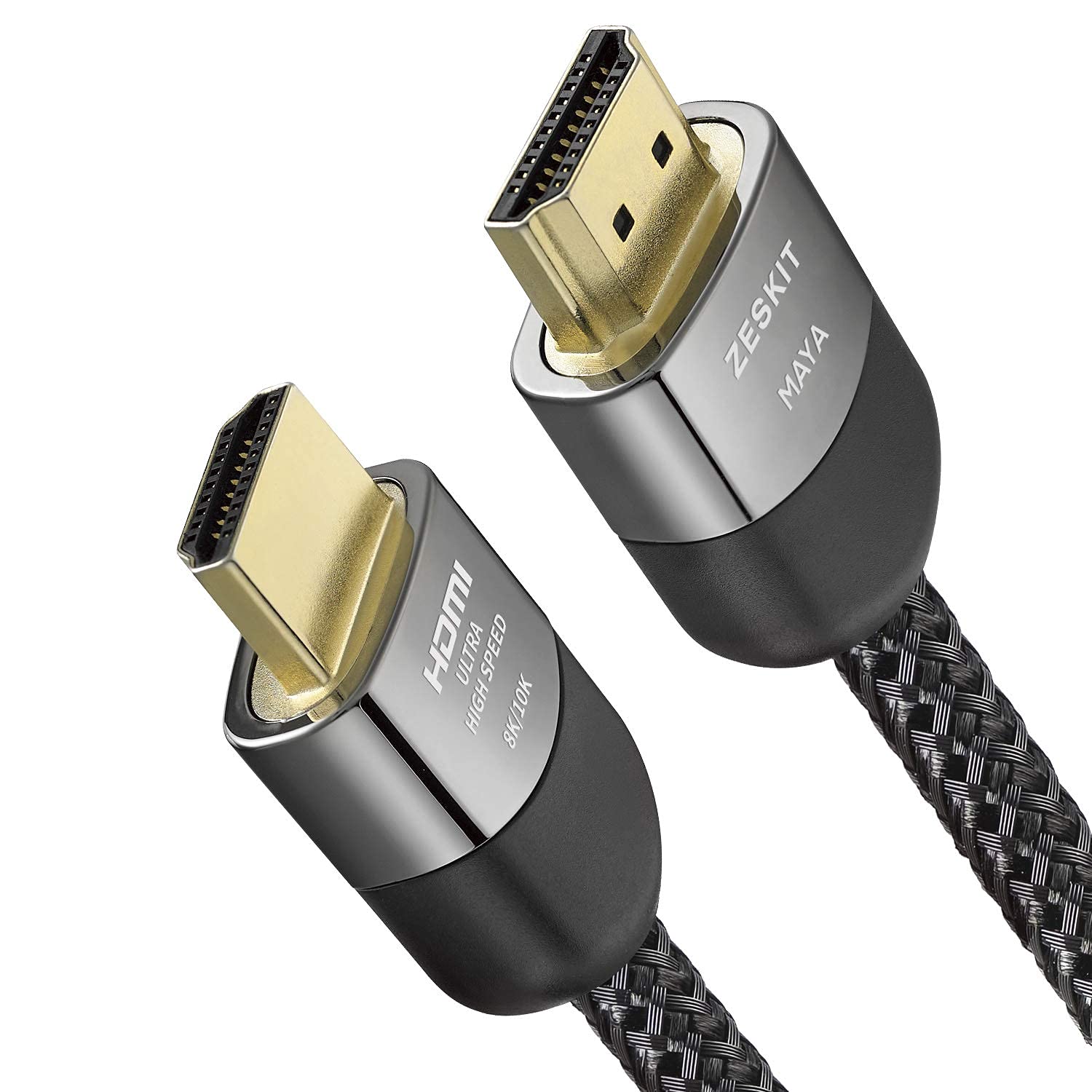
Zeskit 8K HDMI 2.1 Cable (6.5ft)
$15.99
Why recommend: Reliable, certified cable ensures you get the highest performance without negotiation issues.
Best for: Anyone setting up a PC with the LG C3 who wants a stable connection.

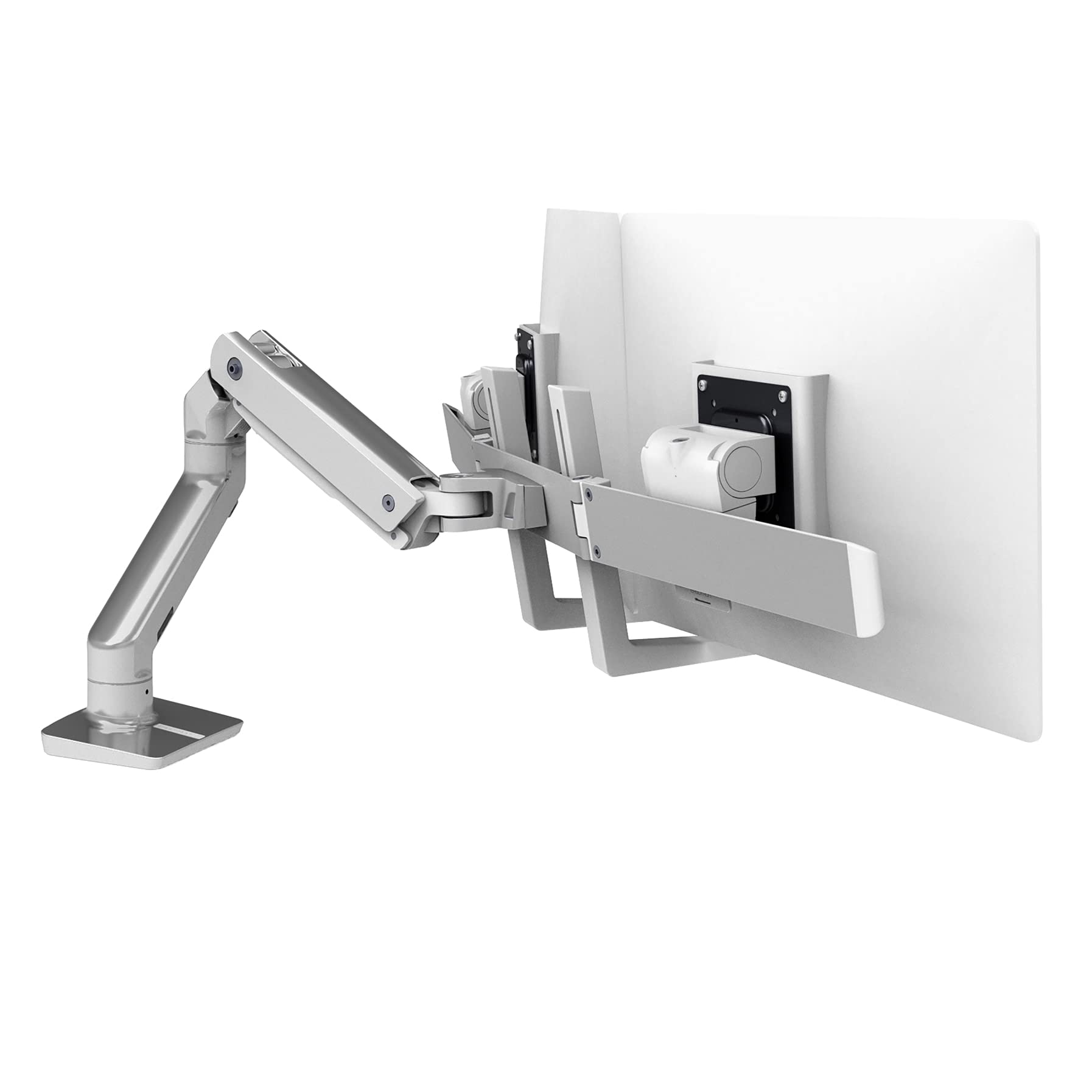
Ergotron HX Desk Monitor Arm
$249.00
Why recommend: Ergonomic mounting is essential for using a 42-inch TV at a desk; the HX is the gold standard.
Best for: Users with limited desk space or those who want flexible positioning for gaming and work.

Whoosh! OLED Screen Cleaner Kit
$19.99
Why recommend: Protects your investment and keeps the screen in pristine condition.
Best for: Every owner who wants to keep their LG C3 looking new.
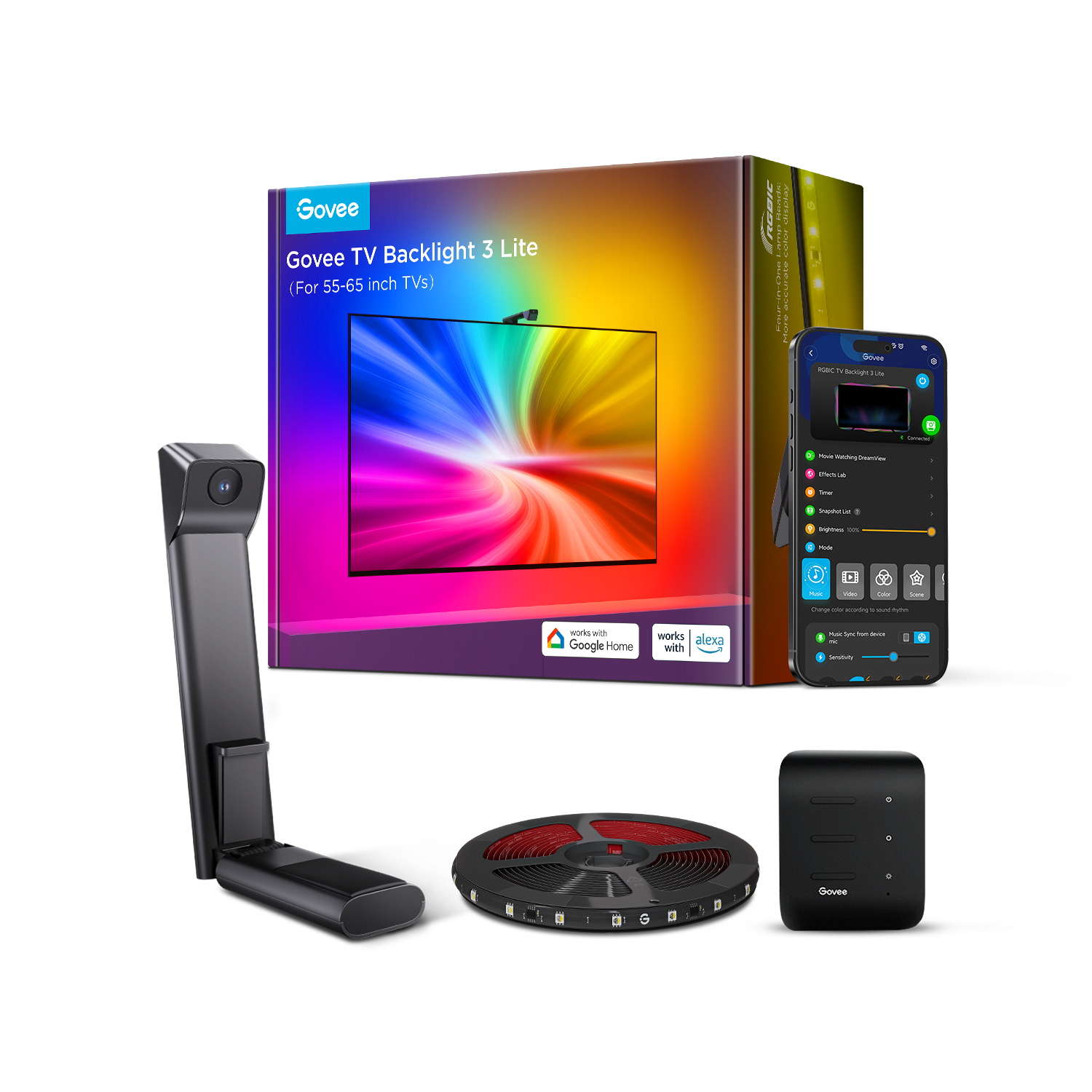
Govee TV LED Backlight (H6199)
$39.99
Why recommend: Enhances the immersive feel during gaming and movies, and is especially effective with OLED's perfect blacks.
Best for: Gamers who play in dark rooms and want to add a visual flair to their setup.
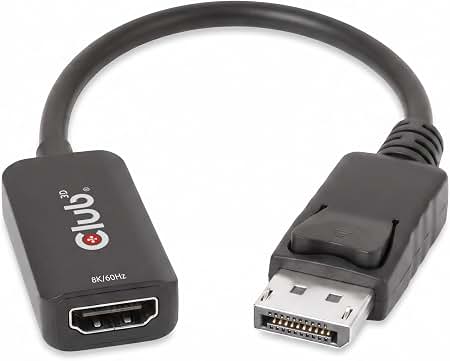
Club 3D DisplayPort 1.4 to HDMI 2.1 VRR Adapter
$29.99
Why recommend: Solves the lack of DisplayPort on the LG C3, enabling full 4K@120Hz with VRR.
Best for: Users with GPUs or laptops that only have DisplayPort outputs.
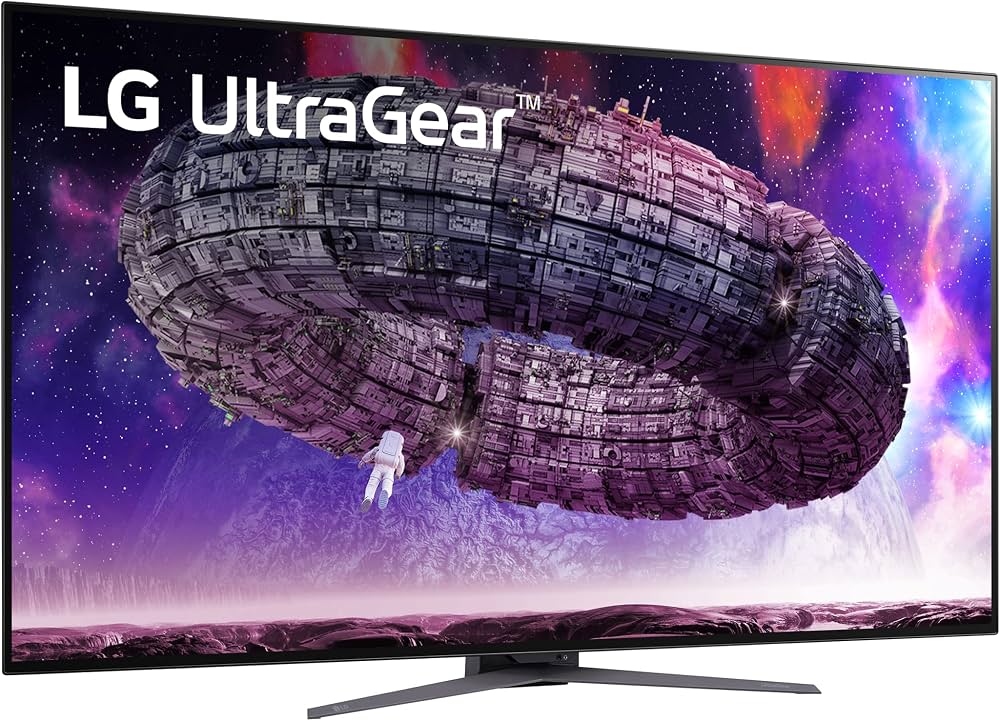
LG UltraGear 48GQ900-B 48" OLED Gaming Monitor
$999.00
Why recommend: A dedicated OLED gaming monitor with DisplayPort and a 138Hz overclock, ideal for PC purists.
Best for: Gamers who want a large OLED with a monitor aesthetic and need DisplayPort.
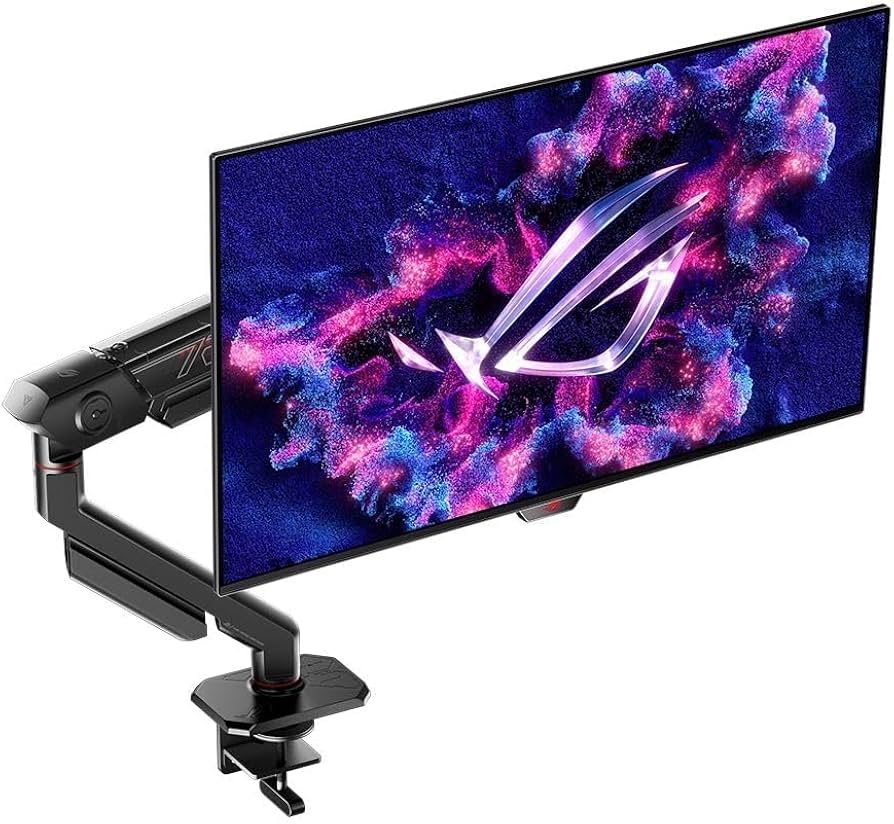
Asus ROG Swift OLED PG27AQDM 27" 1440p Gaming Monitor
$999.00
Why recommend: Offers OLED picture quality with higher refresh rate and clearer text, solving the C3's main weaknesses.
Best for: Competitive and hybrid users who prefer a 27-inch size and need maximum refresh rates.
Bottom Line
Ready to get the LG C3 OLED? Check the latest price on Amazon.
🛒 Buy on AmazonAs an Amazon Associate we earn from qualifying purchases.
Frequently Asked Questions
Is the LG C3 OLED good for PC gaming?
Yes, the LG C3 OLED is an excellent PC gaming display, particularly the 42-inch model. It offers a 120Hz refresh rate, very low input lag (around 4ms), G-Sync/FreeSync support, and superb HDR with perfect blacks. The main drawbacks are text fringing due to the WRGB subpixel layout and the risk of burn-in from static elements, but for gaming-focused use, it's superb.
Can you use the LG C3 OLED as a computer monitor?
Absolutely. Many people use the 42-inch C3 as a desktop monitor. It works with any PC via HDMI 2.1, supports 4K@120Hz, and includes all the necessary gaming features. Just be mindful of its larger size and the burn-in precautions you need to take. It's not ideal for heavy text work, but as a gaming and media display, it's fantastic.
What is the input lag on the LG C3 OLED?
In Game Mode, the LG C3 has an input lag of approximately 4ms at both 60Hz and 120Hz, as measured by RTINGS. This is low enough to be imperceptible for most games, though some dedicated 240Hz monitors can achieve under 1ms. For the vast majority of players, 4ms is plenty responsive.
Does the LG C3 OLED support 4K@120Hz on PC?
Yes, the LG C3 supports 4K at 120Hz through its HDMI 2.1 ports. You need a GPU with HDMI 2.1 output (NVIDIA RTX 3000/4000 series or AMD RX 6000/7000 series) and a certified HDMI 2.1 cable. With the correct setup, you'll get full 4:4:4 chroma and VRR.
Is the LG C3 OLED worth it as a PC monitor?
If you are a dedicated gamer who values picture quality above all, the C3 is absolutely worth it. The immersive 42-inch screen, perfect blacks, and vibrant HDR create a stunning gaming experience. However, if you spend most of your time in text-based applications, the C3's text clarity and burn-in risk may make a traditional IPS monitor a better value.
Does the LG C3 OLED have burn-in issues for PC use?
Like all OLED displays, the LG C3 is susceptible to permanent burn-in when static images are displayed for many hours. This includes taskbars, window headers, and game HUDs. LG includes mitigation features like Pixel Shift, Logo Luminance Adjustment, and auto-static-brightness, but they don't fully eliminate the risk. You should use dark themes, hide the taskbar, and enable a screensaver to protect the panel.
What is the best size of the LG C3 for a desk?
The 42-inch C3 is ideal for desk use because it's small enough to fit on a deep desk (at least 24-30 inches) while providing a huge, immersive picture. The 48-inch model is generally too large for a traditional desk and is better suited for a dedicated gaming room or mounted onto a shelf. For most people, the 42-inch is the sweet spot.
Can I connect the LG C3 OLED to a PC with DisplayPort?
No, the LG C3 does not have a DisplayPort input. You must use one of its four HDMI 2.1 ports. If your GPU only has DisplayPort outputs, you'll need an active DisplayPort 1.4 to HDMI 2.1 adapter that supports 4K@120Hz and VRR. We recommend the Club 3D adapter for this purpose.
Is the LG C3 OLED better than a traditional gaming monitor?
For gaming pure and simple, the LG C3 offers unmatched contrast and HDR, making it better for immersion than virtually any IPS or VA monitor. However, traditional gaming monitors often have higher refresh rates (240Hz+), sharper text, and better ergonomic stands. The C3 is better for cinematic and single-player games, while a dedicated monitor might be better for competitive esports and productivity.
How do I set up the LG C3 OLED for PC gaming?
First, set your PC's output to 4K@120Hz and enable Game Mode on the TV. In the Game Optimizer menu, turn on VRR (or G-Sync) and choose your preferred picture preset. For the best input lag, select 'Boost' in the Game Optimizer's latency settings. Also, enable 'OLED Care' features like pixel shift to protect the screen. Make sure you use a certified HDMI 2.1 cable.
Is the LG C3 OLED good for console gaming as well?
Yes, the LG C3 is also an excellent TV for PlayStation 5 and Xbox Series X. Both support 4K@120Hz and VRR via HDMI 2.1, which the C3 fully supports. It also has ALLM and a Game Optimizer for console settings. It's one of the best gaming TVs on the market, so you get a dual-purpose display for PC and console.
What are the best LG C3 OLED settings for PC gaming?
Recommended settings: Set PC to 4K@120Hz, RGB full, and 4:4:4 chroma. On the TV, select the 'Game' picture mode, turn on 'Game Optimizer', enable VRR, and set 'Go to Game' to 'Boost'. For HDR, enable in Windows and set HDR tone mapping to 'HGIG' or 'On' depending on your game. Disable 'Energy Saving' and 'AI Brightness' to get consistent performance. Also, use a dark theme and screensaver for burn-in prevention.