
Quick Verdict
The Kindle Scribe is a good choice for reading academic PDFs if your needs are limited to monochrome text and light handwritten annotation. It offers a superior reading experience for eye comfort and battery life, but falls short for complex, color-heavy, or annotation-intensive PDF workflows.
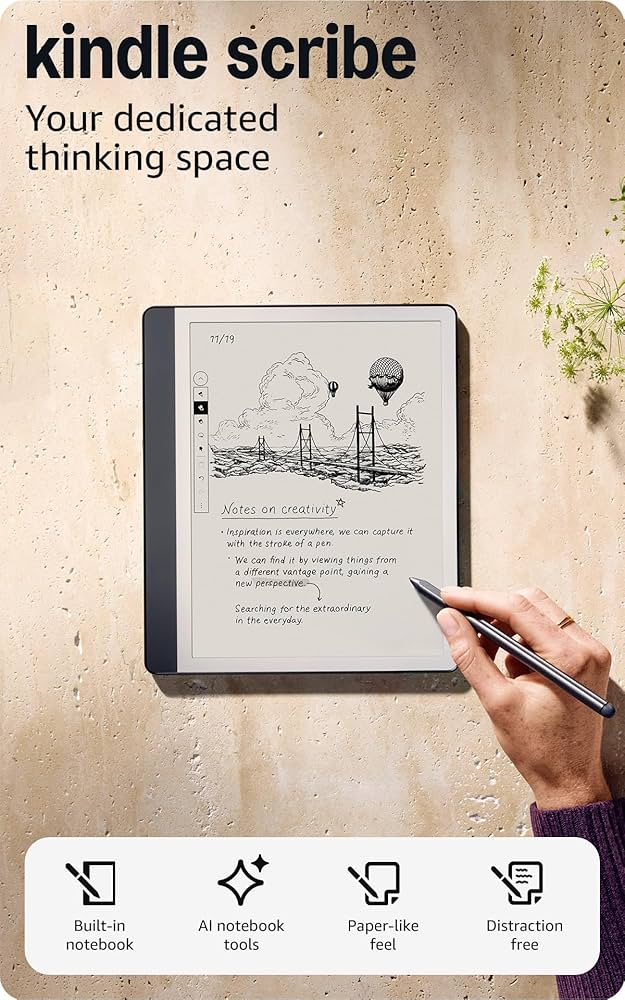
Kindle Scribe
$339.99

✓ Key Strengths
- •Large 10.2-inch E Ink display with 300 PPI offers comfortable reading of full-page PDFs without zooming.
- •Pen input enables natural highlighting, underlining, and handwritten margin notes.
- •Excellent battery life (weeks) compared to tablets; no daily charging.
- •Distraction-free environment – no notifications or apps to interrupt reading.
- •Lightweight and ergonomic design, easy to hold for extended sessions.
- •Integrated Kindle Store and Send to Kindle service for easy document transfer.
- •Adjustable warm light for reading in different environments.
- •Affordable compared to many large-screen e-readers and tablets.
✗ Key Weaknesses
- •No color display – cannot view colored graphs, diagrams, or highlighted text in color.
- •Basic PDF toolset: no layers, no shape tools, limited export options.
- •Slow rendering for large or complex PDFs, sometimes crashing with files over 200 MB.
- •No support for standard PDF annotations (highlights/notes only appear correctly on Kindle devices).
- •Limited file organization – no folders, only collections/tags.
- •No built-in dictionary or Wikipedia lookup for PDFs (only for Kindle books).
What is Kindle Scribe?
What is reading academic PDFs?
Detailed Analysis
👍 Perfect For
- ✓Graduate students reading black-and-white journal articles and needing to take handwritten notes in margins.
- ✓Researchers who want a distraction-free reading experience for long documents and value battery life.
- ✓Professors reviewing manuscripts and providing light handwritten feedback.
- ✓Anyone who dislikes backlit screens and suffers from eye strain with tablets.
👎 Not Ideal For
- ✗Users who rely on color to interpret charts, graphs, or code (e.g., biologists, computer scientists).
- ✗Researchers who need to annotate heavily with many different tools (shapes, text boxes, stamps).
- ✗Professionals who require seamless PDF annotation export to tools like PDF Expert or Adobe.
- ✗Users who read large textbook PDFs (over 500 MB) with embedded multimedia or interactive elements.
Use Case Scenarios
Grad Student Reading Journal Articles
A graduate student regularly reads 10–20 page articles from scientific journals, highlights key passages, and writes brief margin notes.
✓ Strengths
- Full-page display without zooming.
- Easy highlighting and margin notes.
- Excellent portability and battery life.
✗ Weaknesses
- No color for figures that might be in color (increasingly common).
- Annotations not fully compatible outside Kindle ecosystem.
💡 Workarounds
- Use Send to Kindle to transfer PDFs, then annotate on Scribe, and later read on computer via Kindle for PC (annotations visible there).
- If color is crucial, consider Onyx Boox device for same price.
For typical journal article reading with monochrome content and light annotation, the Scribe is very effective. The main drawbacks are color and annotation portability, but for personal study these are not dealbreakers.
Professor Reviewing Textbook Manuscripts
A professor reviews full textbook PDFs (up to 500 pages) with complex layouts, colored diagrams, and tables.
✓ Strengths
- Can display PDFs at a readable size.
- Handwritten annotations feel natural.
✗ Weaknesses
- No color for diagrams and graphs.
- Slow performance with large files.
- Limited file management for organizing many chapters.
💡 Workarounds
- Trim PDFs into smaller chapters using free tools before transfer.
- Use a tablet (like iPad) if color is essential.
- Consider reMarkable 2 for better PDF performance.
The professor's needs surpass the Scribe's capabilities, especially regarding color and file size. It works but with notable friction.
Researcher Annotating Dense Conference Papers
A researcher reads 10–15 papers per week, each 4–8 pages, with text-heavy content and occasional grayscale figures.
✓ Strengths
- Fast for small PDFs.
- Great battery life for weekly usage.
- Portable and lightweight.
✗ Weaknesses
- Annotations not directly compatible with Zotero or Mendeley.
- No screen mirroring for collaboration.
💡 Workarounds
- Use Send to Kindle and then view annotations on computer via Kindle Cloud Reader.
- Alternatively, export annotations as image prints via the Scribe's share features.
For the typical workflow of reading and annotating individual small PDFs, the Scribe is a solid tool. It's not perfect for integration but works well for personal reference.
Related Products You Should Consider
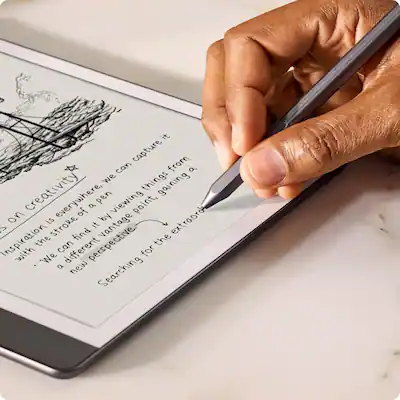
Amazon Kindle Scribe Premium Pen
$39.99
Why recommend: Improves note-taking efficiency for PDF reading.
Best for: Anyone annotating frequently.
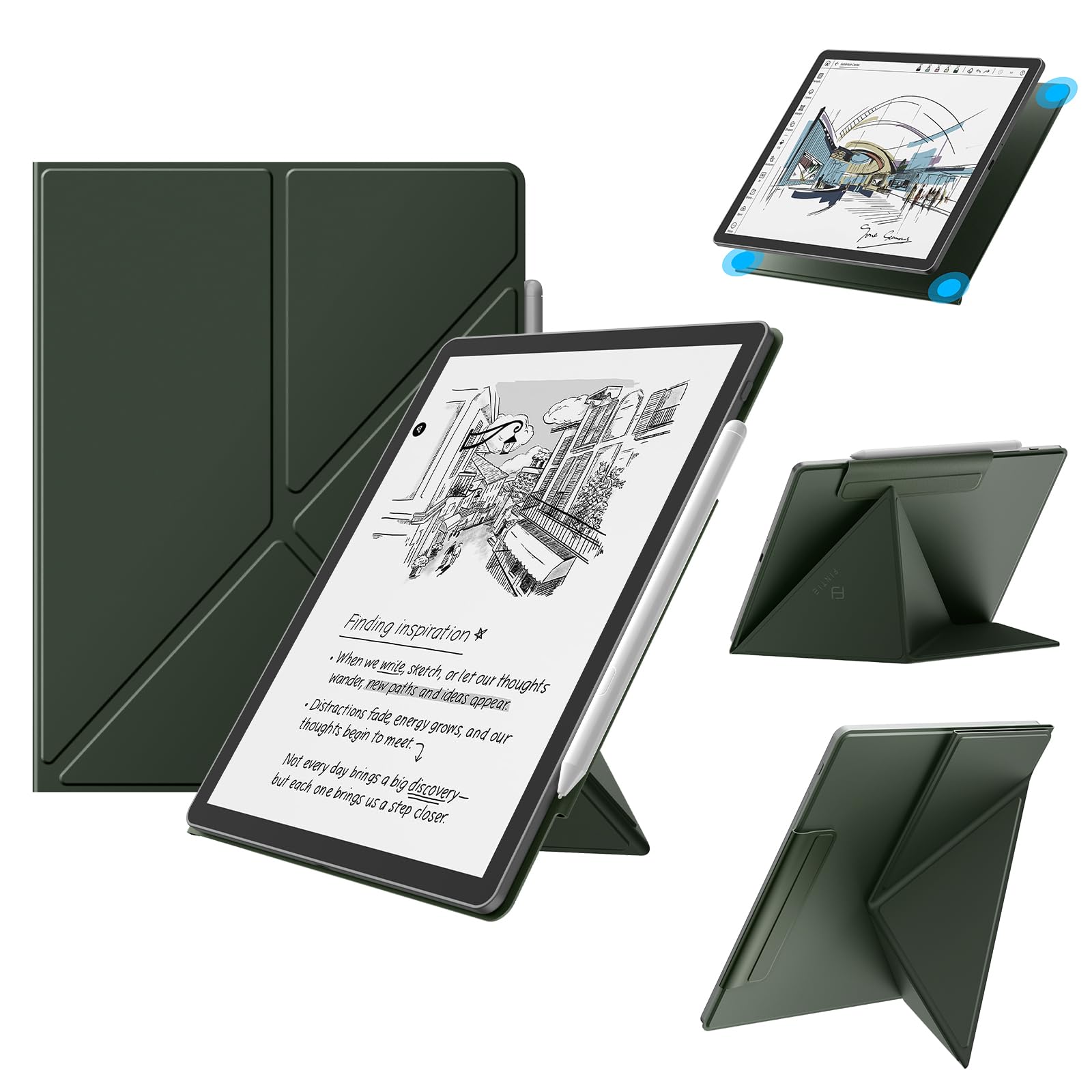
Fintie Case for Amazon Kindle Scribe
$23.99
Why recommend: Protects investment and ergonomic reading.
Best for: All Kindle Scribe users.
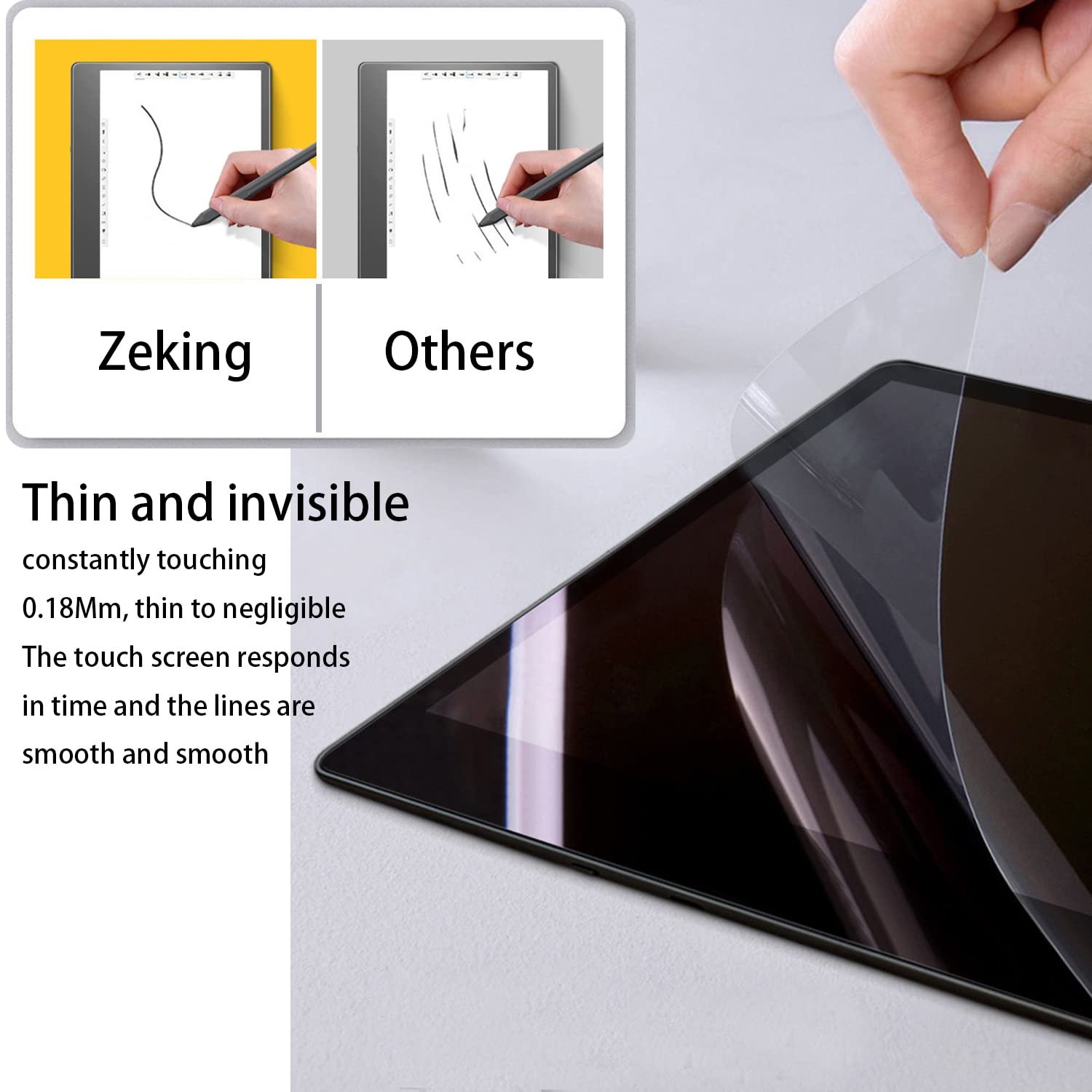
Screen Protector for Kindle Scribe (Paperlike)
$10.99
Why recommend: Improves handwriting feel and screen protection.
Best for: Frequent note-takers.
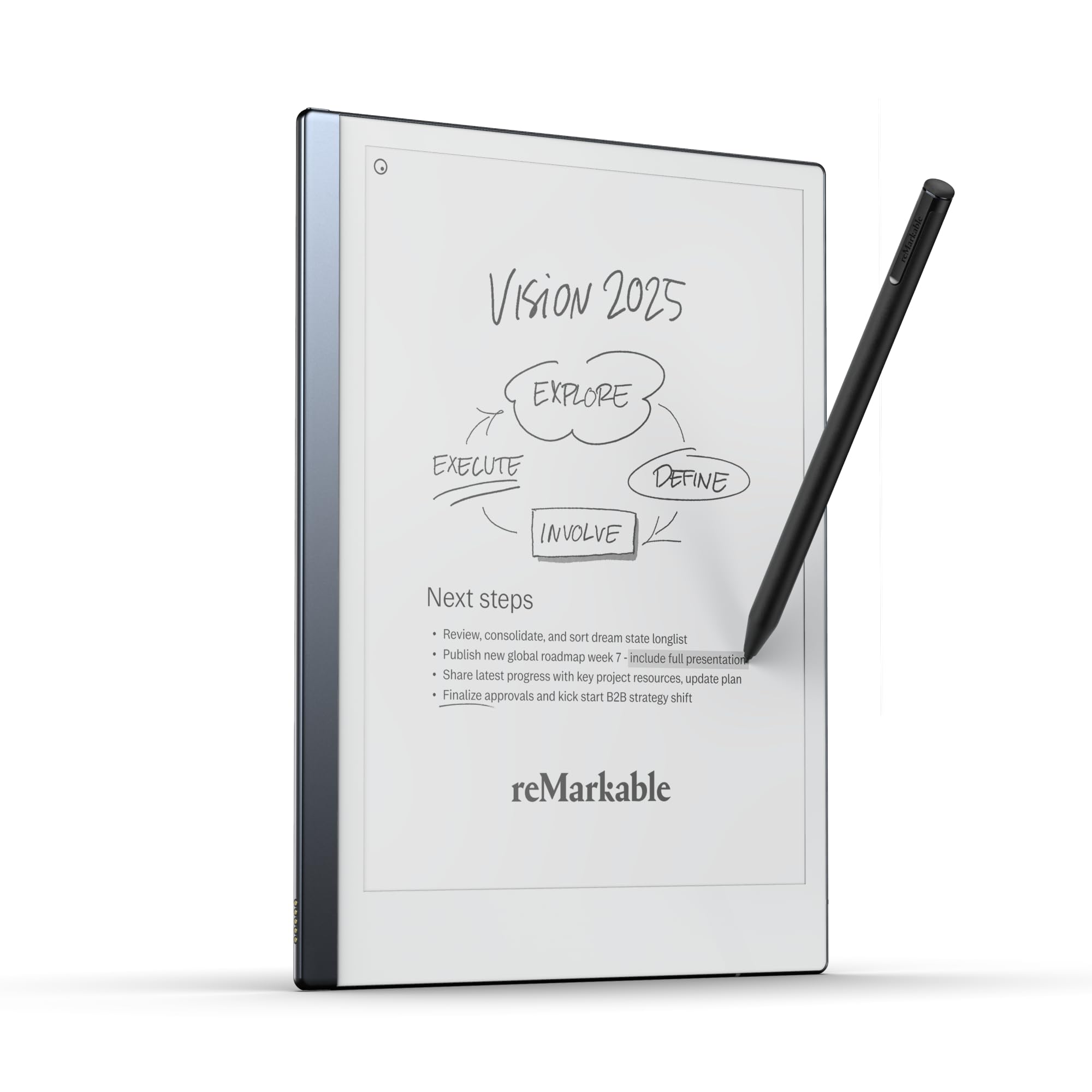
reMarkable 2
$299.00
Why recommend: Better PDF annotation tools and lighter weight for serious academic users.
Best for: Advanced users needing layers and better export.
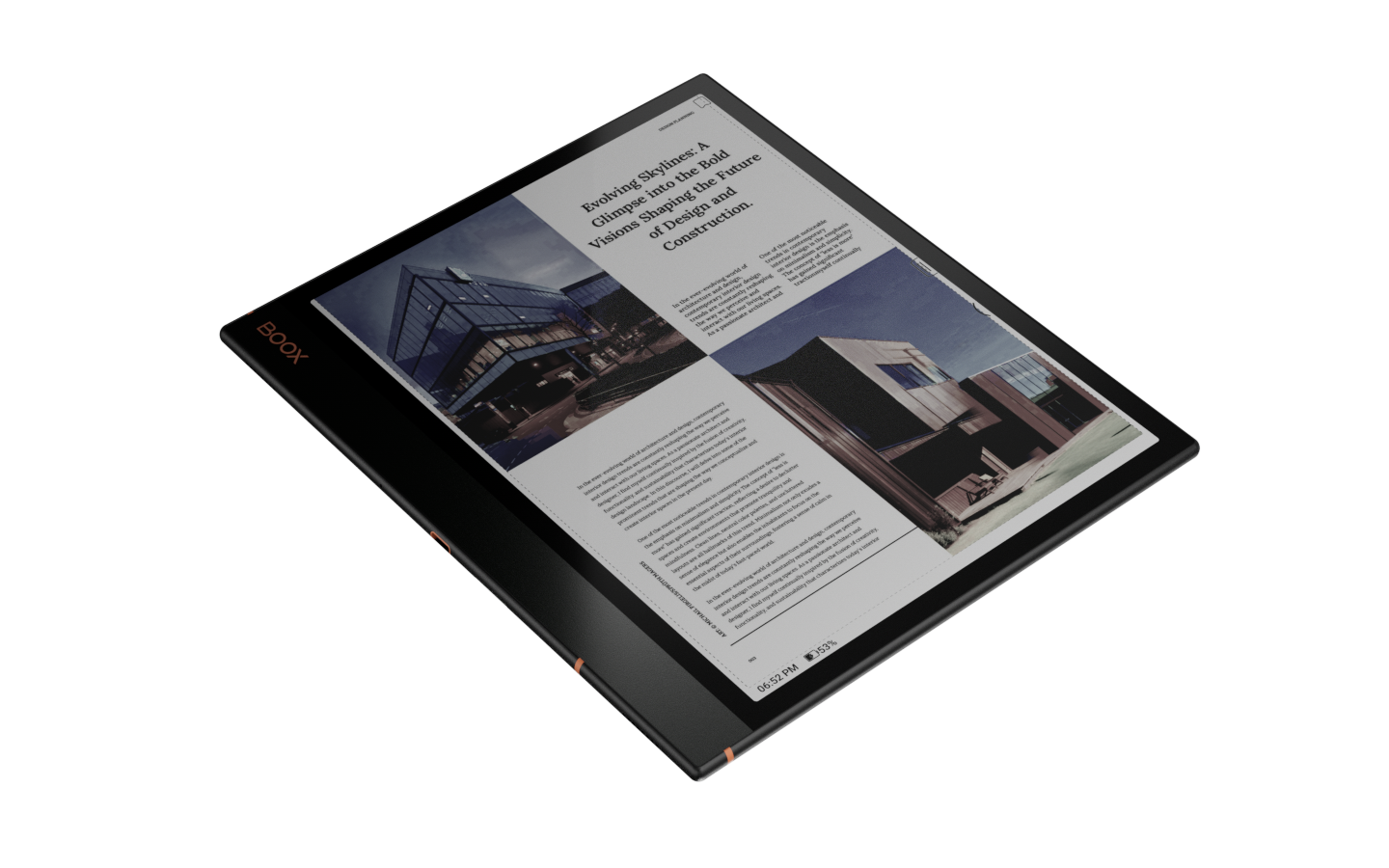
Onyx Boox Note Air 3 C
$499.99
Why recommend: Color display and full Android ecosystem for academic PDFs.
Best for: Users needing color and advanced PDF apps.
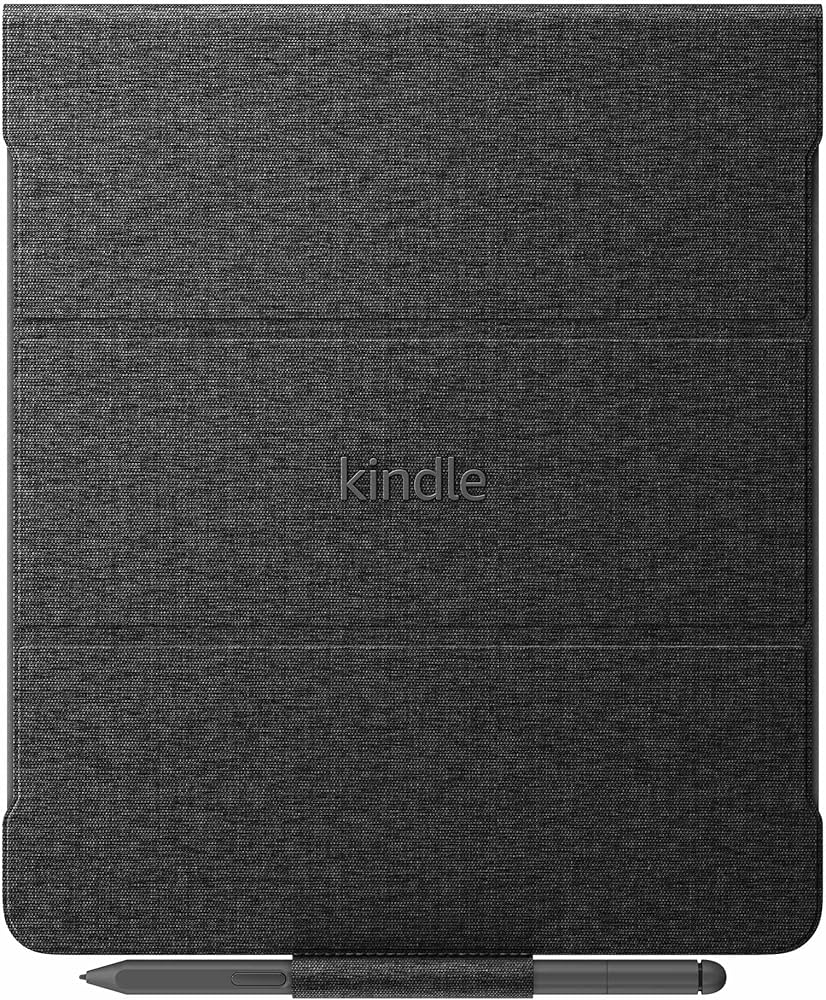
Amazon Kindle Scribe Fabric Case
$39.99
Why recommend: Official accessory with stand functionality.
Best for: Users reading at a desk or table.
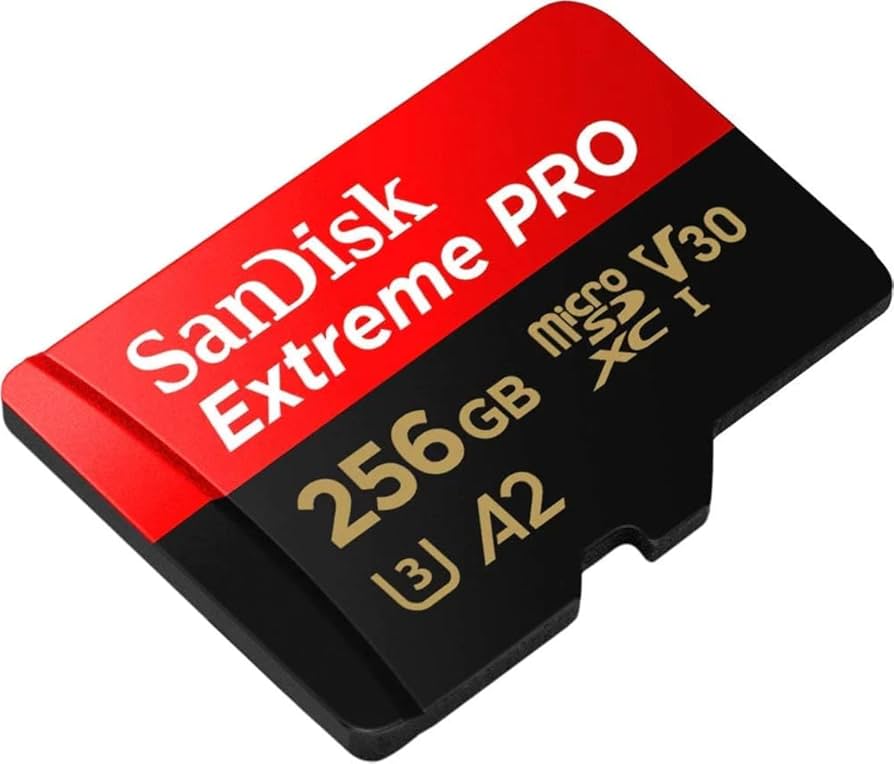
Sandisk Extreme Pro MicroSD 256GB
$39.99
Why recommend: Expandable storage for transferring large PDF libraries.
Best for: Users with extensive PDF collections.
Bottom Line
Ready to get the Kindle Scribe? Check the latest price on Amazon.
🛒 Buy on AmazonAs an Amazon Associate we earn from qualifying purchases.
Frequently Asked Questions
Is Kindle Scribe good for reading academic PDFs?
It is good for monochrome text-heavy PDFs with light annotation, but lacking for color, large files, or complex layouts.
Can you use Kindle Scribe for reading academic PDFs?
Yes, it supports PDF files via Send to Kindle, USB, or email. You can annotate with the pen.
Is Kindle Scribe suitable for reading academic PDFs with color graphs?
No, it has a grayscale display. Color graphs appear in shades of gray, losing information.
What's better than Kindle Scribe for reading academic PDFs?
Onyx Boox Note Air 3 C (color, Android apps) or reMarkable 2 (better annotation tools) are often better.
Does Kindle Scribe work for reading academic PDFs offline?
Yes, you can load PDFs via USB while offline and read without internet.
Kindle Scribe vs reMarkable 2 for academic PDFs: which is better?
reMarkable 2 has better PDF performance, layers, and lighter design, but Scribe has a front light and larger ecosystem. For heavy annotation, reMarkable wins.
Best accessories for Kindle Scribe for reading academic PDFs?
Premium Pen for better ergonomics, a case with stand for desk reading, and a screen protector for pen feel.
How to use Kindle Scribe for reading academic PDFs?
Transfer PDFs via Send to Kindle, open them in the Library, use the pen to highlight and write notes. Use collections to organize.
Does Kindle Scribe support search within PDFs?
Yes, you can search for text in your PDFs using the search bar.
Is the Kindle Scribe good for large PDFs (over 200 MB)?
It can be slow and may crash. It's better to split large PDFs into chapters.