
Quick Verdict
The iPad Air with Apple Pencil Pro is one of the best tools for digital note-taking available today. It delivers a nearly perfect writing experience, long battery life, and a fantastic app ecosystem at a price that undercuts the iPad Pro. Minor limitations like the 60Hz display don't detract from its core function. For most people, it's an outstanding choice.
✓ Key Strengths
- •Exceptional Apple Pencil Pro integration with low latency (9ms) and advanced features like hover and squeeze
- •Excellent palm rejection and scratch-resistant glass
- •Bright, anti-reflective Liquid Retina display with True Tone and natural colors
- •Long-lasting battery life (10 hours) that easily lasts a full day of classes or meetings
- •Powerful M-series chip handles heavy note-taking apps and multitasking without stutter
- •Wide selection of apps optimized for note-taking (GoodNotes, Notability, Freeform, Notes)
- •Portable and light – the 11-inch model weighs just 1.02 lbs, easy to carry like a notepad
- •Generous 128GB base storage, plenty for thousands of PDFs and note files
✗ Key Weaknesses
- •60Hz refresh rate – not as smooth as the 120Hz ProMotion on iPad Pro, though barely noticeable in normal handwriting
- •Only supports Apple Pencil Pro and USB-C, so older Pencil 2 won't work (requires buying a new stylus)
- •No Face ID – Touch ID on the top button is okay but slower and less secure than Face ID
- •Display brightness maxes at 600 nits, fine indoors but slightly hard to see in direct sunlight
- •No expandable storage (but 128GB base is plenty for most)
- •Slightly glossy screen can cause glare; solved with a matte screen protector
What is iPad Air?
What is note-taking with Apple Pencil?
Detailed Analysis
👍 Perfect For
- ✓Students who need to handwrite lecture notes and download slides – the combination of Apple Pencil Pro and apps like GoodNotes makes it the perfect digital notebook.
- ✓Professionals who annotate PDFs, fill out forms, and sign documents – the portability and battery life are ideal for traveling between meetings.
- ✓Artists who want to sketch ideas quickly and use the Apple Pencil Pro's advanced features like hover and barrel roll.
- ✓Journalers and writers who prefer a tactile, handwritten experience and want to keep everything organized in one device.
- ✓Lifelong learners who want to combine note-taking with audio recording and photo integration.
👎 Not Ideal For
- ✗Users on a very tight budget – the base iPad (10th gen) with an Apple Pencil USB-C is cheaper, but you'll miss out on Pro features like pressure sensitivity.
- ✗Professionals who need the absolute best display for digital art – the iPad Pro's 120Hz and mini-LED/OLED screen is superior for fine drawing.
- ✗People who only type notes – a laptop or iPad with a Magic Keyboard might be more efficient, though the iPad Air supports external keyboards.
- ✗Experienced users who already own an Apple Pencil 2 – you'll need to buy the new Pencil Pro, adding to the cost.
Use Case Scenarios
Student Taking Lecture Notes
A student attends lectures and wants to handwrite notes, annotate lecture slides, and occasionally record audio. They need a reliable, portable device that can keep up with fast writing and last through a full day of classes.
✓ Strengths
- Fast and responsive Pencil Pro is perfect for fast writing
- Split View and drag-and-drop between apps help with research and note organization
- Battery life reliably lasts full days of classes
- Scribble converts handwriting to text for searches and sharing
- Lightweight and slim – fits easily in a backpack or binder
✗ Weaknesses
- 60Hz screen can feel slightly less fluid when scrolling or switching apps quickly
- The glossy screen may have reflections under harsh lecture-hall lighting
- Price may be high for students on a budget, but base model with 128GB is a good value
💡 Workarounds
- Use a matte screen protector like Paperlike to reduce glare and add a bit of paper feel (it also helps if the screen feels too slick)
- Turn on Dark Mode to reduce eye strain during evening study sessions
- Download lecture slides in advance to avoid relying on internet during class
- Use iCloud backups or Google Drive to ensure notes are always saved
The iPad Air is arguably the best tablet for students taking notes. The combination of Apple Pencil Pro, a strong app ecosystem, and all-day battery life is unmatched in its price range. The minor display limitations are unlikely to impact the note-taking experience, making it a top recommended choice for students.
Professional Annotating Documents
A professional, such as a lawyer, manager, or engineer, needs to review and annotate PDFs, sign contracts, and make markups on reports. They value efficiency, portability, and a device that can also handle email and web browsing.
✓ Strengths
- Crisp and precise Pencil Pro for detailed annotations
- Extensive PDF annotation apps with cloud-based workflow
- Portability – fits in a manila folder or slim sleeve
- All-day battery allows processing documents on the go
- File management with split view and drag-and-drop between apps
✗ Weaknesses
- 60Hz screen can blur when rapidly flipping through long pages
- No Face ID – Touch ID occasionally slower to unlock when on a desk
- Some pro apps are expensive, but many are one-time purchases
💡 Workarounds
- Use the page slider in PDF apps to jump to sections quickly instead of continuous scrolling
- Set up Face ID or use a combination of a passcode and Touch ID for quick unlock (if you really miss Face ID, consider the iPad Pro)
- Invest in a quality PDF app like PDF Expert (supports offline access and advanced annotations)
- Use a tempered glass screen protector to maintain clarity while protecting the display
Professionals who annotate documents will appreciate the iPad Air's combination of precise stylus input, portability, and battery life. It may not have the flashy ProMotion display, but the core note-taking and PDF annotation experience is outstanding. It's a serious productivity boost for professionals on the move.
Artist Sketching Ideas
An artist, designer, or creative professional wants to use the iPad Air as a portable sketchbook to capture ideas, draw rough drafts, and create mind maps. They need pressure sensitivity, tilt, and a smooth drawing experience.
✓ Strengths
- Apple Pencil Pro's barrel roll and hover make sketching more intuitive
- Great performance in high-end drawing apps with many layers
- Portable and light – ideal for indoor and outdoor sketching
- Pressure sensitivity and tilt for expressive lines and shading
- Excellent color accuracy for a non-OLED display
✗ Weaknesses
- 60Hz refresh rate causes slight motion blur on fast lines, which serious artists may dislike
- Screen is not OLED or mini-LED, so black areas appear closer to dark gray and less contrasty in dark rooms
- 11-inch screen may feel cramped for large, sweeping drawings; the 13-inch alleviates this but costs more
💡 Workarounds
- Use slower, more deliberate strokes to minimize the perceived refresh issue
- Choose a 13-inch model for a larger canvas, and consider a matte screen protector for a more paper-like texture
- For serious digital paintings, consider the iPad Pro, which has a 120Hz ProMotion and OLED display
- Use apps with built-in line smoothing and stabilizers to reduce the effect of refresh lag (e.g., Procreate's Quill brush)
The iPad Air is more than capable for sketching and visual note-taking, but the 60Hz display and lack of a high-contrast panel prevent it from being an 'excellent' choice for serious artists. For casual and intermediate artists, it's a great value; for professionals, the iPad Pro is worth the extra cost.
Writer Journaling Daily
A person wants to keep a daily handwritten journal, reflecting on their thoughts, adding sketches, and possibly recording voice memos. They prefer the tactile experience of pen on paper but want the digital benefits of storage and search.
✓ Strengths
- Handwritten notes feel as fluid as writing with a pen
- Integration of multimedia: photos, voice recordings, and drawings in one entry
- Searchable handwriting (using Scribble or apps like GoodNotes)
- Long battery life for daily journaling habits
- iCloud backup ensures your journal is safe and synced
✗ Weaknesses
- Higher price compared to a simple paper journal
- The glass screen feels different from paper, which some writers dislike
- May be considered overkill if you only journal occasionally
💡 Workarounds
- Use a Paperlike or other matte screen protector to mimic the friction of paper
- Choose a specialized journaling app like Day One that offers beautiful templates and end-of-day summaries
- Set a daily reminder to encourage journaling, and use dark mode to reduce eye strain at night
- If cost is a concern, consider an iPad 10th gen (cheaper) but note it lacks Pencil Pro features
The iPad Air makes journaling a digital advantage, but the cost and slight screen texture differences make it 'good' rather than 'excellent' for a dedicated journaler. For someone who already owns an iPad Air or uses it for other things, it's a great secondary use. For a pure journaling device, there are cheaper alternatives, but the iPad Air's combination of features and portability is hard to beat.
Related Products You Should Consider
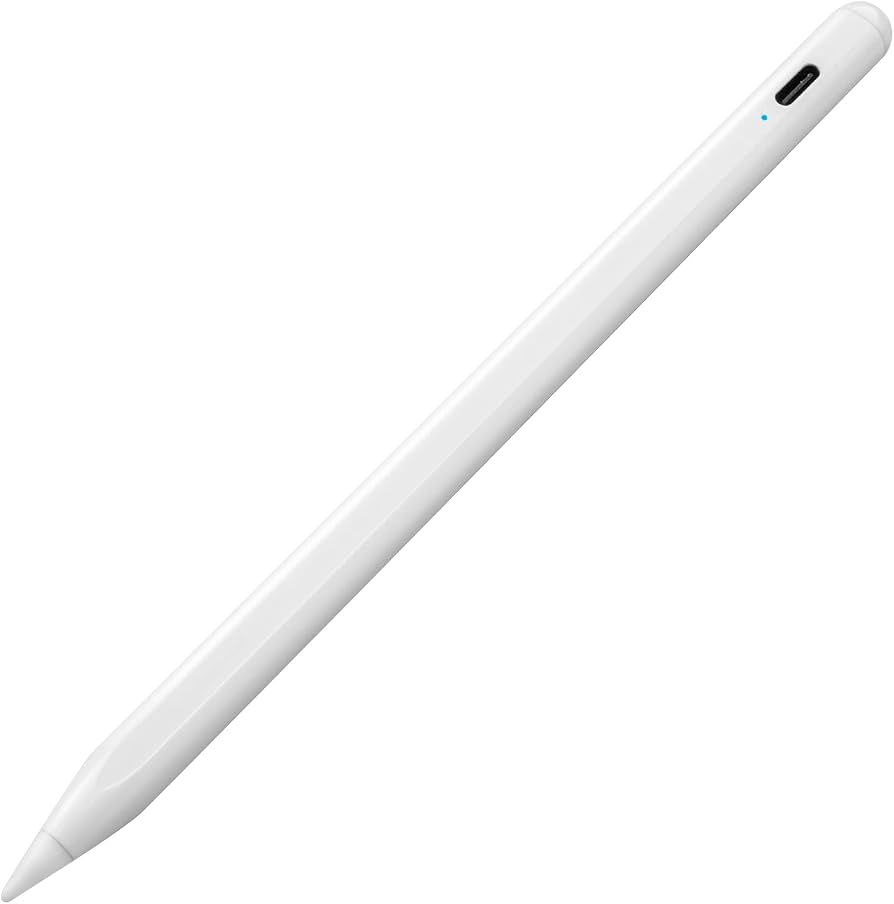
Apple Pencil Pro
$129.00
Why recommend: The Apple Pencil Pro is the best stylus you can pair with the iPad Air for note-taking. It offers all the features you need for precise writing and drawing, and it's the only way to access the full note-taking quality of latest iPad Air.
Best for: Anyone who wants the best note-taking experience on iPad Air, especially students, professionals, and artists.

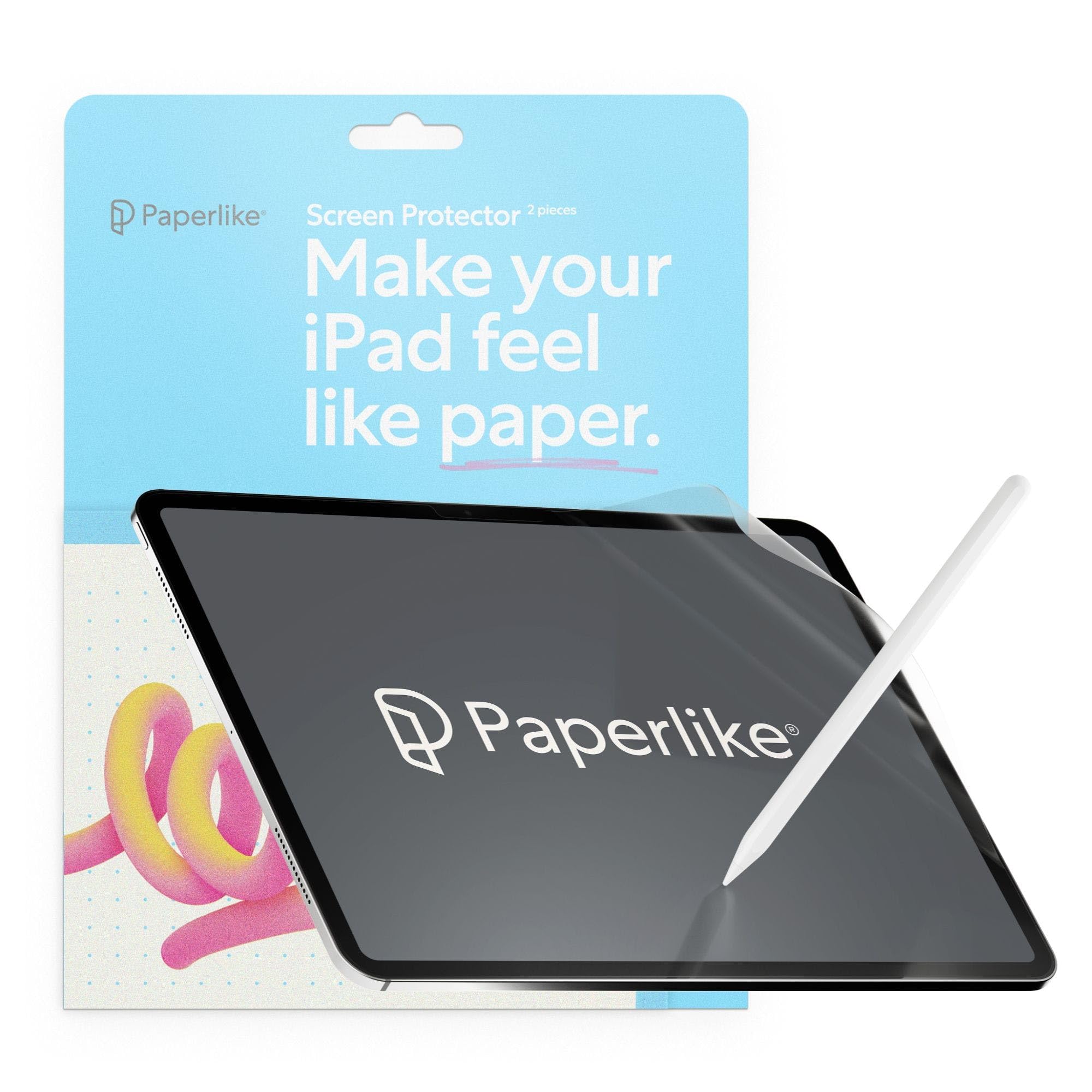
Paperlike 2.1 Screen Protector for iPad Air (11-inch)
$39.99
Why recommend: Many users report that the Paperlike screen protector dramatically enhances the Apple Pencil writing feel, making it feel like you're writing on actual paper. It also cuts reflections, which is great for lecture halls or bright offices.
Best for: Students and note-takers who want the closest experience to paper, or those who struggle with screen glare.
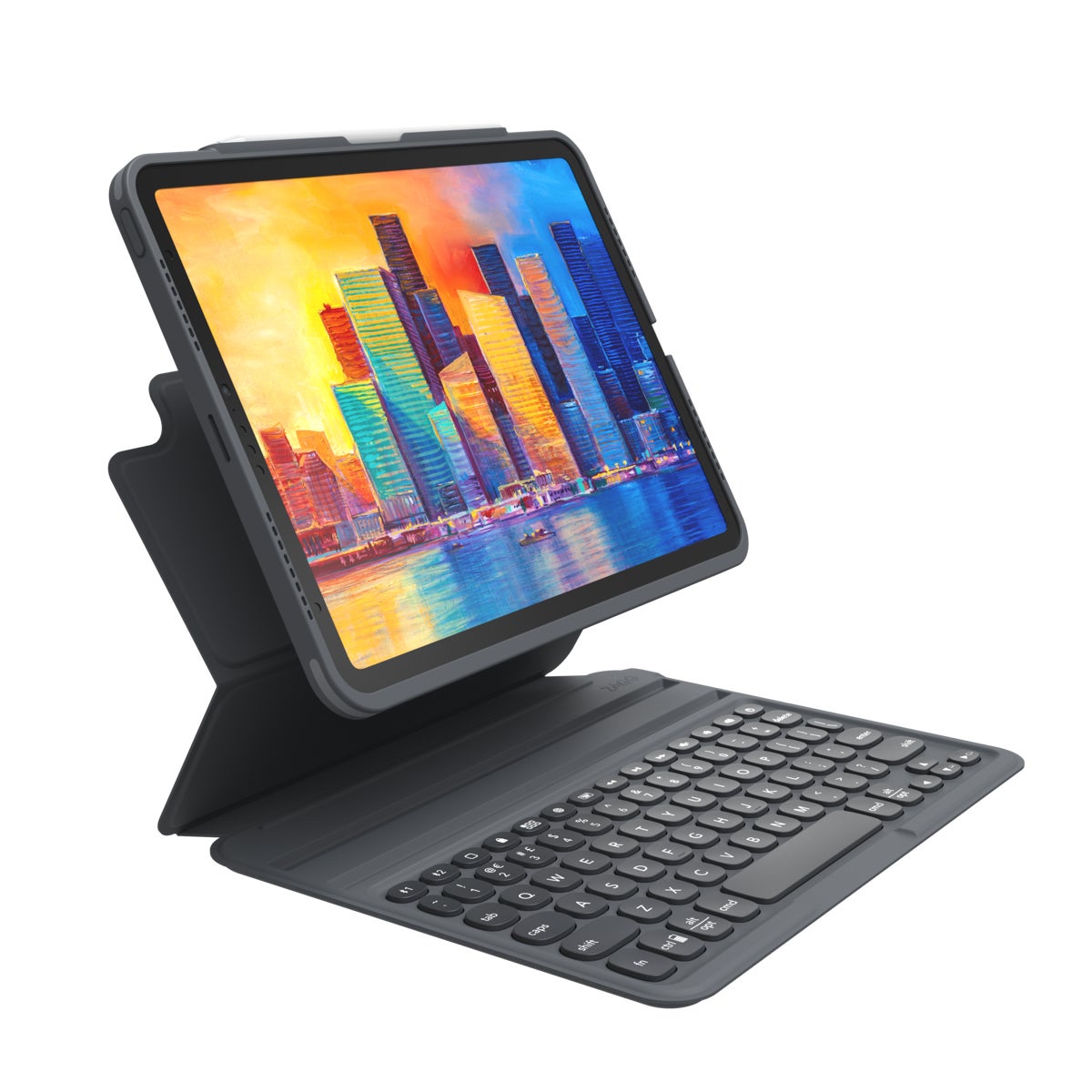
ZAGG Pro Keys Universal Keyboard for iPad Air
$99.99
Why recommend: This keyboard case enhances productivity by allowing you to switch seamlessly between handwriting with the Apple Pencil and typing on a full keyboard. It provides a laptop-like experience without compromising the note-taking capabilities.
Best for: Users who want a 2-in-1 setup for note-taking, research, and writing long emails or essays on their iPad Air.
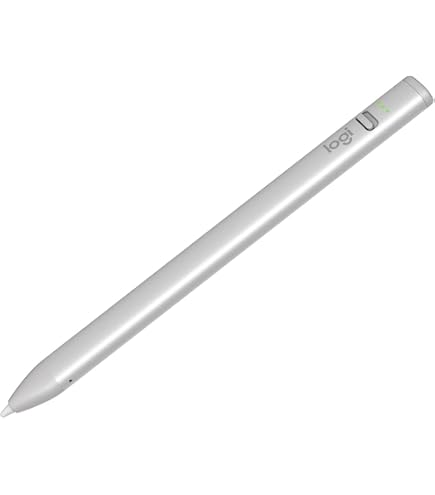
Logitech Crayon for iPad Air (USB-C)
$79.99
Why recommend: The Logitech Crayon is a budget-friendly stylus that covers the basics of note-taking at a significantly lower price than the Apple Pencil Pro. It's a great choice if you're on a tight budget or don't need advanced drawing capabilities.
Best for: Budget-conscious students, or users who primarily need a stylus for handwriting and simple annotations, and don't need pressure-sensitive drawing.
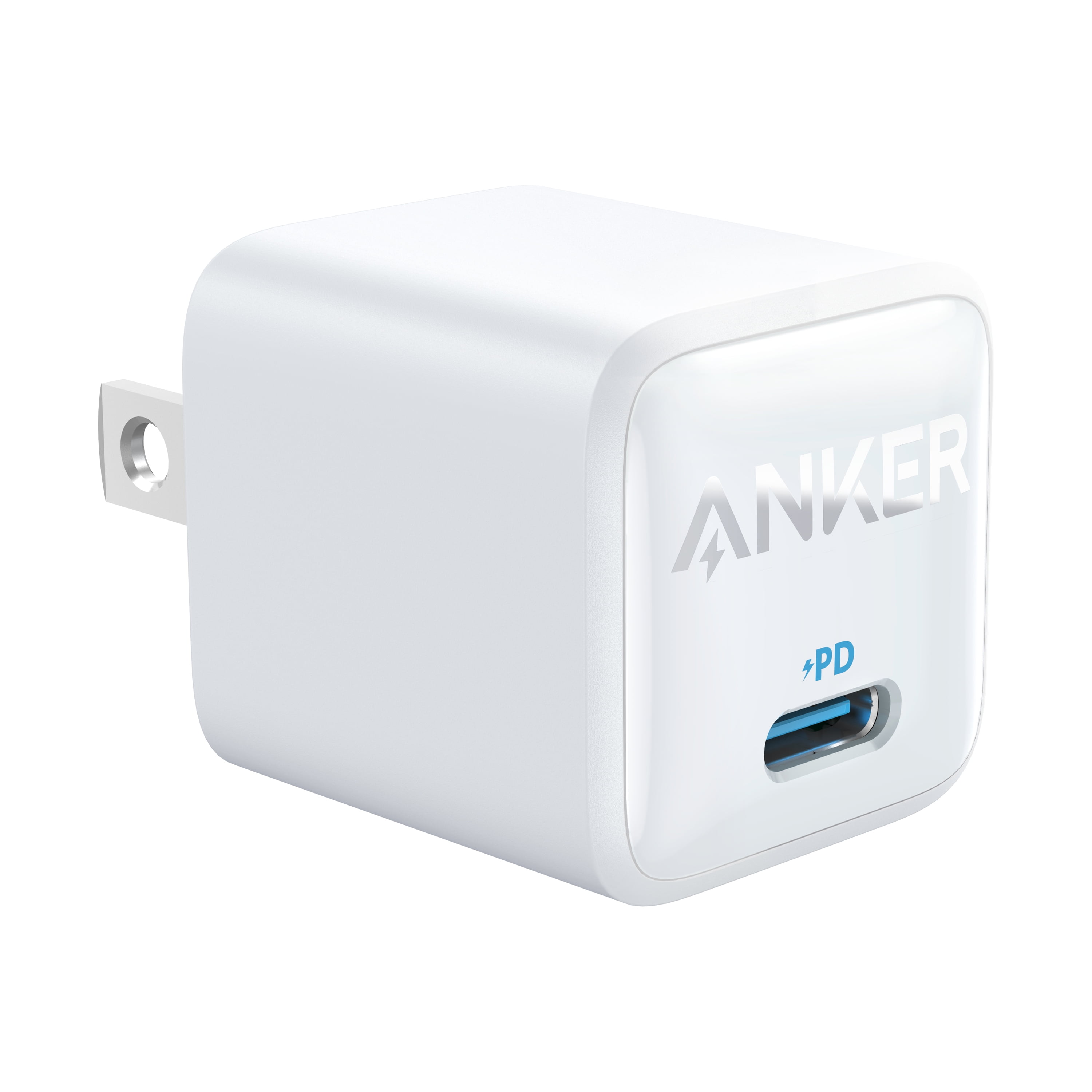
Anker 20W USB-C Charger with Power Delivery
$14.99
Why recommend: Although the iPad Air ships with a USB-C cable, it doesn't include a charger (in some countries). An additional charger is useful for keeping one at home, one in your bag, or as a backup.
Best for: Anyone who wants fast charging and a backup charger for on-the-go note sessions.
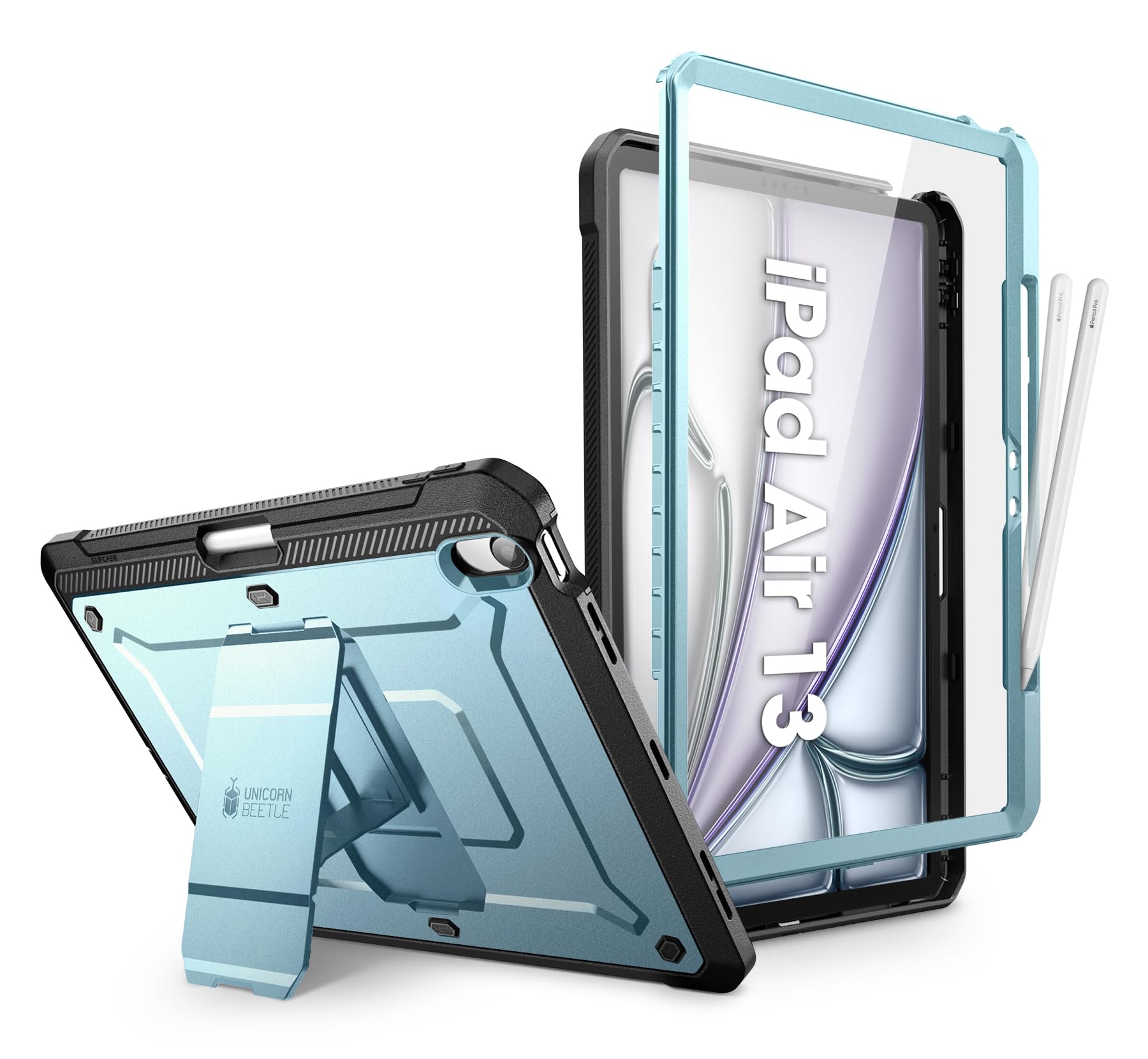
SUPCASE Unicorn Beetle Pro Series Case for iPad Air (with Pencil Holder)
$19.99
Why recommend: Protecting your investment is crucial, especially if you carry your iPad Air around campus or work. This case offers excellent protection and integrates your Apple Pencil, ensuring you never lose it.
Best for: Rugged users, students, and professionals who want a tough case that keeps the Pencil attached and protected.
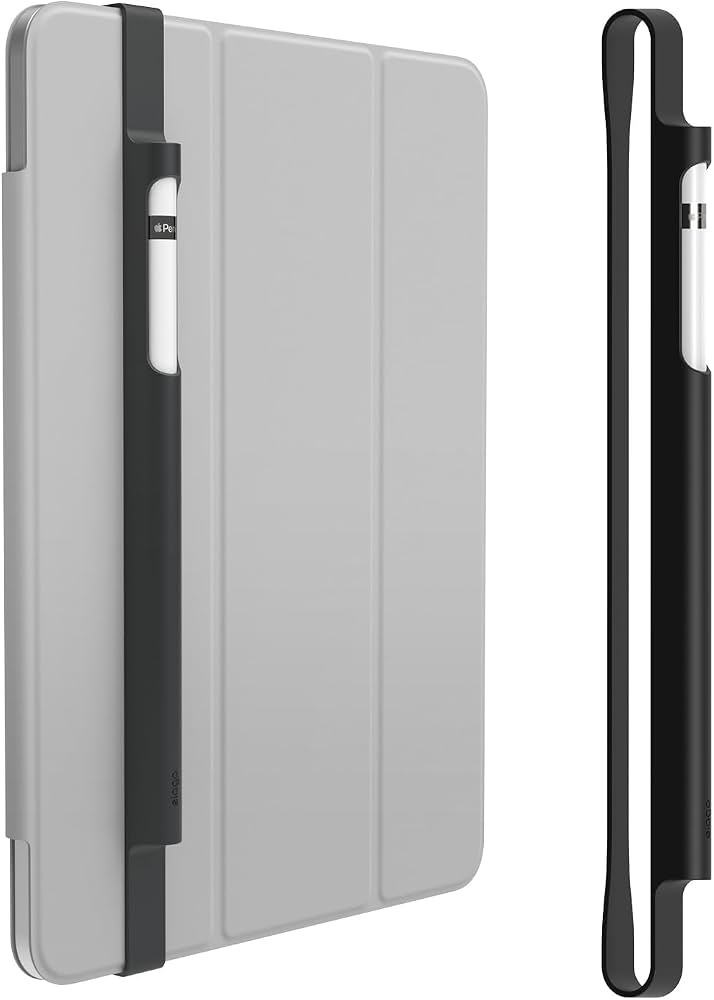
Elago Pencil Holder with AirPods Case
$12.99
Why recommend: A common issue with the iPad Air is that the Apple Pencil doesn't attach magnetically (except for the Apple Pencil Pro which does attach magnetically? Actually, the iPad Air does support magnetic attachment for the Pencil Pro, but the holder is still useful for carrying in a bag). This holder ensures your Pencil is always securely attached to your iPad.
Best for: People who want a minimal, lightweight way to keep their Apple Pencil with their iPad, especially when not using a case.
Bottom Line
Ready to get the iPad Air? Check the latest price on Amazon.
🛒 Buy on AmazonAs an Amazon Associate we earn from qualifying purchases.
Frequently Asked Questions
Is iPad Air good for note-taking with Apple Pencil?
Absolutely. The iPad Air offers an exceptional note-taking experience with the Apple Pencil Pro. It has low latency (9ms), excellent palm rejection, and full support for apps like GoodNotes and Notability. The 60Hz screen is a minor shortcoming, but for most users, handwriting feels extremely natural and responsive. It's one of the best value options for digital note-taking.
Can you use iPad Air for note-taking with Apple Pencil?
Yes, you can. The iPad Air (M2 and M3 models) is specifically designed to work with the Apple Pencil Pro and the Apple Pencil USB-C. You can use it to take handwritten notes, annotate PDFs, sketch diagrams, and more. Simply pair the Pencil with your iPad and start writing in supported apps like Apple Notes, GoodNotes, or Notability.
Is iPad Air suitable for students who take notes?
Yes, it's one of the best tablets for students. Its lightweight design, long battery life, and powerful performance make it ideal for taking notes during lectures. The iOS app ecosystem offers many note-taking tools with features like audio recording, searchable handwriting, and cloud sync. Many students already use the iPad Air as their primary note-taking device.
What's better than iPad Air for note-taking with Apple Pencil?
The only major step up from the iPad Air is the iPad Pro, which has a 120Hz ProMotion display for smoother writing and drawing, a superior M-series chip (e.g., M4), and better screen brightness and contrast (XDR or OLED). However, the iPad Pro costs significantly more. For most people, the iPad Air provides nearly the same experience at a much lower price, so it's a matter of budget and need.
Does iPad Air work with every Apple Pencil?
No. The latest iPad Air models (M2/M3) support only the Apple Pencil Pro (which has USB-C and supports all features) and the Apple Pencil USB-C (basic writing, no pressure sensitivity). They do not support the older Apple Pencil 1 or Apple Pencil 2. If you upgrade from an older iPad, you'll need to buy a new compatible Pencil.
How long does the battery last on iPad Air for note-taking?
The iPad Air has an advertised battery life of up to 10 hours of Wi-Fi web browsing or video playback, which translates to about 9-10 hours of continuous note-taking with the Apple Pencil. This is more than enough for a full day of school or work, and you can easily recharge overnight with a USB-C adapter.
What are the best note-taking apps for iPad Air?
Some of the best note-taking apps for iPad Air include GoodNotes 5/6, Notability, Apple Notes, Freeform, Noteful, and Zoho Notebook. These apps offer handwriting features such as shapes, highlighters, and audio recording. GoodNotes and Notability are the most popular among students and professionals due to their robust organization and search tools.
Do you need a screen protector for iPad Air when using Apple Pencil?
Not strictly necessary, but highly recommended. A matte screen protector like Paperlike adds friction, giving you a more paper-like writing experience and reducing glare. A tempered glass protector also protects the screen from scratches (the Apple Pencil tip can eventually leave micro-scratches). Many users prefer a matte protector for its texture, which enhances handwriting comfort.
Is the 60Hz refresh rate an issue on iPad Air for note-taking?
For most people, no. When writing or drawing normally, the 60Hz screen doesn't feel laggy. The Apple Pencil Pro's low latency is so good that the pencil feels immediate. However, if you also do lots of scrolling through PDFs or notice flicker in Procreate's high-fps brushes, the 120Hz on iPad Pro is smoother. For typical handwritten note-taking, 60Hz is perfectly fine.
Can I use the iPad Air with the Apple Pencil to convert handwriting to text?
Yes. iPadOS includes a feature called Scribble, which allows you to write on the screen with the Apple Pencil and have it converted to typed text in any text field. Additionally, many note-taking apps like Notability and GoodNotes have built-in handwriting recognition that lets you search your handwritten notes or convert them to printed text.
Is the iPad Air worth it for note-taking compared to the iPad (10th gen)?
The iPad Air is definitely worth the extra cost if you want the Apple Pencil Pro experience. The base iPad only supports the Apple Pencil USB-C, which lacks pressure sensitivity and other advanced features. The iPad Air also has a better display, a more powerful chip, and supports the Pencil Pro with hover and low latency, making note-taking significantly more natural. If your budget is very tight, the base iPad is still functional, but the iPad Air is the better investment for serious note-takers.
What accessories do I need to get started with note-taking on iPad Air?
You need an Apple Pencil Pro (recommended) or a compatible stylus, and a good note-taking app like GoodNotes or Notability (which often have free trials). A screen protector like Paperlike is a popular addition to improve writing feel. Optionally, a Bluetooth keyboard and a case with Pencil holder can round out your setup. Many of these accessories are available on Amazon.