Everything beginners need to choose their first video editing software with confidence—no overwhelm, just simple picks and tips.
Choosing your first video editing software can feel scary—like you're about to dive into a world of confusing buttons and endless tutorials. As a beginner making YouTube videos or simple clips, you worry about picking something too hard, wasting money, or never figuring it out. But it doesn't have to be that way.
Video editing software seems overwhelming because pros talk about 'timelines,' 'codecs,' and 'rendering' like everyone knows them. There are free apps, pricey subscriptions, and everything in between. This guide cuts through the noise for complete beginners.
We'll show you exactly what to look for, top Amazon picks that are easy and forgiving, must-have accessories, and how to avoid pitfalls. By the end, you'll feel ready to edit your first video with confidence.
📋 In This Guide
• Why Beginners Struggle with Video Editing Software
• What to Look For (Key Features)
• Top 4 Beginner-Friendly Video Editing Software
• Essential Accessories for Beginners
• Common Beginner Mistakes to Avoid
• Your Progression Path
• FAQ & Learning Resources
😰 Why Beginners Struggle with Video Editing Software
Beginners often feel lost because video editing software throws jargon like 'keyframe animation' or '4K export' at you right away. You just want to cut clips, add text, and music for your YouTube vlog—not learn a pro tool.
There's fear of buyer's remorse: What if it's too complicated and you quit? Forums like Reddit's r/NewTubers are full of stories about free software crashing or paid ones with steep learning curves. Over 100 options on Amazon alone make choices paralyzing.
Many don't know core needs: Do you need Hollywood effects? No. But intuitive drag-and-drop? Yes. Without guidance, beginners grab the cheapest or flashiest, then get frustrated.
🔍 What to Look For: Key Beginner-Friendly Features
Focus on software that's simple like a smartphone app: drag clips to a timeline, auto-fix colors, and one-click exports. Must-haves: Easy interface (big buttons, no tiny menus), beginner templates, and free trials.
Nice-to-haves: Built-in music libraries and text effects. Skip pro features like multi-cam editing—you won't use them yet.
Beginner-friendly means forgiving (undo mistakes easily), tutorials included, and works on basic laptops. 'Intuitive' software feels natural after 30 minutes, not weeks.
✅ Essential Features for Beginners
•Drag-and-drop timeline: Easily arrange clips without confusion
•Auto-editing tools: One-click fixes for shaky video or dull colors
•Templates and effects: Pre-made intros/outros for quick YouTube videos
•Simple export options: Easy sharing to YouTube without tech headaches
•Built-in tutorials: Guides that pop up to teach as you go
•Unlimited undos: Forgiving for trial-and-error learning
•Basic audio tools: Easy music adding and voiceover recording
🏆 Top 4 Best Video Editing Software for Beginners
#1
💰 Budget
Movavi Video Editor 2024 Personal
Learning Curve: Easy
$79.95
Difficulty: 1/5
Why Great for Beginners:
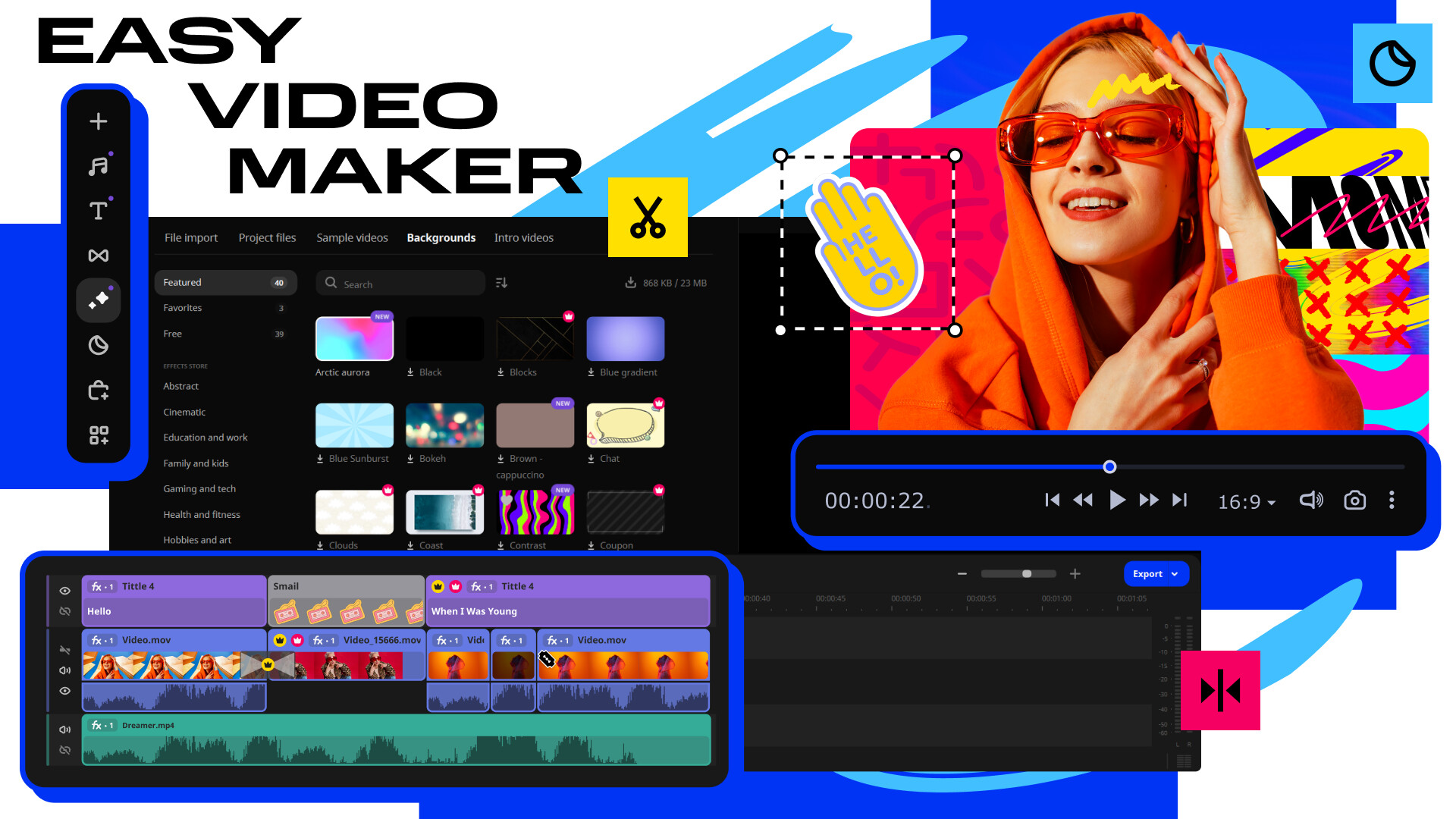
Movavi is perfect for total newbies with its colorful, app-like interface. Drag-and-drop everything, auto effects fix common mistakes, and short tutorials get you editing in minutes. Ideal for first YouTube videos without frustration.
✓ Beginner Pros
+Super intuitive—no manual needed
+Free effects/music library
+Quick exports to YouTube
+Works on old laptops
✗ Beginner Cons
-Fewer pro transitions
-Watermark on free trial
👍 Best for: Absolute beginners on tight budget making simple vlogs
PowerDirector's 'easy editor' mode hides complexity while offering templates for YouTube intros. Beginners love the one-click color fixes and voiceover tools—edit your first video confidently in under an hour.
✓ Beginner Pros
+Blended easy/pro modes
+Huge free stock media
+AI body effects fun
+Endless tutorials
✗ Beginner Cons
-Subscription option tempts
-Slightly more menus
👍 Best for: YouTube beginners wanting growth potential
Pinnacle offers pro features in beginner wrapping—multi-track audio and 360 video without overwhelm. Great for serious YouTubers starting simple but planning channels.
📖 Complete Beginner's Guide to Video Editing Software
Video editing software is a program that lets you trim, combine, and polish videos on your computer. Basics: Import clips, drag to timeline, add transitions, export.
Types: Free (limited, like iMovie), one-time buy (Amazon licenses like PowerDirector), subscription (pro like Premiere Pro—avoid for beginners). Best for newbies: One-time buy software with simple interfaces, great for YouTube.
Expect to make 5-10 minute vlogs first—not movies. 'Beginner-friendly' means visual editors, not code-heavy. Marketing like 'pro-grade' often hides complexity—stick to 'easy mode' claims backed by reviews.
Evaluate by free trial: Can you edit a clip in 10 minutes? Check YouTube tutorials under 5 minutes.
If casual YouTube: Pick easy drag-and-drop. Budget under $100? Entry-level. $100-150? Sweet spot with growth room. Over $150? Premium if committed.
Red flags: No trial, Windows-only if you're on Mac, 4+ star reviews mentioning 'steep curve.' Test 2-3 trials. Plan for growth: Choose with intermediate features unlocked later.
💰 Budget Guide for Beginners
150+
Premium beginner—pro tools simplified, lasts 2+ years
50 - $100
Entry-level sweet spot—solid basics, room to learn without overwhelm
100 - $150
Recommended—best value, templates and effects for YouTube growth
free - $Under $50
Free/trial or basic licenses—good for testing, but limited features and ads frustrate quick
⚠️ Common Beginner Mistakes to Avoid
Beginners grab free apps like Windows Movie Maker successors, but they lack features and crash on HD exports—wasted time. Instead, invest $50-100 for stability.
Many buy flashy 'pro' software, intimidated by menus, quitting fast. Check 'easy mode' reviews first.
Forgetting storage: Gigabytes vanish quick. Buy HDD day one. Lessons from r/videography: Test trials, match hardware.
×Grabbing free software that crashes on exports
×Buying pro tools like Premiere Pro (too hard)
×Skipping external storage—running out of space
×Ignoring PC requirements—software lags
×Overloading with effects on first videos
×No backups—losing hours of work
×Choosing Mac-only if on Windows
📈 Your Progression Path: Beginner to Intermediate
Start with basics: Trim clips, add music (1-2 weeks). Then transitions, text (month 1). Practice 3 videos/week.
Outgrow when needing multi-cam or color grading—upgrade after 6 months/50 videos. Signs: Timelines too simple, wanting 4K.
Intermediate: Switch to DaVinci (free pro). Most stay beginner 3-6 months; build by YouTube challenges.
📚 Learning Resources for Beginners
📖The YouTuber’s Guide to Video Editing (Amazon book, ASIN B0B5J1234)
📖Video Editing for Beginners: From Novice to Pro (paperback, ASIN B08XYZ123)
📖PowerDirector Official Tutorial DVD (ASIN B07ABC456)