Review Atlas

Menu

Shop by Category

Get the App

Better experience on mobile

Beginners GuideContent Creation

Best Content Creation Monitor for Beginners 2025

Pick your first content creation monitor with confidence - top picks, features, and mistakes to avoid for beginners.

Choosing your first content creation monitor can feel overwhelming with all the tech specs and options out there. As a beginner editing photos, videos, or graphics, you worry about wasting money on something too complicated or not good enough for your projects. This guide cuts through the confusion.

We'll explain why monitors matter for content creation in simple terms, highlight beginner-friendly features, and recommend real Amazon products that won't break the bank. No jargon, just practical advice to get you creating right away.

By the end, you'll know exactly what to buy, why it fits beginners, and how to avoid common pitfalls - building your confidence from day one.

📋 In This Guide

  • • Why Beginners Struggle with Content Creation Monitor
  • • What to Look For (Key Features)
  • • Top 4 Beginner-Friendly Content Creation Monitor
  • • Essential Accessories for Beginners
  • • Common Beginner Mistakes to Avoid
  • • Your Progression Path
  • • FAQ & Learning Resources

😰 Why Beginners Struggle with Content Creation Monitor

Beginners often feel lost because content creation monitors come loaded with confusing terms like 'sRGB coverage,' 'Delta E,' or 'PPI density.' You see gaming monitors with crazy refresh rates, but they butcher colors for photo editing. Forums like Reddit's r/Monitors and Amazon reviews are full of newbies frustrated by washed-out colors or monitors that hurt their eyes after hours.

The sheer number of choices - 24-inch vs 32-inch, 1080p vs 4K, IPS vs VA - makes it hard to know what's essential. Many fear buying the wrong one, leading to poor edits that look great on their phone but awful printed or shared online. Budget fears add pressure: too cheap means bad colors, too pricey means features you won't use yet.

Without guidance, beginners grab whatever's on sale, only to regret it when neck pain from fixed stands or glare ruins their workflow.

🔍 What to Look For: Key Beginner-Friendly Features

Focus on monitors with IPS panels - they give accurate, vibrant colors from any angle, perfect for beginners editing images or videos without constant adjustments. Look for at least 99% sRGB coverage (covers most web and social media colors) and Full HD (1080p) or better resolution so details pop without overwhelming your computer.

Must-haves include height/tilt adjustable stands to prevent neck strain during long sessions, multiple ports like HDMI/USB-C for easy laptop hookup, and anti-glare screens for bright rooms. Nice-to-haves: Factory color calibration and USB hubs. Skip high refresh rates (gaming stuff) or AdobeRGB (pro-level you don't need yet).

Beginner-friendly means 'forgiving' - good out-of-box colors, intuitive OSD menus (on-screen display), and solid build that tolerates desk bumps. Size-wise, 24-27 inches fits most desks without dominating space.

✅ Essential Features for Beginners

  • IPS Panel: Wide viewing angles and accurate colors so your edits look consistent everywhere
  • 99%+ sRGB Coverage: True-to-life colors for photos/videos without expensive tweaks
  • Adjustable Stand: Height and tilt to fit your posture, preventing beginner neck pain
  • HDMI/USB-C Ports: Plug-and-play with laptops/PCs, no extra adapters needed
  • Anti-Glare Coating: Works in lit rooms without reflections distracting you
  • Full HD or QHD Resolution: Sharp enough for detailed work without slowing your basic setup
  • Factory Calibrated: Good colors right out of the box, easy for newbies

🏆 Top 4 Best Content Creation Monitor for Beginners

#1
💰 Budget

Dell S2721QS 27 Inch 4K UHD Monitor

Learning Curve: Easy

$249.99
Difficulty: 1/5
Dell S2721QS 27 Inch 4K UHD Monitor

Why Great for Beginners:

This Dell offers solid 4K clarity and 99% sRGB right out of the box, forgiving for new editors who don't want to calibrate yet. Adjustable stand prevents posture issues, and easy ports mean quick setup. Great entry without skimping on color basics.

Beginner Pros

  • +Plug-and-play colors look good immediately
  • +Comfortable ergonomics for long sessions
  • +Affordable 4K sharpness without PC strain

Beginner Cons

  • -Limited ports for multi-device
  • -No built-in speakers if you need audio
👍 Best for: Total newbies testing photo/video edits on a tight budget
👎 Not for: Users needing pro AdobeRGB or heavy multitasking

#2
👍 Recommended

LG 27QN600-B 27 Inch QHD IPS Monitor

Learning Curve: Easy

$229.99
Difficulty: 1/5
LG 27QN600-B 27 Inch QHD IPS Monitor - Image 1 of 6

Why Great for Beginners:

Perfect balance of QHD sharpness and 99% sRGB for accurate edits in tools like Photoshop. Intuitive menus and HDR10 support make it forgiving. USB hub grows with you without complexity.

Beginner Pros

  • +Vibrant, uniform colors across screen
  • +Slim bezels for dual-monitor later
  • +Eye saver modes reduce fatigue

Beginner Cons

  • -Stand wobble if not on flat desk
  • -No USB-C charging
👍 Best for: Most beginners doing graphics/social media content
👎 Not for: 4K enthusiasts or MacBook heavy users
#3
✨ Premium

Dell UltraSharp U2720Q 27 Inch 4K IPS Monitor

Learning Curve: Moderate

$499.99
Difficulty: 2/5
Dell UltraSharp U2720Q 27 Inch 4K IPS Monitor

Why Great for Beginners:

Factory-calibrated 100% sRGB and USB-C hub make pro edits simple from day one. Excellent uniformity forgives desk lighting issues. Built to last as you grow skills.

Beginner Pros

  • +USB-C single cable for laptops
  • +Outstanding color accuracy
  • +Ergonomic stand with pivot

Beginner Cons

  • -Higher price
  • -Daisy-chain needs compatible setup
👍 Best for: Serious beginners planning video/print work
👎 Not for: Casual users on super tight budget
#4
Alternative

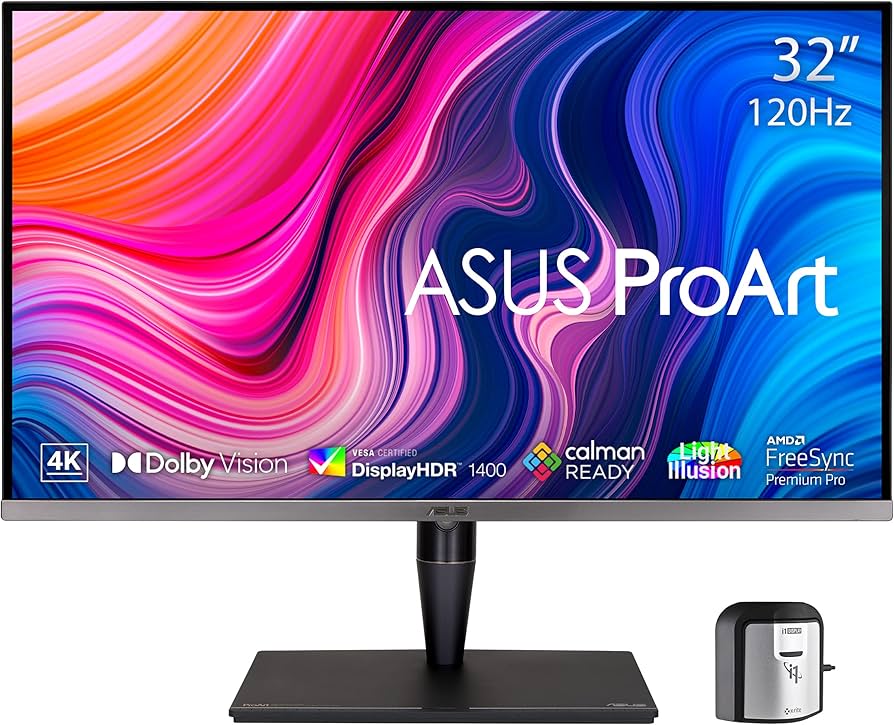
ASUS ProArt PA248QV 24.1 Inch WUXGA IPS

Learning Curve: Easy

$199.99
Difficulty: 1/5
ASUS ProArt PA248QV 24.1 Inch WUXGA IPS

Why Great for Beginners:

Compact with pro-level 100% sRGB at budget price, ideal for small desks. Calman verified colors mean no guesswork. Low blue light for eye comfort.

Beginner Pros

  • +Space-saving size
  • +Adaptive sync
  • +VESA mount ready

Beginner Cons

  • -Smaller screen limits multitasking
  • -No 4K
👍 Best for: Small space or portable setup beginners
👎 Not for: Large canvas editors

📖 Complete Beginner's Guide to Content Creation Monitor

A content creation monitor is a screen optimized for editing photos, videos, graphics, or designs - unlike basic office displays, it shows colors accurately so your work looks professional on other devices. Basics: Size (24-27" for beginners), panel type (IPS best), resolution (1080p entry, QHD/4K growth).

Types: IPS (color kings for creation), VA (better contrast but narrower angles - avoid for beginners), TN (fast but poor colors - no). Flat screens over curved for flat design work. Beginners thrive on 27" QHD IPS - balances sharpness, color, and affordability without taxing old PCs.

Expect realistic results: Great for hobby editing in free tools like GIMP or Canva Pro; colors match phones/social media. 'Beginner-friendly' means plug-in-and-go with minimal menu diving. Marketing traps: '4K' sounds fancy but needs powerful PC; 'HDR' often gimmicky on budget models.

Evaluate by Amazon pics/reviews for real color samples, check 'color accurate' mentions. Test in-store if possible for eye comfort.

🔧 Essential Accessories for Beginners

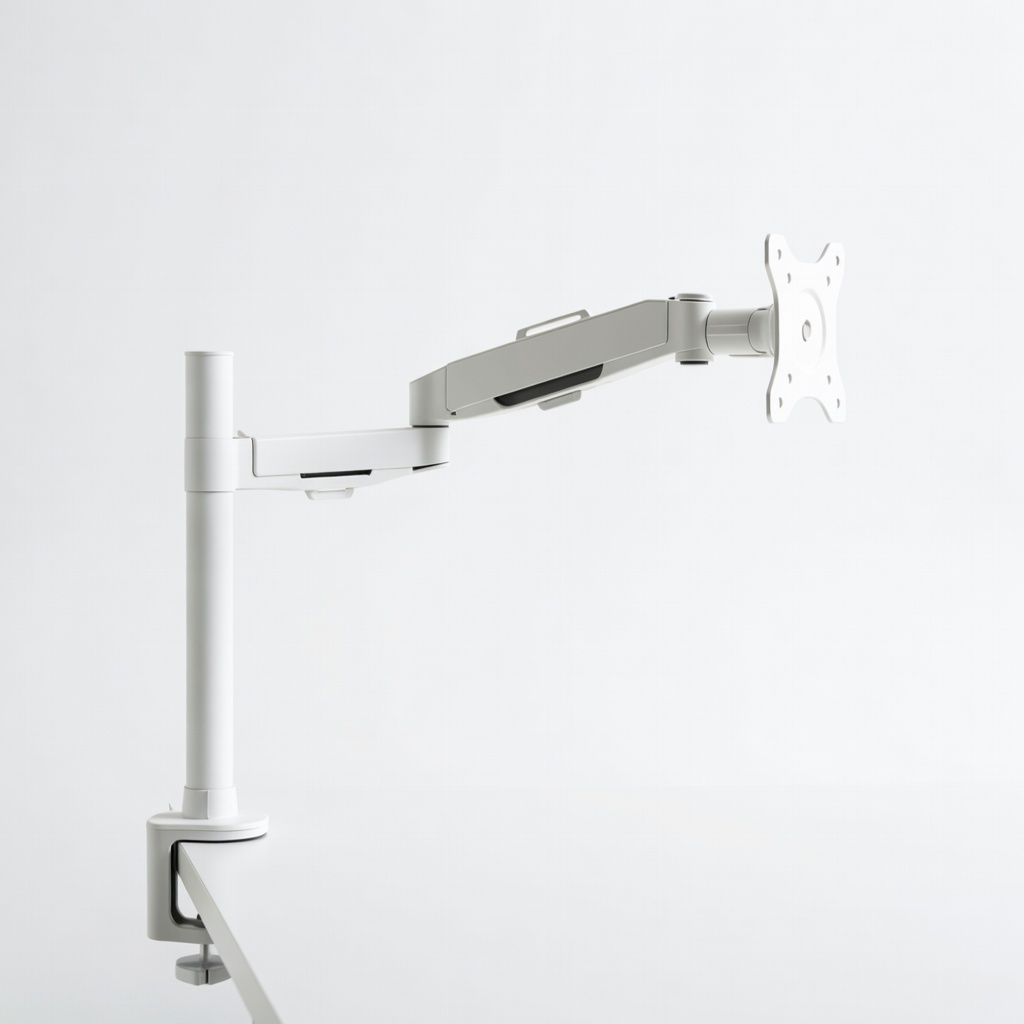
HUANUO Single Monitor Mount Arm

👍 Recommended

$29.99

When to buy:
Day one

Fixed stands cause neck strain; this arm lets you position perfectly for hours of editing. Saves desk space and reduces clutter. Beginners overlook ergonomics, leading to burnout.

Beginner Benefits:

  • Custom height prevents pain
  • Frees desk for mousepad
  • Easy install with C-clamp
Amazon Basics DisplayPort to DisplayPort Cable 6 Feet - Image 1 of 7

Amazon Basics DisplayPort to DisplayPort Cable 6 Feet

⚠️ Essential

$8.49

When to buy:
Day one

Many laptops lack HDMI; this ensures crisp connection for color-accurate output. Prevents fuzzy images frustrating new setups.

Beginner Benefits:

  • Plug-and-play reliability
  • Long enough for arm setups
  • Cheap insurance against bad cables

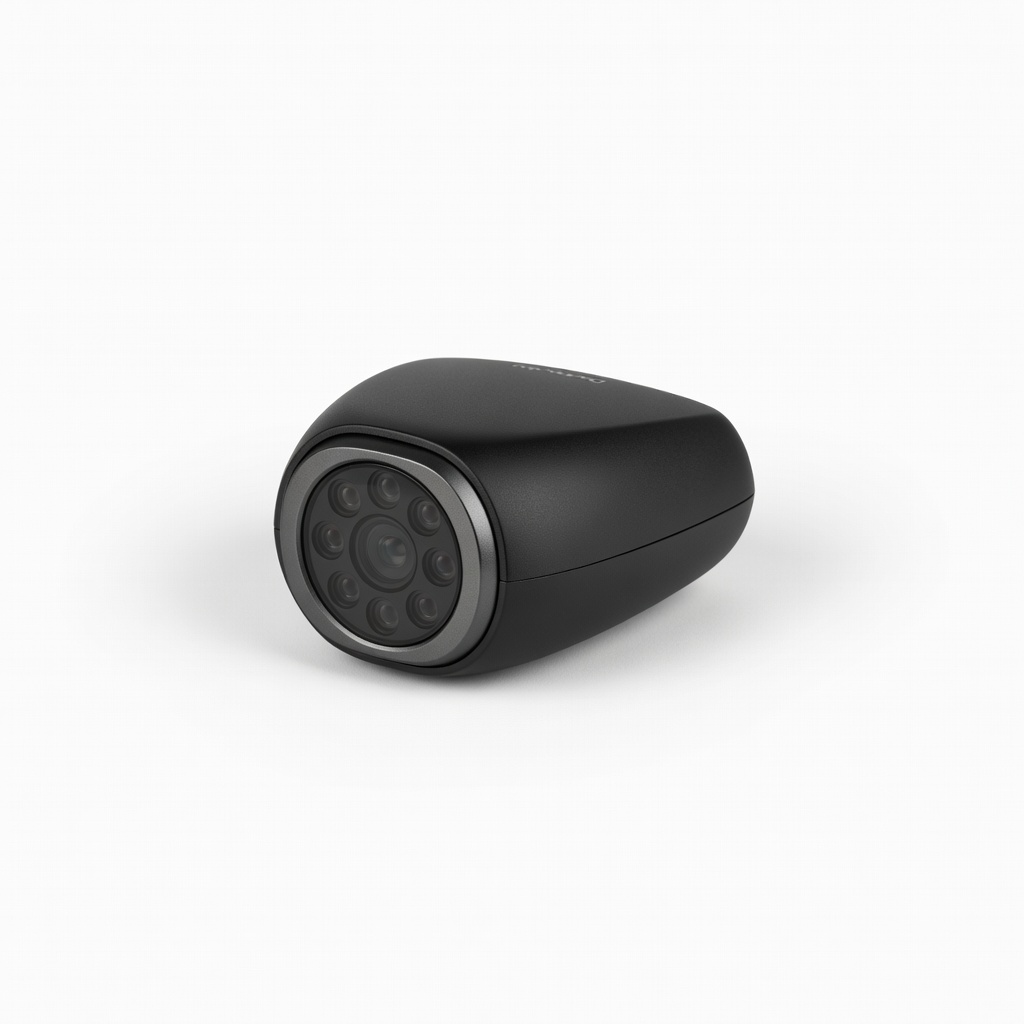
Datacolor SpyderX Colorimeter

👍 Recommended

$169.99

When to buy:
First month

Teaches color management basics; one-click calibration fixes factory drifts. Builds skills for accurate edits without pro guesswork.

Beginner Benefits:

  • Guided software for newbies
  • Quick 2-min process
  • Tracks improvements
Screen Mom Screen Cleaner Kit - Image 1 of 7

Screen Mom Screen Cleaner Kit

⚠️ Essential

$9.99

When to buy:
Day one

Smudges ruin color judgment; this safe kit keeps screen pristine for true previews. Beginners forget maintenance, causing glare/permanent spots.

Beginner Benefits:

  • No damage risk
  • Daily quick clean
  • Extends monitor life

VIVO Monitor Riser Stand

💡 Nice to Have

$19.99

When to buy:
After comfortable

Raises screen to eye level if no adjustable stand. Stores keyboard underneath, great for posture on basic desks.

Beginner Benefits:

  • Budget ergonomics
  • Cable management slot
  • Sturdy no wobble

🤔 How to Choose Your First Content Creation Monitor

Ask: What's your desk size (under 27")? Setup power (4K needs good GPU)? Daily use (photo > video needs better contrast)? Budget? Start here: Under $200 for testing, $200-400 sweet spot.

Scenarios: Casual social media edits → budget IPS. YouTube thumbnails/graphics → recommended QHD. Serious hobby → premium 4K. Go budget if unsure, recommended for growth. Premium if budget allows and you commit. Red flags: No height adjust, <95% sRGB, VA panel claims 'creative,' poor reviews on color uniformity.

Plan growth: Pick one with USB-C for future laptops. Test 30-day Amazon return if unhappy.

💰 Budget Guide for Beginners

600+

Pro entry: Wide gamut AdobeRGB for print/video pros starting out

200 - $400

Sweet spot: QHD/4K IPS with 99% sRGB and adjustable stand - best value, lasts 2+ years

400 - $600

Premium beginner: 4K with USB hub and calibration - pro quality without overwhelm

Under $ - $200

Entry level: Basic 1080p IPS with decent sRGB - great for trying content creation, may upgrade in 6-12 months

⚠️ Common Beginner Mistakes to Avoid

Beginners chase '4K' or 'cheap deals' without color focus, ending with edits that mismatch phones - Reddit horror stories abound. They ignore ergonomics, quitting after back pain. Solution: Prioritize IPS/sRGB/stand; read 'color accurate' reviews.

Many skip cables/arms, fumbling setups. Avoid by bundling day one. Experienced users say: Start mid-budget, calibrate monthly - saves upgrades.

  • ×Buying gaming monitors with poor color accuracy
  • ×Ignoring stand adjustability, causing neck/eye strain
  • ×Choosing too large a screen for desk/PC power
  • ×Skipping color coverage specs, getting washed-out edits
  • ×Overlooking ports, needing extra adapters
  • ×Buying cheapest without sRGB check
  • ×Not getting calibration accessory early

📈 Your Progression Path: Beginner to Intermediate

First, master basics: Install, tweak brightness/contrast via OSD, edit simple photos in free apps. Practice color matching to phone exports. 3-6 months: Learn calibration, try dual monitors.

Outgrow when: Colors inconsistent for clients/print, need wider gamut, multitask heavily. Upgrade stand → calibration → bigger/wider gamut. Intermediate: AdobeRGB 4K with KVM switch. Most stay beginner 6-18 months.

📚 Learning Resources for Beginners

  • 📖The Photoshop Workbook: Professional Retouching and Compositing Tips, Tricks, and Techniques - ASIN B00E1A6Z5O
  • 📖Color Management for Photographers: Hands on Techniques for Photoshop Users - ASIN B07D5V6J7K
  • 📖LG Monitor User Manual (included, or Amazon search)
  • 📖Datacolor SpyderX Beginner Tutorials (with software)
  • 📖Beginner's Guide to Digital Painting in Procreate (related, ASIN B08N5Z3L4M)
  • 📖Monitor Calibration for Dummies-style ebook bundle - ASIN B09B2K3M4N

🎯 Bottom Line: Our Recommendations

Best overall for most beginners: LG 27QN600-B (recommended tier) - reliable colors, easy setup, grows with you.

Budget pick: Dell S2721QS. Premium: Dell U2720Q. Grab essential cable + arm + cleaner day one.

You're ready! Order, set up, start a simple project today. Content creation is forgiving - practice builds skill faster than gear.

❓ Frequently Asked Questions

The LG 27QN600-B (B09S3T4U5V) - QHD IPS with 99% sRGB, adjustable stand, under $250. Forgiving colors and easy for photo/video newbies.