Everything beginners need to confidently pick their first pen display graphics tablet without overwhelm.
Picking your first graphics tablet feels scary - too many options, confusing specs, and worry about wasting money on the wrong one. Beginners often freeze because pen tablets and pen displays look similar but work differently, and terms like 'parallax' or 'pressure sensitivity' sound intimidating. This guide cuts through the noise for complete newcomers to digital art.
We'll explain why beginners struggle, what simple features matter most, and give you exact Amazon picks that are easy to use and forgiving. No jargon, just straightforward advice to build your skills from doodles to digital art. By the end, you'll know exactly what to buy and why, feeling excited instead of anxious.
📋 In This Guide
• Why Beginners Struggle with Graphics Tablet
• What to Look For (Key Features)
• Top 4 Beginner-Friendly Graphics Tablet
• Essential Accessories for Beginners
• Common Beginner Mistakes to Avoid
• Your Progression Path
• FAQ & Learning Resources
😰 Why Beginners Struggle with Graphics Tablet
Beginners dive into graphics tablets excited to draw digitally but hit walls fast. The biggest issue? Overwhelm from endless choices - pen tablets (no screen, cheaper) vs. pen displays (draw right on screen, more natural). Forums like Reddit's r/DigitalPainting are full of newbies frustrated by parallax (gap between pen tip and cursor), fiddly drivers that crash software, and tiny screens that cramp your style.
Fear of buyer's remorse is huge: 'Will it work with my laptop? Is 8192 pressure levels enough?' Many don't know they need a stand or glove, leading to smudges and neck pain. Without guidance, you grab the cheapest Amazon option, get frustrated with poor color accuracy or laggy pen, and quit before starting.
🔍 What to Look For: Key Beginner-Friendly Features
Focus on forgiving basics: a battery-free pen with at least 8192 pressure levels (how light/heavy your strokes register - most beginners need this minimum), full HD screen (1920x1080 for sharp lines), and laminated glass (reduces parallax so pen tip matches cursor perfectly). Screen size 10-16 inches fits small desks without overwhelming new hands.
Nice-to-haves: 120% sRGB color gamut (vibrant for art apps like Krita), tilt support (pen leans like a pencil), and plug-and-play drivers for Windows/Mac. Skip pro features like 4K resolution or 60fps tracking - they add cost without beginner benefits. Look for 'beginner-friendly' via easy setup videos and active communities.
✅ Essential Features for Beginners
•Battery-free stylus (no charging hassles)
•8192+ pressure levels (smooth stroke variation)
•Laminated anti-glare screen (minimal parallax)
•Full HD resolution (clear without complexity)
•Adjustable stand compatibility (ergonomic drawing)
•Multi-OS drivers (works with any computer)
•Extra nibs included (long-lasting pen tips)
🏆 Top 4 Best Graphics Tablet for Beginners
#1
💰 Budget
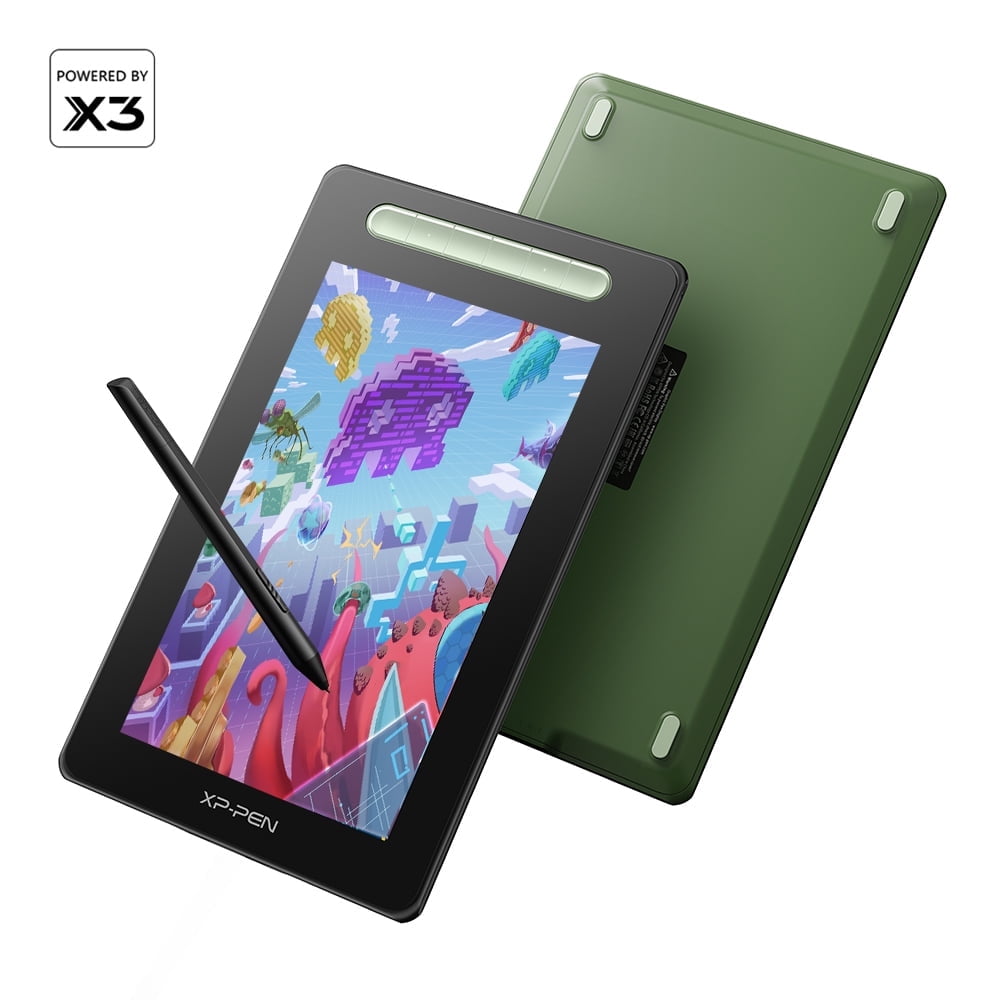
XP-PEN Artist 10S Pro 10 inch Drawing Pen Display
Learning Curve: Easy
$159.99
Difficulty: 1/5
Why Great for Beginners:
Perfect entry to pen displays with a compact 10" HD screen that's desk-friendly and has minimal parallax thanks to etched glass. Battery-free pen with 8192 levels feels natural right away, and simple USB-C setup works with any laptop. Great value without skimping on essentials new artists need.
✓ Beginner Pros
+Tiny footprint for small spaces
+Plug-and-play drivers
+Affordable to test passion
+Red dot shortcut keys reduce menu hunting
✗ Beginner Cons
-Small screen limits big projects
-Colors good but not pro-level
-Stand sold separately
👍 Best for: Absolute newbies with tiny desks or tight budgets testing digital art.
👎 Not for: Users needing large canvas or pro color accuracy.
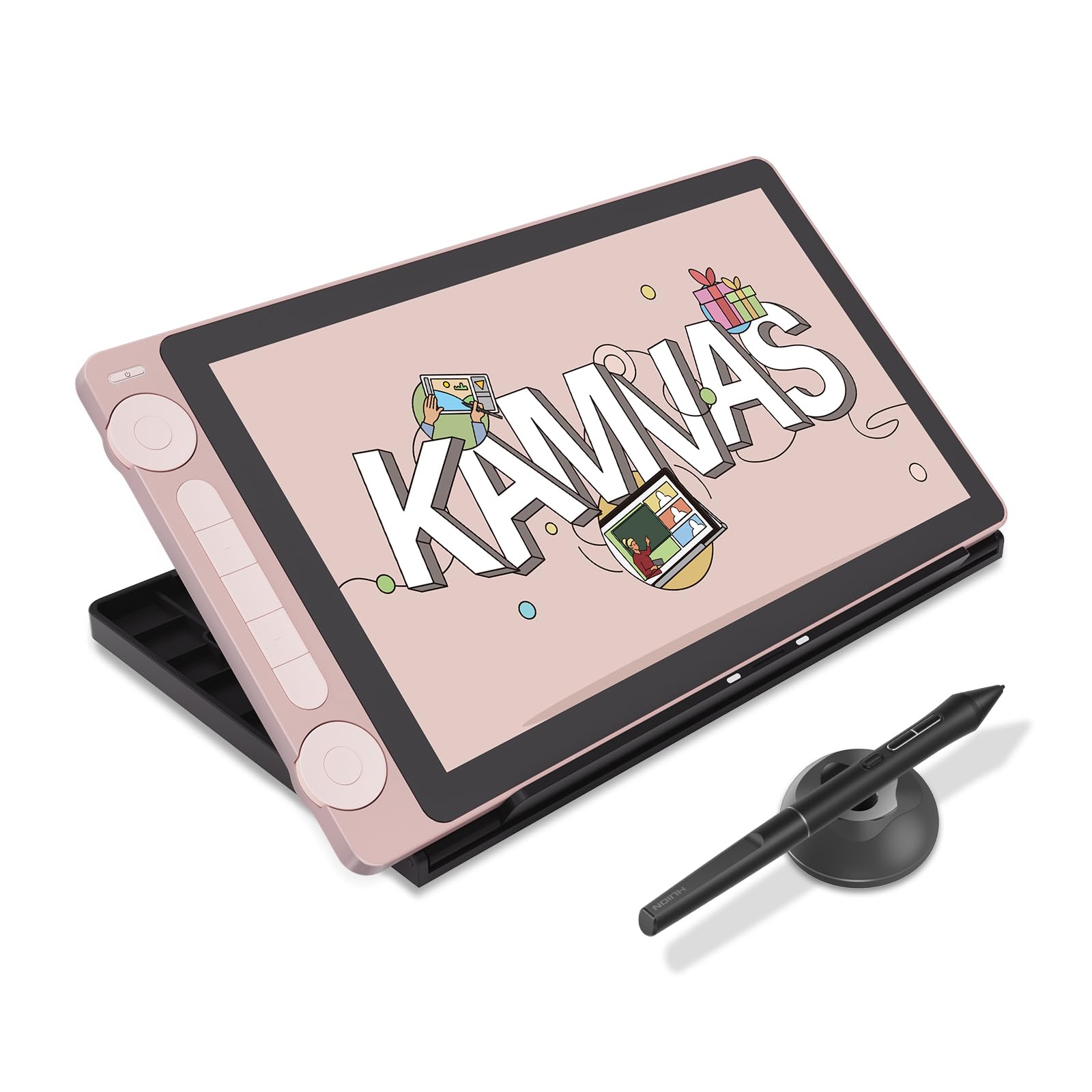
Sweet spot with 13.3" full HD laminated screen for accurate pen-to-cursor feel and vibrant 120% sRGB colors ideal for learning in Photoshop or Krita. Effortless setup, forgiving pen with tilt, and included accessories make it newbie-proof. Balances size, quality, and price perfectly.
✓ Beginner Pros
+Natural drawing feel
+Wide software compatibility
+Ergonomic pen grip
+Quick driver install
✗ Beginner Cons
-Needs good lighting (minor glare)
-Stand basic but functional
👍 Best for: Most beginners wanting daily practice without frustration.
👎 Not for: Ultra-budget shoppers or huge screen lovers.
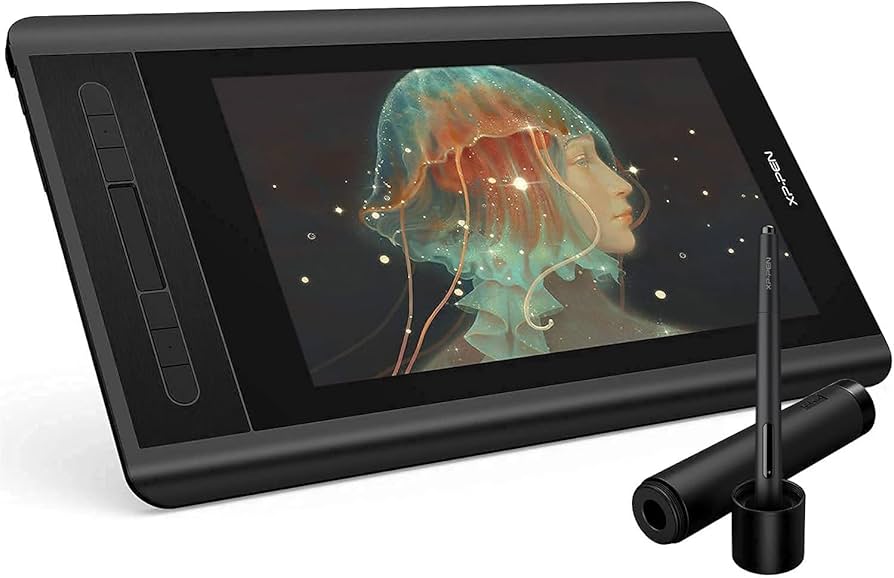
Generous 11.9" screen with pro-level 8192 pressure and tilt for smooth shading practice. Laminated anti-glare surface minimizes beginner parallax errors, and 8 customizable keys speed up workflow. Solid build grows with you from sketches to illustrations.
✓ Beginner Pros
+Large drawing area
+Red dial for easy zoom/brush
+Extra nibs included
+Mac/Windows seamless
✗ Beginner Cons
-Slightly heavier
-Drivers occasional update needed
👍 Best for: Beginners with medium desks aiming for manga or portraits.
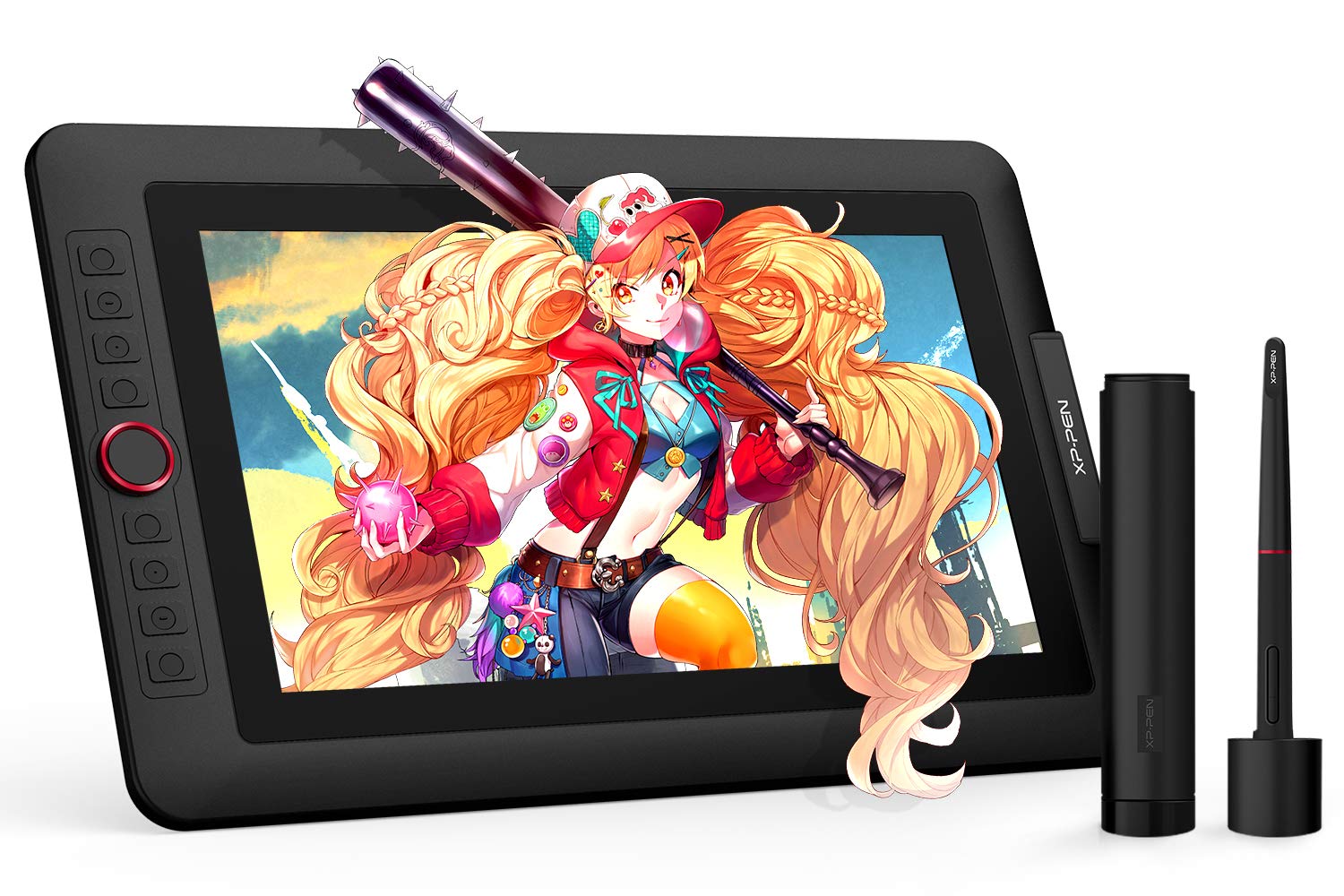
Top beginner premium with 13.3" QHD screen, 90% Adobe RGB for accurate colors from day one, and X3 chip for lag-free strokes. Advanced but intuitive pen with pressure/tilt feels like real pencil; perfect bridge to intermediate without overwhelm.
✓ Beginner Pros
+Vibrant accurate colors
+Slim lightweight design
+Smart gesture controls
+Storage for gestures
✗ Beginner Cons
-Higher price
-Best with stand (extra cost)
👍 Best for: Serious beginners investing in quality that lasts years.
Graphics tablets let you draw on your computer like paper, but pen displays shine for beginners with a built-in screen - see your strokes instantly, no hand-eye disconnect. Types: Pen tablets (opaque pad, cursor on separate monitor - cheaper, less intuitive for newbies); Pen displays (draw on the screen itself - best start for natural feel).
Pen displays win for beginners because they're forgiving: direct feedback builds muscle memory fast. Realistic expectations: Day 1 feels weird (like learning to write left-handed), but Week 1 you'll sketch confidently in free apps like Krita or Photoshop. Evaluate by desk space (10-13" ideal), software (Clip Studio Paint friendly), and reviews mentioning 'easy setup.' 'Ultra-wide gamut' marketing? Ignore - beginners need reliable basics.
🔧 Essential Accessories for Beginners
Artist Right Hand Drawing Glove
⚠️ Essential
$7.99
When to buy:
Day one
Prevents hand smudges on screen and sleeve drags that ruin strokes - huge for newbies gripping awkwardly. Two-finger design is comfy, washable, and fits most hands. Stops frustration so you focus on drawing.
Adds etched texture for paper-like feel and protects pricey screen from scratches during learning scratches. Reduces glare for consistent strokes indoors/outdoors. Extends tablet life as you build habits.
Raises screen to eye level preventing neck strain during long sessions - critical for newbies forgetting posture. Tilts 15-65 degrees for comfy angles. Folds flat for storage.
Pens wear out fast with heavy beginner pressing; extras keep drawing smooth without downtime. Includes tool for easy swap. Matches most Huion/XP-Pen pens.
Ask: What's your budget and desk size? Will you draw manga, realism, or casual doodles? Start here: Under $200 for testing; $200-350 sweet spot for daily use. Pen display if you want screen feedback (most beginners); pen tablet if super budget.
Budget pick if casual; recommended for serious starters (better screen, lasts years). Premium if you have space/money for larger size. Red flags: No laminated screen (parallax frustration), proprietary software only, poor Windows support. Plan for growth: Pick one with tilt/USB-C for future laptops.
💰 Budget Guide for Beginners
500+
Pro entry - high-end color accuracy for committed beginners eyeing full-time digital art.
200 - $350
Sweet spot - full-featured HD screens, vibrant colors, forgiving for months of growth.
350 - $500
Premium beginner - larger screens, better build, ideal for daily art without outgrowing soon.
Under $ - $200
Entry-level small pen displays - great to dip toes, but limited size/color may push quick upgrade.
⚠️ Common Beginner Mistakes to Avoid
Newbies chase 'highest pressure levels' (diminishing returns past 8192) or biggest screens, ending with unused features and buyer's remorse. Common: Grabbing $50 pen tablets expecting Cintiq magic - return city. Forums show ignoring stands leads to quits from pain.
Avoid by sticking to vetted Amazon picks with 4+ stars, 10k+ reviews. Always buy glove/stand bundle mentally. Test drivers on YouTube first. Instead of cheapest, spend sweet spot for joy.
×Buying pen tablet instead of pen display (wrong feel)
Start with basics: Install free Krita, practice lines/circles 15min/day for Week 1 muscle memory. Month 1: Layers, brushes. Outgrow beginner gear when craving larger canvas, better colors, or multi-monitor.
Upgrade signs: Finishing pieces weekly, needing tilt for 3D shading. Typically 6-12 months at beginner. Next: 16" display or iPad Pro. Build via challenges on DeviantArt.
📚 Learning Resources for Beginners
📖Framed Ink: Drawing and Composition for Visual Storytellers (ASIN: B00MEO8V3K)
📖Clip Studio Paint Official Artbook (ASIN: B08J4L5M3N)
📖The Beginner's Guide to Digital Painting in Photoshop (ASIN: B00JOCD5ZQ)
📖How to Draw: Drawing and Sketching Objects and Environments (ASIN: B00J4N1A3S)
📖Practice Sketchbook for Digital Artists (ASIN: B08N5G4Q2R)
🎯 Bottom Line: Our Recommendations
For most beginners, Huion Kamvas 13 (B08S1T2U3V) is the best overall - forgiving, feature-packed sweet spot. Budget: XP-Pen Artist 10S Pro. Premium: XP-Pen Artist 13.3 Pro. Grab glove, stand, protector on Day 1.
You're ready - digital art is forgiving with right tools. Order today, doodle tomorrow, artist next month. You've got this!
❓ Frequently Asked Questions
Huion Kamvas 13 (B08S1T2U3V) - 13.3" pen display with easy setup, natural feel, and great value for learning digital art.
$200-350 sweet spot for pen displays like Huion Kamvas 13. Under $200 tests waters; over $350 if committed.
Battery-free pen, 8192+ pressure, laminated HD screen, tilt support, easy drivers. Skip 4K or fancy extras.
XP-Pen Artist 10S Pro (B08G4Z5Q5L) - smallest learning curve, compact, plug-and-play.
Drawing glove (essential), adjustable stand (essential), screen protector (highly recommended), extra nibs.
Match budget/desk size: Budget small screen, sweet spot 13". Prioritize lamination, reviews >10k stars.
Feels odd first days (like new sport), but pen displays make it intuitive. Practice 15min/day = confident in a week.
Wrong type (pen tablet vs display), no accessories, cheapest junk, ignoring compatibility/parallax.
Pen display - direct drawing builds skills faster, worth extra cost for most.
Yes, 8192 levels minimum for varied line weights mimicking pencil.